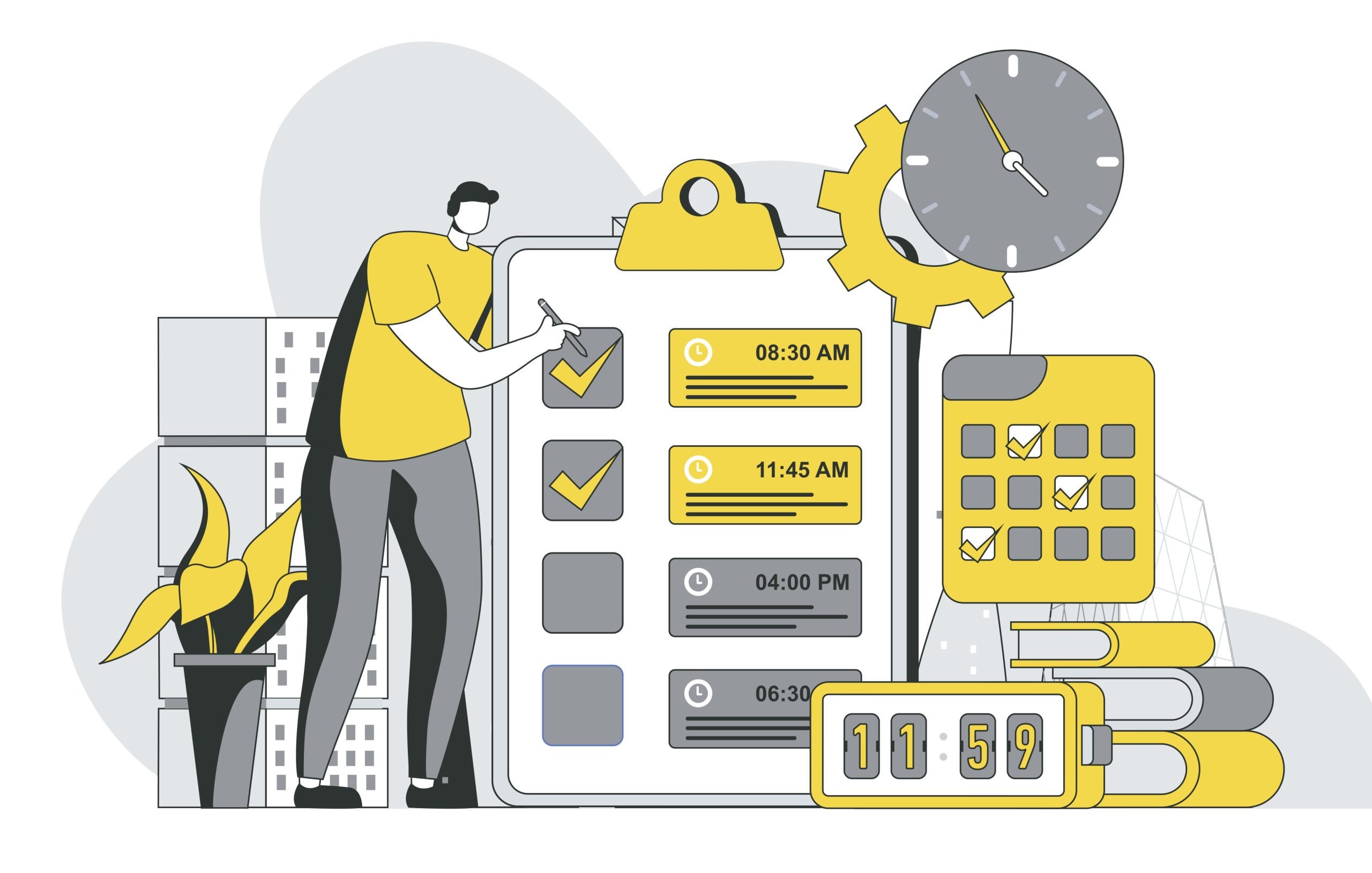
Imagine your AI agent cheerfully accepts a request to “schedule a message for the next Monday at 1 PM” and then proceeds to schedule it for the wrong day because it thinks today is still the previous week. Or worse, it schedules the message for Monday at 1 PM UTC when the user meant 1 PM in their local timezone. And the message annoyingly arrived in the middle of the night.
This isn’t a hypothetical scenario. It’s a real challenge that MCP servers face when implementing scheduling capabilities. The root cause? MCP servers don’t inherently know the current user’s date and time when tools are called.
Understanding the root cause
When an AI model calls an MCP tool, the server receives the request in isolation. No ambient context about the user’s current time, timezone, or locale accompanies the call. This lack of context is a subtle but significant obstacle for developers aiming to deliver a seamless user experience.
When a user says “schedule in 2 hours,” the AI needs the server’s current time to calculate the target. But when they say “schedule for next Monday at 1 PM,” the AI needs both the user’s timezone and today’s day of the week. Information it simply doesn’t have.
Server time and user time are fundamentally different. A server running in UTC doesn’t know the user’s local timezone. Day of week calculations require local context because “next Monday” means different things depending on what day it is today in the user’s timezone.
Example failure scenario
Consider this common case: a user in New York (EST, UTC-5) asks to “schedule a reminder for Monday at 1 PM.” The server runs in Frankfurt (UTC+1) or some cloud infrastructure on UTC. The message gets scheduled for the wrong Monday, wrong time, or both.
Our solution: A two-tool approach
At Infobip, we propose a two-tool approach to scheduling that solves both relative and absolute scheduling mentioned above.
Tool #1: Server time reference
We’ve introduced the get_current_server_utc_time tool, which provides a reliable temporal anchor for scheduling operations. Here’s the actual implementation:
@McpTool(name = "get_current_server_utc_time", description = GET_CURRENT_UTC_TIME_DESCRIPTION)
public String getCurrentUtcTime() {
    return getDatetimeFormat(ZonedDateTime.now(ZoneOffset.UTC));
}
The tool returns the current UTC time in ISO 8601 format, such as: 2026-01-23T18:45:00.000+0000. The magic isn’t just in the implementation. It’s in how we guide the AI to use the tool. Here’s our actual tool description:
Returns the current UTC date and time. Use this whenever you need to
schedule a message to be delivered some time in the future.
For example, if user asks you to schedule a message
to be sent 2 hours from now, you should call this tool
to obtain current date and time, add 2 hours to it,
and use the new date and time when sending the message.
Notice how the description explains what the tool does, specifies when to use it, and provides a concrete example. The description acts as inline documentation that guides the model’s behavior during tool selection and usage, and all of that with minimal overhead.
What this doesn’t solve
The tool doesn’t address absolute scheduling with day names like “next Monday at 1 PM.” It also can’t handle user timezone awareness. And so, calculating “next Monday” still requires knowing the today’s day of the week in the user’s timezone. Something that this tool doesn’t provide.
Tool #2: User Context
To address absolute scheduling and timezone-aware requests, we’ve introduced a complementary tool: get_user_datetime_context. This tool would return:
{
  "datetime": "2026-01-23T14:30:00-05:00",
  "timezone": "UTC-05:00",
  "day_of_week": "Thursday"
}
The tool enables absolute scheduling, timezone-aware calculations, and natural language date references, like “this weekend” or “next week.” The implementation is still straightforward and simple.
@McpTool(name = "get_user_datetime_context", description = GET_USER_DATETIME_CONTEXT_DESCRIPTION)
    public UserDatetimeContext getUserDatetimeContext(
            @McpToolParam(description = "timezone") String timezone
    ) {
        var zoneId = getTimezone(timezone);
        var zonedDateTime = ZonedDateTime.now(zoneId);

        return new UserDatetimeContext(
                getDatetimeFormat(zonedDateTime),
                zonedDateTime.getOffset().toString(),
                zonedDateTime.getDayOfWeek().toString()
        );
    }
Implementation considerations
You can implement this tool in several different ways.
Client-side implementation works well for apps where the MCP client can detect the user’s timezone automatically and provide context on the server’s behalf.
Server-side implementation with parameters means accepting timezone as an optional parameter from the user and storing it in their session or profile.
Or you could take a hybrid approach. Default to a server-detected timezone (often UTC) but allow the client to override with an explicit timezone parameter.
The choice depends on your architecture and whether your MCP server has access to user session context or must infer it from requests.
What this solves
The tool handles absolute scheduling, but it can also work for relative scheduling. An LLM could request the current time using UTC as the timezone, but the tool description may steer it toward the dedicated server time tool instead.
This is intentional. Simple, focused tool descriptions lead to more reliable tool selection. A single versatile tool with a complex description may seem elegant, but it often hurts LLM performance. Two specialized tools with clear use cases get the right answer almost 100% of the time. The extra context overhead is negligible, but the improvement in user experience is significant.
Context window impact and trade-offs
A common concern when adding tools is context window consumption. We’re going to analyze the real impact now, by examining the number of tokens consumed at each stage, tool description, tool call, and tool response.
The analysis will break down these figures for each tool individually, followed by a combined total, so you can clearly see how their utilization affects the overall context window.
To conduct the analysis, you’ll need two tools:
- MCP Inspector to inspect our MCP server,
- Online tokenizer, such as GPT Tokenizer and ChatGPT tool calls
Now, let’s break down the impact of each tool. Tool output and tool input results were extracted from ChatGPTs GPT 5.2 model tool calls and verified using the online tokenizer.
Server time tool impact
Tool description: 74 tokens
Tool input: 1 token
Tool output: 21 tokens
Total impact: 96 tokens
User context tool impact
Tool description: 139 tokens
Tool input: 2 tokens
Tool output: 42 tokens
Total impact: 183 tokens
Total impact
When integrating AI tools into your workflow, it’s crucial to consider how each tool affects your system’s available context and overall efficiency.
For us, with a combined impact of 279 tokens and modern models offering 200k+ context windows, this represents about 0.09% of available context.
The model may do some thinking before making a decision which costs a little bit more, but in the grand scheme it is taking fewer tokens than the query.
To Sum up
Time-aware scheduling in MCP servers isn’t a solved problem out of the box. Without explicit tooling, AI agents lack the temporal context they need to interpret user requests accurately, leading to frustrating misscheduled messages and confused users.
The two-tool approach we’ve outlined addresses this gap pragmatically. The server time tool provides a reliable UTC anchor for relative scheduling, while the user context tool supplies the timezone and day-of-week information needed for absolute scheduling. Each tool has a focused purpose and a clear description, which helps LLMs select the right tool consistently.
All this while keeping the context window cost to minimum.
If you’re building MCP servers that handle any form of scheduling, consider implementing similar tools early in your design. The complexity is low, the integration is simple, and the alternative, debugging mysterious timezone bugs in production, is far more expensive.