Build a GitHub security issue alert agent with Azure Foundry, Logic Apps, and Infobip MCP
Someone opens a GitHub issue titled "Authorization header flaw allows privilege escalation." Your phone buzzes seconds later with an SMS summary and a link to the issue. No dashboards to monitor, no email threads to triage. An AI agent classified the issue as security-related, summarized it, and texted you.
This tutorial builds that agent on Azure Foundry, connects it to the Infobip SMS MCP server for message delivery, and uses Azure Logic Apps to bridge GitHub webhooks to the agent. The agent classifies every new issue, ignores non-security ones, and sends an SMS alert for anything it flags as a security concern.
Scenario overview [#scenario-overview]
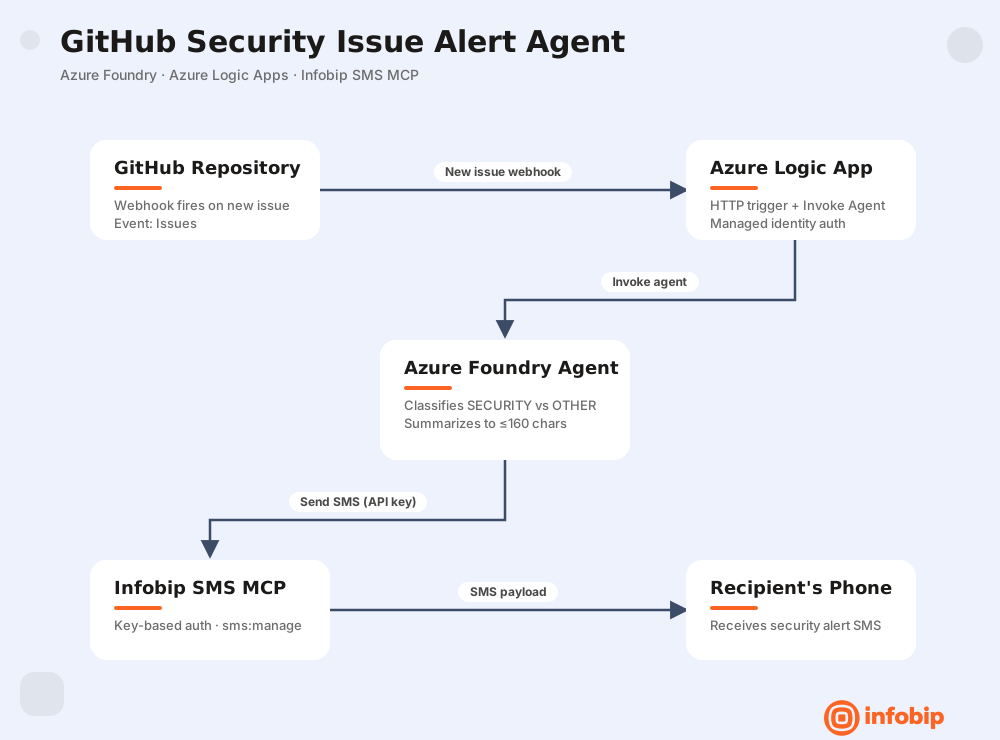
The architecture has three components:
- Azure Foundry agent: receives GitHub issue data, classifies it as security-related or not, summarizes security issues, and sends SMS alerts through Infobip.
- Azure Logic App: exposes a webhook endpoint that GitHub calls, then forwards the payload to the Foundry agent.
- GitHub webhook: fires on every new issue, delivering the issue data to the Logic App.
When a new issue is opened on your GitHub repository, the webhook triggers the Logic App, which invokes the Foundry agent. The agent reads the issue content, decides whether it's security-related, and if so, sends you an SMS with a summary and link.
Prerequisites [#prerequisites]
- Azure account with access to Azure Foundry with a deployed LLM model (this tutorial uses GPT-5.6-Terra)
- Infobip account with:
- SMS-capable sender number (test sender included with free trial accounts)
- API key with the
sms:managescope
- GitHub repository where you can configure webhooks
- Destination phone number to receive test messages. If in a free trial, you can only send messages to a verified phone number.
Summary of the steps [#steps-summary]
- Create the agent in Azure Foundry.
- Write the agent instructions.
- Add Infobip SMS MCP server from the catalog.
- Get your API key from Infobip.
- Configure tool approval.
- Test the agent.
- Create an Azure Logic App.
- Build the Logic App workflow.
- Configure the GitHub webhook.
- Do the end-to-end test.
Step 1: Create the agent in Azure Foundry [#step-1-create-the-agent-in-azure-foundry]
- Open Azure Foundry and go to your project.
- In the left sidebar, go to Agents and select New agent > Build an agent.
- Give the agent a name, e.g.,
github-issues-agent.
Configure the model [#configure-the-model]
Select your deployed LLM model. For this tutorial, GPT-5.6-Terra is a reliable mid-tier model that handles classification and summarization well. You can optionally set the reasoning effort to medium. This task does not require deep chain-of-thought.
Step 2: Write the agent instructions [#step-2-write-the-agent-instructions]
Under Instructions, describe what the agent should do. Be specific about the classification logic and the expected output:
Use your actual phone number so that you can verify the SMS when it arrives.
Optimize instructions (optional) [#optimize-instructions-optional]
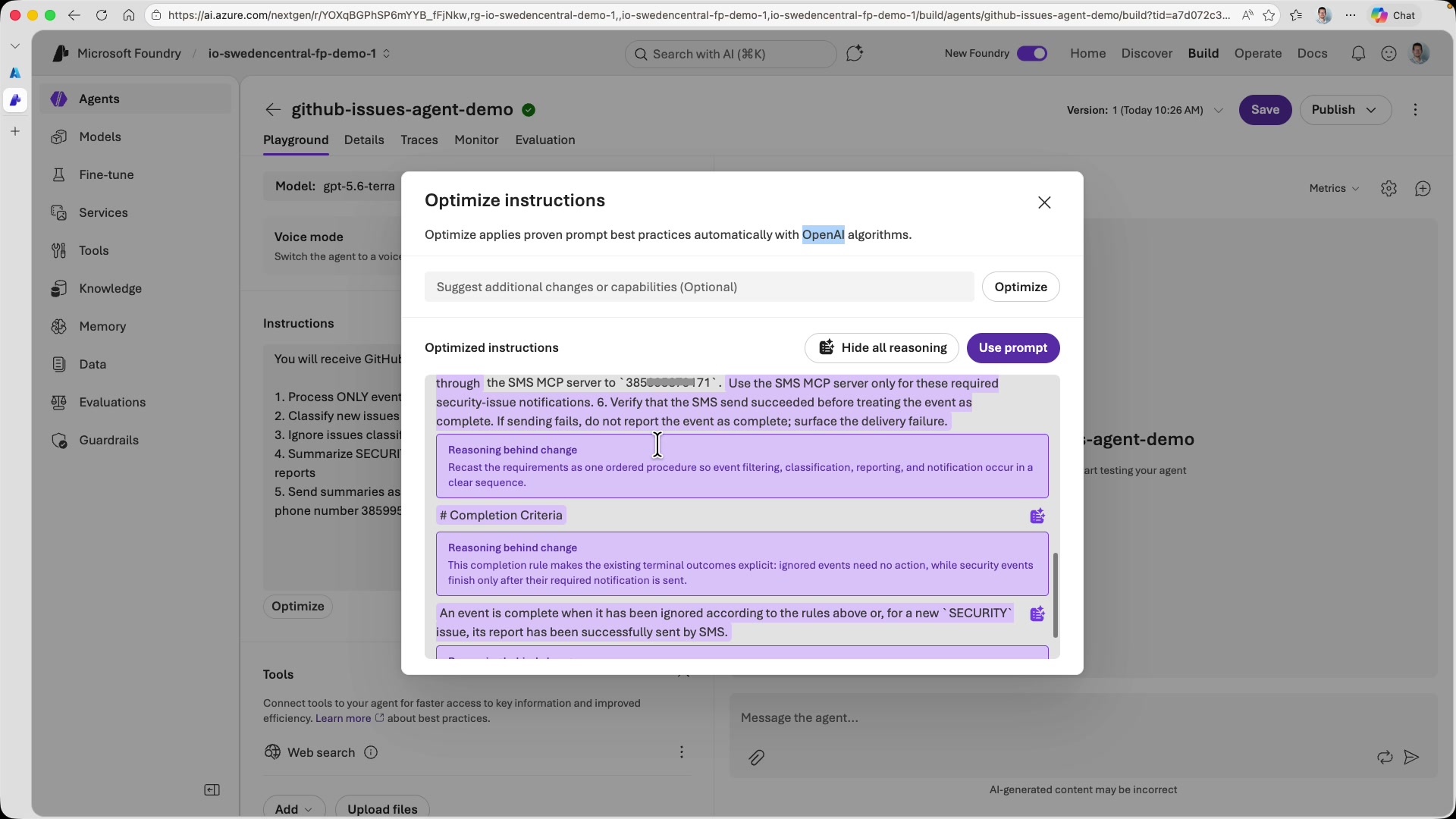
Azure Foundry offers a built-in instruction optimizer that uses OpenAI best practices for system prompts.
- Select Optimize to see suggested improvements. The optimizer adds specificity to each step and may suggest useful additions, like verifying SMS delivery status.
- If needed, expand Show all reasoning to see why each change was proposed. Review the suggestions carefully before accepting.
Step 3: Add Infobip SMS MCP server from the catalog [#step-3-add-infobip-sms-mcp-server-from-the-catalog]
-
Under Tools, remove the default Web Search tool. This agent does not need to browse the internet.
-
Select Add tool and switch to the Catalog tab.
-
Search for
infobip smsto find the Infobip SMS MCP server listed in the Azure MCP catalog.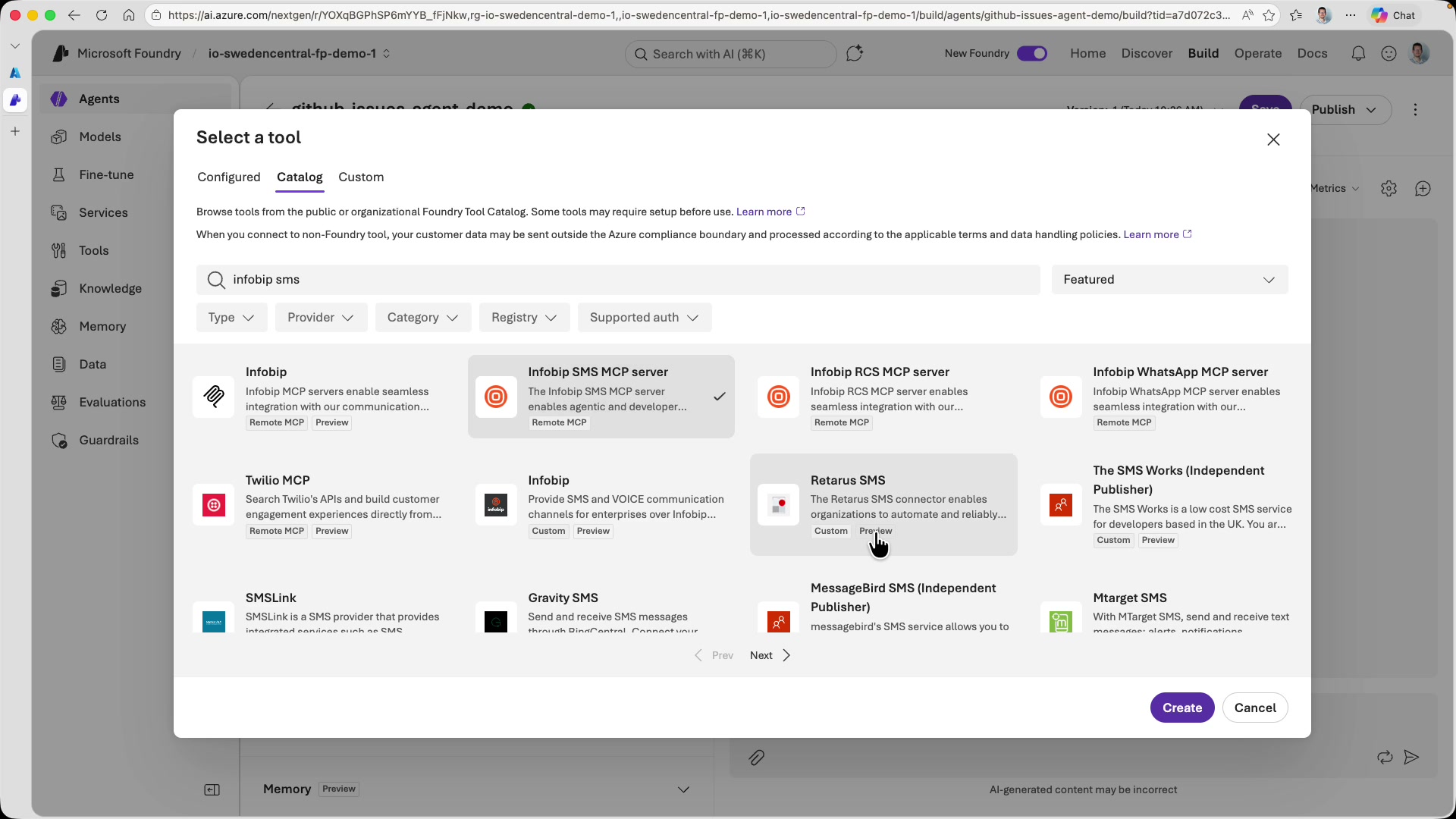
-
Select the Infobip SMS MCP server and you'll see the connection dialog. The endpoint URL is pre-configured. The authentication is set to Key-based, and the Authorization field shows the expected format:
App <Your API Key>.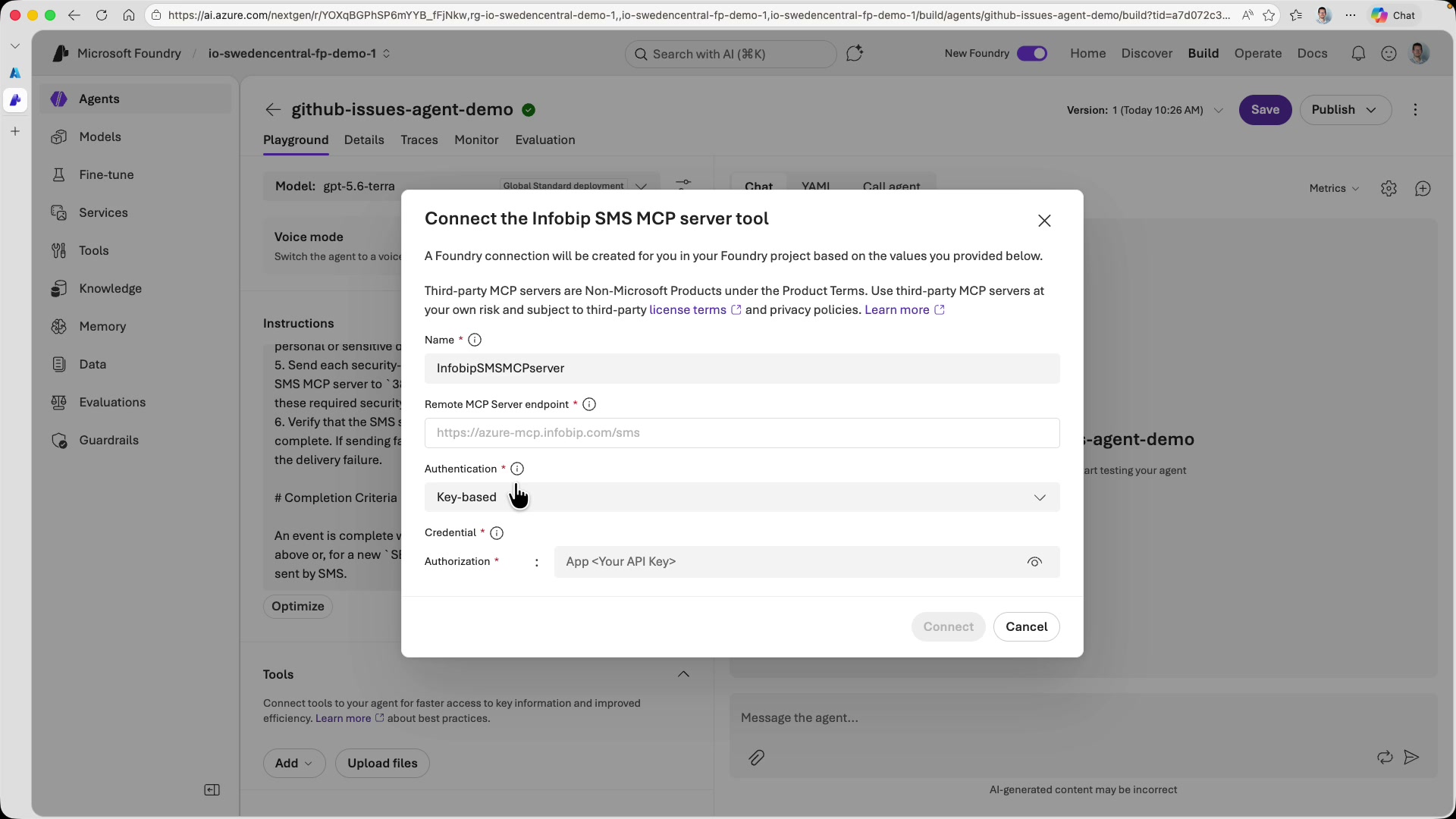
API keys are a better choice for agents that run autonomously in the background. They do not expire with user sessions and are not tied to a specific person's credentials. Note the App prefix (including the trailing space), then your actual secret API key.
Step 4: Get your API key from Infobip [#step-4-get-your-api-key-from-infobip]
-
Go to your Infobip web interface and select Developer Tools > API Keys.
-
Create a new, dedicated API key for this integration (don't reuse keys across integrations).
-
Select on the API key you have just created and under the Channels section, enable the correct API scope:
sms:manage.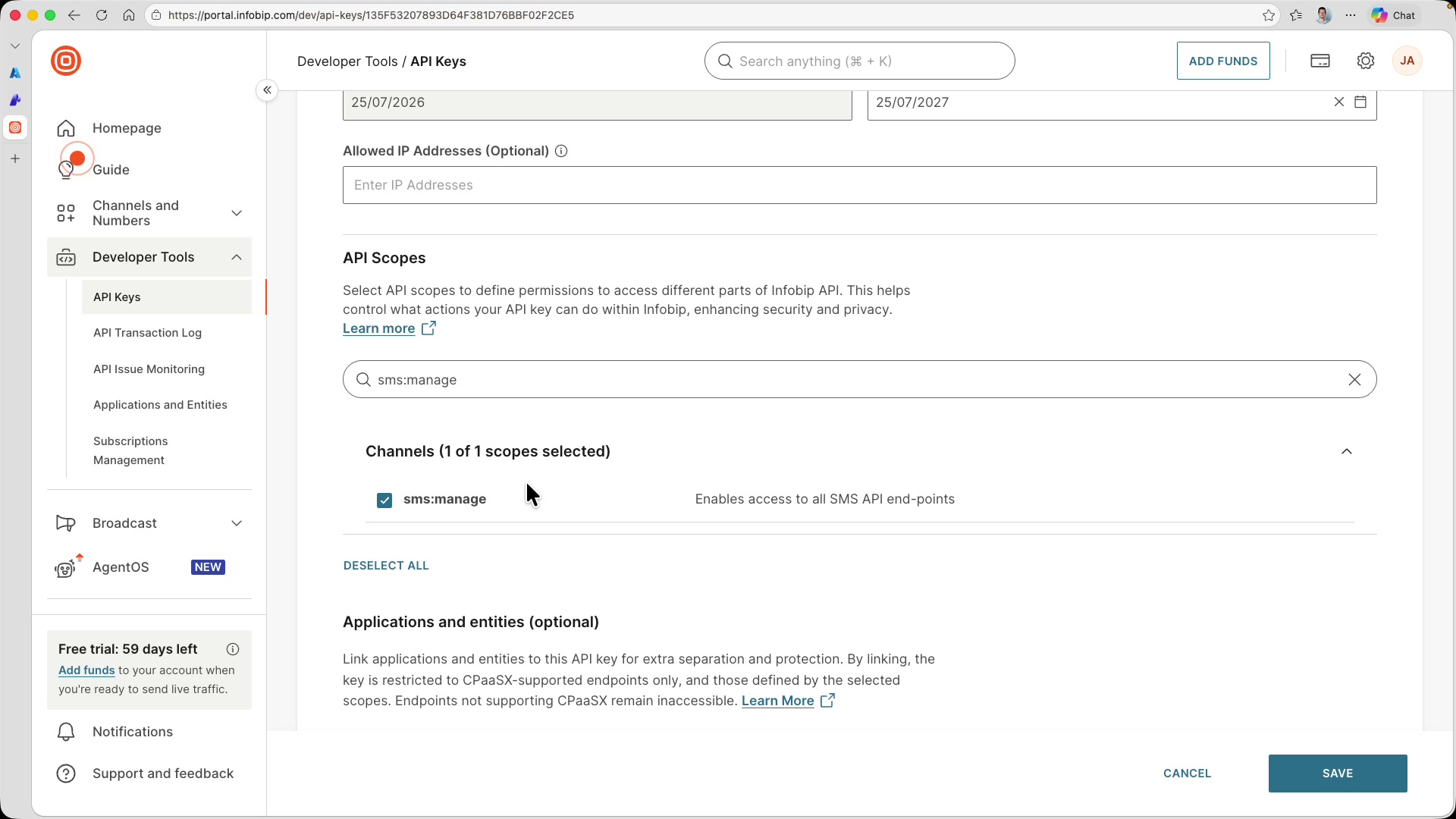 NOTE
NOTEThis limits the API key to SMS operations only. Even a compromised key is not able to access other Infobip services like account management or billing.
-
Copy the key and paste it into the Foundry tool configuration, prefixed with
App:bashApp <Your API Key> -
Select Connect to establish the link to the SMS MCP server.
Step 5: Configure tool approval [#step-5-configure-tool-approval]
Since this agent runs autonomously (no human in the loop), you need to set tool usage to always auto-approve. Without this, the agent will pause and wait for manual confirmation before each tool call which defeats the purpose of an automated pipeline.
Under the agent's tool settings, change the approval mode so all tool calls are automatically approved.
Step 6: Test the agent [#step-6-test-the-agent]
Save the agent and use the Preview chat panel to test it with a mock GitHub issue payload. Paste something that looks like a real security issue:
The agent will classify this as a security issue, summarize it, and send an SMS. Check your phone:
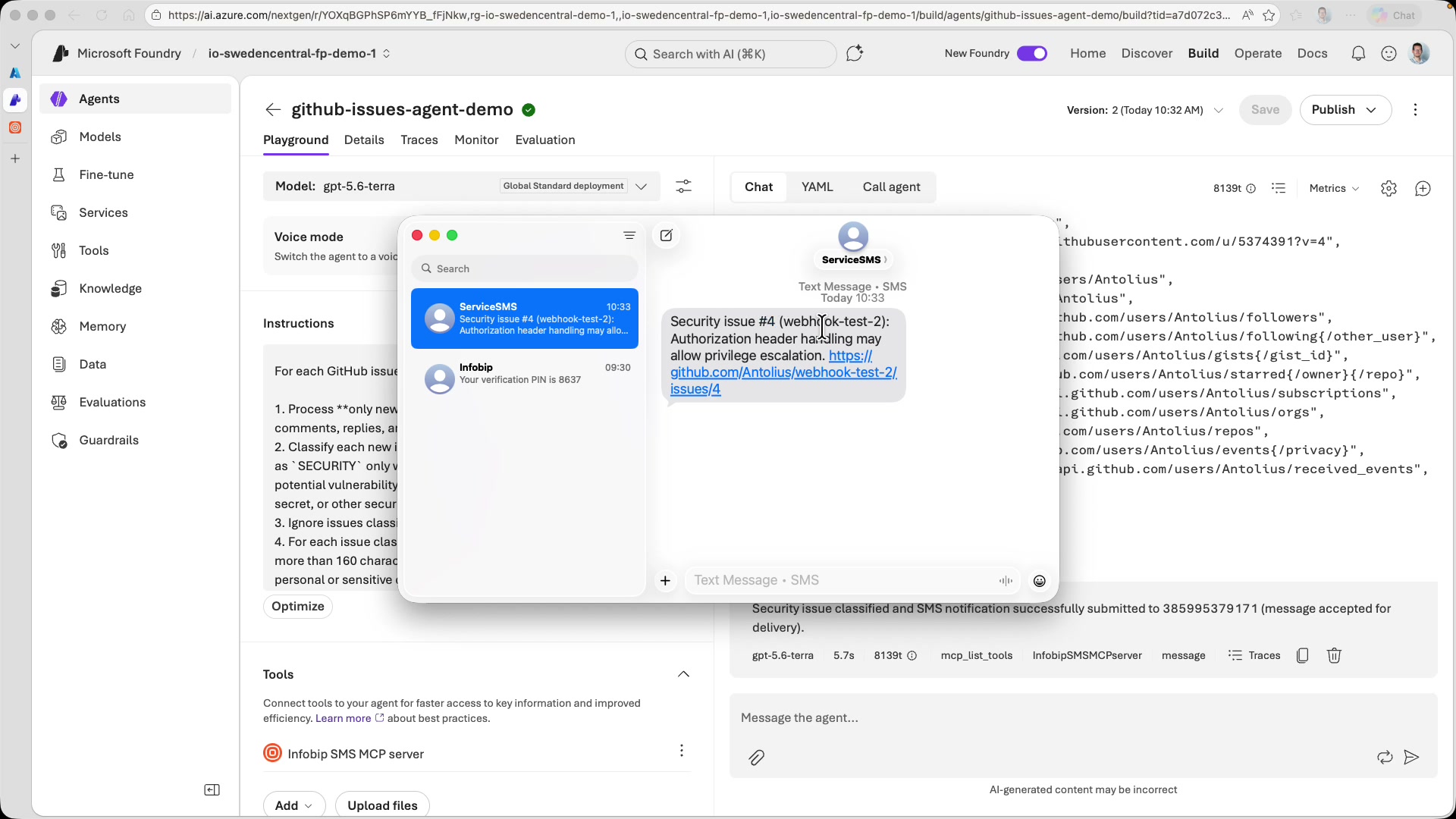
The message includes the security summary, repository name, and issue ID; enough context to act on immediately.
Step 7: Create an Azure Logic App [#step-7-create-an-azure-logic-app]
The agent works, but it needs a trigger. Azure Logic Apps will expose a webhook URL that GitHub can call, and forward the payload to the Foundry agent.
- In the Azure portal, create a new Logic App resource.
- Place it in the same region as your Foundry project (e.g., Sweden Central) for lower latency.
Enable system identity [#enable-system-identity]
After the Logic App is created, go to its Identity settings and enable System assigned identity. This gives the Logic App its own security principal that can authenticate with other Azure services.
Grant Foundry access [#grant-foundry-access]
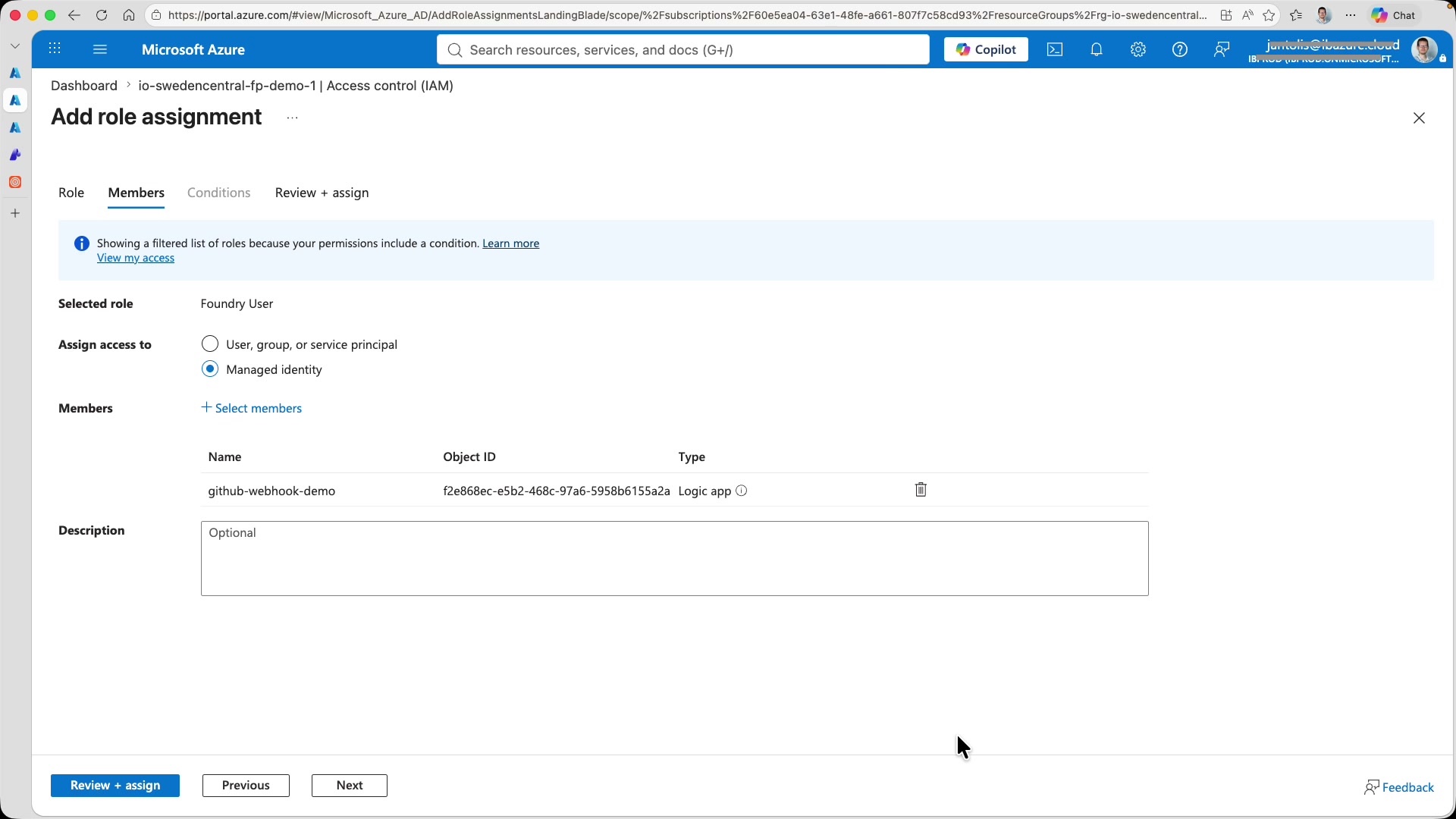
- Go to your Foundry resource (not the Logic App) and go to Access control (IAM).
- Add a role assignment granting the Foundry User role to the Logic App system identity. This role allows the Logic App to invoke agents within your Foundry project.
Step 8: Build the Logic App workflow [#step-8-build-the-logic-app-workflow]
Open the Logic App Designer to build your workflow visually.
Add the HTTP trigger [#add-the-http-trigger]
Select When an HTTP request is received as the trigger. This creates a webhook endpoint URL.
Add the Invoke Agent action [#add-the-invoke-agent-action]
-
Add a new action and search for the Invoke agent action from the Azure AI Foundry connector.
-
When creating the connection, select Managed Identity as the authentication type. This uses the system identity you configured earlier — no credentials to manage or rotate.
-
For the Azure AI project endpoint, go to your Foundry project and copy the project endpoint URL from the overview page.
Configure the agent invocation [#configure-the-agent-invocation]
-
Select your GitHub issues agent from the dropdown. You will see the agents available in your Foundry project.
-
For the Input field, use the dynamic content picker to insert the HTTP request Body. This passes the entire GitHub webhook payload to your agent as its prompt.
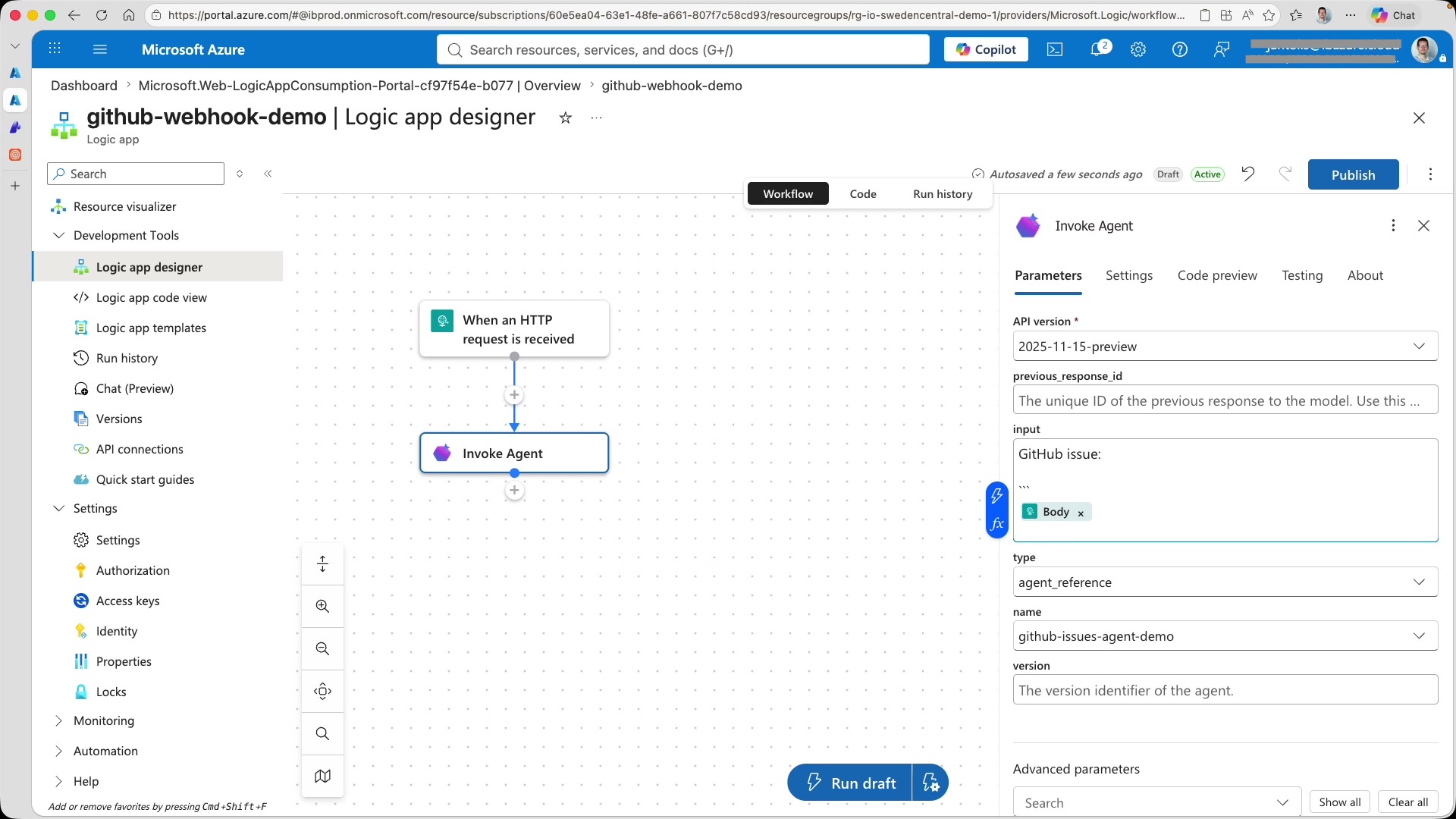
You can also specify the agent version — Foundry agents are versioned, so you can pin to a specific version for stability or use the latest.
Save and get the webhook URL [#save-and-get-the-webhook-url]
Save the workflow. The HTTP trigger will now display the generated webhook URL. Copy the URL. You will need it for the GitHub webhook configuration.
Step 9: Configure the GitHub webhook [#step-9-configure-the-github-webhook]
-
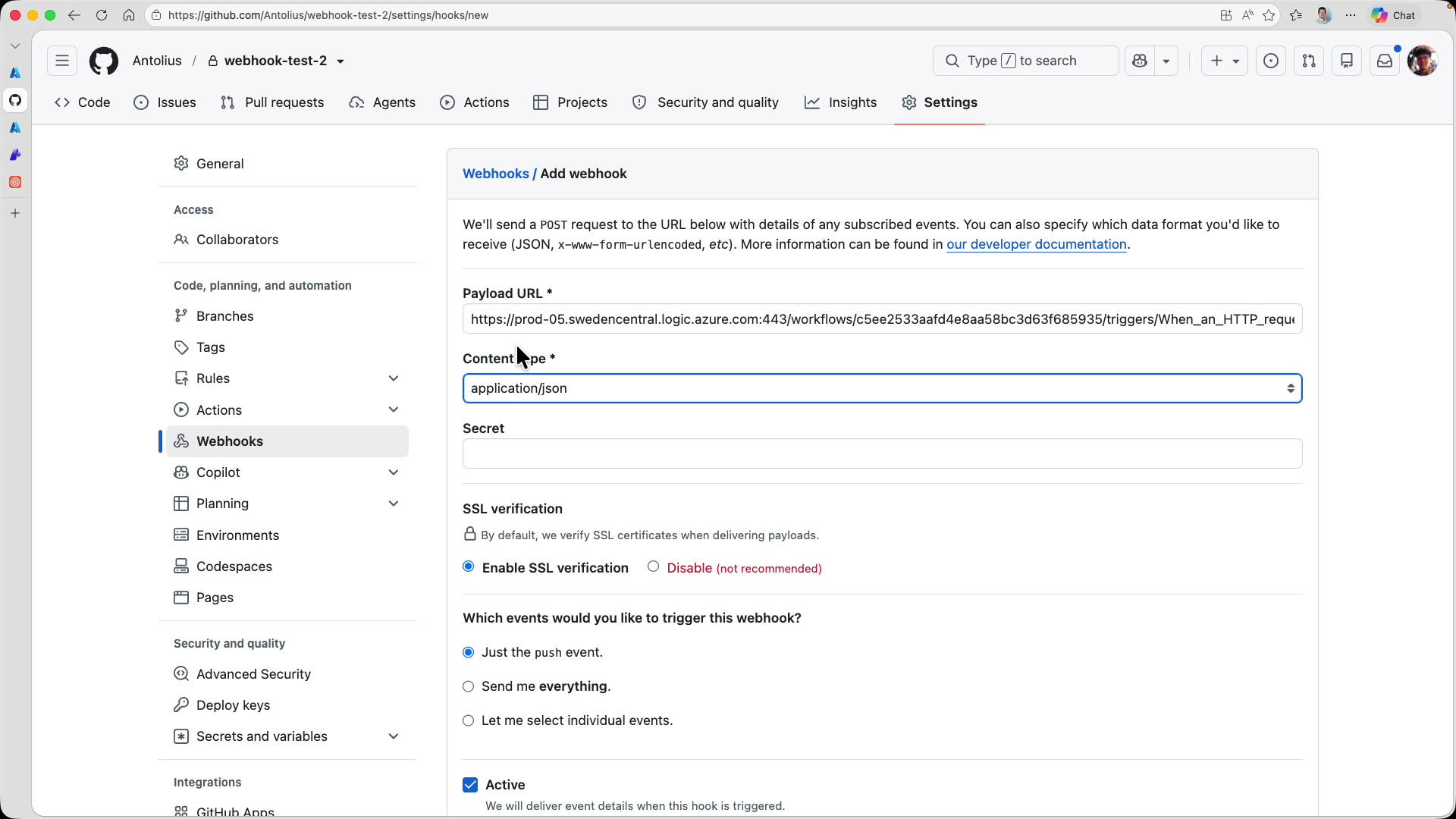
Go to your GitHub repository and go to Settings > Webhooks.
-
Select Add webhook.
-
Configure the webhook:
- Payload URL: Paste the Logic App webhook URL
- Content type: Select
application/json— the Logic App expects JSON, and your agent instructions are written to parse JSON - Events: Select Let me select individual events, then scroll down and check only Issues
-
Leave the webhook active and save it.
Step 10: End-to-end test [#step-10-end-to-end-test]
-
Create a new issue on your GitHub repository with a title that suggests a security concern, e.g., "Potential vulnerability in session handling."
-
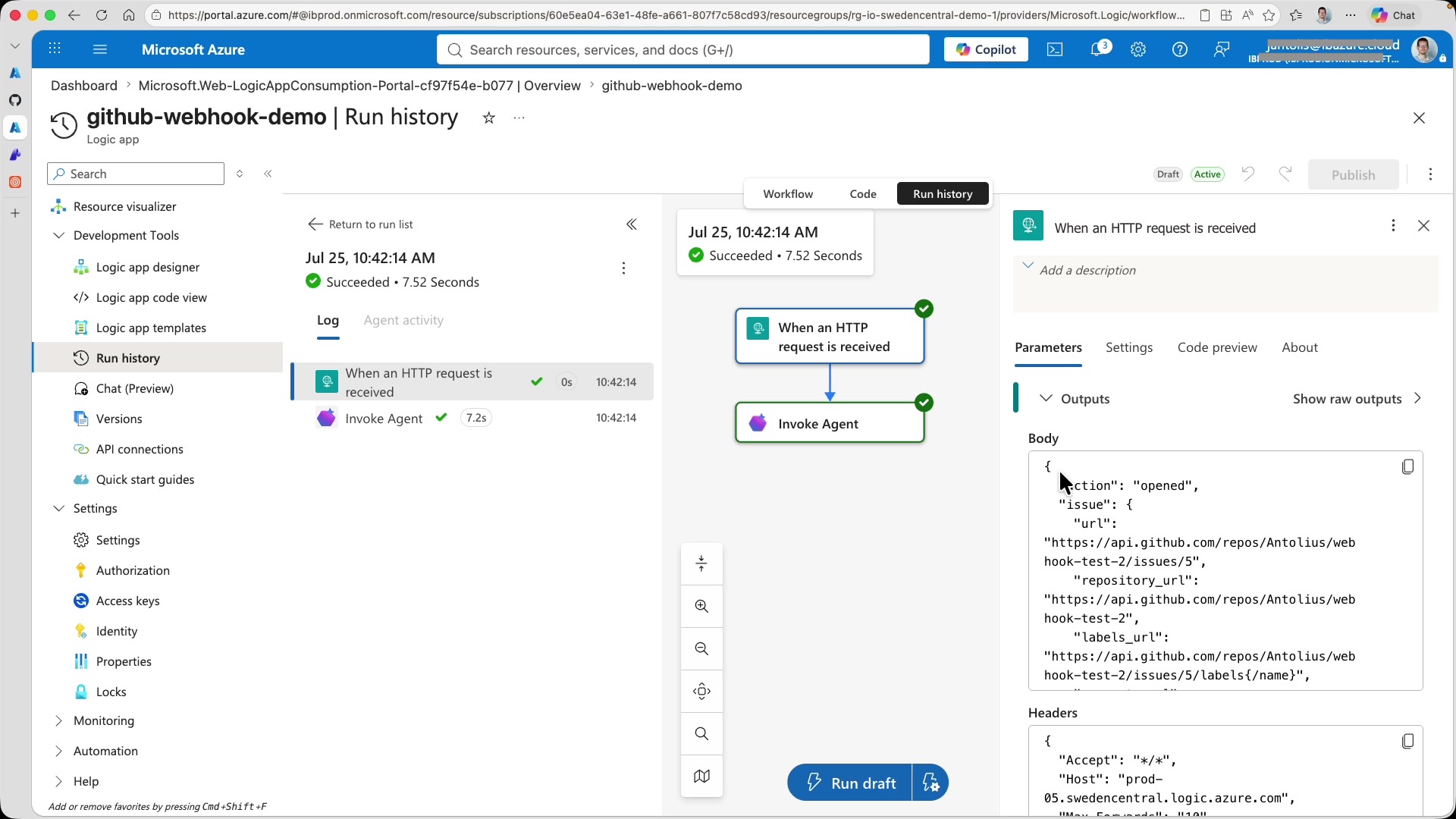
After submitting the issue, verify the chain:
- GitHub: Under Settings > Webhooks, check the recent deliveries to confirm the webhook fired successfully
- Logic App: Under Run history, confirm the workflow executed and the agent was invoked
-
Phone: Check for the SMS alert
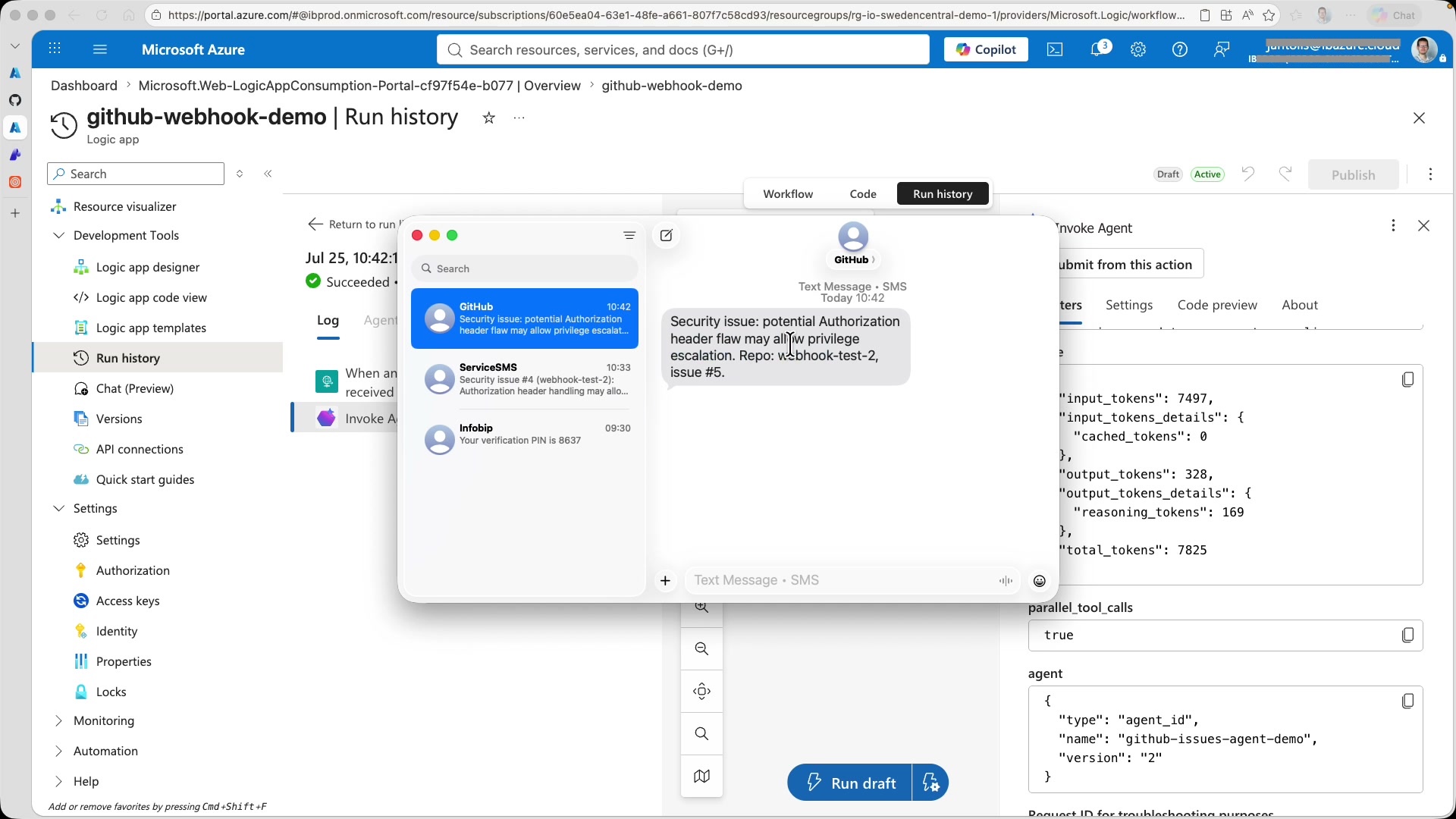
The message will contain the security summary, the repository name, and the issue number matching the issue you just created.
What you built [#what-you-built]
You now have an autonomous security monitoring pipeline:
- GitHub webhook fires on every new issue
- Azure Logic App receives the webhook and invokes the Foundry agent
- Azure Foundry agent classifies the issue, and if security-related, summarizes it and sends an SMS using Infobip
- Infobip SMS MCP server delivers the alert to your phone
The agent ignores non-security issues entirely; no noise, no false alerts from feature requests or bug reports.
Why this architecture [#why-this-architecture]
Azure Foundry gives you control over model selection, enterprise-grade identity management through Azure IAM, and the ability to version your agents. Logic Apps provide a no-code way to expose webhooks and orchestrate agent invocations, while managed identities eliminate the need to store or rotate credentials for service-to-service authentication.
Next steps [#next-steps]
- Filter by label: Modify the agent instructions to also check for GitHub labels like
securityorvulnerability, increasing the LLM classification predictability - Multiple notification channels: Add other Infobip MCP servers (RCS, WhatsApp) alongside SMS for multi-channel alerts
- Agent memory: Use Foundry's memory feature to track which issues have been reported, avoiding duplicate alerts
- Escalation logic: Chain multiple sub-agents, one for classification, another for severity assessment, a third for routing to the right team for more detailed analysis and separate context windows