Build a daily weather SMS agent with Copilot Studio and Infobip MCP
Your phone buzzes at 7 AM with tomorrow's forecast, neatly compressed into a single SMS. No app to open, no notification to swipe through. An AI agent checked the weather, summarized it, and sent it on its own, while you slept.
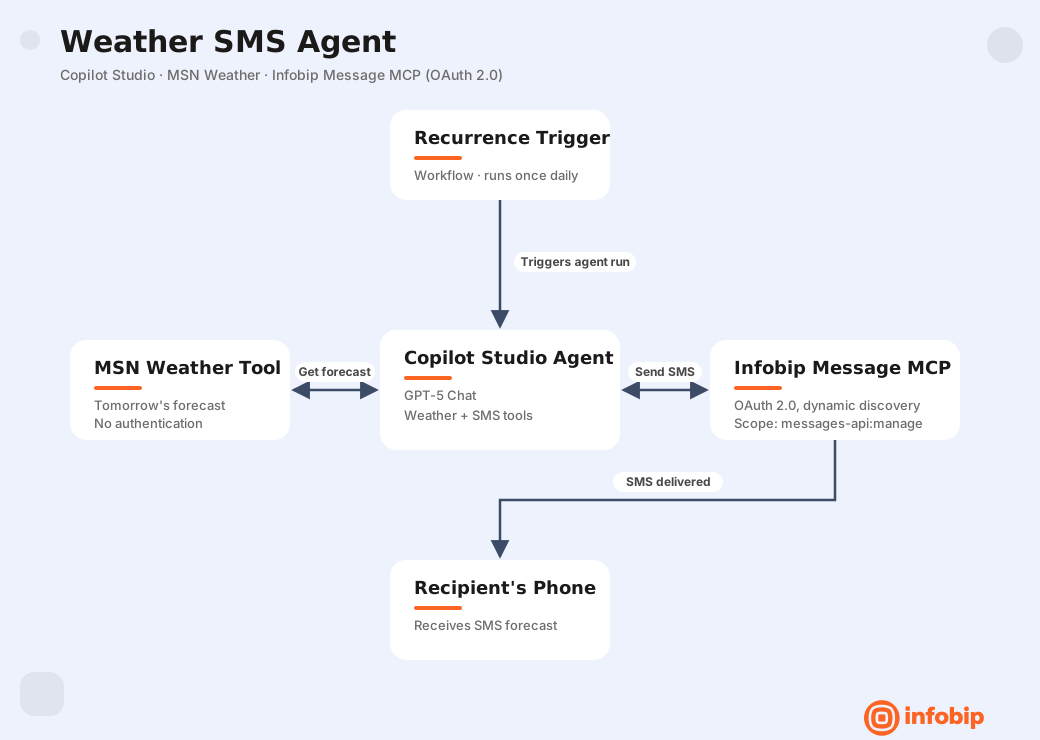
This tutorial walks you through building exactly that: a Copilot Studio agent that fetches weather forecasts from MSN Weather and delivers them over SMS using the Infobip Message MCP server. You'll connect the agent to Infobip using OAuth, test it interactively, then wire up a scheduled workflow so it runs daily without intervention.
Scenario overview [#scenario-overview]
The weather agent performs three steps every time it runs:
- Checks tomorrow's weather forecast for a specified location.
- Summarizes the forecast into a concise SMS-length message (under 160 characters).
- Sends the summary to a handset using Infobip Message MCP server.
Prerequisites [#prerequisites]
- Microsoft Azure account with access to Copilot Studio
- Infobip account with:
- SMS-capable sender number (test number included with free trial accounts)
- OAuth authentication with the following scope:
messages-api:manage
- Destination phone number to receive test messages. If in a free trial, you can only send messages to a verified phone number.
Step 1: Create the agent in Copilot Studio [#step-1-create-the-agent-in-copilot-studio]
- Open Copilot Studio and go to Agents in the left sidebar.
- Select New agent and give it a name, e.g.,
Weather Agent.
Step 2: Write the agent instructions [#step-2-write-the-agent-instructions]
Under Instructions, define what the agent should do. These instructions serve as the system prompt for every LLM call the agent makes. Keep them specific and action-oriented:
Key points:
- The 160-character constraint matters. It keeps the message within a single SMS segment, which is both cheaper and easier to read at a glance.
- For the model,
GPT-5 Chatworks well. You can adjust this later if needed.
Step 3: Add the weather forecast tool [#step-3-add-the-weather-forecast-tool]
- Under Tools on the right panel, select the + button to add a new tool.
- Search for the MSN Weather connector and select Get the forecast for tomorrow.
This tool requires no authentication or API keys. Once added, the agent can call it to retrieve weather data for any location.
Step 4: Connect Infobip Message MCP server [#step-4-connect-infobip-message-mcp-server]
This is where the agent gains its ability to send SMS messages.
-
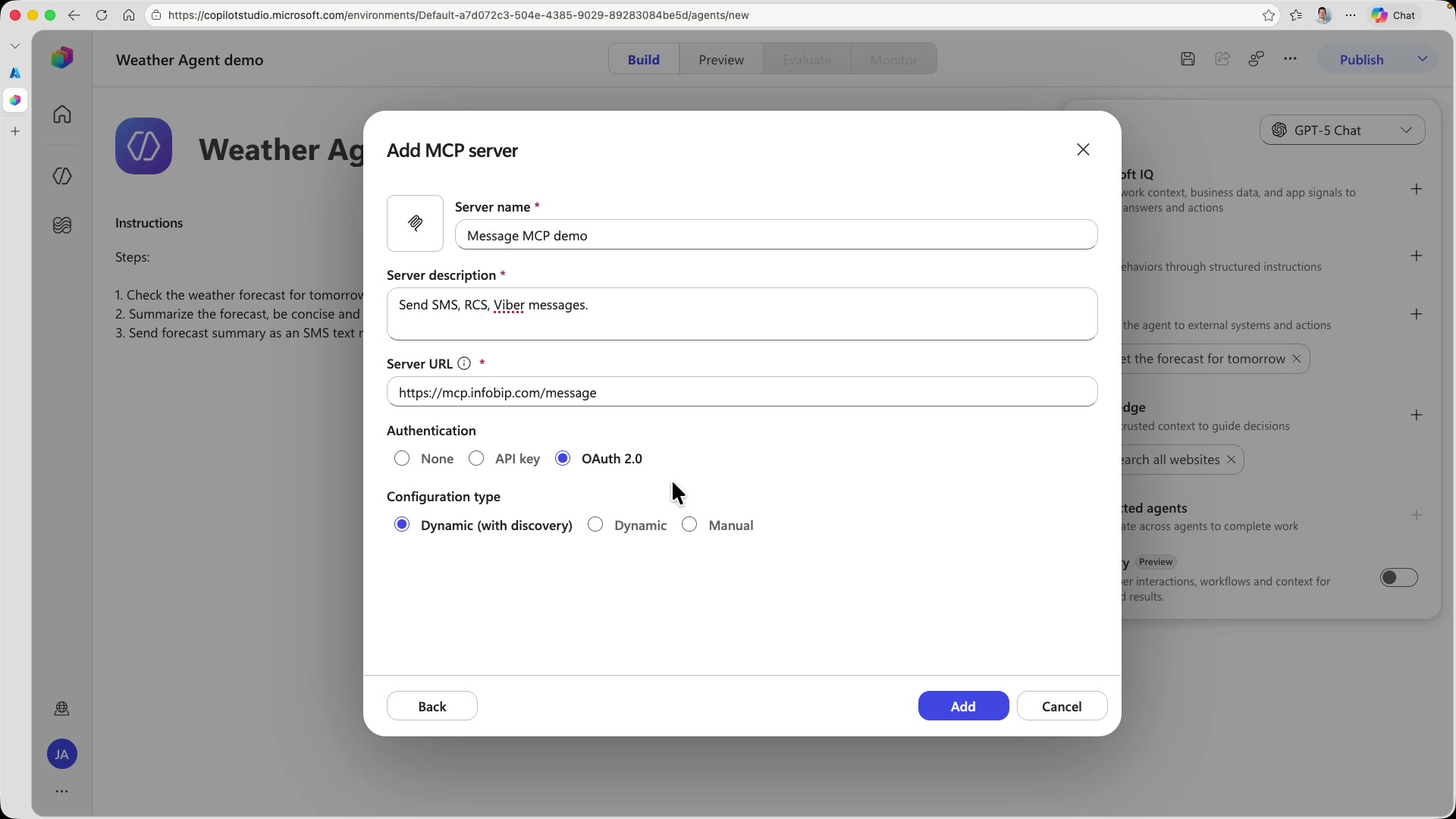
Under Tools, add a new connection and select the Model Context Protocol option. This opens the Add MCP server form.
-
Fill in the following:
- Name:
Message MCP(or whatever you prefer) - Description: A short description of the server's purpose
- Server URL:
https://mcp.infobip.com/message
- Name:
Authentication [#authentication]
Infobip MCP servers require authentication. You have two options here: API Key or OAuth 2.0. Both work, but for this tutorial we will use OAuth. It supports dynamic discovery, so Copilot Studio can handle the flow automatically.
-
Select OAuth 2.0. A new Configuration type section appears.
-
Leave the type set to Dynamic (with discovery). It lets Copilot Studio automatically negotiate the OAuth endpoints with Infobip.
-
Select Add to register the MCP server. Copilot Studio will detect that it needs credentials and prompt you to create a connection.
Step 5: Authenticate with Infobip using OAuth [#step-5-authenticate-with-infobip-via-oauth]
After adding the MCP server, you will see it listed under your tools but marked as not yet connected. Select to create a new connection, and Copilot Studio will present the Infobip login form.
Log in with your Infobip credentials, the same username and password you use for Infobip account. If you have two-factor authentication enabled (and you should), you will receive an SMS verification code to complete the login.
Once authenticated, a consent screen appears with a list of scopes (permissions) the integration requires (see the image below):
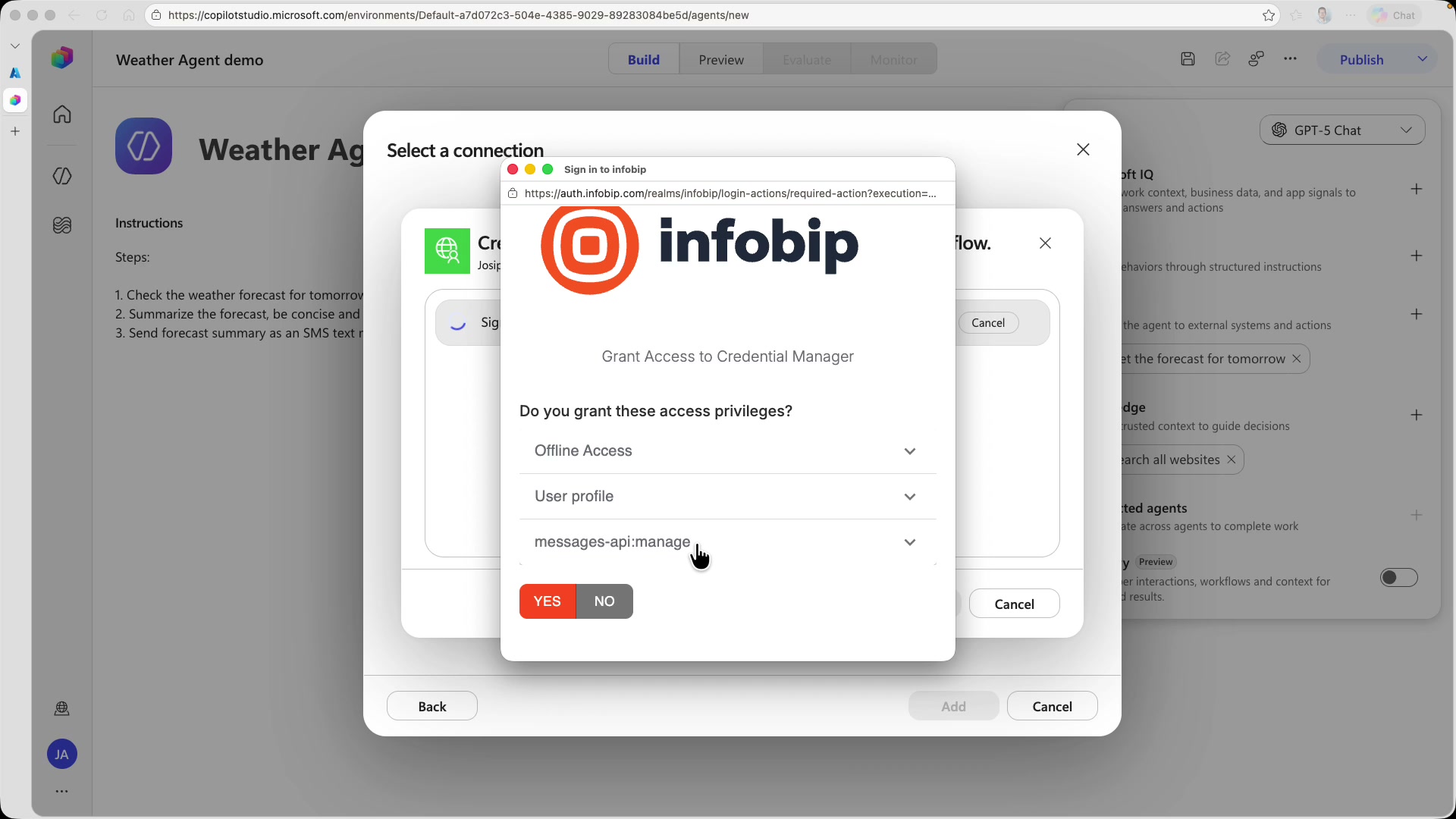
The important scope here is messages-api:manage. This is what gives the agent access to Infobip's messaging capabilities. The other scopes (Offline Access and User profile) are standard scopes used by MCP clients by default.
Notice what is not on this list: account management, API key creation, or billing access. OAuth scopes act as a guardrail even if the agent behaves unpredictably, it can only send messages. Nothing else.
Grant the permissions. You will be taken back to the connection selection screen, where you will see Message MCP with a green status indicator confirming the connection is live.
Step 6: Test the agent [#step-6-test-the-agent]
- Save your agent and select Publish in the top right corner.
- Once published, switch to the Preview tab to open the chat interface.
The agent expects two pieces of information (as defined in your instructions): a location and a phone number. Type a message, like so:
Use the city you are interested in and your actual phone number so that you can verify the SMS when it arrives.
The agent will ask for permission to use its tools. You will see it first call the weather tool to pull the forecast, then call the send tool to deliver the SMS.
Allow both, and check your phone for a new SMS from Infobip with tomorrow's weather forecast:
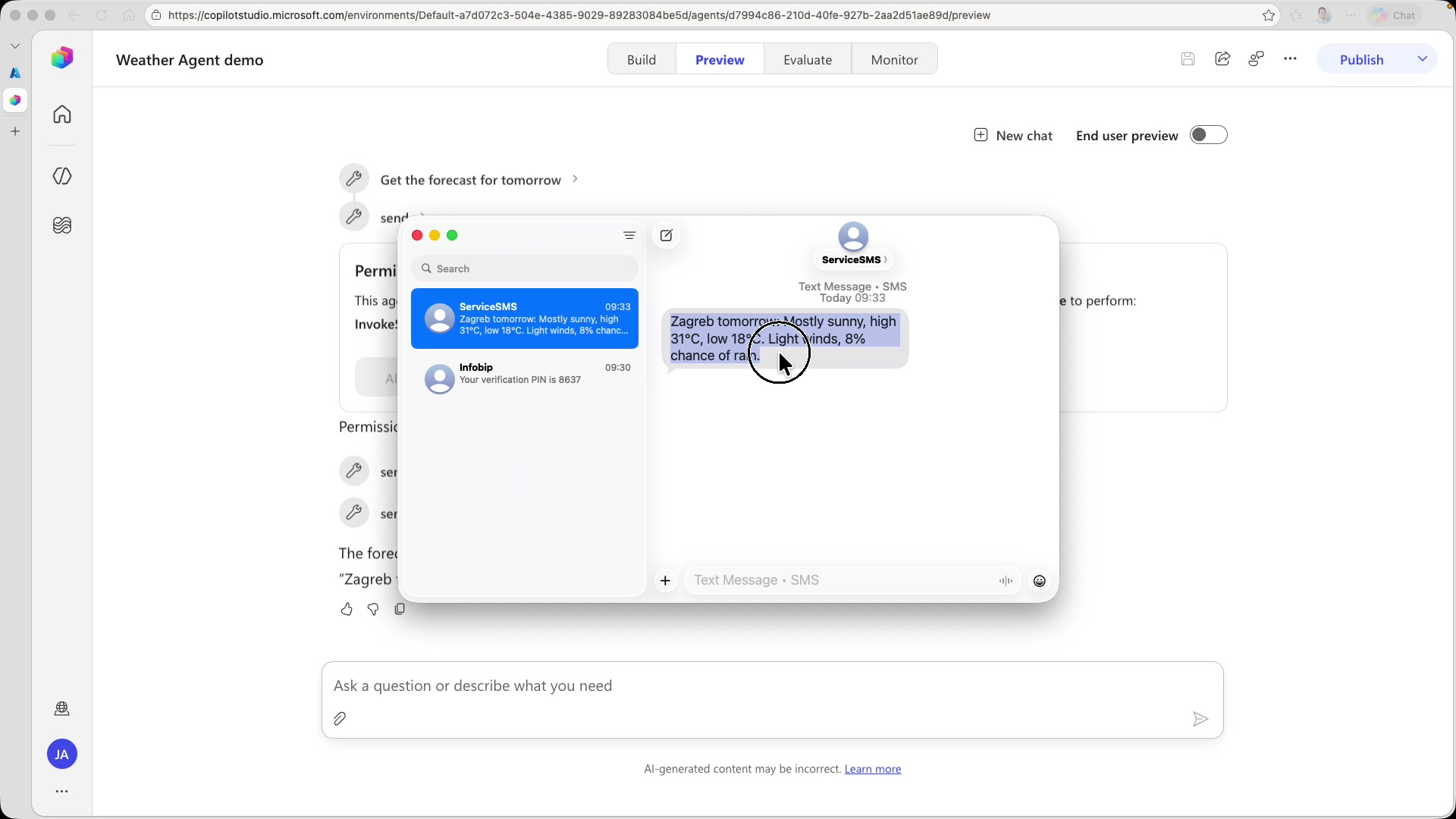
The message reads something like: "Zagreb tomorrow: Mostly sunny, high 31 C, low 18 C. Light winds, 8% chance of rain." — concise, informative, and well under 160 characters.
Step 7: Automate with a scheduled workflow [#step-7-automate-with-a-scheduled-workflow]
To make the agent truly autonomous, create a workflow that triggers the agent on a schedule.
In Copilot Studio, go to Workflows in the left sidebar and create a new workflow.
Set the trigger [#set-the-trigger]
- Select Recurrence as the trigger type.
- Configure the trigger to run once daily. This fires the workflow every day at your specified time.
Add the agent action [#add-the-agent-action]
-
Add an action to your workflow and select the weather agent you just built. You are reusing the same agent, not creating a new one.
-
For the Message field, provide the same prompt you used during testing: the location and phone number to send the forecast to.
This is a simple example with a static prompt. In production workflows, you can pull the location from a database, use different phone numbers per user, or chain the agent after other workflow steps that provide dynamic data.
Publish and test [#publish-and-test]
Activate the workflow by publishing it. Rather than waiting until tomorrow to verify it works, use the Test option to trigger it manually.
The workflow fires the recurrence trigger, invokes the agent, and the agent does its thing. Check your phone for the second weather report, possibly with slightly different formatting or additional details like wind speed. The LLM does not produce identical output each time, but the information is consistent.
What you built [#what-you-built]
You now have a fully autonomous weather agent running on Copilot Studio that:
- Fetches real weather data from MSN Weather
- Summarizes forecasts into SMS-friendly messages using an LLM
- Delivers them over SMS through Infobip Message MCP server
- Runs daily on a schedule without any manual intervention
The entire setup required no code; just agent instructions, two tool connections, and a workflow trigger.
Next steps [#next-steps]
- Multiple recipients: Modify the workflow to loop over a list of phone numbers, sending personalized forecasts to each
- Different channels: The Message MCP server supports SMS, RCS, and Viber; provision additional channels on your Infobip account and configure the agent instructions to send forecasts on whichever channel suits your audience
- Smarter triggers: Replace the daily schedule with event-driven triggers; for example, only send alerts when severe weather is forecasted
- Move to Azure Foundry: For more control over model selection, memory, and enterprise-grade identity management, consider building your agents on Azure Foundry instead