Build a two-way WhatsApp trivia agent with Azure Foundry, Infobip MCP, and automated memory
As an outcome of this guide, you will build a two-way WhatsApp trivia agent that initiates conversations, generates questions, validates answers, and remembers everything. All is connected through webhooks and MCP.
A user opens WhatsApp and finds a message: "Hey Alex, reply with ready for next question to start a game of trivia!" They reply, and within seconds, a trivia question arrives. They guess wrong, the bot asks them to try again. They guess right, the bot congratulates them and offers the next question. Every question, every answer, tracked per user, across multiple simultaneous conversations.
The surprising part: all of this behavior is driven entirely by an LLM, based on instructions we provided. No application code, no state machine, no database schema. Just an Azure Foundry agent with memory, Infobip WhatsApp MCP server, and a carefully written system prompt.
This tutorial walks you through building it: a two-way WhatsApp trivia agent that initiates conversations, generates questions, validates answers, and remembers everything, all connected through webhooks and MCP.
Scenario overview [#scenario-overview]
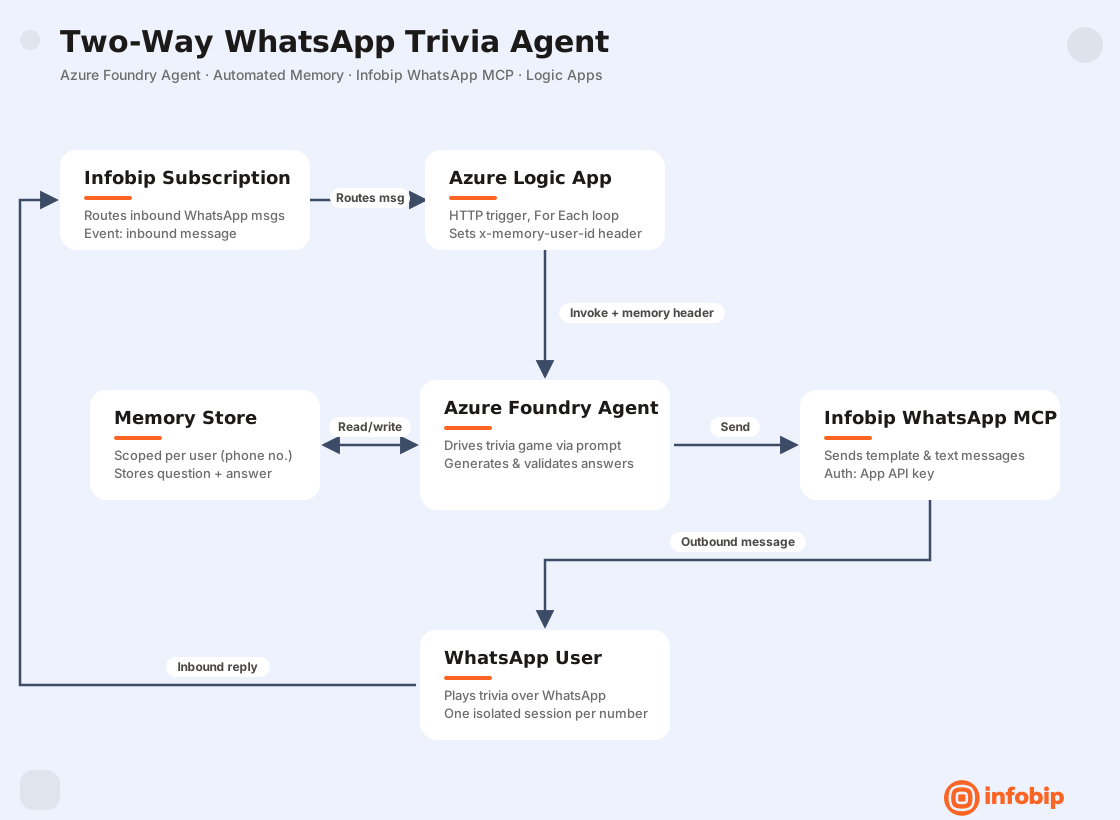
The architecture consists of four components:
- Azure Foundry agent: drives the entire trivia game logic through its system prompt, uses automated memory to store questions per user.
- Infobip WhatsApp MCP server: sends and receives WhatsApp messages through the agent.
- Azure Logic App: receives inbound WhatsApp messages from Infobip and forwards them to the Foundry agent, including per-user memory scoping.
- Infobip subscription: routes incoming WhatsApp messages to the Logic App webhook.
The conversation flow works as follows:
- The agent sends an initial template message to the user on WhatsApp (required by WhatsApp/Meta policy).
- The user replies that they're ready.
- The agent generates a trivia question, stores it in memory, and sends it.
- The user submits an answer.
- The agent retrieves the stored question from memory, validates the answer, and responds accordingly.
- Repeat.
Prerequisites [#prerequisites]
- Azure account with access to Azure Foundry with a deployed LLM model (this tutorial uses GPT-5.6-Terra)
- Infobip account with:
- A WhatsApp sender (test sender included with free trial accounts)
- An API key with the
whatsapp:managescope
- Destination phone number to receive test messages. If in a free trial, you can only send messages to a verified phone number.
Limitations [#limitations]
- The first outbound message to a user must use a pre-approved template.
- If in a free trial, you can only send messages to a verified phone number.
- After the initial template message, the conversation is "open" and the agent can send free-form text replies for 24 hours. Each user reply resets the 24-hour window.
Summary of the steps [#steps-summary]
- Create the agent in Azure Foundry.
- Add Infobip WhatsApp MCP server.
- Enable and configure memory.
- Understand WhatsApp template requirements.
- Write the agent instructions.
- Test the initial template message.
- Create the Logic App.
- Build the Logic App workflow.
- Configure Infobip inbound message subscription.
- Play trivia.
Step 1: Create the agent in Azure Foundry [#step-1-create-the-agent-in-azure-foundry]
- Open Azure Foundry and go to your project.
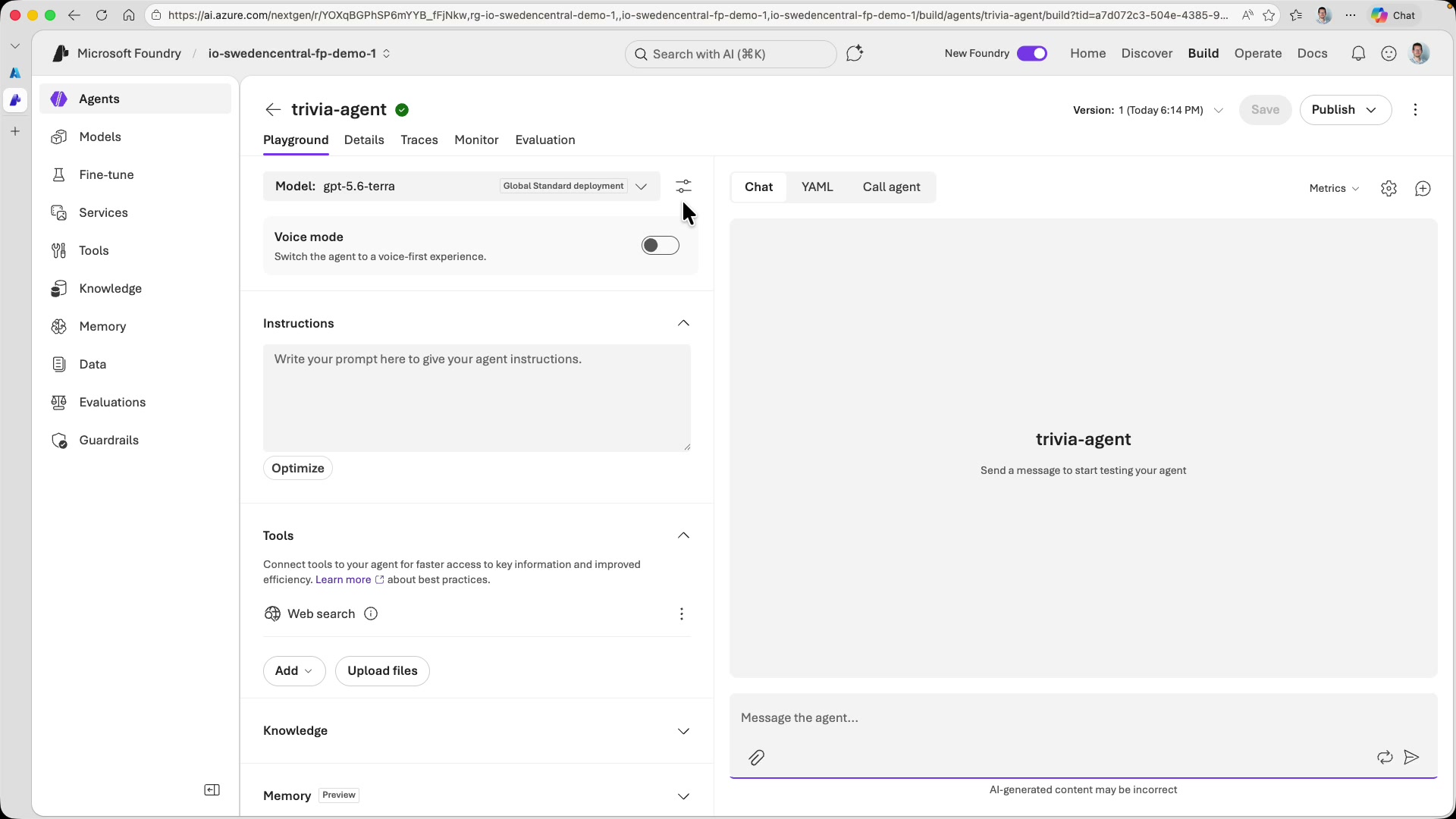
- Create a new agent under Agents > New agent.
- Name the agent, e.g.,
Trivia Agentand select your deployed model. GPT-5.6-Terra with medium reasoning effort handles this use case well. The logic is nuanced but not computationally heavy.
Step 2: Add Infobip WhatsApp MCP server [#step-2-add-infobip-whatsapp-mcp-server]
-
Under Tools, add a new tool.
-
You can leave the default Web Search tool enabled if you want the agent to look up trivia facts, or remove it to keep things focused.
-
Search the catalog for
Infobip WhatsApp MCP serverand select it. The endpoint URL is pre-configured.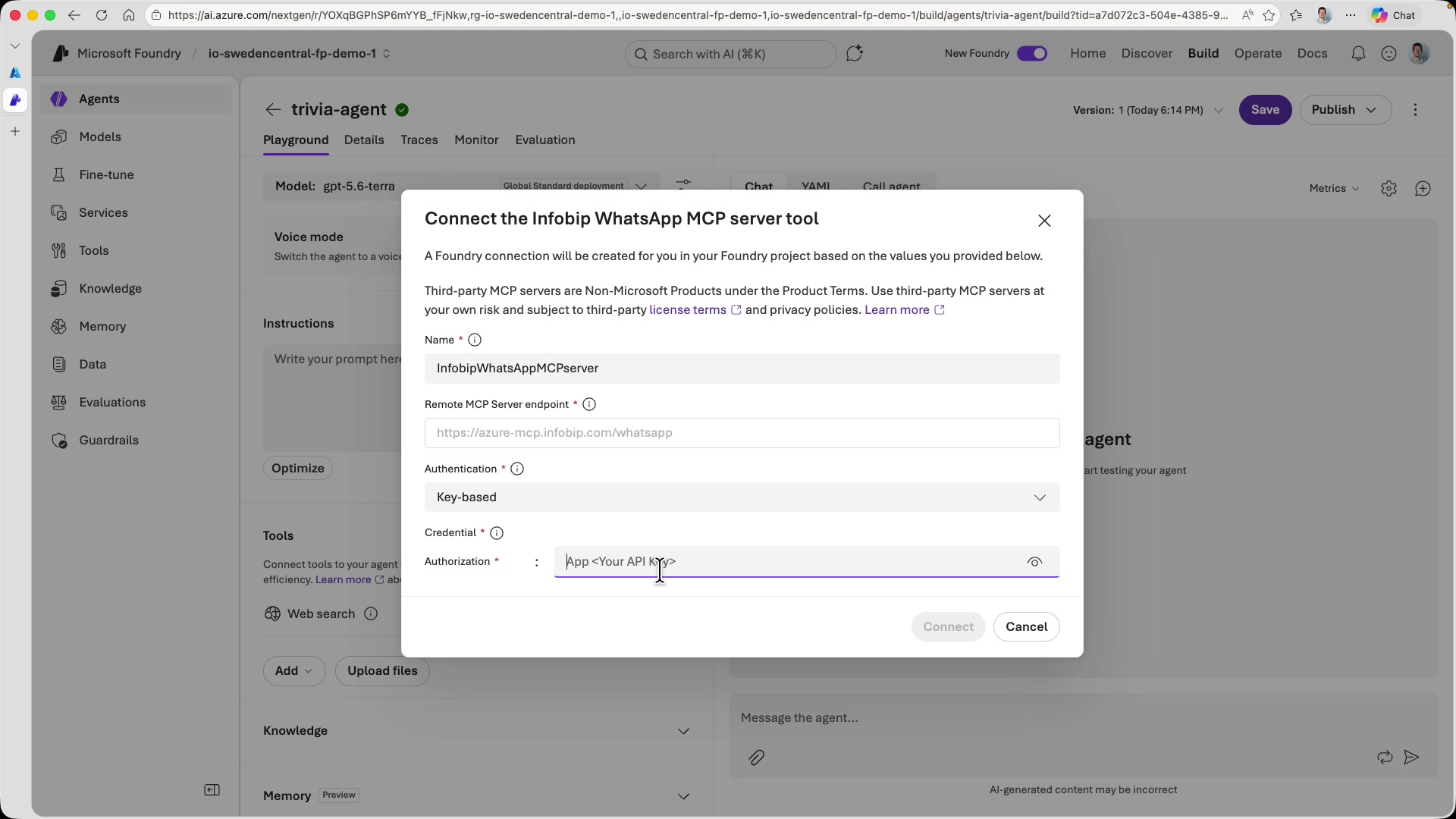
-
For authentication, use API key with the format
App <Your API Key>. You'll need an API key with thewhatsapp:managescope — create new one in the Infobip portal under Developer Tools > API Keys, and make sure this scope is enabled. Note theAppprefix (including the trailing space), then your actual secret API key. -
Set tool approval to always auto-approve so the agent can send and receive messages without manual confirmation.
Step 3: Enable and configure memory [#step-3-enable-and-configure-memory]
This is what makes the trivia game possible. Without memory, the agent will forget every question it asked the moment the conversation ended. With memory, it can store questions, track which ones have been answered, and maintain separate game states for different users.
- Under Memory in the agent configuration, toggle it on and create a new memory store. When creating the memory store, you will configure an LLM for embedding and compression. Azure handles this automatically.
Memory scope [#memory-scope]
The most important setting is the scope. Make sure it is set to {{$userId}} (default value) to scope memories per user. This means each phone number gets its own isolated memory space.
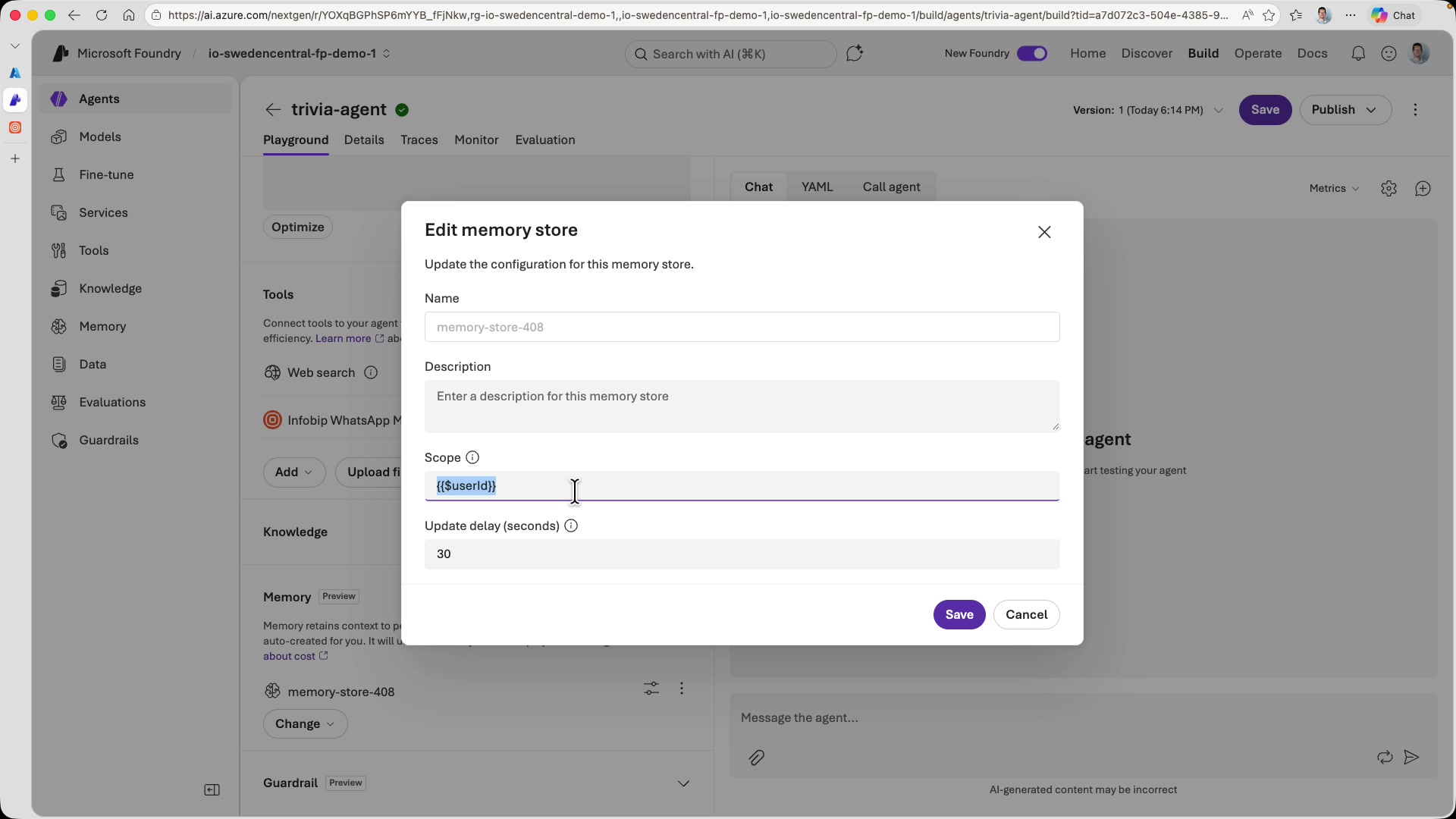
Without per-user scoping, all users would share the same memory. User A's trivia question would leak into User B's session. With user scoping, the agent maintains completely separate game states for each participant even when multiple users play simultaneously.
How scoping works [#how-scoping-works]
The Azure Foundry documentation explains two ways to set the user ID for memory scoping:
- Microsoft Entra authentication token: Foundry extracts the user ID from the caller's Entra identity. This will not work for our use case because the Logic App always authenticates with its own system identity, so all requests would share the same scope.
x-memory-user-idrequest header: The caller provides an explicit user ID in a custom header. This is what we'll use: the Logic App will set this header to the WhatsApp sender's phone number.
Step 4: Understand WhatsApp template requirements [#step-4-understand-whatsapp-template-requirements]
Before writing the agent instructions, you need to understand a WhatsApp platform rule: the first outbound message to a user must use a pre-approved template. This is how Meta controls spam. Businesses cannot cold-message users with arbitrary text.
-
From within your Infobip account, go to Channels and Numbers > WhatsApp to see your WhatsApp sender.
-
Use a template to send a message. Trial accounts come with a test sender and several pre-approved templates. For this tutorial, we will use the
connect_to_bottemplate, which has two placeholder parameters: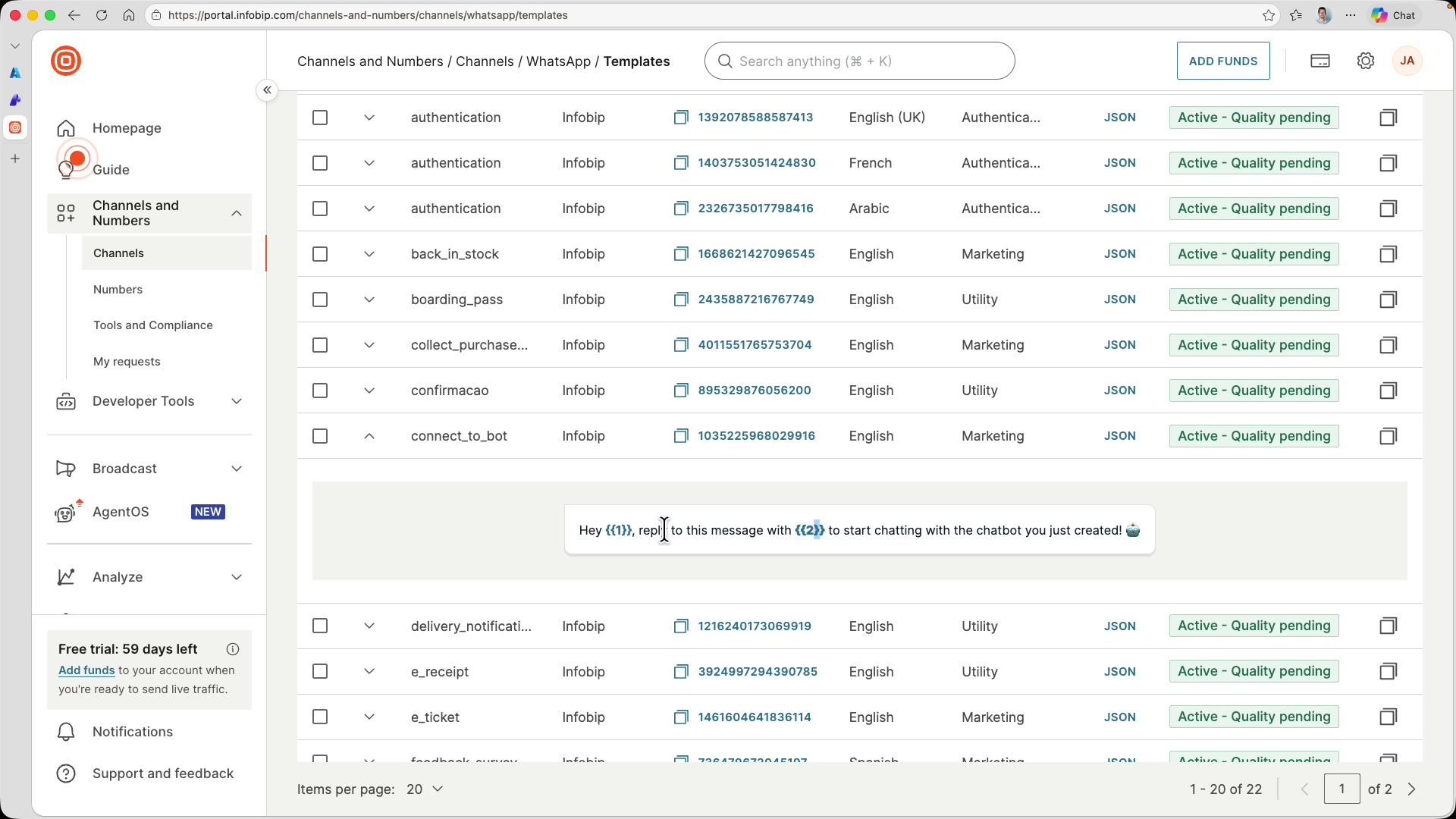
The template reads:
bash1"Hey {{1}}, reply to this message with {{2}} to start chatting with the chatbot you just created!"23 - `{{1}}` — we'll fill this with the user's name4 - `{{2}}` — we'll fill this with "ready for next question"
After this initial template message, the conversation is "open" and the agent can send free-form text replies for 24 hours. Each user reply resets the 24-hour window.
In production, you'd register your own sender number and custom templates through the Infobip portal. For development and testing, the pre-approved sender and templates in trial account work fine.
Step 5: Write the agent instructions [#step-5-write-the-agent-instructions]
This is the most elaborate part of the setup. Because the LLM drives all game logic, the instructions need to cover every scenario: initiating conversations, generating questions, handling correct answers, handling wrong answers, and managing memory.
Here's the structure of the instructions:
Introductions and basic overview [#introductions-and-basic-overview]
It is good to start with overview of agents role and expected behavior:
WhatsApp sender configuration [#whatsapp-sender-configuration]
Tell the agent which WhatsApp sender to use. You will find this number under your WhatsApp senders on the Infobip portal.
Initial outbound message rules [#initial-outbound-message-rules]
Once again, make sure to use your own WhatsApp sender in the JSON example snippet. This consistent repetition reinforces the importance of using the correct sender for the LLM that will receive these instructions
Reply handling: user requests a question [#reply-handling-user-requests-a-question]
Again, specify your sender in the instructions.
Reply handling: user submits an answer [#reply-handling-user-submits-an-answer]
The elegance here is that the LLM handles all the nuance: fuzzy matching on answers (e.g. "Jupiter" vs "jupiter" vs "It's Jupiter!"), natural language responses, and conversational flow. You do not need to code any of this.
Step 6: Test the initial template message [#step-6-test-the-initial-template-message]
Save the agent and use the Preview chat to test the template message. Ask the agent to send an initial message to your phone number:
Check your WhatsApp for the template message from the Infobip sender:
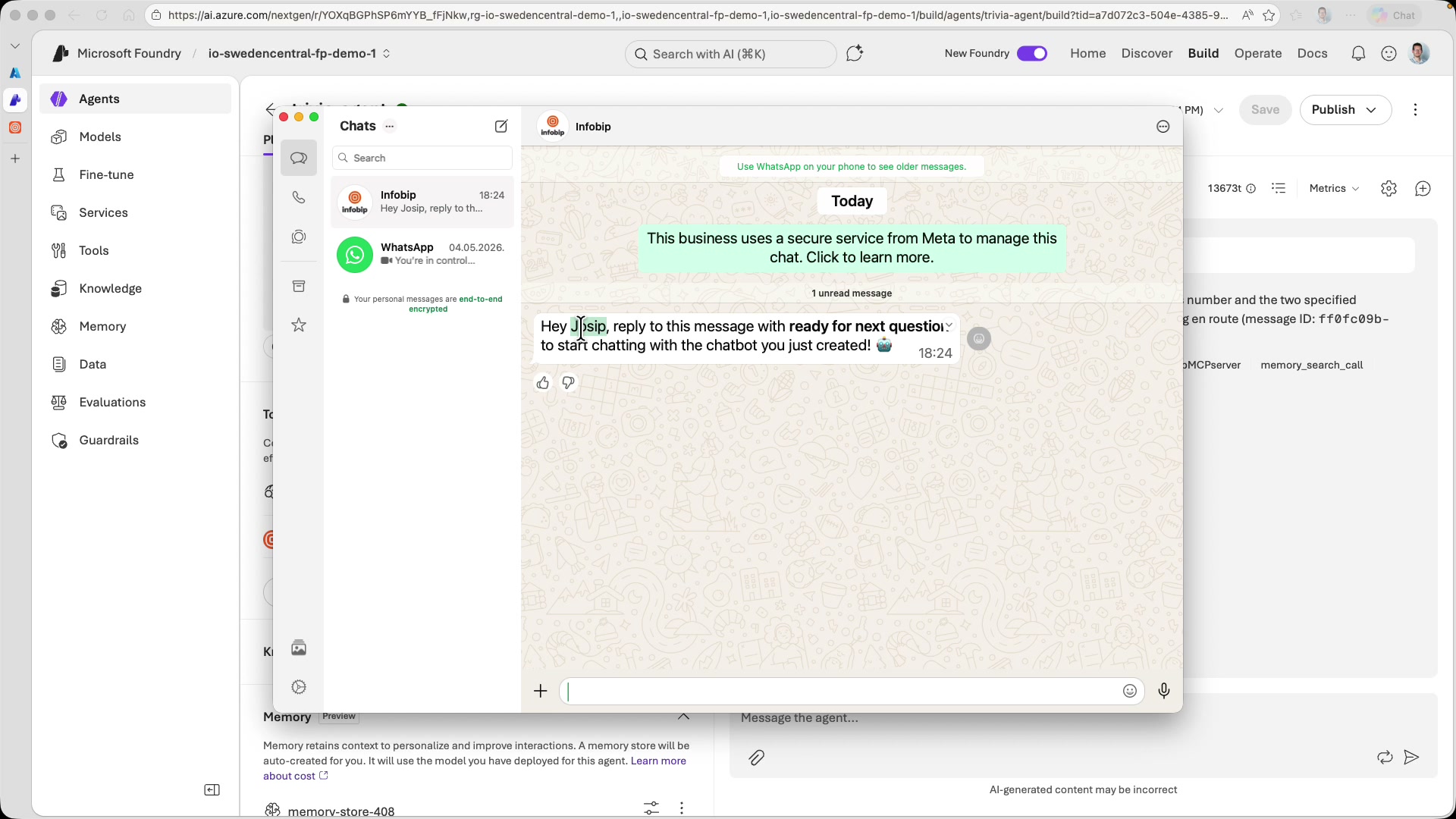
The message reads: "Hey Josip, reply to this message with ready for next question to start chatting with the chatbot you just created!"
Do not reply yet. The webhook is not set up, so the agent will not receive your message. That's the next step.
Step 7: Create the Logic App [#step-7-create-the-logic-app]
- Create a new Logic App resource in Azure.
- Enable System assigned identity under the Logic App Identity settings, then go to your Foundry resource > Access control (IAM) and grant the Foundry User role to the Logic App identity .
The Logic App authenticates to Foundry using its system-managed identity. No credentials to store or rotate.
Step 8: Build the Logic App workflow [#step-8-build-the-logic-app-workflow]
Open the Logic App Designer. This workflow has some additional complexity because of the bundling of messages submitted by Infobip's webhook logic and custom headers needed to scope memories on the Foundry agent side.
HTTP trigger with JSON schema [#http-trigger-with-json-schema]
Add a When an HTTP request is received trigger. We will need to specify a JSON schema for it. The Infobip platform can deliver multiple messages in a single webhook request (batched for efficiency), so the payload contains a results array.
You can generate the schema from an example payload. Select Use sample payload to generate schema and paste a sample:
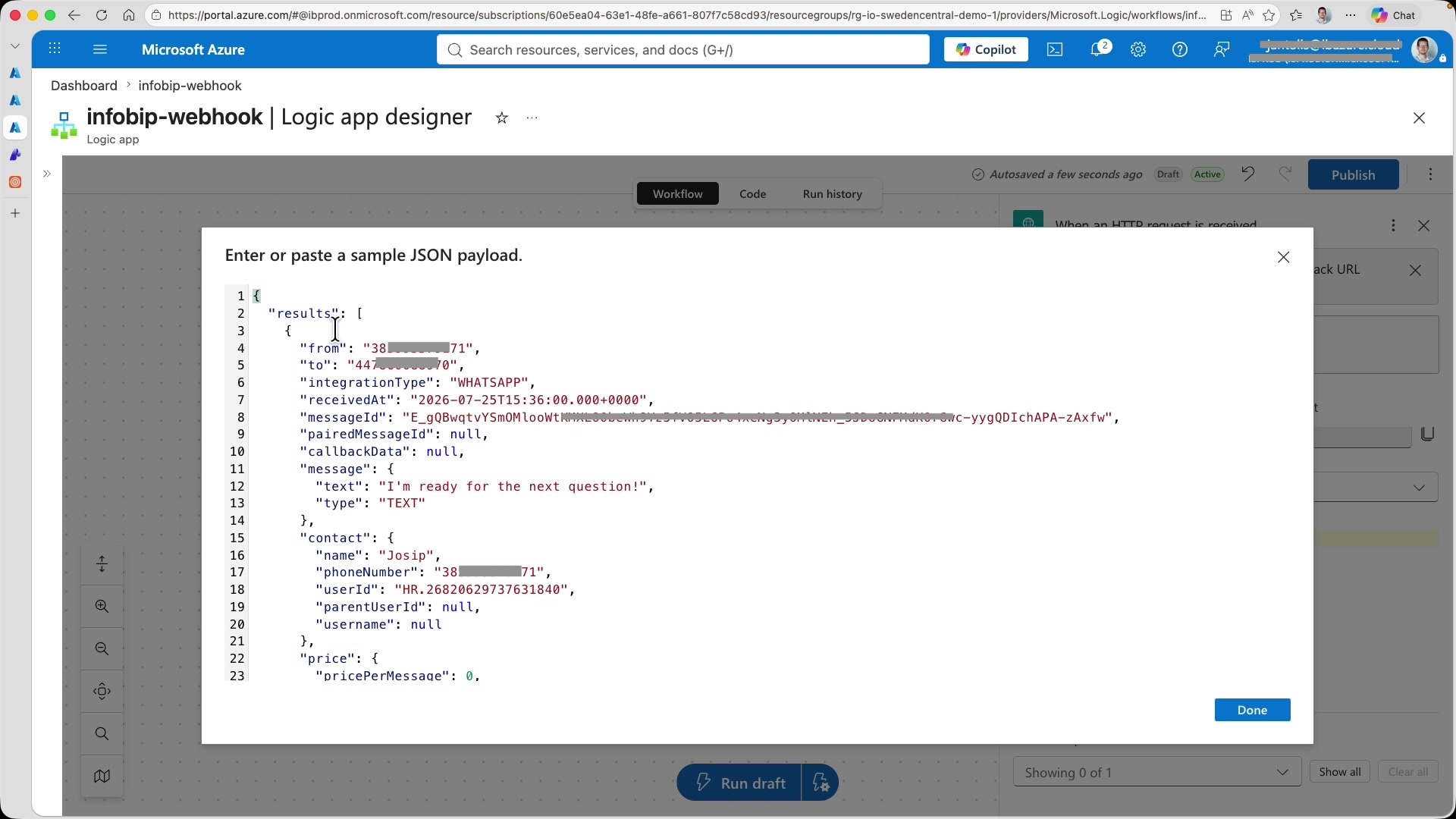
The schema tells Logic Apps how to parse the incoming payload, making individual fields available as dynamic content in subsequent steps.
Invoke Agent action with dynamic content [#invoke-agent-action-with-dynamic-content]
- Add a new action and search for the Invoke agent action from the Azure AI Foundry connector.
- When creating the connection, select Managed Identity as the authentication type. This uses the system identity you configured earlier.
- For the Azure AI project endpoint, go to your Foundry project and copy the project endpoint URL from the overview page.
- Select the
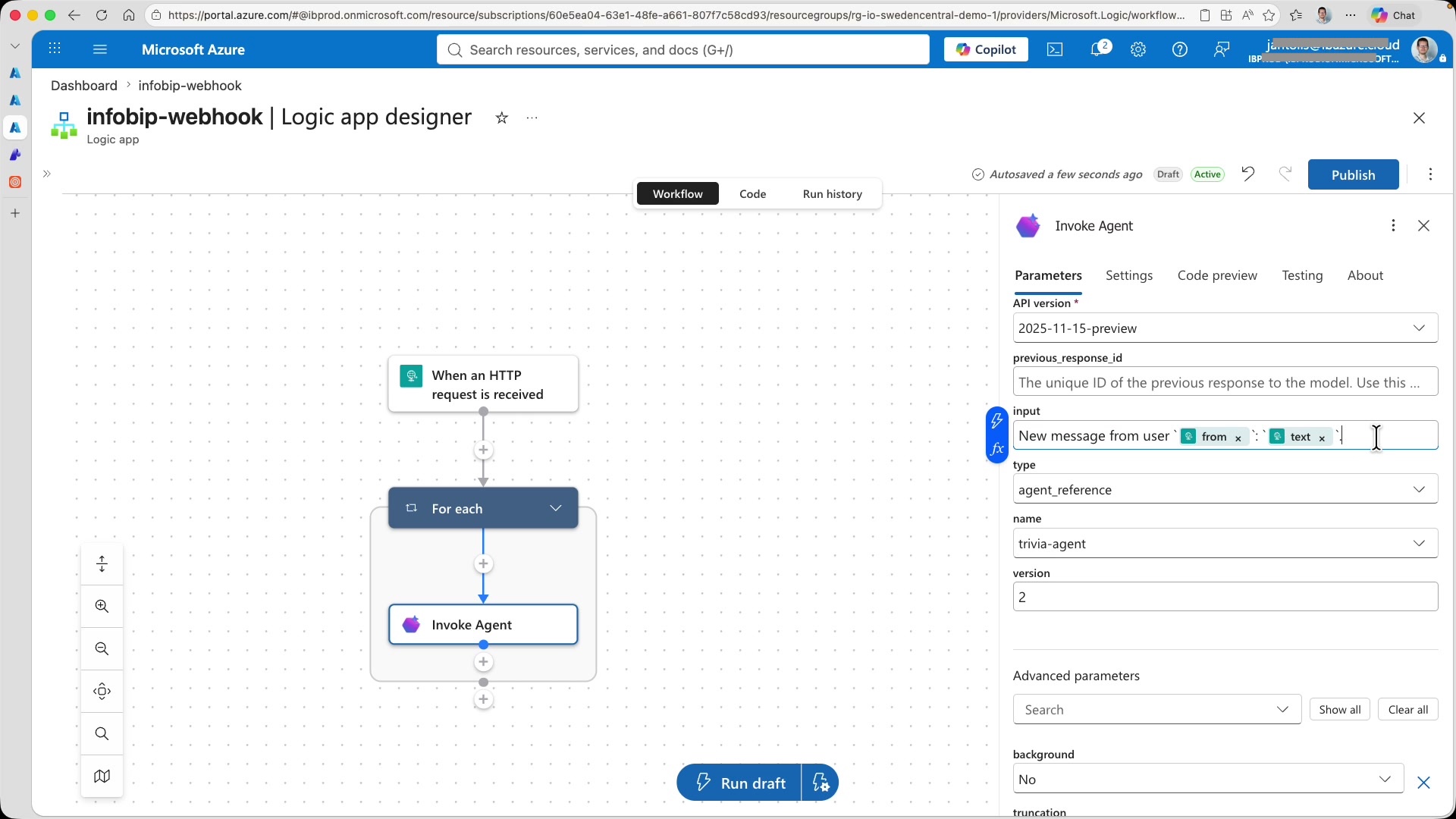
agent_referencetype and pick your trivia-agent. - For the Input field, use the dynamic content picker to insert the
fromfield (the user's phone number) and thetextfield (the user's message). This becomes the prompt the agent receives.
Because you referenced a field from inside the results array, Logic Apps automatically wraps the Invoke Agent action in a For Each loop handling the case where multiple messages arrive in a single webhook request.
Add the custom memory header [#add-the-custom-memory-header]
The graphical designer does not support custom HTTP headers on the Invoke Agent action. Switch to the Code view to add it manually.
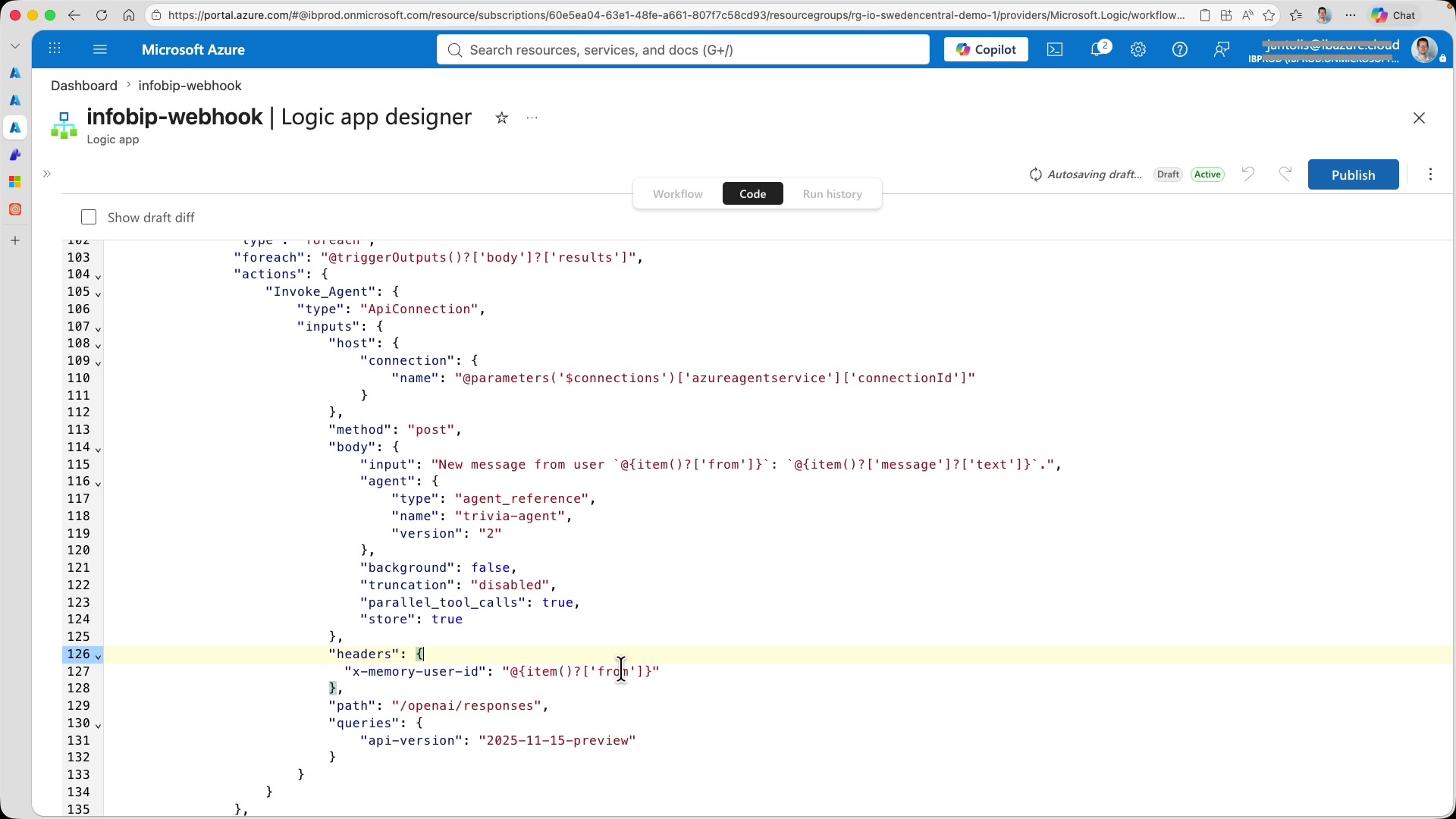
In the JSON definition of the Invoke Agent action, add a headers property:
This sets the memory scope to the sender's phone number. Each WhatsApp user gets their own isolated memory. Their own questions, their own answers, their own game state.
Save and publish the workflow. Copy the generated webhook URL from the HTTP trigger.
Step 9: Configure Infobip inbound message subscription [#step-9-configure-infobip-inbound-message-subscription]
The Logic App webhook is ready, but Infobip doesn't know to send messages to it yet. You need to create a subscription that routes incoming WhatsApp messages to your webhook.
-
From within the Infobip account, go to Channels and Numbers > Numbers and find your WhatsApp number.
-
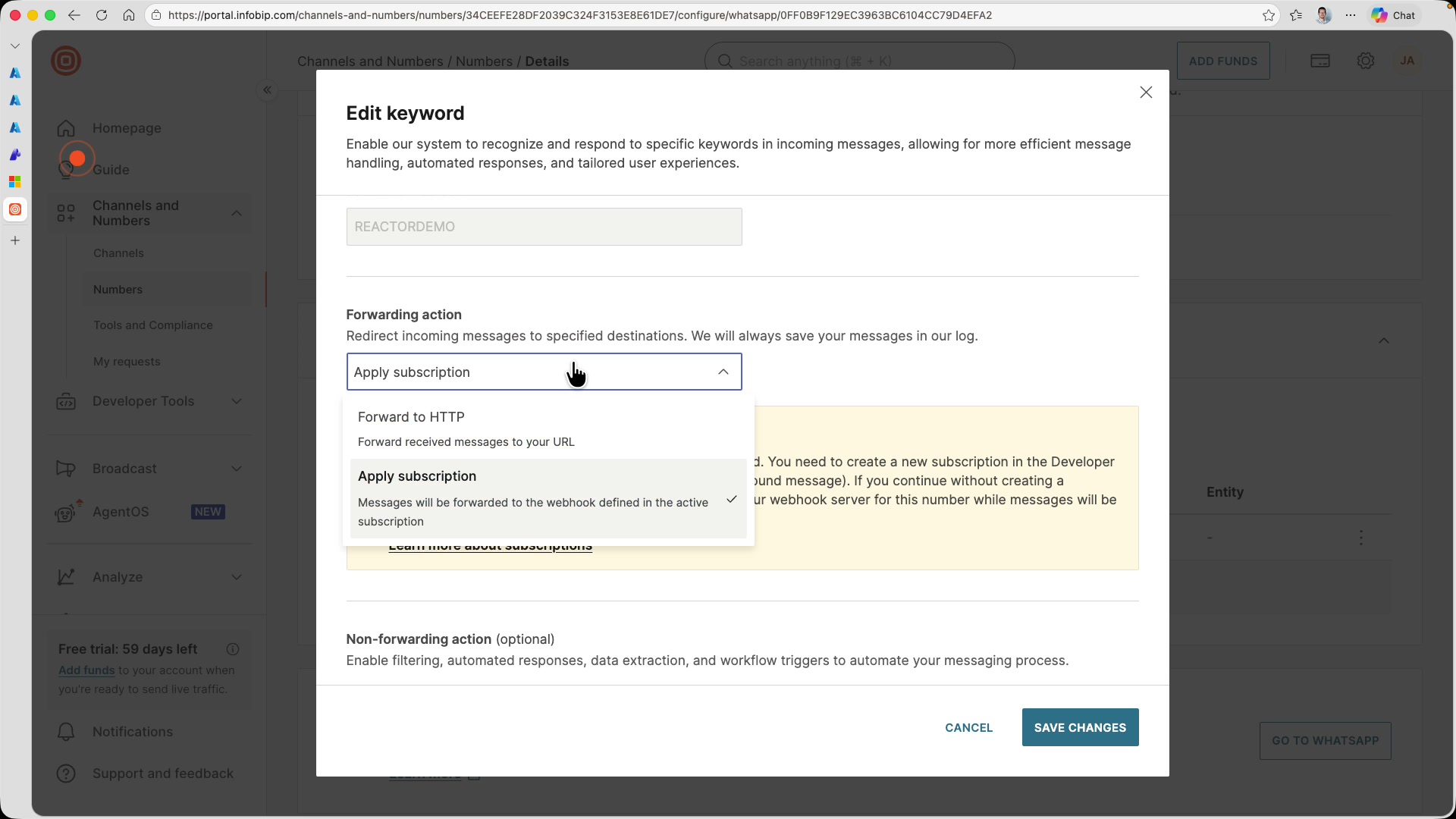
Check the number's inbound configuration under WhatsApp settings.
-
Edit the inbound configuration to check that the forwarding action is set to Apply subscription, which means messages will be forwarded to the subscription we are about to create.
Create a subscription [#create-a-subscription]
-
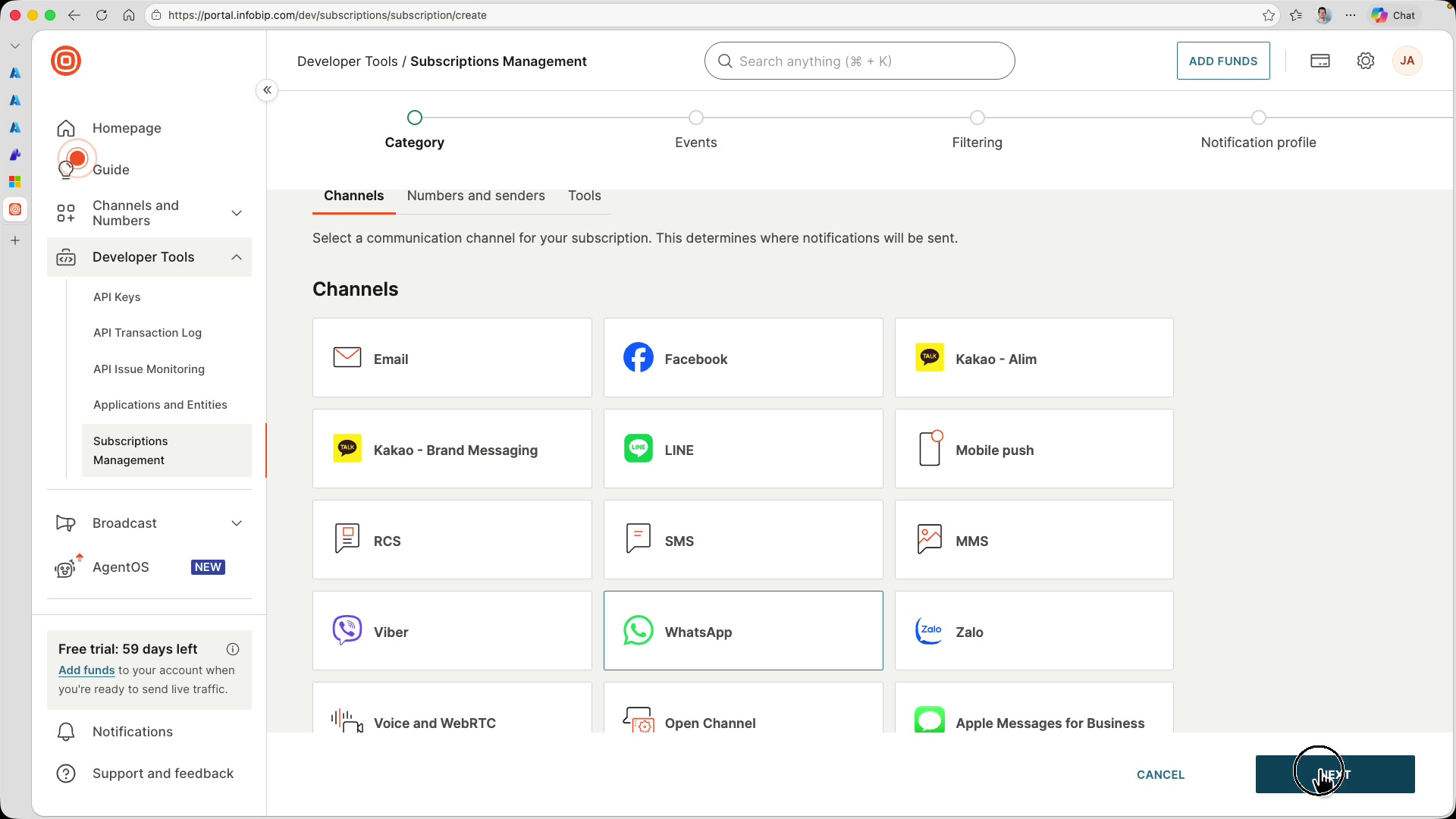
Go to Developer Tools > Subscription Management and create a new subscription.
-
On the Category step, give it a name and select WhatsApp as the channel:
-
On the Events step, check Inbound message. This is the event that fires when a user sends a text message.
-
Skip the Filtering step (receive all events).
Create a notification profile [#create-a-notification-profile]
The subscription needs a notification profile that defines where to forward messages. Create one with your Logic App webhook URL:
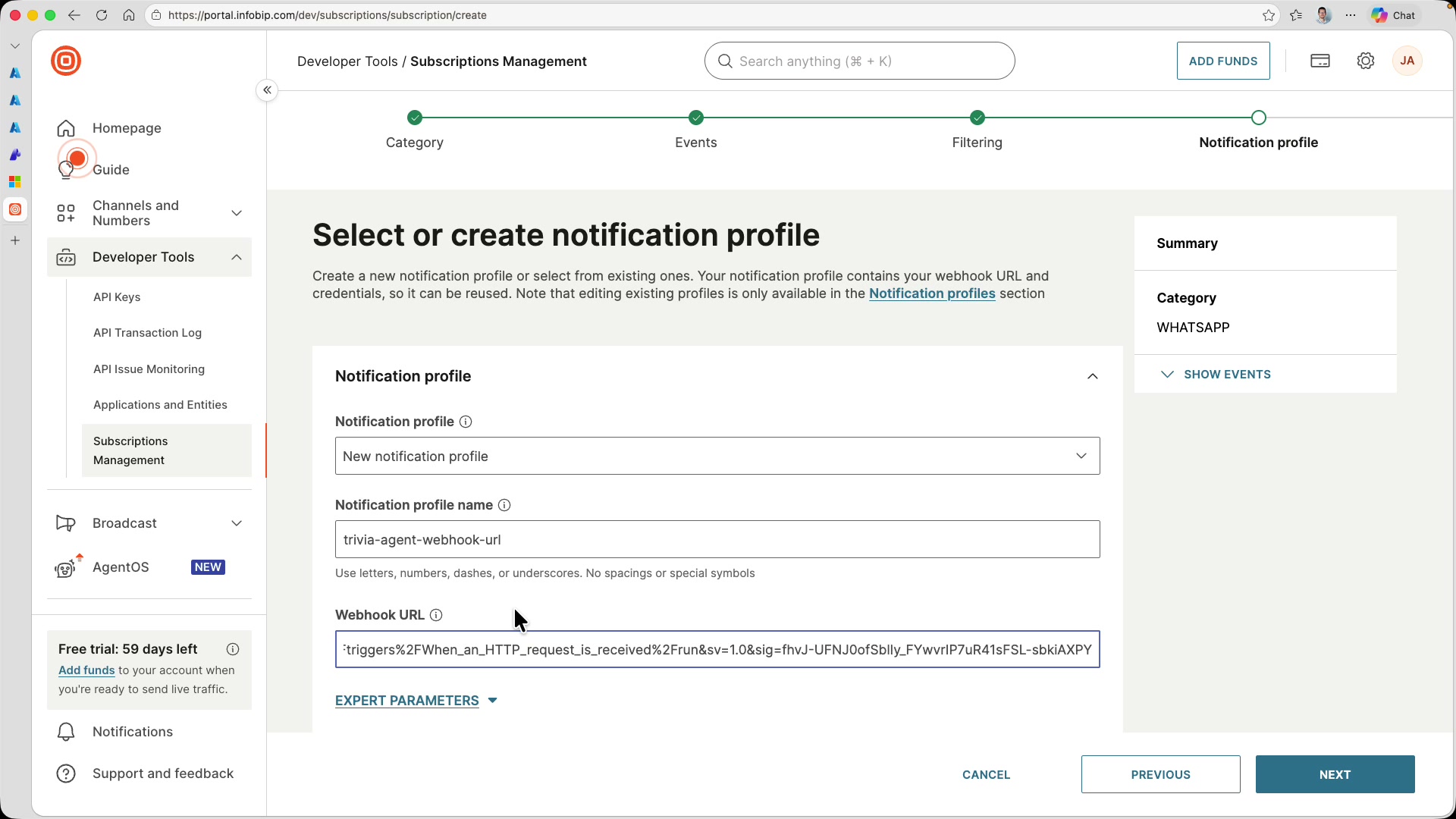
Save the subscription, then go back to your WhatsApp number's inbound configuration and verify the subscription you just created is used in the inbound action.
Step 10: Play trivia [#step-10-play-trivia]
Everything is wired up. Go back to WhatsApp and reply to the template message you received earlier. Type "I'm ready for next question!"
The message travels from WhatsApp to Infobip, through the subscription to your Logic App webhook, into the Foundry agent, which generates a question, stores it in memory, and sends it back using the WhatsApp MCP server.
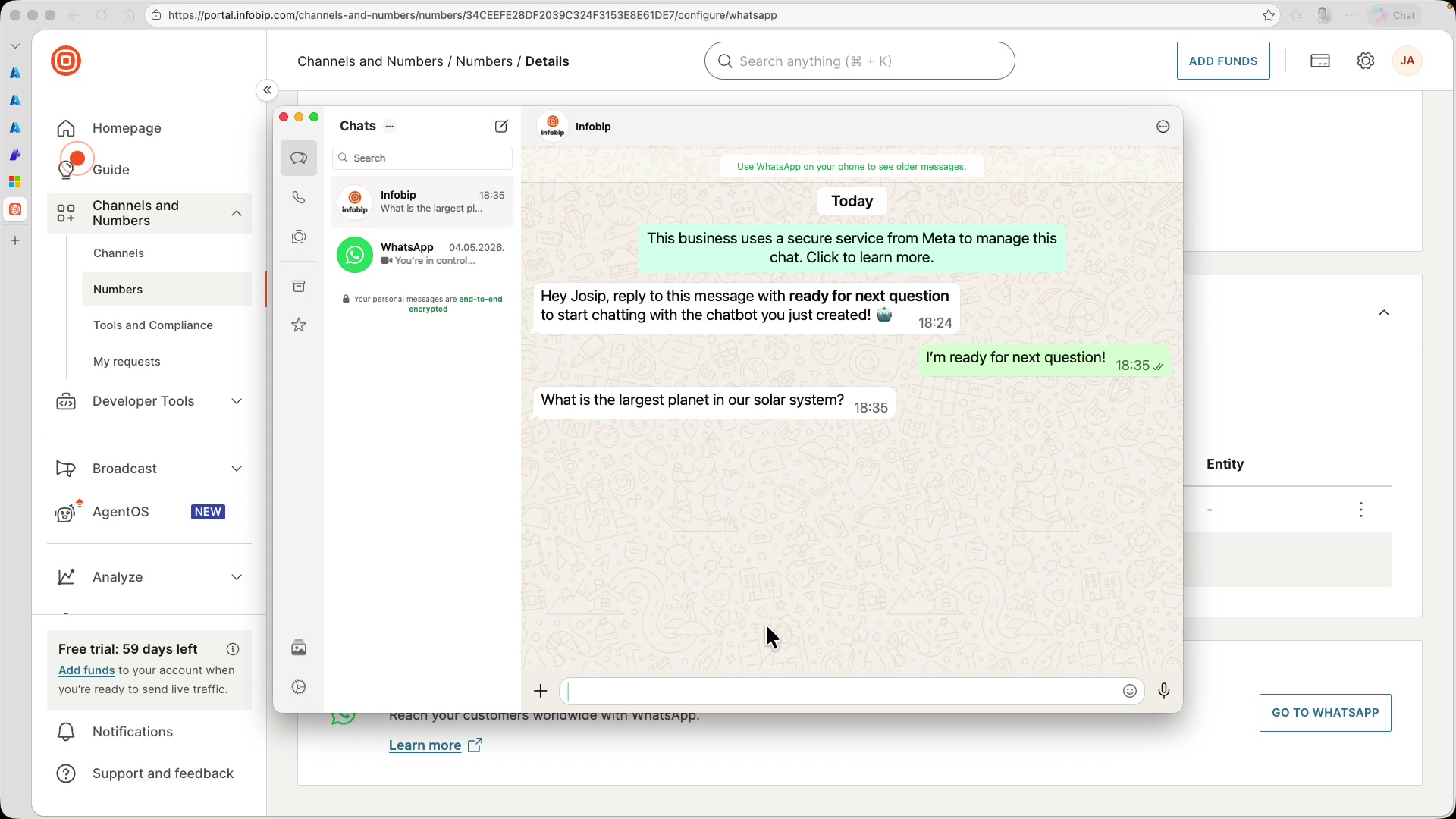
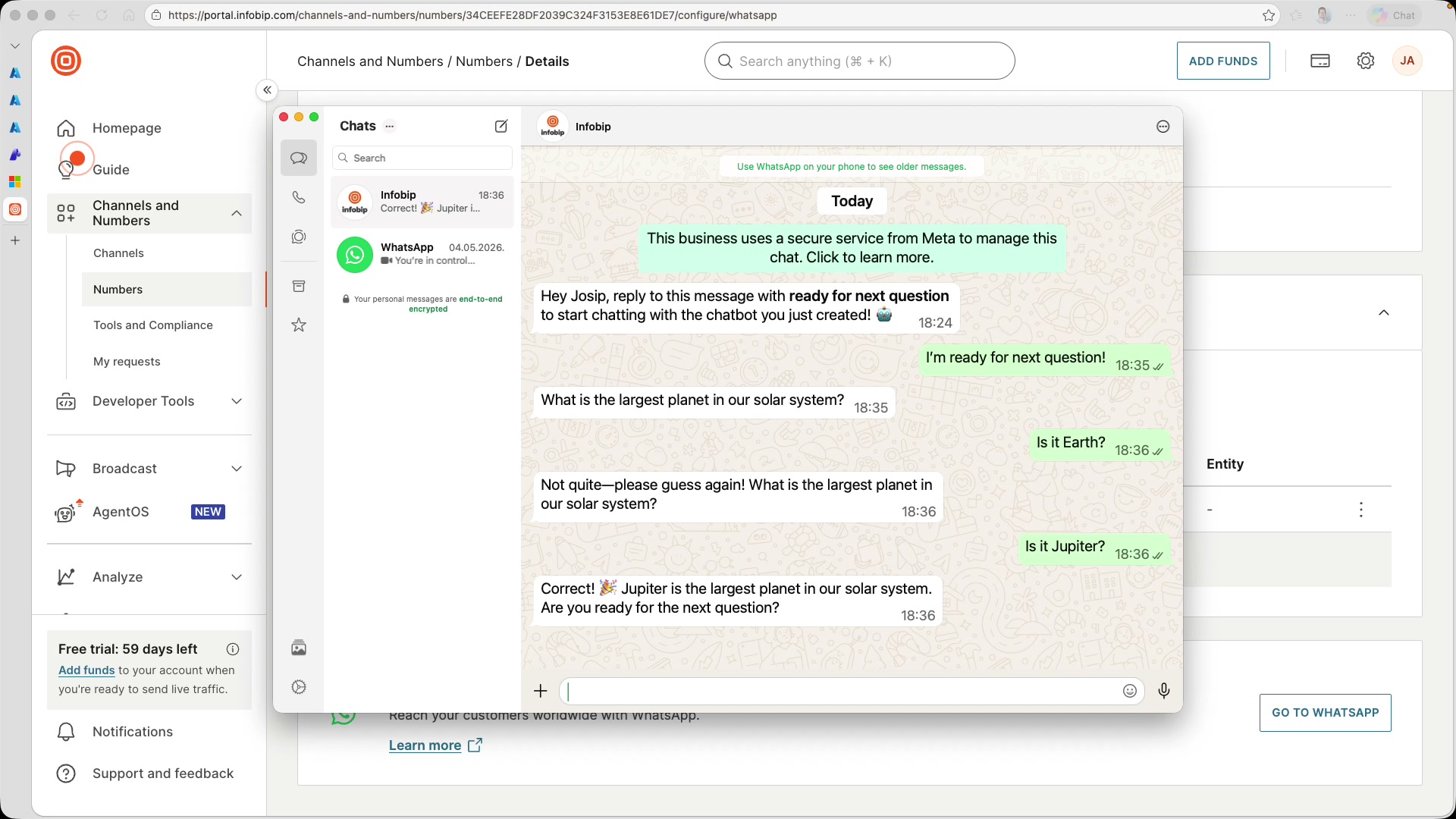
The agent will come up with a trivia question on its own. It can be anything from geography to science to pop culture. Try submitting a wrong answer first. The agent checks its memory, finds the stored answer does not match, and asks you to try again. Then submit the correct answer. The agent confirms you're right and asks if you're ready for the next round.
Inspect the memory store [#inspect-the-memory-store]
Back in Azure Foundry, go to Memory and open the memory store. Enter your phone number in the Scope field to filter memories for your user, and select Chat summary as the Kind. This is where the agent most likely stores trivia questions and answers.
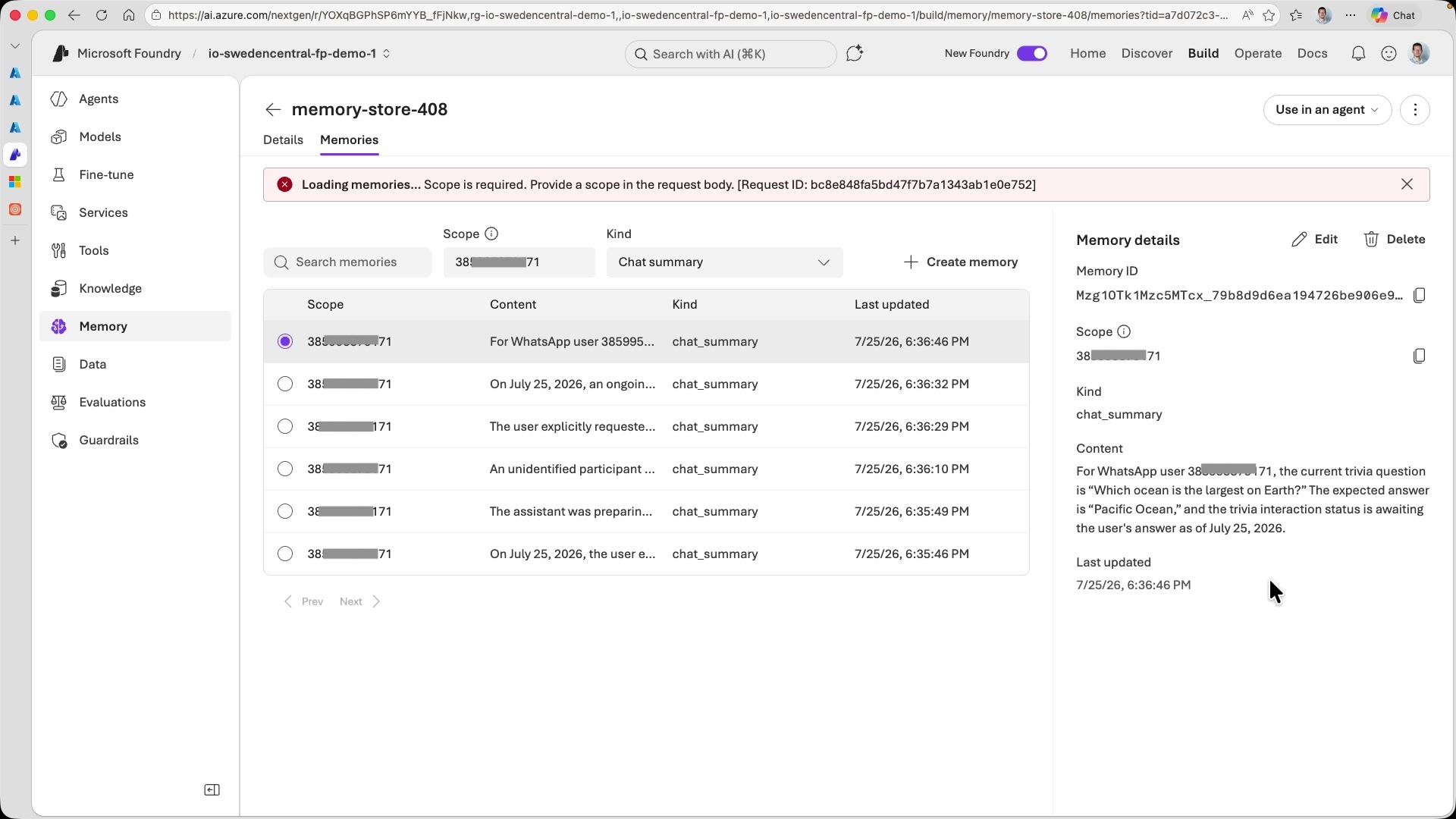
Select individual memory entries to inspect their content. You will see the trivia questions the agent generated, along with the correct answers it stored for validation. Each entry is scoped to your phone number, so different users have completely separate memory spaces. The specific questions your agent generates will differ from what's shown here as this is the nature of LLM-driven interactions.
What you've built [#what-you-built]
This trivia agent demonstrates several concepts working together:
- Two-way messaging over WhatsApp: using Infobip WhatsApp MCP server the agent both sends and receives messages
- WhatsApp template compliance: the initial outbound message uses a Meta-approved template, then the conversation switches to free-form text
- Per-user automated memory: each user gets their own memory scope, allowing the agent to track questions and answers independently across multiple simultaneous conversations
- Webhook-driven architecture: Infobip subscriptions route inbound messages to Logic Apps, which invoke the Foundry agent with the right context and memory scope
- LLM-driven application logic: the entire game (question generation, answer validation, state management) is defined in the system prompt, not in application code
The most striking aspect is how much behavior emerges from the instructions alone. The agent decides what questions to ask, judges whether answers are correct (with natural language understanding, not string matching), manages conversational flow, and maintains state across interactions. All of this runs autonomously once the webhook pipeline is connected.
Next steps [#next-steps]
- Richer content: Use WhatsApp interactive message types (buttons, lists) through the MCP server to offer multiple-choice answers instead of free-form text
- Scoring system: Extend the memory to track scores: correct answers, streaks, total questions answered — and send periodic leaderboard updates
- Multi-channel: Add SMS or RCS as fallback channels for users who do not have WhatsApp
- Custom templates: Register your own WhatsApp templates through the Infobip portal for a branded first-message experience
- Production hardening: Add error handling in the Logic App workflow, implement retry logic for failed agent invocations, and set up monitoring dashboards for webhook delivery rates