Send an interactive product message with WhatsApp API
As an outcome of this guide, you will get an interactive WhatsApp message delivered to your handset. You'll also use a webhook to catch the reply and simulate user interaction. For ease of replicating the scenario, we have used a free online webhook tool, HookRelay. You may replace HookRelay with your own hook server if you need to process your events programmatically.
Scenario overview
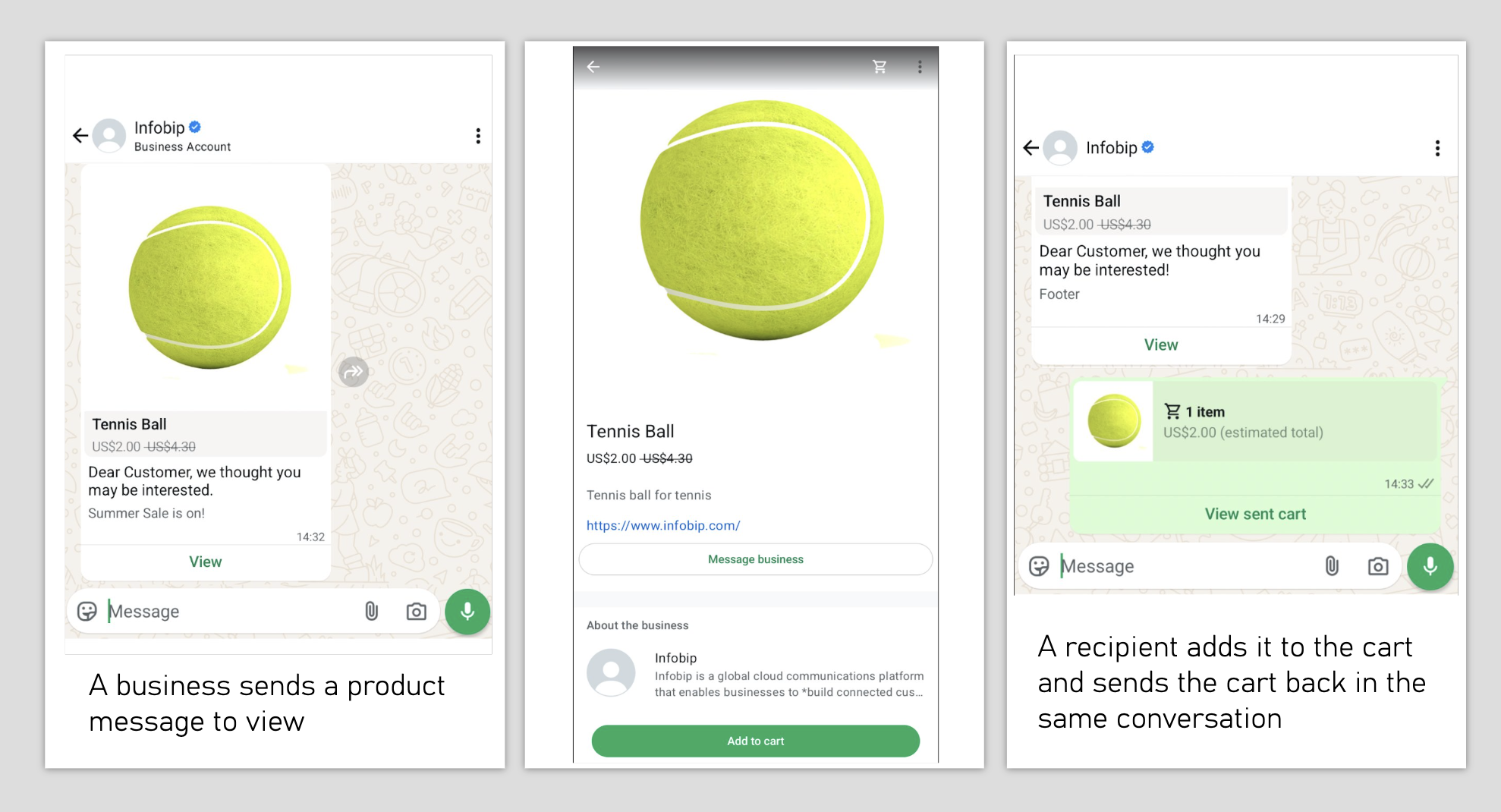
The WhatsApp sender sends a message with a product image and a description, which are loaded from their existing Meta catalog. The recipient can then click on the image and choose between two options, either message the sender about the product or add the product to the cart. The card then is sent back to the business in the same WhatsApp interaction. The business determines the next steps, whether it's a delivery or payment integration, which is out of scope for this guide. The end user's reply will be intercepted by a webhook so that the WhatsApp sender can view the reply and react accordingly.
Prerequisites [#prerequisites]
- Infobip account. If you do not have one, create a free trial account.
- Infobip API key with the
whatsapp:message:sendscope. Find out more about scopes in API Authorization. - Your favorite HTTP client. In this example, we use
curl. You can also choose an official Infobip SDK in your preferred programming language. - Sender. If in a free trial period, you can use Infobip test sender,
447860099299. If you want to configure a custom sender, request a new number or an alphanumeric sender through your Infobip account or use the Infobip Numbers API. - Destination - a phone number to which the message will be sent. In a free trial period, you can only send messages to a verified phone number.
- WhatsApp Business Account. For testing purposes, use the Infobip test sender,
447860099299. - Meta Business Account. For testing purposes, use the Infobip test catalog and product retailer ID provided in the code sample below.
Limitations [#limitations]
With WhatsApp, you can only send a message to your customer if they have contacted you first. This opens a 24-hour window for two-way communication. Otherwise, use a template message.
Summary of the steps [#steps-summary]
- Buy or configure an existing WhatsApp number capable of receiving incoming traffic.
- Set up a webhook.
- Add webhook details to the number you've purchased or configured.
- Send an interactive WhatsApp message with a product. The webhook will catch the response.
Buy a number [#buy-number]
To buy a number, you'll need to log into your Infobip account.
Skip this section, if using the Infobip test sender or an existing number.
- Expand the Channels and Numbers icon on the left-hand side menu, and select Channels.
- Select WhatsApp and click Register Sender.
- From the Register a WhatsApp sender screen, select the option you wish to choose for sender registration.
- Set up your number preferences, like a country, number type, etc.
You're all set for now. Once a webhook is configured, you'll come back to the number config to add its URL.
Set up a webhook [#set-up-webhook]
For the purpose of this guide, we will use a simple online webhook tool, HookRelay. This section will show you how to create an account and configure the webhook with HookRelay.
Step 1. Sign in with git credentials [#sign-in-with-git]
Sign into HookRelay with your GitHub or GitLab credentials.
Step 2. Create a webhook [#create-webhook]
To create an inbound webhook, from your dashboard, click the New Hook button on the top right. That will take you to the configuration screen where all you need providing is a descriptive name for your webhook, e.g. Infobip WhatsApp List Response.
Once you click the Create hook button, you'll be able to view and copy its URL that you will need to add to your WhatsApp sender.
Add webhook URL to a WhatsApp sender [#add-webhook-to-sender]
Head back to your Infobip account and access your WhatsApp sender configuration page (Channels and Numbers > WhatsApp).
- Select Senders and click the kebab (three-dot) menu on the WhatsApp sender's tile to select Edit configuration.
- Under Keywords add a new one or edit the existing default one.
- Under the Forwarding action section, select Forward to HTTP and add the webhook's URL to the URL field.
- Click Save.
That's about it for the webhook configuration. Let's now move to creating a WhatsApp message with an interactive list.
Send a WhatsApp product message [#send-whatsapp-message]
Use the Send WhatsApp interactive product message endpoint to interact with your users.
Key points:
- The
tofield must include a number in the international format, e.g.447415774332. - If using a free trial account, the phone number you use must be the same phone number you've registered on signup.
- If you just want to test out the solution, use the
catalogIdandproductRetailerIdprovided in the code sample below.
Send multiple products in one message [#send-multiple-products-in-one-message]
If you want to send multiple products in one message, use the Send WhatsApp interactive multi-product message endpoint.
Add multiple recipients and multiple messages [#add-multiple-recipients-and-multiple-messages]
If you want to send multiple messages to multiple recipients in one request, use a WhatsApp template message.
Track message delivery [#track-message-delivery]
Once you send the request, you should receive a WhatsApp message on the handset you've specified in the to field and see a 200 OK response.
The response informs you that the message has successfully been queued within the Infobip platform and will be then sent to Meta depending on the throughput.
If you want to know whether it's been delivered to the recipient, use the Delivery Report feature.
Troubleshoot and analyze your message [#troubleshoot-the-message]
For troubleshooting and analytics, use the auto-generated messageId to view the message and its details.
Catch the answer [#catch-the-answer]
Once a user interacts with your message, your webhook that's listening to that event will catch the reply. The message object will tell you what happened. In this case, the user has selected the product, checked it out, and sent the basket back as a reply.