Send Viber using an Infobip MCP server and an AI client
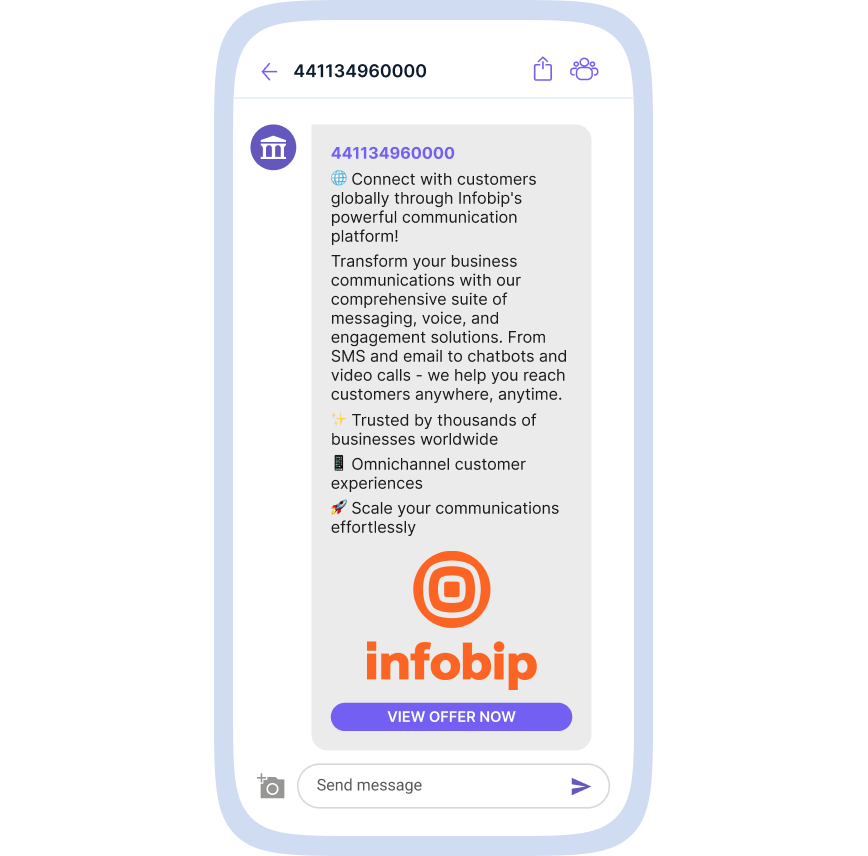
This tutorial will show you how to send a Viber Business Message using AI prompts. In this example, we use Claude Desktop but you can use any AI client that supports MCP integrations.
Prerequisites
- Infobip account. If you do not have one, create a free trial account.
- If using API key authorization, an Infobip API key with the
viber-bm:message:sendscope. Find out more about API keys and scopes. Skip this step for OAuth. - An AI client (e.g., Claude Desktop) with the Infobip Viber MCP server. For integration details, see the MCP integration guide.
- Sender. If in a free trial, use the Infobip test sender,
IBSelfServe. If you want to configure a custom sender, request a new number or an alphanumeric sender through the Infobip account or use the Infobip Numbers API. - Destination - a phone number to which the message will be sent. If in a free trial, you can only send messages to a verified phone number.
Integrate the Infobip Viber MCP server with your AI client
Navigate to your AI client's MCP settings and add the Infobip Viber MCP server.
Once you restart your AI client, you should see the Infobip Viber MCP server on the list of available tools. For more integration details, see the MCP integration guide.
Send a Viber message
In your AI client, write a prompt to send a Viber message.
Key points about the prompt:
- Specify the sender and destination(s).
- Specify additional features you wish to include, e.g. buttons, media sending and managing, tracking, scheduling, etc. Check out Viber Business Messages API reference.
- Describe your use case so that the AI can craft an adequate message.
- Include limitations (e.g., one message, specific delivery window) and personalized details (e.g., specific URL, image, etc.); otherwise, the AI will use made-up details to fill in the gaps.
The AI will create a request that you can then review and change if need be. Once you approve the message, the AI will send it.
Report status
Once the AI sends the message, it will return a summary of what it did and if prompted will retrieve a delivery report, if available.
That's it! You have successfully sent a Viber Business Message using AI and an Infobip MCP server.