Set up a personalized AI-powered weather forecast delivered by SMS
There are many use cases for combining AI and messaging, and your only limit is your imagination. This tutorial will guide you through setting up a personalized AI-powered weather report delivered by SMS every morning. You can also customize it to your liking or use the same principle for other AI-driven reports.
Prerequisites
- Infobip account. If you do not have one, you can easily register.
- Python 3.7 or higher installed on your machine.
- API keys for Azure OpenAI and Infobip.
- The following Python libraries installed:
openmeteo-requestsrequests-cacheretry-requestspandasopenairequestsjsonnumpy
Implementation
Step 1: Set up an Infobip account
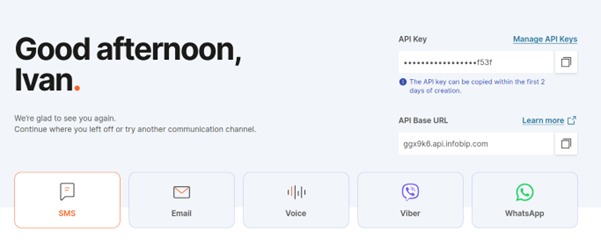
Create an Infobip account. After a quick registration, you will obtain your API Base URL and API key, which will enable you to send SMS messages. Make sure to write these two values down as they will be required later on.
Step 2: Create an Azure account
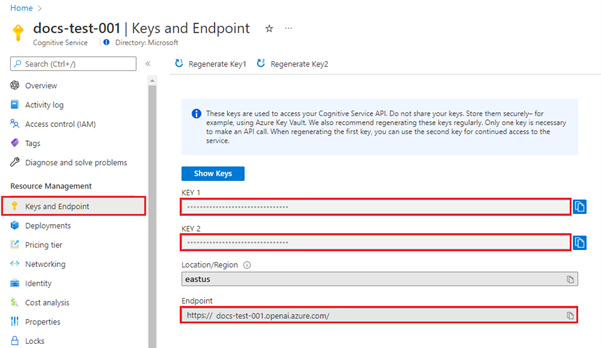
Create an account with Azure and create a new GPT-4 deployment. After creating the deployment, make sure to write down your GPT endpoint URL and key.
Step 3: Draft your app
The application flow will have three main elements:
- Open Meteo to fetch the current weather details.
- Azure OpenAI to read the Open Meteo data and transform it into a personalized message.
- Infobip SMS API to actually send the message to the user.
Step 4: Start building your app
First, create a virtual environment and install all the dependencies that we'll use:
After creating the virtual environment, install the dependencies:
Step 5: Set up Open Meteo
Open Meteo is both free and doesn't require an API key, so it works out of the box. First, create a function that will accept latitude and longitude as arguments and return the daily weather forecast in JSON format. This is something that we can feed into GPT and use as a basis for a witty, personalized weather forecast:
Step 6: Set up Azure OpenAI
After obtaining the weather information, start the Azure OpenAI integration. Create an AzureLLM class with two methods defined: one to send the message and the other to read the response and extract our message:
Step 7: Set up Infobip SMS
Finally, create a function to send an SMS message:
Step 8: Put it all together
Call these functions and introduce a descriptive prompt, instructing GPT what you would like it to do with the data that you are sending.
Several seconds after executing this, you should receive your first weather report! You can easily schedule this to be executed every morning, using a scheduler (such as cron), or a simple script that will be running in a while loop, and only send messages at a certain time.