Inbound messages: subscription routing
Webhook subscriptions provide centralized configuration for inbound messages across multiple communication channels. Instead of configuring inbound handling separately for each resource, define subscription-based rules that apply uniformly while maintaining flexibility for channel-specific requirements.
Why use subscriptions for inbound messages [#why-subscriptions-for-inbound]

Centralized management
Configure inbound handling at the channel level. One subscription covers all resources on that channel, eliminating per-resource setup and reducing configuration overhead.

Unified event handling
Manage inbound messages alongside delivery confirmations, link clicks, and bounces in one place. A single subscription framework handles all event types for a channel.

Multi-tenant routing
In CPaaS X environments, direct inbound messages to different endpoints based on application or entity. Resource-level overrides take precedence when you need exceptions.
Configuration hierarchy [#configuration-hierarchy]
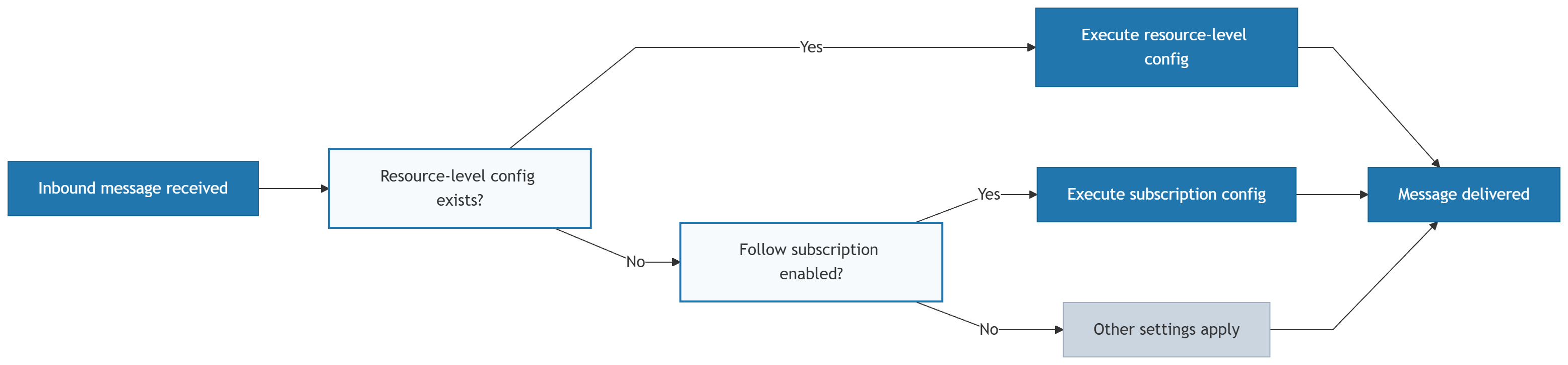
When an inbound message arrives, the system follows a priority-based decision process to determine how to handle it:
- Resource-specific (highest priority): If a resource has a resource-level action (forward to HTTP, email, or SMPP), the system executes it immediately. This overrides all subscription settings.
- Apply subscription: If no resource-specific configuration exists but "Apply subscription" is set as the inbound action, the system applies your centralized subscription rules for that channel. If you use subscription groups, the inbound message is delivered to one matching subscription in each group. To route messages by their content, use keyword filters.
- Non-forwarding actions (always run): Auto-response, blocking, and conversations execute in parallel regardless of which routing decision the system makes.
Standalone notification profiles apply only to outbound (MT) events. Resource-level forwarding URLs for inbound messages do not use standalone notification profiles.
Inbound message decision flow
Configuration options for resources [#configuration-options]
When setting up inbound message handling for a resource, choose one of three approaches:

Resource-level forwarding
Set up a specific action for that resource only. Takes highest priority and overrides subscriptions. See Managing resources: Configure inbound message handling.
Apply subscription
Use the subscription settings defined for that channel. Enables centralized configuration while maintaining per-resource control.

No configuration
If neither resource-level nor subscription configuration exists, inbound messages are handled by other configured settings such as active subscriptions for non-forwarding actions.
How subscription-based inbound routing is configured [#setup]
Create a subscription
Set up a webhook subscription for each channel where you want to manage inbound messages. Include INBOUND_MESSAGE among the selected event types. See Manage webhook subscriptions.
Set "Apply subscription"
For each resource where you want to use subscription settings, configure the inbound action as "Apply subscription". See Managing resources.
Test the setup
Send test messages to your resources and verify that inbound messages arrive at the correct webhook endpoint.
Filter inbound messages by keyword [#keyword-filters]
Use keyword filters to route inbound messages based on what the end user writes. A subscription with keyword filters receives an inbound message only if the message starts with one of its keywords. For example, a subscription with the keyword ORDER receives ORDER 12345, and does not receive My order is late or Hello.
Keyword filters apply only to the INBOUND_MESSAGE event. On a subscription without INBOUND_MESSAGE, keyword filters have no effect. Channels without inbound messages, such as Email, do not use them.
How keyword matching works [#how-keyword-matching-works-keyword-filters]
Keyword matching follows these rules:
- Start of the message: The message must start with the keyword.
ORDERmatchesORDER 12345, but notORDERS 12345orMy order is late. - Starts-with match: Add an asterisk to match a message whose first word starts with the keyword.
ORDER*matchesORDER 12345,ORDERS 12345, andORDERED today. - Case: Matching is not case-sensitive.
ORDERmatchesorderandOrder. - Several keywords: A subscription matches if any of its keywords matches.
- No keywords: A subscription without keyword filters matches all inbound messages, subject to its other filters.
- Same as number keywords: Subscription keywords match the same way as keywords on a number, except that subscription keywords do not support regular expressions.
Keyword filters work together with the other filters. A subscription receives an inbound message only if the keyword and all other filters match. For example, a subscription with the resource filter 447123456789 and the keyword ORDER receives only messages that start with ORDER and are sent to that number.
A subscription can have up to 255 keywords. Each keyword can be up to 50 characters long. A keyword cannot start or end with a space, and cannot contain these characters: , . ; : # | $.
Which subscription receives the message [#which-subscription-receives-the-message-keyword-filters]
Keyword filters follow the same selection rules as the other filters. See Which subscription receives an event. For keywords, this means:
- A subscription whose keywords do not match the message does not receive it.
- In each subscription group, only one subscription receives the message. A subscription with a matching keyword is selected over a subscription without keyword filters, for example a catch-all subscription in the same group.
- An exact match (
ORDER) is selected over a starts-with match (ORDER*). Among starts-with matches, the longer keyword is selected. - If no subscription in a group matches, that group does not receive the message.
In this example, you have three subscriptions for the INBOUND_MESSAGE event on the same channel, all in the default group:
| Subscription | Keywords | Notification profile |
|---|---|---|
orders | ORDER | Order service webhook |
support | HELP, SUPPORT | Support desk webhook |
all-inbound | None | Main application webhook |
Infobip delivers each message as follows:
| Message | Delivered to | Reason |
|---|---|---|
ORDER 12345 | orders | Starts with the keyword ORDER. Selected over all-inbound, which has no keyword filter. |
SUPPORT my order is late | support | Starts with the keyword SUPPORT. The word order later in the message does not matter. |
Hello | all-inbound | No keyword matches. all-inbound has no keyword filter, so it matches every message. |
Without all-inbound, the message Hello matches no subscription and is not delivered to a webhook.
To deliver a copy of every inbound message to another system, regardless of keywords, add a subscription without keyword filters in a different subscription group.
Keywords on numbers and in subscriptions [#keywords-on-numbers-and-in-subscriptions-keyword-filters]
You can define keywords in two places:
| Aspect | Keywords on a number | Keyword filters in a subscription |
|---|---|---|
| Where | Inbound configuration of the number or resource. See Configure inbound message handling. | Set filters screen of the subscription, or keywords in the Subscriptions API |
| Scope | One number or resource | All numbers and resources on the channel that use Apply subscription, unless narrowed with a resource filter |
| What a keyword decides | Which action runs, for example forward to HTTP, forward to email, auto-response, or Apply subscription | Which subscription, and so which webhook, receives the message |
| Messages without a matching keyword | Handled by the default action of the number | Delivered to a matching subscription without keyword filters, if one exists |
Infobip evaluates the number first. Your subscriptions, including their keyword filters, are used only if the action selected on the number is Apply subscription:
- The inbound message arrives at the number. If the message matches a keyword configured on the number, the action of that keyword runs. Otherwise, the default action of the number runs. A message that matches none of the keywords on the number reaches your subscriptions only if the default action is Apply subscription.
- If the action forwards the message, for example to a URL, email, or SMPP, the message is delivered there. Subscriptions, including their keyword filters and groups, are not used.
- If the action is Apply subscription, Infobip evaluates your subscriptions for the channel, including keyword filters and subscription groups. This also applies when a keyword on the number selected Apply subscription: the keyword filters of your subscriptions are still evaluated against the message.
Use keywords on a number when one number needs its own handling, such as an auto-response for a specific keyword. Use keyword filters in subscriptions to manage keyword routing for many numbers in one place, together with subscription groups and other filters.
Configure each keyword in one place when you can. If you configure the same keyword on a number and in a subscription, the action on the number decides whether the subscription is used.
To add keyword filters to a subscription, see Create a subscription.
Available webhook events
Find inbound message and other event types by channel.
Manage webhook subscriptions
Create, update, and delete subscriptions.
Manage notification profiles
Configure webhook URLs and delivery settings.
Manage event formats
Control inbound message payload structure by channel.