Initiate Microsoft Teams notifications in Conversations
You can receive notifications about new conversation items within the Infobip Conversations application, which is integrated into Microsoft Teams.
To achieve this goal, you can use the automations in Conversations, which monitor various events within the system and can trigger specific actions based on these events.
You can use a Power Automate flow with the Request Connector to provide a webhook that the Infobip application can trigger. This needs to be configured on your Office 365 tenant's Power Automate platform, and you must have a Power Automate Premium license.
Implementation Steps
Power Automate Flow
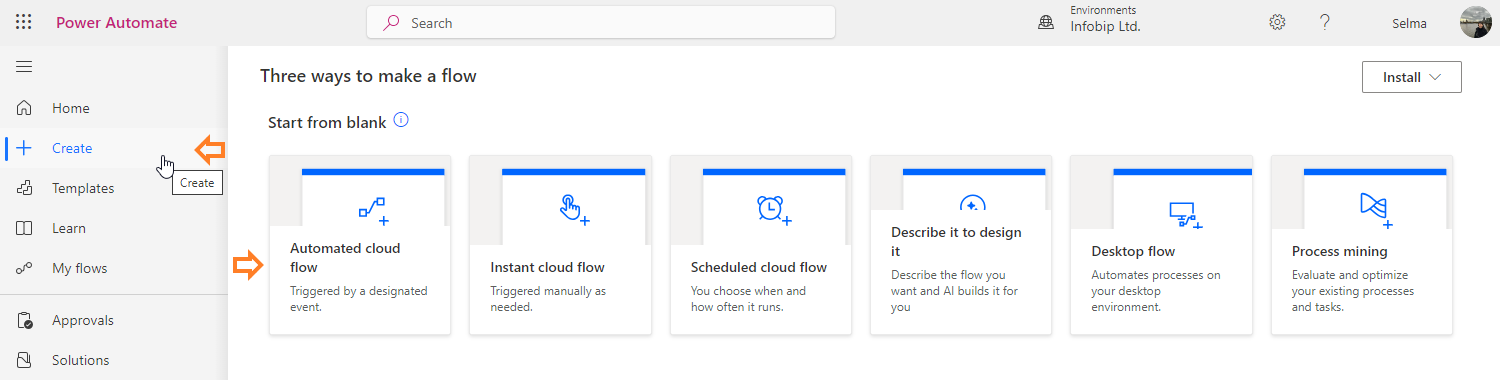
- Go to Microsoft Power Automate to access the flow designer.
- Click Create and choose the Automated cloud flow option.
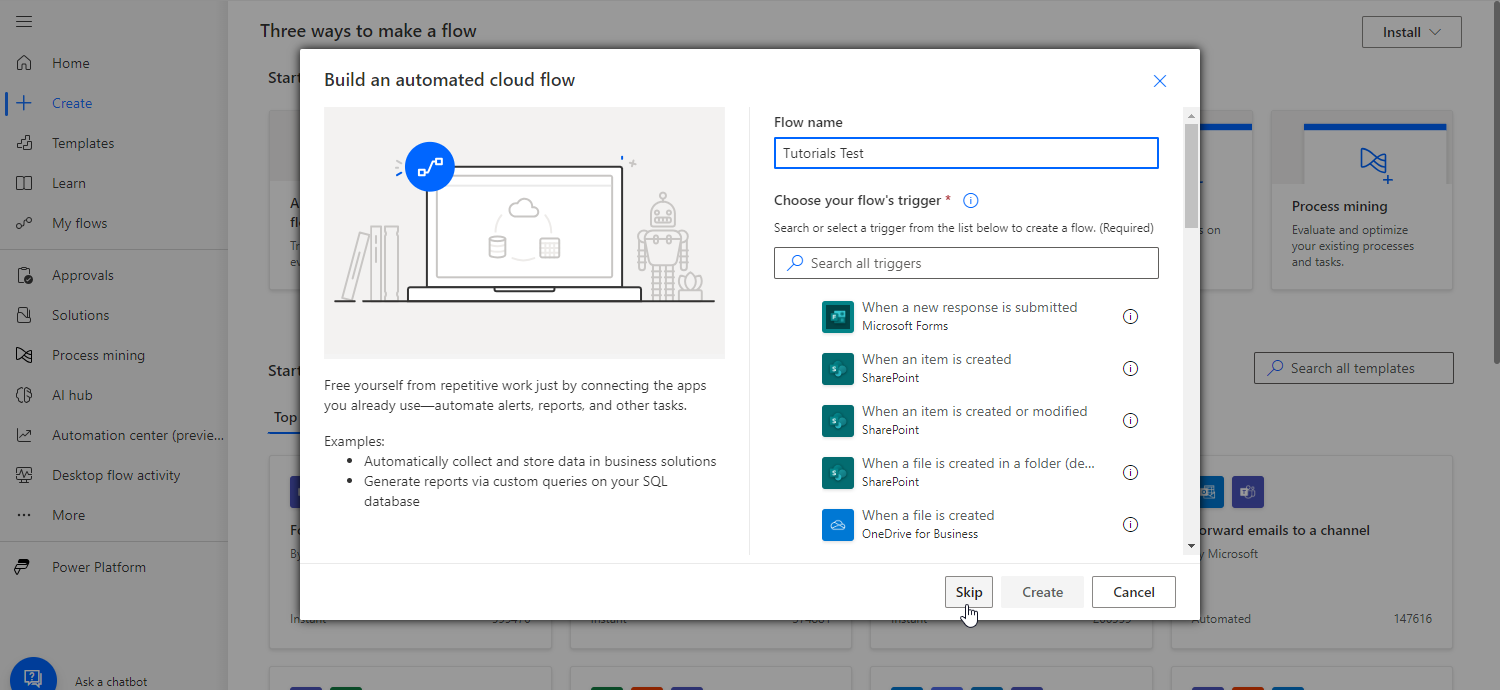
- Define the flow name and click Skip.
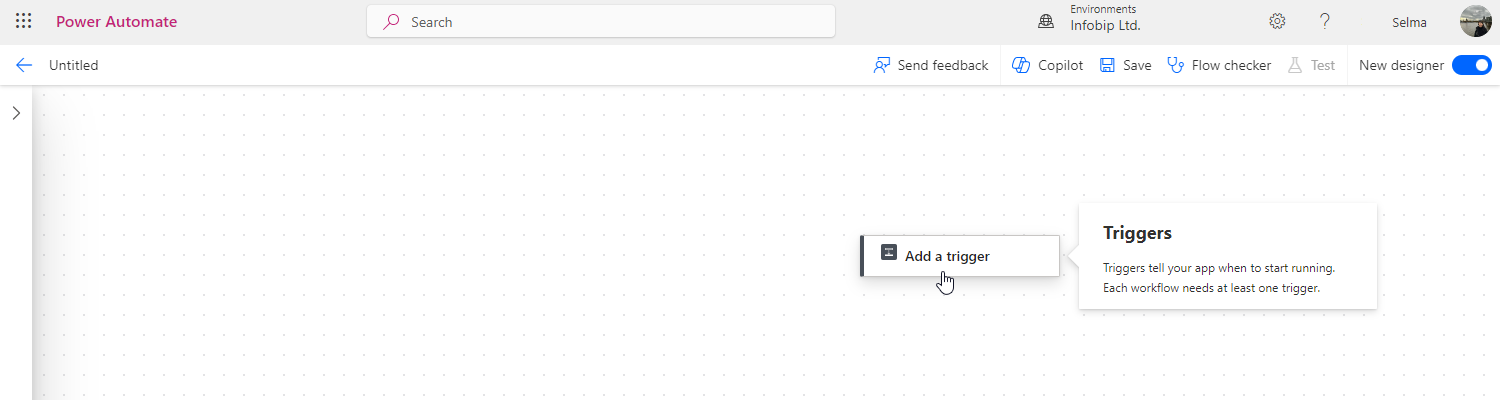
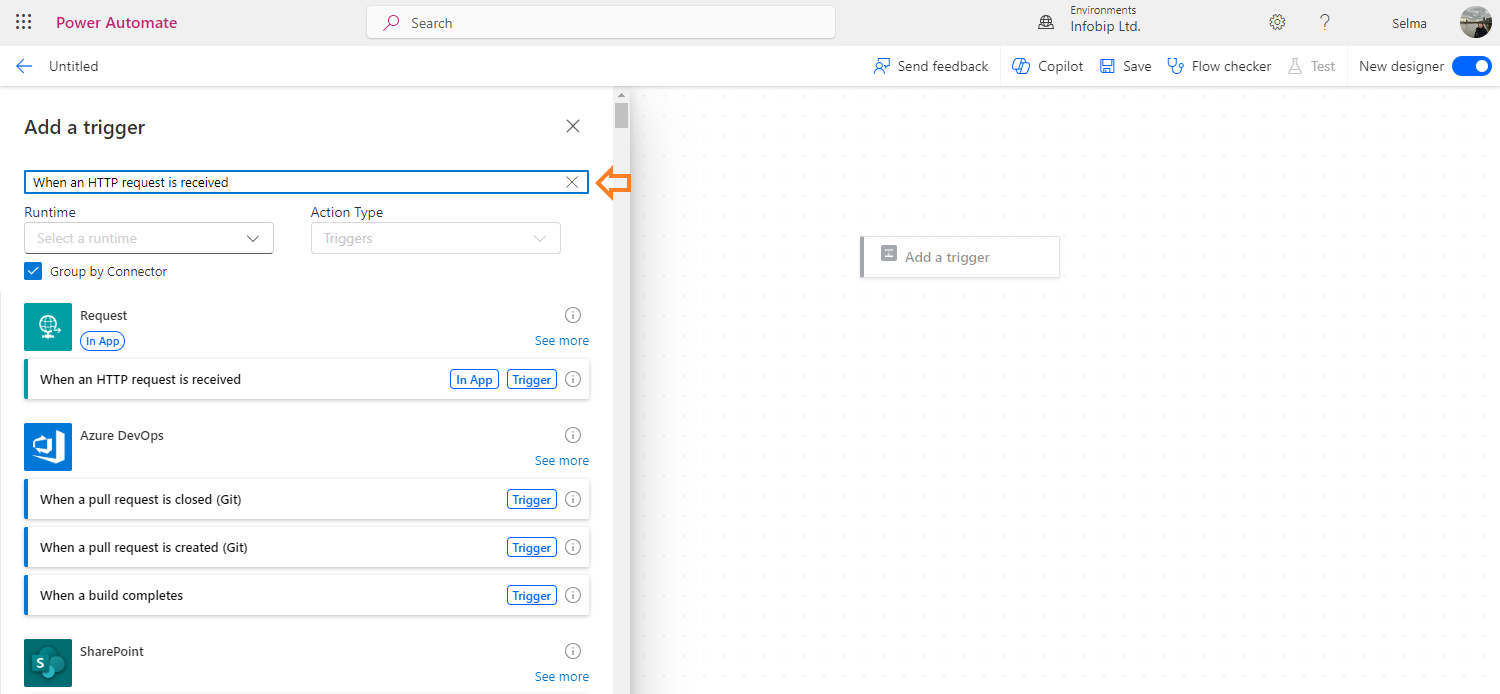
- Click the Add a trigger button. When the sidebar appears, enter When an HTTP request is received in the search field and click it.
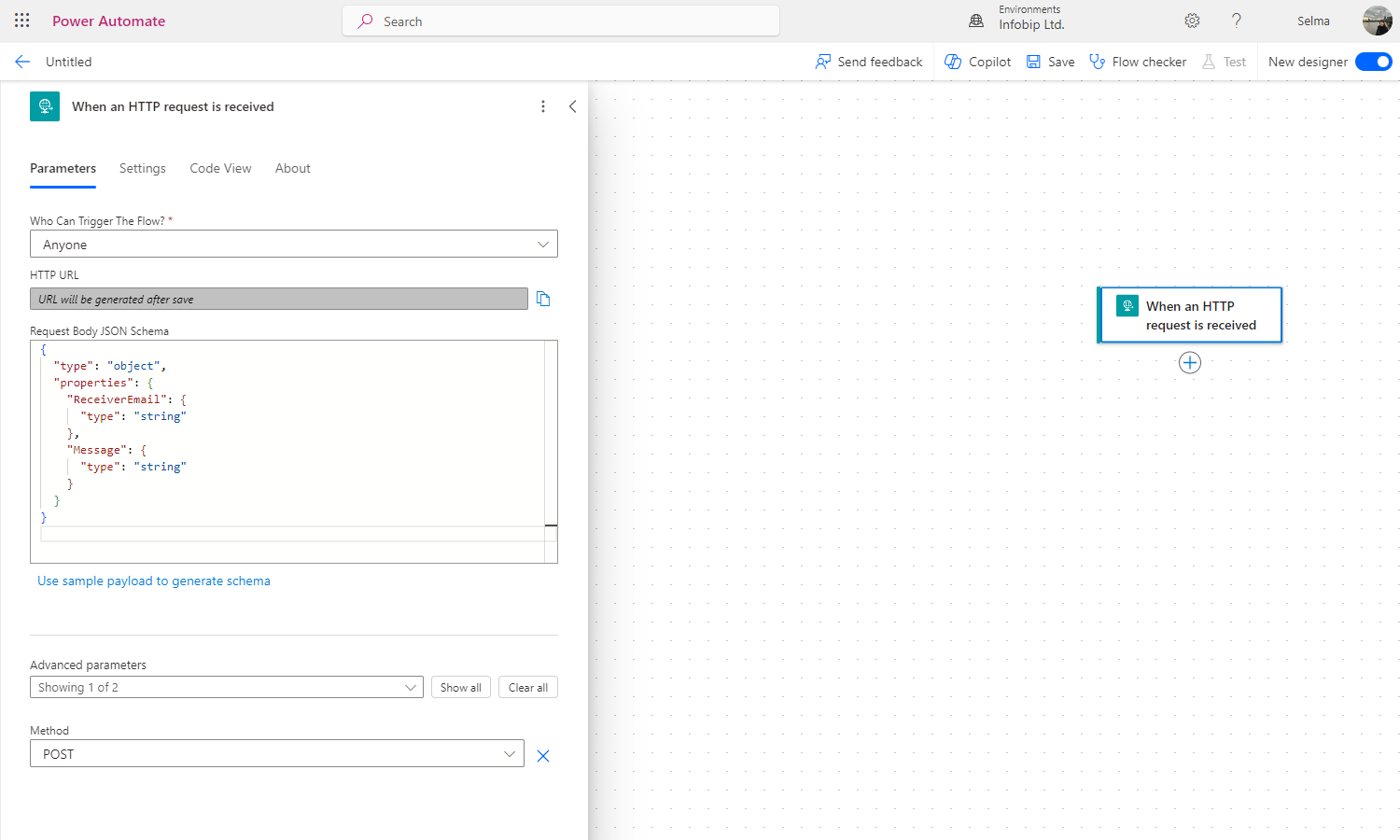
- Define the configuration based on your needs. The method must be POST.
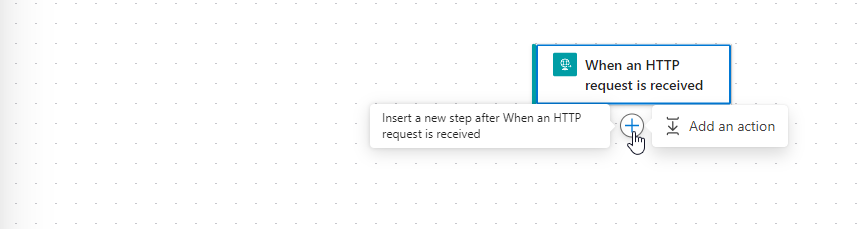
- Go to the first action, click the + button → Add an action.
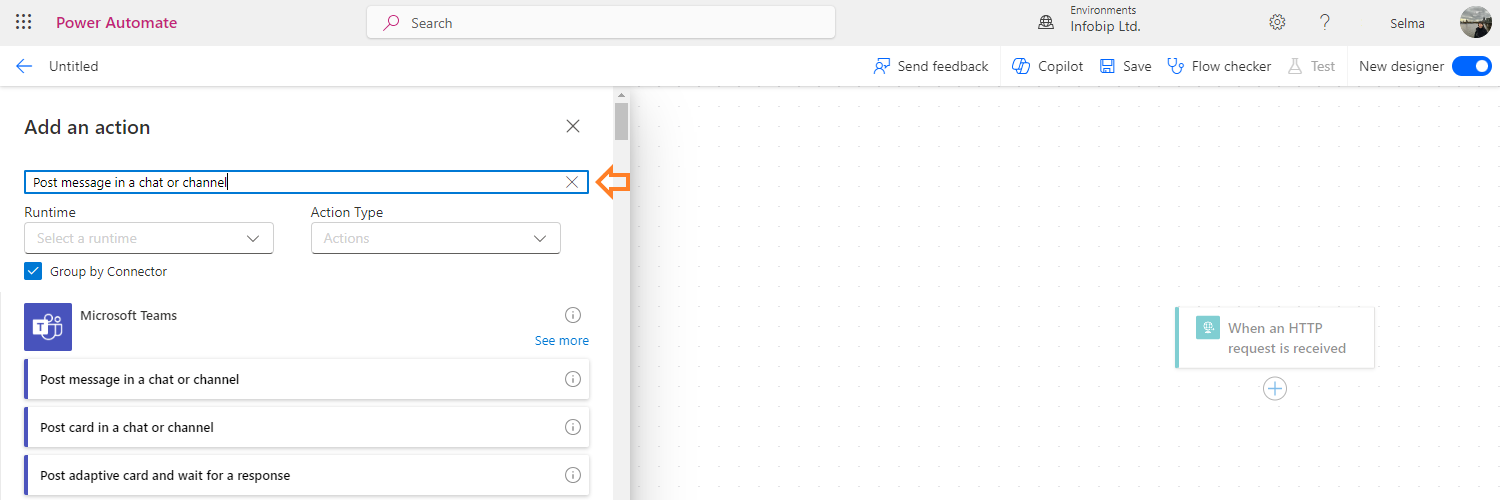
- When the sidebar opens, enter Post message in a chat or channel in the search field and click it.
- Configure the action according to the values set up in the first action. You can input data either by typing the '/' character or by selecting the appropriate option that appears when you click the field.
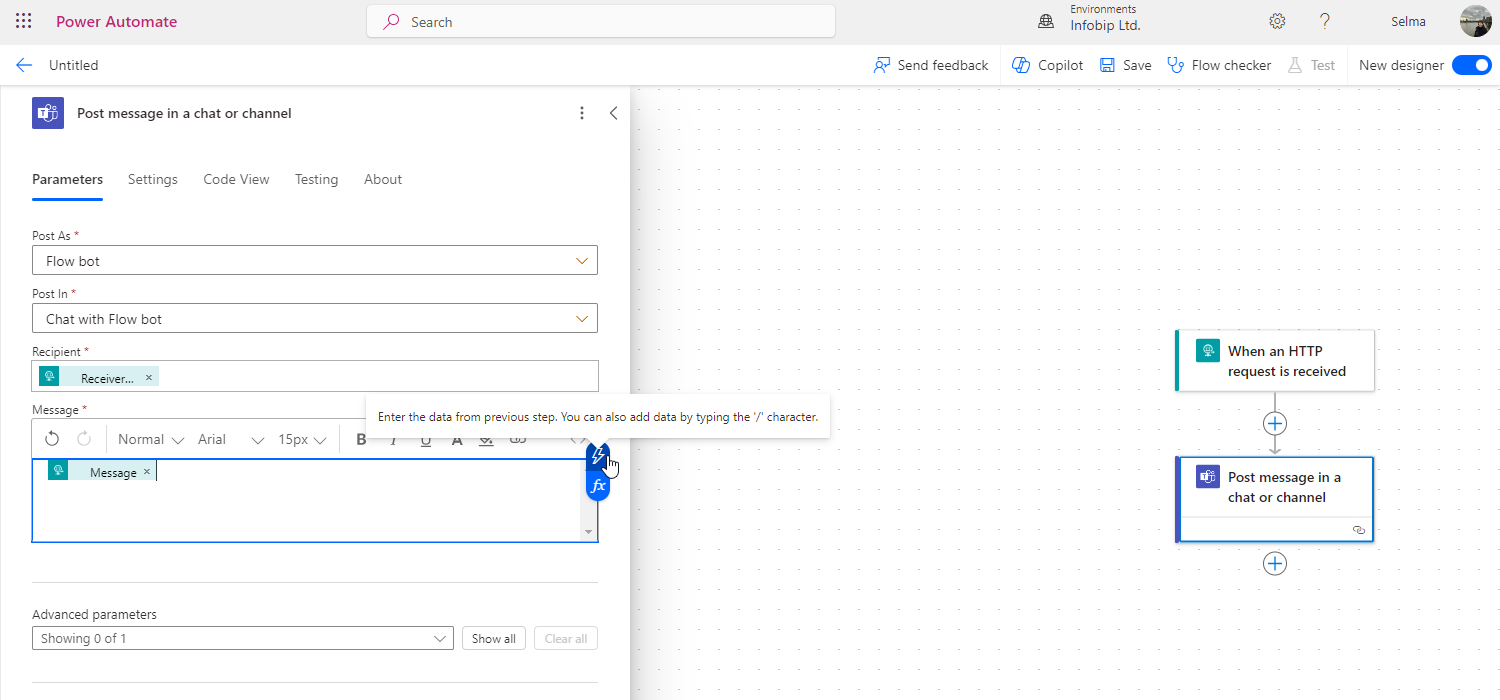
- Once you set up everything, click Save.
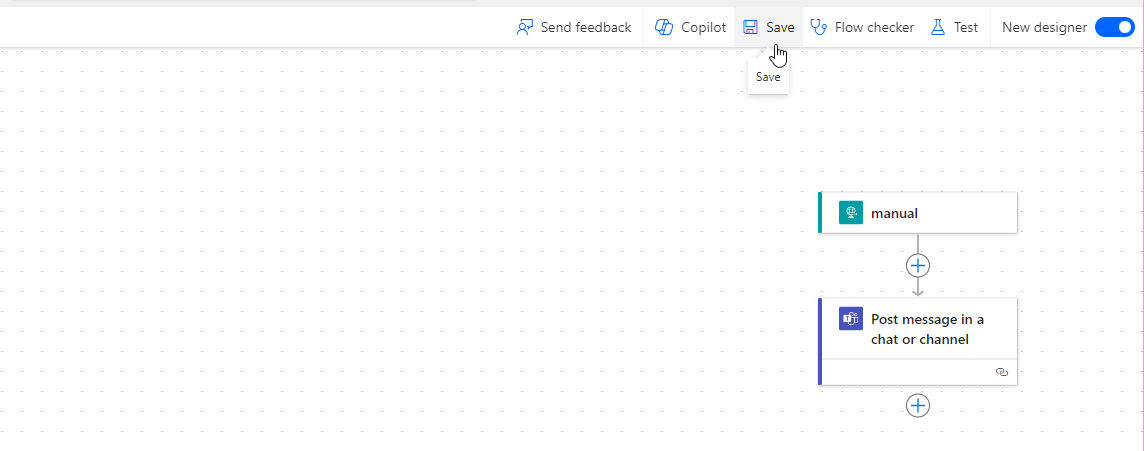
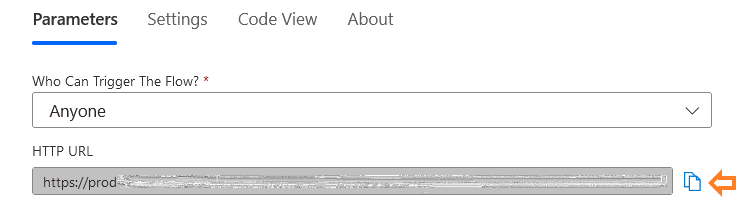
- After saving the flow, the system will generate a unique URL that will be used by the Infobip Conversation automation. Exit the flow and enter the edit mode to get the URL.
Conversation Automation
To ensure you receive the appropriate notifications from Conversations, you will need to configure events and content for specific notifications using Automations.
- Within Automations, you will need to set up a new automation. If you want to be notified about any new message in a particular conversation, choose the Inbound message received trigger. However, the choice of trigger for generating notifications is entirely up to you.
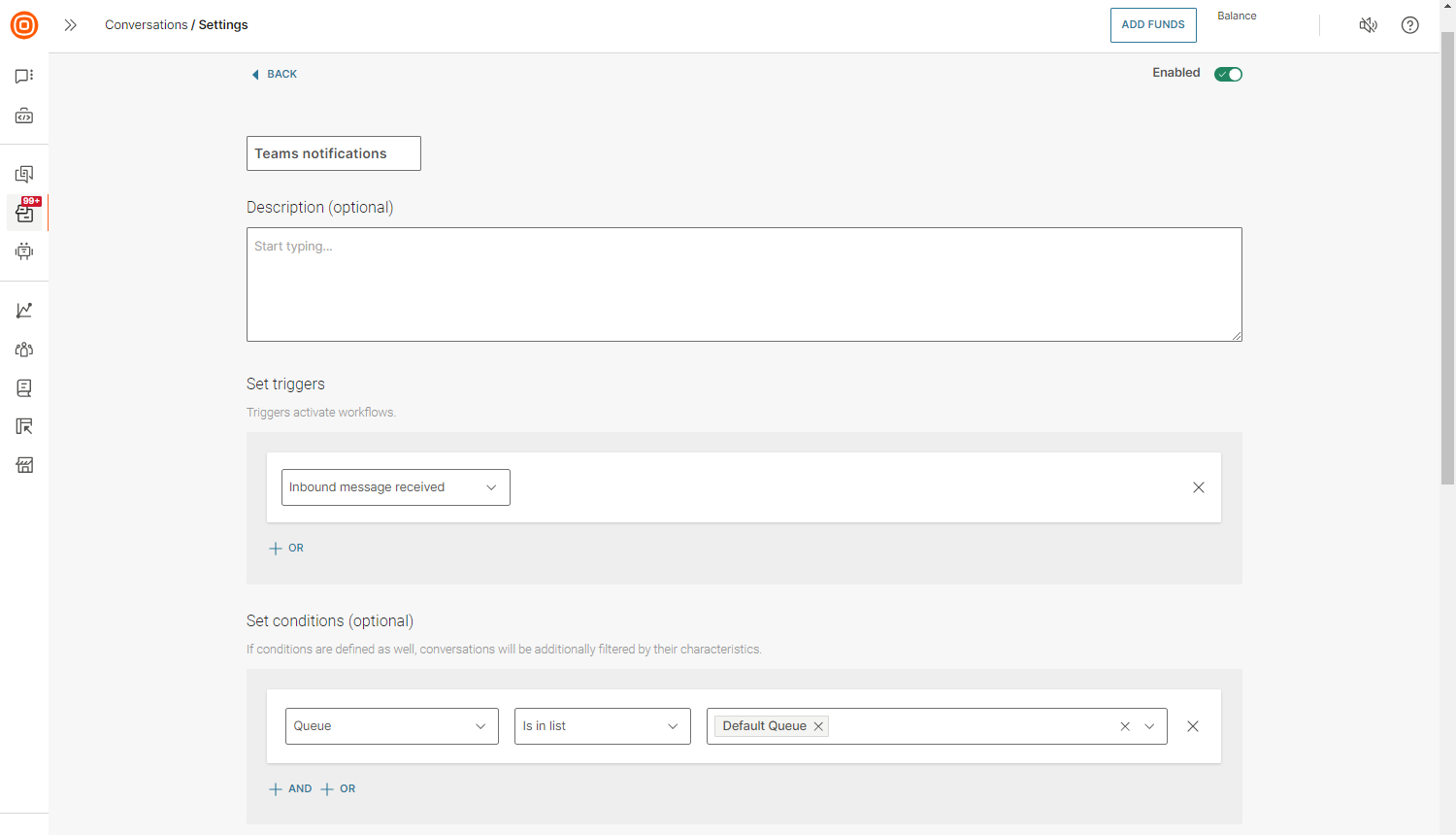
- Set the action as Call API.
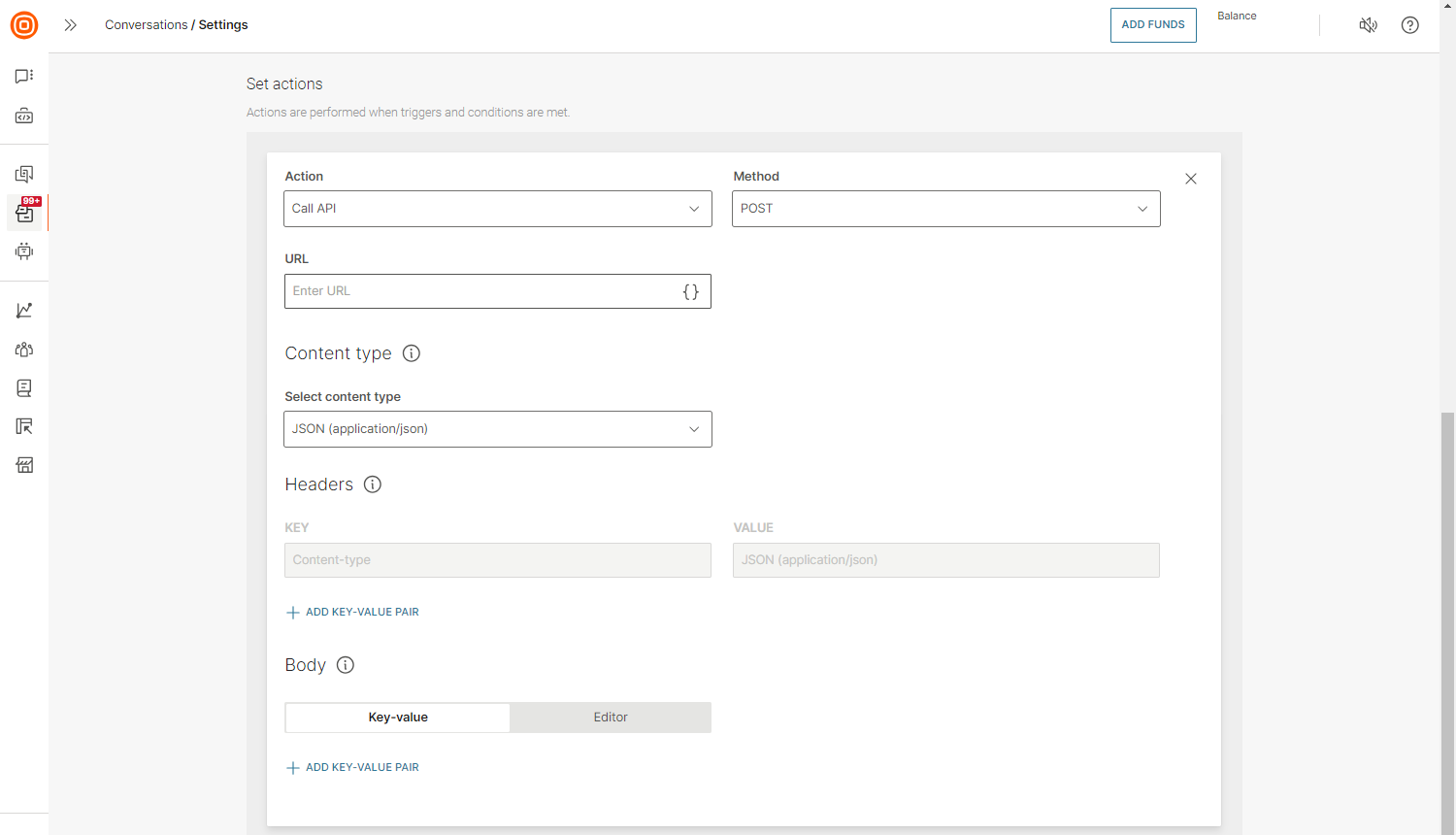
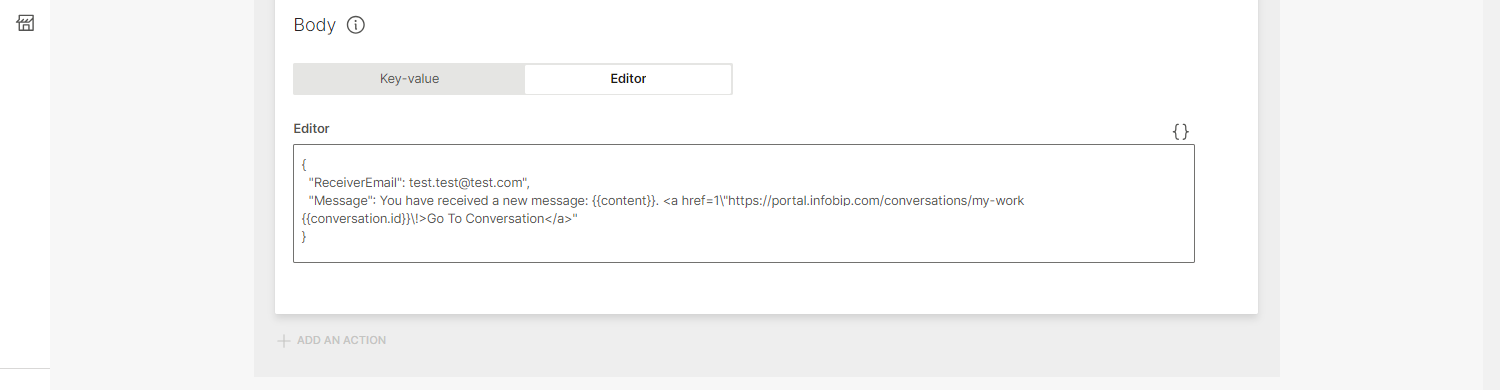
- Use the endpoint created in Power Automation (URL provided there). You can include placeholders in the payload, such as the message content available for specific triggers. For more details on which placeholders and triggers can be used, refer to the Manage automations section.