CTRLK

Let AI and WhatsApp add some fun to your photos

|

View as Markdown

AI has numerous applications, ranging from highly practical to just plain fun. In this tutorial, you'll learn how to upload a photo from an end-user's WhatsApp app and have an LLM humorously roast it in the style of Monty Python, sending the response back via WhatsApp.
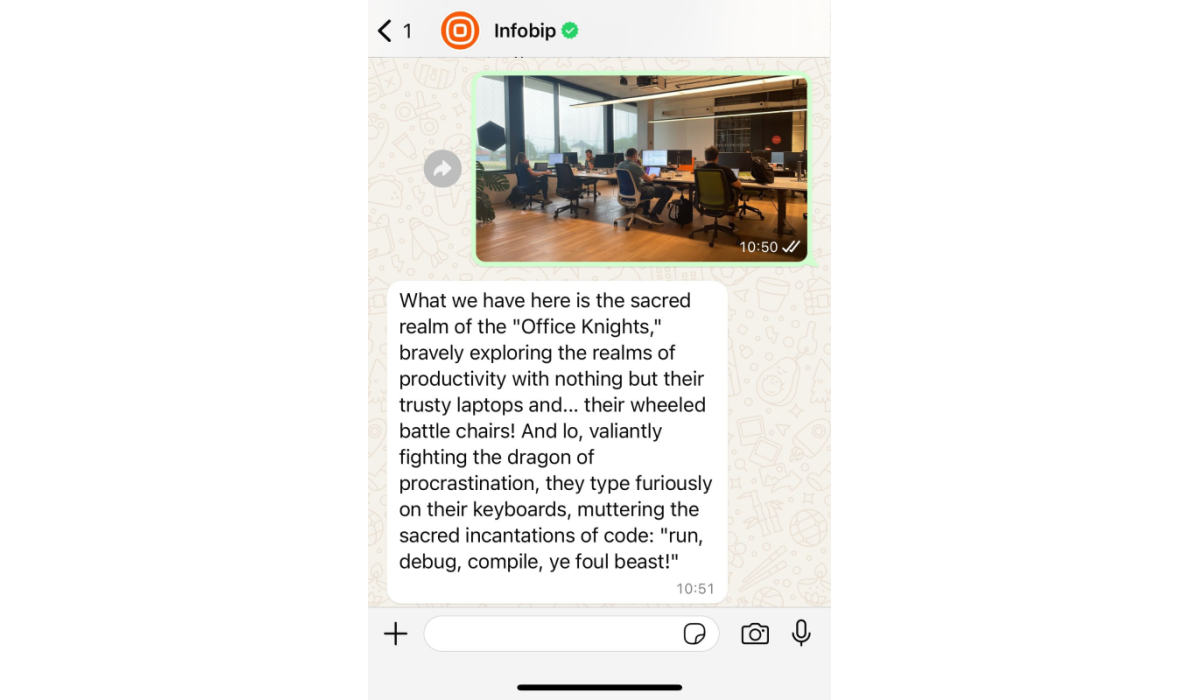
Tutorials - Roasting example

Prerequisites

  1. Infobip account. If you do not have one, you can easily register.
  2. JVM environment setup. Kotlin is used as a programming language in this tutorial.
  3. WhatsApp installed on your phone.
  4. Publicly accessible web server so that Infobip can send webhook requests to your app. If you're developing locally, you can use a tool like ngrok.
  5. A solution capable of detecting photo content and giving a comment. This tutorial shows how to use OpenAI's GPT-4o for both tasks. Step 5 provides more information.

Java dependencies

We used spring-web for exposing an endpoint, okttp3 for talking with the Infobip and OpenAI APIs, and jackson for serialization/deserialization:

kotlin
1<dependencies>
2 <dependency>
3 <groupId>com.squareup.okhttp3</groupId>
4 <artifactId>okhttp</artifactId>
5 <version>4.12.0</version>
6 </dependency>
7 <dependency>
8 <groupId>org.springframework.boot</groupId>
9 <artifactId>spring-boot-starter-web</artifactId>
10 </dependency>
11 <dependency>
12 <groupId>com.fasterxml.jackson.module</groupId>
13 <artifactId>jackson-module-kotlin</artifactId>
14 </dependency>
15 </dependencies>

Imports that will be needed for the entire tutorial...

kotlin
1import com.fasterxml.jackson.annotation.JsonInclude
2import com.fasterxml.jackson.databind.DeserializationFeature
3import com.fasterxml.jackson.module.kotlin.jacksonObjectMapper
4import com.fasterxml.jackson.module.kotlin.readValue
5import okhttp3.*
6import okhttp3.Headers.Companion.toHeaders
7import okhttp3.MediaType.Companion.toMediaType
8import okhttp3.MediaType.Companion.toMediaTypeOrNull
9import okhttp3.RequestBody.Companion.toRequestBody
10import org.springframework.boot.SpringApplication
11import org.springframework.boot.autoconfigure.SpringBootApplication
12import org.springframework.web.bind.annotation.PostMapping
13import org.springframework.web.bind.annotation.RequestBody
14import org.springframework.web.bind.annotation.RestController
15import java.util.*

... and for starting your application:

kotlin
1@SpringBootApplication
2class Application
3 
4const val INFOBIP_API_KEY = "<insert infobip api key>"
5const val BASE_URL = "https://api.infobip.com"
6const val OPENAI_API_KEY = "<insert openai api key>"
7 
8fun main(args: Array<String>) {
9 SpringApplication.run(Application::class.java, *args)
10}

Implementation

Step 1: Handle the request from Infobip [#step-1-handle-the-request-implementation]

For Infobip to forward the WhatsApp messages, expose an endpoint that will handle those requests. The payload you will get is explained here).

kotlin
1@PostMapping("/webhook")
2fun handleInboundMessage(@RequestBody payload: WhatsappInboundMessagePayload) {
3 val endUserPhoneNumber = payload.results[0].from
4 val infobipPhoneNumber = payload.results[0].to
5 val mediaUrl = payload.results[0].message.url
6 
7 println ("Got the message from $endUserPhoneNumber, sent to $infobipPhoneNumber with link to the photo $mediaUrl")
8}

Step 2: Configure your sender and webhook URL [#step-2-configure-your-sender-and-webhook-url-implementation]

Now that a working endpoint is exposed using ngrok or a similar tool, Infobip can access it. Be sure to inform Infobip of your endpoint's URL.

After completing the signup process, you can manage your sender numbers in your Infobip account.
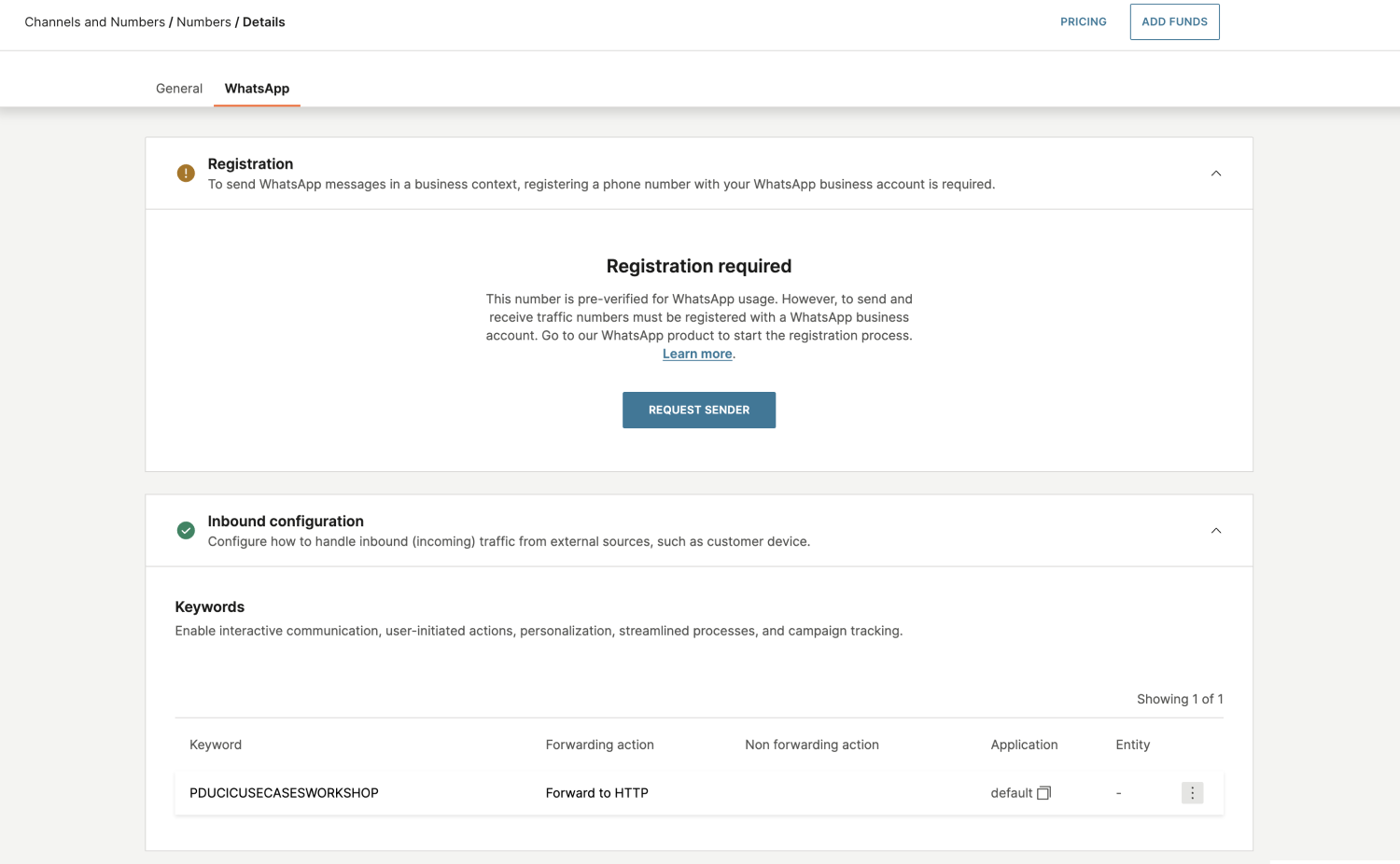
Tutorials - Roasting registration process

We highly recommend registering your sender. However, for simplicity, you can use the shared number and your default keyword, which corresponds to your username. In the screenshot above, the keyword is PDUCICUSECASESWORKSHOP.
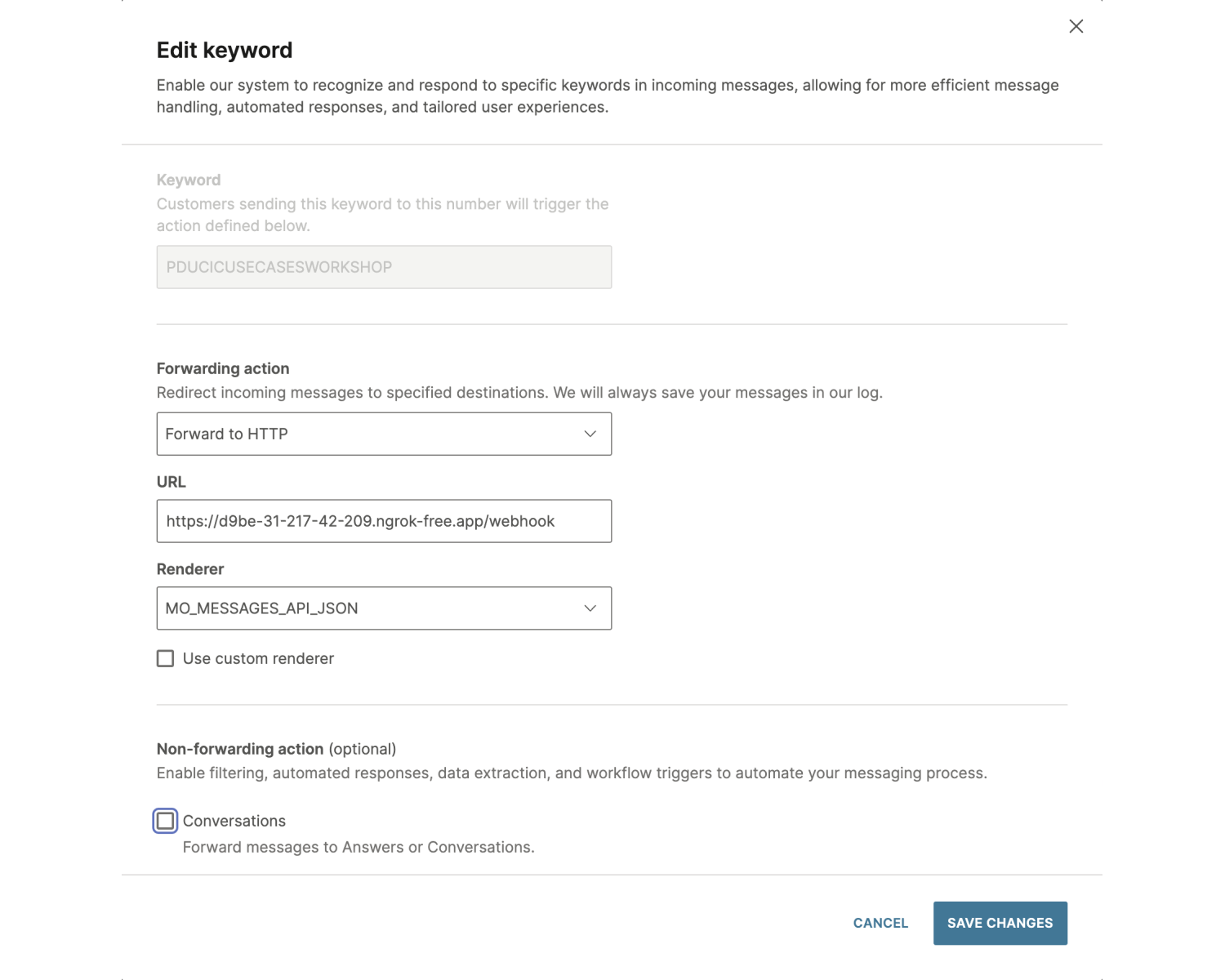
Tutorials - Roasting edit the keyword

Next, configure your keyword to set the endpoint where Infobip will forward messages received by your sender (or the shared sender, along with your keyword).

Now, you can test sending a photo to your shared sender number, including your keyword. The keyword is only required for the first message and can be omitted in subsequent ones.

Step 3: Download the photo [#step-3-download-the-photo-implementation]

Once you have the photo URL, it's time to download the photo. To do this, use the Download inbound media endpoint.

To make this work, configure your Infobip API key and set the necessary permissions.

kotlin
1private fun pullWhatsAppPhoto(mediaUrl: String): ByteArray {
2 val client = OkHttpClient().newBuilder()
3 .build()
4 val request: Request = Request.Builder()
5 .url(mediaUrl)
6 .get()
7 .addHeader("Authorization", "App $INFOBIP_API_KEY")
8 .build()
9 
10 val execute = client.newCall(request).execute()
11 return execute.body!!.bytes()
12 }

Step 4: Use your API key and base URL [#step-4-use-api-key-and-base-url-implementation]

Head over to your Infobip account and copy the auto-generated API key and your base URL. Read more about the base URL here.

If there is no option to copy the API key, you can create a new API key with the appropriate API scopes to cover all the API calls needed for this tutorial:

  • inbound-message:read
  • whatsapp:inbound-message:read
  • whatsapp:manage
  • message:send
  • whatsapp:message:send

Read more about API scopes here.

Step 5: Get the photo explanation [#step-5-get-the-photo-explanation-implementation]

For the photo explanation, we used the GPT-4o vision capability. To do so, you first need to create an account on the OpenAI platform. Try playing with your prompt to get the most appropriate answer for you.

kotlin
1private fun getPhotoExplanation(photoByteArray: ByteArray): String {
2 val jacksonObjectMapper = jacksonObjectMapper()
3 jacksonObjectMapper.setSerializationInclusion(JsonInclude.Include.NON_NULL)
4 jacksonObjectMapper.configure(DeserializationFeature.FAIL_ON_UNKNOWN_PROPERTIES, false)
5 
6 val base64Image = Base64.getEncoder().encodeToString(photoByteArray)
7 val imageContent = OpenAIContent(type = "image_url", image_url = ImageUrl("data:image/jpeg;base64,$base64Image"))
8 val textContent = OpenAIContent(type = "text", text = "What’s in this image? Give a funny comment in Monty Python style")
9 val openAIMessages = OpenAIMessage(role = "user", content = listOf(textContent, imageContent))
10 val openAIRequest = OpenAIRoot(model = "gpt-4o", max_tokens = 300, messages = listOf(openAIMessages))
11 val payload = jacksonObjectMapper.writeValueAsString(openAIRequest)
12 
13 val client = OkHttpClient()
14 val request = Request.Builder()
15 .url("https://api.openai.com/v1/chat/completions")
16 .post(payload.toRequestBody("application/json".toMediaType()))
17 .headers(mapOf("Authorization" to "Bearer $OPENAI_API_KEY").toHeaders())
18 .build()
19 val response = client.newCall(request).execute()
20 val responseString = response.body!!.string()
21 val myObject: OpenAIResponse = jacksonObjectMapper.readValue(responseString)
22 return myObject.choices[0].message.content
23 }

Here are also some alternatives to ChatGPT4, available at the time of writing this tutorial:

And some LLMs that could roast your photos:

Step 6: Send the WhatsApp message [#step-6-send-the-whatsapp-message-implementation]

After receiving the comment, the only task remaining is to send the response to the end user.

kotlin
1private fun sendWhatsappMessage(from: String, to: String, message: String) {
2 val client = OkHttpClient().newBuilder().build()
3 val whatsAppMessage = WhatsAppMessage(from, to, Content(message))
4 val body = jacksonObjectMapper().writeValueAsString(whatsAppMessage)
5 .toRequestBody("application/json".toMediaTypeOrNull())
6 val request: Request = Request.Builder()
7 .url("$BASE_URL/whatsapp/1/message/text")
8 .post(body)
9 .addHeader("Authorization", "App $INFOBIP_API_KEY")
10 .build()
11 client.newCall(request).execute()
12 }

Step 7: Put it all together [#step-7-put-it-all-together-implementation]

Here is the complete Kotlin class, with all necessary classes and methods:

kotlin
1import com.fasterxml.jackson.annotation.JsonInclude
2import com.fasterxml.jackson.databind.DeserializationFeature
3import com.fasterxml.jackson.module.kotlin.jacksonObjectMapper
4import com.fasterxml.jackson.module.kotlin.readValue
5import okhttp3.*
6import okhttp3.Headers.Companion.toHeaders
7import okhttp3.MediaType.Companion.toMediaType
8import okhttp3.MediaType.Companion.toMediaTypeOrNull
9import okhttp3.RequestBody.Companion.toRequestBody
10import org.springframework.boot.SpringApplication
11import org.springframework.boot.autoconfigure.SpringBootApplication
12import org.springframework.web.bind.annotation.PostMapping
13import org.springframework.web.bind.annotation.RequestBody
14import org.springframework.web.bind.annotation.RestController
15import java.util.*
16 
17 
18@SpringBootApplication
19class Application
20 
21const val INFOBIP_API_KEY = "<insert infobip api key>"
22const val BASE_URL = "https://qwerty.api.infobip.com"
23const val OPENAI_API_KEY = "<insert openai api key>"
24 
25fun main(args: Array<String>) {
26 SpringApplication.run(Application::class.java, *args)
27}
28 
29@RestController
30class Controller {
31 
32 private val objectMapper = jacksonObjectMapper().apply {
33 setSerializationInclusion(JsonInclude.Include.NON_NULL)
34 configure(DeserializationFeature.FAIL_ON_UNKNOWN_PROPERTIES, false)
35 }
36 
37 private val client = OkHttpClient()
38 
39 @PostMapping("/webhook")
40 fun handleInboundMessage(@RequestBody payload: WhatsappInboundMessagePayload) {
41 payload.results[0].run {
42 val photoByteArray: ByteArray = pullWhatsAppPhoto(message.url)
43 val photoComment = getPhotoExplanation(photoByteArray)
44 sendWhatsappMessage(to, from, photoComment)
45 }
46 }
47 
48 private fun sendWhatsappMessage(from: String, to: String, message: String) {
49 val body = objectMapper.writeValueAsString(WhatsAppMessage(from, to, Content(message)))
50 .toRequestBody("application/json".toMediaTypeOrNull())
51 val request: Request = Request.Builder()
52 .url("$BASE_URL/whatsapp/1/message/text")
53 .post(body)
54 .addHeader("Authorization", "App $INFOBIP_API_KEY")
55 .build()
56 client.newCall(request).execute()
57 }
58 
59 private fun pullWhatsAppPhoto(mediaUrl: String): ByteArray {
60 val request: Request = Request.Builder()
61 .url(mediaUrl)
62 .get()
63 .addHeader("Authorization", "App $INFOBIP_API_KEY")
64 .build()
65 
66 return client.newCall(request).execute().body!!.bytes()
67 }
68 
69 private fun getPhotoExplanation(photoByteArray: ByteArray): String {
70 val base64Image = Base64.getEncoder().encodeToString(photoByteArray)
71 val imageContent = OpenAIContent(type = "image_url", image_url = ImageUrl("data:image/jpeg;base64,$base64Image"))
72 val textContent = OpenAIContent(type = "text", text = "What’s in this image? Give a funny comment in Monty Python style")
73 val openAIMessages = OpenAIMessage(role = "user", content = listOf(textContent, imageContent))
74 val openAIRequest = OpenAIRoot(model = "gpt-4o", max_tokens = 300, messages = listOf(openAIMessages))
75 val payload = objectMapper.writeValueAsString(openAIRequest)
76 
77 val request = Request.Builder()
78 .url("https://api.openai.com/v1/chat/completions")
79 .post(payload.toRequestBody("application/json".toMediaType()))
80 .headers(mapOf("Authorization" to "Bearer $OPENAI_API_KEY").toHeaders())
81 .build()
82 val response = client.newCall(request).execute()
83 val responseString = response.body!!.string()
84 val myObject: OpenAIResponse = objectMapper.readValue(responseString)
85 return myObject.choices[0].message.content
86 }
87}
88 
89data class OpenAIRoot(
90 val model: String,
91 val messages: List<OpenAIMessage>,
92 val max_tokens: Int
93)
94 
95data class OpenAIMessage(
96 val role: String,
97 val content: List<OpenAIContent>
98)
99 
100data class OpenAIContent(
101 val type: String,
102 val text: String? = null,
103 val image_url: ImageUrl? = null
104)
105 
106data class ImageUrl(
107 val url: String
108)
109 
110data class OpenAIResponse(
111 val choices: List<Choice>,
112)
113 
114data class Choice(
115 val message: OpenAIResponseMessage,
116)
117 
118data class OpenAIResponseMessage(
119 val content: String
120)
121 
122data class WhatsappInboundMessagePayload(
123 val results: List<Result>
124)
125 
126data class Result(
127 val from: String,
128 val to: String,
129 val message: Message
130)
131 
132data class Message(
133 val url: String
134)
135 
136data class Price(
137 val pricePerMessage: Int,
138 val currency: String
139)
140 
141data class WhatsAppMessage(
142 val from: String,
143 val to: String,
144 val content: Content,
145)
146 
147data class Content(
148 val text: String
149)

Be aware that in this tutorial, for the sake of simplicity, we did not do any proper logging or monitoring, nor did we handle error codes or exceptions. We strongly recommend checking this page to get familiar with both HTTP status codes and WhatsApp message status codes.

Additionally, we removed all unused fields from the classes to keep the code as short as possible. You can find all the fields provided by the Infobip platform on the API documentation pages mentioned above.

This is just one way to utilize AI and LLMs, but the possibilities are endless.