Account access
Infobip provides several secure and user-friendly ways to access your account. This section explains how to log in, use Single Sign-On (SSO), and reset your password if needed.
You can access your account from the Infobip homepage or directly through the Infobip web interface using one of the following methods:
- Email and password
- Username and password
- Google account
- GitHub account
- Single Sign-On (SSO)
Two-factor authentication (2FA)
To protect your account, Infobip requires a two-factor authentication (2FA) check when you log in from a new device.
- After entering your credentials, you receive a one-time code (OTP) by SMS, Voice, or Email.
- Enter the OTP in the web interface to authorize the device.
Once a device is authorized, you will not be prompted for 2FA during subsequent logins from that same device. If you access the interface from another device, you will need to complete 2FA again.
To select your preferred two-factor authentication (2FA) channel, follow the steps explained here. This mechanism ensures that only trusted devices can access your Infobip account.
You can find the Service terms and conditions and Privacy policy at the bottom of the login page. For any questions or issues, contact Support or your dedicated account manager.
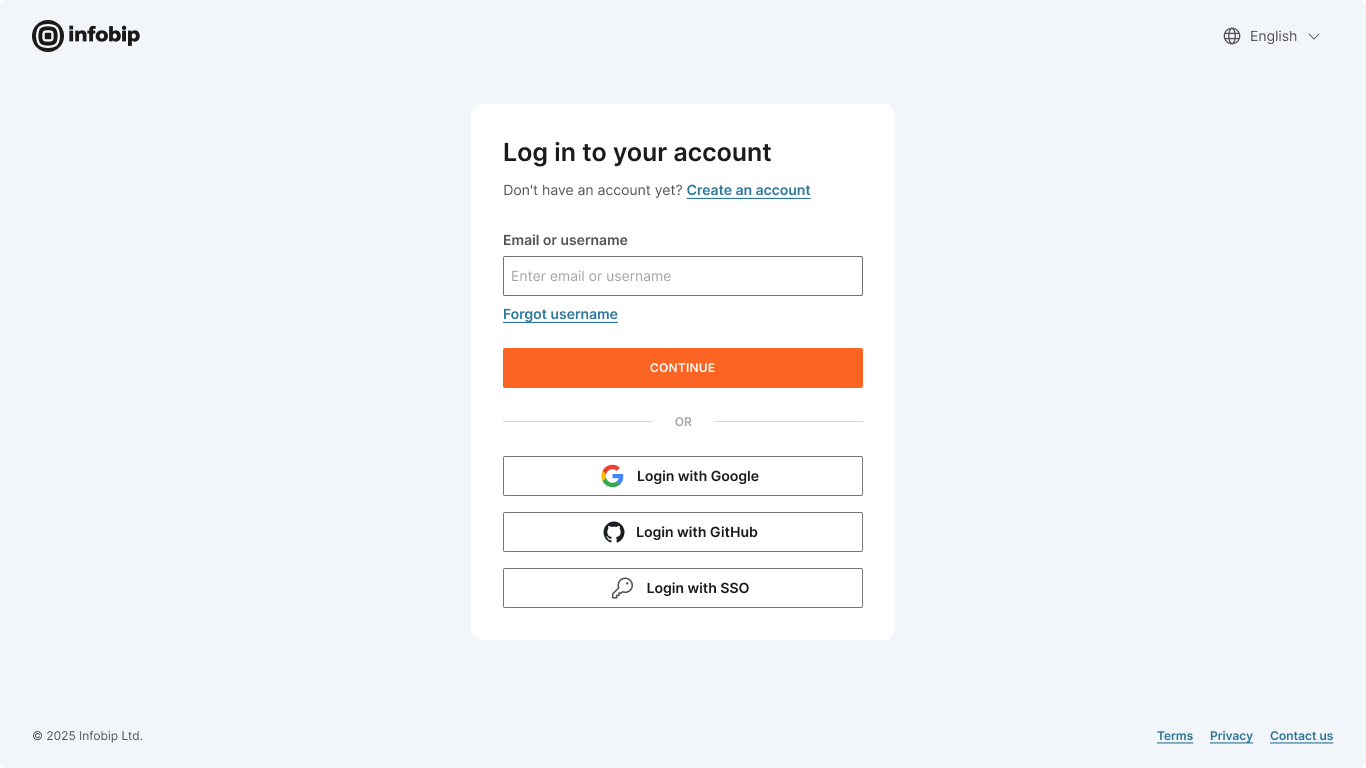
Log in with email or username
Log in using the email or username and password you created during signup. If you cannot remember your password, select Forgot your password? on the login page to create a new one.
You can select the interface language from the upper-right corner of the login page. This setting determines the language used throughout the Infobip web interface.
Log in with Single Sign-On (SSO)
If SSO is configured for your account, you can log in by accessing the dedicated SSO (SP Initiation) URL created during the setup process, or through the login flow described below.
For example:
https://portal.infobip.com/login/saml/contoso/
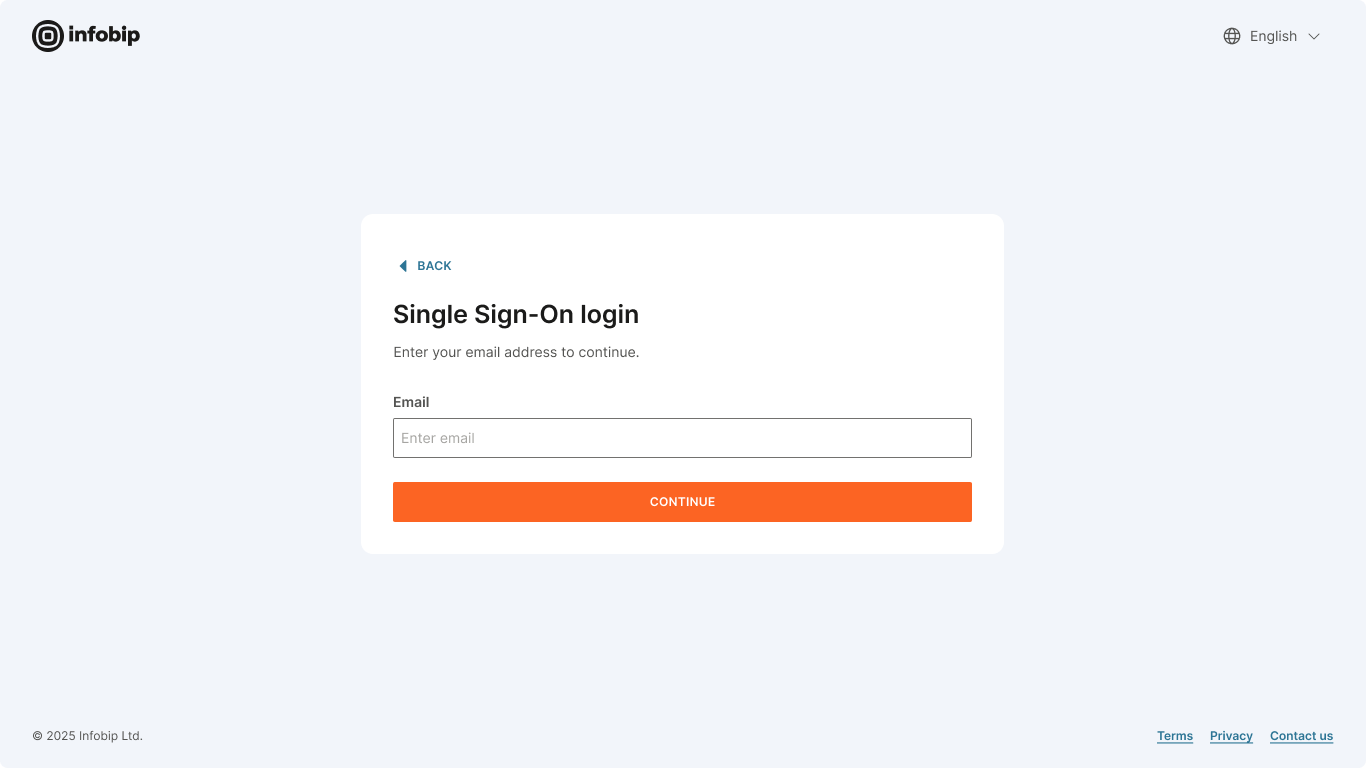
Your login flow may vary depending on your identity provider’s configuration. A typical SSO login flow includes the following steps:
- Select Login with SSO on the login page.
- Enter your email address and select Continue.
- (Optional) If prompted, enter your SP Initiation URL. This appears if the email you entered is associated with multiple SSO configurations. For example, if a user (
[email protected]) belongs to two separate accounts that both use SSO, the system will request an identifier so the correct SSO configuration can be selected.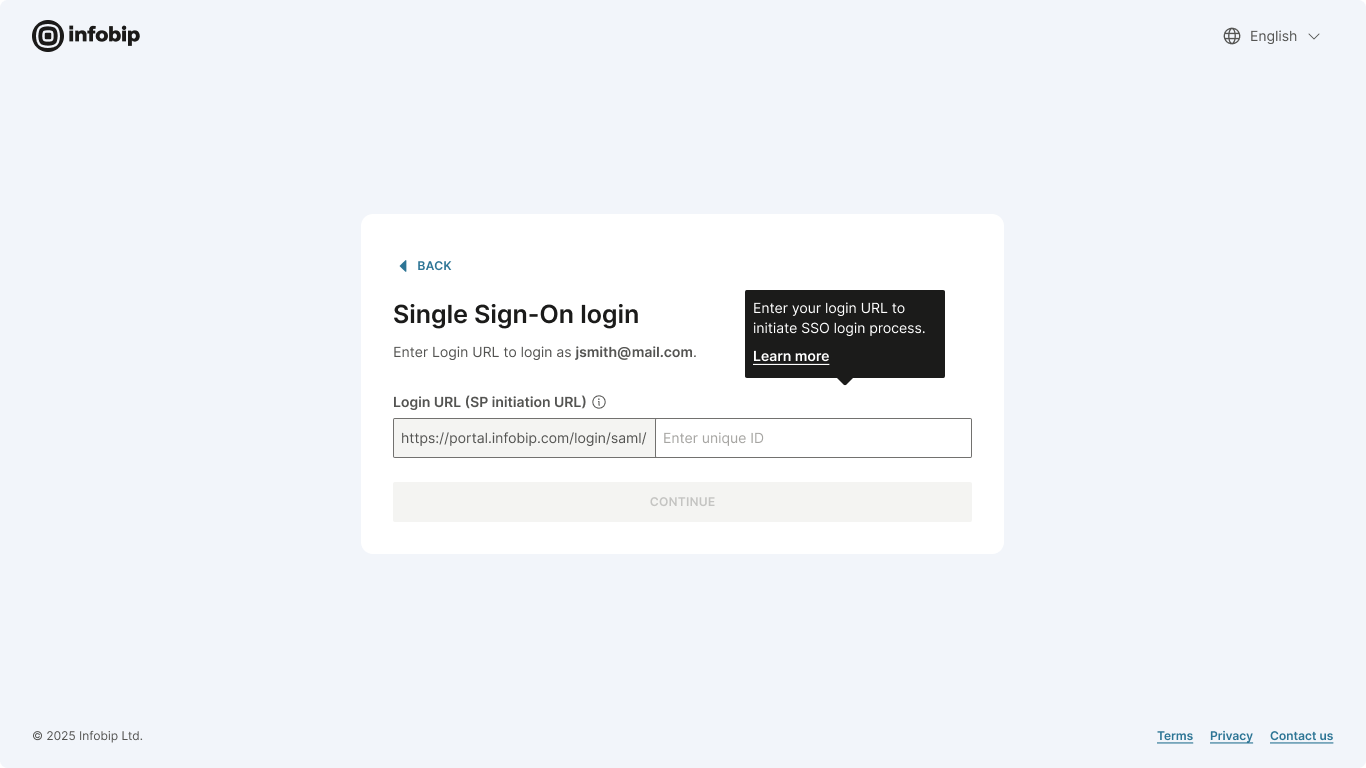
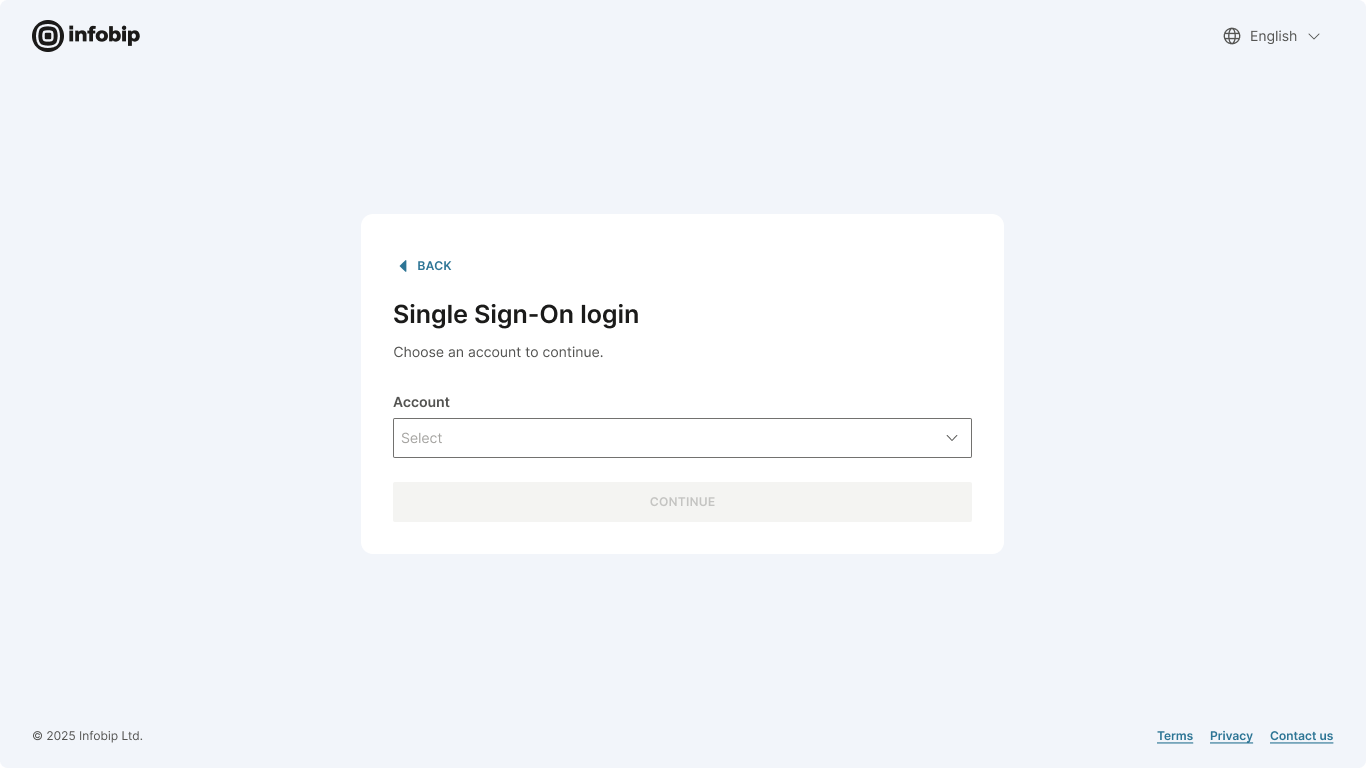
- From the drop-down list, select the account you want to access. This step appears only in specific setups where shared SSO is enabled (one SSO configuration used across multiple accounts, and the user exists in more than one of those accounts).
- Review the SSO group synchronization message and confirm by selecting I understand. This is shown only to users who have enabled auto-create groups in their SSO configuration and only when their group membership has changed on the identity provider’s side.

Reset password
You can reset your password in one of two ways:
Option 1: From the login page
- Select Forgot your password?
- Follow the on-screen instructions.
Option 2: Through an account admin
A user with the Account admin role can initiate a password reset on your behalf:
- Go to Account settings → Users.
- Find and open the user’s profile.
- Under User details and security, select Password reset.
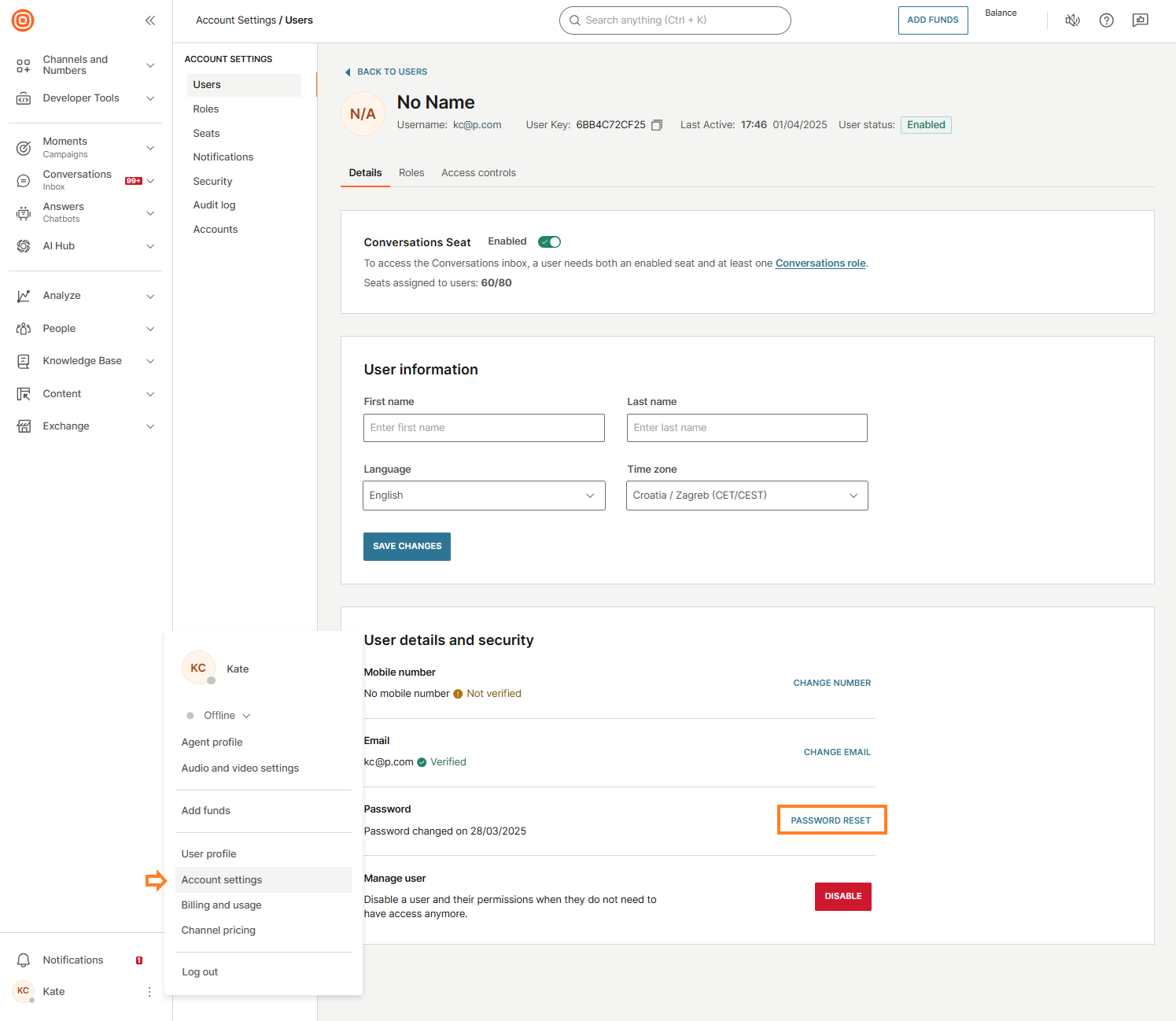
In both cases, you will receive an email containing a password reset link. Follow the link to set your new password.
In case you are still having trouble with login, contact your account manager or Support to confirm your username and check if you are allowed access to the Infobip web interface.