Account settings
To use a unified configuration for multiple sub-accounts, contact Support.
Users and roles
To find out more about managing users and roles, refer to the following pages:
Seats
The Seats section enables you to manage seat allocation across your business units. If you are using a main account with sub-accounts, you can control seat usage and resource distribution effectively.
Here, you can manage user access to Inbox by assigning available seats to selected users. You can see how seats are allocated, used, and available across all units. This removes the need to log into each individual account to gather seat information.
If you have both a main account and sub-accounts, you can establish seat limits from the main account to control the sub-accounts. This setup allows you to view all accounts from the main account, enabling you to monitor seat allocations for each and adjust them as needed.
With a single main account, you will see a list of agents with assigned seats and have the flexibility to add or remove seats without any restrictions.
To access it, log in to your Infobip account, select your profile icon, and go to Account settings > Seats. There are two tabs:
- Seats: Manage seat assignments and view usage details.
- Logs: Track changes to seat assignments over time.
Seats [#seats-seats]
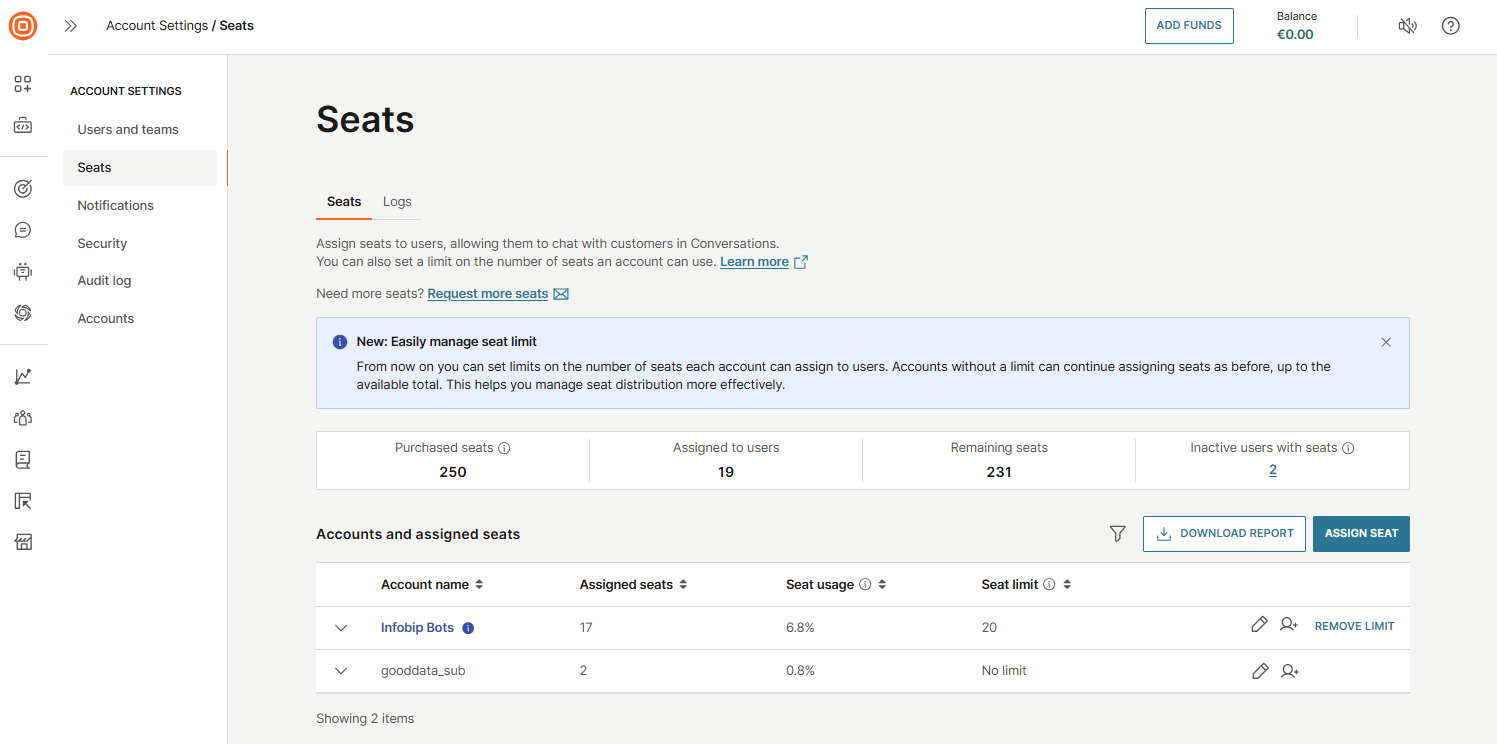
In the Seats tab, you can assign seats to users, enabling them to engage with customers in Inbox. You can also define seat limits for each account to control how many seats can be used. Accounts with no set limit can assign seats freely, up to the number of seats purchased. This helps you maintain better oversight of how seats are distributed.
You can set seat limits for each account to ensure fair and controlled distribution. Each account can assign seats only up to its defined limit. Once the limit is reached, no additional seats can be assigned. Keep in mind that accounts cannot exceed their assigned limits, so it is important to allocate your purchased seats wisely across accounts based on their actual needs.
Seat limit warnings are triggered based on usage thresholds:
- Up to 50 seats: Warning appears when 85% are used.
- 51 to 100 seats: Warning appears at 95% usage.
- More than 100 seats: Warning appears at 97% usage.
The page shows an overview of seat usage:
- Purchased seats
- Assigned to users
- Remaining seats
- Inactive users with seats
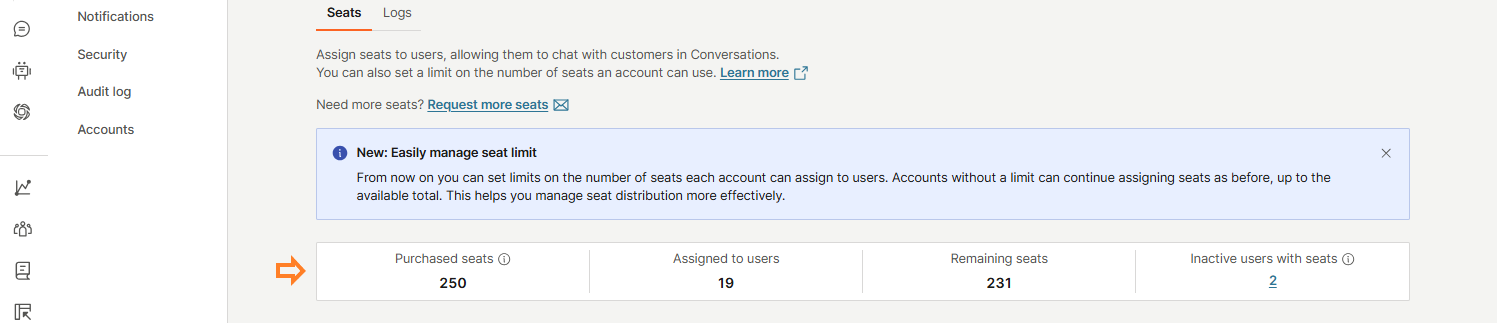
The Inactive users with seats section includes users who have been inactive for over 3 months or users who have a seat but no assigned role.
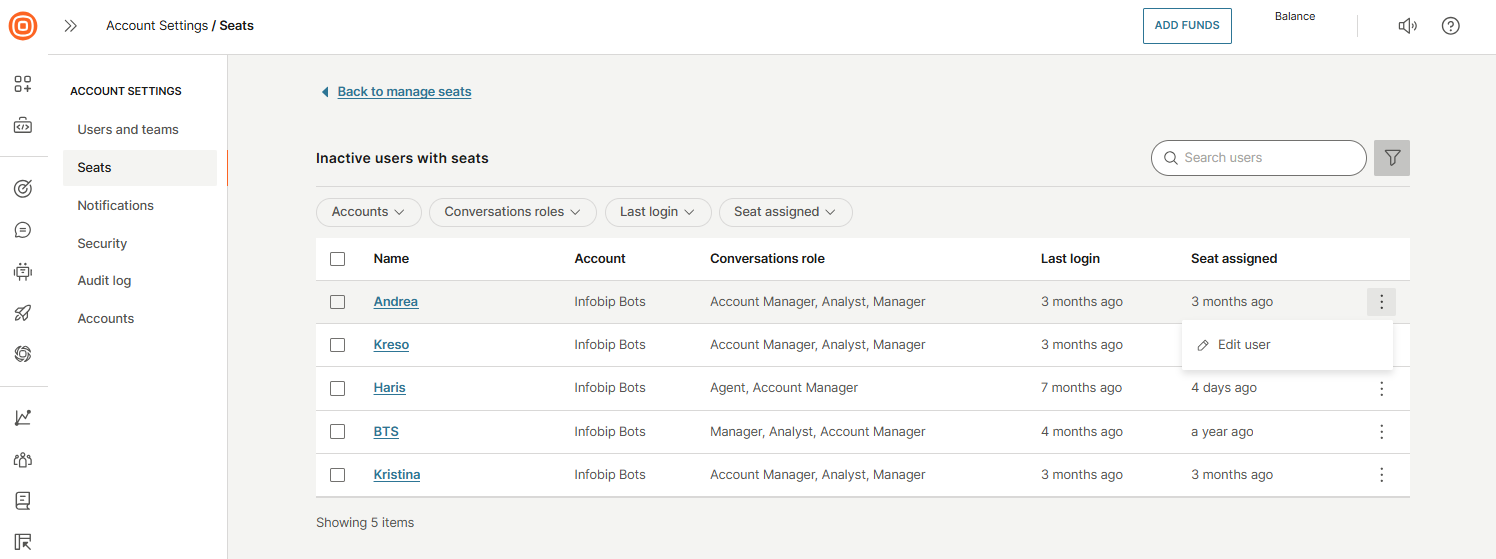
Select the linked number of inactive users to open a list of these users, where you can:
- Search for specific users
- Filter results by account, Inbox role, last login, and seat assignment
- Edit user details
- Remove seats individually or in bulk by selecting the checkbox next to the users
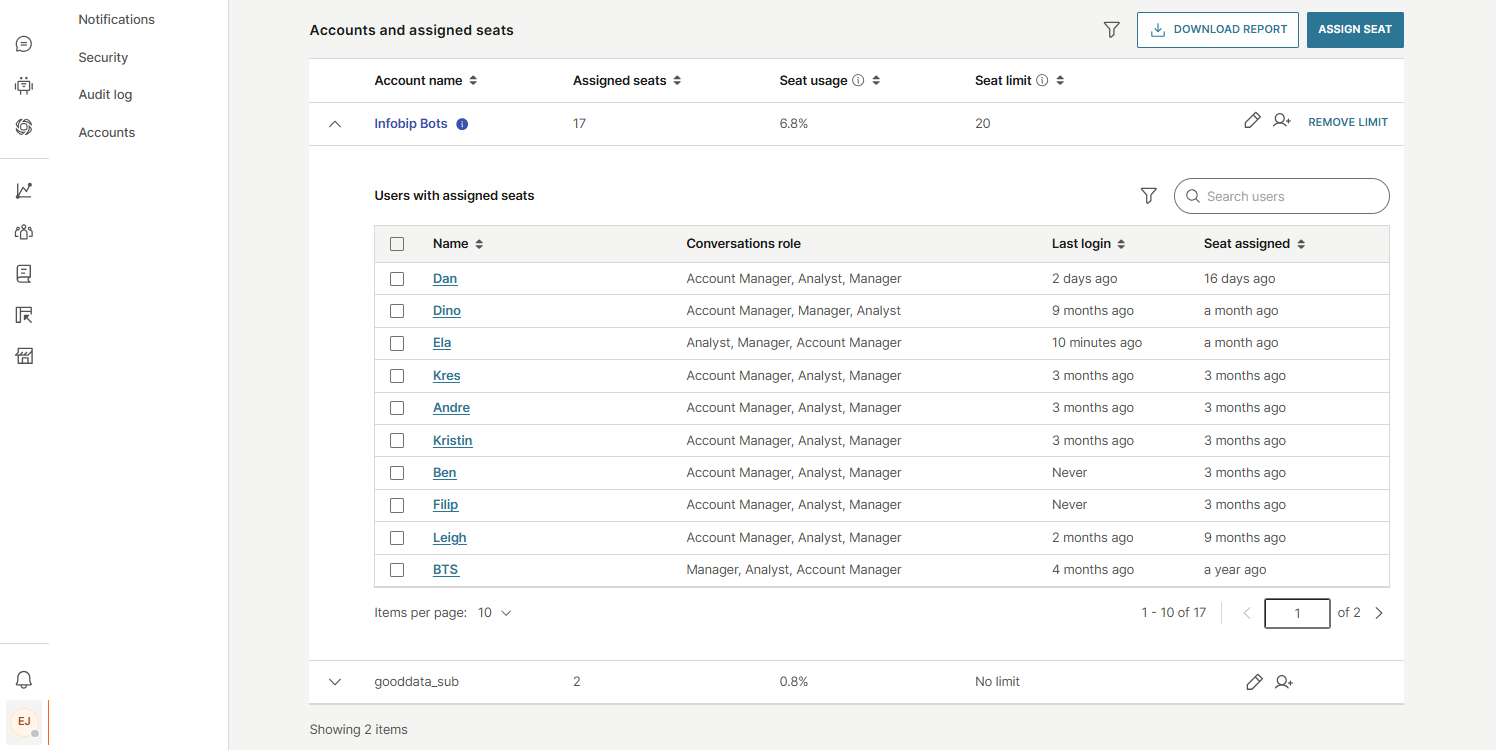
Under Accounts and assigned seats, you will find a list of accounts with:
- Account name
- Assigned seats
- Seat usage: Percentage of assigned vs. purchased seats.
- Seat limit: Maximum number of seats allowed per account.
You can also filter data, download reports, and assign seats directly from this view.
For each account, available actions include:
- Edit
- Add user
- Remove limit

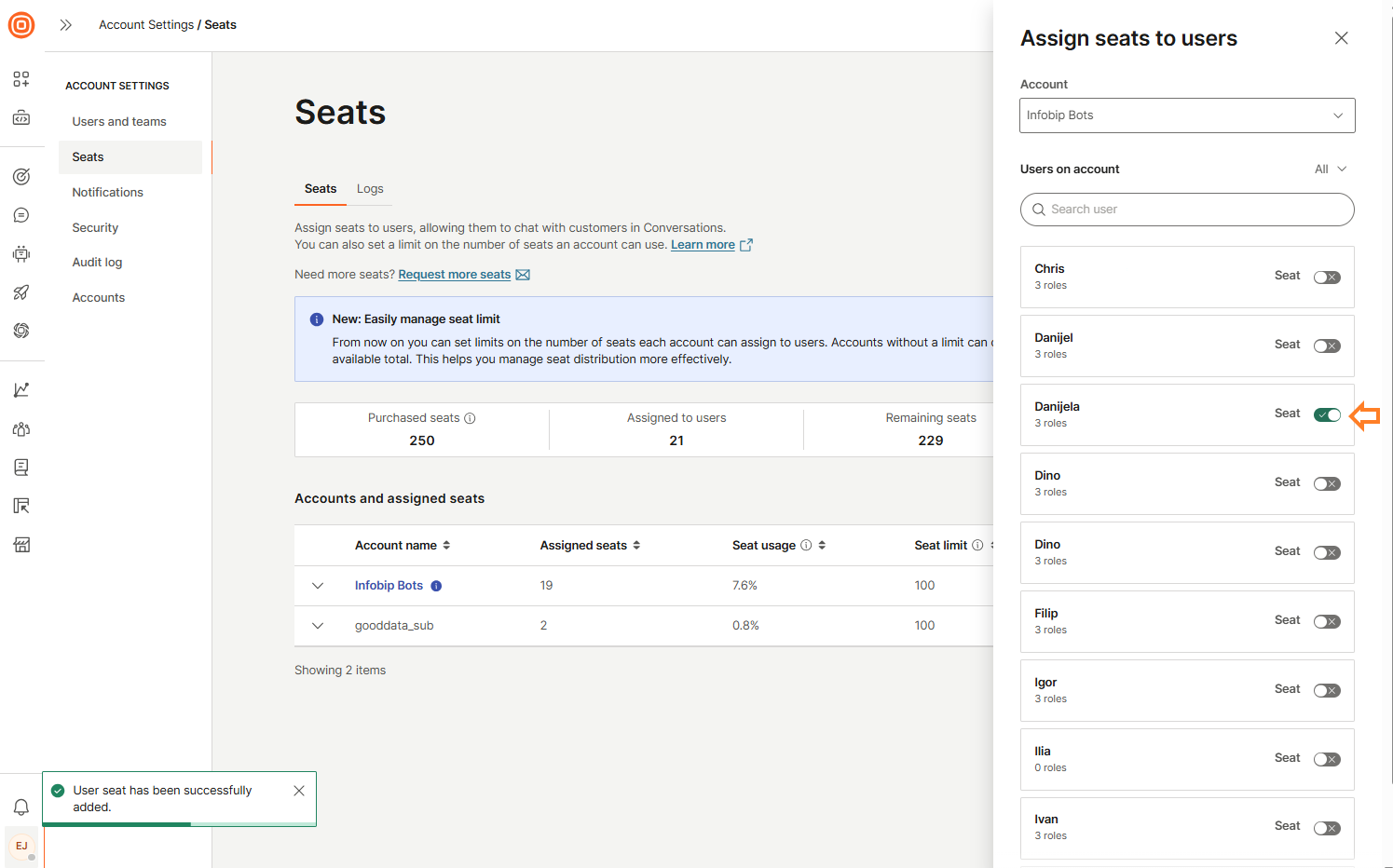
When you select the Assign Seat button, a side panel will open:
- Select the account.
- After selecting the account, a list of users is displayed.
- You can use the search bar to quickly find a specific user.
- To assign a seat, switch on the toggle next to the user's name.
- To unassign a seat, switch off the toggle next to the user's name.
To view detailed user information for an account, select the down arrow. This reveals a list of users with assigned seats, including:
- Name
- Conversations/Inbox role
- Last login
- Seat assigned
You can remove multiple seats from users by selecting the checkbox next to each user's name using the bulk action.
Logs [#logs-seats]
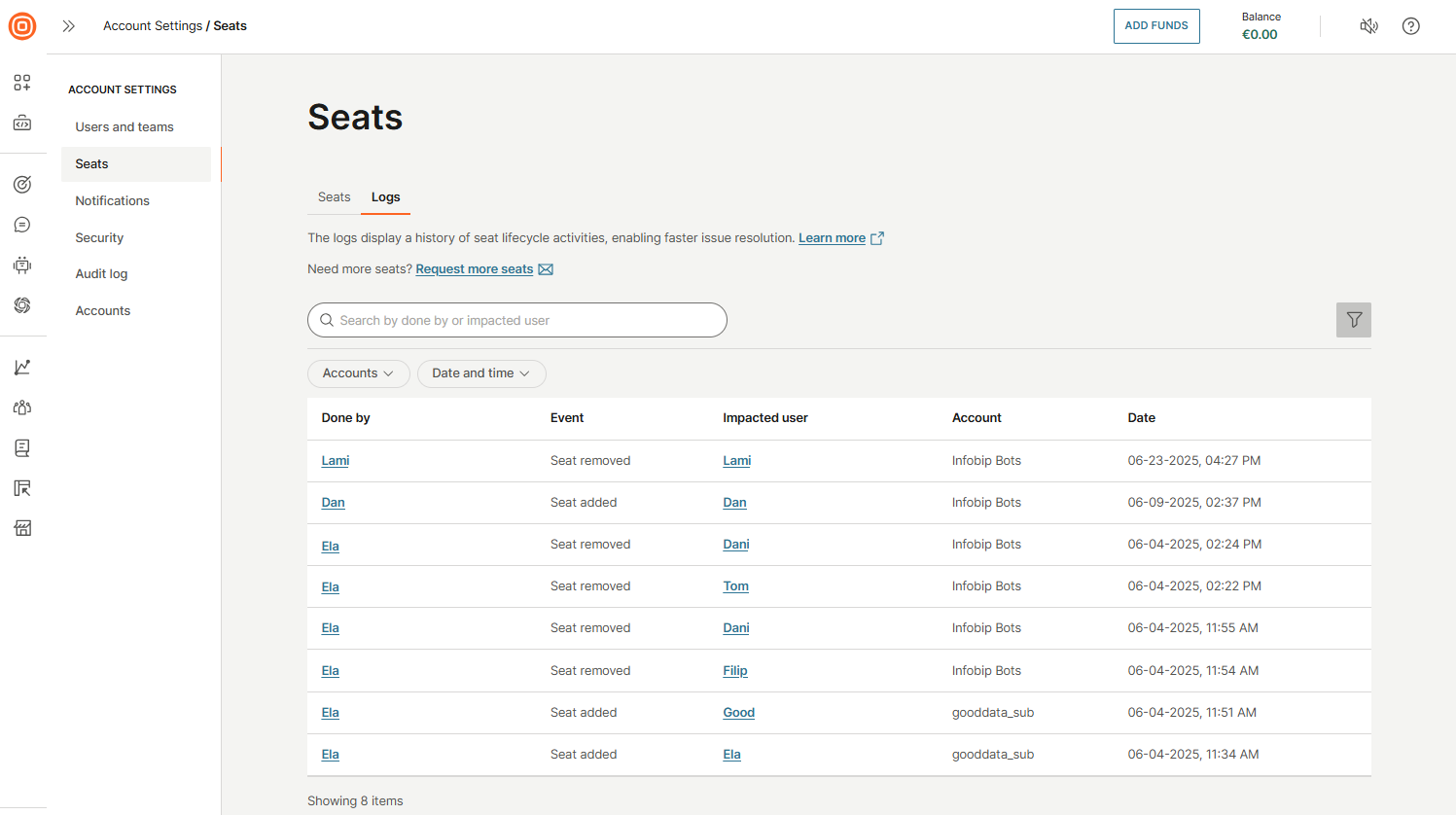
The Logs tab provides a detailed history of all seat-related activities, helping you troubleshoot and resolve issues more efficiently. Use the search bar to find specific information, and apply filters by account, date, or time to narrow down results.
Each log entry includes the following details:
- Done by: Who performed the action
- Event: Type of activity (for example, seat assigned or removed)
- Impacted user: User affected by the action
- Account: Associated account
- Date: When the event occurred
Notifications
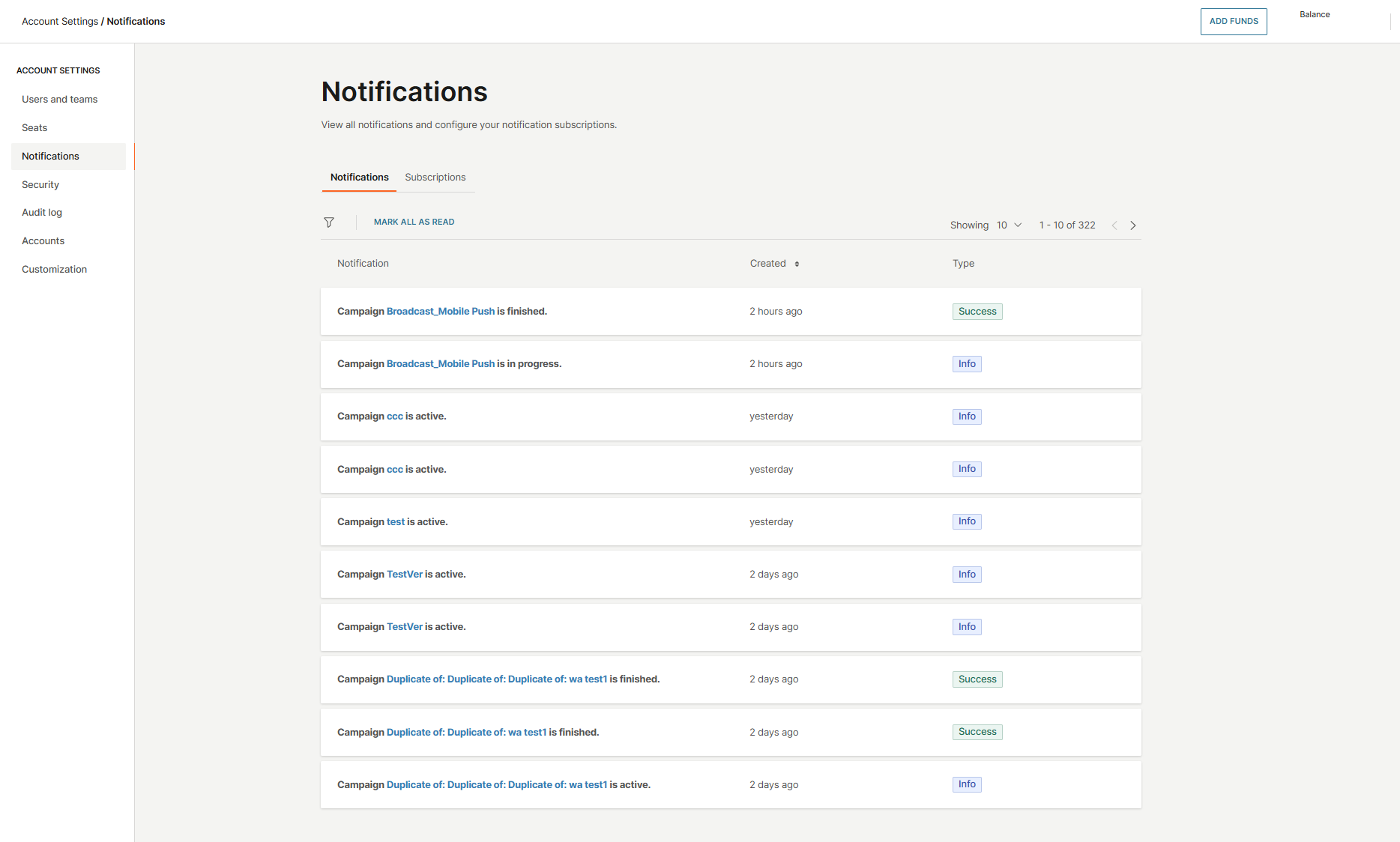
In the Notifications section, you can view all notifications and manage your notification subscriptions. The Notifications tab displays updates from events you have subscribed to, such as low balance alerts, campaign updates, and account balance changes.
For each notification, you will see:
- Type of notification
- Creation time
- Type
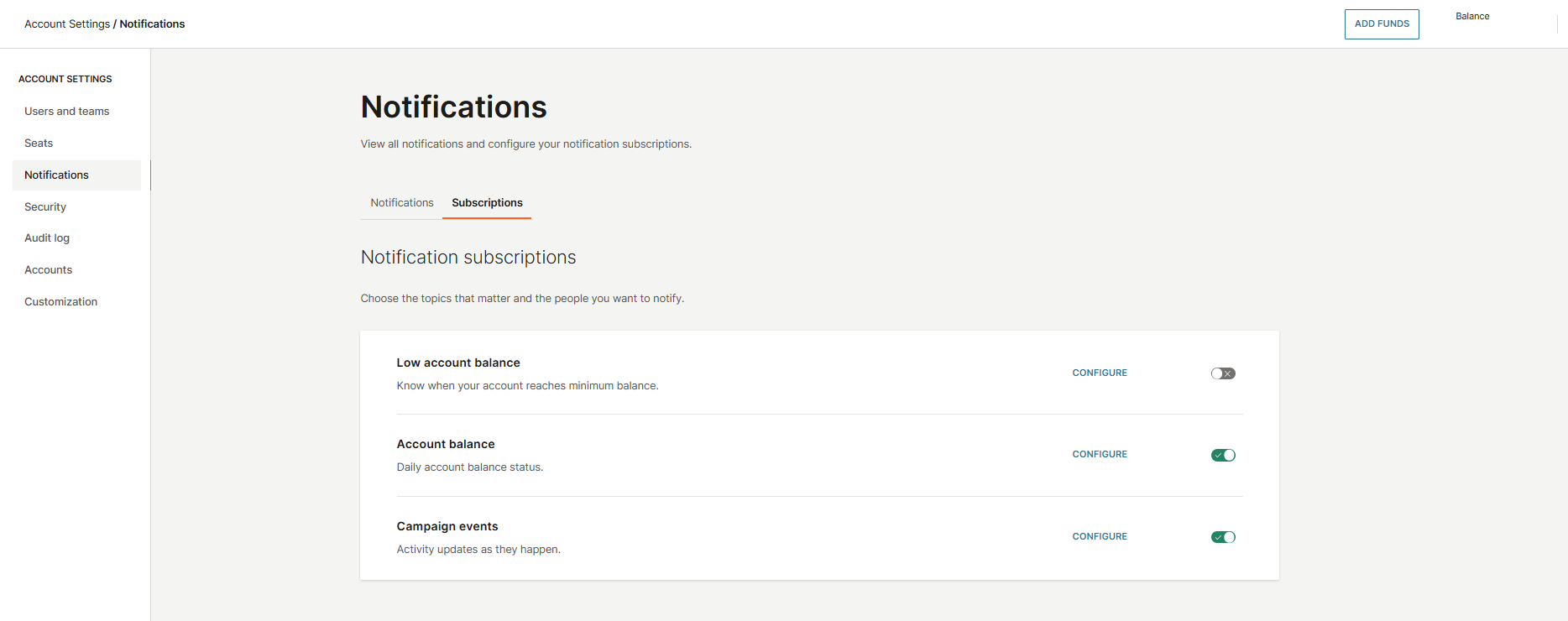
In the Subscriptions tab, you can select which events you want to receive notifications for, including:
- Low account balance
- Account balance
- Campaign events
To subscribe, toggle the switch next to the event.
Security settings
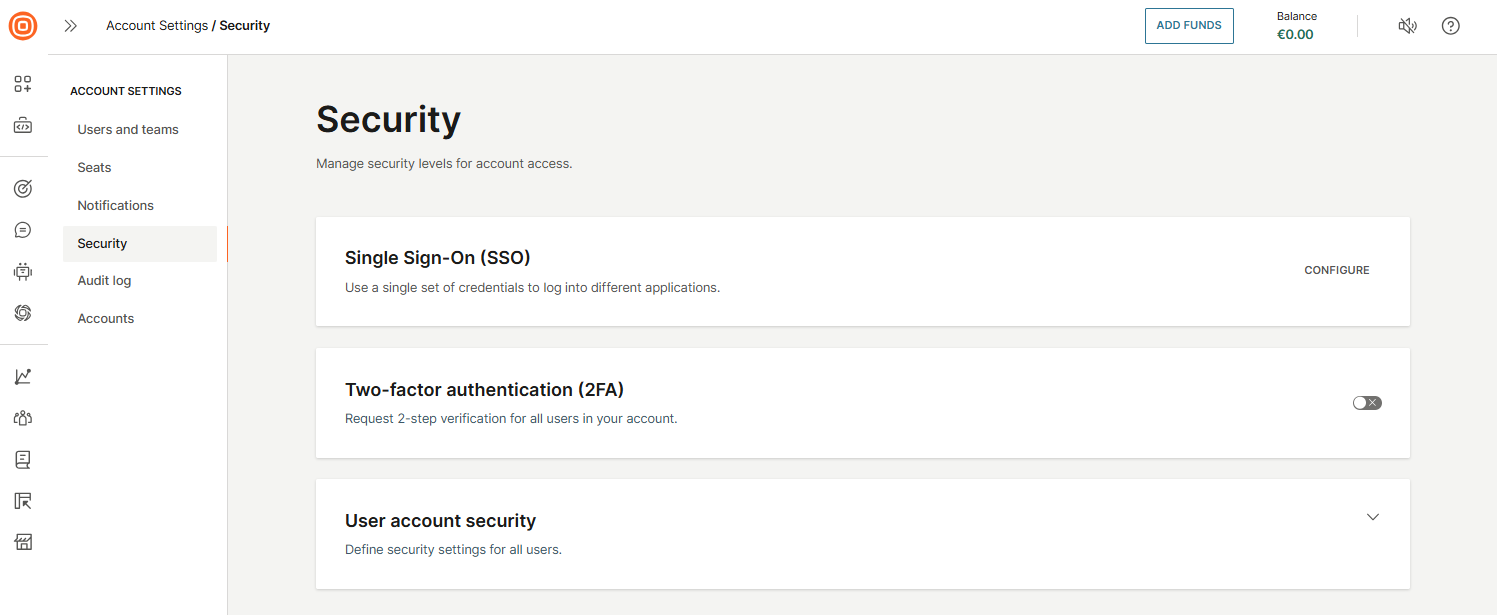
The Security settings help you manage and enforce security measures for account access. This section includes features such as:
- Single Sign-On (SSO): Enables users to log in using your organization's identity provider
- Two-Factor authentication (2FA): Add an extra layer of login protection
- User account security: Manage password policies and other user access controls
Configure Single Sign-On (SSO) [#configure-single-sign-on-sso-security-settings]
Single Sign-On (SSO) enables users to access multiple applications using a single set of credentials. Infobip supports SSO integration with any Identity Provider that uses the SAML 2.0 protocol.
There are two types of SAML flows:
- Service Provider (SP)-initiated
- Identity Provider (IdP)-initiated
Infobip supports the SP-initiated flow, which is the most commonly used.
Permissions
Only system administrators can configure SSO settings on the Identity Provider side. On the Infobip web interface, only users with the Account Manager business role have permission to define and modify the SSO configuration.
Requirements
Your Identity Provider must support the SAML 2.0 protocol. Once SSO is enabled for an account, all users accessing the Infobip web interface must authenticate through the configured Identity Provider.
How to enable SSO [#how-to-enable-sso-security-settings]
Before starting, note that SSO configuration is fully self-service, and no additional data is required from Infobip as the Service Provider. All necessary details are provided during the setup process.
Prerequisites
While Identity Providers (IdPs) vary in configuration methods, a minimum set of details is required to integrate with Infobip as a Service Provider (SP). Follow the step-by-step process below to learn how to enable Single Sign-On (SSO).
-
Access SSO settings
- Log in to the Infobip web interface.
- In the side navigation, select your avatar icon and go to Account settings > Security.
- In the Single Sign-On (SSO) section, click Configure to open the SSO setup page.
-
Enter Identity Provider details
You will need to provide the following information from your Identity Provider:
- SP Entity ID: Unique identifier for Infobip as the Service Provider.
- IdP Signature Certificate: The certificate your IdP uses to sign SAML assertions.
- IdP Login URL: The SAML 2.0 endpoint where users are redirected to log in via the IdP.
- IdP Logout URL: The URL users are redirected to after logging out on the Service Provider side.
-
Use Infobip details for your Identity Provider
Use these values when configuring SSO on your Identity Provider:
- SP Initiation URL: The unique URL to initiate the SSO login process. Share this with your users.
- SP Assertion Consumer Service (ACS) URL: URL where the IdP sends SAML assertions after successful authentication. This URL is generated automatically when you input the SP Initiation URL.
Optional configuration
Auto-create users (recommended)
Enable this option to allow automatic creation of users in Infobip upon successful authentication via your IdP. If a matching user (by email) does not exist, the system creates one based on the information in the SAML response. Add additional user details under Settings > Users.
If the auto-create users option is disabled, you must manually create users in Infobip with email addresses that exactly match the NameID sent by your IdP. If a match is not found, the login fails.
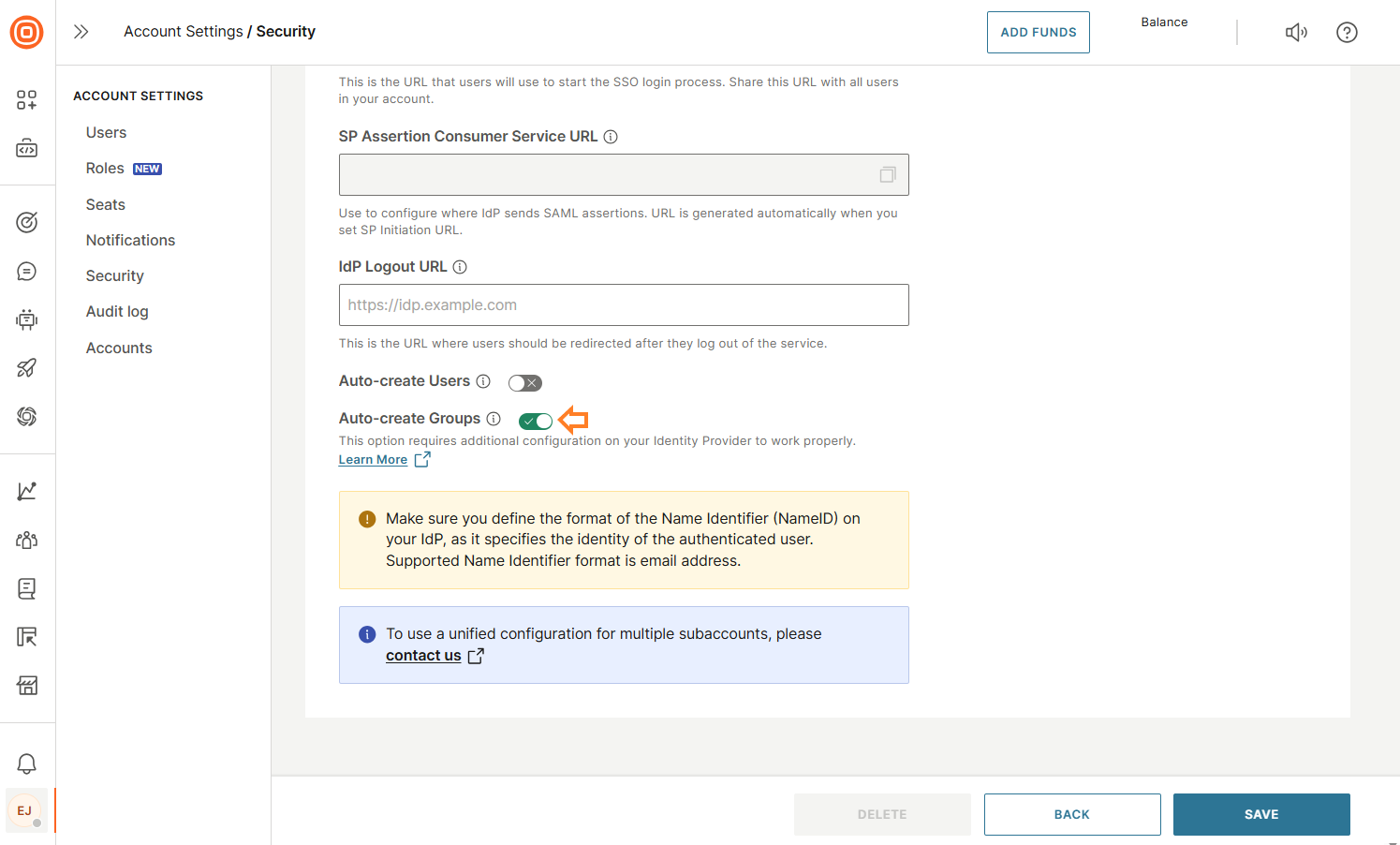
Auto-create groups
When enabled, this option syncs user groups and memberships from your IdP during each login. If later disabled, previously synced groups become non-SSO groups.
Identity provider requirements
To ensure successful SSO login, you must configure the Name Identifier (NameID) attribute on your Identity Provider. Supported NameID options:
- UPN (User Principal Name)
NameID is an email address.SSO using SAML over the web interface [#sso-using-saml-over-the-web-interface-security-settings]
You can log in with SSO by accessing the SP Initiation URL created during the setup process, or through the login flow described in Account access.
Example: https://portal.infobip.com/login/saml/contoso/
Extending the SAML response on your identity provider [#extending-the-saml-response-on-your-identity-provider-security-settings]
Infobip offers limited support for extending the SAML response because more complex authentication scenarios can pose potential security risks.
If you want to automatically set users' first and last names when using the Auto-create users option, you must extend the SAML response from your Identity Provider with the following attribute statements:
- First name attribute with the claim name:
http://schemas.xmlsoap.org/ws/2005/05/identity/claims/givenname - Last name attribute with the claim name:
http://schemas.xmlsoap.org/ws/2005/05/identity/claims/surname
If you want the Group Membership information included in the SAML response, add a new attribute statement that lists all Group Memberships for a user. The claim attribute name must be set to:
http://schemas.xmlsoap.org/claims/Group
Make sure you have turned on the Auto-create groups option in User profile → Security → Single Sign-On (SSO) → Configure, so that the newly added attribute can be properly handled upon each user login.
Two-factor authentication [#two-factor-authentication-security-settings]
You can activate two-factor authentication (2FA) for all users across your account simultaneously. Once enabled, every user must provide a verification code in addition to their password during login, significantly enhancing the security of your account.
User account security [#user-account-security-security-settings]
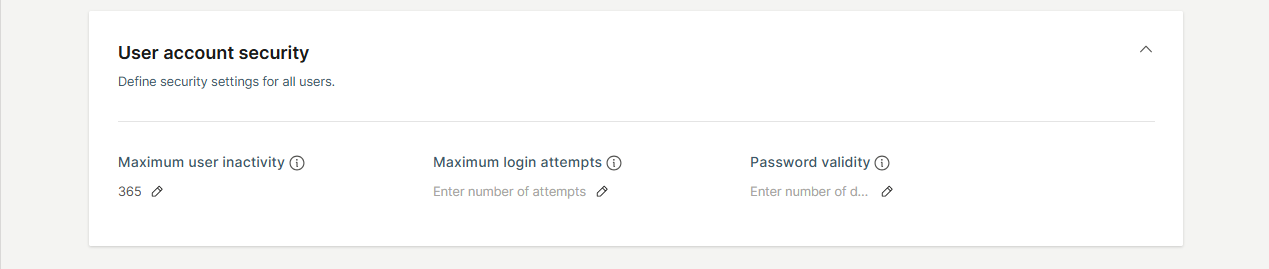
In this section, you can set rules and policies that apply to all users within your account:
- Maximum user inactivity: Define the number of days a user can remain inactive before their account is automatically disabled. You can set this value anywhere between 15 and 365 days.
- Maximum login attempts: Specify the maximum number of consecutive unsuccessful login attempts allowed before a user's account is locked. The recommended setting is 5 attempts.
- Password validity: Set the duration (in days) before a user's password expires and requires renewal. Leaving this field empty means passwords will never expire. The recommended period is 90 days.
Audit log
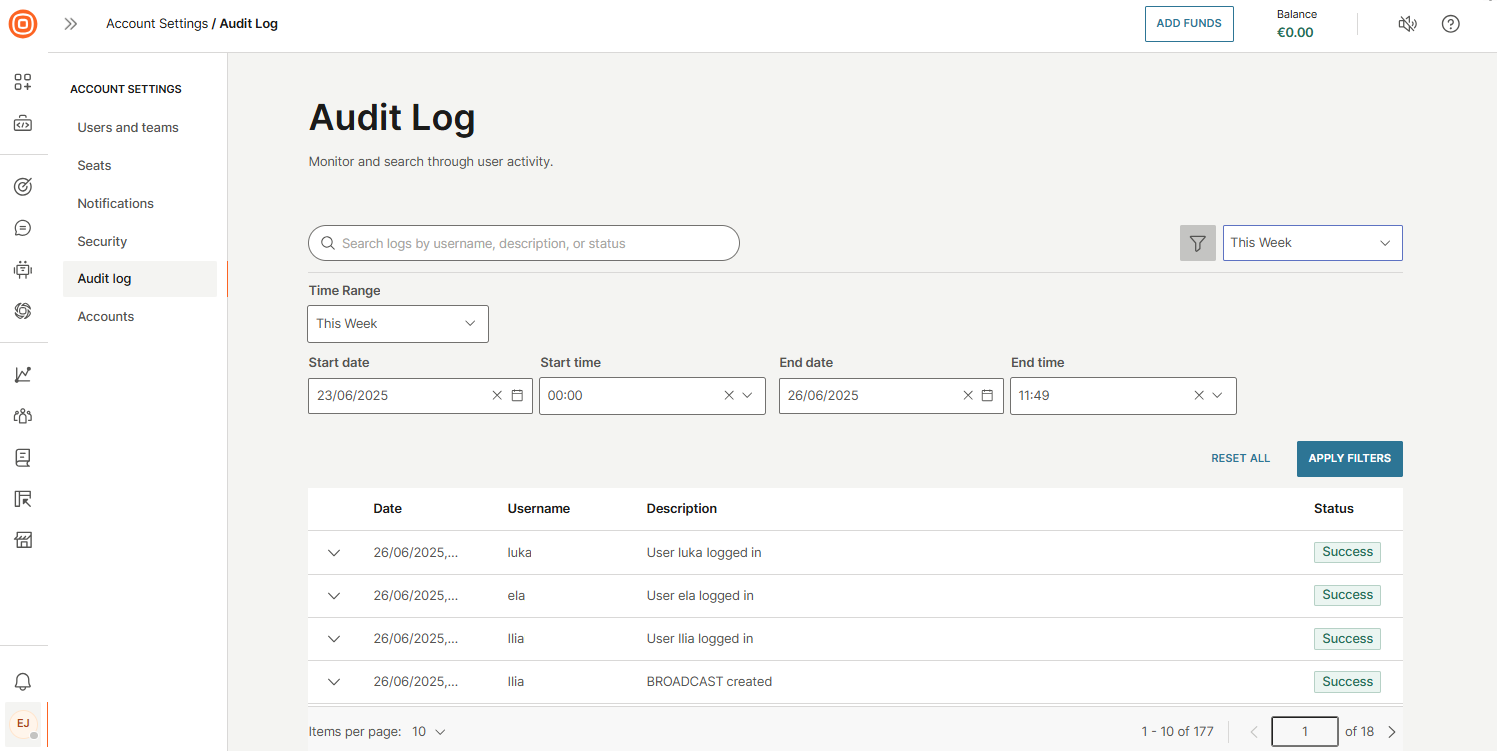
The Audit log provides a comprehensive record of all user activities on the Infobip web interface, helping you quickly investigate issues and ensure security compliance.
Events are organized by key identifiers such as:
- Date
- Username
- Description
- Status
You can filter the log by predefined time ranges (for example, last 15 minutes, last 3 hours, today, yesterday, this week, or last week) or define a custom date and time range.
This feature is available to all users with the Account admin role.
Audit log events [#audit-log-events-audit-log]
| Item | Action | Event description |
| 2FA | Enable | Two-factor authentication enabled for all users. Enabling two-factor authentication failed. |
| Disable | Two-factor authentication enabled for all users. Disabling two-factor authentication failed. | |
| Update | Two-factor authentication settings updated. Two-factor authentication settings update failed. | |
| Account | Update | Account login options updated/failed. Account security options updated/failed. Language successfully changed/failed. Host name set/failed. Color scheme set/failed. Logo updated/failed. |
| API key | Create / Generate | API key generated (name, valid from)/generation failed. |
| Update | API key updated (name, expiration). | |
| Automatic Payment | Activation | Automatic payments changed (min. Balance, currency). |
| Change | Automatic payments changed (min. Balance, currency). Automatic payments deactivated. | |
| Successful | Automatic payment completed. | |
| Unsuccessful | Automatic payment failed. | |
| Billing address | Successful | Billing address changed (name, full billing address). |
| Blocklist | Import | Imported a blocklist from a completed file. |
| Add | Number/Email added to a blocklist. | |
| Delete | Number/Email deleted from a blocklist. | |
| Export | Blocklist export completed. | |
| User | Create | User created. User creation failed. |
| Update | User updated. User update failed. | |
| Disable | User disabled. Disabling user failed. | |
| Enable | User enabled. Enabling user failed. | |
| Accept | User accepted. | |
| Login | User logged in (name, email). | |
| Logout | User logged out (name, email). | |
| Lock | User locked. User locking failed. | |
| Unlock | User unlocked. User unlocking failed. | |
| Verify | User verified. | |
| Password reset | Reset forgot password email sent. Reset forgot password email sending failed. | |
| Team | Create | Group created. Group creation failed. |
| Delete | Group deleted. Group deletion failed. | |
| Update | Group updated. Group update failed. |
Accounts
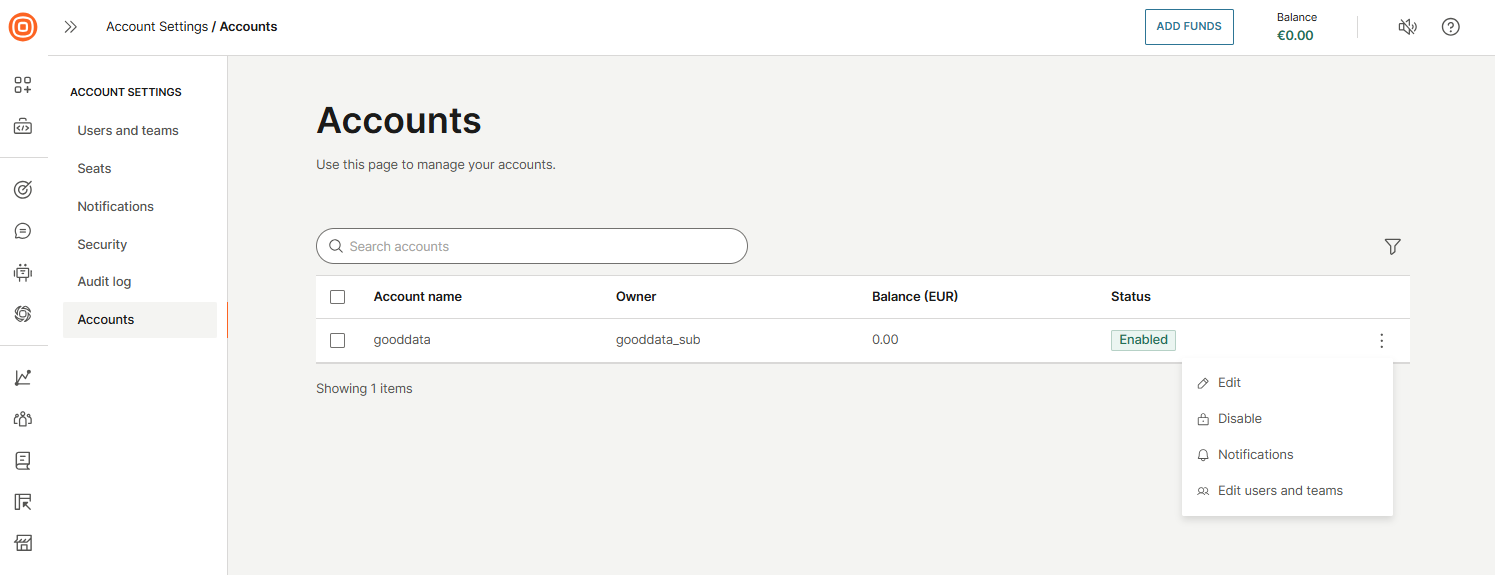
To manage your sub-accounts, go to Account settings → Accounts. This page displays a list of all sub-accounts created under your main account. You can use the search bar to quickly locate a specific sub-account.
Select the three-dot menu next to any account to access additional actions:
- Edit: Modify account details, including security settings and Single Sign-On (SSO) configuration.
- Enable or disable account: Activate or deactivate a sub-account as needed.
- Notifications: View notifications related to that specific sub-account.
- Edit users: Manage users associated with the selected sub-account.
- Edit roles: Manage roles associated with the selected sub-account.
Customization
The Customization page enables you to tailor the Infobip portal to match your organization's branding by configuring a safelisted hostname, uploading a logo, and selecting a preferred theme and language.
To access these settings, go to your user profile and select Account settings → Customization.
Here, you can:
- Define a custom hostname
- Select the language and theme for your account
- Upload a logo that reflects your corporate visual identity
The hostname you specify becomes the custom URL used to access your Infobip web interface. Update your DNS configuration accordingly.
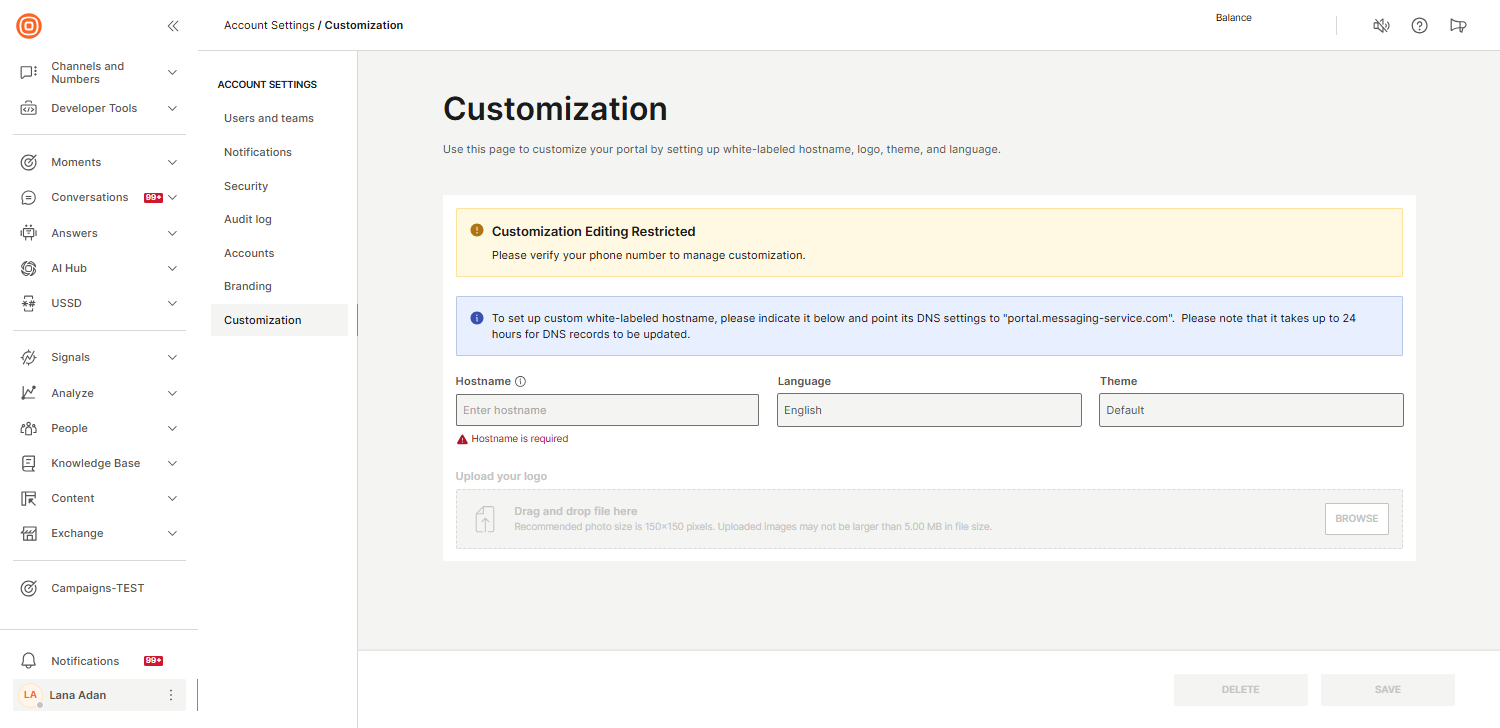
If any changes are needed to the existing customization setup, you must delete the current customization and create a new one with the updated configuration.