Manage users
Add users to your account
To add new users to your Infobip account:
- Log in to your Infobip account.
- In the navigation menu, select the Profile icon.
- Go to Account settings → Users.
Within the Users section, there are two tabs:
- Users: View and manage existing user profiles.
- Invites: Track and manage pending user invitations.
You can either manually create a user profile or send an invitation through email.
Users [#users-add-users-to-your-account]
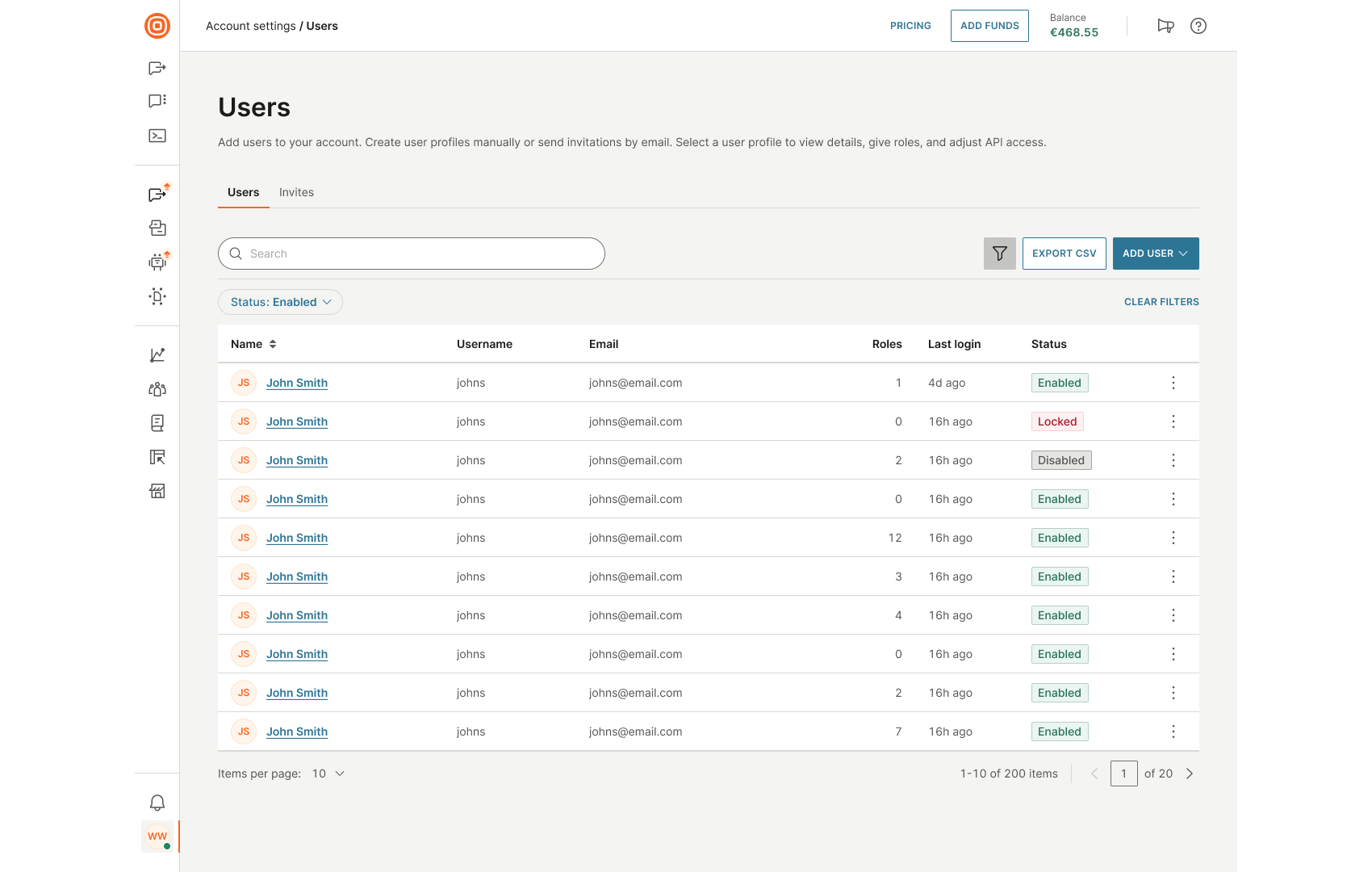
In the Users tab, you can:
- Create a new user
- Search for specific users using the search bar
- Apply filters to narrow results
- Export the user list in CSV format
- View key information, including:
- Name
- Username
- Roles
- Last login
- Status
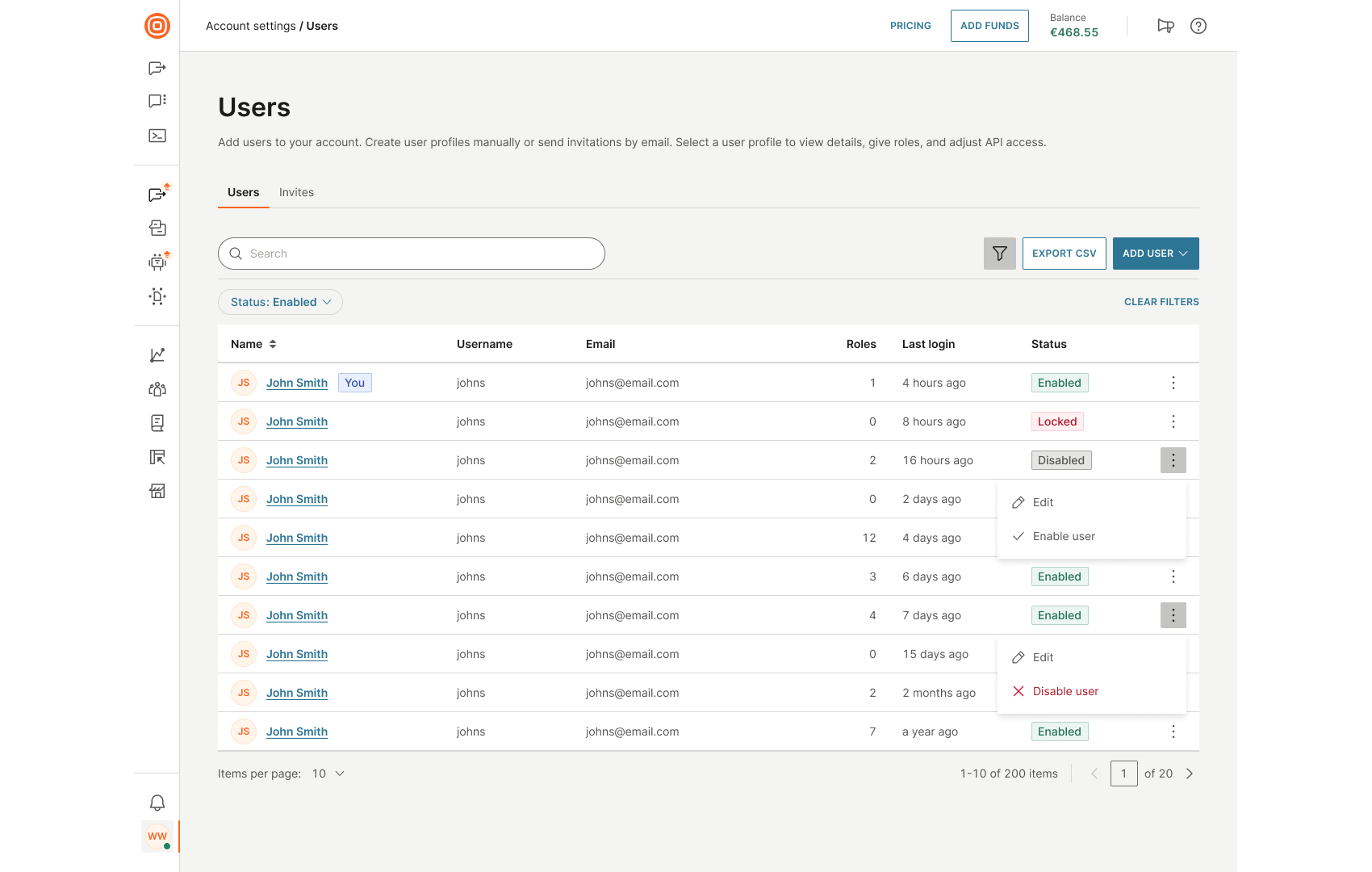
Use the three-dot menu next to each user to edit their profile or to enable or disable their account, depending on their current status. When a user is disabled, they can no longer log in or receive notifications. However, their profile will remain in the user list and will be marked as disabled. You cannot disable your own account while logged in.
Add a new user [#add-a-new-user-add-users-to-your-account]
To add a new user:
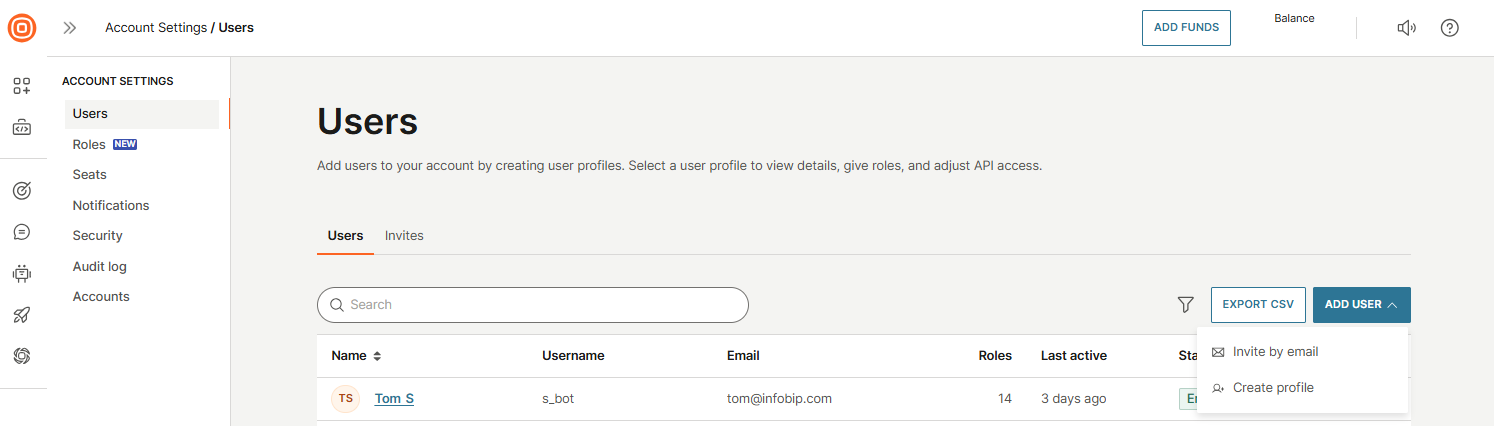
- Select the Add user button → Create profile.
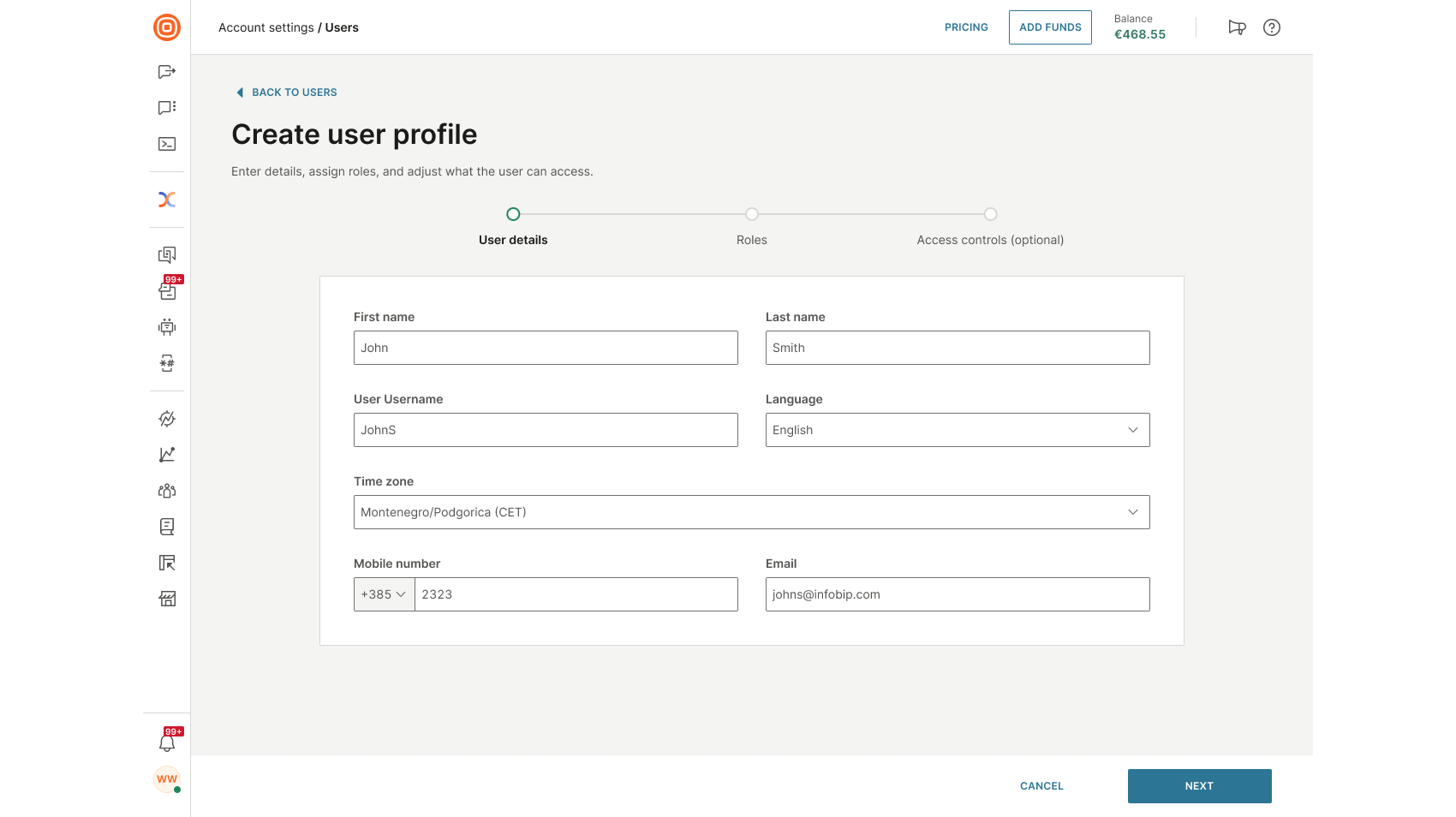
- On the Create user profile page, enter the user's basic details, such as name and email.
- Assign one or more roles to define their permissions and access level.
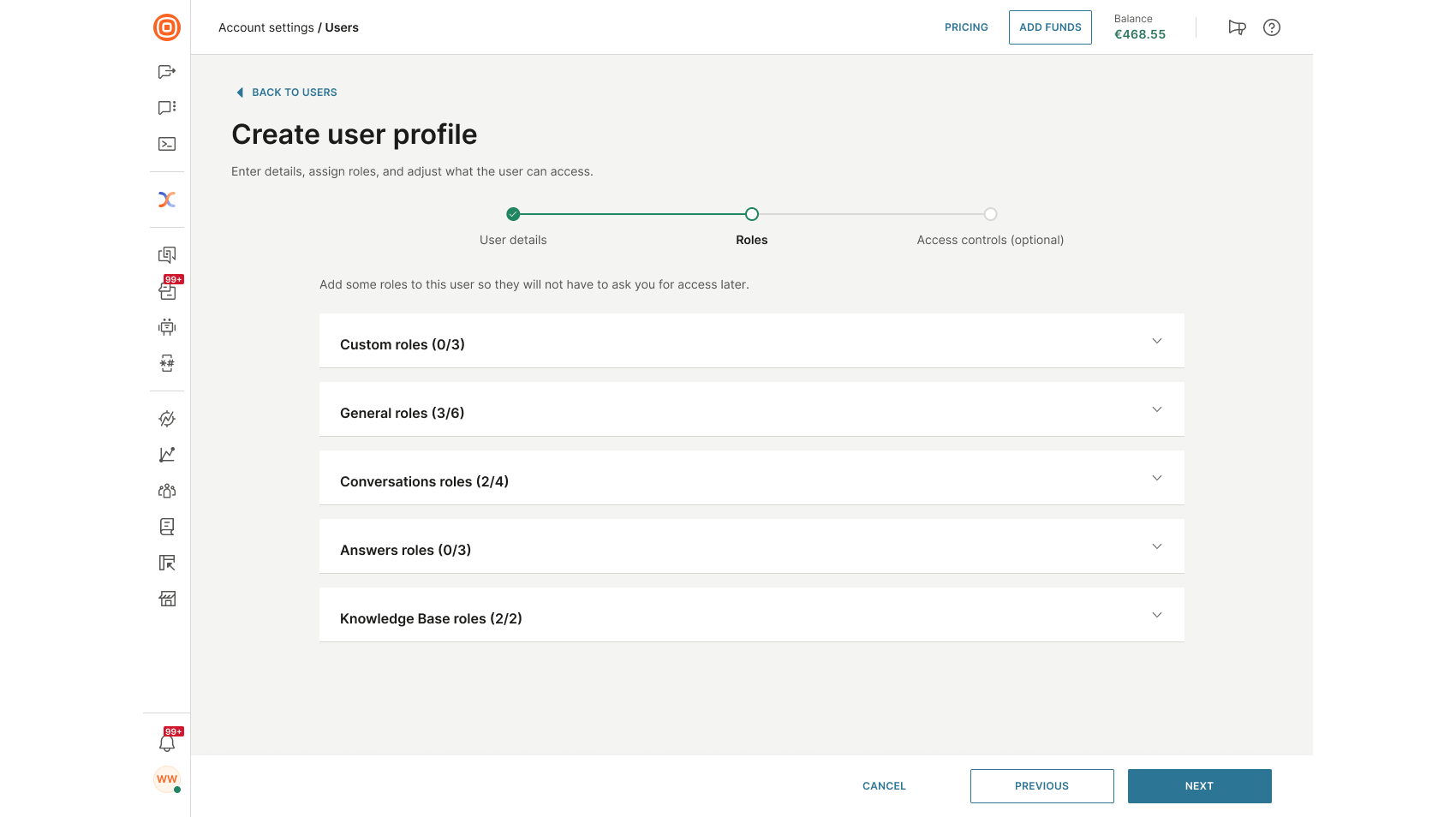
- Configure access controls (optional):
- Restrict access by IP address or range.
- Choose authentication protocols (for example, Basic Auth).
- Skip this step if access control is not needed.
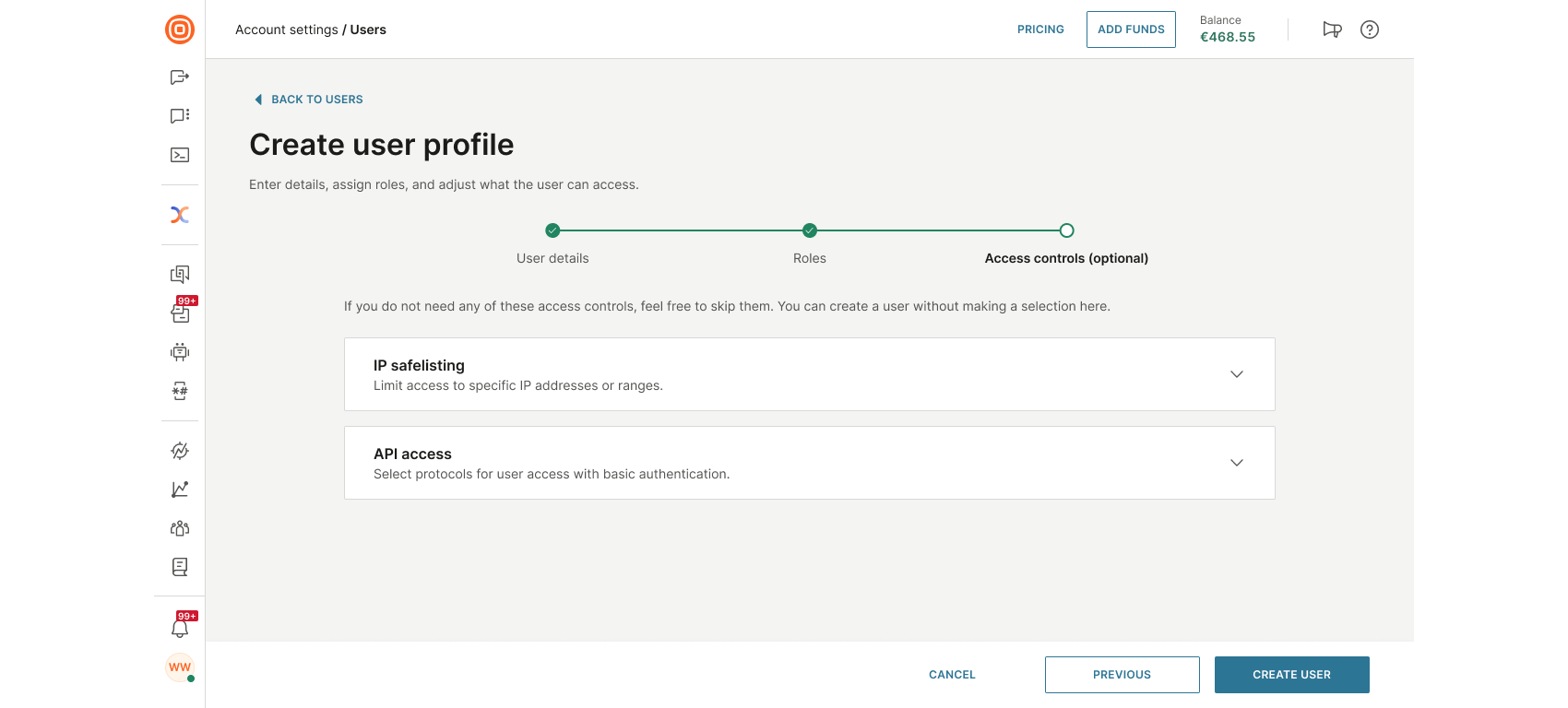
- After filling in all required information, select Create user to complete the process.
Edit a user [#edit-a-user-add-users-to-your-account]
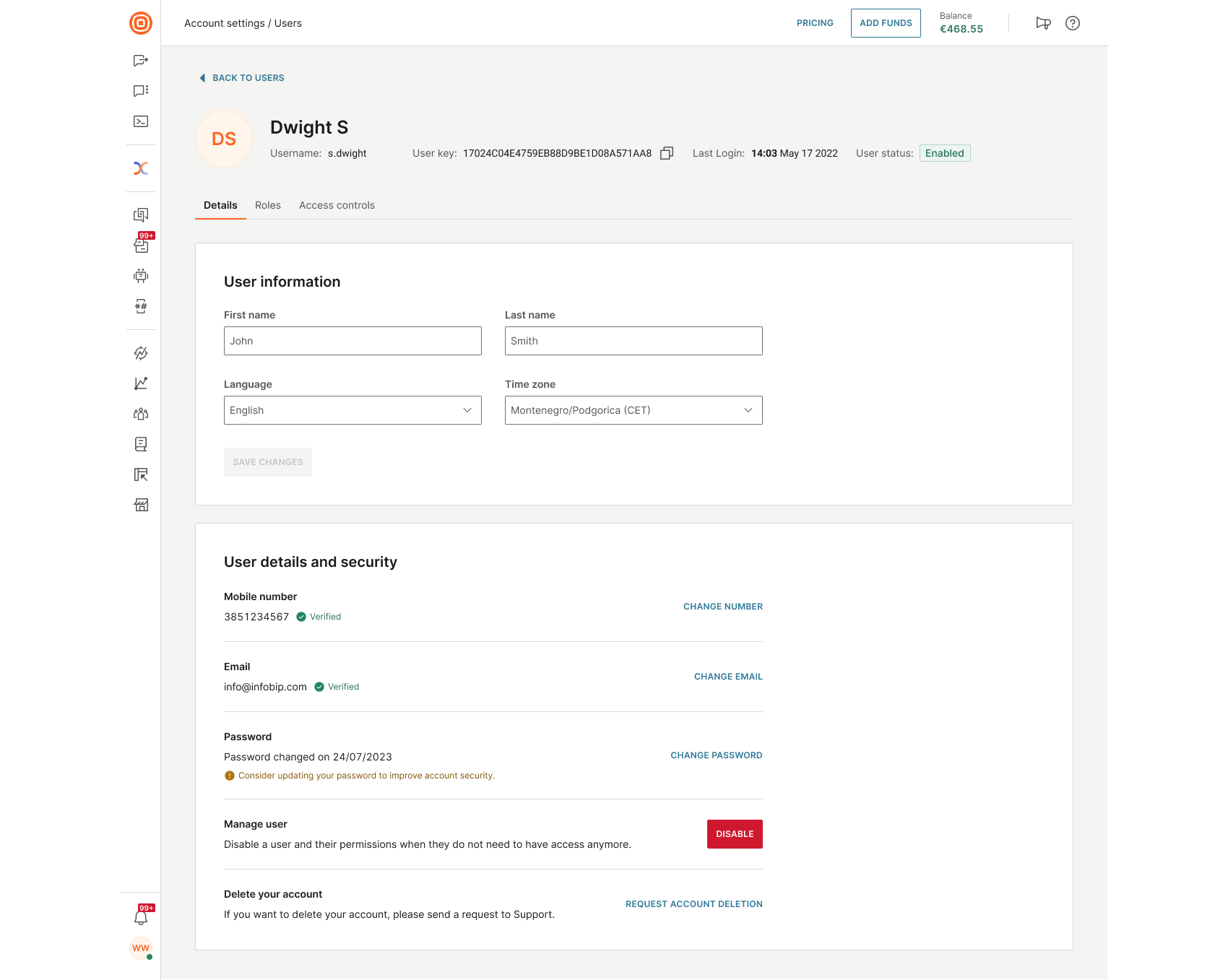
To edit a user's profile, select Edit from the three-dot menu next to their name. This opens the user's profile page, which includes the following tabs:
- Details
- Roles
- Access controls
Details
In the Details tab, you can view and update the user's basic information:
- First name
- Last name
- Language
- Time zone
After making changes, select Save Changes to apply them.
In the User details and security section, you can:
- Update contact information:
- Mobile number
- Email address
- Change the password
- Manage user access:
- Enable or disable the user and their permissions
- Request account deletion:
- If the user no longer needs the account, click Request account deletion to submit a request to Support
Roles
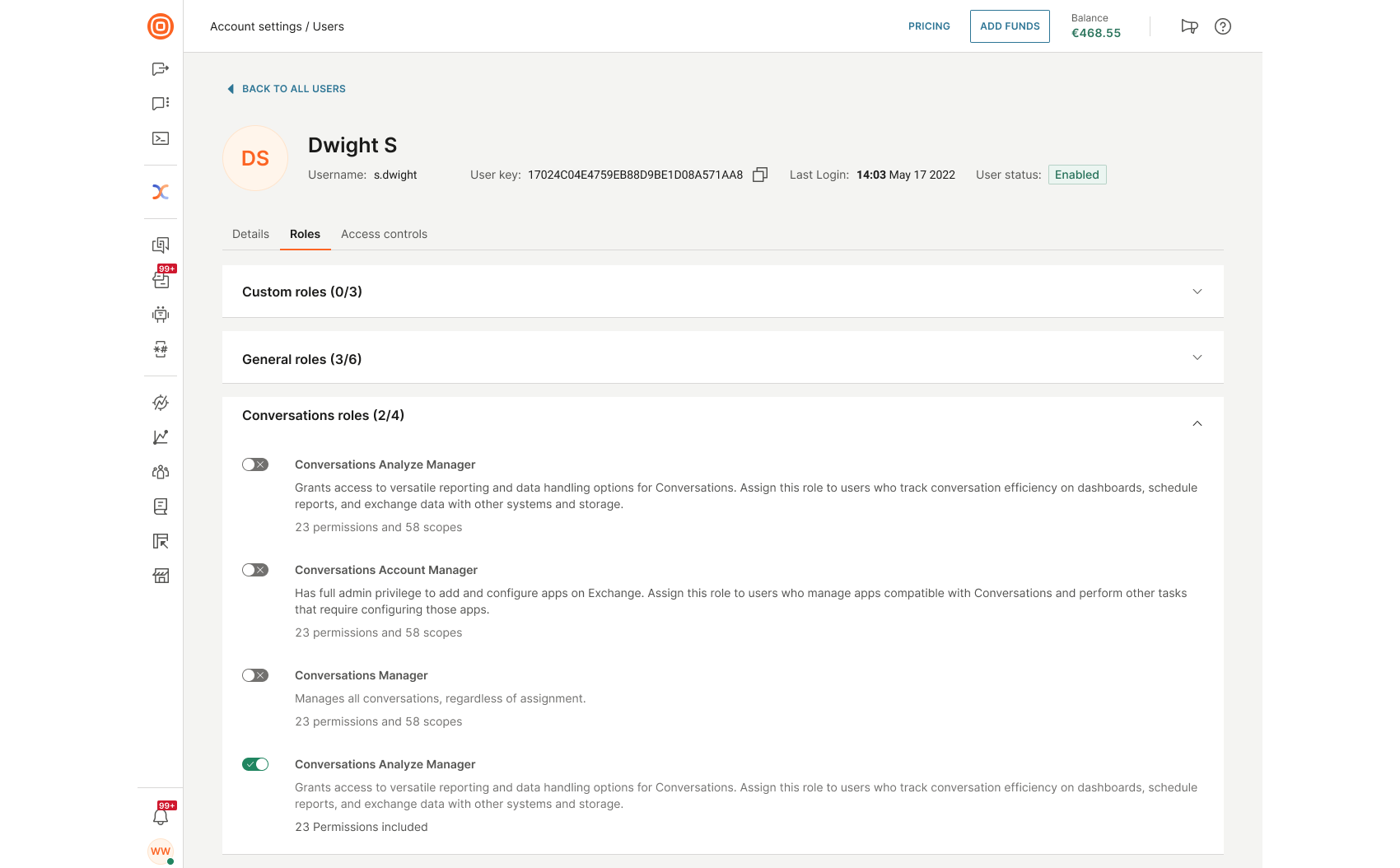
In the Roles tab, you can manage which roles are assigned to the user. The list displays all available roles, each with a toggle switch.
- Enable a role by turning the toggle on
- Disable a role by turning the toggle off
Changes are applied immediately and define what features and permissions the user has access to.
Access controls
In the Access controls tab, you can configure additional security settings, including IP safelisting, mobile authentication, two-factor authentication (2FA), and API access permissions.
For detailed guidance on each option, refer to the relevant sections below.
Select a language [#select-a-language-add-users-to-your-account]
Adapt the web interface to a specific language by selecting it from the Language dropdown under the User information section.
The following languages are fully supported:
- Albanian
- Arabic
- Bosnian
- Chinese (Simplified - China)
- Chinese (Traditional - Taiwan)
- English
- French
- German
- Greek
- Italian
- Japanese
- Korean
- Portuguese (Latin America)
- Russian
- Spanish (Latin America)
- Slovenian
- Swedish
- Turkish
- Ukrainian
After you select a new language for your own user, the entire web interface immediately adapts to your language choice.
You can specify a separate language for all other users that you manage. After they log in, they see the UI in the language you specified for them. If you have assigned a role of an Account admin to your users, they can select other language options. Otherwise, your language selection appears on their web interface as a read-only field.
Invites [#invites-add-users-to-your-account]
You can manage and track pending invitations directly within the Invites tab.
To invite new users via email:
- Select the Invites tab.
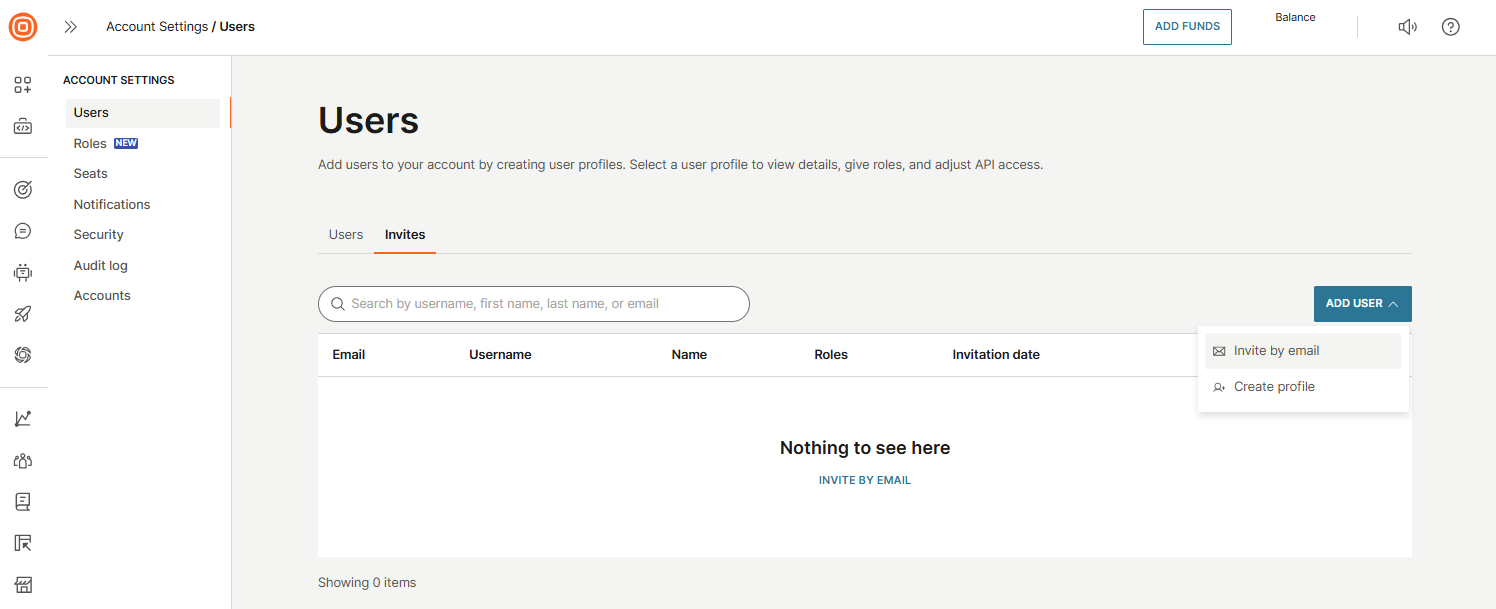
- Select the Add user button → Invite by email.
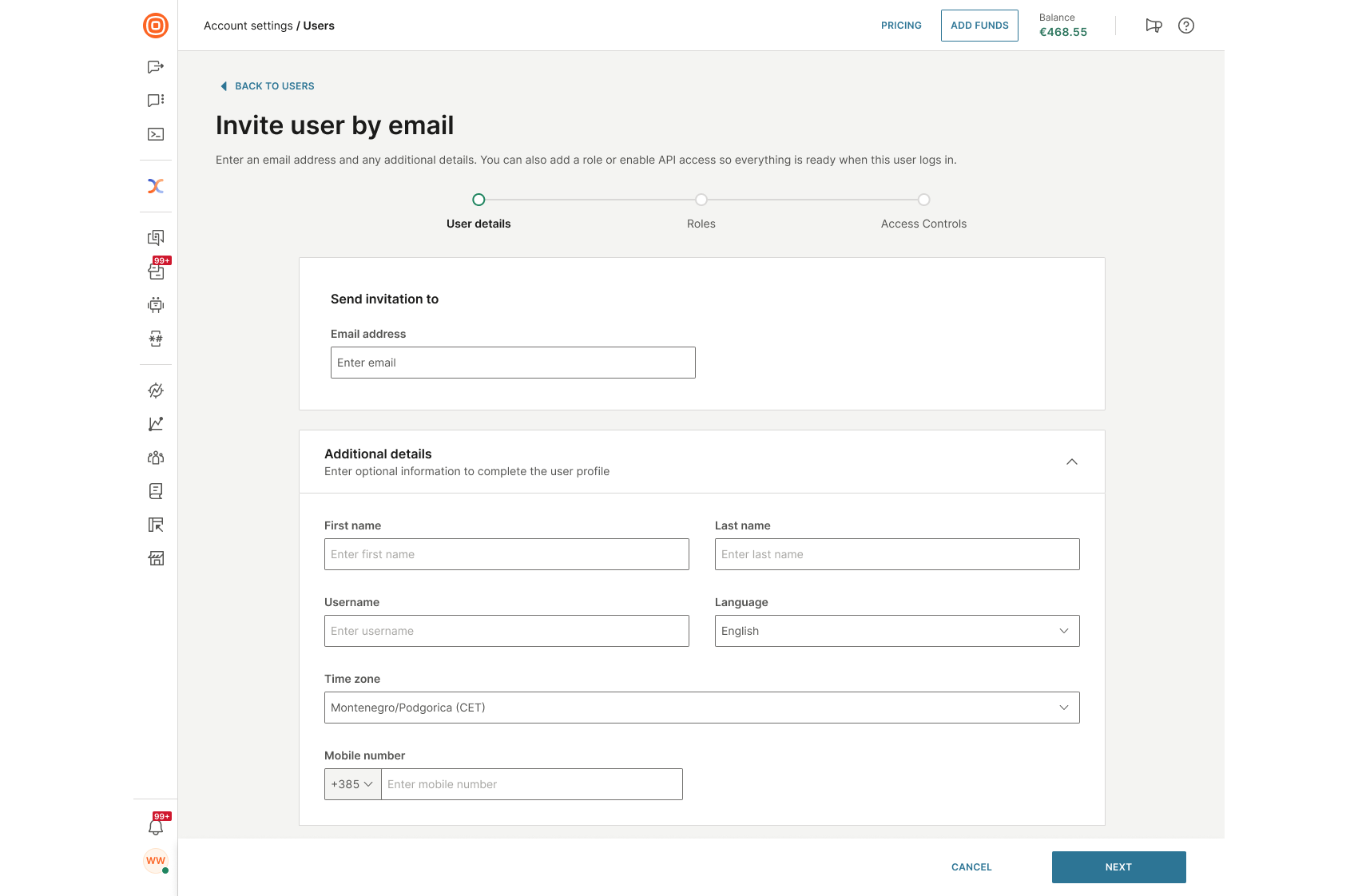
- On the invitation page, enter the user's email address, and any additional details.
- Assign one or more roles to define their permissions and access level.
- Configure access controls (optional):
- Restrict access by IP address or range.
- Choose authentication protocols.
- Skip this step if access control is not needed.
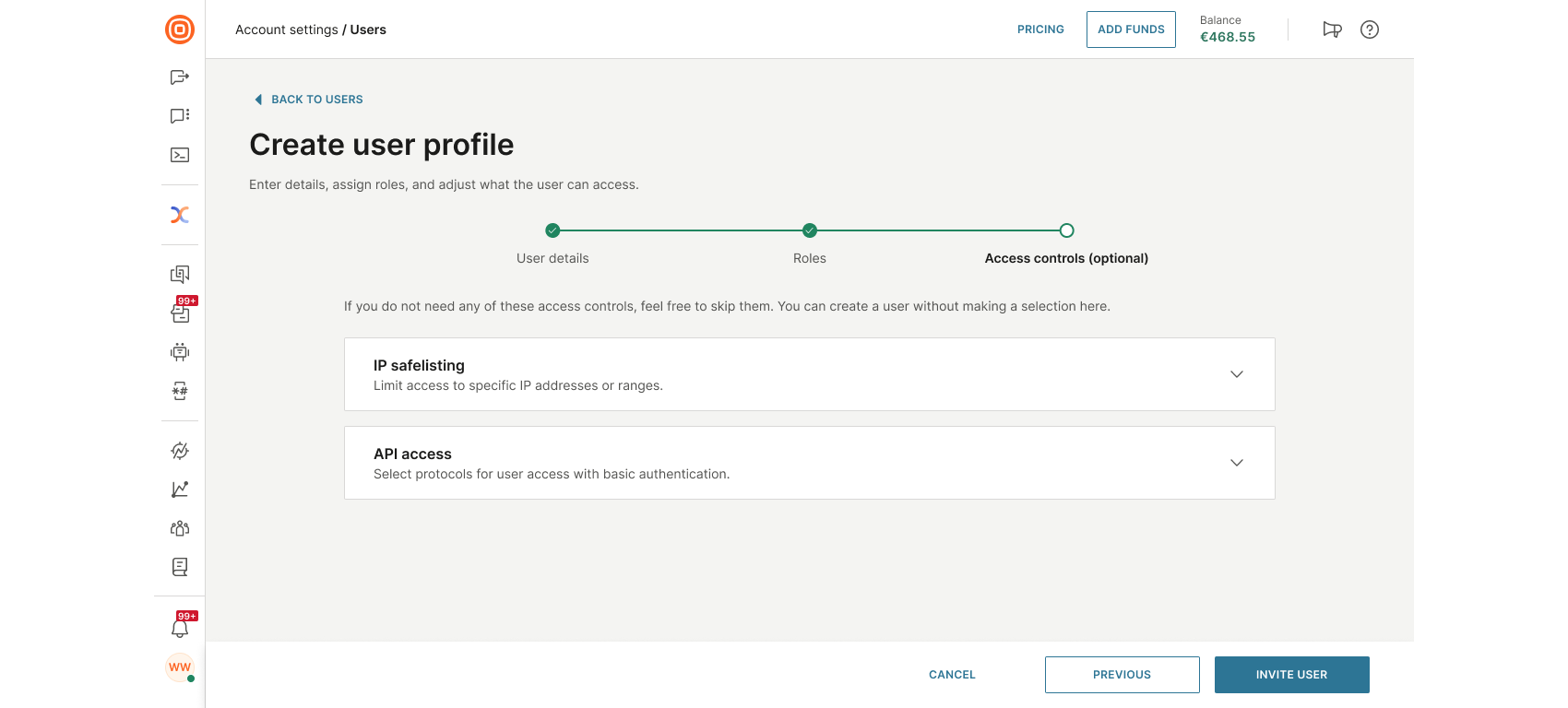
- After filling in all required information, select Invite User to complete the process.
Once submitted, the user will receive an email with instructions to join and complete their profile.
Unlock a user
When a user gets locked after several unsuccessful login attempts, the Account admin can go to the Infobip web interface to unlock the user. The Account admin checks the last login and account information in Users, and, if appropriate, unlocks the user.
After the Account admin unlocks the user, the user receives an email with instructions to reset their password.
IP safelisting
IP safelisting allows the creation of trusted lists containing specific IP addresses or ranges. These authorized IPs enable human users or APIs to access the Infobip platform securely.
Depending on the assigned role, you will have the following options:
- If you have the Account admin role, you can:
- View and edit your IP safelisting, and add your IP address before you save the changes.
- View and edit the IP safelisting from other users without the need to add your IP address before saving the changes.
- If you do not have the Account admin role, you can:
- Only view the IP addresses that are safelisted for your user.
To add, edit, or remove IP addresses or ranges that are allowed to access our services:
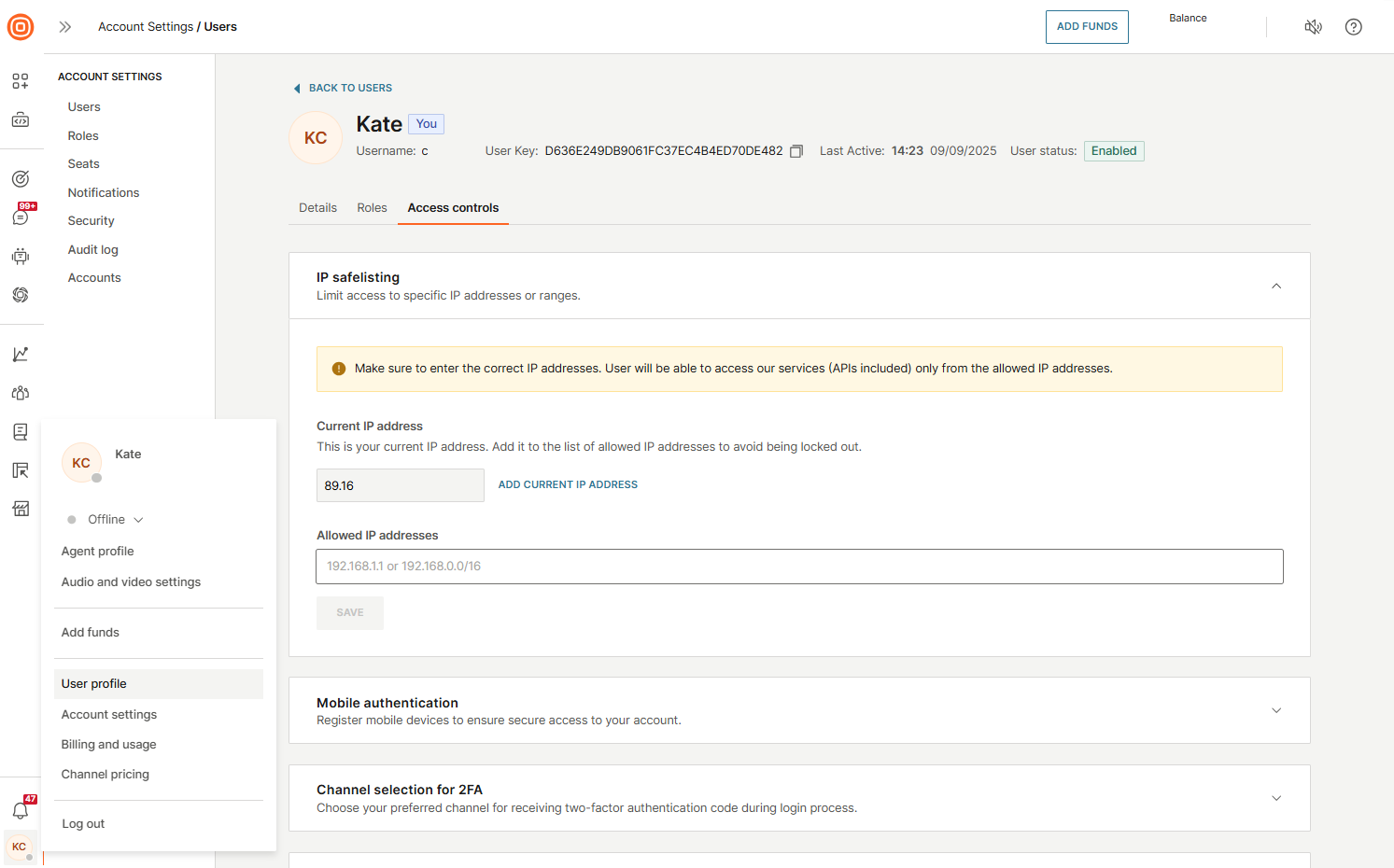
- Log into your account, and go to User profile → Access controls → IP safelisting.
- When you click the arrow to expand the menu, you will have the option to view and add your current IP address to the list of allowed IP addresses to prevent any potential lockouts by clicking the Add Current IP Address button. If your current IP address is already on the safelist, the button will be disabled.
- Add the IP addresses to allow access to Infobip services. If the list is empty, all IP addresses are allowed.
- Select Save.
Once enabled, the IP safelisting is applied to all services: HTTP API, SMPP API, and web interface access.
Mobile authentication
The Mobile authentication option lets you register mobile devices for secure access to your account.
This option is supported only in the Conversations mobile app.
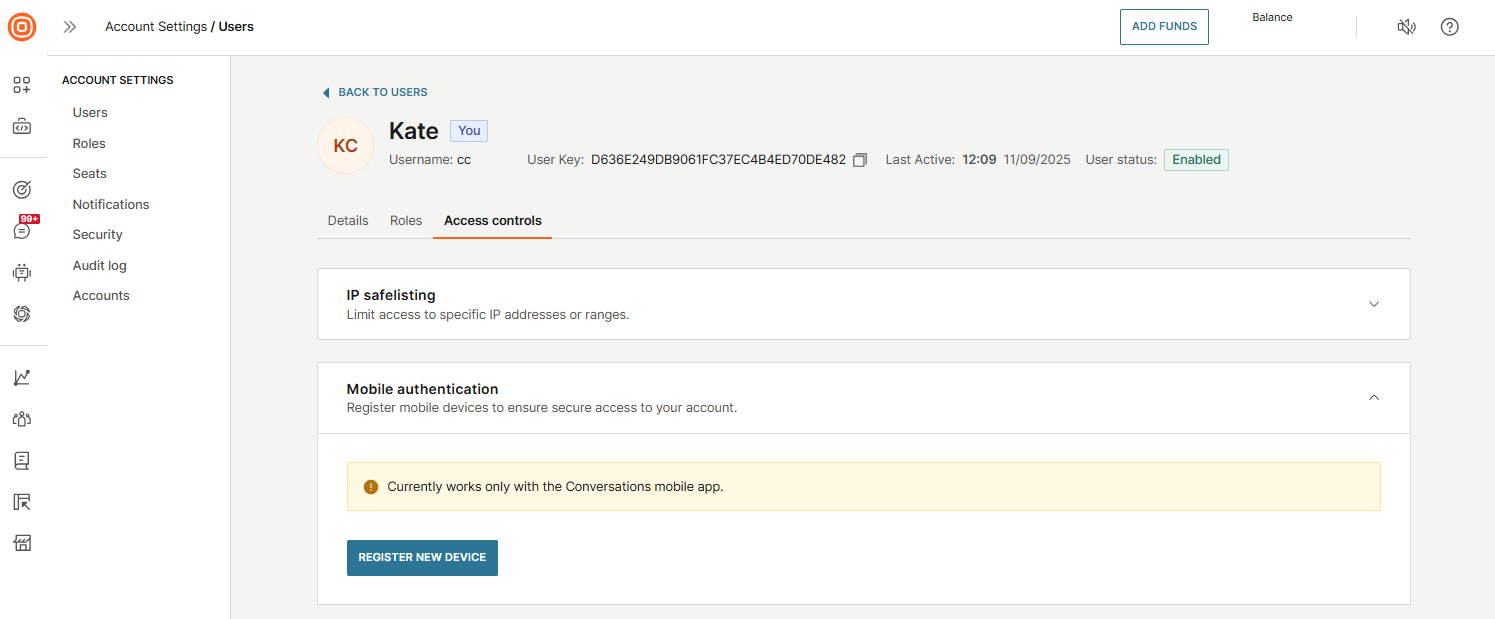
For details, see Mobile authentication.
Channel selection for 2FA
To select your preferred two-factor authentication (2FA) channel, follow these steps:
- Go to User profile → Access controls → Channel selection for 2FA.
- You can choose between three different channels:
- SMS
- Voice
- Once you choose the preferred channel, click Save.
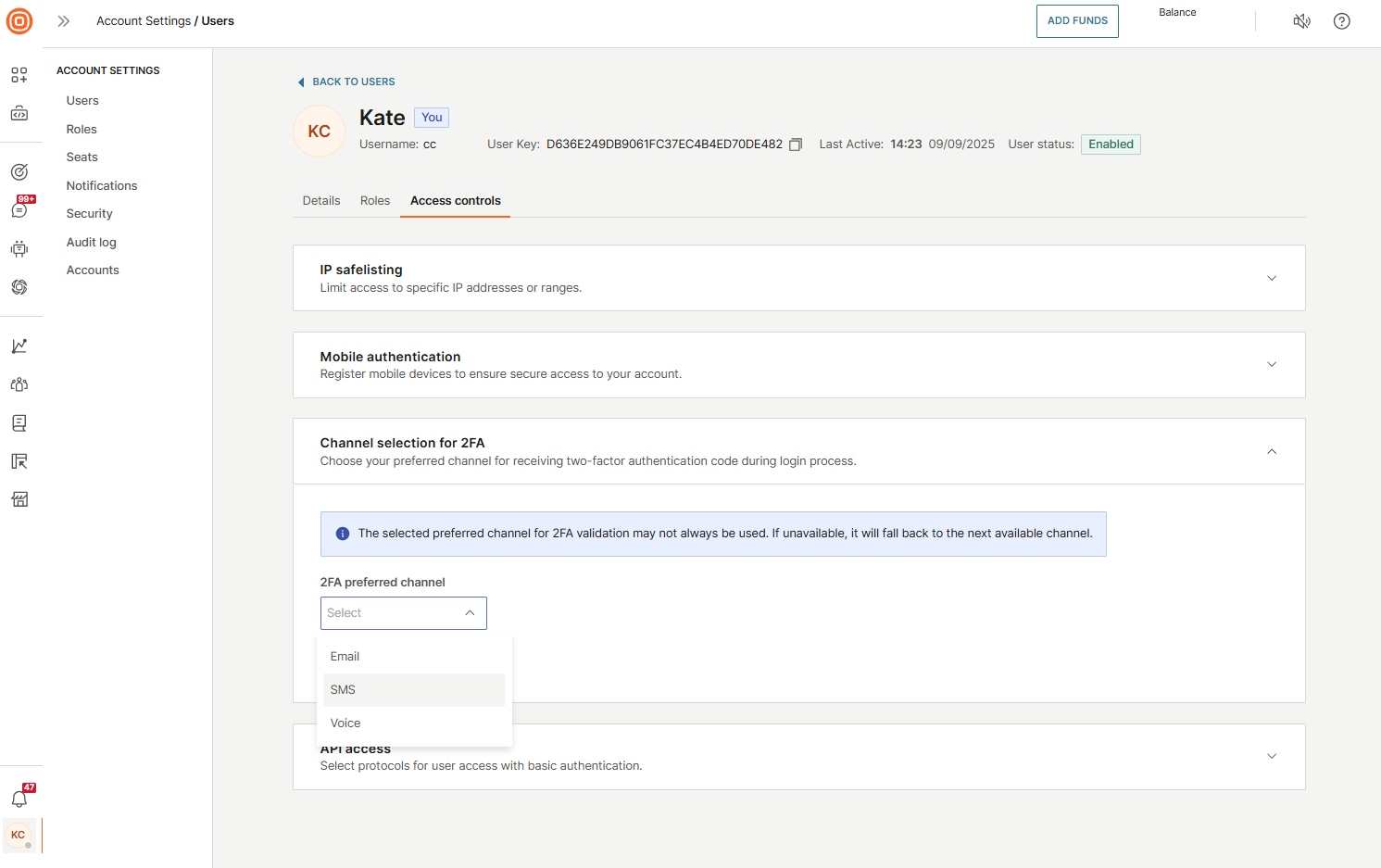
The preferred channel selection delivers a 2FA PIN when you log in to your Infobip account from a new device. You can also switch to failover channels if your preferred method fails.
API access
The API access control prohibits the use of basic authentication as a security measure. Instead, you can select between two protocols for accessing the platform securely:
- SMPP access
- HTTP access
To access it:
- Go to User profile → Access controls → API access.
- From there, enable one or both protocols. These protocols determine how authentication is handled when a user attempts to log in using basic credentials.
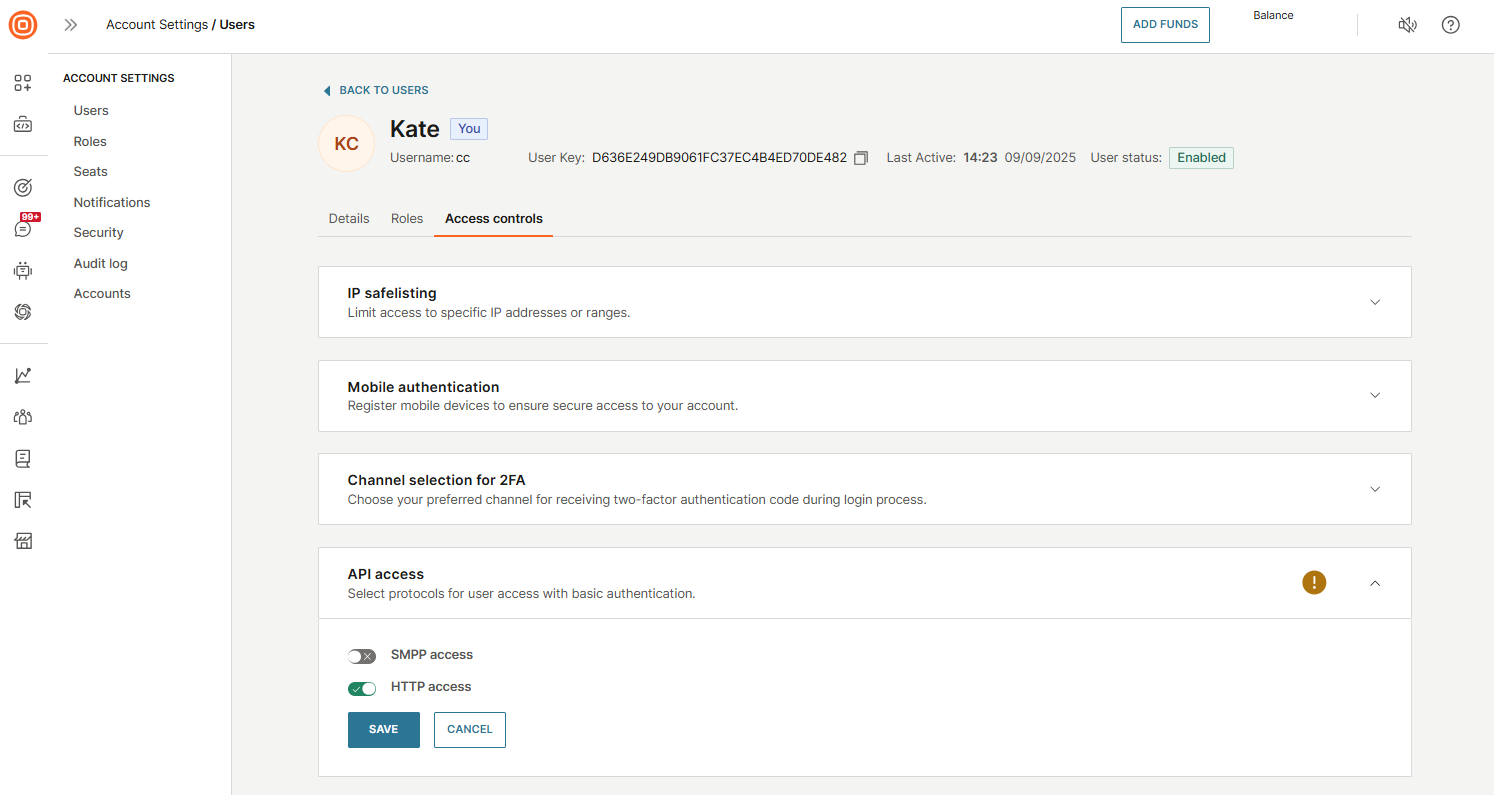
You can also use alternative authentication methods, such as generating an API key or an IBSSO token. For more details about authentication methods, see API authentication.
To learn more about SMPP and HTTP: