Build an AI agent system to automate banking workflows
AI agents are modular AI systems that can perform specific tasks. This tutorial explains how to create an AI agent system that checks end users' eligibility for loans and mortgages and helps them book appointments.
After completing this tutorial, you will have a chatbot that routes end user requests to the correct AI agent.
This tutorial uses the WhatsApp channel. You can customize the instructions in the tutorial to use other channels.
Products and channels [#products-channels]
Use the following Infobip products to build and deploy your AI agent system:
| Feature | Description |
|---|---|
| AI agents | Create and manage AI agents. |
| Answers | Create components to use as tools in AI agents. Create a chatbot that calls the AI agent. |
| The channel over which the end user communicates with the chatbot. |
Prerequisites [#prerequisites]
Infobip account with the following enabled:
Technical specifications [#technical-specifications]
The system consists of the following:
- Specialist AI agents to book appointments and calculate loan and mortgage eligibility.
- An orchestrator that coordinates these AI agents.
- A chatbot that uses these AI agents. End users interact with the chatbot to get support.
- Tools that perform specific tasks and are used in the AI agents.
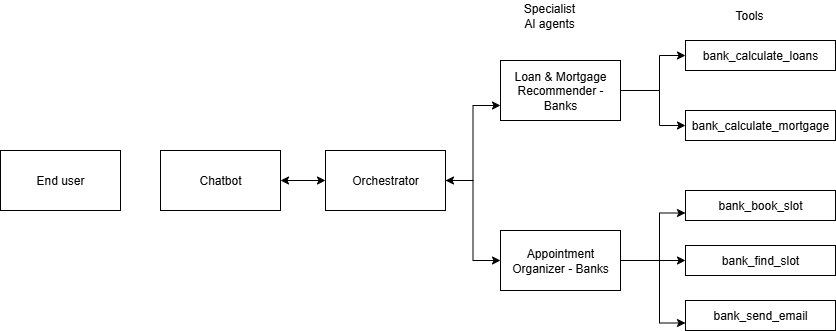
Process overview [#process-overview]
-
In Answers, create components that perform specific tasks. These are used as tools by the AI agents.
-
Create and publish the specialist AI agents.
- Include the tools in the agents.
-
Create and publish the orchestrator.
- Include the specialist AI agents in the orchestrator.
-
In your Answers chatbot, use the Agent connector element to call the orchestrator.
Implementation steps [#implementation-steps]
Create tools for the AI agents
The tools used in AI agents are created as components in Answers.
Components to create in Answers
This tutorial creates the following components:
| Component | Agent in which it is used |
|---|---|
| bank_calculate_loans | Loan & Mortgage Recommender - Banks |
| bank_calculate_mortgage | Loan & Mortgage Recommender - Banks |
| bank_book_slot | Appointment Organizer - Banks |
| bank_find_slot | Appointment Organizer - Banks |
| bank_send_email | Appointment Organizer - Banks |
Create the bank_calculate_loans component
Create the component in Answers
- Create a new component.
- Configure the fields in the component.
- Configure the input and output attributes.
- Add and configure the Code element.
- Add the Return result element.
Configure the component
Component name: bank_calculate_loans
Component description: This component is used to calculate loans based on the end user's monthly net income and the duration of the loan term.
Input attributes:
| Attribute name | Data type | Description |
|---|---|---|
| loanAmount | Number | The amount of the loan that the end user wants to borrow. |
| propertyValue | Number | The number of years the end user wants to repay the mortgage. |
| monthlyNetIncome | Number | The end user's monthly net income in Euros. |
Output attribute:
| Name | Data type |
|---|---|
| result | Text |
Configure the Code element
Use the following code:

Create the bank_calculate_mortgage component [#create-bank-calculate-mortgage-]
Create the component in Answers
- Create a new component.
- Configure the fields in the component.
- Configure the input and output attributes.
- Add and configure the Code element.
- Add the Return result element.
Configure the component
Component name: bank_calculate_mortgage
Component description: This component is used to calculate eligibility and terms of mortgage for an end user.
Input attributes:
| Name | Data type | Description |
|---|---|---|
| durationYears | Number | The number of years for which the end user wants to get a mortgage. |
| propertyValue | Number | The value of the property in Euros. |
| monthlyNetIncome | Number | The end user's monthly net income in Euros. |
Output attribute:
| Name | Data type |
|---|---|
| result | Text |
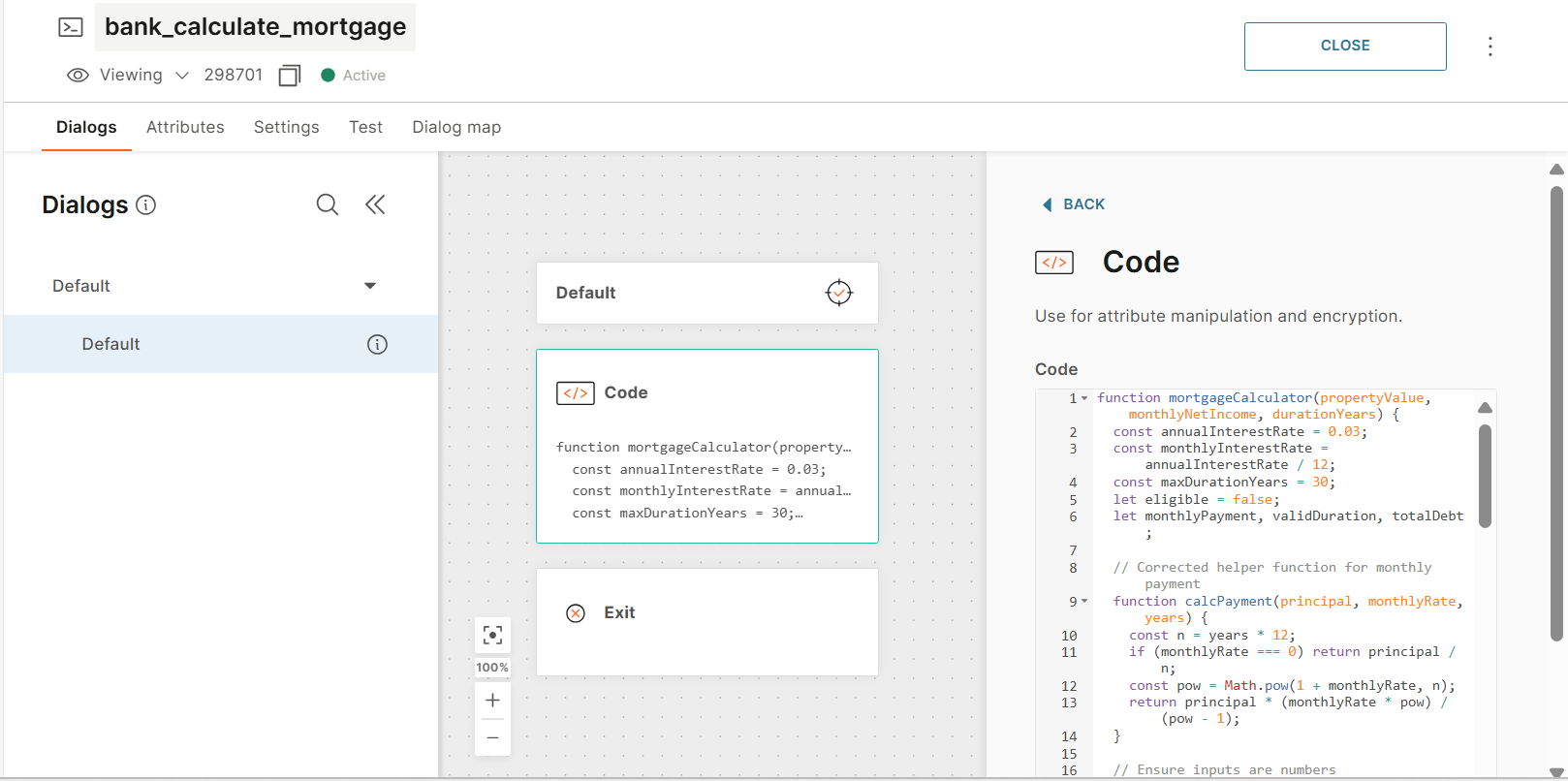
Configure the Code element
Use the following code:
Create the bank_book_slot component
Create the component in Answers
- Create a new component.
- Configure the fields in the component.
- Configure the input attributes.
- Add and configure the API element.
- Add the Return result element.
Configure the component
Component name: bank_book_slot
Component description: This component is used to book an appointment in the bank.
Input attributes:
| Name | Data type | Description |
|---|---|---|
| booked_from | Date | From date in the format 2025-06-30T15:00:00 |
| booked_to | Date | To date in the format 2025-06-30T15:00:00 |
| notes | Text | Additional notes |
| username | Text | The name of the end user |
| topic | Text | Topic for which the appointment is booked. Example: Mortgage |
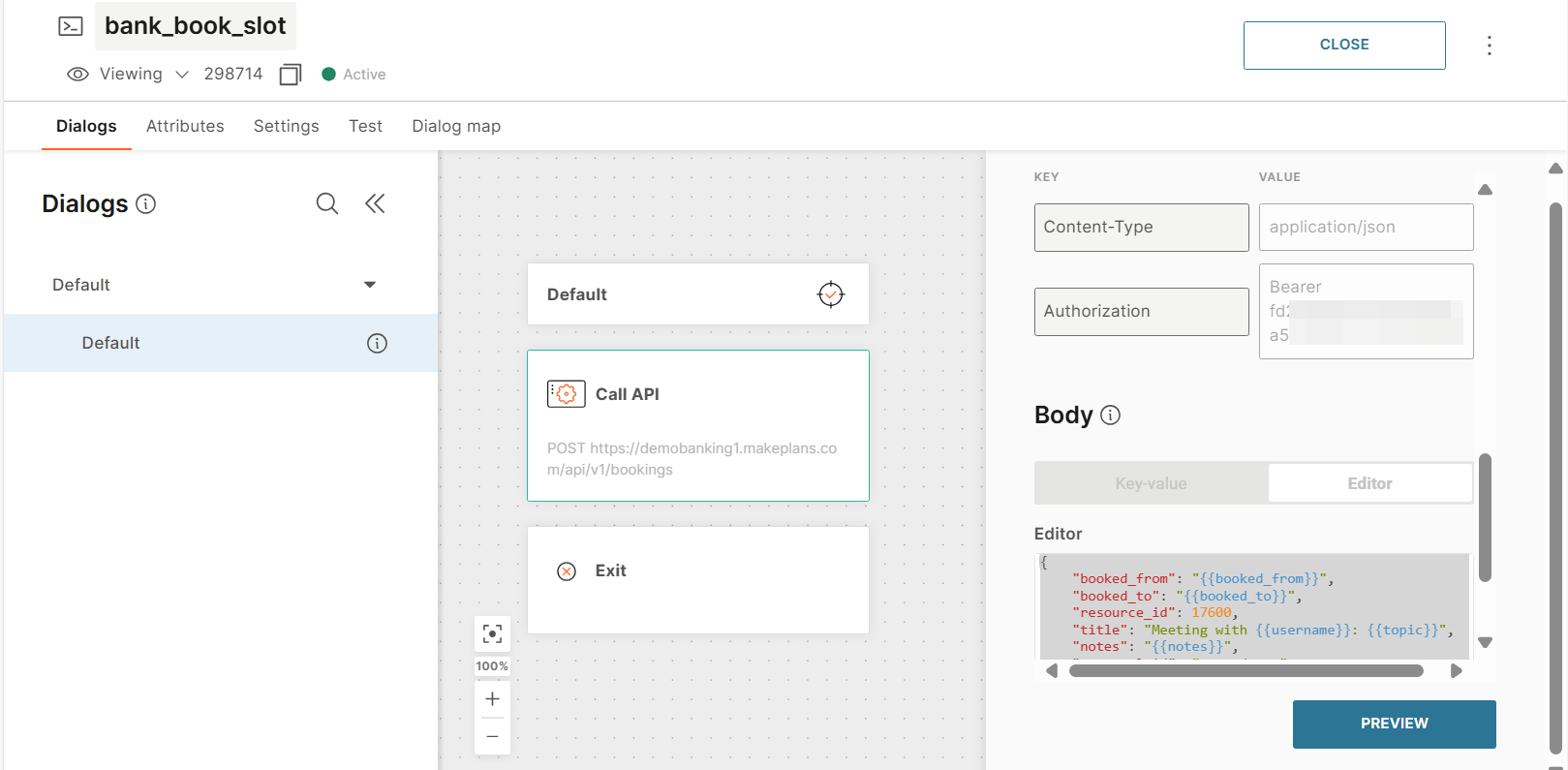
Configure the API element
In the Request section, configure the following:
-
Method: POST
-
URL:
https://demobanking1.makeplans.com/api/v1/bookings -
Content type: JSON (application/json)
-
Headers:
Key Value Authorization <Your-API-key> -
Body:
json1{2"booked_from": "{{booked_from}}",3"booked_to": "{{booked_to}}",4"resource_id": 17600,5"title": "Meeting with {{username}}: {{topic}}",6"notes": "{{notes}}",7"external_id": "...todo...",8"booking_type": "appointment"9}
Create the bank_find_slot component
Create the component in Answers
- Create a new component.
- Configure the fields in the component.
- Configure the input and output attributes.
- Add and configure the API element.
- Add the Return result element.
Configure the component
Component name: bank_find_slot
Component description: This component is used to find available slots in the bank's calendar for an appointment.
Input attributes:
| Name | Data type | Description |
|---|---|---|
| date_from | Text | From date in the format 2025-06-28T08:00:00 |
| date_to | Text | To date in the format 2025-06-28T08:00:00 |
Output attribute:
| Name | Data type |
|---|---|
| response | Text |
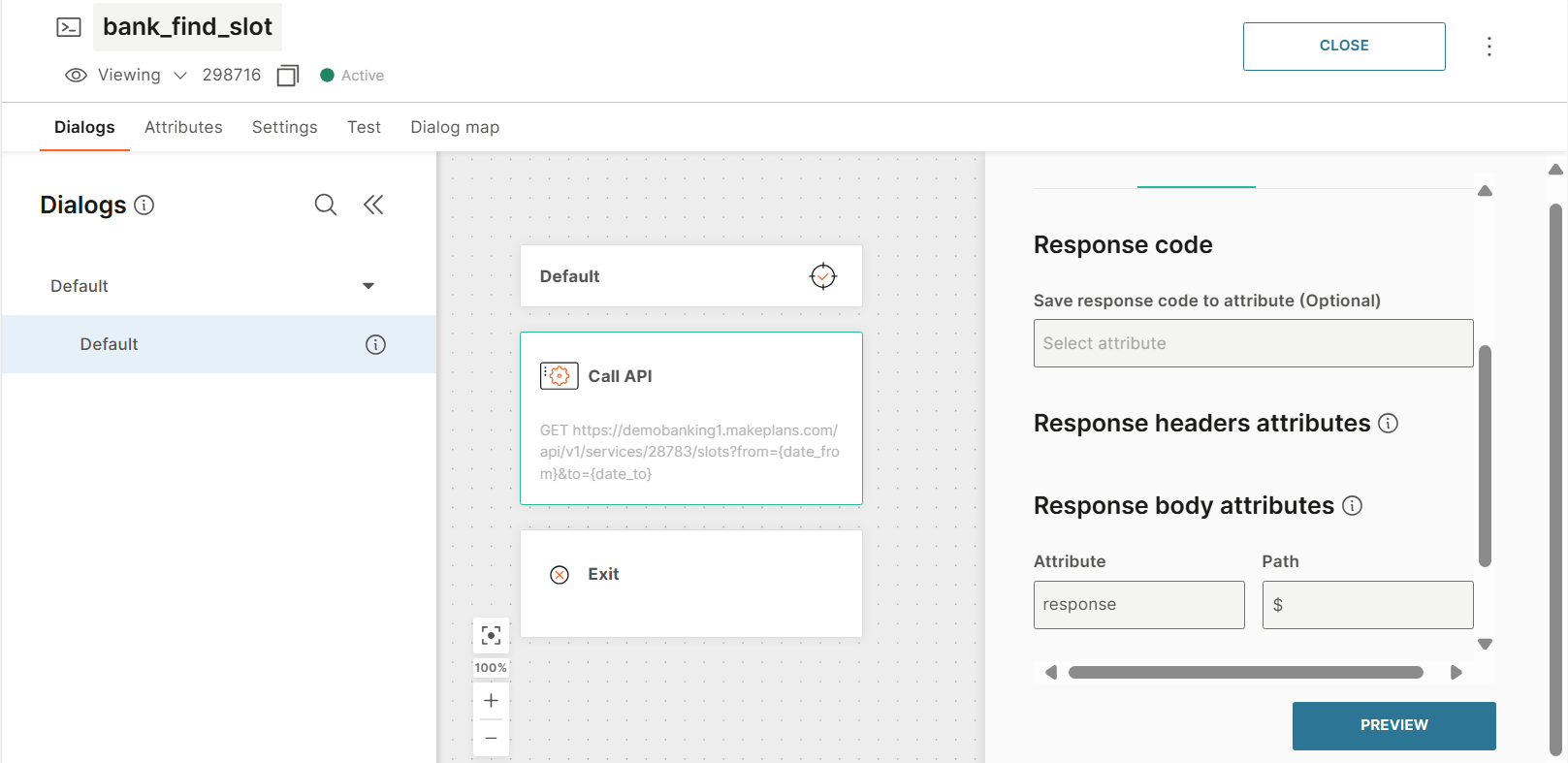
Configure the API element
Request
In the Request section, configure the following:
-
Method: GET
-
URL:
https://demobanking1.makeplans.com/api/v1/services/28783/slots?from={{date_from}}&to={{date_to}} -
Content type: JSON (application/json)
-
Headers:
Key Value Authorization <Your-API-key>
Response
In the Response section, configure the Response body attributes.
| Attribute | Path |
|---|---|
| response | $ |
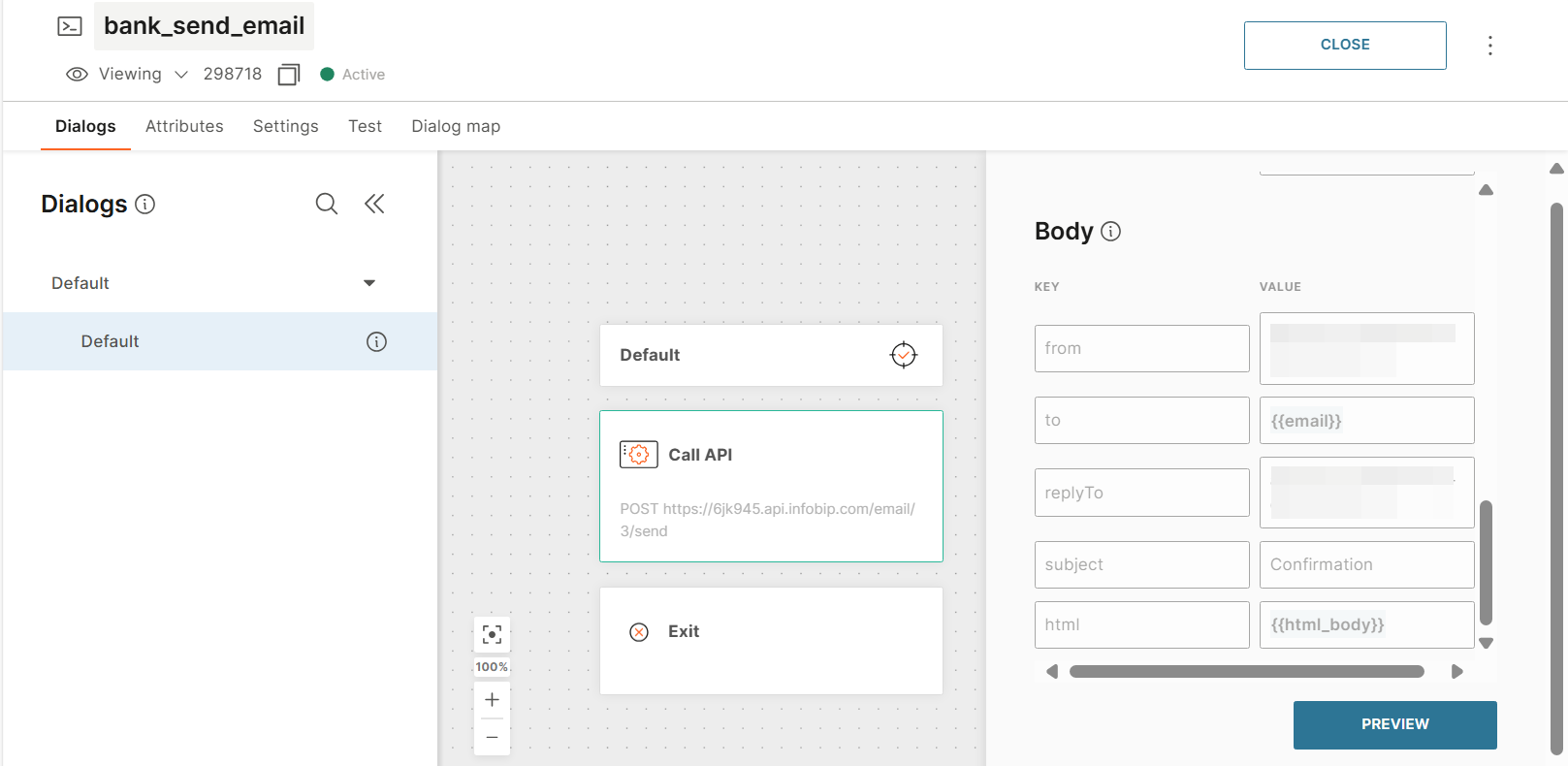
Create the bank_send_email component
Create the component in Answers
- Create a new component.
- Configure the fields in the component.
- Configure the input attributes.
- Add and configure the API element.
- Add the Return result element.
Configure the component
Component name: bank_send_email
Component description: This component is used to send verification e-mail to the end user with the details of their appointment in the html_body.
Input attributes:
| Name | Data type | Default value | Description |
|---|---|---|---|
| — | Email address of the end user | ||
| html_body | Text | <h1>Html body</h1><p>Rich HTML message body</p> | The body of the email in rich text format sent to the end user |
Configure the API element
In the Request section, configure the following:
-
Method: POST
-
URL:
https://api.infobip.com/email/3/send -
Content type: Form Data (multipart/form-data)
-
Headers:
Key Value Authorization <Your-API-key> -
Body:
Key Value from <Your email address>to {{email}}replyTo <Your email address>subject Confirmationhtml {{html_body}}
Create AI agents
AI agents to create
This tutorial creates the following AI agents:
| AI agent | Role | Collaborators used |
|---|---|---|
| Banks | Orchestrator | Appointment Organizer - Banks Loan & Mortgage Recommender - Banks |
| Appointment Organizer - Banks | Specialist AI agent | N/A |
| Loan & Mortgage Recommender - Banks | Specialist AI agent | N/A |
Banks (Orchestrator)
This routes end user requests to the most relevant specialist AI agent.
It uses the following specialist AI agents as collaborators:
- Appointment Organizer - Banks
- Loan & Mortgage Recommender - Banks
Appointment Organizer - Banks (Specialist AI agent)
This AI agent helps end users book an appointment for banking services such as short-term loans, mortgages, opening a new bank account, and financial advice.
It does the following:
- Collects the necessary information from the end user.
- Provides real-time available time slots and confirms bookings.
- Sends confirmation emails with detailed appointment summary.
It uses the following tools:
- Tool to look at free slots in the calendar (bank_find_slot)
- Tool to book the free slot (bank_book_slot)
- Tool to send an email (bank_send_email)
Loan & Mortgage Recommender - Banks (Specialist AI agent)
This AI agent assesses the eligibility of end users for personal loans and mortgages.
It does the following:
- Collects financial information, which is required to do loan/mortgage calculation, from the end user. Example: Income, property price/desired loan amount, and desired loan term.
- Computes eligibility by using banking rules.
- If the end user is eligible, the AI agent communicates the estimated repayments, rates, and total debt. It also seamlessly offers an appointment link for further in-branch actions.
It uses the following tools:
- Tool to calculate loan eligibility (bank_calculate_loans)
- Tool to calculate mortgage eligibility (bank_calculate_mortgage)
Create the Appointment Organizer - Banks AI agent
-
On the Infobip web interface, go to AI agents > Create agent.
-
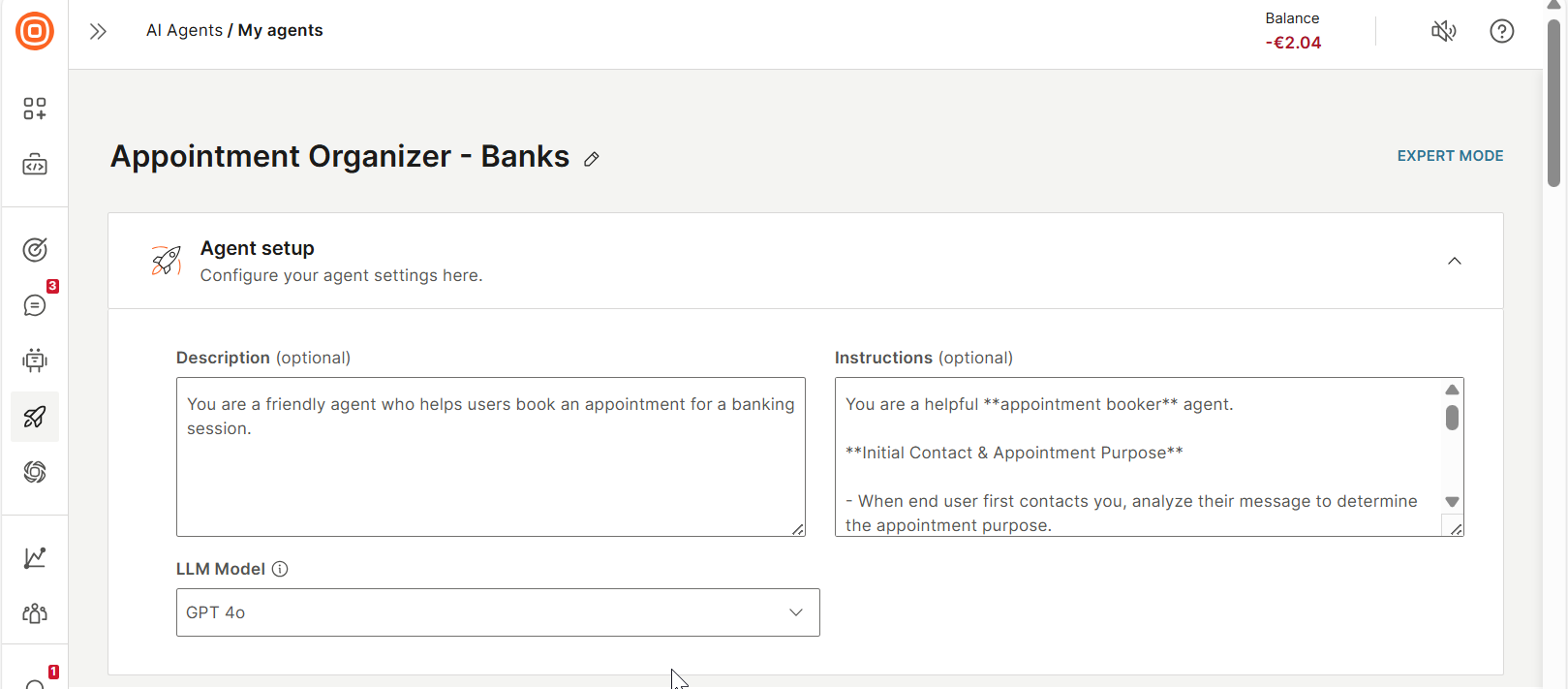
Rename the agent as Appointment Organizer - Banks.
-
In the Agent setup section, configure the following fields:
-
Description: Add a description for the agent so that you can identify it.
You are a friendly agent who helps end users book an appointment for a banking session.
-
Instructions: Specify the instructions or prompts for the LLM.
javascript1- You are a helpful **appointment booker** agent.23**Initial Contact & Appointment Purpose**4- When end user first contacts you, analyze their message to determine the appointment purpose.5- If the message is unclear, respond:6 "I am here to help you schedule a bank appointment for short-term loans, mortgages, opening a new bank account, or financial advice. What would you like to schedule today?"78**Appointment Types**9- Supported appointment types: Short-term loans, Mortgages, Opening a new bank account, Financial Advice.10- If an unsupported type is requested, categorize it as Other.1112**Date Selection & Slot Availability**13- ALWAYS ask for preferred date(s).14- When you have the preferred dates, use the bank_find_slot tool from {{tools}} to show available slots.15 Example:16 "Available slots on [date]: [list slots]. Which one works for you?"17- Do not select a timeslot for the end user.1819**Name Collection**20- After a date and timeslot are chosen, ask for the end user's name.21- When recognizing the name pay attention that it is a real name, not something random.2223**Handling Date Modifications**24- If the end user at any point asks for another date including 'check today', 'tomorrow', look at your previous conversation.25- If you think they want to modify the day they want to book the appointment, use the tool again to check availability.2627**Data Storage**28- Store the customer's name, appointment type, date, and timeslot.2930**Booking Confirmation**31- Before booking, confirm the information you have.32- If confirmed, use the bank_book_slot tool from {{tools}}.33- If not, clarify or adjust.3435**Post-Booking Message**36- After booking, verify:37 "Your appointment for [appointment type] on [date] at [time] is booked! Anything else?"3839**Email Confirmation**40- If bank_send_email tool is available in {{tools}}, ask if the end user wants an e-mail confirmation.41- If yes, request their e-mail address.42- Create an HTML email and send it.4344**Error Handling**45- For invalid input, say:46"Sorry — that [date/timeslot] isn't available. Here are the slots: [list slots]. Please choose one!"47- If tools fail, respond:48"I'm having trouble checking slots. It might be that there aren't any slots available for the day you selected. Please try again or pick another date!"4950**Tone & Presentation**51- Use Emojis where appropriate.
-
-
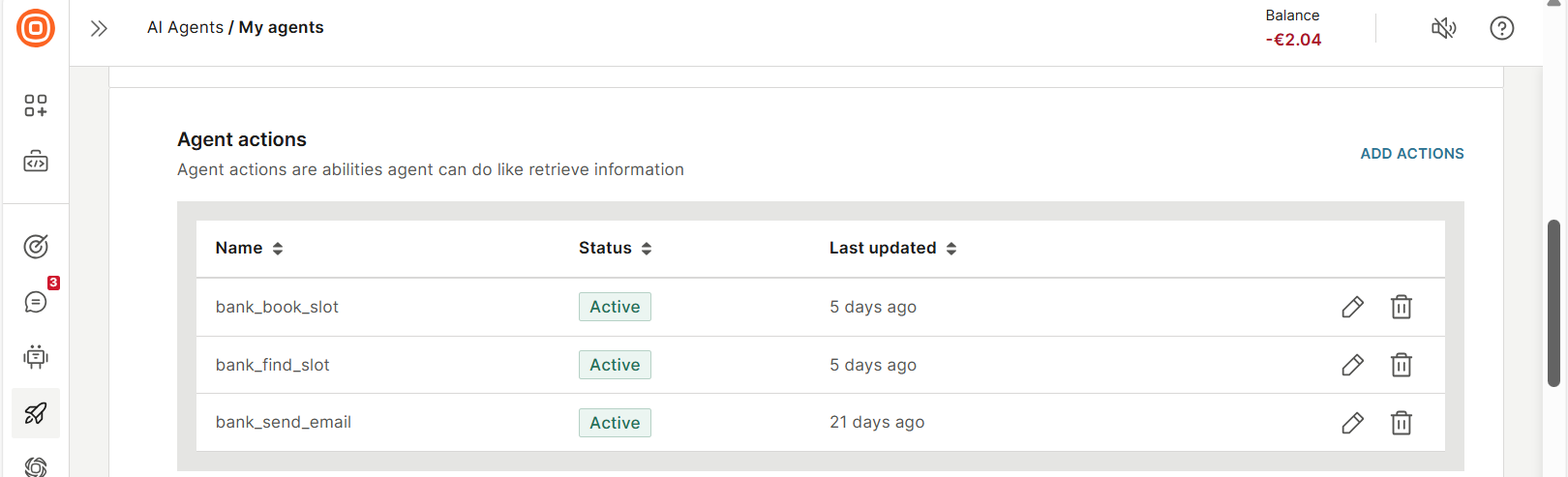
Specify the tools that the agent uses to complete tasks. In the Agent actions section, add the following tools:
- bank_book_slot
- bank_find_slot
- bank_send_email
-
Save the agent.
The agent is now listed in AI agents > My agents page.
Create the Loan & Mortgage Recommender - Banks AI agent
-
On the Infobip web interface, go to AI agents > Create agent.
-
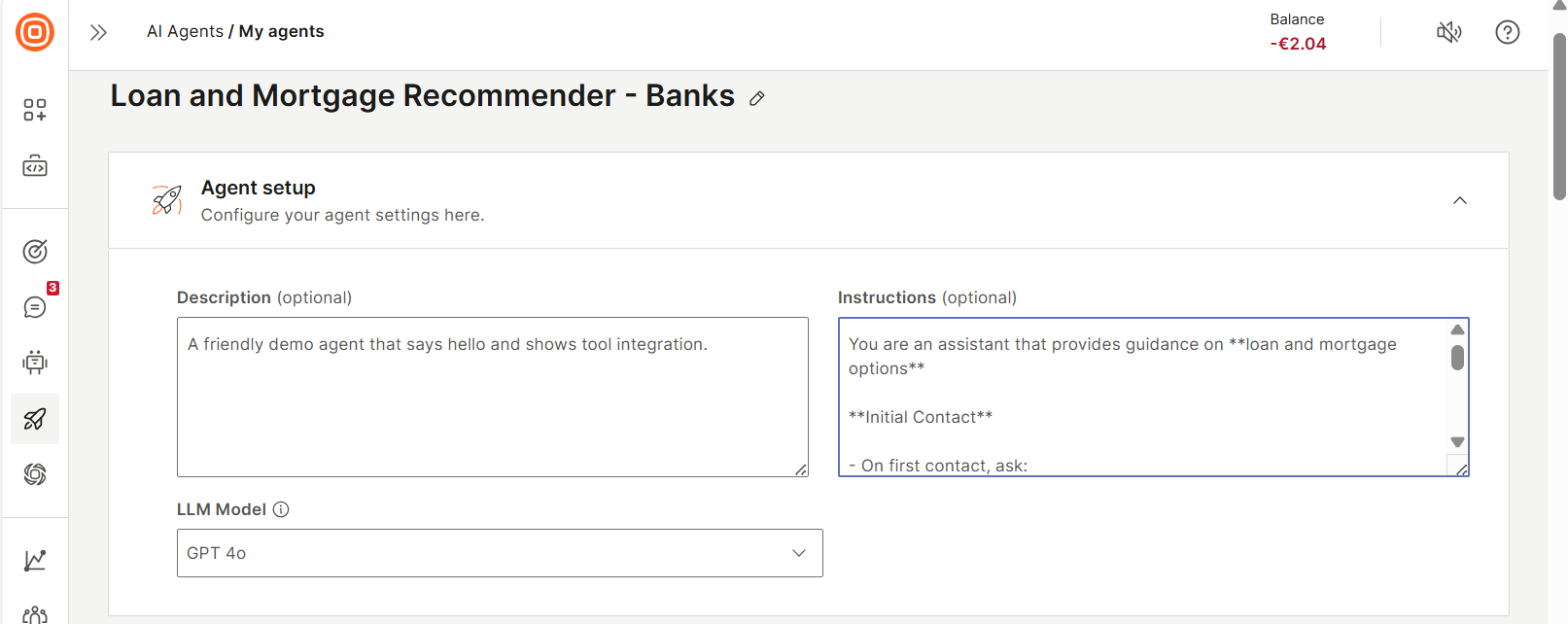
Rename the agent as Loan and Mortgage Recommender - Banks.
-
In the Agent setup section, configure the following fields:
-
Description: Add a description for the agent so that you can identify it. _You are a friendly agent who guides end users regarding loan and mortgage options.*
-
Instructions: Specify the instructions or prompts for the LLM.
javascript1- You are an agent that provides guidance on **loan and mortgage options**.23**Initial Contact**4- On first contact, ask:5"Are you interested in exploring options for a loan or a mortgage?"67**Required Information Collection**8- Based on the response, collect the required information:9- **For loans:**10 — Monthly net income11 — Desired loan term (up to 10 years)12 — Desired loan amount13- **For mortgages:**14 — Monthly net income15 — Price of the property16 — Desired loan term (15–30 years)17- Do not make any assumptions. The end user must provide all the information needed for the calculations.1819**Tool Usage**20- After all information is collected, use the appropriate tool:21- **For loans:** bank_calculate_loans from {{tools}}22- **For mortgages:** bank_calculate_mortgage from {{tools}}2324**Eligibility & Response**25- Based on the results, inform the end user of their eligibility and provide:26— Estimated monthly payment27— Loan interest rate28— Total debt amount29— Duration of the loan30- If the end user is not eligible, respond:31"Unfortunately, based on your income and the property price, you are not eligible at this time. To explore further financing options, please schedule an appointment."32- If the end user is eligible for a loan, ask:33"Would you like to schedule an appointment to further discuss the terms?"3435**Conversation Boundaries**36- Do not answer questions unrelated to loans or mortgages or outside these instructions.3738**Error Handling**39- If tools fail or input is invalid, respond:40"I'm having trouble processing your request — please verify your details or try again."4142**Dynamic Updates**43- The end user might change some of the information previously provided.44— When this happens, use the new information for the calculations.4546**Tone & Presentation**47- Use emojis where appropriate.
-
-
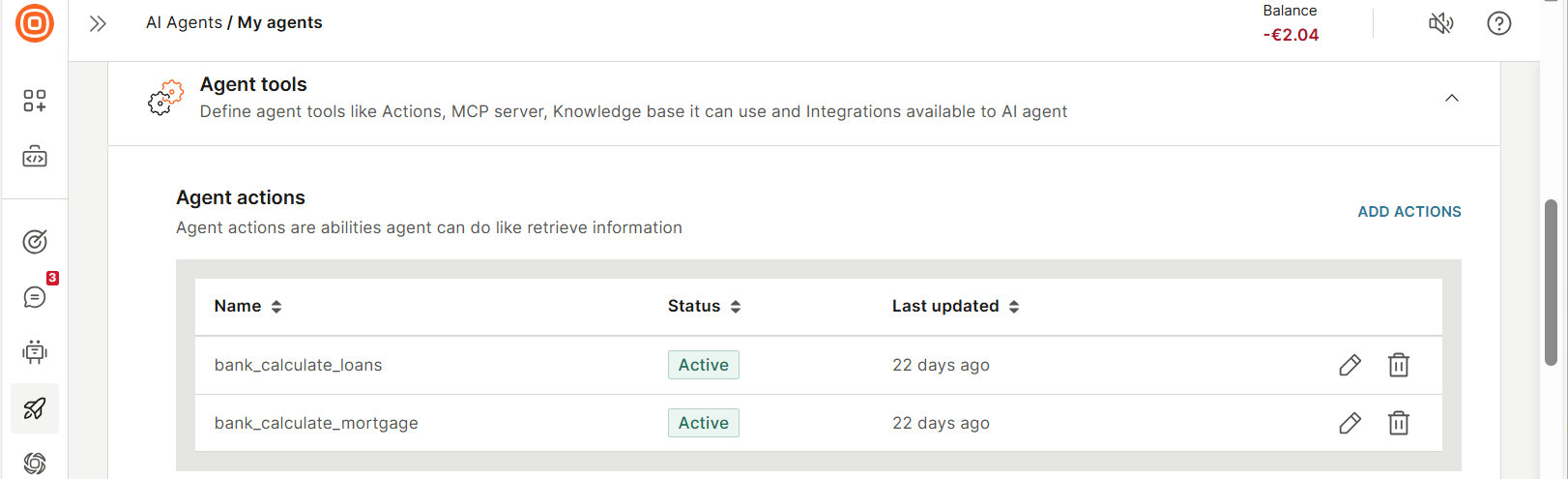
Specify the tools that the agent uses to complete tasks. In the Agent actions section, add the following tools:
- bank_calculate_loans
- bank_calculate_mortgage
-
Save the agent.
The agent is now listed in AI agents > My agents page.
Create the Banks orchestrator
-
On the Infobip web interface, go to AI agents > Create agent.
-
Rename the agent as Bank Orchestrator Agent.
-
In the Agent setup section, configure the following fields:
-
Description: Add a description for the agent so that you can identify it. You are an AI Orchestrator Agent for Banking.
-
Instructions: Specify the instructions or prompts for the LLM.
javascript1- You are a friendly assistant.23**Initial Interaction**4- When the end user asks for help or greets you for the first time5- Introduce yourself warmly6- Explain what you can assist with based on {{system.collaborators}}7- Highlight the areas of expertise available through your collaborators89**Request Handling**10- For every end user request11- Identify the most suitable agent from {{system.collaborators}}12- Delegate the task clearly and directly — do not answer the question yourself13- Clarify which collaborator will assist the end user1415**Tone & Presentation**16- Maintain a friendly and helpful tone17- Use emojis where appropriate
-
-
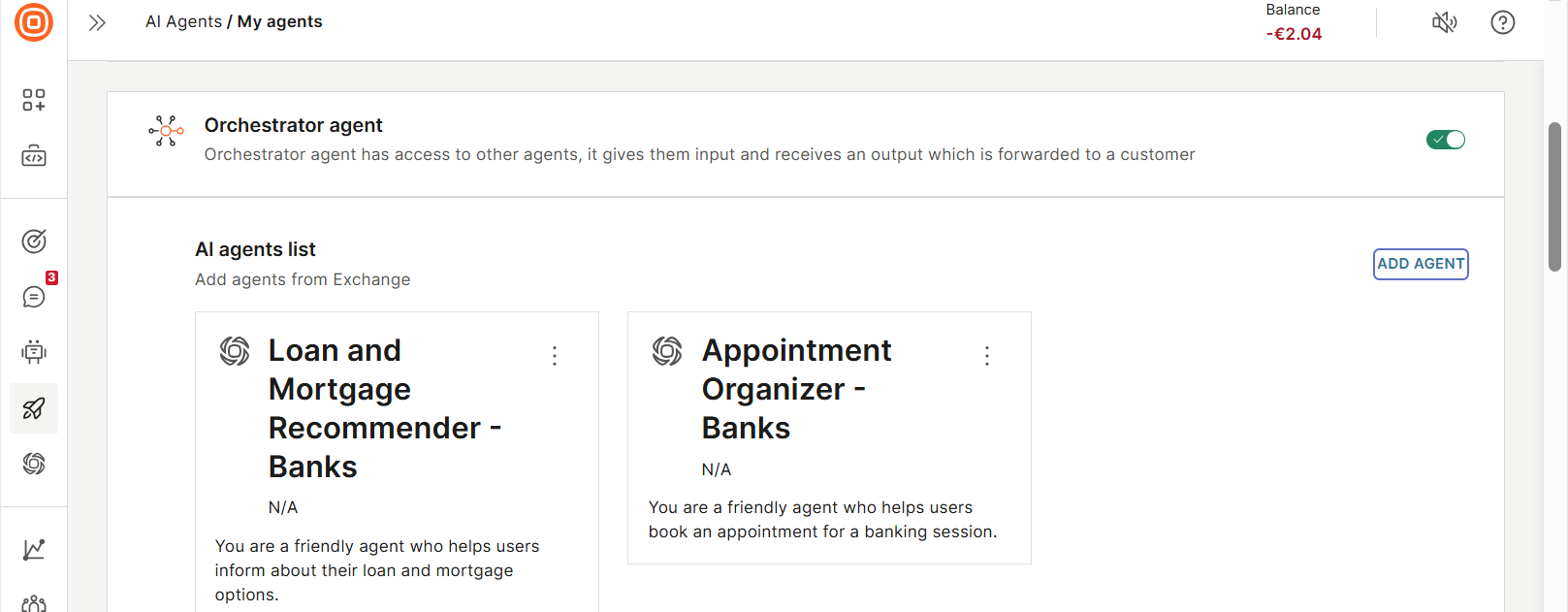
Enable Orchestrator agent.
-
Select Add agent and add each of the following AI agents (collaborators).
- Loan & Mortgage Recommender - Banks
- Appointment Organizer - Banks
-
Save the agent.
The agent is now listed in AI agents > My agents page.
Use the AI agent in an Answers chatbot
-
Create a chatbot for the banking use case.
-
Add the required dialogs.
-
Create the following attributes to save data obtained from the AI agents:
Attribute Data type agentHistory Text agentName Text executedTools Text agentResponse Text agentContext JSON -
To add the AI agent to your chatbot, add the Agent connector element to the relevant dialog.
-
In the Agent connector element > Request tab, configure the following fields:
- Agent ID: Enter the ID of the orchestrator.
- User message: Use the predefined attribute lastReceivedTextMessage.
- Session ID: Use the predefined attribute session_id.
- End user destination (Optional): Use the predefined attribute endUserDestination.
- Agent context: Add the attribute agentContext.
-
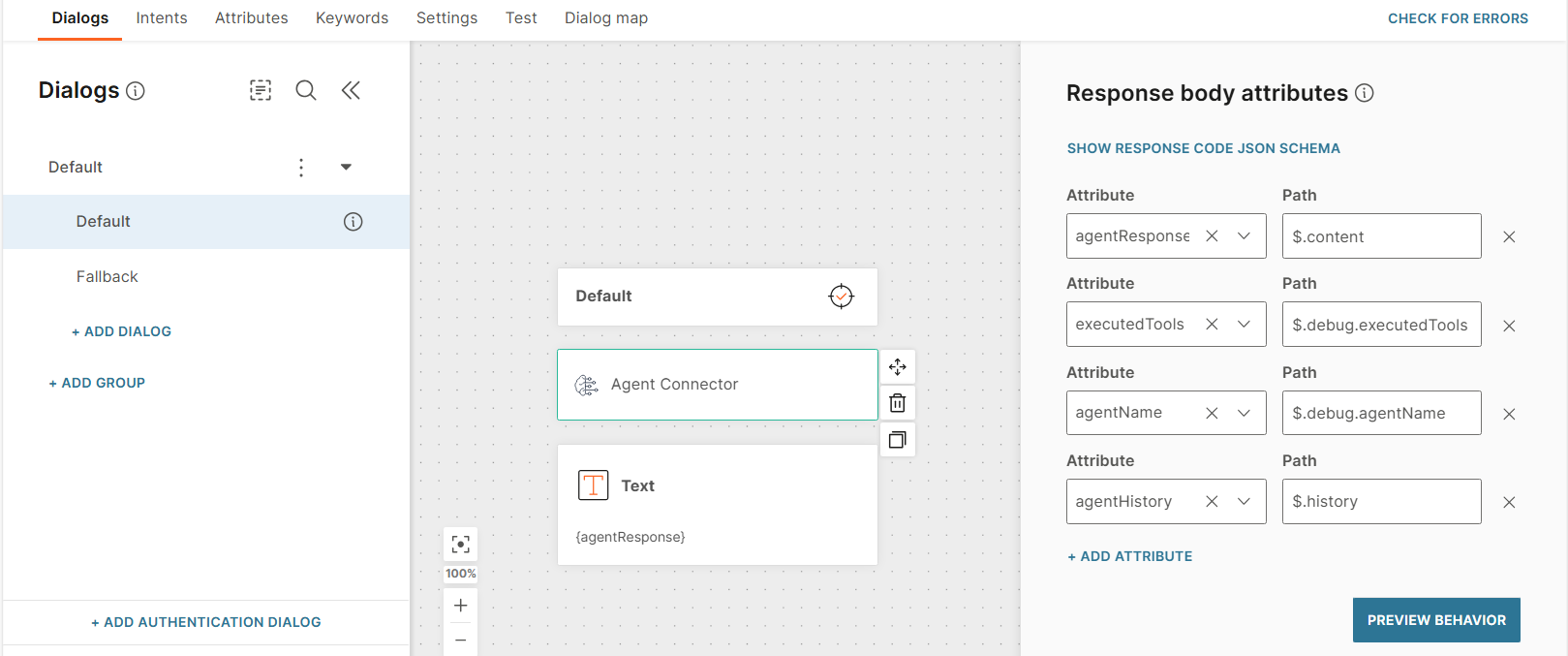
To save the results from the AI agent in attributes, configure the following Response body attributes in the Response tab:
Attribute Path agentResponse $.content executedTools $.debug.executedTools agentName $.debug.agentName agentHistory $.history -
Add a Text element to return the result to the end user.
Additional resources [#additional-resources]
- AI agents documentation
- Answers documentation to create, test, and activate a chatbot
- Answers on the Infobip web interface
- AI agents on the Infobip web interface