Inbox
Inbox for Mobile SDK is a pre-built inbox solution that allows you to communicate with all active mobile users without dependency on poor push performance or users not paying attention to their push notifications.
On average, smartphone users receive 46 push notifications a day, but the average click-through rate for push notifications is relatively low on Android (10.7%) and iOS (4.9%). At the same time, 10-25% of messages don’t deliver because of GCM/APNS errors. This raises the question of how we can engage mobile users that don't receive Mobile push notifications or are indifferent to them.
Inbox helps you overcome this challenge. It is widely used across different types of mobile applications and allows users to navigate back to push message content that they receive and interact with the content at a time that suits them. For businesses, Inbox increases engagement and gives businesses the opportunity to communicate with users who didn't see the push notification when it is first delivered, or if the user didn't receive the push message at all.
What can you do with Inbox?
- Save push notifications as messages in a cloud-based Inbox with all the content from initial push messages. By default, all contents of a message including placeholders and images are retained by the Inbox to ensure that it is unchanged when the customer decides to interact with the content.
- Use all targeting capabilities that are available for Mobile push in Broadcast and Mobile push notifications API. Use External User ID for sending inbox messages to particular user.
- Organize messages into topics so your users can easily keep track of the messages that matter most to them. As well as filtering messages by date in the mobile app UI using delivery data that is provided for each message.
- Include a 'seen' status of inbox messages to identify new messages from messages that have already been read. A message will be marked as seen when the user opens the message in Inbox.
Inbox is only available for authorized users and allows for 100 messages(maximum) to be saved per inbox. Messages are retained for 6 monthsfrom the send date, after which they will be deleted and no longer accessible to the user.
Configure Inbox
Technical Setup Guides [#technical-setup-guides-configure-inbox]
To configure Inbox you first need to set it up in the Mobile SDK for the operating systems of mobile platforms we support:
Topics [#topics-configure-inbox]
Assign topics to push notifications to group and organize them in the inbox. Example: Create separate topics for promotional messages, news products, and system notifications.
A message can be saved to the Inbox only if it has a topic assigned.
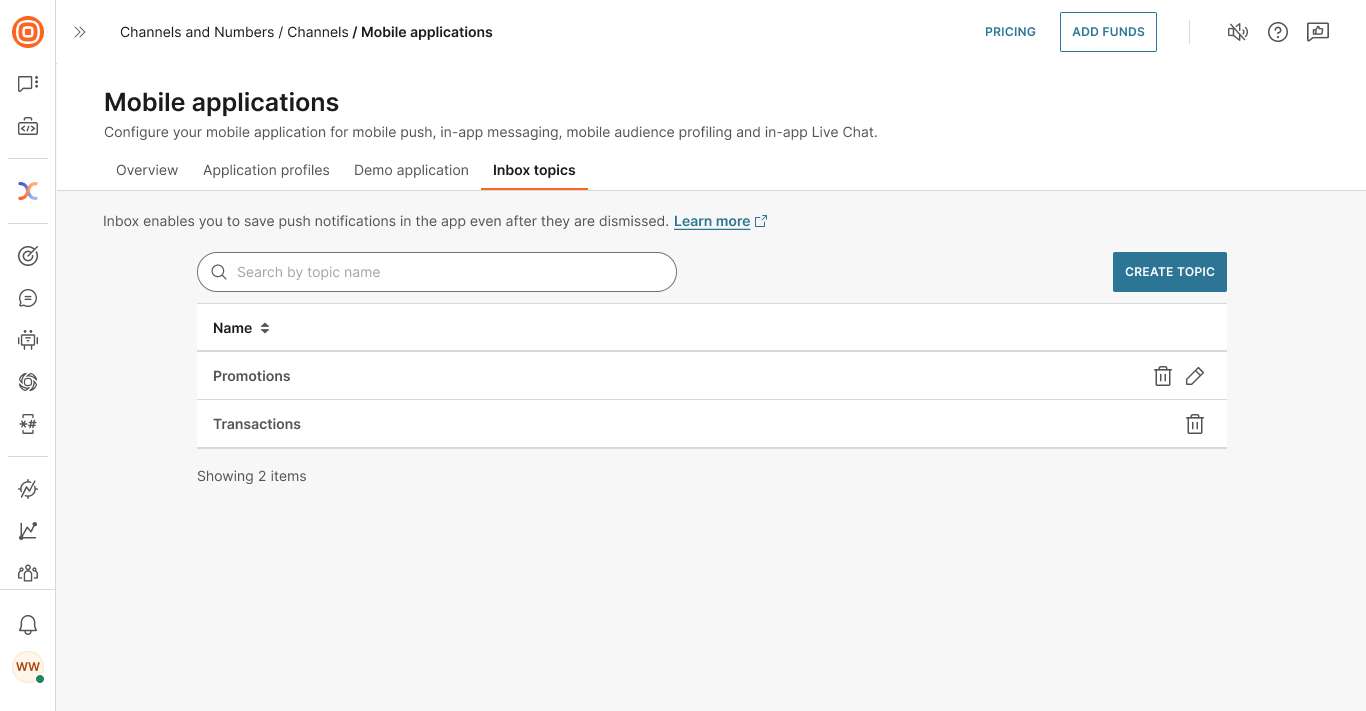
Create a topic
- On the Infobip web interface, go to Channels and Numbers > Channels > Mobile applications > Inbox topics tab.
- Select Create topic.
- Enter a name for the topic. Example: Promotions, Transactions, or APAC.
- Select Save.
The topic is now available to select in Push notifications.
Select the topic in your push notification
- On the Infobip web interface, you can select the topic when you create a push notification in Flow or Broadcast.
- In the API, include the
Topicparameter in your request.
The topic is applied to the message when you send it.
Manage topics
On the Inbox topics tab, you can do the following:
- View a list of topics.
- Search for a topic. Use the Search box.
- Create a topic.
- Sort topics by name. Select the Name header.
- Delete a topic.
Any changes that you make are applied immediately.
Delete a topic
- On the Infobip web interface, go to Channels and Numbers > Channels > Mobile applications > Inbox topics tab.
- Select the Delete icon next to the topic.
When you delete a topic, the following happens:
- You can no longer assign this topic to a push notification.
- Any inbox messages that are linked to the deleted topic are not deleted.
Send to Inbox in Flow and Broadcast
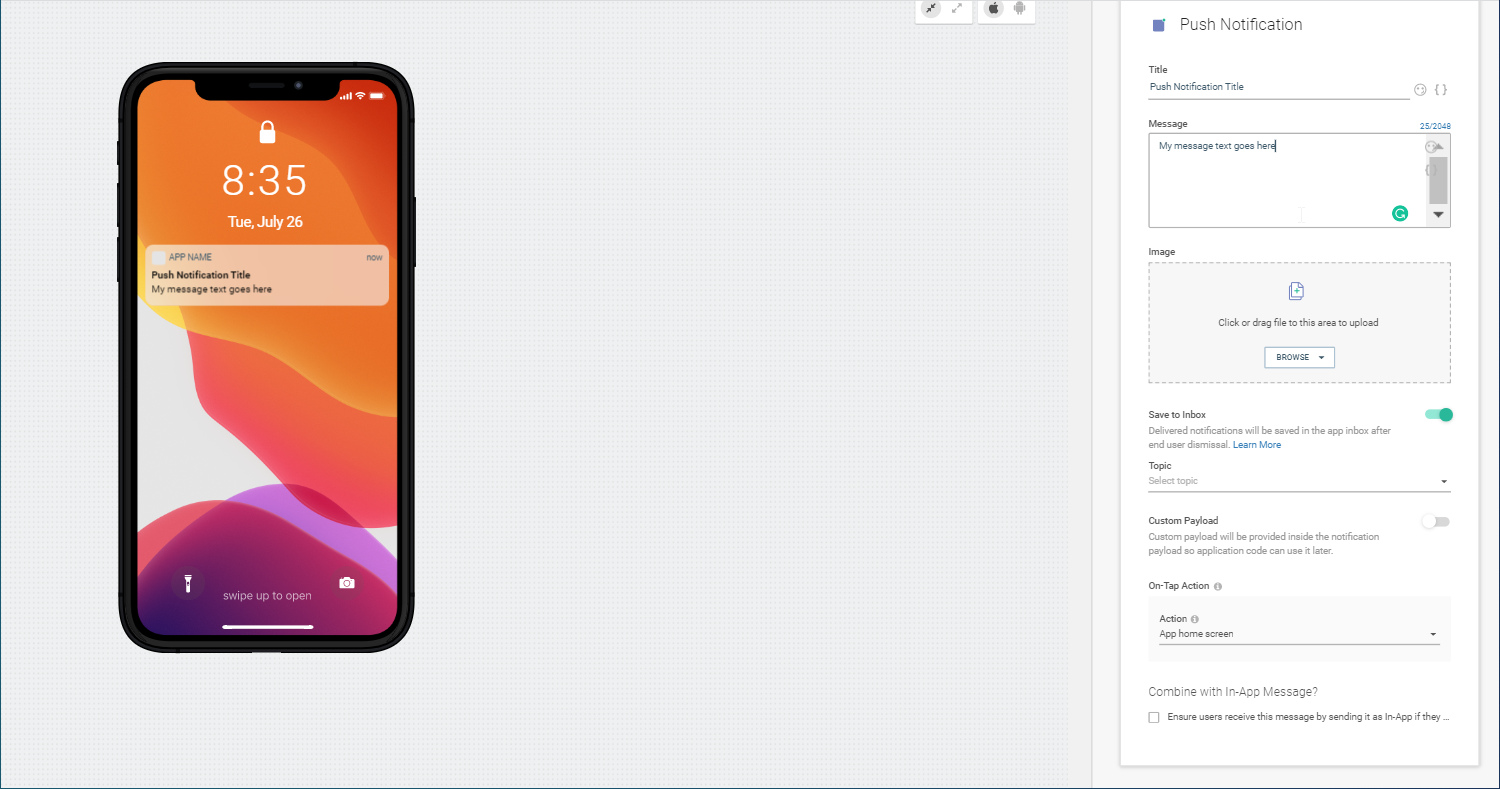
- Enable Save to Inbox in the Send push notification element of Flow or Broadcast to specify that the message or notification should be saved to the Inbox.
- Select the topic under which to save the notification.
Send to Inbox via API
You can also send to inbox via API using the send single push notification method or send multiple push notifications method depending on your needs.
If you use OMNI API to send push notifications with failover for another channel you can also send messages into Inbox by adding the inboxTopic parameter.
Delete Messages
You can delete push messages from end users' inboxes by using the API.
You can do the following.
- Delete a single message from the inbox of a specific end user. Use the Delete Push Inbox message for a specific user endpoint.
- Delete one or more messages from the inboxes of all end users who receive these messages. Use the Delete Push Inbox messages endpoint.
In the API, specify either the Campaign IDs or Bulk IDs of the messages that you want to delete.
Local Inbox / Message Storage
There may be times when you want to store delivered messages in the local storage of a device. This is possible using the Mobile SDK that uses Message Storage to store push notifications.
Local message storage only saves messages that are delivered while the user is logged in. If a message is sent but is not delivered then it can be fetched by a local inbox.
The local inbox does not store messages. On user logout, the inbox will be emptied so on the next login the user will see an empty inbox.
To configure local message storage select the platform below and follow the instructions in the GitHub repository: