Supporting metrics
Supporting metrics complement Insights by going deeper into interaction outcomes, engagement, and channel performance across journeys, chatbots, automations, and human touchpoints.
Analyze the full interaction flow, from proactive marketing communication through customer responses handled by AI agents or chatbots, to any handover to a human agent. Assess conversions, measure impact, and evaluate the results achieved with your configured automations.
Supporting metrics combine data from Journeys, Chatbots, and Inbox to provide a comprehensive view of customer interactions.
Filters
These filters apply across the entire Insights and Supporting metrics view.
Use the following filters to refine your data:
- Date range
- Automation version ID
- Automation ID
- Version ID
- Sender
Interaction performance
An interaction is one customer's path from start to end, across journeys, chatbots, and conversations. Review interaction outcomes across automation and human agents.
Interaction performance contains three tabs:
- Total
- Contained
- Escalated
Total [#total-interaction-performance]
In the Total tab, analyze the following metrics:
| Metric | Description |
|---|---|
| Total interactions | All interactions across automations and Inbox, including both conversational (message exchanges with bots or human agents) and non-conversational (automated flows). |
| Successful interactions | Interactions where the customer's inquiry was resolved or the detected purpose was achieved. |
| Mixed outcome | Interactions where some customer inquiries were resolved and others were not. |
| Unsuccessful interactions | Interactions where the customer's inquiries were not resolved or the detected purpose was not achieved. |
Contained [#contained-interaction-performance]
In the Contained tab, analyze the following metrics:
| Metric | Description |
|---|---|
| Contained interactions | Interactions handled by automation (journey, chatbot, AI agent). |
| Successful interactions | Interactions where the customer's inquiry was resolved or the detected purpose was achieved. |
| Contained mixed outcome | Interactions where some customer inquiries were resolved and others were not. |
| Contained unsuccessful interactions | Interactions where the customer's inquiries were not resolved or the detected purpose was not achieved. |
Escalated [#escalated-interaction-performance]
In the Escalated tab, analyze the following metrics:
| Metric | Description |
|---|---|
| Escalated to human agent interactions | Interactions where a human agent was involved in handling the customer. |
| Escalated successful interactions | Interactions where the customer's inquiry was resolved or the detected purpose was achieved. |
| Escalated mixed outcome | Interactions where some customer inquiries were resolved and others were not. |
| Escalated unsuccessful interactions | Interactions where the customer's inquiries were not resolved or the detected purpose was not achieved. |
Interaction health, time, and cost
Evaluate interaction health, average interaction duration, and estimated cost per interaction.
| Metric | Description |
|---|---|
| Interaction health score | Overall health score of interactions based on outcomes, sentiment, and resolution rates. |
| Average interaction duration | Average time from the start to the end of an interaction. |
Audience and engagement
View audience reach, engagement, and customer satisfaction to spot friction and growth opportunities.
| Metric | Description |
|---|---|
| Unique users | Total number of unique users who participated in interactions. |
| Returning users | Users who have interacted more than once. |
| Not engaged users | Users who started an interaction but did not engage further. |
| Engaged users | Users who actively participated in interactions. |
| CSAT | Customer satisfaction score based on survey responses. |
| CSAT negative | Percentage of negative customer satisfaction responses. |
| Sentiment score (positive) | Percentage of interactions with positive sentiment. |
| Sentiment score (negative) | Percentage of interactions with negative sentiment. |
| Average inbound messages per interaction | Average number of messages sent by end users per interaction. |
| Average outbound messages per interaction | Average number of messages sent to end users per interaction. |
Conversion funnel
See how users move through conversion steps and where they drop off. Steps are configured from elements in journeys, dialogs in chatbots, or tools in AI agents.
Funnel behavior [#funnel-behavior-conversion-funnel]
By default, the conversion funnel is empty. To display relevant data, you must create and configure a custom view by selecting specific steps from a journey or chatbot.
How to configure the conversion funnel
- Select a single journey or chatbot (and version if applicable).
- Available steps are automatically limited to that journey or chatbot.
- Select key steps for the funnel from the following options:
- Journey elements (using the names you defined in the journey configuration)
- Chatbot steps:
- Starting dialog
- Ending dialog
- Chatbot session start
- Chatbot session end
- Save this configuration as a custom View.
- Create and switch between multiple saved views as needed.
You can set a default view per account so it loads automatically when you open the conversion funnel.
The conversion funnel does not reflect global filters. To view data for a specific journey or chatbot, go to the view selector and choose the appropriate saved view. If a view is created for Journey A but you're viewing Journey B, the system shows: "No data for your filter selection."
Channel health
See how messages perform per channel. Channel health includes all messages sent across interactions, filtered according to the selected filters at the top of the page.
| Metric | Description |
|---|---|
| Channel name | Name of the channel. |
| Total sent | Total messages sent per channel. |
| Delivered | Messages successfully delivered to recipients. |
| Delivery rate | Percentage of sent messages that were delivered. |
| Rejected | Messages rejected by Infobip or the operator due to policy, configuration, or account issues. |
| Expired | Messages that were not delivered within the validity period (default 48 hours). |
| Undeliverable | Messages that could not be delivered to the recipient. |
Drill into data
Drill-down functionality in predefined dashboards allows you to explore interaction data in more detail. You can drill into interaction outcomes from the first section (Interaction performance) by selecting each outcome card number.
By selecting specific metrics or categories, you can access examples of interactions, analyze performance, and better understand how topics, sentiment, and outcomes affect overall results. This helps you identify improvement opportunities and evaluate how effectively customer interactions are handled.
Predefined dashboards [#predefined-dashboards-drill-into-data]
You can drill down into predefined dashboards by selecting the following options:
Successful interactions
View examples of successful interactions to see what success looks like in practice. This drill-down displays examples of conversations and non-conversational interactions that were successful, along with the topics handled within those interactions.
If your data includes both conversational and non-conversational interaction types, the examples are organized into two tabs for easier navigation.
Mixed outcome
Mixed outcome applies to interactions where some customer inquiries were resolved and others were not. Displays examples of conversations and non-conversational interactions with partial success.
Unsuccessful interactions
The unsuccessful interactions drill-down displays detected issues, their impact based on the percentage of affected interactions, interaction examples, and lowest-performing topics. This helps you identify what went wrong and prioritize improvements based on impact.
CSAT
CSAT drilldown includes:
- Total number of interaction responses
- Percentage of positive and negative responses from all received responses
- Examples of interactions with CSAT responses
Sentiment score
Sentiment score drilldown includes:
- Number of interactions with detected sentiment
- Percentage of positive and negative sentiment
- Examples of interactions with positive or negative sentiment
Topic details [#topic-details-drill-into-data]
When you select a specific topic, you can view detailed information, including:
- Number of interactions related to the topic
- Success rate, showing how often the topic was handled successfully and the customer's request was resolved
- Percentage of interactions handled fully without a human agent
- Average sentiment for interactions related to the topic
- Average CSAT score
- Average time required to handle the topic within an interaction
You can also review interaction examples, with links to:
- The customer profile in Customer Profiles (if available)
- The interaction transcription
- The Analysis summary, an AI-generated summary of the interaction outcome and customer request
You can drill down into each interaction to view Interaction details where you can view the transcript (for conversational interaction types) or view logs.
Journey variables [#journey-variables]
Journey variables store and update information while a journey is running. Save selected variable data in Analytics and use it in Advanced Analytics to track the outcomes that matter to your business.
For example, use journey variables to analyze:
- Revenue generated during a journey, such as an
amount_paidvalue - Payment confirmations
- Customer selections, such as a selected plan or product
- Outcomes of dynamic journey branches
- Conversions and other business outcomes
Save variable data in Analytics [#save-variable-data-journey-variables]
When you create a journey variable, enable Save variable's data in Analytics in the Create new variable dialog.
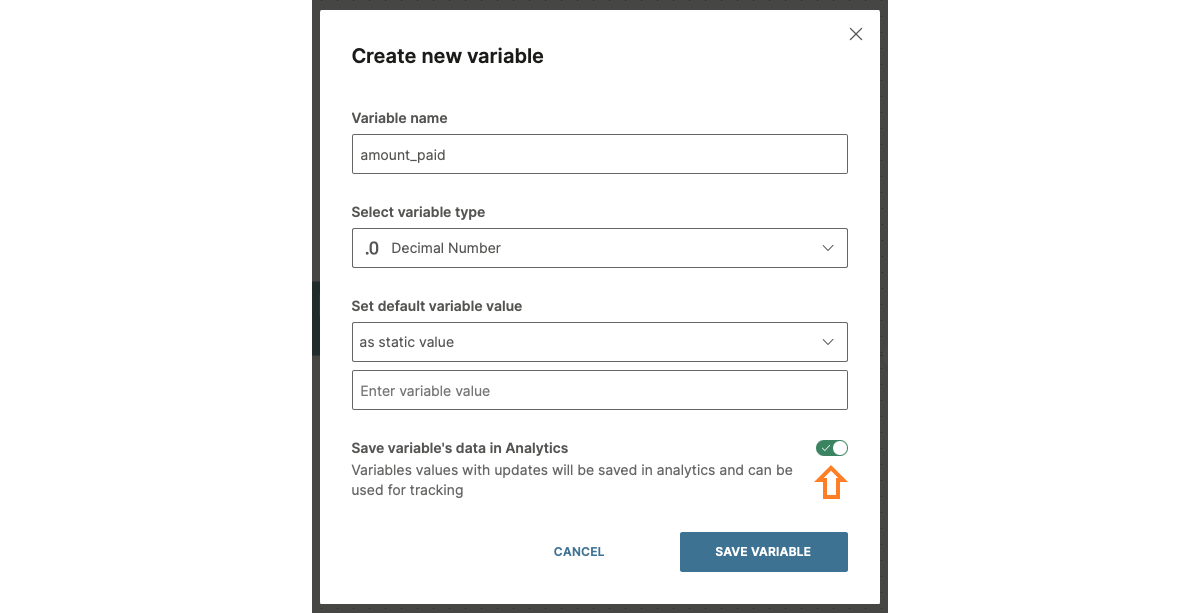
When you enable this option, Analytics saves the variable's values and subsequent updates, and you can use them for tracking. Use this data in Advanced Analytics to create dashboards, funnels, cohorts, and other analyses.
Use journey variables in visualizations [#use-in-visualizations-journey-variables]
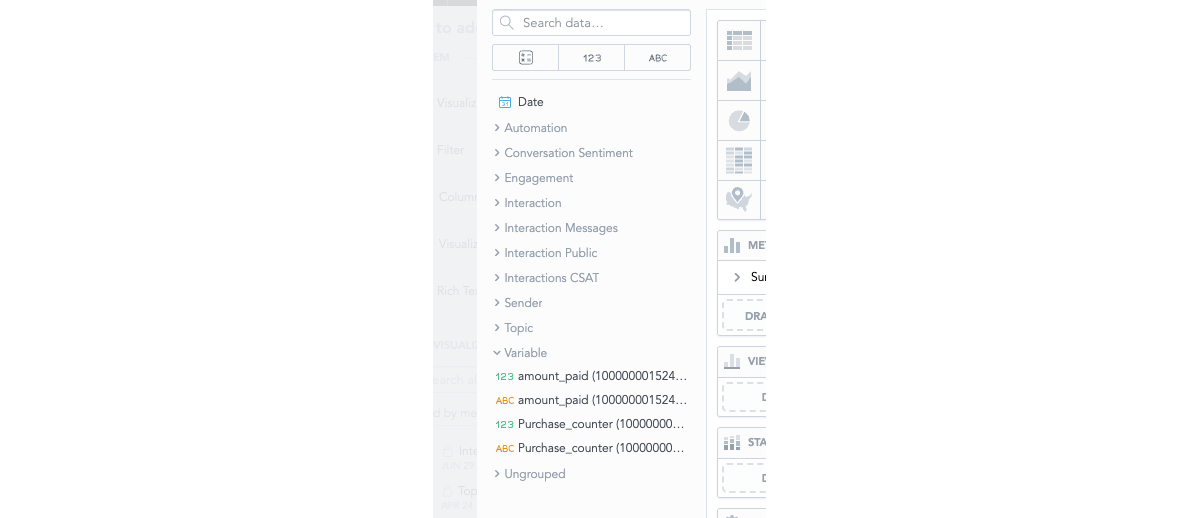
In the visualization builder, each variable shows its name, followed by the journey ID in parentheses. Example: amount_paid (100000000001542342). The journey ID helps you distinguish between variables with the same name that are used in multiple journeys.
Each variable is displayed as both a numeric and a text (string) data type, so you can use calculations and formulas in the visualization builder.
The following image shows journey variables in the visualization builder.