Call monitoring
With Call monitoring, a supervisor can join an in-progress call as a silent listener, without the agent or customer being aware. Supervisors get real-time insight into how agents handle calls, which supports quality assurance and coaching.
While listening, supervisors can step in further when a call needs it:
- Whisper coaching: Speak to the agent without the customer hearing you.
- Barge in: Join the call as an active participant that both the agent and the customer can hear.
Supervisors can also answer calls waiting in queue when no agent is available.
Access call monitoring [#access-call-monitoring]
You start monitoring from the Active calls table. Monitoring ends when the call ends.
To monitor a call:
- Go to Insights and Analytics → Analytics → Inbox → Live analytics.
- In the Active calls table, find a call that is in progress.
- In the Action column, select Listen next to that call.
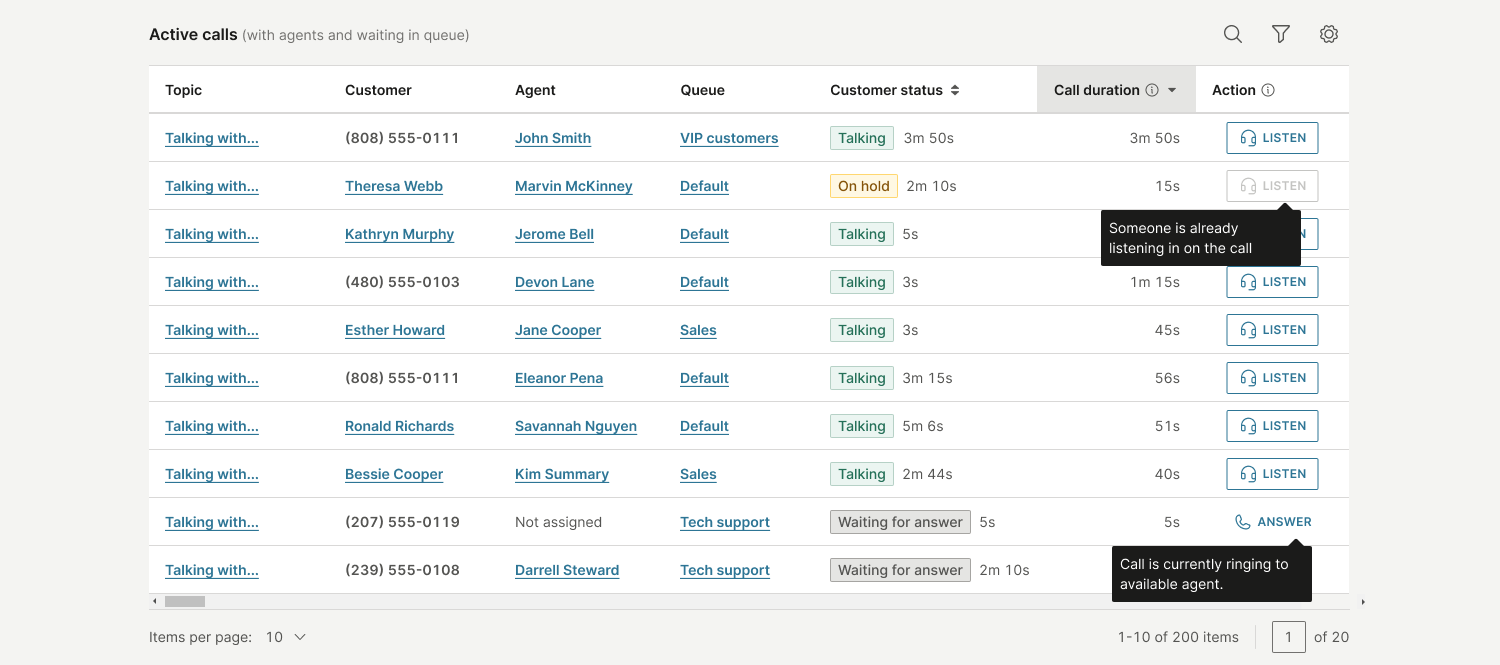
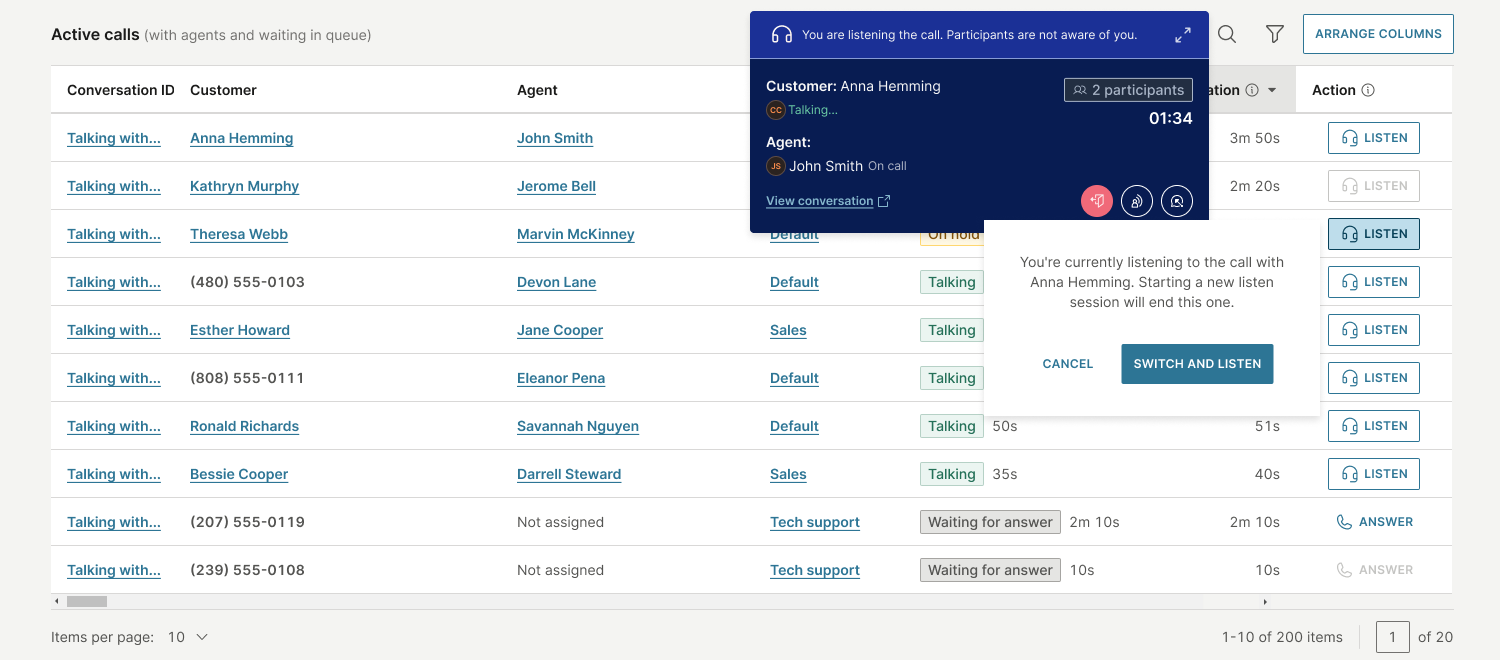
- If you are already monitoring a different call, a confirmation dialog informs you that starting a new listen session ends the current one.
- Select Switch and listen to continue, or Cancel to keep monitoring the current call.
How call monitoring works [#how-call-monitoring-works]
After you select Listen, you join the call as a silent listener. The agent and customer cannot hear or see you and are not notified that the call is being monitored. Select Leave to stop monitoring at any time.
The call continues to be recorded according to the recording settings configured for the agent handling the call. While you listen silently, you are not included in the recording, and your presence is not logged in the conversation Events. If the agent places the customer on hold, you continue to hear the agent.
The monitoring session ends when the call ends.
Call monitoring window [#call-monitoring-window]
The call monitoring window shows the customer and agent details, the number of participants, and the call duration. Status indicators show who is currently speaking, and whether the customer is on hold or muted. The window stays visible as you move between pages, so you can keep monitoring while you work. You can move the window anywhere on the screen.
The window banner shows your current mode. While you listen silently, it confirms that participants are not aware of you. During whisper coaching, it shows You are in whispering mode. Only agent can hear you.
The window contains the following controls:
- Leave: Stop monitoring and leave the call.
- Whisper coaching: Speak only to the agent. During whisper coaching, this control changes to Turn off whisper coaching, and a microphone control appears so you can mute or unmute yourself.
- Barge in: Join the call as an active participant.
You can also:
- Select Expand to see the agent and customer as separate tiles, along with call settings.
- Select Minimize to keep monitoring in the background.
- Select View conversation to open that conversation in My Work in a new tab, so you can review conversation context while you continue monitoring.
Whisper coaching [#whisper-coaching]
With Whisper coaching, you can speak to the agent during a live call while the customer hears nothing. Use it to guide agents through objections, complex processes, or required compliance steps without interrupting the conversation.
To start whisper coaching:
- Select Listen to start monitoring the call.
- In the call monitoring window, select Whisper coaching. The window banner changes to You are in whispering mode. Only agent can hear you.
- Speak to the agent. Use the microphone button to mute or unmute yourself.
- To stop, select Turn off whisper coaching. You return to listening silently.
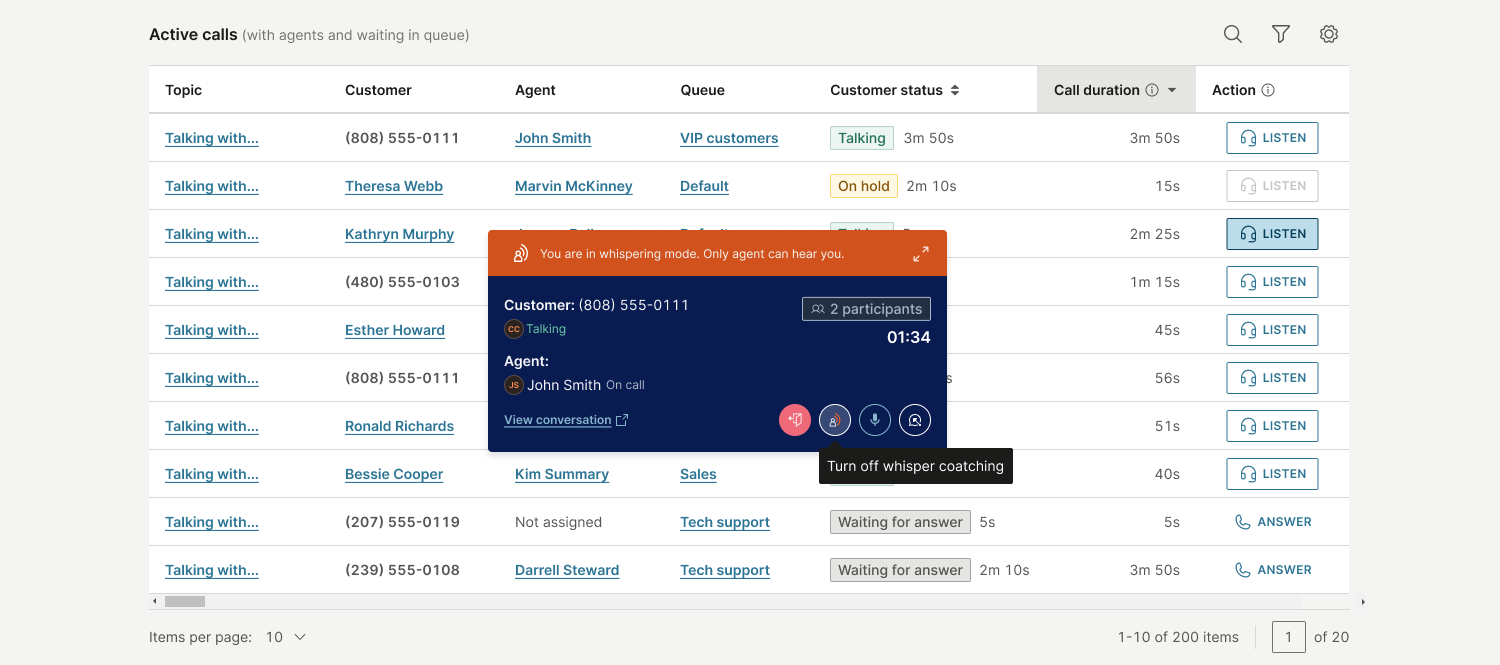
While whisper coaching is on:
- The customer cannot hear you and is not notified. In the expanded call monitoring window, the customer tile is dimmed.
- The agent sees an indicator that whisper coaching is active.
- If the call is recorded, the recording includes what you say to the agent.
- The conversation Events record when whisper coaching starts and ends.
Barge in [#barge-in]
With Barge in, you can join the call as an active participant. Both the agent and the customer can hear you, so you can resolve escalations, assist the agent directly, or take over the call when needed.
You can barge in while listening silently or during whisper coaching. You cannot barge in on a call that already has three or more participants, for example, during a consult. In that case, the Barge in option is disabled.
To barge in:
- In the call monitoring window, select Barge in. A confirmation dialog opens, informing you that participants will be aware that you joined.
- Select Barge in to confirm. To keep monitoring without joining, select Cancel.
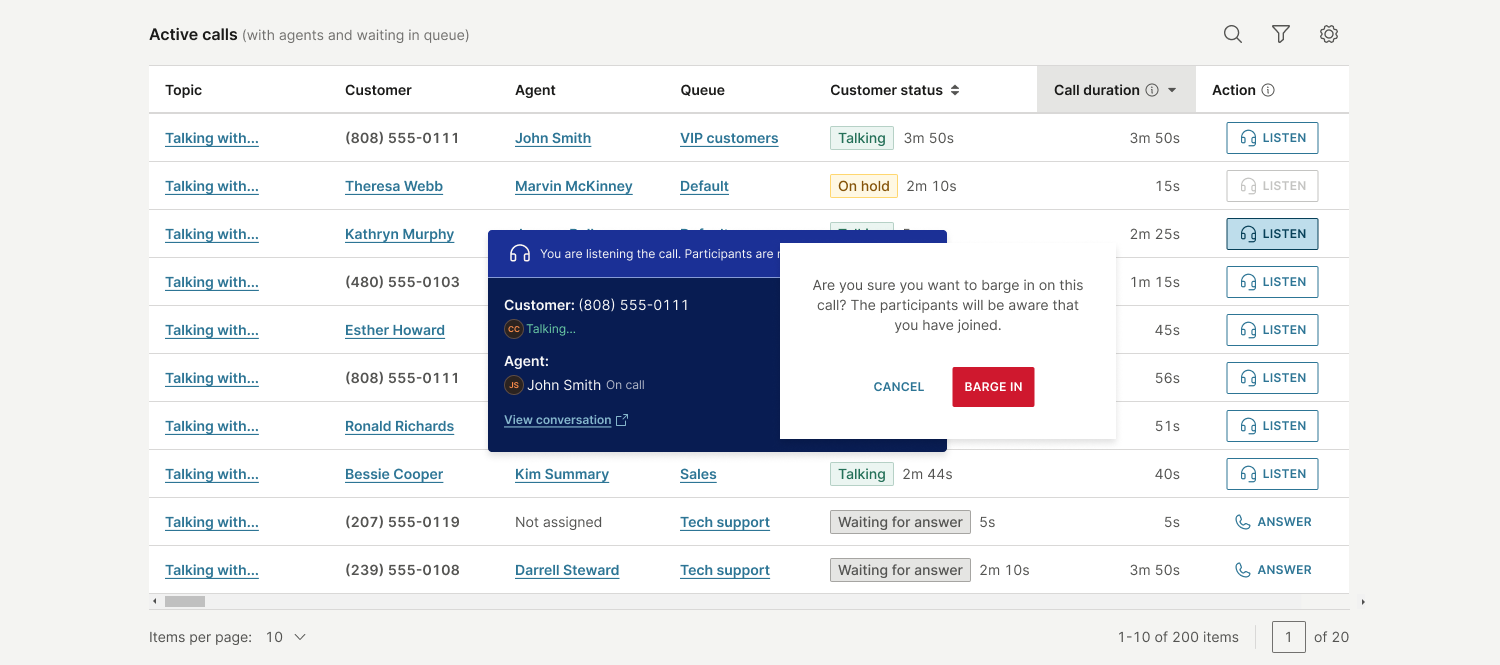
After you barge in:
- All participants are notified that you joined the call.
- You can speak with both the agent and the customer.
- You become the host of the call. If you hang up, the call ends for all participants.
- The conversation is reassigned to you.
- The conversation Events record that you joined the call.
Call monitoring during transfers and consults [#call-monitoring-during-transfers-and-consults]
During transfers and consults, call monitoring works as follows:
- If the agent starts a warm transfer, you continue monitoring the customer. Your session does not end when the original agent leaves the call.
- If the agent starts a consult or invites a different participant, you see that participant only after they connect to the call. Queue selection and ringing are not shown.
- Monitoring is not available for calls with external participants.
Answer queued calls [#answer-queued-calls]
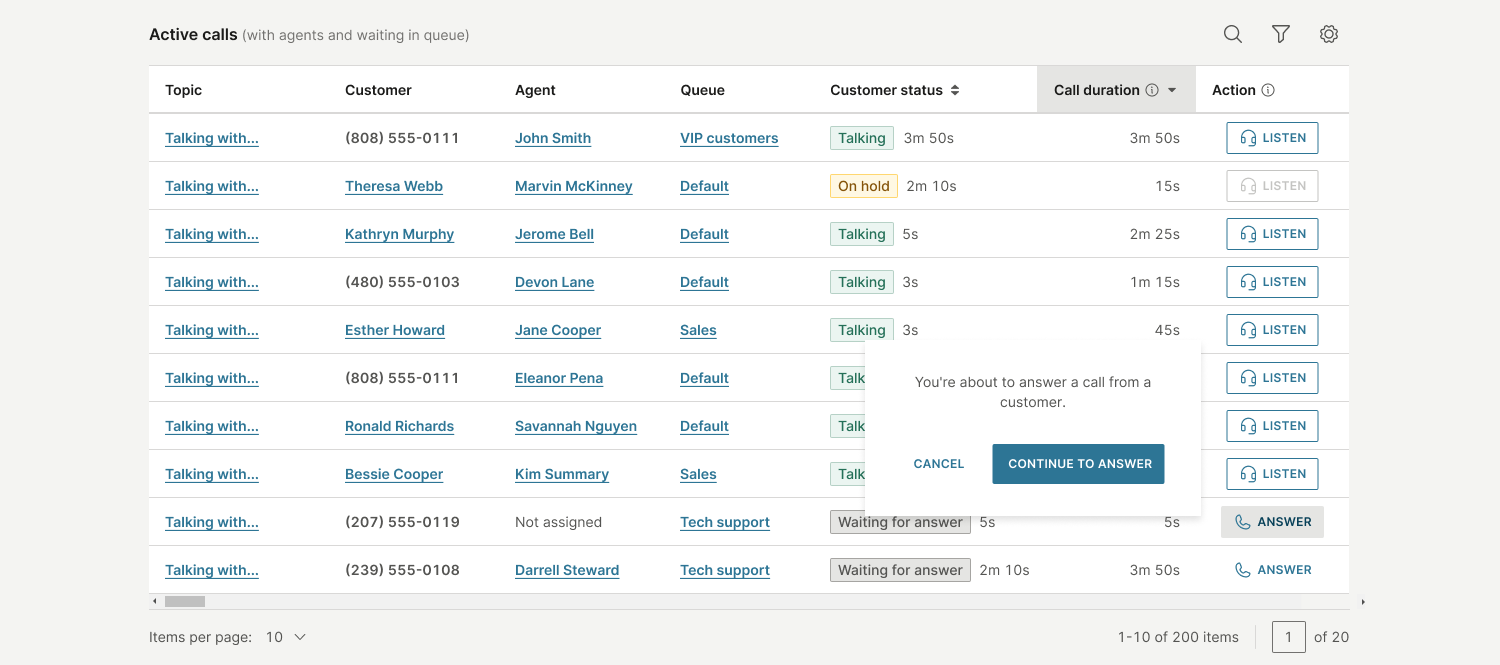
When all agents are busy or unavailable, you can answer a call that is waiting in queue directly from the Active calls table. The call is transferred to you, and you become the active participant handling it.
To answer a queued call:
- Go to Insights and Analytics → Analytics → Inbox → Live analytics.
- In the Active calls table, find a call that is waiting for an agent. These calls show Waiting for answer in the Customer status column.
- In the Action column, select Answer.
- In the confirmation dialog, select Continue to answer. To go back without answering, select Cancel.
If the call is currently ringing to an available agent, the Answer option is disabled, and the tooltip shows Call is currently ringing to available agent.
Answering a queued call does not affect calls you or other supervisors are monitoring.
Was this page helpful?