Quick start
This guide walks you through creating your first landing page from start to finish. Follow the links throughout for more detail on specific steps.
Build a page
Go to Content > Landing Pages and select Create new. Select Create Custom to build a page in the editor.
Use the layout and content widgets to design your page. Toggle between Design and Preview modes at the top of the editor to check your progress as you build.
Use the forms widget to collect feedback from customers, for example, why they chose to opt out.
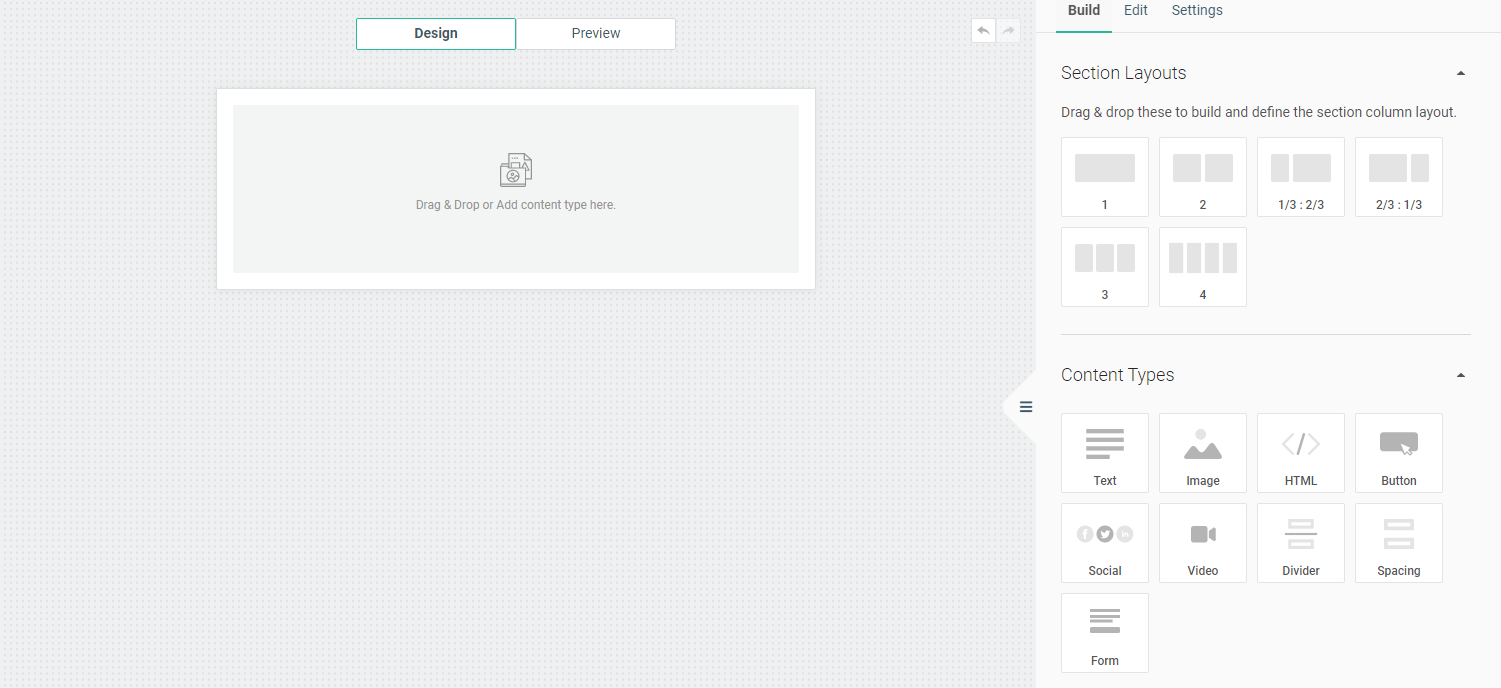
Use the Edit and Settings tabs in the side panel for additional styling options.
When you are done, select Done designing to return to the page overview. Select the preview to go back to the editor.
When ready, enter a name for your page. Keep it descriptive for easy reference later. Select Publish to make it live.
Your page is now available to select across Infobip solutions in the web interface.
Upload a page
If you already have an HTML file for your page, you can upload it directly.
Go to Content > Landing Pages and select Create new. Select Upload HTML File to open the file selector.
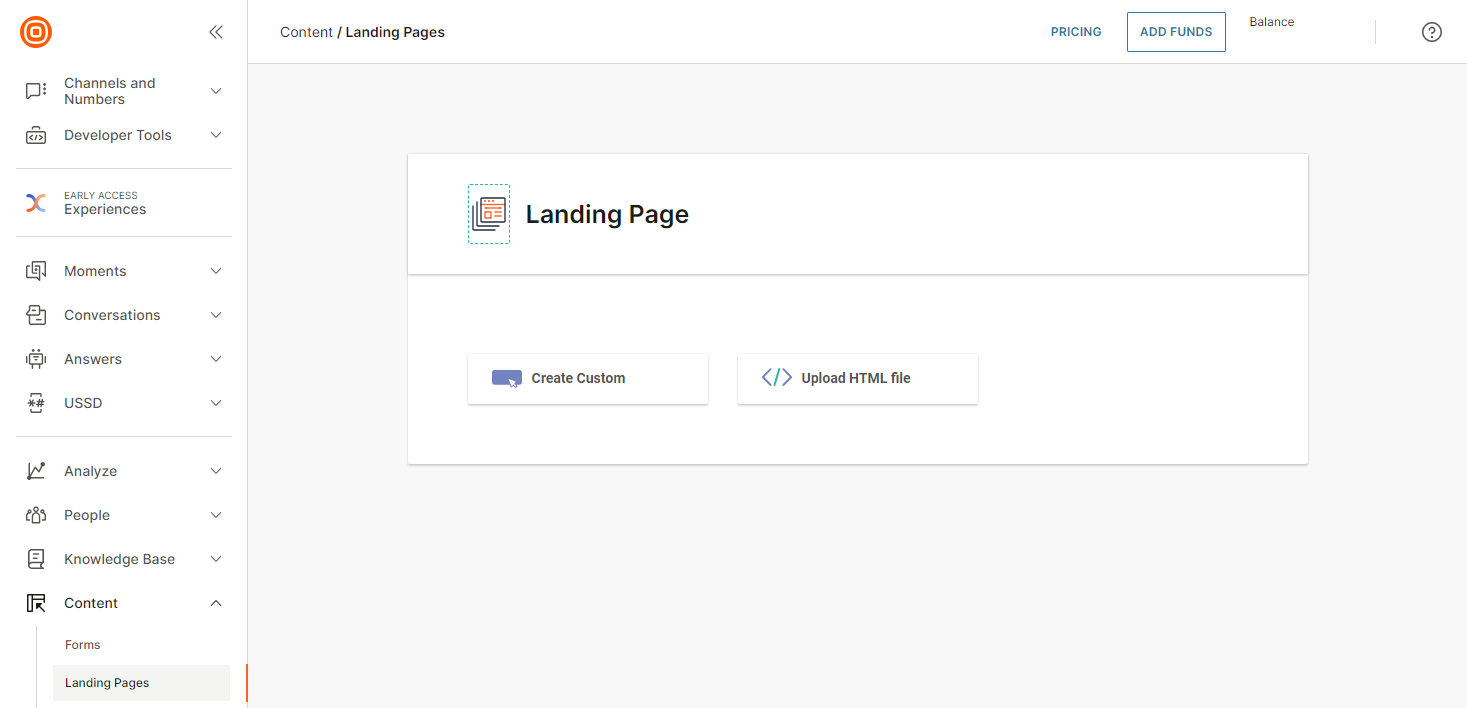
Select the .html file to upload. Only .html files are supported. You can upload one file at a time; uploaded files cannot be edited in the drag-and-drop editor.
After uploading, edit the HTML directly in the code editor. Changes appear in real time in the preview window.
When you are done, select Done designing to return to the page overview. Enter a name and select Publish to make it live.
Your page is now available to select across Infobip solutions in the web interface.
Next steps
- Manage pages: learn how to use the editor, save templates, and manage page statuses.
- Dashboard: get an overview of all your landing pages and their metrics.
- Page types: learn about the different types of landing pages you can create.