Message types
RCS supports multiple message types for inbound and outbound communication, but message type availability and specifications may vary depending on the RCS provider and solution.
See each solution's documentation to check if a specific message type is supported.
Message types using RCS
RCS supports a variety of rich messaging formats that enhance customer interactions with text, media, interactive elements, and suggested actions.
Text [#message-types-using-rcs-text]
Text messages can contain up to 3,072 characters and may include suggested actions.
| Format | Encoding | Notes |
|---|---|---|
| TXT, TeXT, US-ASCII | UTF-8, US-ASCII (not UTF-16) | N/A |
| vCard | N/A | Limited support; some handsets do not accept vCards |
The following example shows a text message.
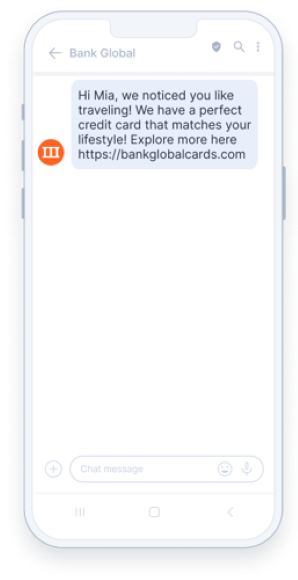
Text messages are available in Answers, Conversations, Moments, Broadcast, and API.
File [#message-types-using-rcs-file]
Use the File option to send a file to your customers by entering the URL to the file.
| Property | Detail |
|---|---|
| File size | Up to 100 MB |
| File URL length | Up to 2,048 characters |
| Supported formats | PDF, JPG, JPEG, GIF, H263, M4V, MP4, MPEG-4, MPEG, WEBM |
| Features | Placeholders (custom attributes) and suggested actions for quick replies or actions |
When adding placeholders, verify that they are also in the URL format in People.
The following example shows a file message.
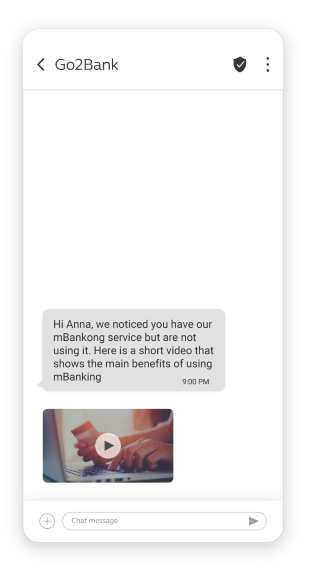
File messages are available in Answers, Conversations, Moments, Broadcast, and API.
Media files sent by end users in mobile originated (MO) messages, such as JPG or PDF files, are available for 60 days. After 60 days, Rich Communication Services (RCS) deletes these files from the cache.
Rich card [#message-types-using-rcs-rich-card]
Send a preview of your website or product in the form of an interactive card. Customers can select the link on the card to view your website or product. Rich card messages support images, buttons, and suggestions for customer replies and actions.
Rich cards contain the following elements:
| Element | Details |
|---|---|
| Title | Card title |
| Text | Up to 2,000 characters |
| Media | Add an image or video by entering the URL. Maximum file size: 100 MB. Supported formats: JPEG, JPG, GIF, PNG, H263, M4V, MP4, MPEG, MPEG4, WEBM. PDF is supported in India only. Aspect ratio depends on card type and target platform. See Rich card media specifications. |
| Rich card buttons | Up to 4 buttons for quick replies or actions |
| Suggested actions | Up to 11 suggestions for quick replies or actions (optional) |
If a video file exceeds 100 MB, the system trims it to 100 MB. Any content beyond this limit is removed. Some capabilities may not be available on all carriers. Check the RCS feature parity documentation to confirm carrier support.
You can set card orientation, alignment, and height. Horizontal rich cards display vertical media on the left or right side of the card. Vertical rich cards display horizontal media at the top of the card.
The following example shows a rich card message.
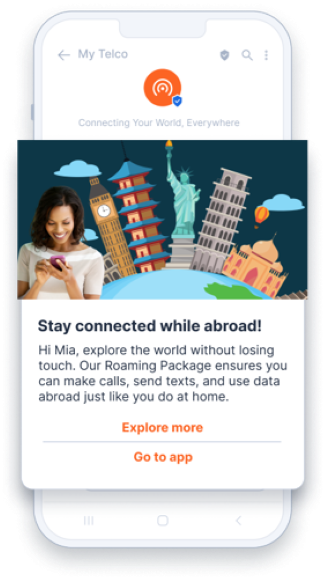
Rich cards are available in Answers, Moments, Broadcast, and API.
Rich card media specifications [#card-media-specifications]
Follow Google's best practices for Rich Cards when using images or video in rich card messages.
Platform-specific media specifications [#platform-specific-media-specifications]
The required media aspect ratio depends on the card type, orientation, height, and target platform. Use the following tables to select the correct image or video dimensions before uploading. For campaigns targeting both Android and iOS, use the cross-platform table. For single-platform campaigns, use the Android-only or iOS-only tables.
Android-only campaigns [#android-only-campaigns]
Vertical rich card
| Media size | Best aspect ratio | 1080p baseline | Optimized (3x) |
|---|---|---|---|
| Short | 7:2 | 3780 × 1080 pixels | 1260 × 360 pixels |
| Medium | 21:9 | 2520 × 1080 pixels | 840 × 360 pixels |
| Tall | 3:2 | 1620 × 1080 pixels | 540 × 360 pixels |
These aspect ratios are optimized to ensure near-100% content visibility without auto-cropping. If you use custom dimensions, design assets with the media container's cropping logic in mind.
Horizontal rich card
| Best aspect ratio | 1080p baseline | Optimized (3x) | 15% edge safe zone |
|---|---|---|---|
| 9:16 | 1080 × 1920 pixels | 360 × 640 pixels | 918 × 1920 (baseline) 306 × 640 (optimized) |
The horizontal rich card uses a fixed media width of 128dp. Height scales dynamically to match the adjacent text block. To prevent vertical cropping, use a 9:16 aspect ratio with a centered 10-15% edge safe zone for critical content.
Each carousel size (small, medium) can be combined with any media size (short, medium, tall).
Small carousel
| Media size | Best aspect ratio | 1080p baseline | Optimized (3x) |
|---|---|---|---|
| Short | 16:10 | 1728 × 1080 pixels | 576 × 360 pixels |
| Medium | 1:1 | 1080 × 1080 pixels | 360 × 360 pixels |
| Tall | 2:3 | 720 × 1080 pixels | 240 × 360 pixels |
Medium carousel
| Media size | Best aspect ratio | 1080p baseline | Optimized (3x) |
|---|---|---|---|
| Short | 8:3 | 2880 × 1080 pixels | 960 × 360 pixels |
| Medium | 16:9 | 1920 × 1080 pixels | 640 × 360 pixels |
| Tall | 9:8 | 1215 × 1080 pixels | 405 × 360 pixels |
iOS-only campaigns [#ios-only-campaigns]
| Component type | Standard aspect ratio | 1080p baseline |
|---|---|---|
| Vertical rich card | 3:2 or 4:3 | 1620 × 1080 or 1440 × 1080 pixels |
| Horizontal rich card | 1:1 | 1080 × 1080 pixels |
| Carousel cards | 16:9 | 1920 × 1080 pixels |
Use the same media aspect ratio and resolution for every card in a carousel. Matching text lengths and call-to-action counts across cards minimizes height fluctuations and ensures a predictable crop for media.
Android and iOS cross-platform campaigns [#cross-platform-campaigns]
| Component type | Aspect ratio | 1080p baseline | 5% edge safe zone |
|---|---|---|---|
| Vertical rich card (Tall variant only) | 3:2 | 1620 × 1080 pixels | 1458 × 972 pixels |
| Horizontal rich card | 9:16 | 1080 × 1920 pixels | 972 × 972 pixels (centered 1:1 critical media content area) |
| Carousel cards (Medium variant only) | 16:9 | 1920 × 1080 pixels | 1728 × 972 pixels |
- Use only the medium carousel with medium media variant for cross-platform carousels.
- Use the same media aspect ratio and resolution for every card.
- Match text lengths and call-to-action counts across cards to minimize height fluctuations and ensure a predictable crop.
India media specifications [#india-media-specifications]
The following aspect ratios and dimensions apply to RCS campaigns targeting India. These values are enforced by the Jio platform.
PDF (application/pdf) is supported as a card media format in India only. Support for other content types may vary by mobile network operator.
Rich card media
| Orientation | Height | Aspect ratio | Example dimensions |
|---|---|---|---|
| Vertical | Medium | 2:1 | 960 × 480 pixels |
| Vertical | Short | 3:1 | 1080 × 360 pixels |
| Vertical | Tall | 3:2 | 1620 × 1080 pixels |
| Horizontal | N/A | 3:4 | 720 × 960 pixels |
Carousel media
| Card width | Height | Aspect ratio | Example dimensions |
|---|---|---|---|
| Medium | Medium | 4:3 | 960 × 720 pixels |
| Medium | Short | 2:1 | 960 × 480 pixels |
| Small | Medium | 4:5 | 960 × 1200 pixels |
| Small | Short | 5:4 | 1200 × 960 pixels |
Indonesia media specifications [#indonesia-media-specifications]
The following media guidelines apply to RCS campaigns targeting Indonesia.
Rich card image
Maximum file size: 2 MB. Accepted formats: JPEG, JPG, PNG, GIF.
| Orientation | Height | Aspect ratio | Optimal resolution |
|---|---|---|---|
| Vertical | Short | 3:1 | 1440 × 480 pixels |
| Vertical | Medium | 2:1 | 1440 × 720 pixels |
| Horizontal | N/A | 3:4 | 768 × 1024 pixels |
Carousel image
Maximum file size: 1 MB. Accepted formats: JPEG, JPG, PNG, GIF.
| Height | Width | Aspect ratio | Optimal resolution |
|---|---|---|---|
| Short | Small | 8:5 | 1160 × 720 pixels |
| Short | Medium | 5:2 | 1840 × 720 pixels |
| Medium | Small | 1:1 | 770 × 720 pixels |
| Medium | Medium | 16:9 | 1280 × 720 pixels |
Rich card video and thumbnail
Video maximum file size: 10 MB. Accepted video formats: MP4, M4V, MPEG, WEBM, H263, M4P.
Thumbnail minimum file size: 40 KB. Accepted thumbnail formats: JPEG, JPG, PNG.
| Orientation | Height | Video aspect ratio | Video optimal resolution |
|---|---|---|---|
| Vertical | Short | 3:1 | 770 × 257 pixels |
| Vertical | Medium | 7:3 | 770 × 335 pixels |
| Horizontal | N/A | 8:5 | 718 × 448 pixels |
Carousel video and thumbnail
Video maximum file size: 5 MB. Accepted video formats: MP4, M4V, MPEG, WEBM, H263, M4P.
Thumbnail maximum file size: 100 KB. Accepted thumbnail formats: JPEG, JPG, PNG.
| Height | Width | Video aspect ratio | Video optimal resolution |
|---|---|---|---|
| Short | Small | 5:2 | 1140 × 448 pixels |
| Short | Medium | 8:5 | 718 × 448 pixels |
| Medium | Small | 1:1 | 480 × 448 pixels |
| Medium | Medium | 16:9 | 796 × 448 pixels |
Carousel [#message-types-using-rcs-carousel]
Carousel messages enable you to send multiple rich cards in one message. They display horizontal media at the top of each rich card. Customers can swipe horizontally to view the rich cards, compare items, and take actions on individual cards.
Carousel messages contain the following elements:
| Element | Details |
|---|---|
| Title | Card title |
| Description | Card description |
| Media | Add an image or video by entering the URL. Maximum file size: 100 MB. Supported formats: JPEG, JPG, GIF, PNG, H263, M4V, MP4, MPEG, MPEG4, WEBM. Aspect ratio depends on card width and height settings. See Rich card media specifications. |
| Rich card buttons | Up to 4 buttons for quick replies or actions |
| Suggested actions | Up to 11 suggestions for quick replies or actions (optional) |
If the combined size of all media in a carousel exceeds 100 MB, the system rejects the entire message.
Some capabilities may not be available on all carriers. See the RCS feature parity documentation to confirm carrier support.
The following example shows a carousel message.
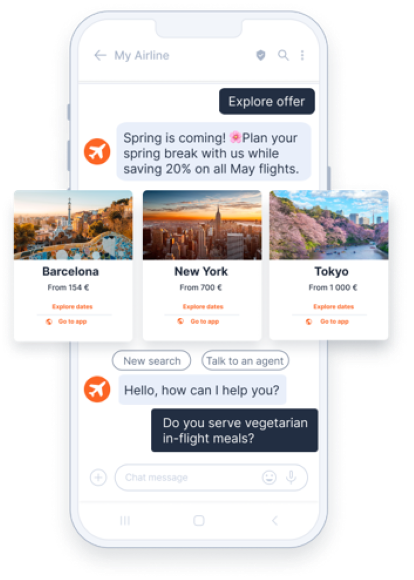
Carousel messages are available in Moments, Broadcast, and API.
Suggested actions
Suggested actions guide users through the conversation by using features already available on their devices. You can enable the customers to send you already-composed replies, open a URL, dial a number, or share a location.
Suggested reply [#suggested-reply-suggested-action]
The suggested replies guide users through conversations by providing replies to an agent who will then know how to respond. When a user selects a suggested reply, the agent receives an event that contains the reply text and the postback data.
The suggested reply text can contain a maximum of 25 characters.
Open URL [#suggested-reply-open-url]
Open URL action opens the default browser when an http or https link is defined. If a deep link is used, it opens in the default application.
Only http:// and https:// schemas are supported. Unsupported URL types (for example tel:, ldap://, telnet://) will trigger a validation error and block message sending.
Open URL action fields
When sending RCS messages with an Open URL action through Infobip, configure the relevant fields in your API request. The API reference for sending RCS messages provides the complete structure, parameters, and requirements for implementing Open URL actions within a messaging application.
In addition to Open URL, RCS supports several other suggested actions. See the subsections below for details on Dial phone, Show and request location, Create a calendar event, and Google Wallet.
Open URL with WebView [#suggested-reply-open-url-webview]
The Open URL with WebView action loads the specified web page inside the messaging app using the rendering engine of the default browser. This allows users to interact with the web page without leaving the RCS conversation.
You can configure WebView to display in one of three modes:
- Full: The web page takes up the full screen.
- Half: The web page takes up half of the screen.
- Tall: The web page takes up three quarters of the screen.
If the device does not support WebView, or if the client chooses Browser mode, the page opens in the default browser application instead.
http and https links and must be selected manually.Where suggestions can appear
- In-message suggestions (chips): Quick actions displayed below a text or media message.
- In-card buttons: Actions shown on a rich card. You can include an optional suggested actions list. Each rich card supports up to 4 buttons, with a maximum of 11 suggested actions per message.
For complete implementation details and code examples, see the RCS API documentation.
Dial phone [#suggested-reply-dial-phone]
The Dial phone action guides users to dial a phone number an agent specifies. You can initiate a call by entering a phone number in the correct format.
Supported formats
Phone numbers must be a maximum 15-digit number, may optionally start with +, and must contain at least 1 digit.
- E.164 international format: Phone numbers must include a leading
+, the country code, and an area code. Do not include separators. For example,+14155552671. - Plain numeric format: For example,
0996600077 - Embedded link format: Supported only if the phone number itself matches the required syntax. Syntax must match:
\"^\\+?[0-9]\\d{1,14}$\"".
Invalid formats
- National format with spaces or special characters are not supported: For example:
099 0000 011 - URL scheme (tel:): Example:
tel:+385123456789 - Embedded link format with incorrect syntax.
Show and request location [#suggested-reply-show-and-request-location]
The Show location and Request location actions let you share a location with the users. You can either show a location by entering the latitude and longitude or request that a user share their location.
Create a calendar event [#suggested-reply-create-a-calendar-event]
The Create calendar event action opens the calendar app and creates a new event with the specified information.
Requirements:
- Add suggestion text (max 25 characters). This is the label shown on the suggested action (for example Add to calendar)
- Add postback data (maximum 2,048 characters). This value is sent back to your system when the end user selects the suggested action.
- Add an event title (max 100 characters).
- (Optional) Include an event description (max 500 characters)
- Specify event start and end date/time.
If you are sending RCS messages through Broadcast, for event start and end time/date you can define event data either as static values or as dynamic placeholders that are populated automatically when you set up the campaign.
- Select Static to manually pick dates using the calendar and time picker. Add a UTC offset if required to align with your recipients' local time.
- Select Dynamic to enter placeholders instead of fixed dates. The placeholders must match the attributes defined in your campaign data.
Google Wallet [#suggested-reply-google-wallet]
You can use Google Wallet within Google Messages and RCS to deliver non-payment pass types, such as:
- Loyalty cards
- Gift cards
- Offers and coupons
- Event tickets
- Flight boarding passes
- Transit tickets (bus, train, ferry, tram)
- Generic event passes
- Google Wallet does not support payments.
- To enable payments or use Google Pay, configure an Open URL (WebView) action that opens a webpage containing your payment provider, payment gateway, or Google Pay button. This allows users to complete their customer journey without leaving the RCS flow.
Requirements:
To implement Google Wallet, you must complete client-side development. Infobip solution engineers can provide technical assistance and guide you through the integration process. Contact support for more information.
Add to Google Wallet suggestion
To send an Add to Google Wallet suggestion through RCS, use an Open URL action through the web interface or the API for RCS. Configure the message payload as follows:
-
Text: Enter Add Google Wallet
-
URL: Submit the Add to Google Wallet URL for the pass.
The suggestion label automatically displays the Google Wallet icon.
Additional features
| Feature | Description |
|---|---|
| Failover to SMS | Ensures messages reach recipients if the RCS channel fails. |
| Failover to MMS | The system sends an MMS message when the original RCS message cannot be delivered. You can configure either SMS failover or MMS failover, not both. |
| Message scheduling | Schedules the communications start and delivery time window for your campaign. |
| Tracking and reporting | Enables delivery reports through API pull or push to webhook. |
| Advanced settings | Limits the message send rate and sets the period during which the platform attempts delivery. |