Zalo App and template editor
The Zalo App is available in the Infobip web interface under Channels and Numbers > Channels > Zalo. The app provides an overview of registered senders and access to template management.
Create a Zalo template
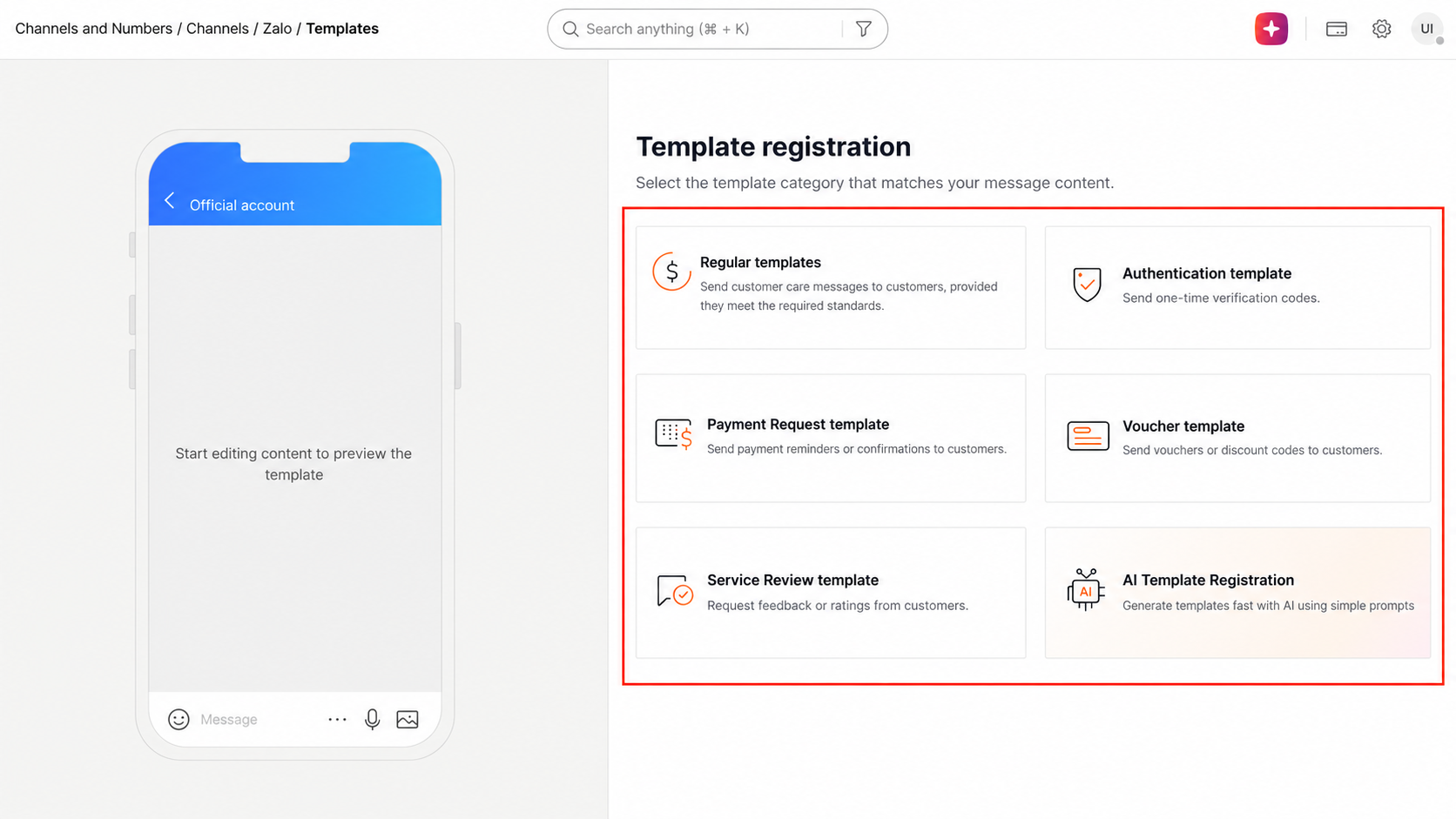
Create and register Zalo templates directly from the Infobip web interface. The template editor supports the following template types:
- Regular
- Authentication
- Payment Request
- Voucher
- Service Review
- AI Template Registration
To create a template:
-
In the Infobip web interface, go to Channels and Numbers > Channels > Zalo.
-
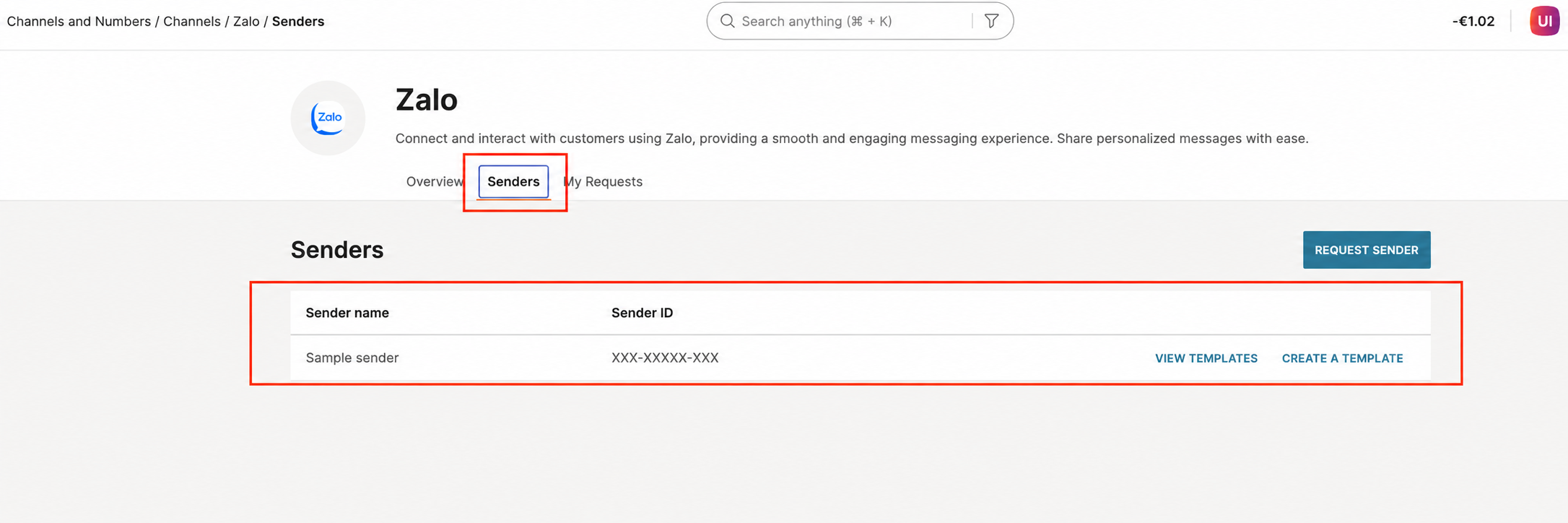
Select the Senders tab, then select Create a Template for the sender you want to create a template for.
-
Select the template type.
-
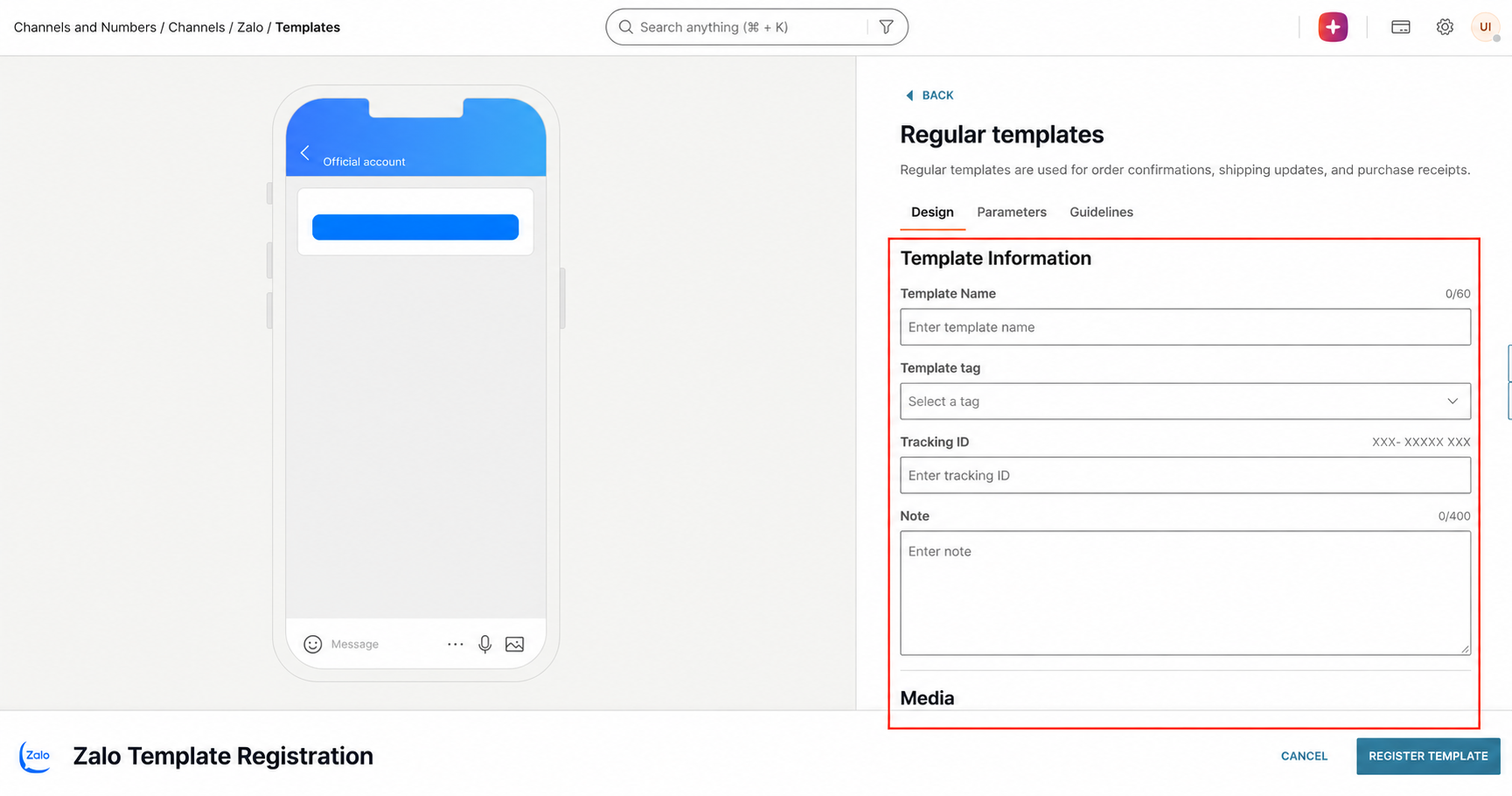
In the Design tab, fill in the template information: template name, template tag, tracking ID, and note.
-
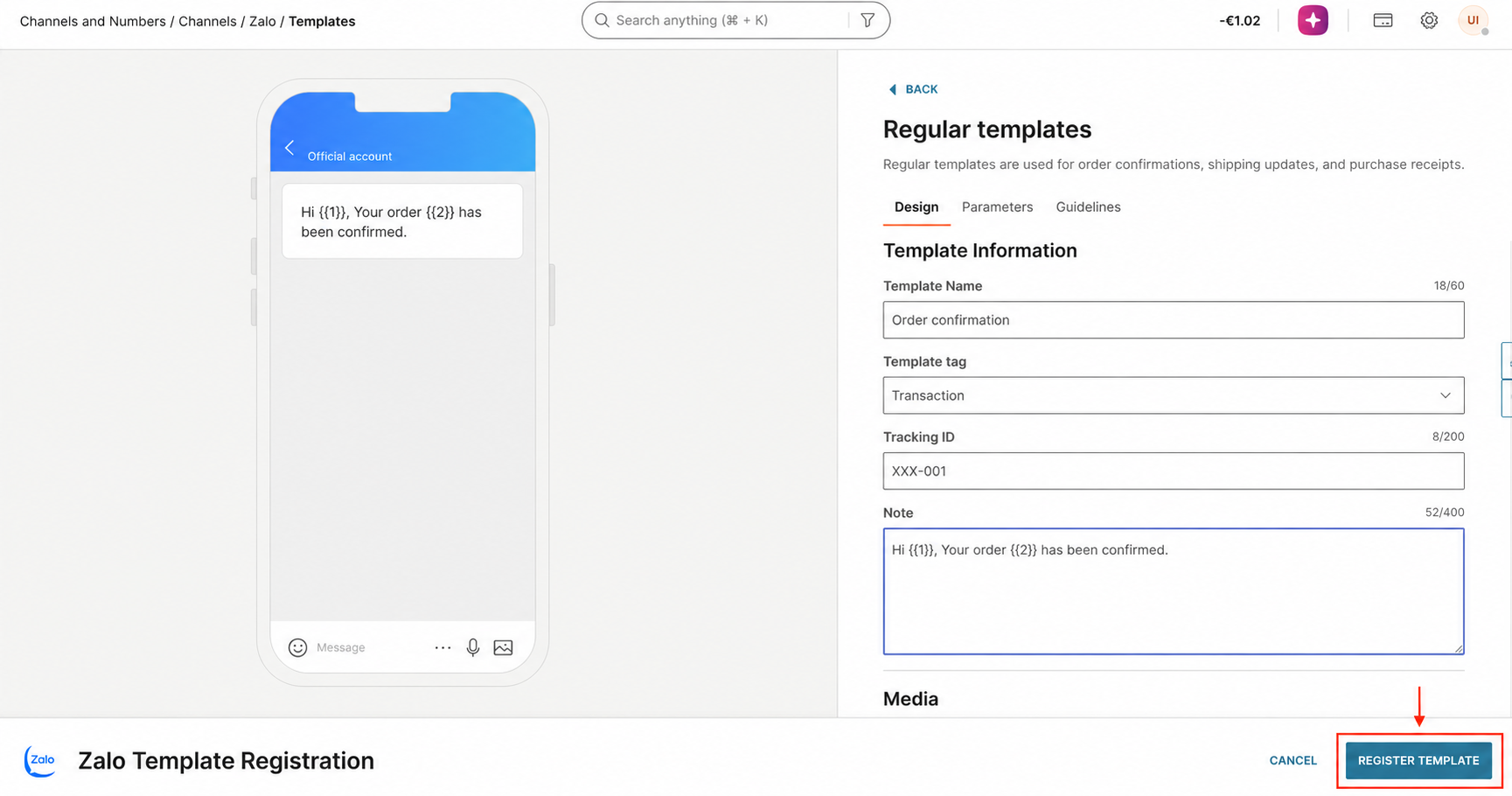
Configure the template content, including text, parameters, and CTA buttons.
-
If needed, consult the Guidelines tab for guidance specific to each template type.
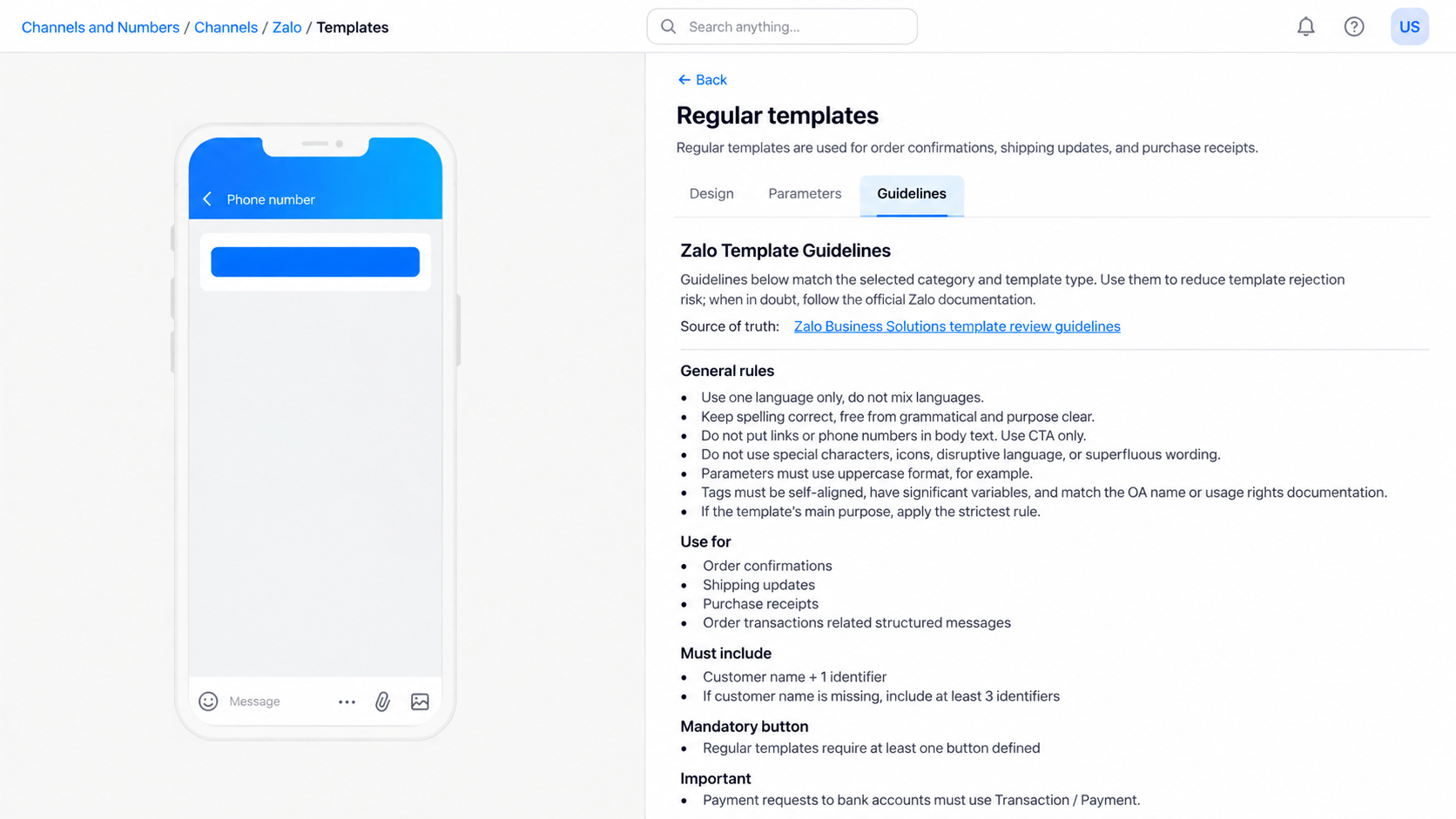
-
Submit the template for approval.
All templates must be approved by Zalo before you can use them for sending. For more information on template requirements, see Compliance and guidelines.
The Quick Response Template is not available in the template editor. To register a Quick Response Template, contact your account manager or email [email protected].
View templates
View all registered templates for a sender, including template status and content details.
To view templates:
- In the Infobip web interface, go to Channels and Numbers > Channels > Zalo.
- Select the Senders tab, then select View Templates for the sender whose templates you want to view.
- Browse the template list to see each template name, type, status, and content.
Template editing is not available. To modify a template, create a replacement template and submit it for approval.
Was this page helpful?