Journey integrations
Use integration elements in Journey to connect to Infobip applications.
Transfer chat to agent [#transfer-chat-to-agent-integrations]
Use this element to transfer the end user to a live agent for text-based chats.
To transfer to an agent through a voice channel, use the Transfer call to agent element.
Configure the element [#transfer-chat-to-agent-integrations-configure]
(Optional) In the side panel of the element, assign conversation tags to do the following.
- Route the journey to the relevant queue in Inbox.
- Inform the agent what the conversation is about. Example: Add a tag, data verification, to indicate that the agent needs to verify the end user's information.
In the All conversation tags section, either create a new tag or select one or more existing tags.
Example [#transfer-chat-to-agent-integrations-example]
For an example of how to use this element, see the Set up an efficient sign up and account verification tutorial.
Use this element with a call session [#transfer-chat-to-agent-integrations-call-session]
You can use this element with a call (IVR) session as shown in the following example.
-
Use the Play element to ask whether the end user wants to wait on the line for an available agent or use a text-based channel such as WhatsApp.
Example:
To have a text-based chat with an agent, select 1. Waiting time is 1 minute.
To talk to an agent over the phone, select 2. Waiting time is 12 minutes.
-
If the end user wants to use a text-based channel, Hang up the voice session and add the Transfer chat to agent element.
-
If the end user wants to wait for an agent, use the Transfer call to agent element.
Transfer call to agent [#transfer-call-to-agent-integrations]
Use this element to transfer a voice (IVR) call to a live agent in Inbox.
- You can use this element only within an inbound IVR session.
- To transfer to an agent outside an IVR session, that is, for text-based chats, use the Transfer chat to agent element.
When forwarding the call, the system automatically adds contextual information to help agents in Inbox manage the interaction effectively. Example: It includes the channel so that the agents know over which channel the call originated.
Configure the element and use the branches in the element to specify the next steps in the journey.
Configure the element [#transfer-call-to-agent-configure]
In the side panel of the element, configure the following fields:
Call origin
Use this field to provide context about the conversation to the agent. Example: Reschedule the appointment. In Conversations, this information is displayed as a popup message.
Select Add call origin and specify the context.
If you do not configure this field, the journey name is used as the context.
Conversation tags
(Optional) Assign conversation tags to do the following.
- Route the journey to the relevant queue in Inbox.
- Inform the agent what the conversation is about. Example: Add a tag, data verification, to indicate that the agent needs to verify the end user's information.
In the All conversation tags section, either create a new tag or select one or more existing tags.
Next steps [#transfer-call-to-agent-next-steps]
Use the following branches in the element to manage the next steps.
| Branch | Call session status |
|---|---|
| Call forwarded | Call was forwarded. A call session was successfully established between the end user and the destination. The journey exited the call session. |
| Call not forwarded | The journey was unable to forward the call. A call session was not established between the end user and the destination. The call session continues between the end user and the journey. |
| Call ended | Call was ended either by the end user or because of network issues, before it was forwarded. |
Transfer call to AI agent [#transfer-call-to-ai-agent-integrations]
This element can only be used within an IVR session. It is available for both inbound and outbound calls.
Use the Transfer call to AI agent element to hand over an active call from the IVR flow to a real‑time Voice AI agent. This enables natural, conversational handling of the call using speech recognition, intent detection, and Generative AI.
Voice AI agents provide a more natural and flexible experience than IVR systems. They understand free‑form speech, interpret intent, and manage complex questions that IVR menus cannot. This enables a conversational experience and allows callers to speak naturally instead of using predefined IVR options.
When the call reaches this element in the flow, the IVR transfers control to the selected AI agent. After the agent completes its task, the call always returns to the IVR, with information on why the call returned.
For more information about AI agents, refer to the AI agents documentation.
Transfer to SIP [#transfer-to-sip-integrations]
Use this element to transfer an active call from a Journey to an external system over SIP. Route calls to third-party call centers, external voice platforms, or any SIP-capable endpoint outside of Infobip infrastructure.
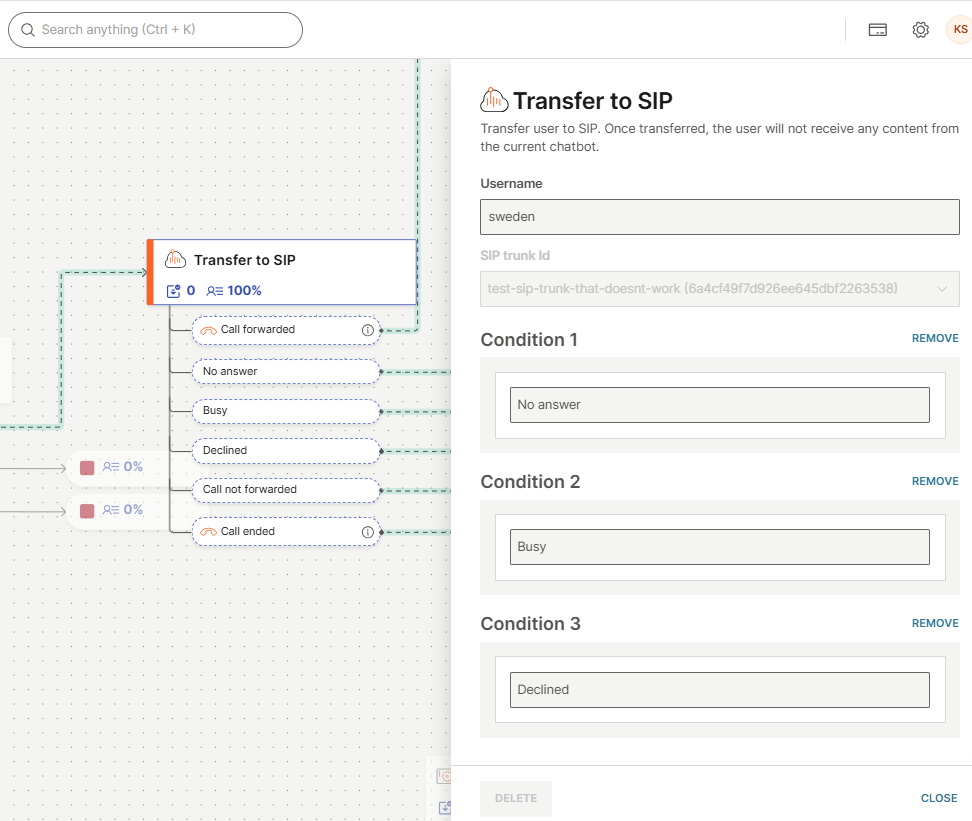
You can use this element only within an IVR session.
Prerequisites [#transfer-to-sip-prerequisites]
Set up at least one SIP trunk in the Infobip web interface. Go to Channels and Numbers > Channels > Voice and WebRTC > SIP Trunking to configure your trunks.
Configure the element [#transfer-to-sip-configure]
In the side panel of the element, configure the following fields:
| Field | Description |
|---|---|
| Username | Enter the SIP username for the destination endpoint. |
| SIP trunk Id | Select a SIP trunk from the dropdown. The list shows SIP trunks configured in your account. |
After the call is forwarded to the SIP endpoint, the caller no longer receives content from the current journey. The journey exits the call session.
Next steps [#transfer-to-sip-next-steps]
For each exit branch in the element, configure the next steps.
| Branch | Call session status |
|---|---|
| Call forwarded | The journey forwarded the call to the SIP endpoint. The call session ends. You can only start a new call from this point. |
| No answer | The SIP endpoint did not answer the call. The call session continues between the end user and the journey. |
| Busy | The SIP endpoint returned a busy signal. The call session continues between the end user and the journey. |
| Declined | The SIP endpoint declined the call. The call session continues between the end user and the journey. |
| Call not forwarded | The journey was unable to forward the call to the SIP endpoint. The call session continues between the end user and the journey. |
| Call ended | The call was ended either by the end user or because of network issues, before it was forwarded. The call session ends. You can only start a new call from this point. |
Example: Voice AI agent with SIP transfer [#transfer-to-sip-example]
Use the Transfer to SIP element together with the Transfer call to AI agent element to build a flow where a Voice AI agent handles the conversation first, then transfers the call to an external system when a handover is needed.
- Add the Transfer call to AI agent element to your IVR flow.
- On the Transfer to human agent requested branch, add the Transfer to SIP element.
- Configure the Username and SIP trunk Id fields.
- Configure the exit branches for the Transfer to SIP element.
For more information about SIP trunk types and configuration, see SIP trunking. For call routing scenarios, see Call routing.
Transfer call to voice application [#transfer-call-to-voice-application]
Use this element to transfer a voice (IVR) call from a journey to a custom Calls API application. This enables you to manage calls within your application.
You can use this element only within an IVR session.
Prerequisites
- A Calls API-based application to which the IVR call needs to be transferred. The application should be capable of processing application transfer request events.
- A Calls configuration with a unique ID.
Configure the element
In the side panel of the element, configure the following fields:
- Calls configuration ID: Select the Calls configuration ID for the application.
- Custom data (Optional): Use key-value pairs to add custom data, if required. This data is sent to the application.
Next steps
For each exit branch in the element, configure the next steps.
The following table contains the description of each branch.
| Event | Description |
|---|---|
| Call transferred | The journey transferred the IVR call to the application. A call session was successfully established between the end user and the application. The journey exited the call session. |
| Call not transferred | The journey was unable to transfer the IVR call to the application. This could be for several reasons. Example: The API call failed. A call session was not established between the end user and the application. The call session continues between the end user and the journey. |
| Call ended | The IVR call was ended either by the end user or because of network issues, before it was transferred. |
Test the functionality of the element
To verify the functionality of the Transfer call to voice application element, use a custom webhook. Test the transfer of the call from the journey to the webhook.
Set up your system for the call transfer
- Configure a webhook to which the IVR call needs to be transferred.
- Create a Calls configuration with a unique ID.
- Create a notification profile.
- Use the URL of the webhook.
- Create a subscription.
- Select Voice channel.
- Select the required events.
- Select the notification profile that you created.
Configure the journey
- In the IVR session of your journey, add the Transfer call to voice application element.
- Configure the following fields in the element:
- Calls configuration ID: Select the Calls configuration ID that you created.
- Custom data (Optional): Use key-value pairs to add custom data, if required. This data is sent in the request body to the webhook.
- For each exit branch in the element, configure the next steps.
- Configure the journey as required.
- Activate the journey.
You can now get the call information on your webhook.
Transfer to journey [#add-to-journey-integrations]
The Transfer to journey element sends a person to a different, secondary journey. Use this element to create modular journeys, which split complex journeys into smaller, more manageable ones. For more information, see Benefits of modular journeys.
Each journey has a limit of 100 elements. If your journey exceeds this limit, split it into multiple modular journeys.
Prerequisites [#transfer-to-journey-prerequisites]
- Create all the journeys you want to connect before adding this element.
- Ensure each secondary journey has an Existing journey entry point configured. Only journeys with this entry point are available to select in the element.
Element behavior [#transfer-to-journey-behavior]
The behavior depends on where you place the element in the journey.
| Placement | What happens |
|---|---|
| Just before the exit element | The person exits the primary journey and enters the secondary journey only. |
| At an earlier step in the journey | The person continues in both the primary and secondary journeys simultaneously. |
Configure the element [#transfer-to-journey-configure]
- Pass variables: You can pass variables and their values from the primary journey to the secondary journey. This ensures that corresponding placeholder data is available as the person moves between journeys.
- Add a failover branch: Include a failover branch in the In all other cases condition. This handles cases where the transfer fails — for example, if the secondary journey is in draft or has been canceled — and allows the person to continue.
Secondary journey participants [#secondary-journey-participants-integrations]
By default, the person passing through the Transfer to journey element also enters the secondary journey. They participate in both the primary and secondary journeys until they exit.
You can also configure the element so that a different person enters the secondary journey based on their contact information. To do so, enable Add another participant when you configure the element. You can then define the primary contact information (phone number or email) for this participant, matching a journey variable or a standard or custom attribute of the person in the journey.
Depending on whether the participant exists in Customer Profiles:
- Participant exists: The journey starts for the person identified by their contact information, and any attributes referenced in the journey are updated.
- Participant does not exist: A new person profile is created and the attribute values are assigned to the profile.
One use case for this is a referral program. For example, you ask a person to share a friend's email over Messenger, parse the email from the inbound message, and save it into a variable. You can then use the Transfer to journey element to start a journey for the friend using the email extracted from the variable. Make sure the friend opts in, to meet data requirements for your region.
Custom Exchange elements [#custom-exchange-elements-integrations]
Create custom elements in Exchange and use them in your journey to add new functionality to the journey.
Example: Create a custom element to integrate your journey with third-party systems. Call third-party APIs and personalize the journey based on the response.
Configure the element once and reuse it across multiple communications.
The following are examples of use cases.
- Integrate your journey with a webinar platform to automatically register the end user for meetings.
- Connect your journey with a GenAI platform to generate personalized content within the journey.
- Connect your journey to your CRM to transfer data or add profiles to specific groups.
For more information, see the Developing with Infobip documentation.