Platform search
Use the Search bar at the top of the page to quickly find content across the entire Infobip platform. Global search covers all areas of the platform, including items in both the primary and side navigation.

Search works with text-based queries to find matching content. The results are displayed in the search interface, where you can filter them by category to narrow down your findings.
Search permissions and visibility
Search results are permission-based:
- You only see results from areas you already have access to. For example, you can search flows only if you have access to Moments.
- Results follow the existing permission model for your account.
By default, search shows results from all accessible areas. You can apply filters to focus on specific categories.
Search filters
The following filters are available to help you narrow down your search results:
| Filter | Description | Visibility |
|---|---|---|
| Channels | Searches across communication channels. | This filter is always shown. |
| Campaigns | Searches through Broadcasts and Flows. | Shown if there is at least one broadcast or one flow available. |
| Conversations | Searches messages in Conversations. | Shown if there is at least one message in the inbox. |
| Chatbots | Searches through chatbots. | Shown if there is at least one chatbot available. |
| Users | Searches through users. | This filter is always shown since there is always at least one user. |
| Seats | Searches through Conversations seats. | Shown if at least one Conversations seat is assigned (for the account the user is logged into). |
| Agents | Searches through agents inside Conversations settings. | Shown if there is at least one agent available. |
| Contacts | Searches through person and company profiles. | Shown if there is at least one person or one company available. |
| Product docs | Searches Infobip product and API documentation. | Shown only when the portal language is set to English. |
How to search the Infobip platform
To search the Infobip platform:
- Log in to your Infobip account.
- Select the Search bar at the top of the page and enter your search term.
- View the search results. Filters appear based on where your search term is found across different areas of the platform.
- Select the item you want to open:
- For most items, you are directed to the related page within the platform.
- For Product docs items, a new tab opens with the Product Documentation page.
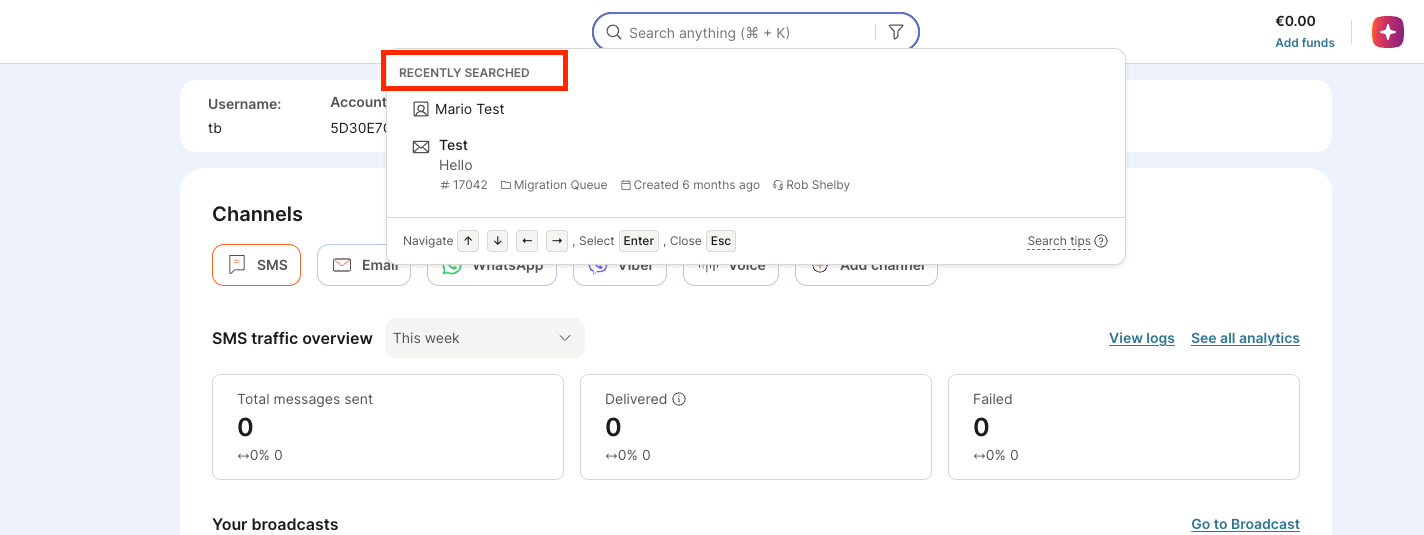
Recently searched
When you select the Search bar, the Recently searched list shows items from your recent searches, such as contacts and conversations.
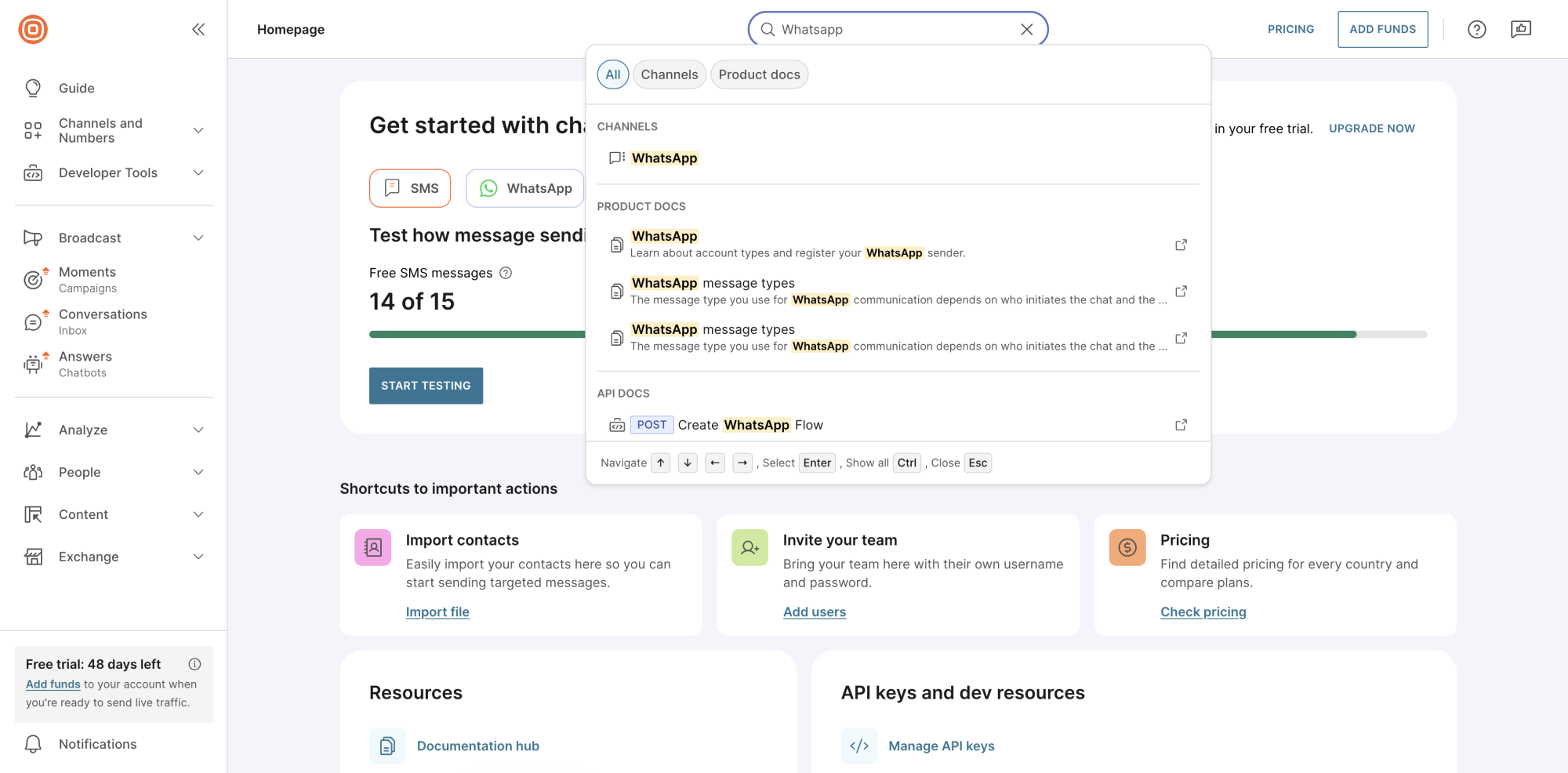
Autocomplete
Autocomplete displays matching results as you type. This helps you identify relevant items without submitting a full query.
Keyboard shortcuts
Use the following keyboard shortcuts to navigate search results:
↑/↓- Move between resultsEnter- Open the selected resultCtrl + Enter- Show all resultsEsc- Close search
Conversations search tips
When searching within Conversations, you can use special operators to refine your search results:
+signifies AND operation (both terms must be present)|signifies OR operation (either term can be present)-negates a single token (excludes the term)" "wraps tokens to search for an exact phrase( )signifies precedence for grouping operations
The default operator between search terms is OR, not AND. This is especially important when using the negation operator (-), as it behaves as OR NOT by default.
For example, searching for Payment -Invoice returns results that contain "Payment" OR do not contain "Invoice", not results that contain "Payment" AND do not contain "Invoice".
Examples:
Payment + Invoice- Returns only results containing both "Payment" AND "Invoice"Payment | Invoice- Returns results containing either "Payment" OR "Invoice"Payment -Invoice- Returns results containing "Payment" OR results that do not contain "Invoice"(Payment + Invoice) | Refund- Returns results with both "Payment" and "Invoice", or results with "Refund""Payment received"- Returns results with the exact phrase "Payment received"
You cannot use textual operators like AND, OR, or NOT directly in your search. You must use the special syntax symbols (+, |, -) instead.