Use an AI agent in a chatbot
Add AI agents to chatbots to enhance chatbot capabilities and reduce configuration complexity.
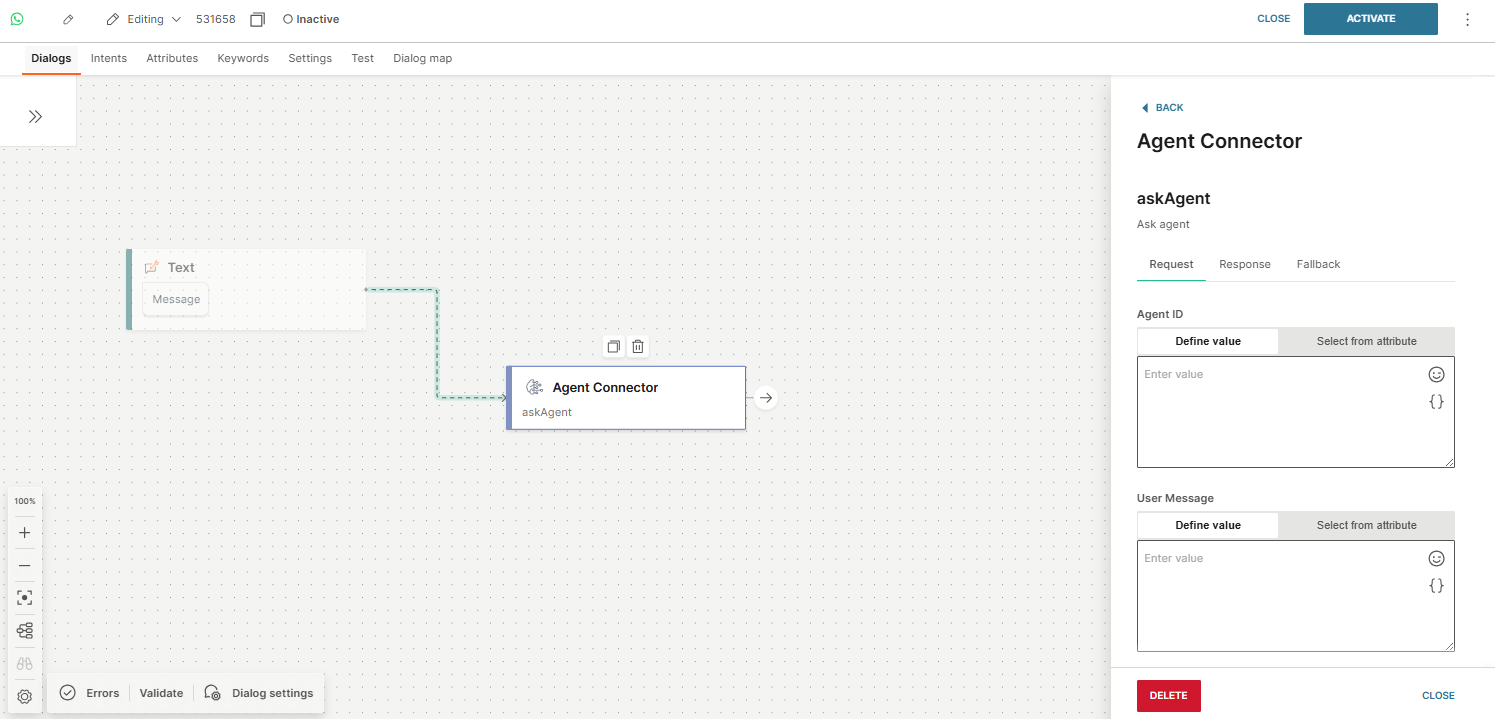
In your chatbot, use the Agent connector element to add an AI agent.
- Add the Agent connector element from the Apps from Exchange section in the Build side panel.
- Configure the element.
- Provide the input to the element.
- Save the response from the AI agent in an attribute.
- Either return the response to the end user or use it for further processing in your chatbot.
Configure the Agent connector element
Request [#request-configure-the-agent-connector-element]
| Field | Description |
|---|---|
| Agent ID | Enter the ID of the AI agent. |
| User message | Specify the end user message that the chatbot received. Example: use the lastReceivedTextMessage predefined attribute. |
| Session ID | Specify the ID of the chatbot session. Example: use the sessionId predefined attribute. |
| Agent context (optional) | Select an attribute that contains additional context for the AI agent. |
Select Preview behaviour to preview if the response is a desired and reliable result.
Response [#response-configure-the-agent-connector-element]
Save responses from the AI agent in attributes.
In the Response tab, complete the following fields:
| Field | Description |
|---|---|
| Save response code to attribute (optional) | Create an attribute to save the response code, then select it in this field. |
| Response body attributes | Select Add attribute. In the Attribute field, select the attribute from the list. In the Path field, enter the path to the attribute value in the JSON response hierarchy. |
Timeout [#timeout-configure-the-agent-connector-element]
Specify how long you want to wait for the response. The minimum value is 1 second and the maximum value is 60 seconds.
Fallback [#fallback-configure-the-agent-connector-element]
Configure the fallback to ensure the end user gets a response from the chatbot even if there is an error.
Use also for API failures [#use-also-for-API-failures-configure-the-agent-connector-element]
Enable the Use also for API failures option to trigger fallback in case of 4xx and 5xx errors.