Getting started
Prerequisites
Before working with Infobip to get Instagram Posts enabled, you must have the following:
- Infobip official account. If you do not have an Infobip account, sign up for an account.
- Administrator access to Facebook and Instagram accounts.
Connection
Go to the Infobip web interface → Channels and Numbers → Instagram Posts, and carry out the instructions in the following sections.
Create a Facebook page for your brand [#create-a-facebook-page-for-your-brand-connection]
If you have a Facebook page for your brand already, ignore this section.
Create a new Facebook page for your brand.
Get your Instagram account verified [#get-your-instagram-account-verified-connection]
This step is optional. Infobip recommends that you get your Instagram business account verified by Instagram.
To get your Instagram account verified, follow these steps:
- Log on to your Instagram account.
- Go to your profile and click Menu → Settings → Account.
- Click Request Verification.
- Complete the form.
- Click Send.
Connect your Instagram account with your Facebook account [#connect-your-instagram-account-with-your-facebook-account-connection]
If your Instagram account is connected with your Facebook account already, ignore this section.
To connect your Instagram account with your Facebook account, follow these steps:
- Log on to your Facebook business page as an administrator.
- Open your Facebook business page.
- In the menu on the left, choose Settings.
- Choose Instagram.
- Choose Connect account.
- Enter your Instagram username and password.
- Click Switch to Business to convert your account to a professional one.
Connect your Instagram account with your Infobip Account [#connect-your-instagram-account-with-your-infobip-account-connection]
- Click Instagram Posts.
- Click Connect Account.
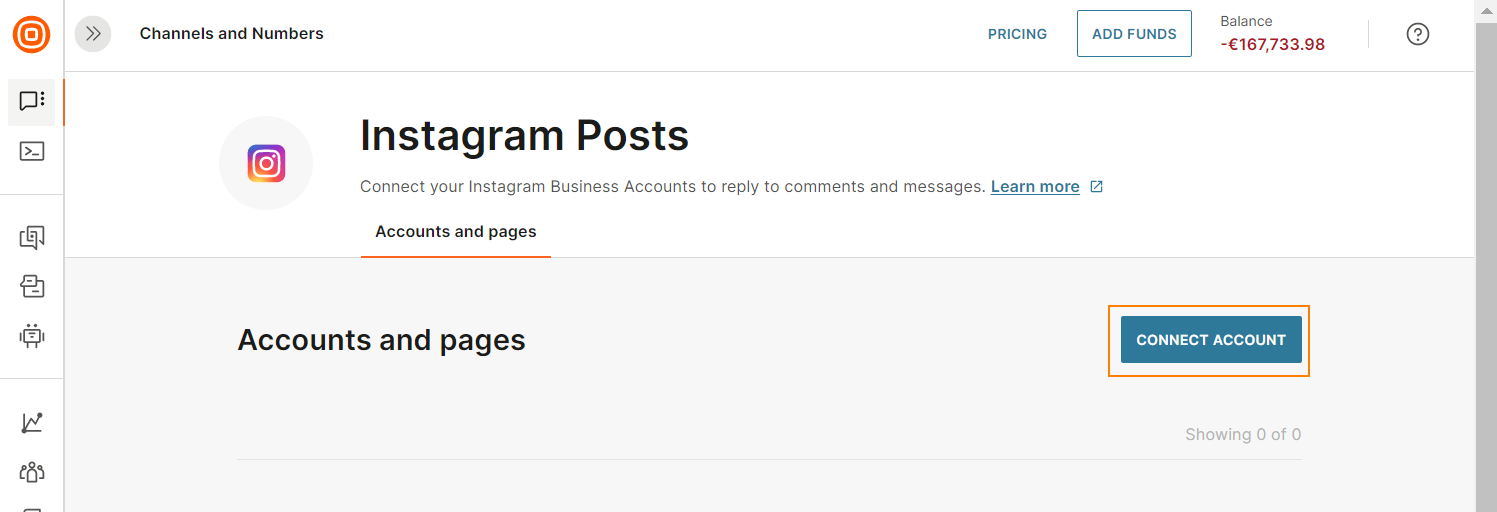
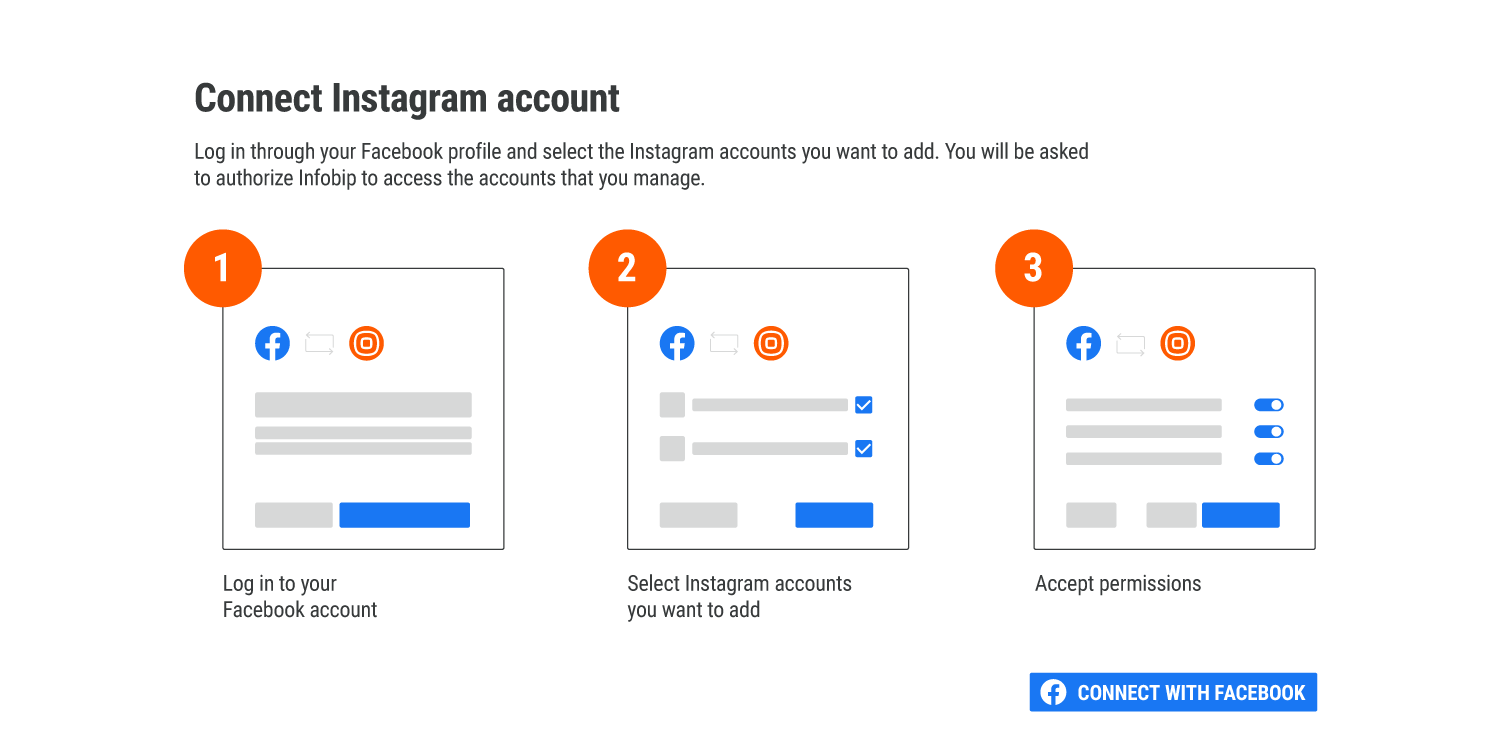
- Log on to your Facebook account. You must be the administrator of the Facebook page that you have connected to your Instagram page.
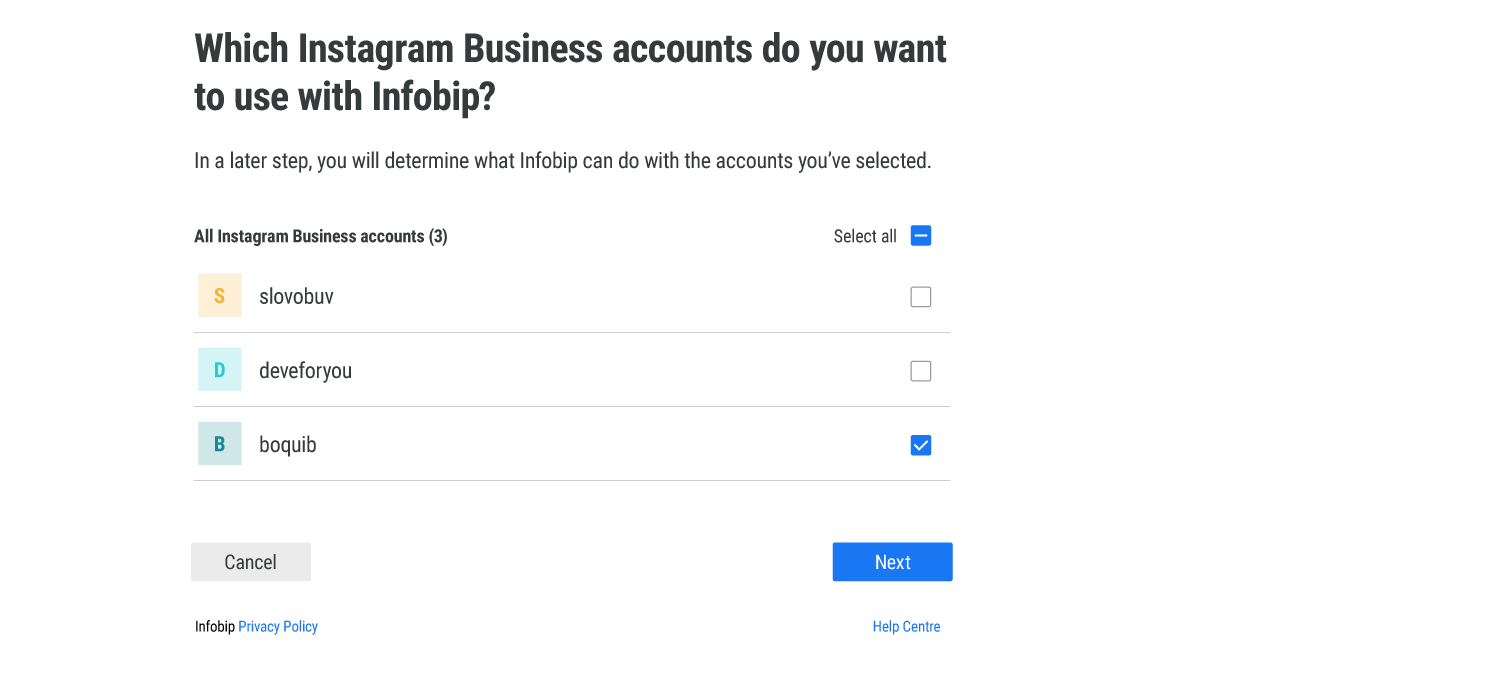
- Choose the Instagram pages that you want to integrate with Infobip.
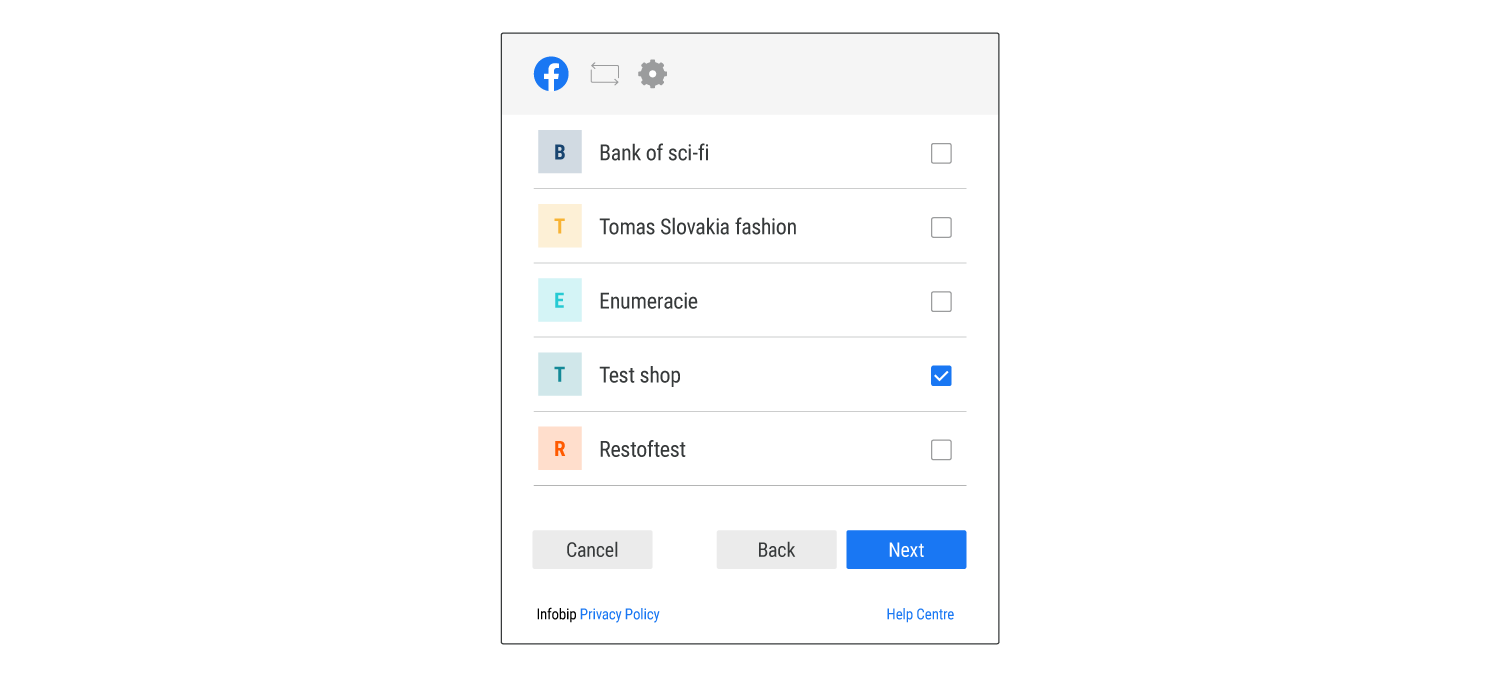
- Choose the Facebook page that you have connected with the Instagram page.
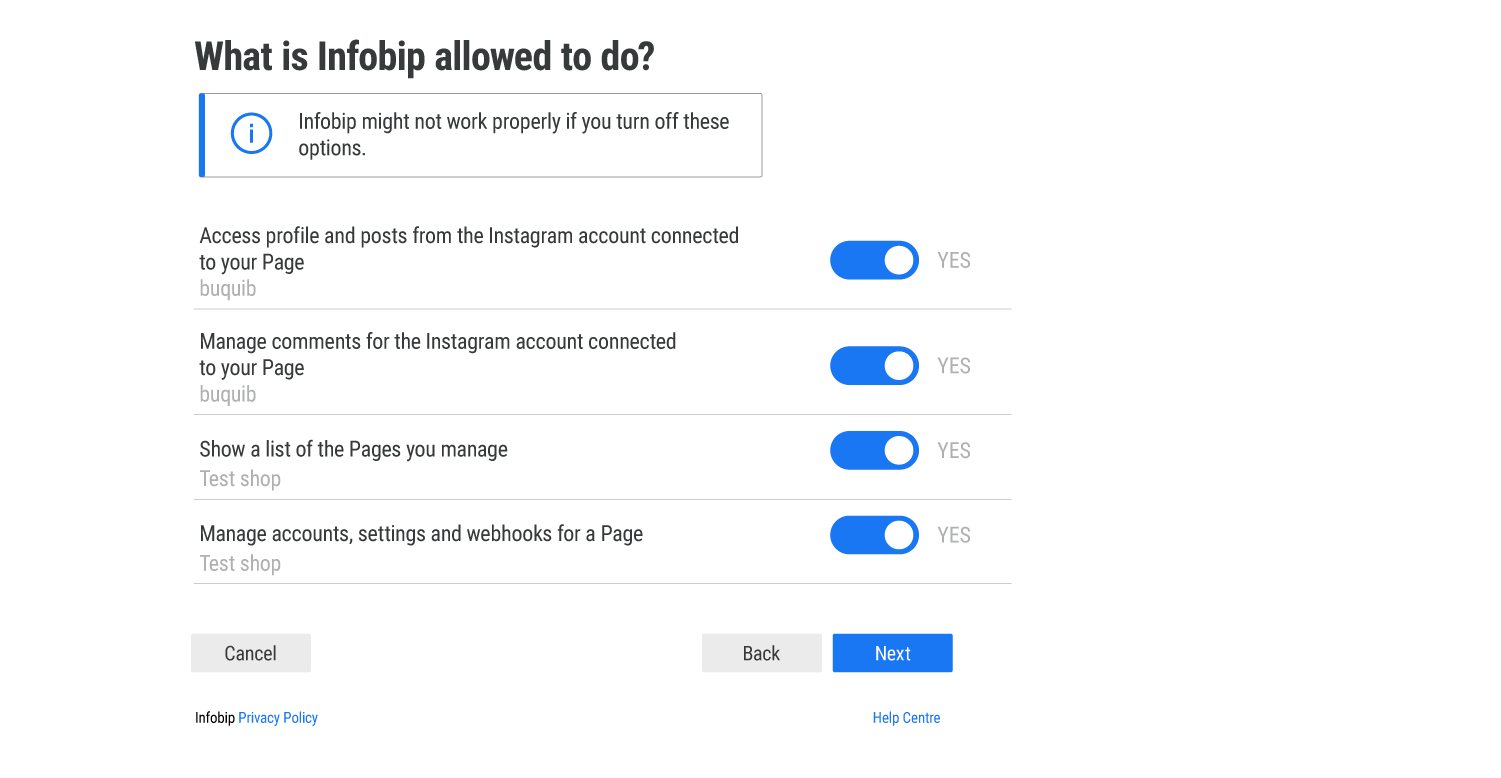
- Enable the permissions that are required for Infobip to manage the Instagram pages.
You will receive a notification that you have successfully connected your Instagram account with your Infobip account.