Troubleshoot Android and iOS issues
This page documents known RCS issues on Android and iOS with solutions and workarounds. For best practices and platform behavior guidance, see RCS behaviors and guidance.
If you encounter an issue not listed here, follow this reporting procedure:
iOS issues: Report the issue using the Apple Feedback Assistant (opens in a new tab) app. After submitting, send the Feedback ID (FBID) with detailed description, message screenshots, and video recordings (optional) to Infobip Support (opens in a new tab).
Android issues: Submit a bug report with detailed description, message screenshots, and video recordings (optional) to Infobip Support (opens in a new tab).
For a quick reference of platform differences, see Platform-specific behavior summary.
Android troubleshooting
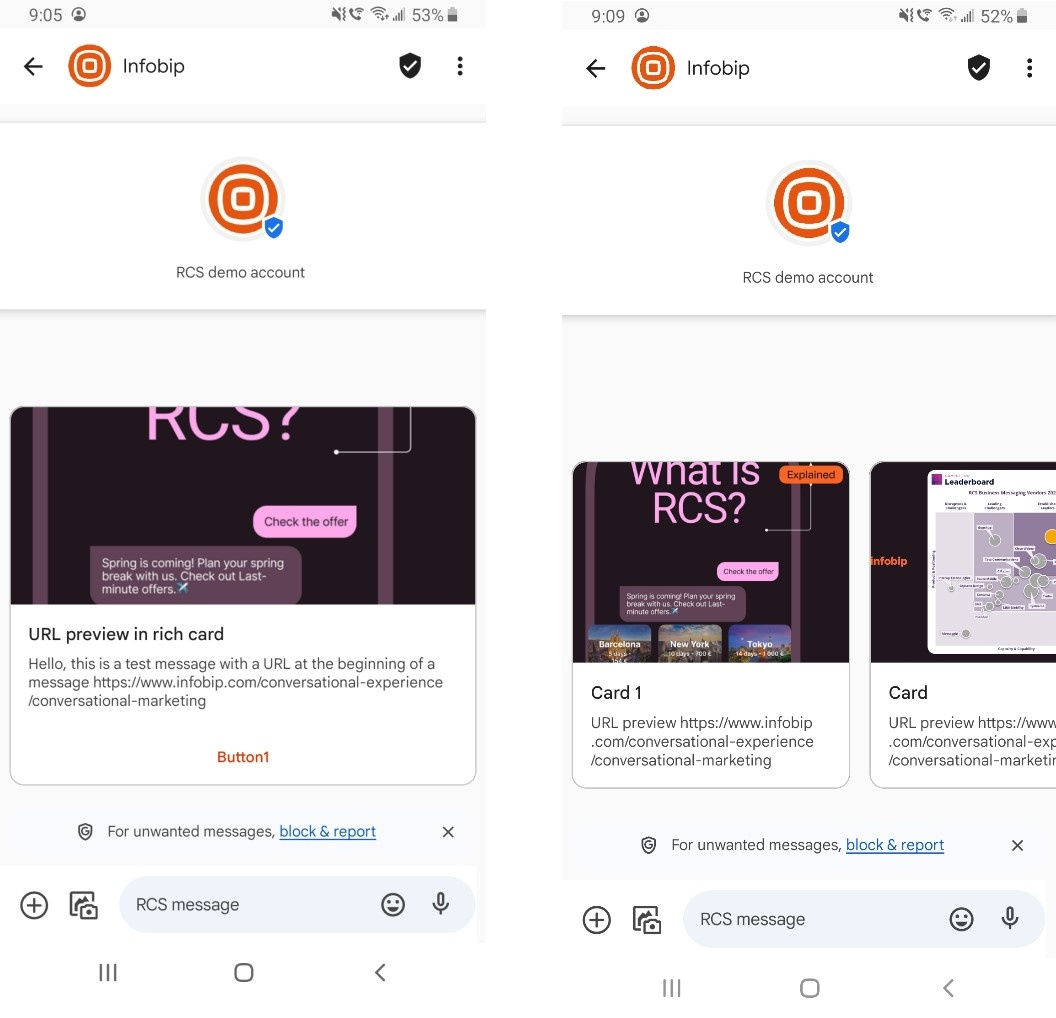
URL previews in rich cards and carousels
Issue: URL previews do not function in rich cards and carousels.
Solution:
Use suggested actions with the type OPEN_URL (Browser or WebView mode) to redirect users to web pages.
Agent preview changes (Android)
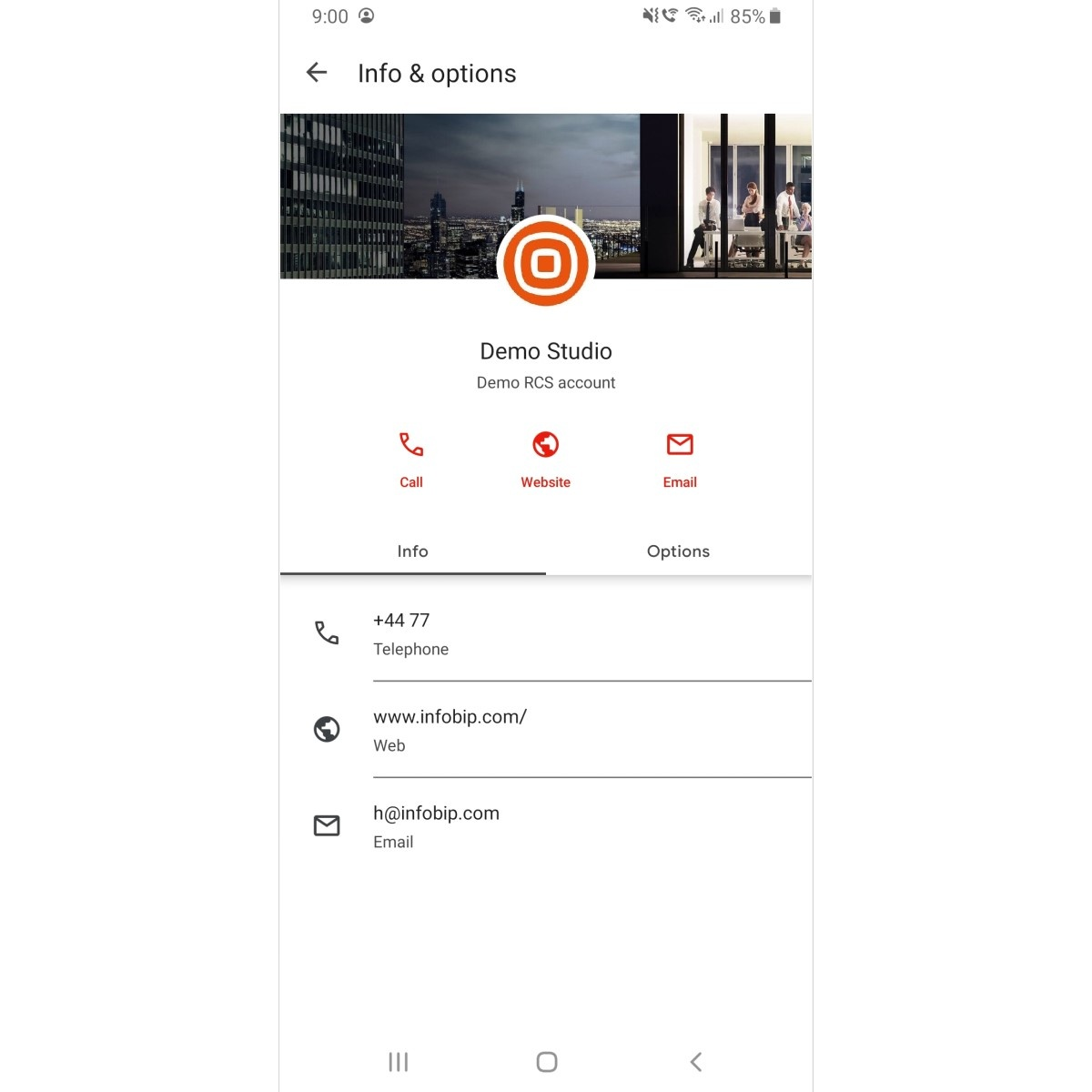
Issue: Changes made to the agent are not visible in the message thread, even after deleting the message thread and closing the messaging app. The agent preview displays information from the first message or conversation.
Solution: In the messaging app, clear the cache, data storage, and restart the device which will resolve this issue.
iOS troubleshooting
The table below shows iOS issues and the iOS versions where these bugs and errors may occur.
| Description | iOS 18.5 | iOS 26 |
|---|---|---|
| Agent preview changes | TRUE | TRUE |
| Agent preview - use case label | TRUE | TRUE |
| Agent preview - privacy policy | TRUE | TRUE |
| Agent details - multiuse label not visible | TRUE | TRUE |
| Agent details - Android and iOS | TRUE | TRUE |
| Media preview - vertical card orientation | TRUE | TRUE |
| Image preview - horizontal card orientation | TRUE | TRUE |
| Video preview - horizontal card orientation | TRUE | TRUE |
| URLs in rich cards and carousels | TRUE | TRUE |
| GIFs in rich cards and carousels | TRUE | TRUE |
| OTPs cannot be copied from rich card and carousel text | TRUE | TRUE |
| Carousel image cropping | TRUE | TRUE |
| Rich card and carousels - text description and font color | TRUE | TRUE |
| Rich cards and carousels - truncated titles | TRUE | TRUE |
| Rich card and Suggested actions behavior | TRUE | TRUE |
| Suggested actions - rendering issue | TRUE | TRUE |
| Unknown Senders filter | FALSE | TRUE |
Agent preview changes (iOS)
Issue: New changes made to the Agent are not visible in the message thread, even after deleting the message thread and closing the messaging app in the background. The agent preview always shows from the first message or conversation.
Solution: Perform a factory reset on the device. This clears the device cache and forces it to retrieve the most current chatbot information.
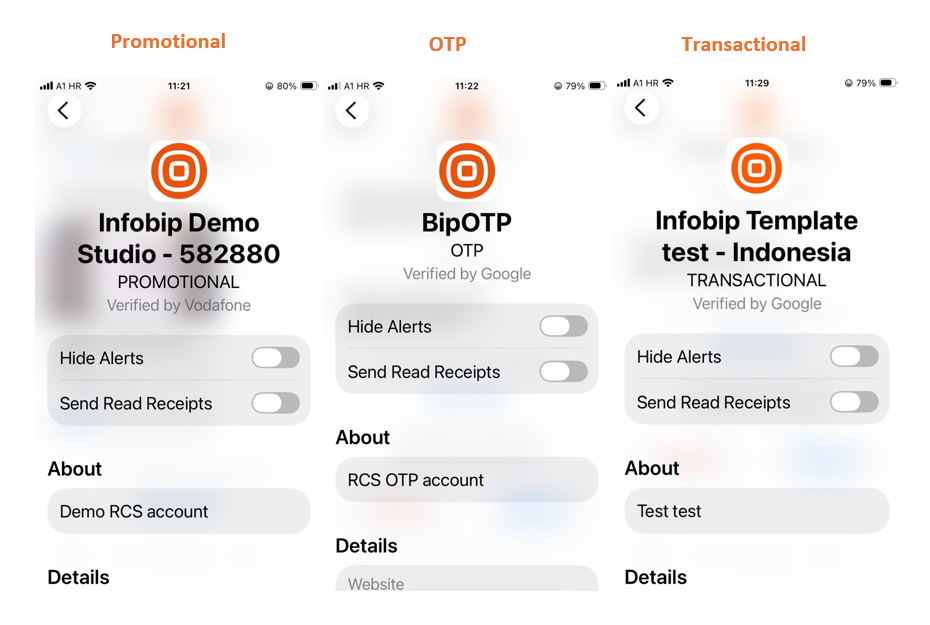
Agent preview - use case label
Issue: The agent use case label is visible by default on iOS and cannot be removed or formatted. It always appears in capital letters (OTP, PROMOTIONAL, TRANSACTIONAL) in the Agent details.
Solution: This is expected iOS behavior. Apple displays the use case label prominently for transparency. The label cannot be customized or removed, and always appears in capital letters (OTP, PROMOTIONAL, TRANSACTIONAL).
Agent preview - privacy policy
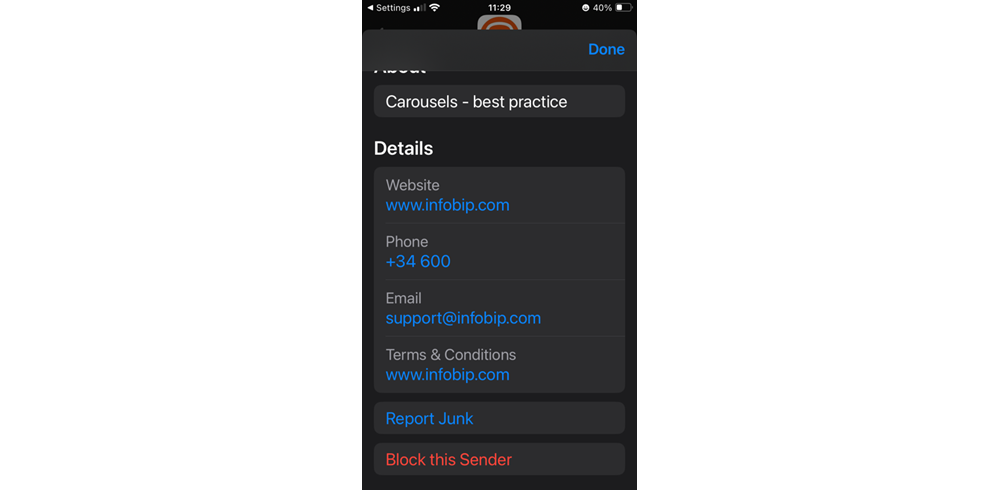
Issue: In the agent preview, the privacy policy is not visible on iOS, only Terms and Conditions.
Solution: This is expected iOS behavior. Apple's RCS implementation displays only Terms and Conditions in the agent preview, not privacy policies.
Agent details - multiuse label not visible
Issue: The multiuse label is not visible in the Agent details.
Solution: This is expected iOS behavior. Apple's RCS implementation does not display the multiuse label in agent details. The label is visible on Android devices.
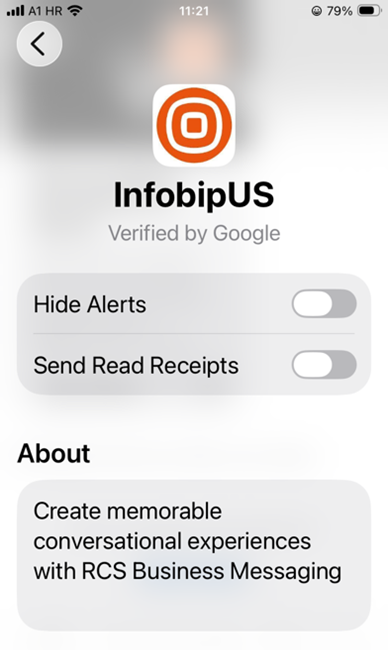
The privacy policy is visible on Android devices in the agent preview. For a complete platform comparison, see Platform-specific behavior summary.
Media preview - vertical card orientation
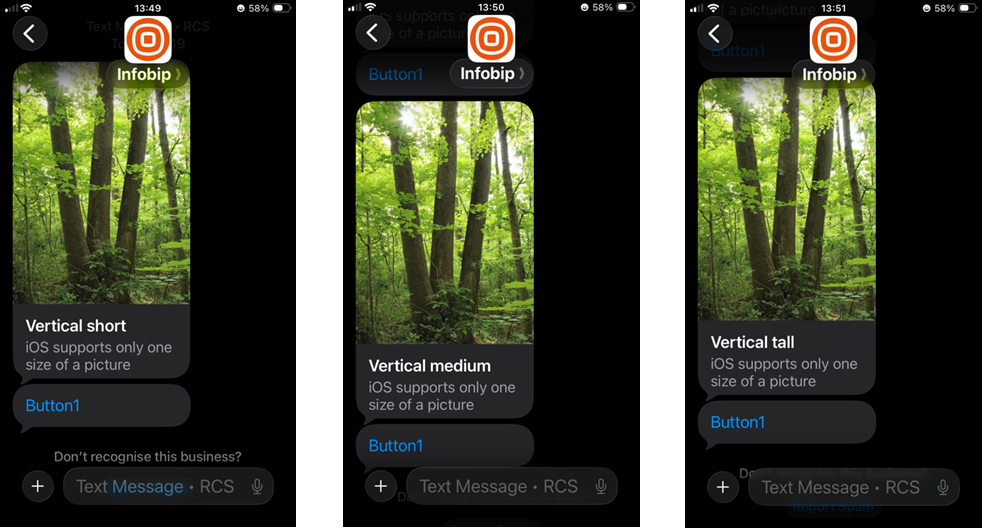
Issue: iOS only supports one card height (image and video). Regardless of selected vertical card height (short, medium, tall), iOS displays the same size.
Solution: Always use the vertical tall setup.
Image examples
Video examples:
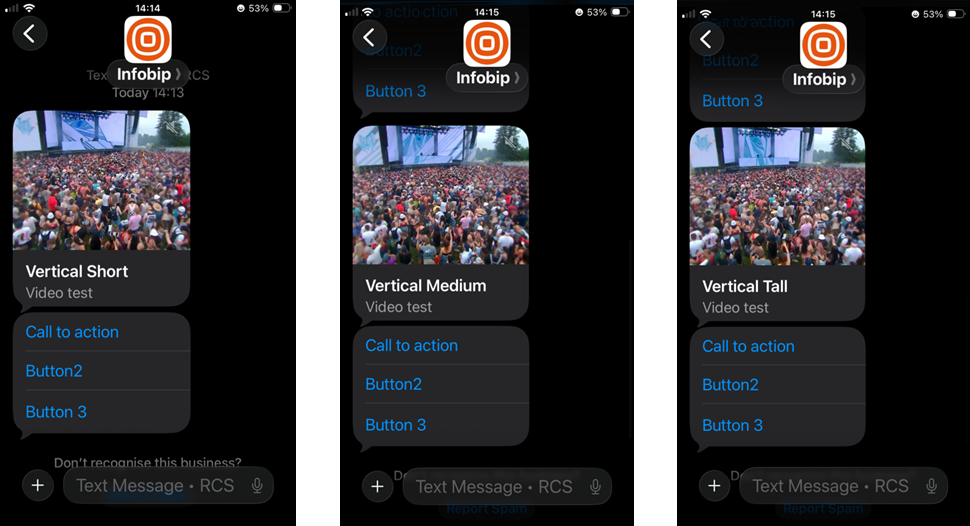
Image preview - horizontal card orientation
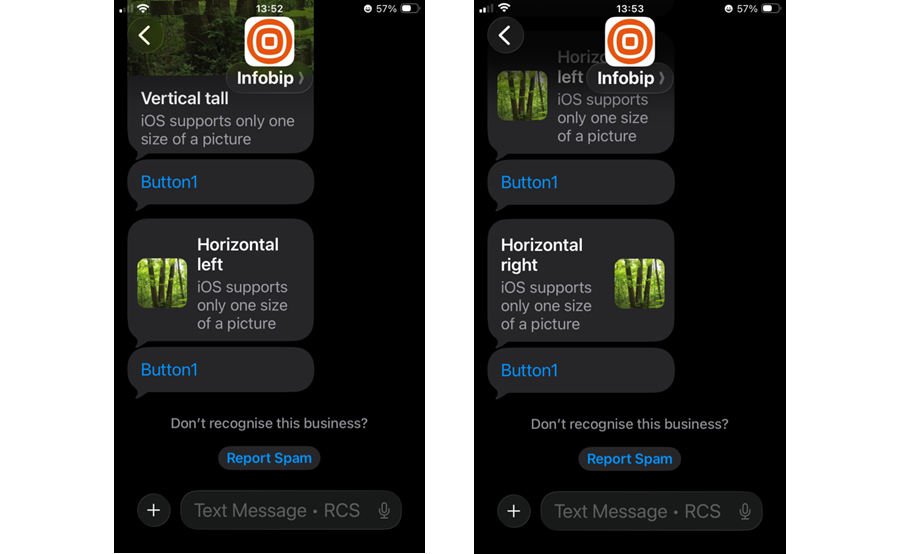
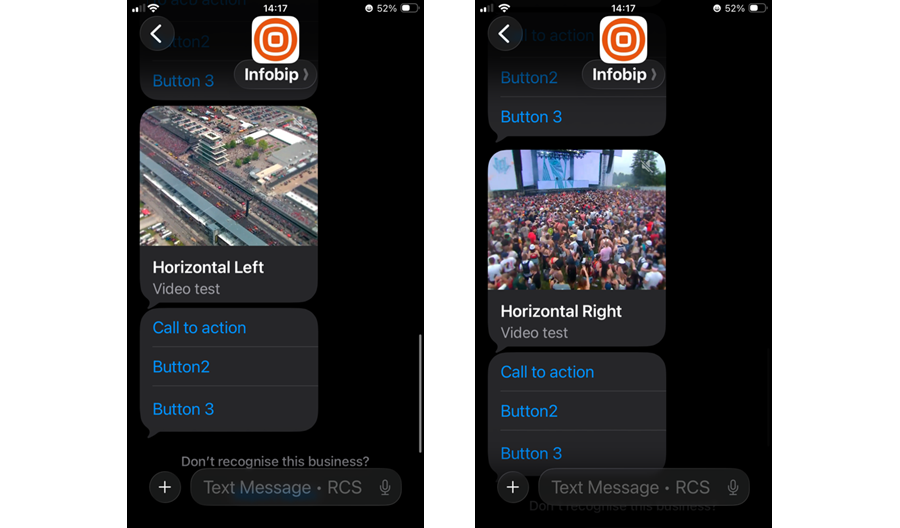
Issue: Image truncation occurs when using horizontal card orientation (left or right).
Solution: Use the vertical tall setup.
Video preview - horizontal card orientation
Issue: Videos show as vertical when using horizontal card orientation (left or right).
Solution: Use the vertical tall setup.
URLs in rich cards and carousels
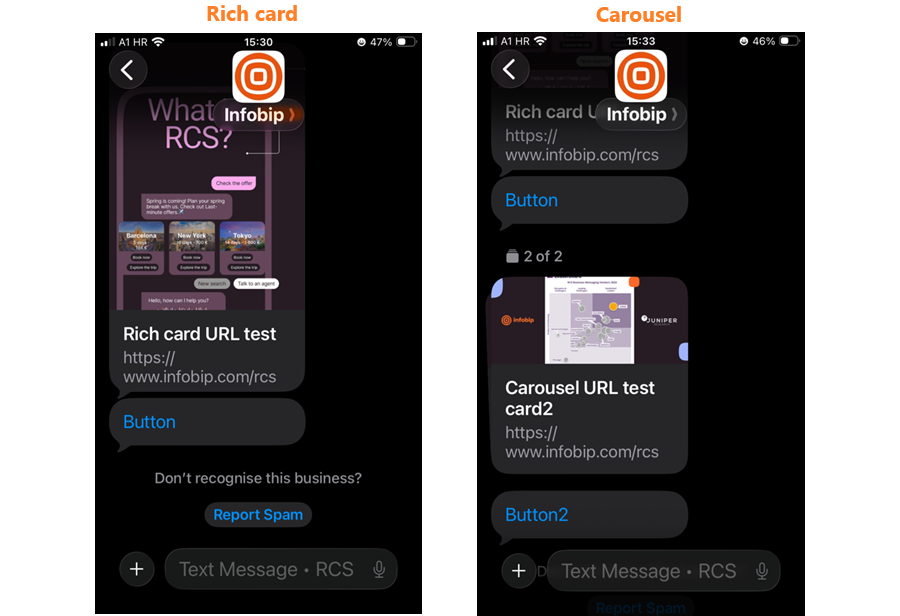
Issue: URLs in the description of a rich card or carousel are not clickable and appear as plain text.
Solution:
Use suggested actions with the type OPEN_URL (Browser or WebView mode) to redirect users to web pages. For platform differences in URL behavior, see Hyperlinks.
OTPs
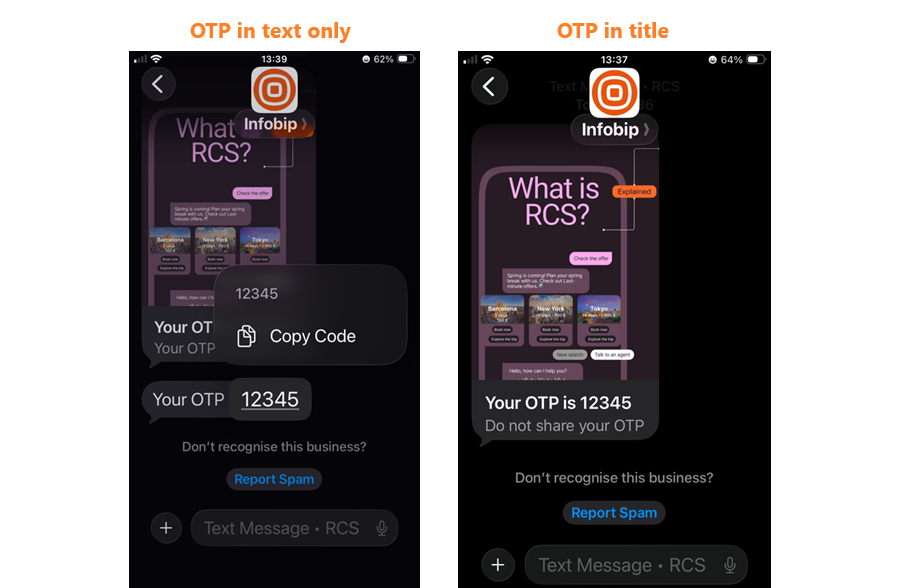
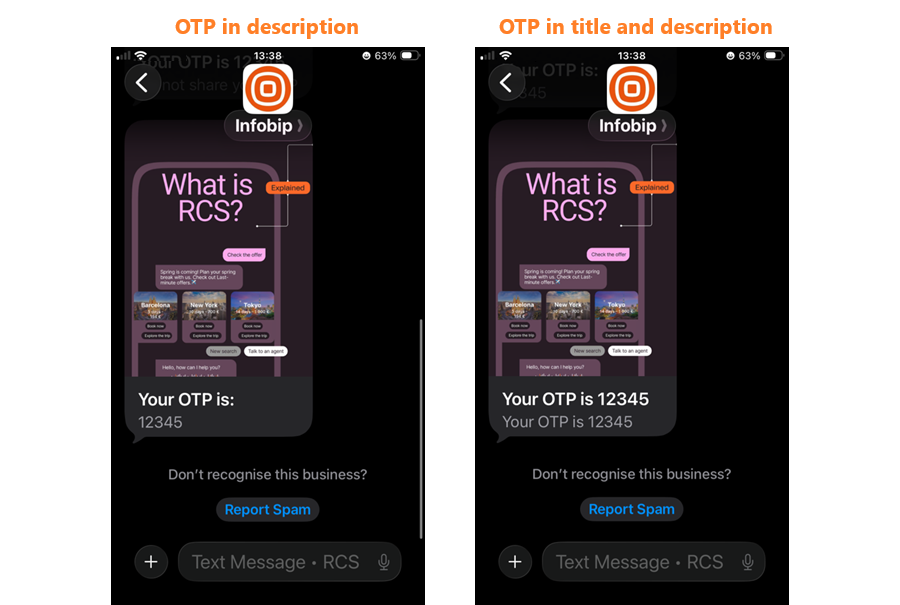
Issue: If an OTP is sent in the title, description, or both, the OTP cannot be copied from the text.
Solution: Send OTPs in text-only messages. For best practices on OTPs and other copyable information, see OTPs and sensitive information.
GIFs in rich cards and carousels
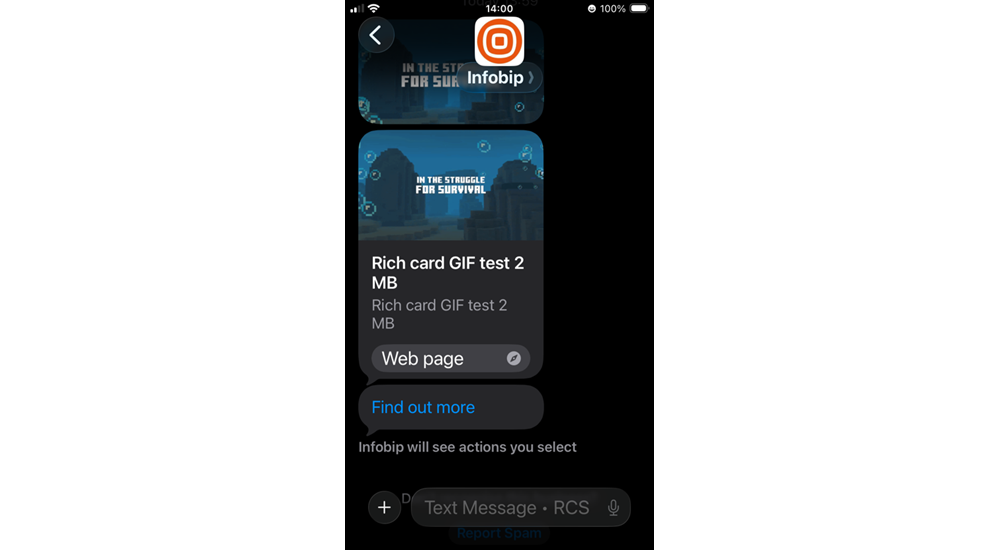
Issue: On iOS, GIFs only work when sent as files. In rich cards and carousels, GIFs appear as static images.
Solution: Use video format for animated content in rich messages. For more details, see Message content considerations - GIFs.
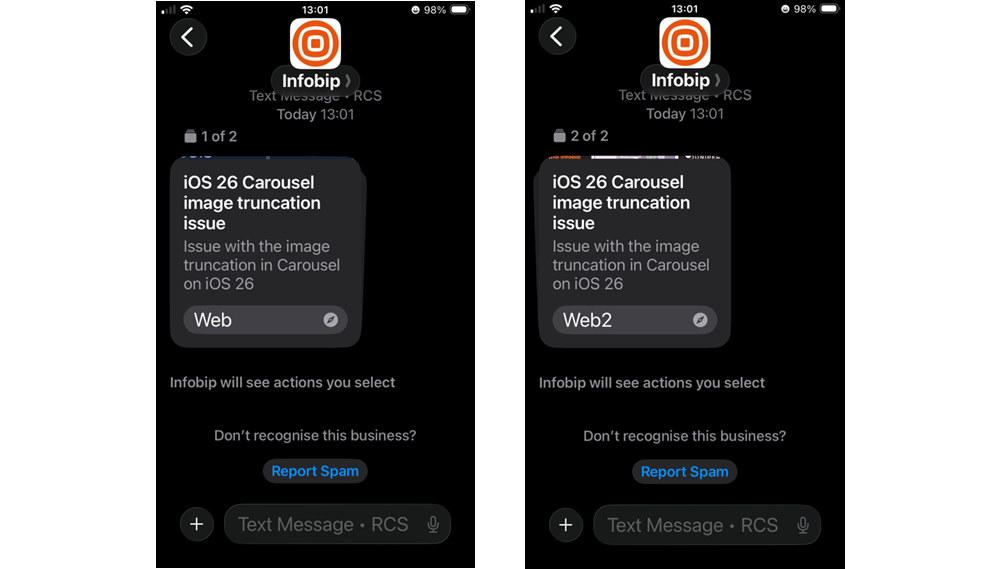
Carousel image cropping
Issue: If larger text sizes are used in iOS, iOS prioritizes rendering the title and action elements over the description text and media, resulting in image cropping.
Solution: Use a maximum of three lines for title and description text, a single CTA (suggested action), and up to three suggested replies. Make sure to use medium media width with medium media height.
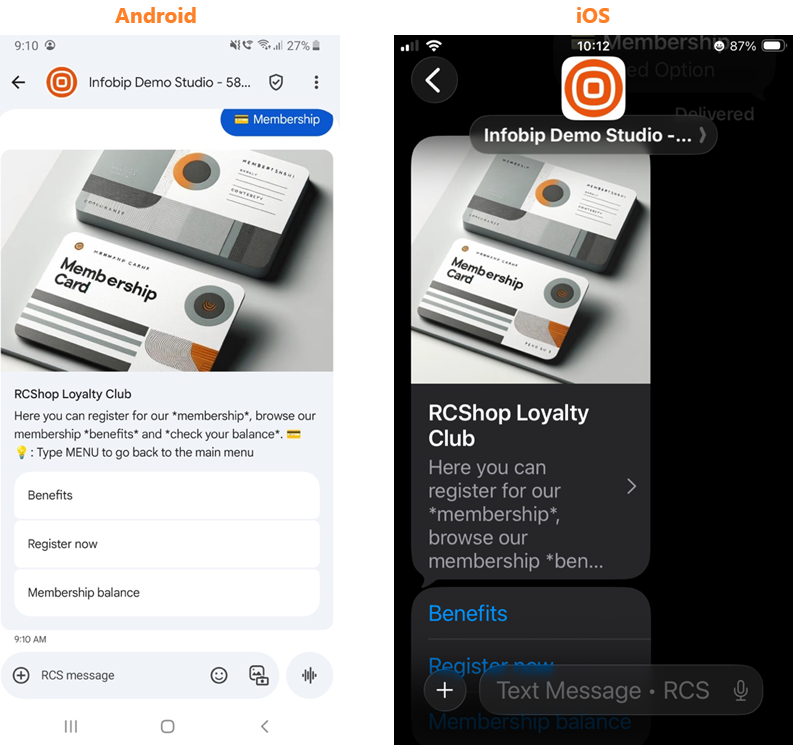
Rich card and carousels - text description and font color
Issue: The text color on rich cards and carousels is very light, which can make it difficult to read.
Solution: This is expected iOS behavior. Apple uses a light text color for rich card descriptions to maintain visual consistency with the iOS design system. Ensure your content is readable by using high-contrast media backgrounds.
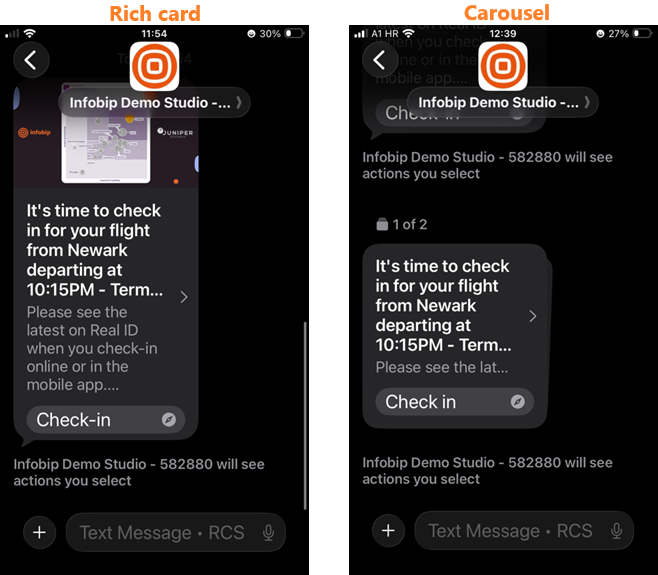
Rich cards and carousels - truncated titles
Issue: The title in rich cards and carousels is truncated when it contains too many characters.
Solution: Limit titles and descriptions to a maximum of three lines.
Rich card and suggested actions behavior
Issue: Rich card buttons and Suggested actions (outside of Rich card) are always visible, even after clicking on either Rich card buttons or Suggested actions. This behavior is related to the Suggested actions rendering issue described below.
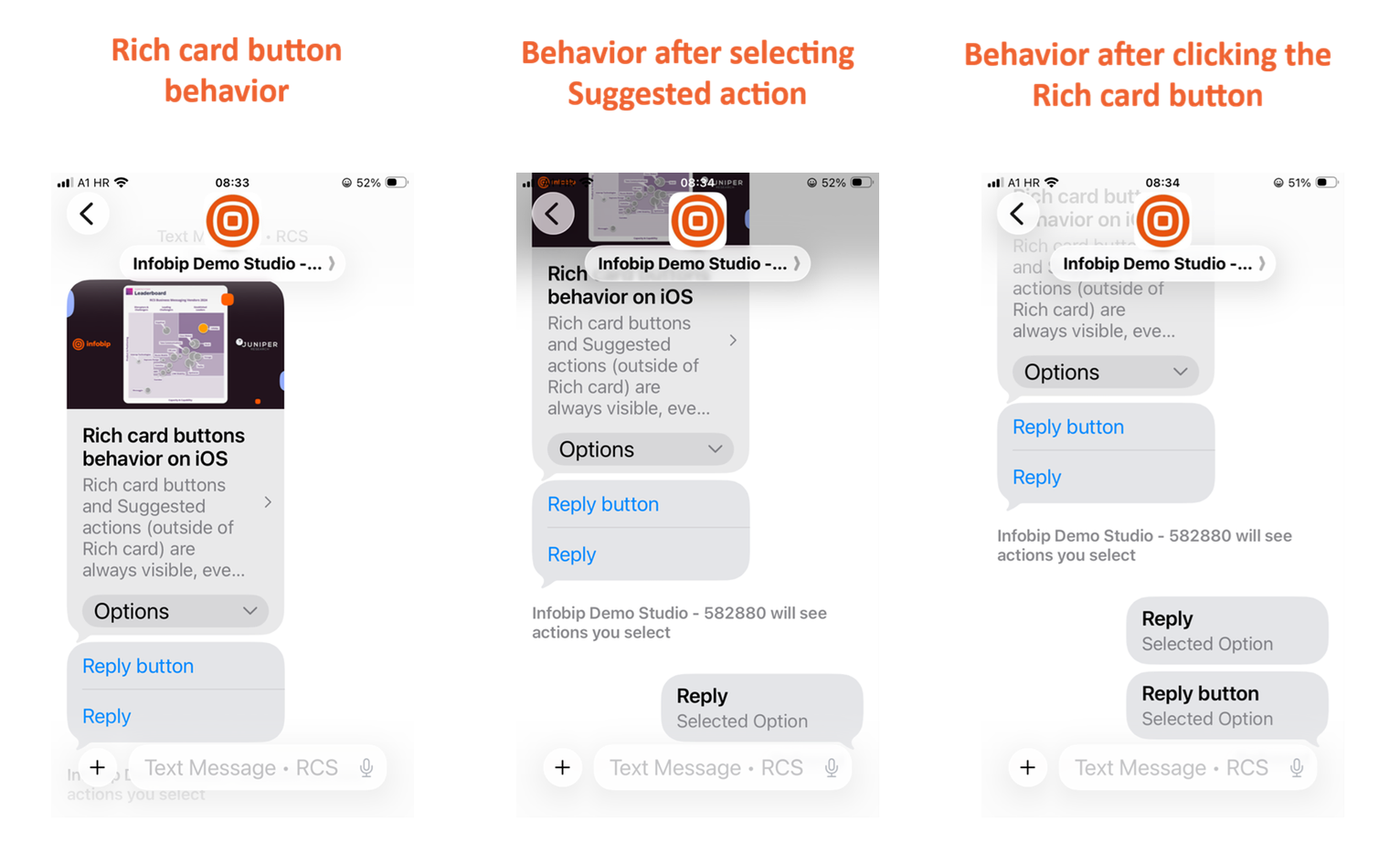
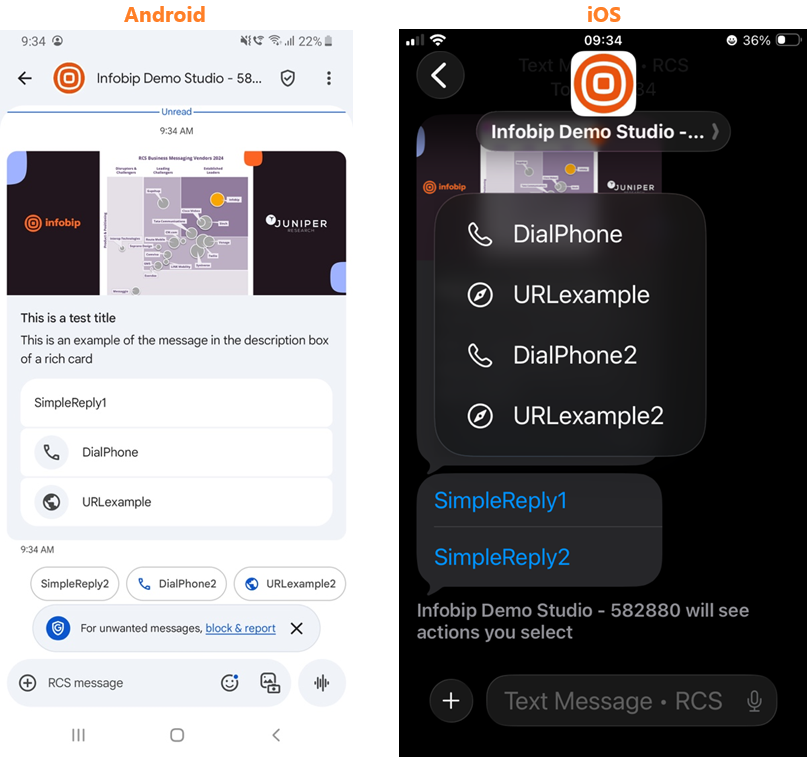
Suggested actions - incorrect sequence
Issue: Suggested replies appear in the wrong order. Suggested actions inside and outside the card are displayed together in one group.
Solution: A solution is not available.
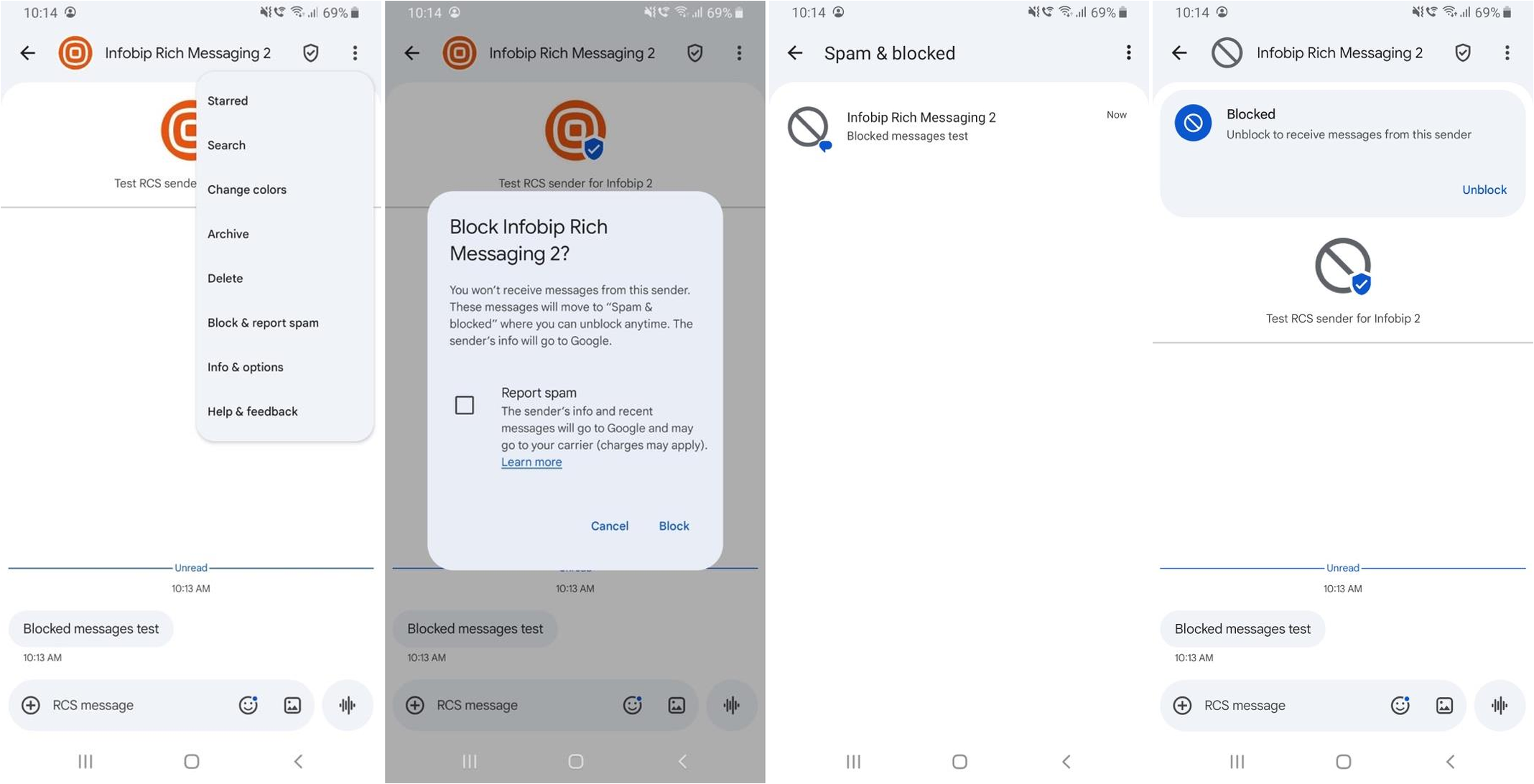
Block and report spam
End users can block RCS agents and report messages as spam. This behavior differs between Android and iOS. In all cases, the message is delivered to the messaging client and is billed to the messaging partner. The visibility of the message to the user is controlled by the messaging client, which stores the agent blocking information locally on the device. This information is not shared with Google to maintain user privacy.
Android
When an end user selects Block & Report Spam on Android, the following options are available:
- Block only: The conversation is moved to the Spam & blocked folder.
- Report spam and Block: The agent is blocked, the conversation is moved to the Spam & blocked folder, and a spam report is sent to Google. Spam reports influence an agent reputation. A change of device or MSISDN does not change the reputation.
New messages are delivered to the device but are not displayed to the end user.
iOS - Block this Sender
When an end user selects Block this Sender on iOS:
- The conversation remains in the messaging app.
- The agent is not added to the Blocked Contacts list automatically. The Blocked Contacts list in Settings > Phone > Blocked Contacts remains empty.
- To block the agent, the end user must manually add the agent ID to the Blocked Contacts list in Phone settings.
- After adding the agent ID manually, messages are not delivered to the device.
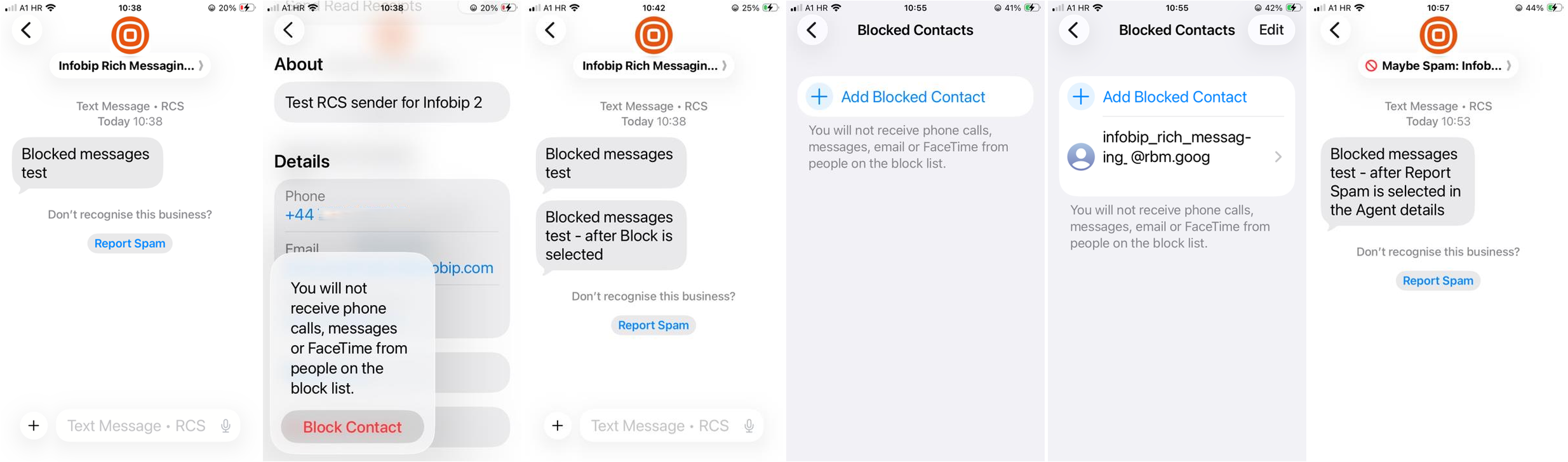
iOS - Report Spam
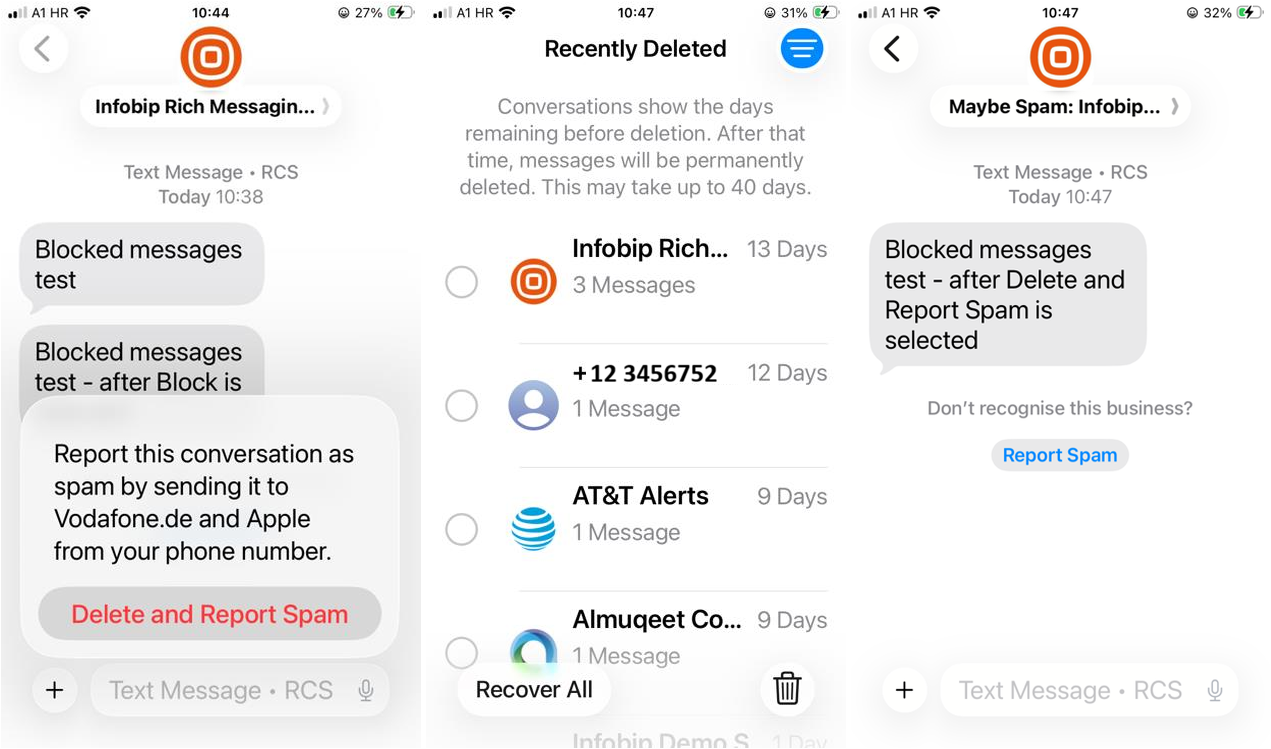
When an end user selects Report Spam > Delete and Report Spam in the messaging app:
- The messaging thread is deleted from the messaging app, and a spam report is sent to Google and the carrier to which the number belongs.
- The conversation is visible under the Recently Deleted folder.
- When a new message is sent to the same agent, the message is delivered and visible in the messaging app as a new conversation. The agent name is prefixed with "Maybe Spam".
iOS - Report Spam from agent details
When an end user selects Report Spam from the agent details screen:
- The messaging thread is deleted from the messaging app, and a spam report is sent to Google.
- The conversation is visible under the Recently Deleted folder.
- When a new message is sent to the same agent, the message is delivered and visible in the messaging app as a new conversation. The "Maybe Spam" prefix remains in front of the agent name.
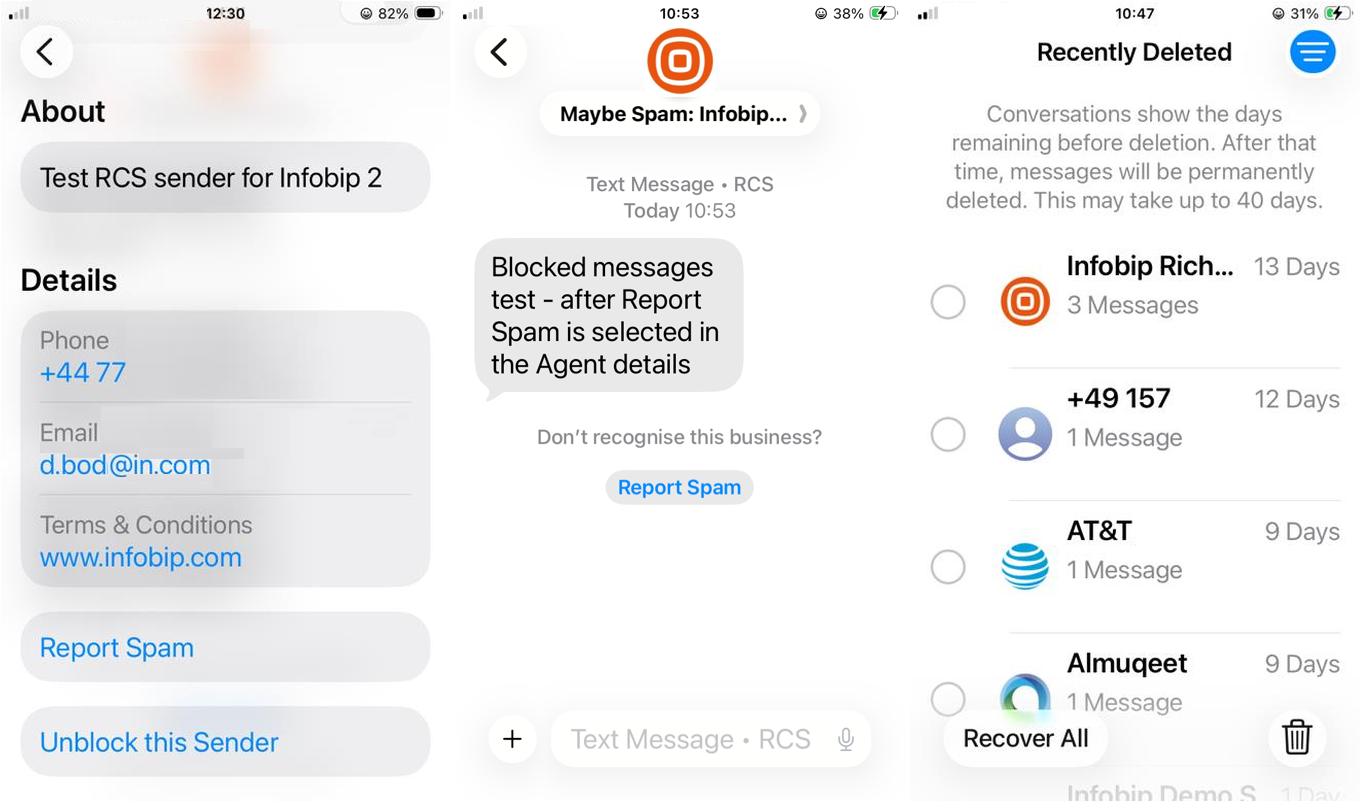
Deleted messaging threads can be recovered from the Recently Deleted folder in the Messages settings.
Unknown Senders (iOS 26 only)
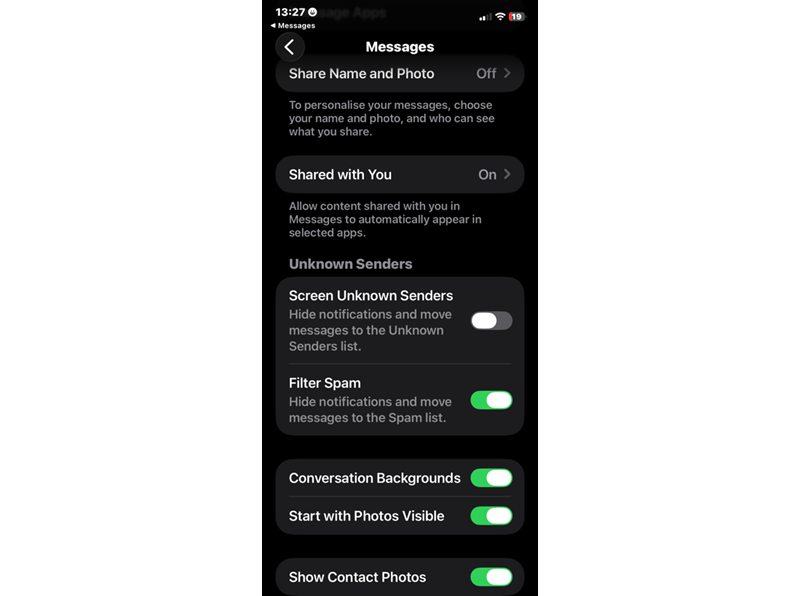
iOS 26 allows you to filter unknown senders. Messages are filtered to a separate folder and no notification is prompted.
To enable this feature:
- Go to Settings > Apps > Messages.
- Scroll down to Message Filtering.
- Turn on the filter under Screen Unknown Senders.
If you miss a message while this filter is on, check to see if the sender was filtered in Unknown Senders. Tap filters in the top right corner of the conversation list and select Unknown Senders.
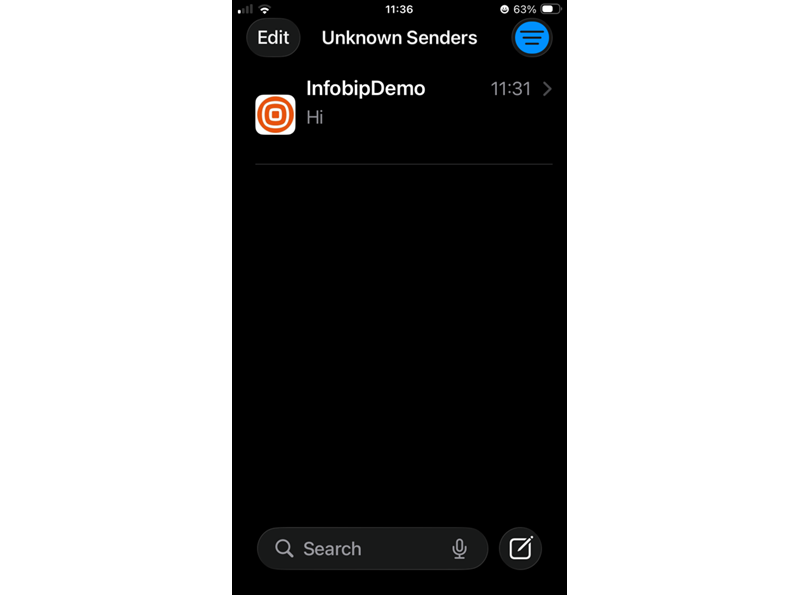
This feature is disabled by default. When enabled, it can reduce visibility and have an impact on RCS performance.
If you enable the Unknown Sender filter:
- Messages from unknown senders are silenced.
- You do not receive any push notification or badges on the iMessage app.
- Senders do not appear in the main inbox, they are moved to the Unknown Sender inbox.