Integrate with Answers
Use with Answers
Add AI agents to Answers chatbots to enhance chatbot capabilities and simplify creation.
Use the AI agent in a chatbot
In your chatbot, use the Agent connector element to add an AI agent.
- Add the Agent connector element from the Apps from Exchange section in the Build side panel.
- Configure the element.
- Provide the input to the element.
- Save the response from the AI agent in an attribute.
- Either return the response to the end user or use it for further processing in your chatbot.
Configure the Agent connector element
Request
Configure the following fields:
Agent ID
Enter the ID of the AI agent.
User message
Specify the end user message that the chatbot received.
Example: Use the lastReceivedTextMessage predefined attribute.
Session ID
Specify the ID of the chatbot session.
Example: Use the sessionId predefined attribute.
End user destination (Optional)
Specify the contact information of the end user.
Example: Use the endUserDestination predefined attribute.
Agent context (Optional)
Select an attribute that contains additional context for the AI agent.
Response
Save responses from the AI agent in attributes.
In the Response tab, complete the following fields:
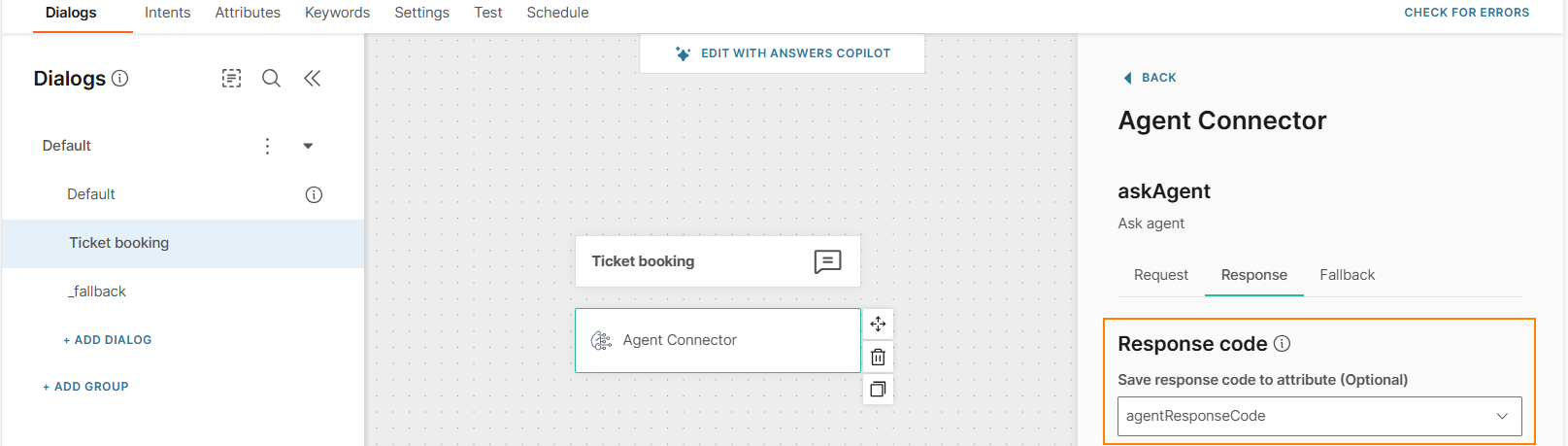
Save response code to attribute (Optional)
To save response code, do the following:
- Create an attribute to save the response code.
- Select the attribute in the Save response code to attribute field.
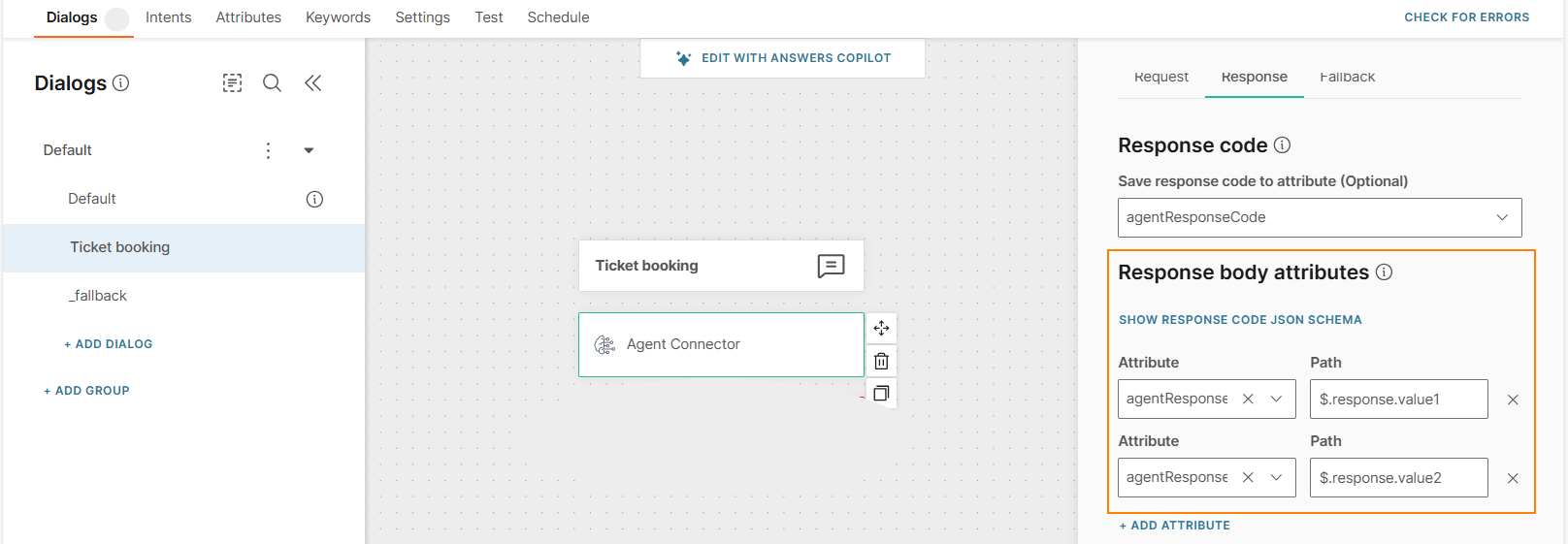
Response body attributes
To save the body of the response, do the following:
- Create one or more attributes to save the response body.
- Select Add attribute.
- In the Attribute field, select the attribute from the list.
- In the Path field, enter the path to the attribute. The path is the location of the attribute value in the JSON file hierarchy.
Timeout
Specify how long you want to wait for the response. The minimum value is 1 second and the maximum value is 60 seconds.
Fallback
Configure the fallback to make sure that the end user gets a response from the chatbot even if there is an error.
Use also for API failures
Enable this option to trigger fallback in case of 4xx and 5xx errors.
Next steps
- Manage agents: Edit, duplicate, export, and import agents.
- Advanced features: Orchestration, structured output, and custom prompts.