Manage your agent
View and manage all AI agents in your account.
AI agents page
The AI agents page is where you view and manage all your AI agents.
To access the agents page, go to AI agents > Agents.
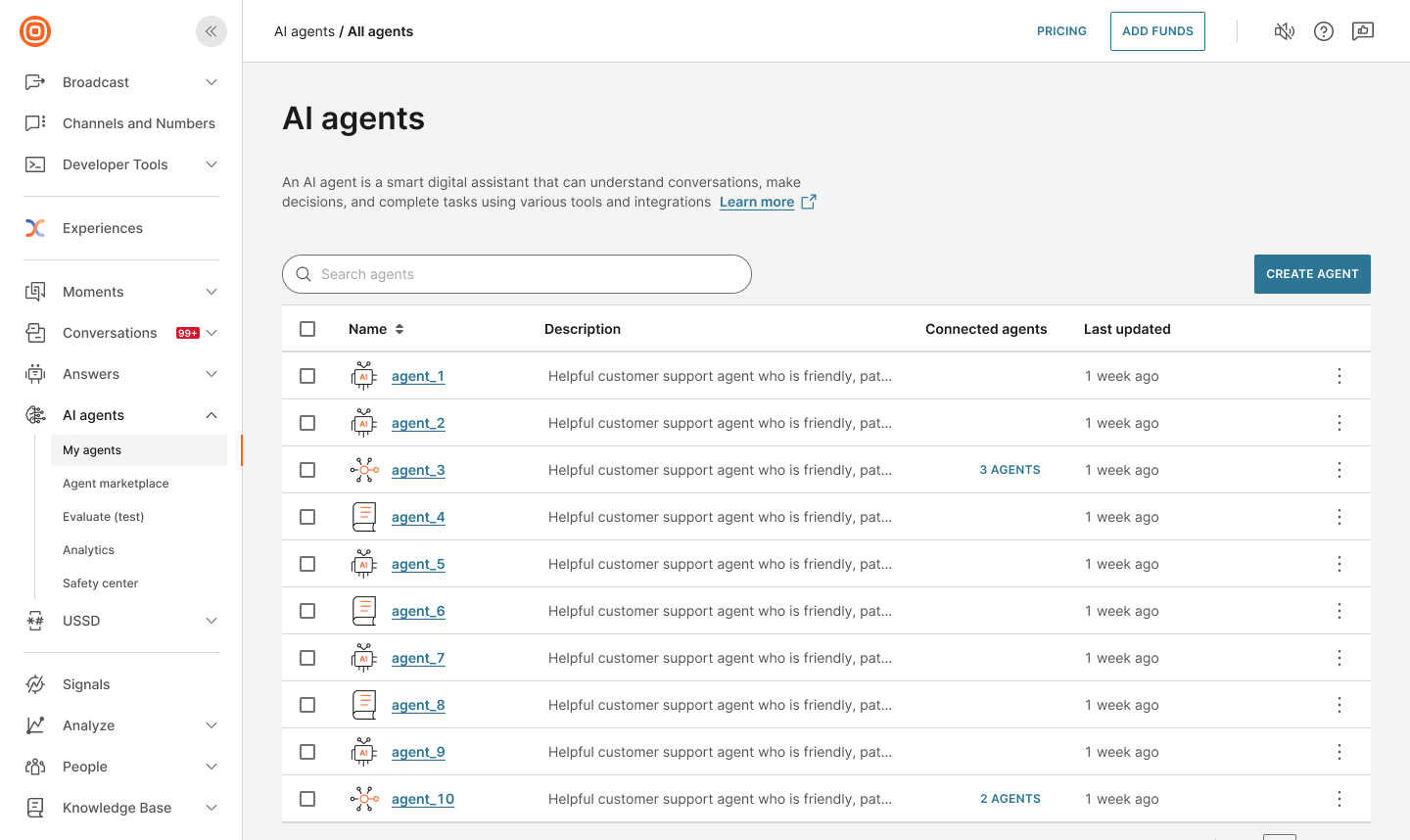
On this page, you can do the following:
-
Search: Search for agents by name by using the search box
-
Sort: Sort agents by using the table headers
-
Import: Import agents by selecting Import agent
-
Create: Create new agents by selecting Create agent
-
View agents: View a list of agents. For each agent, you can view the following information:
- Name: Agent name
- Description: Agent description
- Connected agents: Number of connected sub-agents (for orchestrators only)
- Last updated: Date and time of last modification
For each agent, you can do the following through the menu (three dots):
- Edit: Update the agent configuration
- Publish: Publish the agent
- Duplicate: Create a copy of the agent
- Export: Export the agent configuration
- Delete: Remove the agent
Edit an AI agent
- On the Infobip web interface (opens in a new tab), go to AI agents > Agents.
- Select the menu (three dots) for the required AI agent.
- Select Edit.
- Update the AI agent to meet your use case and requirements.
Duplicate an AI agent
You can duplicate an AI agent from the My agents page or from within the agent.
Duplicate from the My agents page
- On the Infobip web interface (opens in a new tab), go to AI agents > Agents.
- Select the menu (three dots) for the required AI agent.
- Select Duplicate.
- Update the AI agent to meet your use case and requirements.
Duplicate from within the AI agent
- On the Infobip web interface (opens in a new tab), go to AI agents > Agents.
- Open the required AI agent.
- In the menu (three dots), select Duplicate.
- Update the AI agent to meet your use case and requirements.
Export an AI agent
- On the Infobip web interface (opens in a new tab), go to AI agents > Agents.
- Select the menu (three dots) for the required AI agent.
- Select Export.
The file is saved in .export format.
Import an AI agent
You can import files that were previously exported in .export format.
- On the Infobip web interface (opens in a new tab), go to AI agents > Agents.
- Select Import agent.
- Find the required export file and select Import.
The file is imported and listed on the My agents page.
Delete an AI agent
You can delete an AI agent from the My agents page or from within the agent.
Delete from the My agents page
- On the Infobip web interface (opens in a new tab), go to AI agents > Agents.
- Select the menu (three dots) for the required AI agent.
- Select Delete.
Delete from within the AI agent
- On the Infobip web interface (opens in a new tab), go to AI agents > Agents.
- Open the required AI agent.
- In the menu (three dots), select Delete.
View agent manifest
The manifest shows the full configuration of the AI agent in JSON or YAML format.
- On the Infobip web interface (opens in a new tab), go to AI agents > Agents.
- Open the required AI agent.
- In the three-dots menu, select View as code.
For more information about agent manifests, refer to Agent manifests.
Next steps
- Explore advanced topics: Orchestration, structured output, and effective prompts.
- Build additional agents: Create agents for other use cases.