Detailed report
A detailed report provides you with information about sent or received messages.
Meta is changing the WhatsApp Business Platform billing model. Starting July 1, 2025, charges will apply per template message instead of per conversation.
This update affects the WhatsApp Detailed Report, which includes:
- the standard detailed report
- the billing detailed report (used for conversation-based billing)
From July 1 onward, the billing detailed report will no longer be generated for new traffic.
If you require data for financial purposes, use the Financial report instead.
Create a detailed report
To create a detailed report, follow these steps:
-
In the web interface, go to Analyze > Reports.
-
In the Report type section, select Detailed, and then Create Report.
-
In the Detailed Report Content > Channels and Services section, select the channels that you want to track.
- By default, all channels are selected.
- To track a specific channel, clear the channels that you do not need.
- To quickly update your selection, use None and All.
-
In the Recurrence and date range section, set the following:
- Whether the report is one-time or recurring
- The date range for the report
-
In the Filters section, set the following:
- Whether to generate the report By send time or By done time
- The message status (Delivered, Pending, Rejected, Undeliverable, Expired)
- To see more options, select View additional filters
-
In the Options section, set the following:
- File format: Select
.xlsxor.csv - Unique reports: Choose whether you want separate reports by account, sender, user, or title.
- Columns: Choose whether the report contains all columns or only the columns that you select.
- Direct link: Choose whether you want to generate a shareable link to the report. Anyone with the link can download the report. The link is valid until the report status changes to Expired.
IMPORTANT
The Direct link option is not enabled by default and is available only on request.
- Recipients: Enter the recipients to whom you want to send the report.
- File format: Select
-
Select Create report.

View or download a report
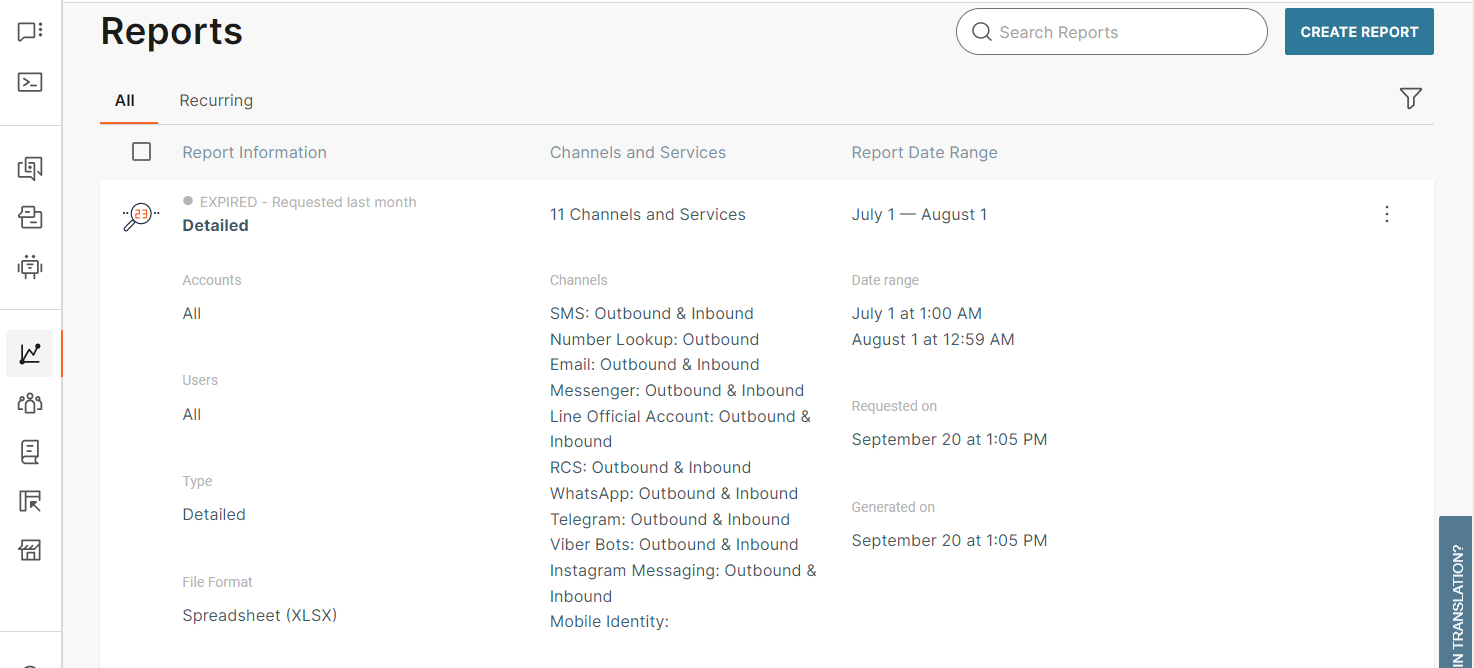
After the report is generated, download the report or view it in the web interface.
For more information, see Download or view report data from the web interface.
If your SMS API request contains a callbackData field with JSON, the system parses the JSON and displays it as separate columns in the report. You can use this data for metadata such as the sending department or an internal account ID.