Manage reports
Use reports to analyze your messaging traffic and performance. You can generate one-time or recurring reports, track report status, view reports in the web interface, share reports with others, and export report data to your systems.
Statuses of reports [#statuses-of-reports]
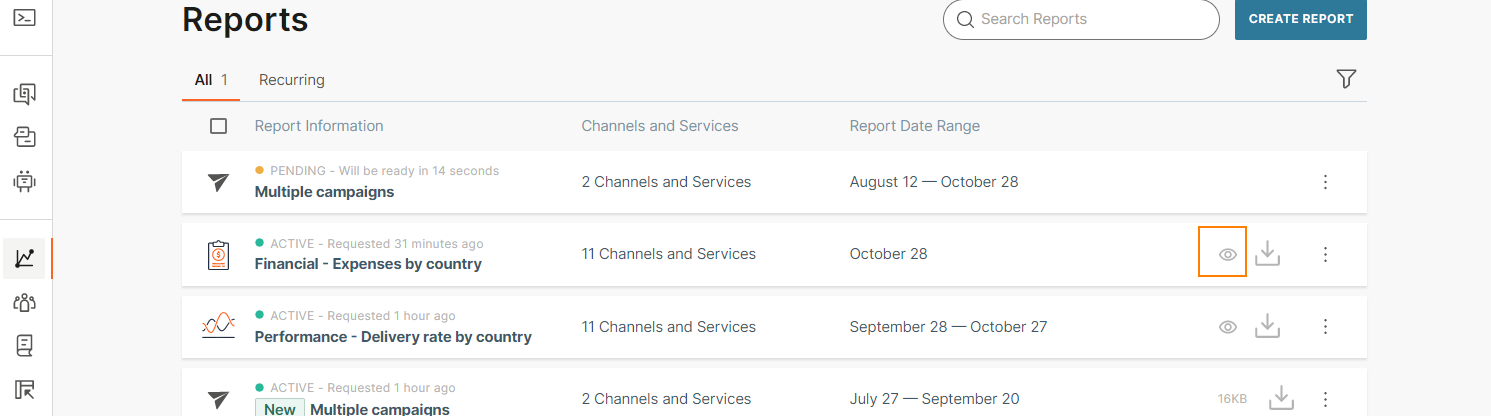
Your report requests have one of the following statuses:
- Pending: The report is being generated.
- Active: The report is generated and available to download or view.
- Expired: More than 72 hours have passed since the report was generated. The report is no longer available to download or view.
- To generate the report again, select the More actions menu (three dots) for the expired report and select Clone.

- Failed: The report generation failed due to a data or consistency issue.
- Clone the report and request it again. If the issue persists, contact Support.
- Stopped: A recurring report was automatically paused because recent reports were not downloaded or viewed:
- Monthly: The last 2 reports were not downloaded or viewed.
- Weekly: The last 4 reports were not downloaded or viewed.
- Daily: The last 14 reports were not downloaded or viewed.
Download or view report data from the web interface [#download-or-view-report-data-from-the-web-interface]
In addition to downloading a report, you can view the report in the web interface.
- In the web interface, go to Analyze > Reports.
- In the list of reports, find the report that you want to view.
- Select the eye icon.
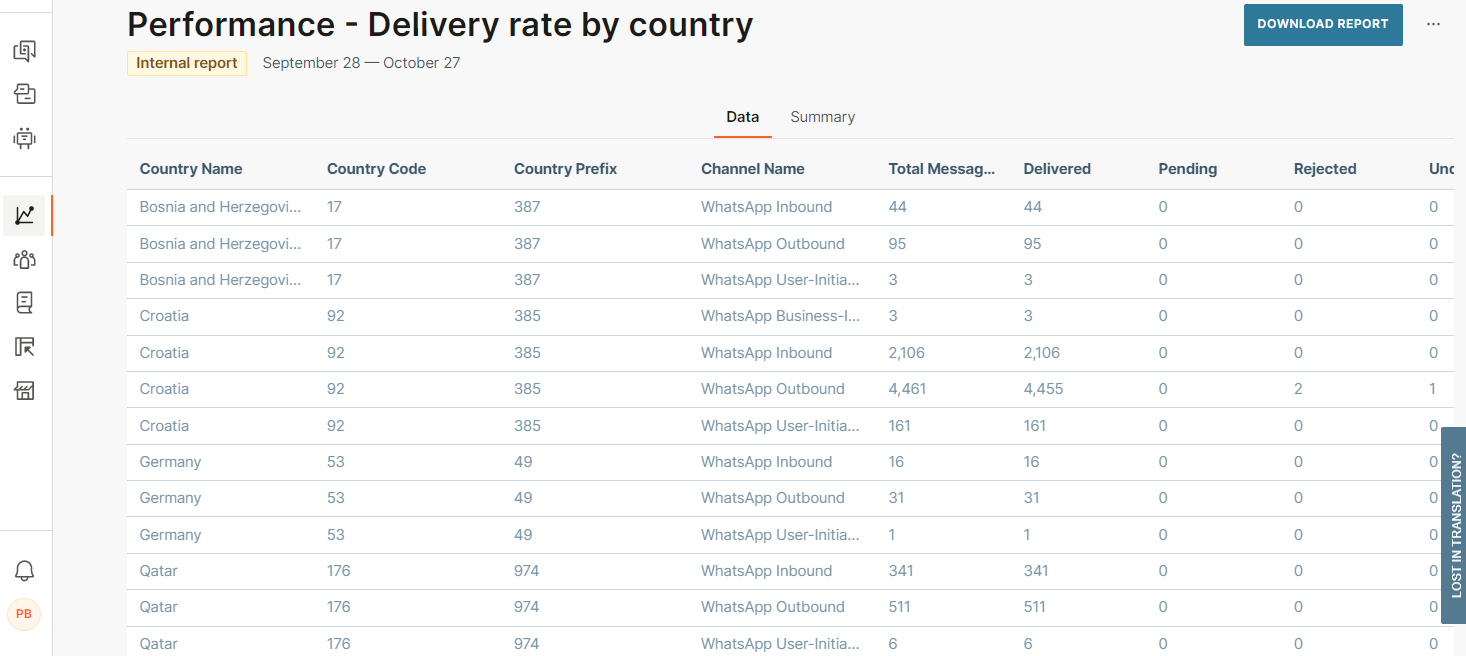
The report view shows the same data as the downloaded report, including the report name, a formatted table, and report attributes such as creation date, applied filters, and date range.
Recurring reports and report sharing [#recurring-reports-and-report-sharing]
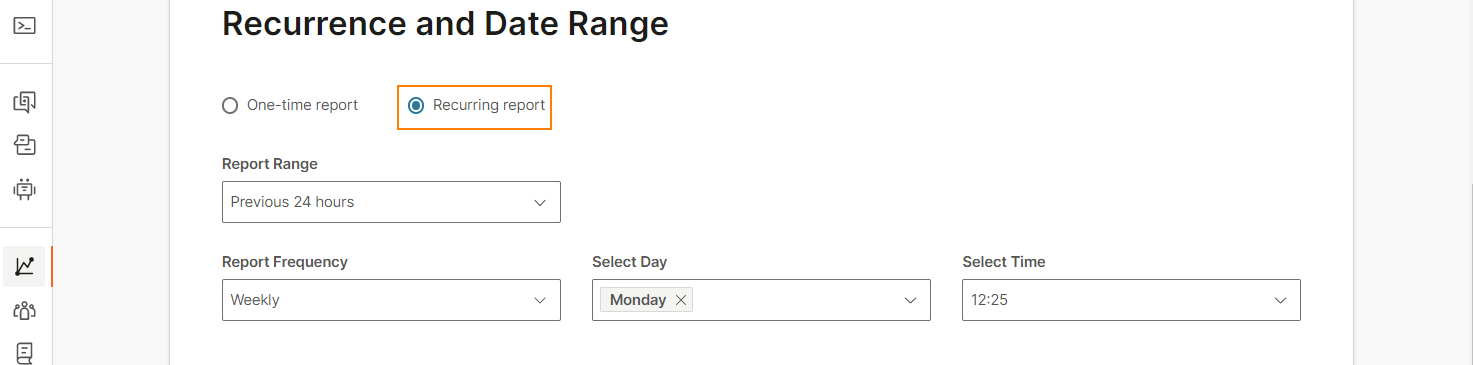
You can avoid creating reports manually by setting up recurring reports. When you create a report, choose the date range, recurrence frequency, and the day and time when you want the report delivered.
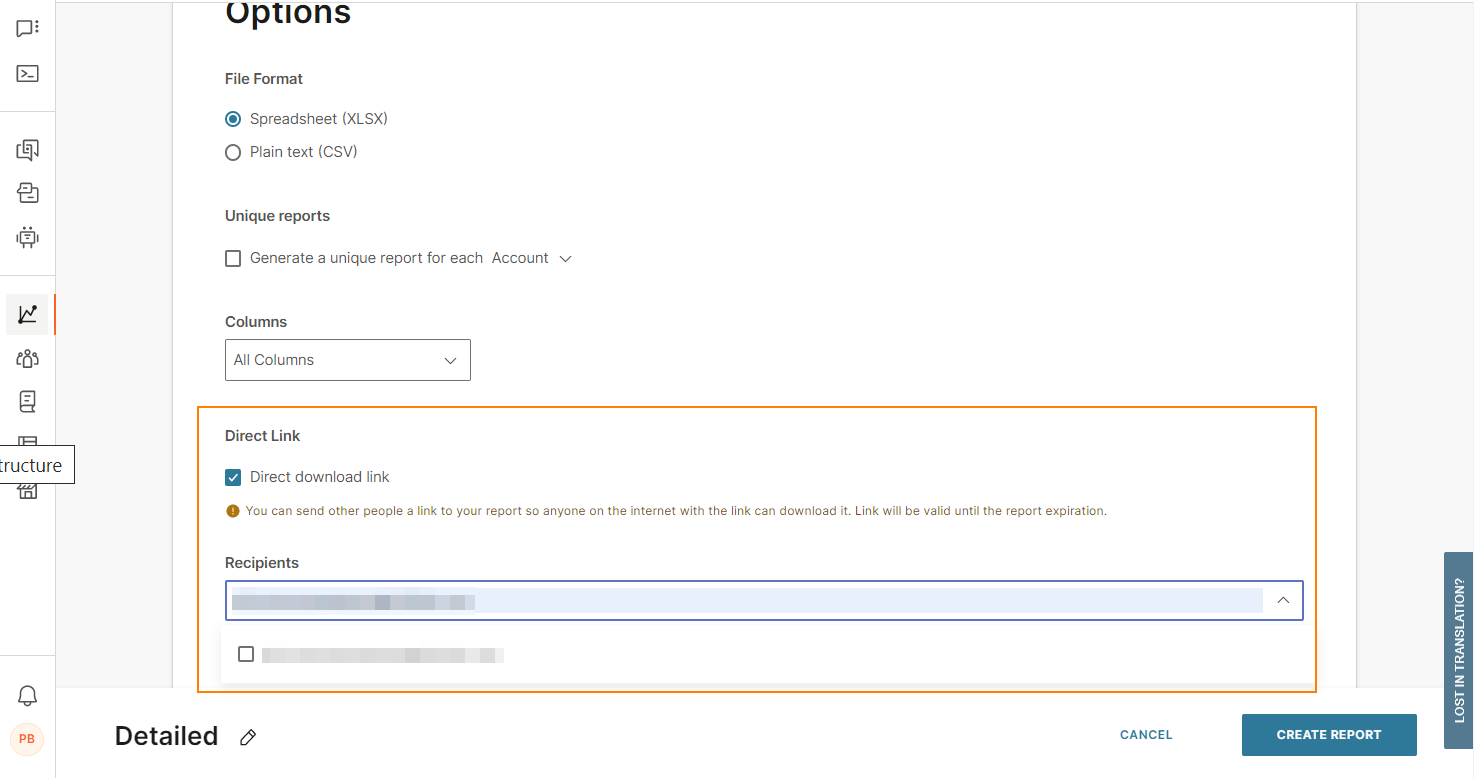
You can also share reports with other people. When you create a report, set one or more of the following options:
- Direct link: Choose whether you want to generate a shareable link to the report. Anyone with the link can download the report. The link is valid until the report status changes to Expired.
IMPORTANT
The Direct link option is not enabled by default and is available only on request.
- Recipients: Enter the recipients to whom you want to send the report.
Export report [#export-report]
You can export reports to your systems to consolidate, enrich, and compare data, and to analyze it for insights. Use the Export option to exchange data between Infobip systems and your systems.
After you configure export, each generated report is automatically uploaded to the configured destination. This applies to one-time and recurring reports.
For more information, see Data export.