Manage RCS block and spam reports
End-user spam reports drive Google's enforcement of RCS Business Messaging. This page explains how Google evaluates spam feedback, how end users block and report RCS messages on Android and iOS, and what an agent owner should review when a Spam Notice is issued.
For known device-specific issues such as media rendering or agent preview, see Troubleshoot Android and iOS issues. For platform behavior differences, see Understand platform behavior differences.
How Google evaluates RCS spam
Google RCS Spam Notices are not based on technical spam detection. They are driven by aggregated end-user feedback, such as users selecting Report Spam in Google Messages or Apple iMessage. This feedback does not include MO STOP messages.
Google evaluates spam feedback on a per-country basis, comparing individual agents against overall market behavior using dynamic thresholds.
When an agent exceeds acceptable levels, a Spam Notice is generated and shared with Infobip. The relevant Sales or Account Manager then reaches out with guidance and recommended next steps.
How end users block and report RCS messages
End users can block RCS agents and report messages as spam. This behavior differs between Android and iOS. In all cases, the message is delivered to the messaging client and is billed to the messaging partner. The visibility of the message to the user is controlled by the messaging client, which stores the agent blocking information locally on the device. This information is not shared with Google to maintain user privacy.
Android
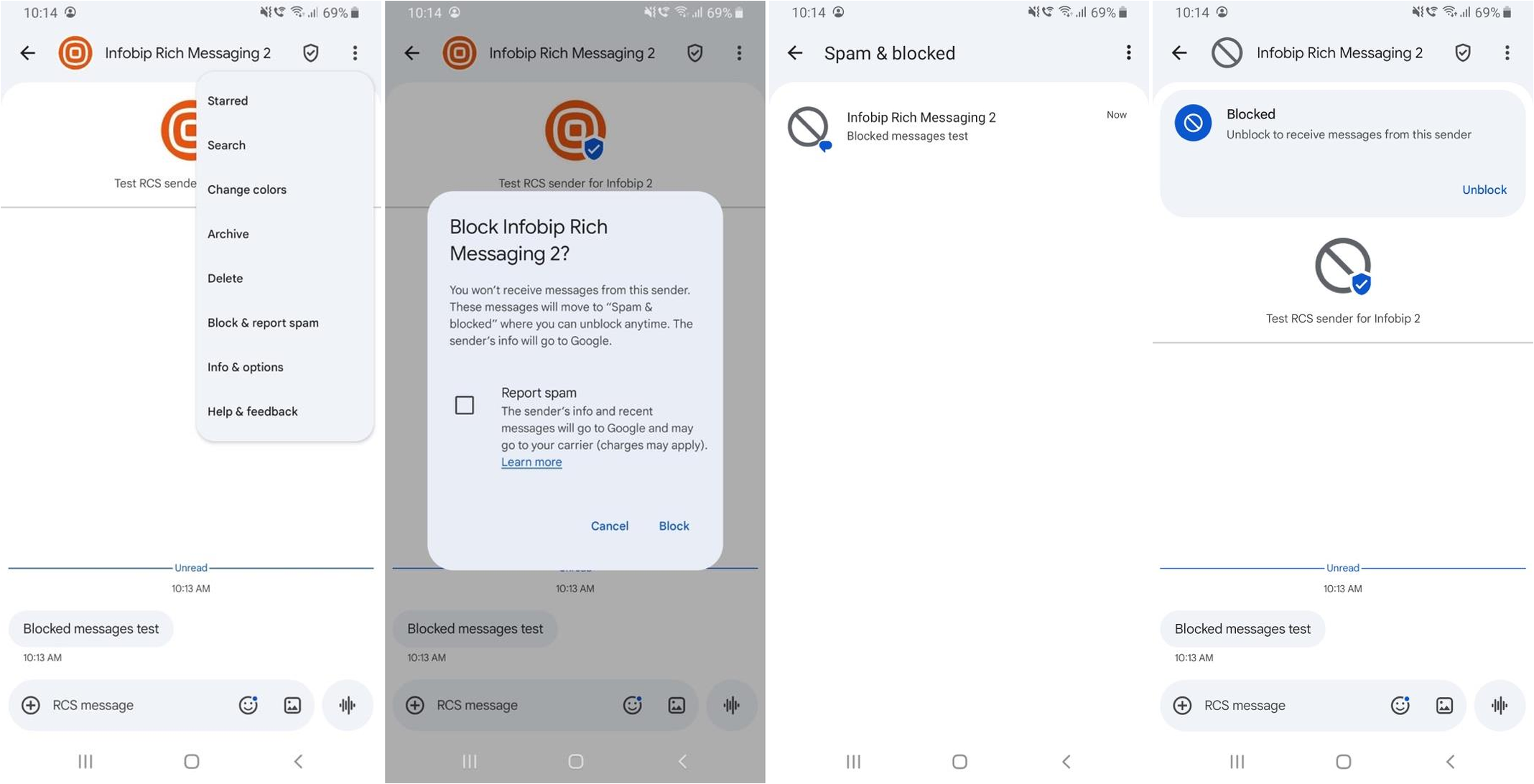
When an end user selects Block & Report Spam on Android, the following options are available:
- Block only: The conversation is moved to the Spam & blocked folder.
- Report spam and Block: The agent is blocked, the conversation is moved to the Spam & blocked folder, and a spam report is sent to Google. Spam reports influence an agent reputation. A change of device or MSISDN does not change the reputation.
New messages are delivered to the device but are not displayed to the end user.
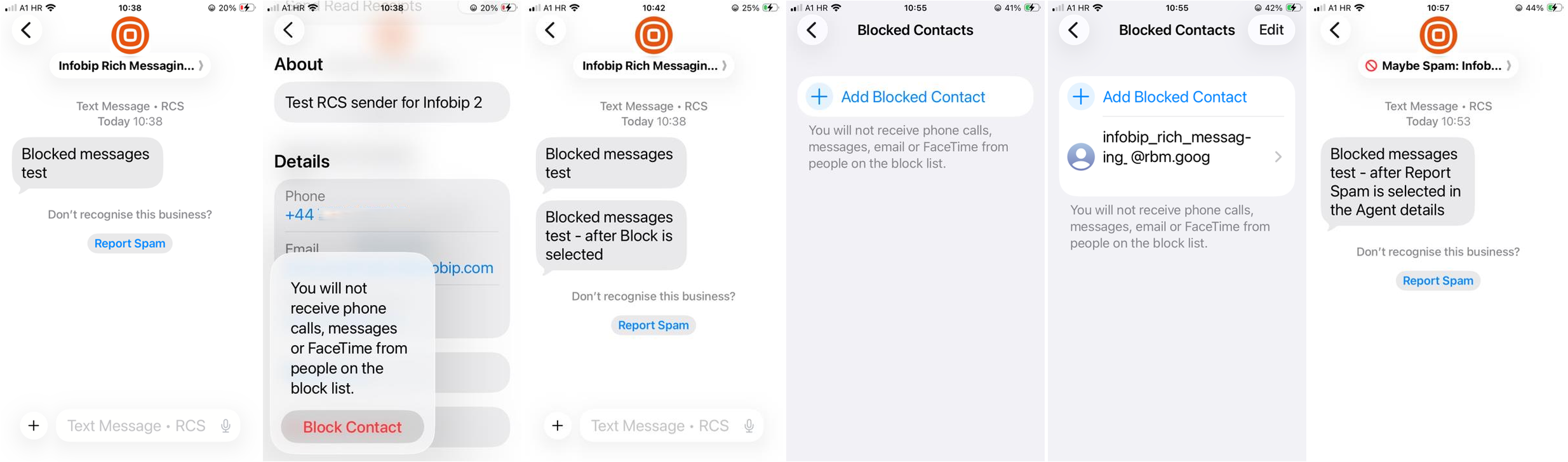
iOS - Block this Sender
When an end user selects Block this Sender on iOS:
- The conversation remains in the messaging app.
- The agent is not added to the Blocked Contacts list automatically. The Blocked Contacts list in Settings > Phone > Blocked Contacts remains empty.
- To block the agent, the end user must manually add the agent ID to the Blocked Contacts list in Phone settings.
- After adding the agent ID manually, messages are not delivered to the device.
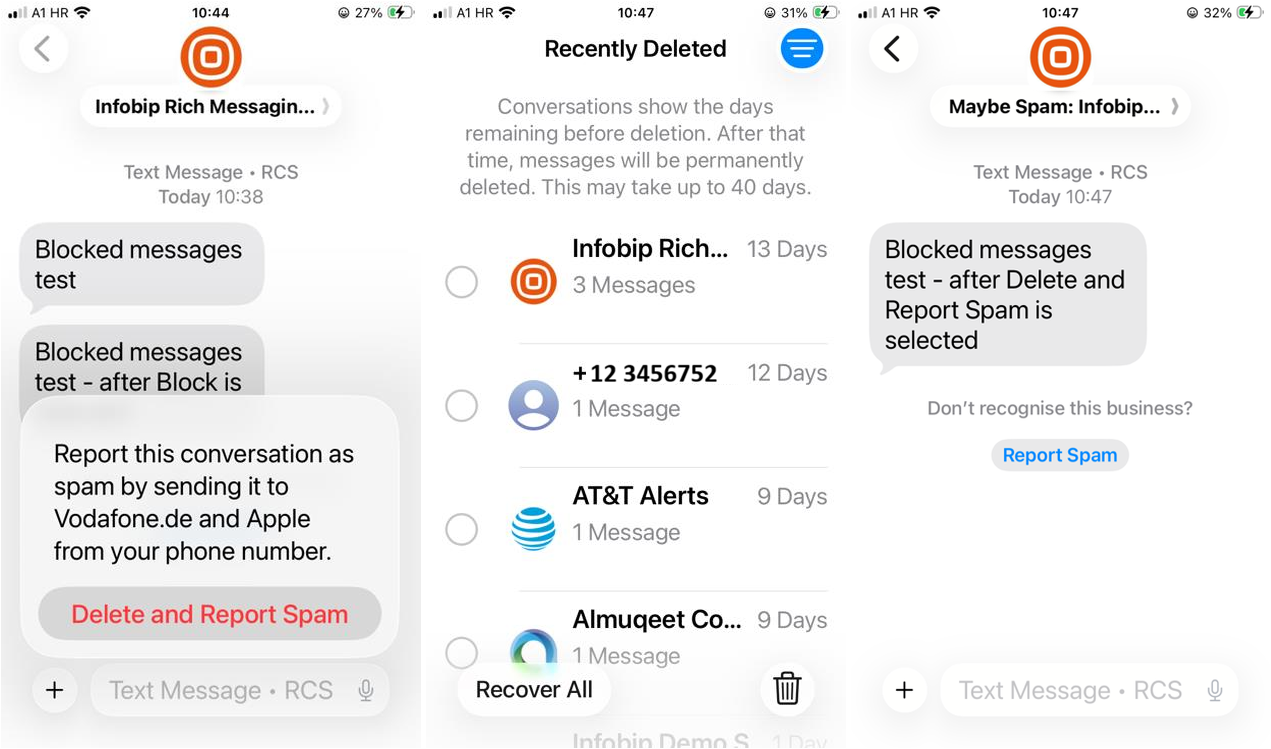
iOS - Report Spam
When an end user selects Report Spam > Delete and Report Spam in the messaging app:
- The messaging thread is deleted from the messaging app, and a spam report is sent to Google and the carrier to which the number belongs.
- The conversation is visible under the Recently Deleted folder.
- When a new message is sent to the same agent, the message is delivered and visible in the messaging app as a new conversation. The agent name is prefixed with "Maybe Spam".
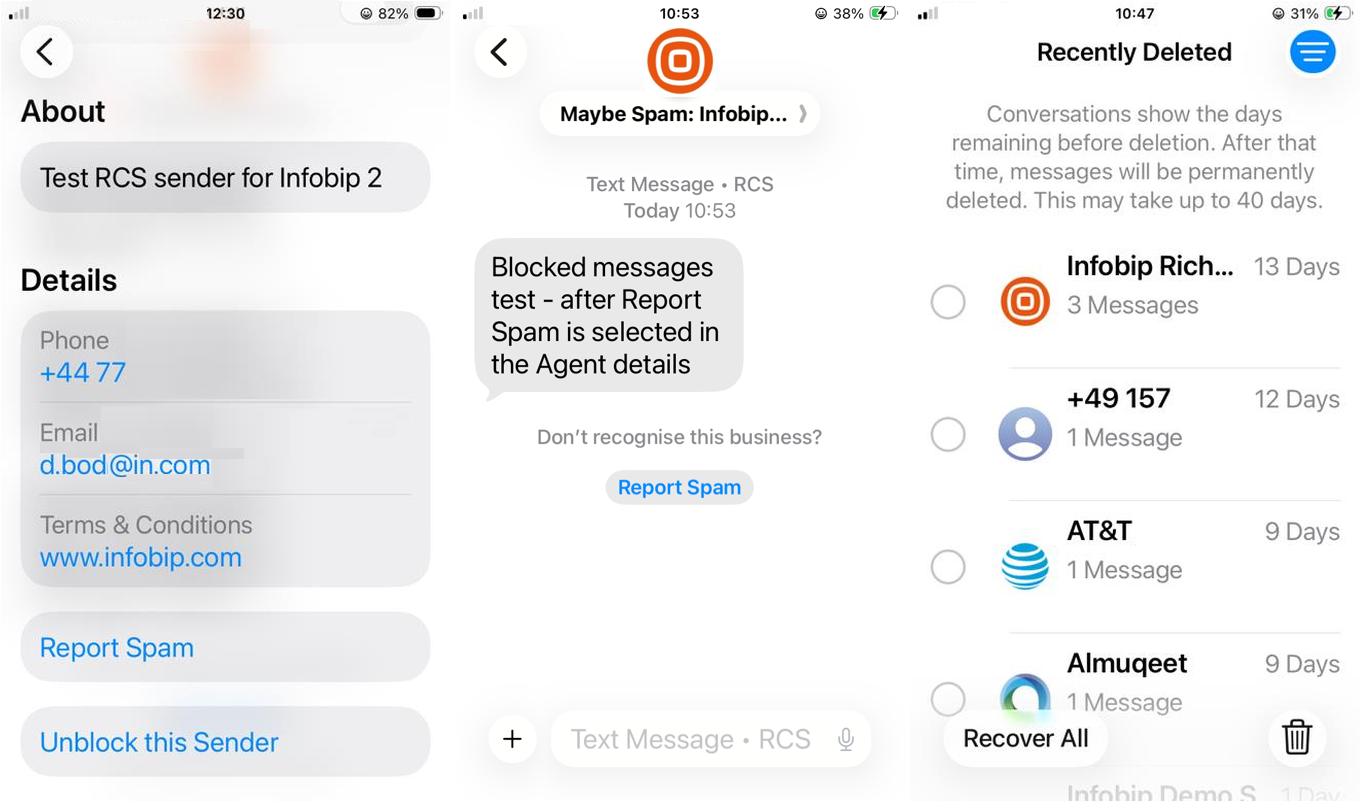
iOS - Report Spam from agent details
When an end user selects Report Spam from the agent details screen:
- The messaging thread is deleted from the messaging app, and a spam report is sent to Google.
- The conversation is visible under the Recently Deleted folder.
- When a new message is sent to the same agent, the message is delivered and visible in the messaging app as a new conversation. The "Maybe Spam" prefix remains in front of the agent name.
Deleted messaging threads can be recovered from the Recently Deleted folder in the Messages settings.
How spam reporting differs between Android and iOS
The Android and iOS spam reporting flows produce different downstream effects, which can change how repeat spam reports accumulate against an agent.
- On Android, when a user reports a message as spam, an MO STOP is also triggered. This opts the user out of further messages.
- On iOS, reporting spam does not trigger an MO STOP. The user continues to receive messages labeled "Maybe Spam:" unless they manually block the sender. Repeated messages to a user who has already reported spam can lead to additional spam reports against the same agent, compounding the issue.
Because iOS spam reports do not opt the user out, an agent that sends to a user who has reported it as spam can accumulate multiple reports from the same recipient. Monitor sending volume to recipients on iOS carefully.
How Google handles repeated spam reports
Google applies a graded enforcement approach that escalates when issues persist over time:
- Initial notices are typically advisory, allowing senders to review and improve their messaging practices.
- Continued or repeated issues can result in progressively stricter actions.
- Severe or high-risk cases can trigger immediate restrictions or suspension, without prior warnings.
The enforcement outcome depends on both the frequency and the nature of the infringement.
What to review when you receive a Spam Notice
When the Sales or Account Manager forwards a Spam Notice, review the following before sending further traffic:
- Opt-in clarity: Was consent explicit? Did users clearly understand message frequency and content at the time of opt-in?
- Message frequency: Has volume increased or become excessive?
- Message relevance: Are messages targeted and valuable to recipients?
- Campaign consistency: Has the original use case changed over time?
- Opt-out (STOP) awareness: Many users are unaware they can reply STOP to opt out, and instead use Report Spam as a quick way to stop messages.
Recommended preventive actions
To reduce the risk of receiving a Spam Notice:
- Inform users in advance when introducing RCS as a new channel.
- Regularly review opt-in flows and messaging strategy.
- Run a proactive re-permission campaign or reduce message frequency for affected use cases.
- Monitor sender performance closely. Some leeway exists before suspension, but a third notice places the agent in immediate-action territory.
For detailed policy guidance, see the Google RCS Business Messaging documentation and the applicable Acceptable Use Policy. For account-specific support, contact Infobip Support or your Account Manager.