Create and send templates
Viber Business Messages transactional and OTP templates allow you to send pre-approved notifications and verification codes to end users through Viber. Use the Infobip API or the web interface to create templates, check approval status, send template messages, and delete templates that are no longer needed.
Transactional templates are for notifications such as order confirmations, delivery updates, and appointment reminders. OTP templates are for authentication flows, verification codes, and any scenario that requires delivering a single-use PIN to the end user.
Before you begin, verify the following:
- Your account has the
viber-bm:managescope enabled. Contact your Infobip account manager to enable the scope. - You have an approved Viber sender. To register a sender, see Get started with Viber Business Messages.
For template body constraints, supported languages, and approval statuses, see Viber message templates.
Create a template
To create a transactional or OTP template, send a POST request to the template registration endpoint:
POST /viber/1/senders/{sender}/templates
Replace {sender} with your approved Viber sender name.
Rate limit: 25 requests per second.
Create a transactional template
Create an OTP template
OTP templates must include a parameter named {{pin}} in the template body. Templates without this parameter are rejected during creation.
A successful request returns 201 Created with the template details:
Save the templateId from the response. You need it to check approval status, send the template, and delete the template.
Create a template using the web interface
You can also create templates using the Infobip web interface. This method does not support language selection. To specify a language other than the default, use the API.
-
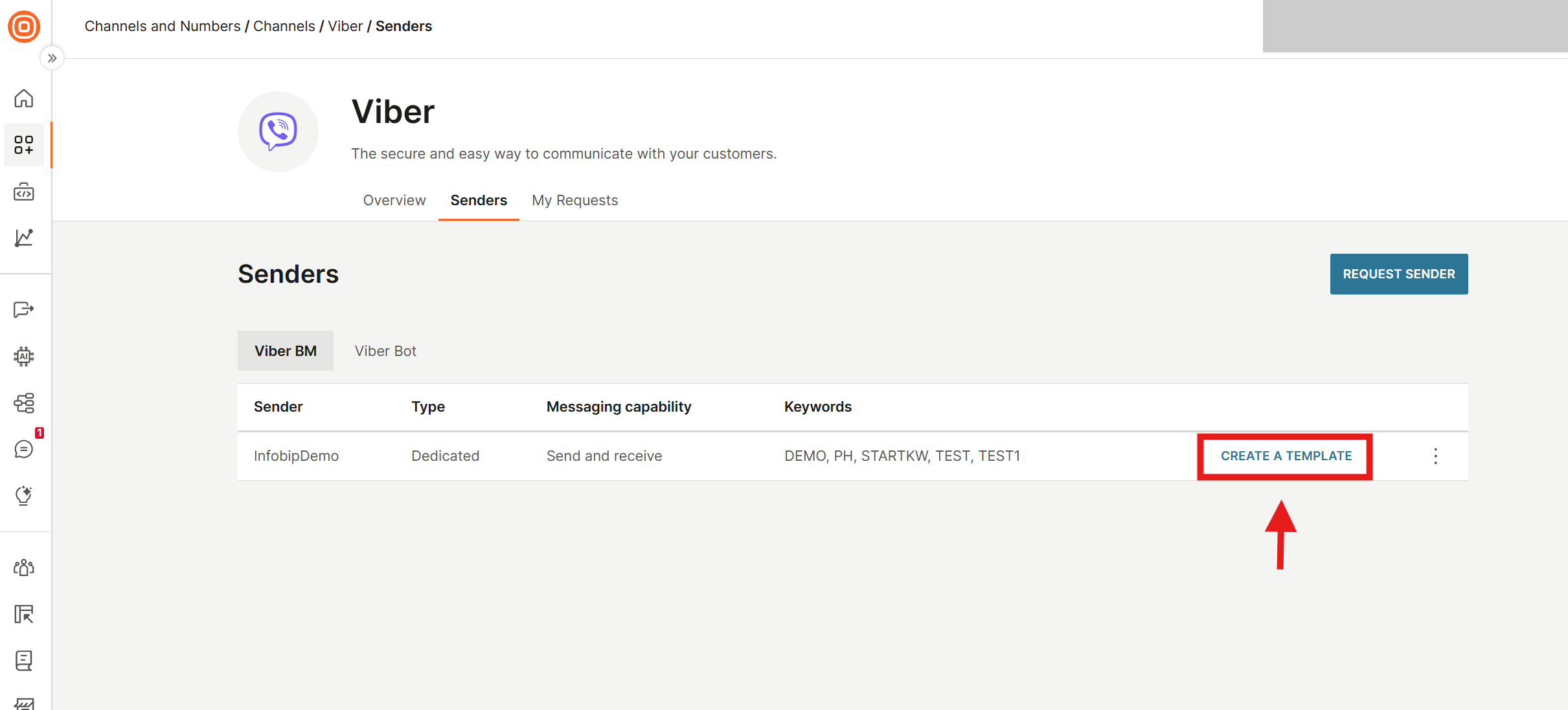
In the web interface, go to Channels and Numbers > Channels > Viber for Business > Senders.
-
Select the sender you want to create a template for, then select Create a Template.
-
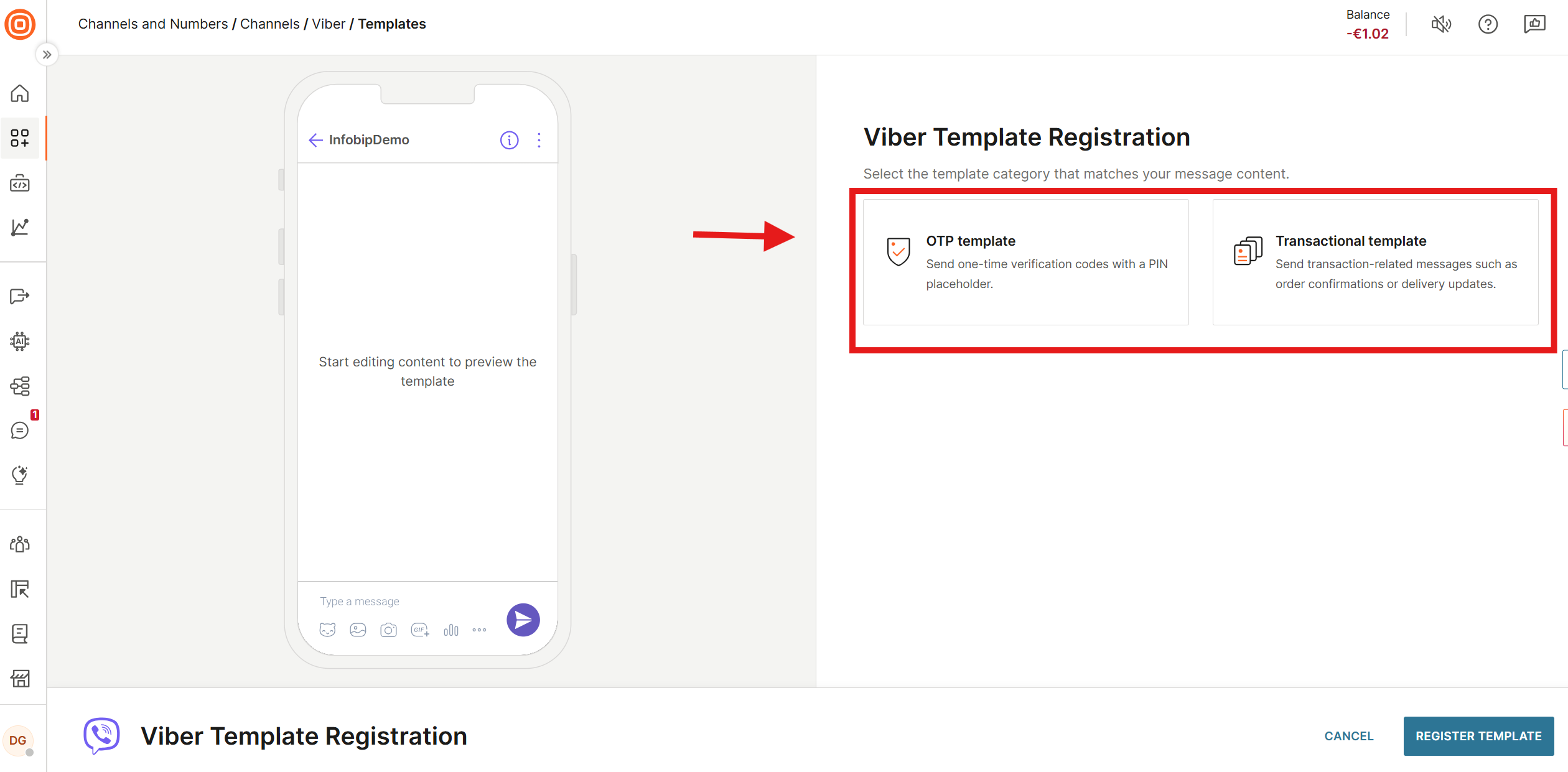
Select the template type: Transactional template or OTP template.
-
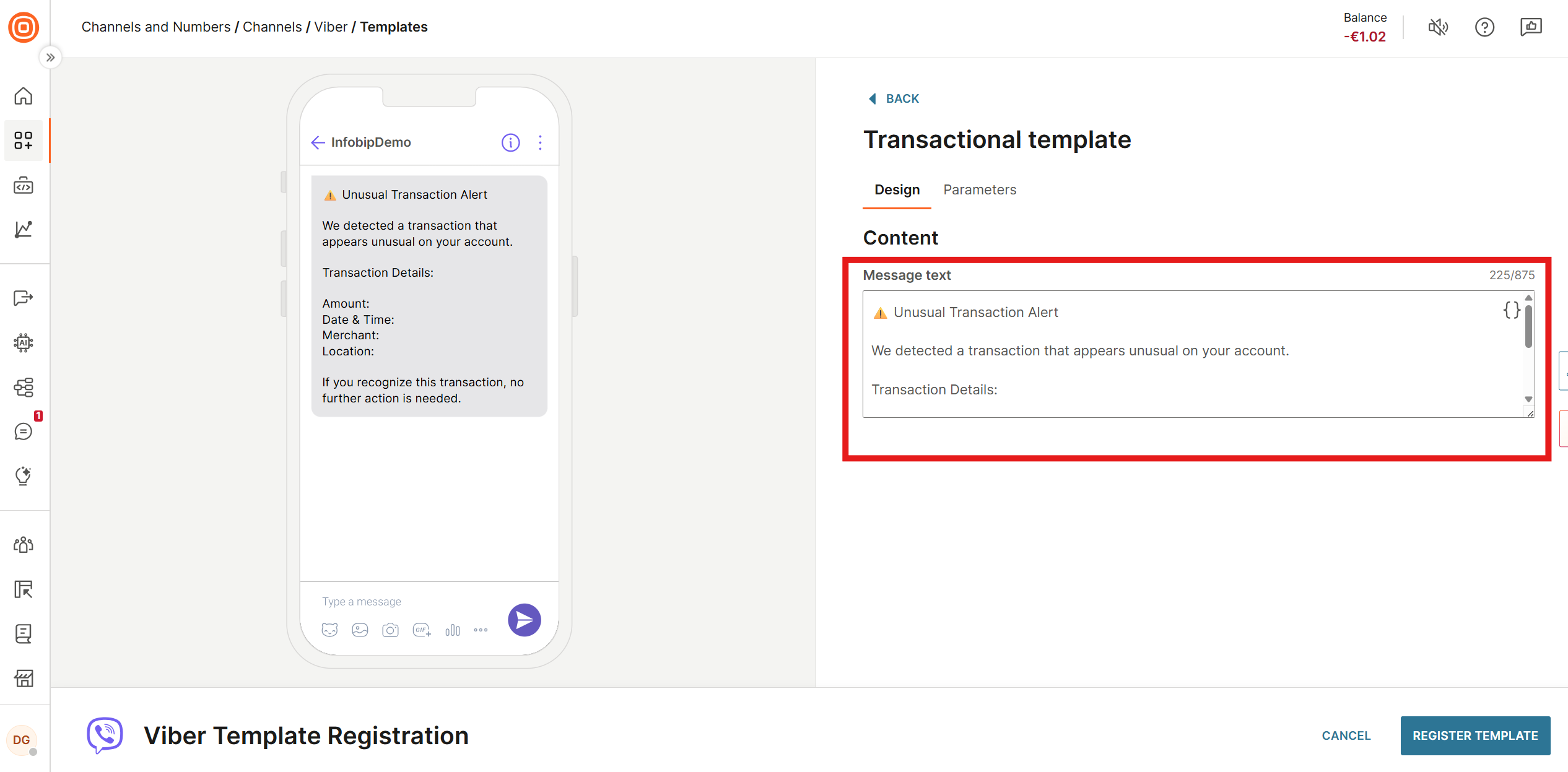
In the Design tab, enter the message content (maximum 1000 characters).
-
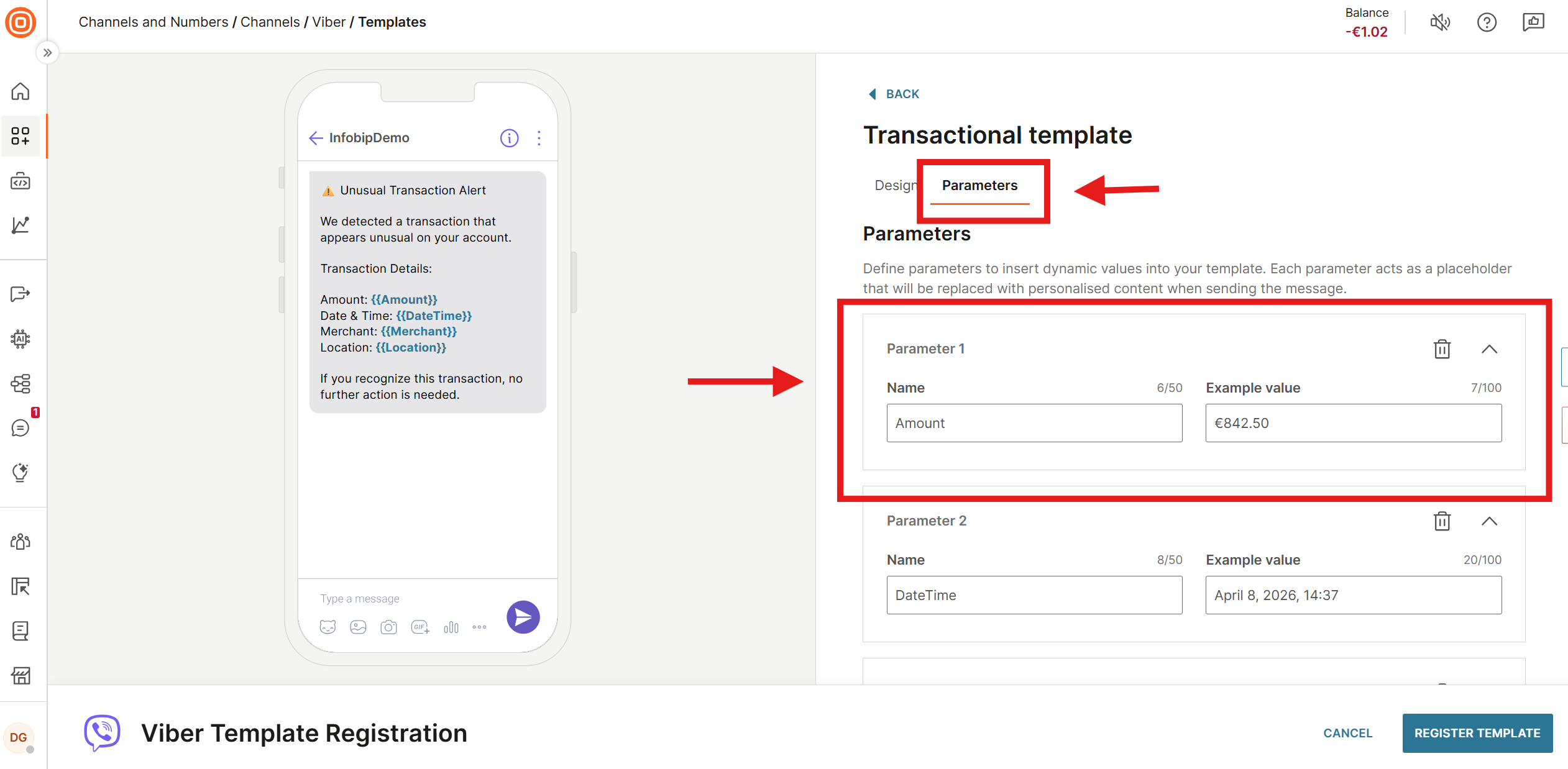
In the Parameters tab, create the parameters (maximum 8). Separate consecutive placeholders with at least one space.
-
Insert parameters into the message body using the curly brace icon.
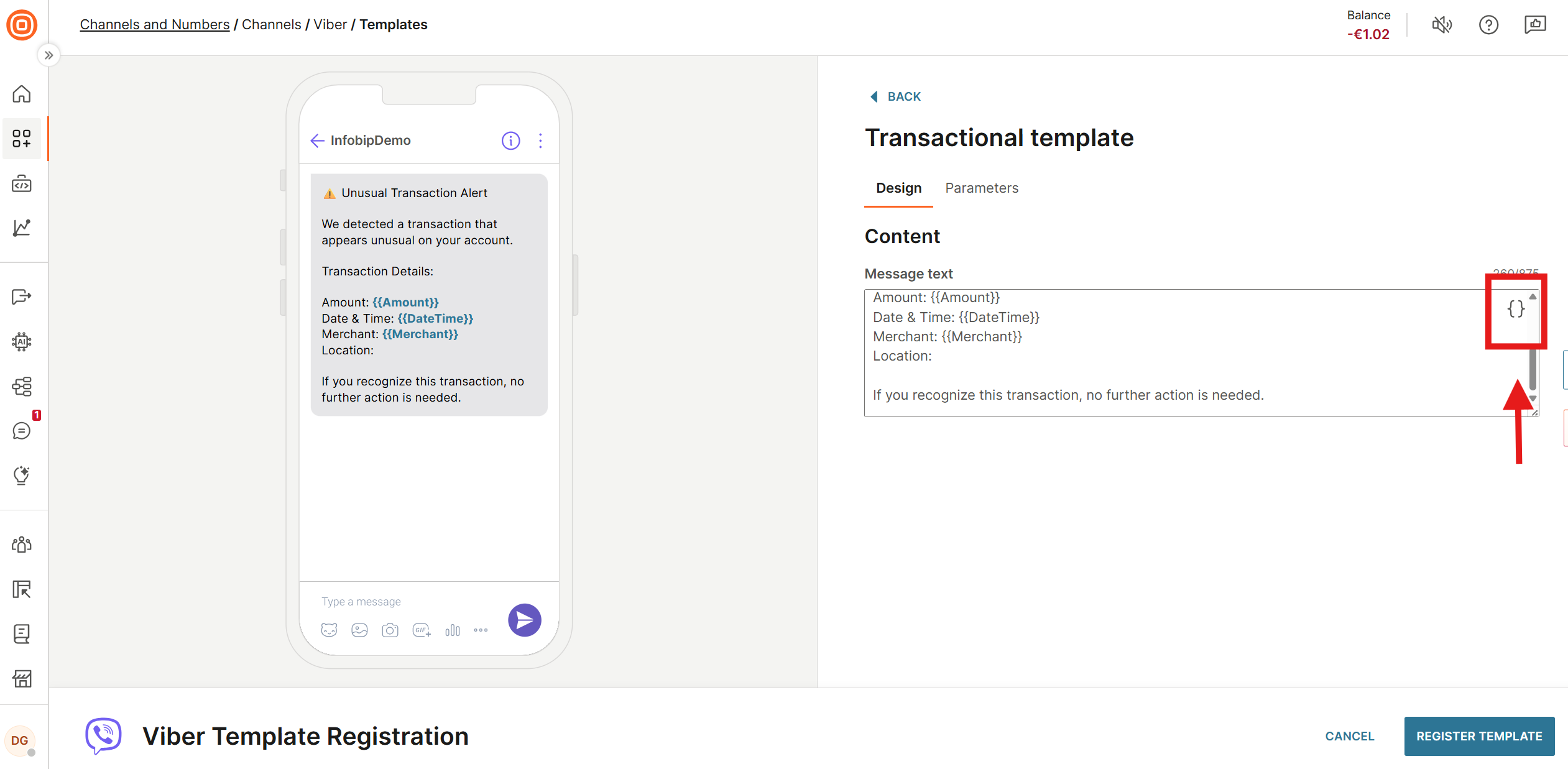
-
Select the required parameter from the list.
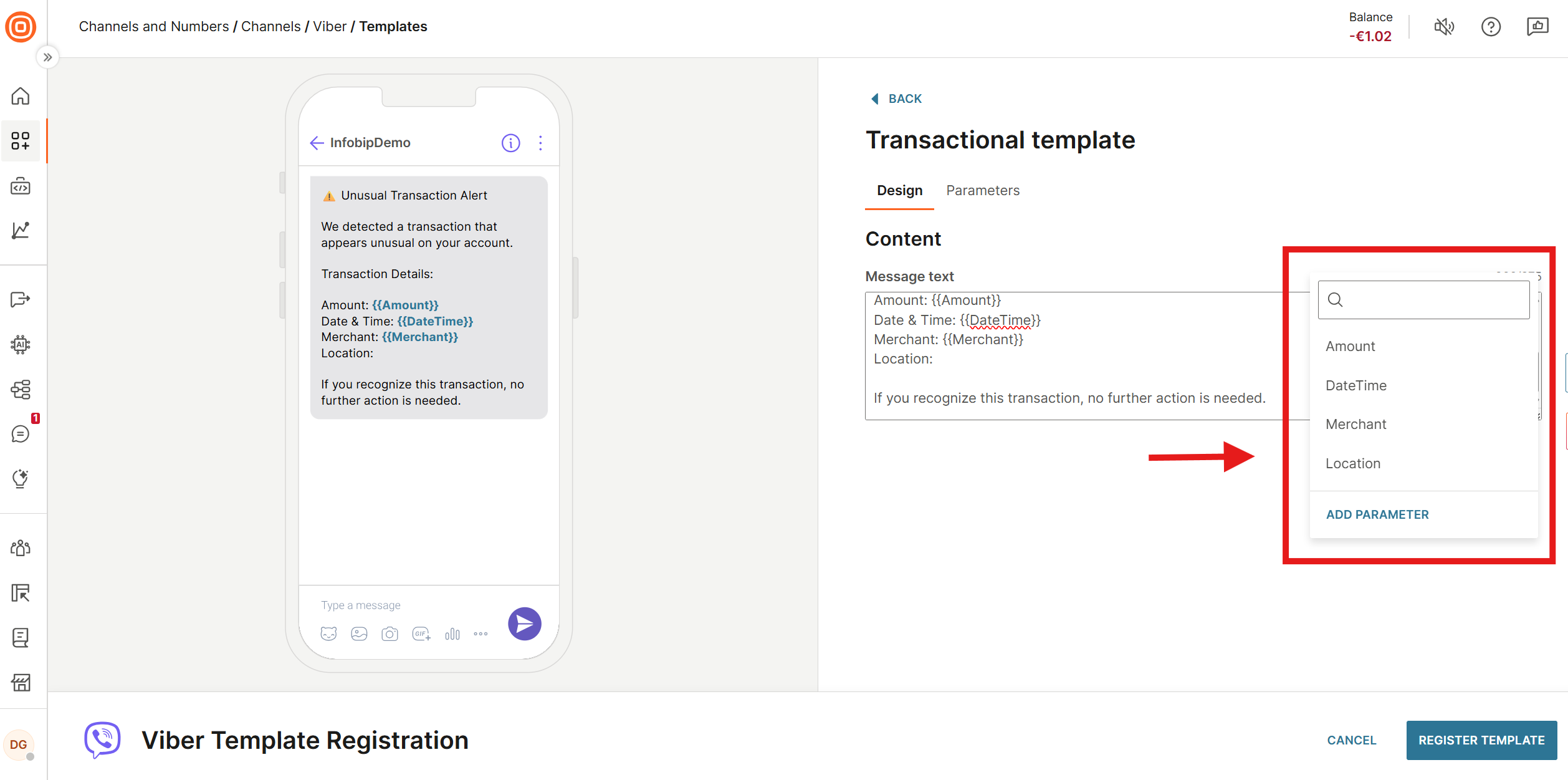
-
Select Register Template. The confirmation screen displays the Template ID.
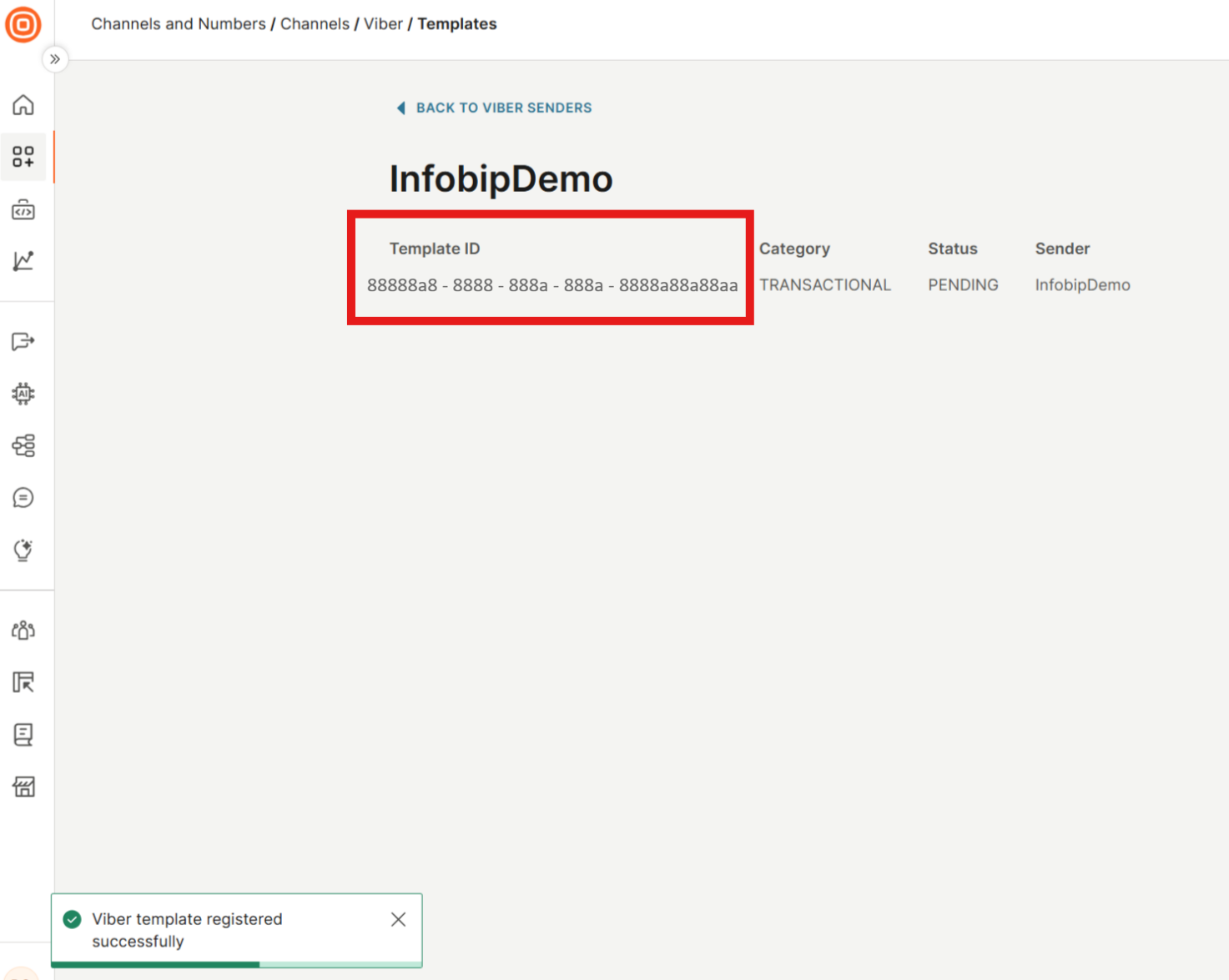
The web interface does not support language selection. To specify a language, use the API. Save the Template ID from the confirmation screen.
Confirm template approval
After you create a template, it enters PENDING status while it is reviewed for compliance. Approval can complete within seconds but can take up to 24 hours. Send the template only after it reaches APPROVED status.
For information about what causes templates to be declined, see Compliance guidelines.
Send a GET request to check the status:
An approved template returns:
The following table describes the possible template statuses.
| Status | Meaning | Can send? |
|---|---|---|
| PENDING | Awaiting review | No |
| APPROVED | Ready to use | Yes |
| DECLINED | Did not pass review. Create a new template. | No |
If the status is DECLINED, review your template text against the compliance guidelines and create a revised template. Common causes: the template ends with a placeholder (except {{pin}} in OTP templates), or the content contains promotional material.
Check approval in the web interface
-
In the web interface, go to Channels and Numbers > Channels > Viber for Business > Senders.
-
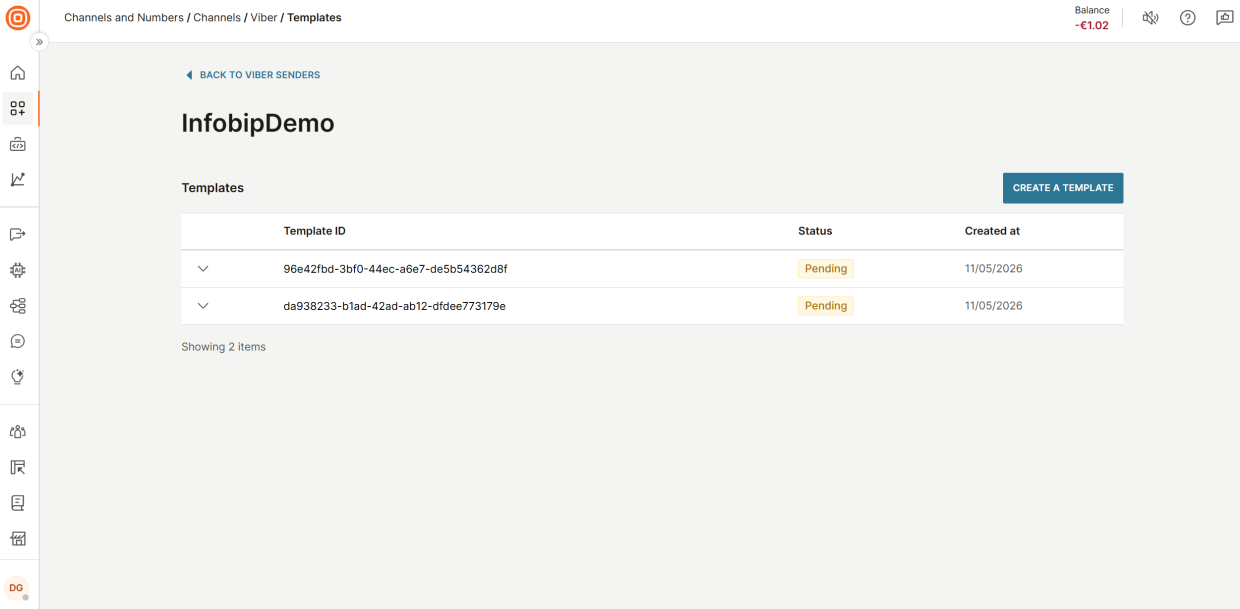
Select View Templates for the sender you want to check.
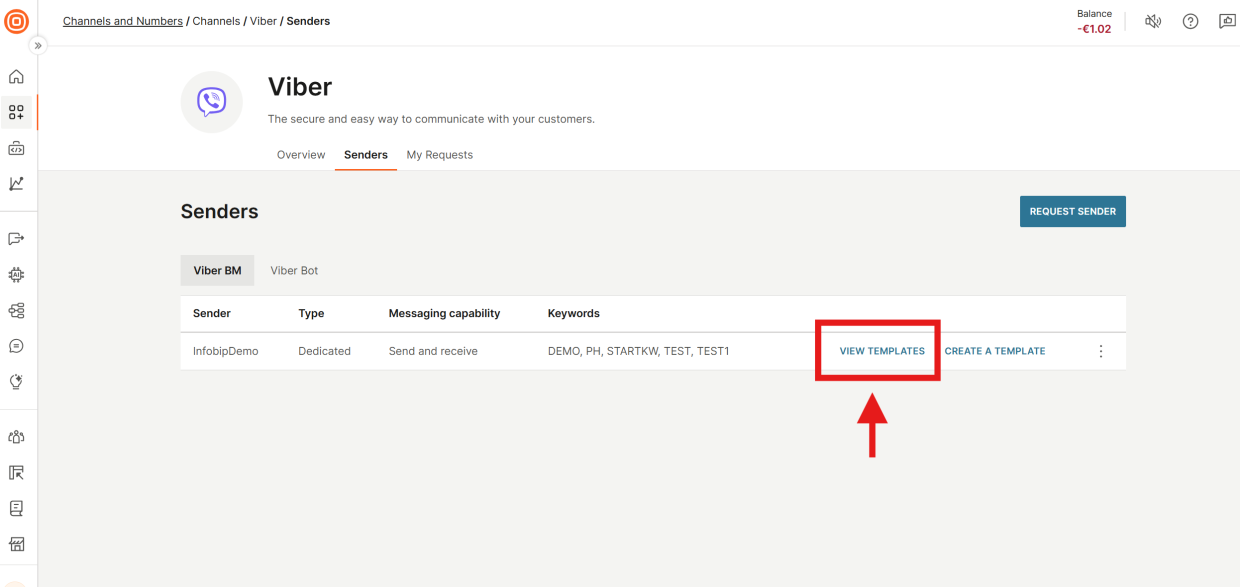
-
View the template ID, status, and creation date for each submitted template.
-
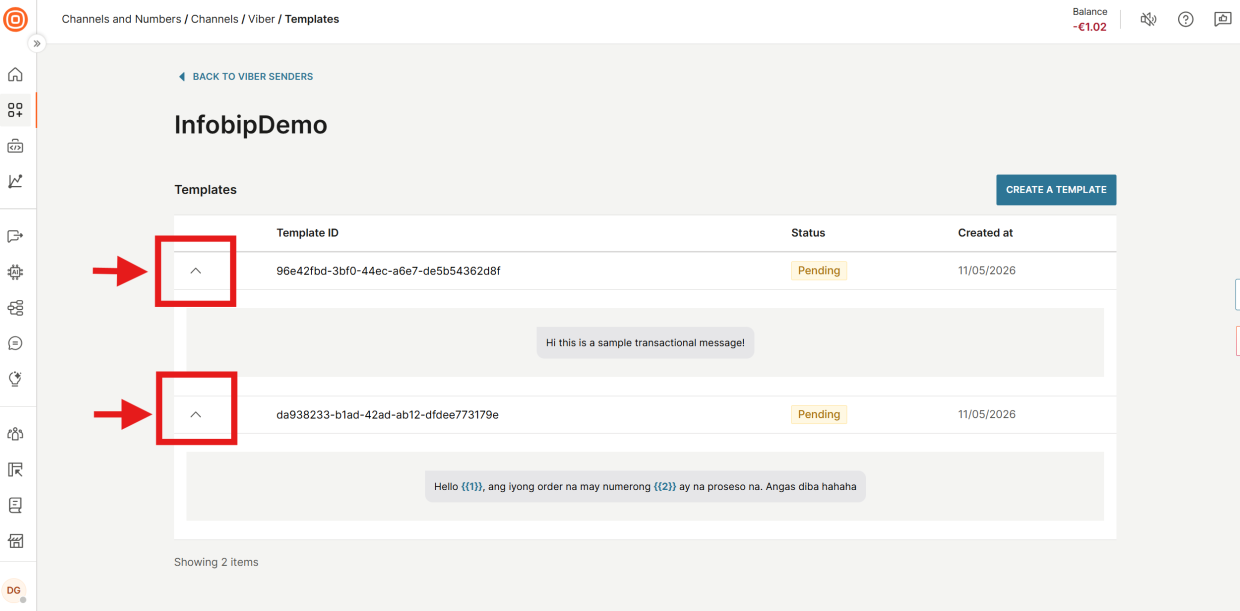
To view the template text, select the expand icon next to the template.
Send a template message
After the template reaches APPROVED status, send a message using the template to one or more recipients. Use the POST /viber/2/messages endpoint and set content.type to "TEMPLATE".
For the full endpoint specification, see the Viber Business Messages API reference.
When building the parameters object, strip the double curly braces from the placeholder name to form the key: {{firstname}} becomes "firstname", {{orderno}} becomes "orderno".
The following table describes the content object fields.
| Field | Type | Required | Description |
|---|---|---|---|
type | string | Yes | Must be "TEMPLATE" |
templateId | string | Yes | The ID returned when the template was created |
language | string | Yes | ISO language code from the supported languages list |
parameters | object | Yes | Key-value pairs where each key is the placeholder name without curly braces (for example, {{firstname}} becomes "firstname") |
Send a transactional template message
Send an OTP template message
For OTP templates, the parameters object must contain the key "pin" (without curly braces) mapped to the actual one-time password value.
Broadcast is intended for testing OTP templates. In production, send OTP messages programmatically through the API in response to user-initiated authentication events.
Send a template message using Broadcast
-
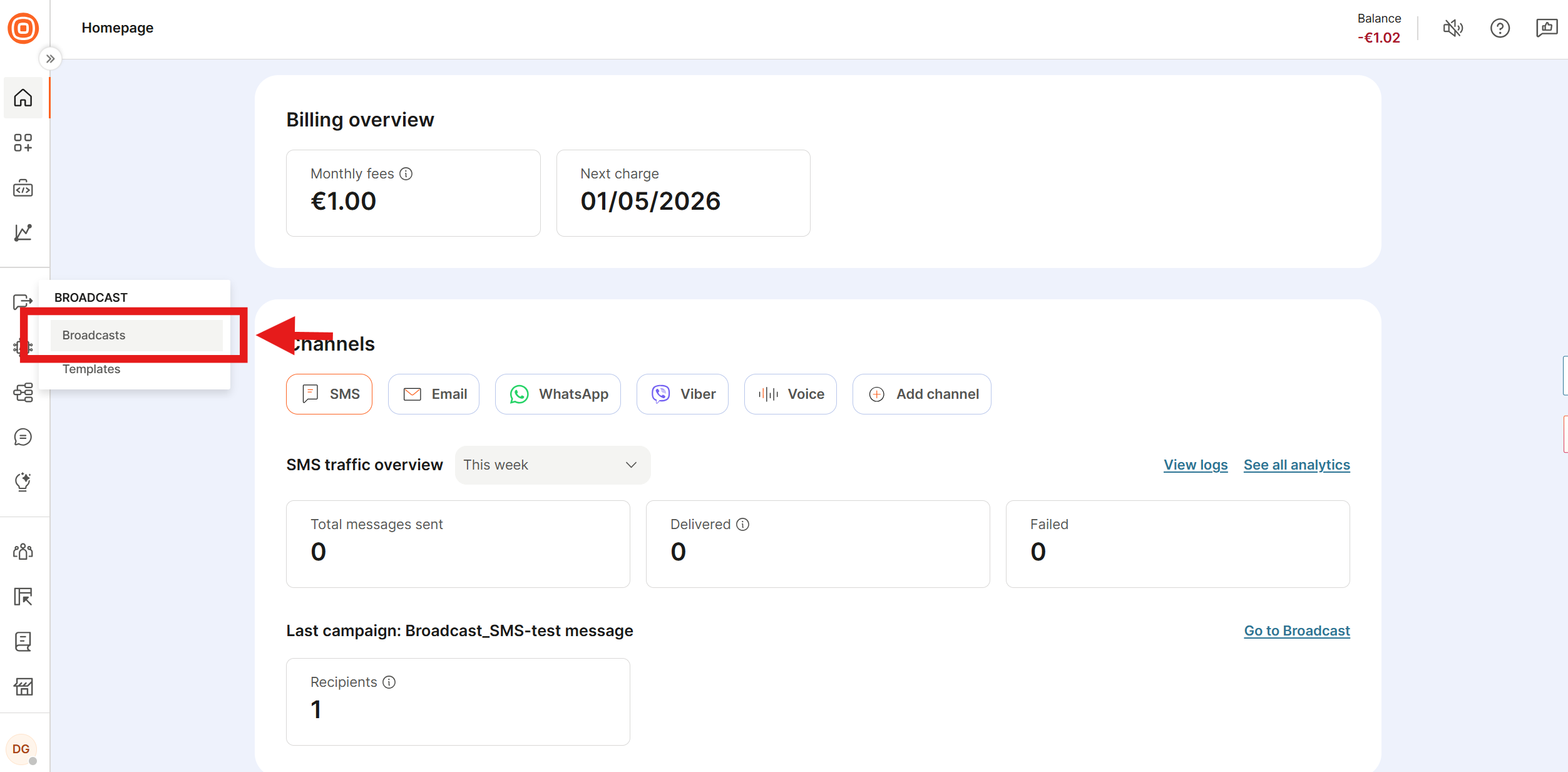
In the web interface, go to Broadcast.
-
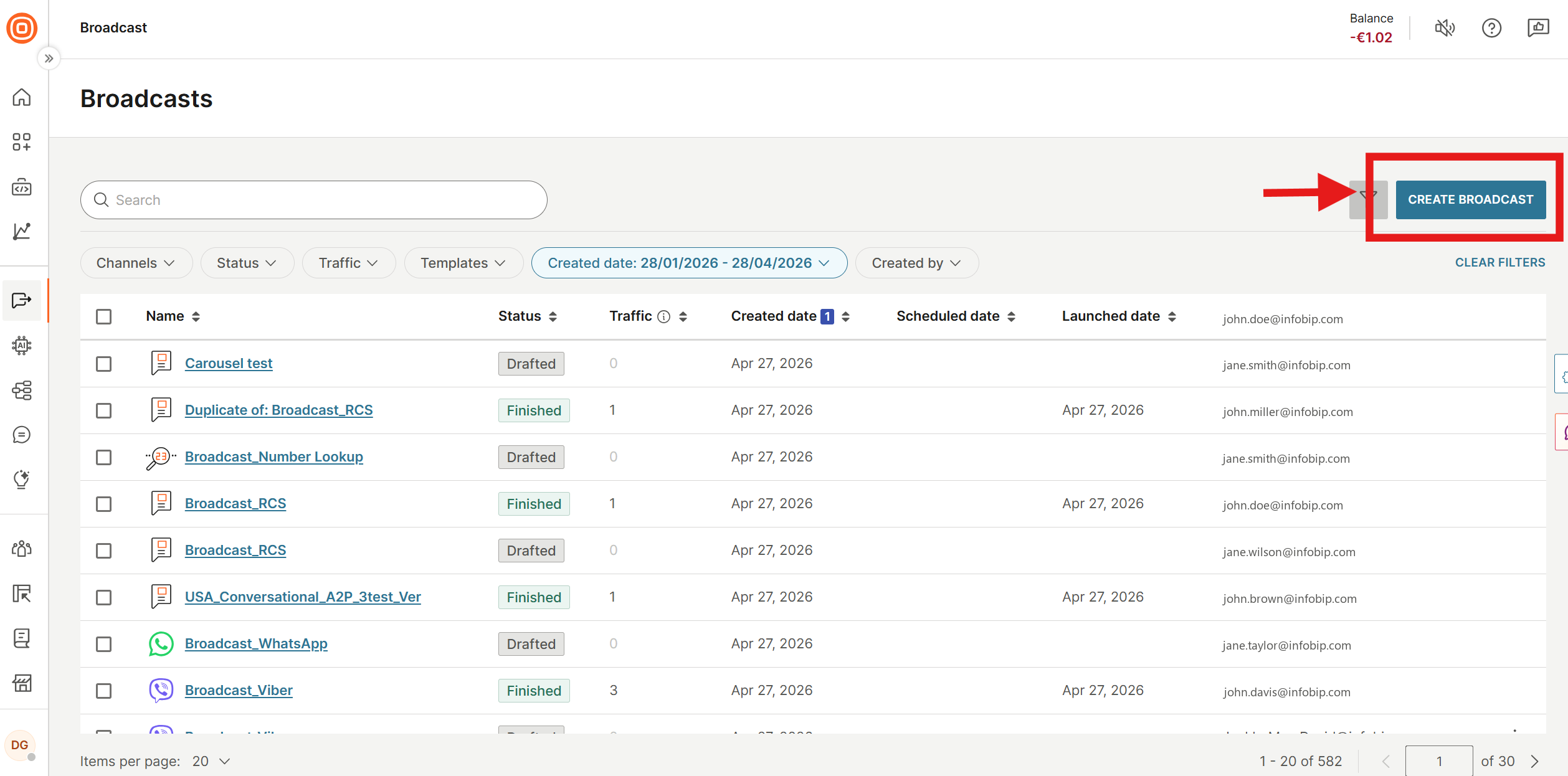
Select Create Broadcast.
-
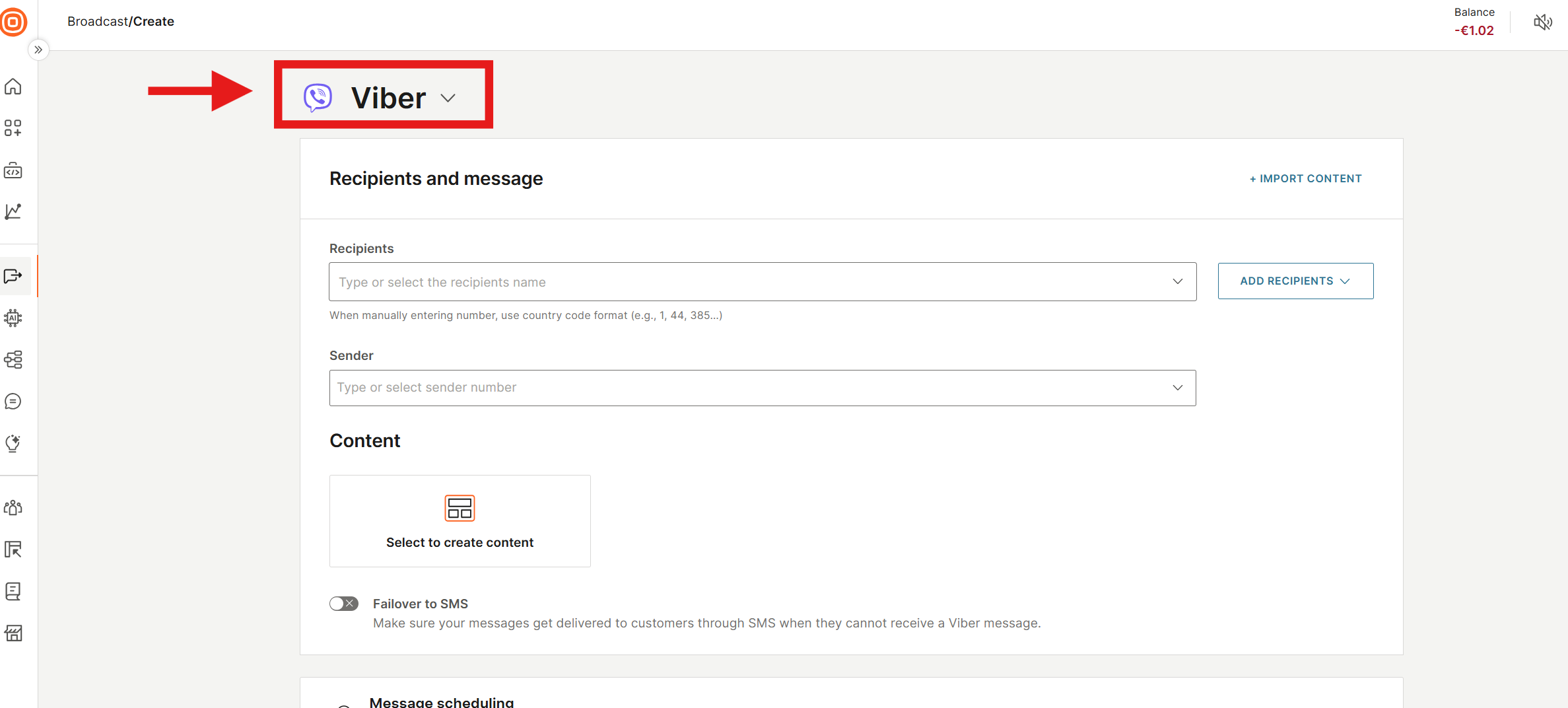
Select Viber as the channel. To switch channels, select the channel name.
-
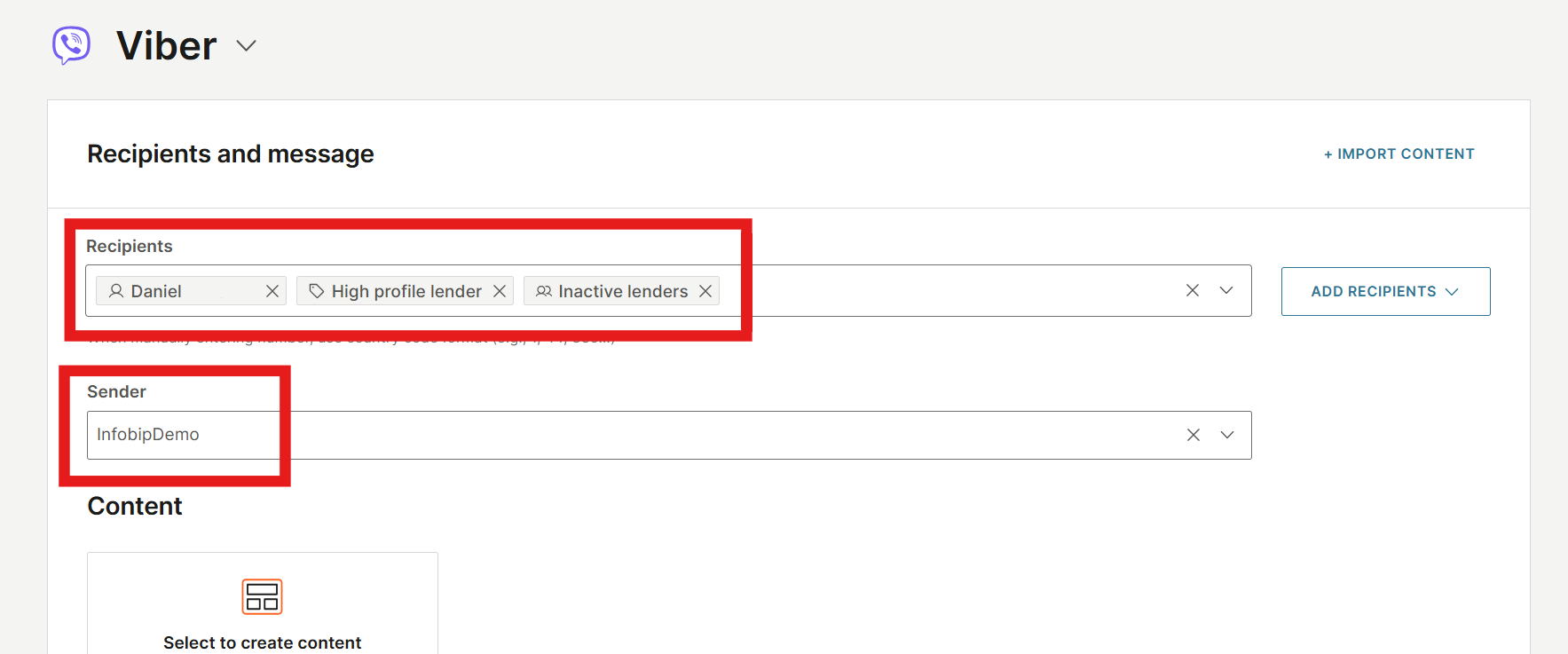
Add recipients by profile name, phone number, tag, or segment. Select the sender.
-
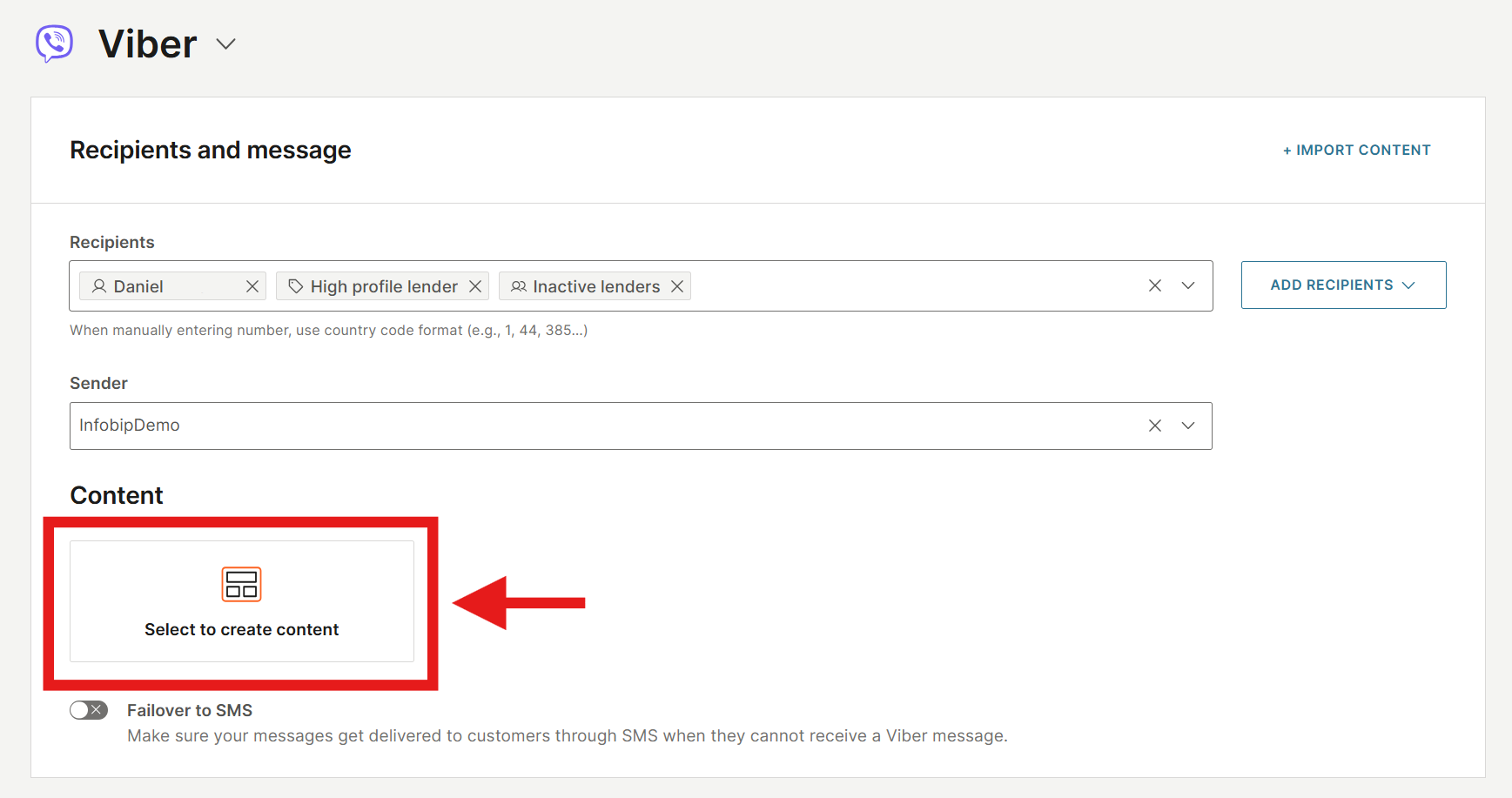
Under Content, select the content area.
-
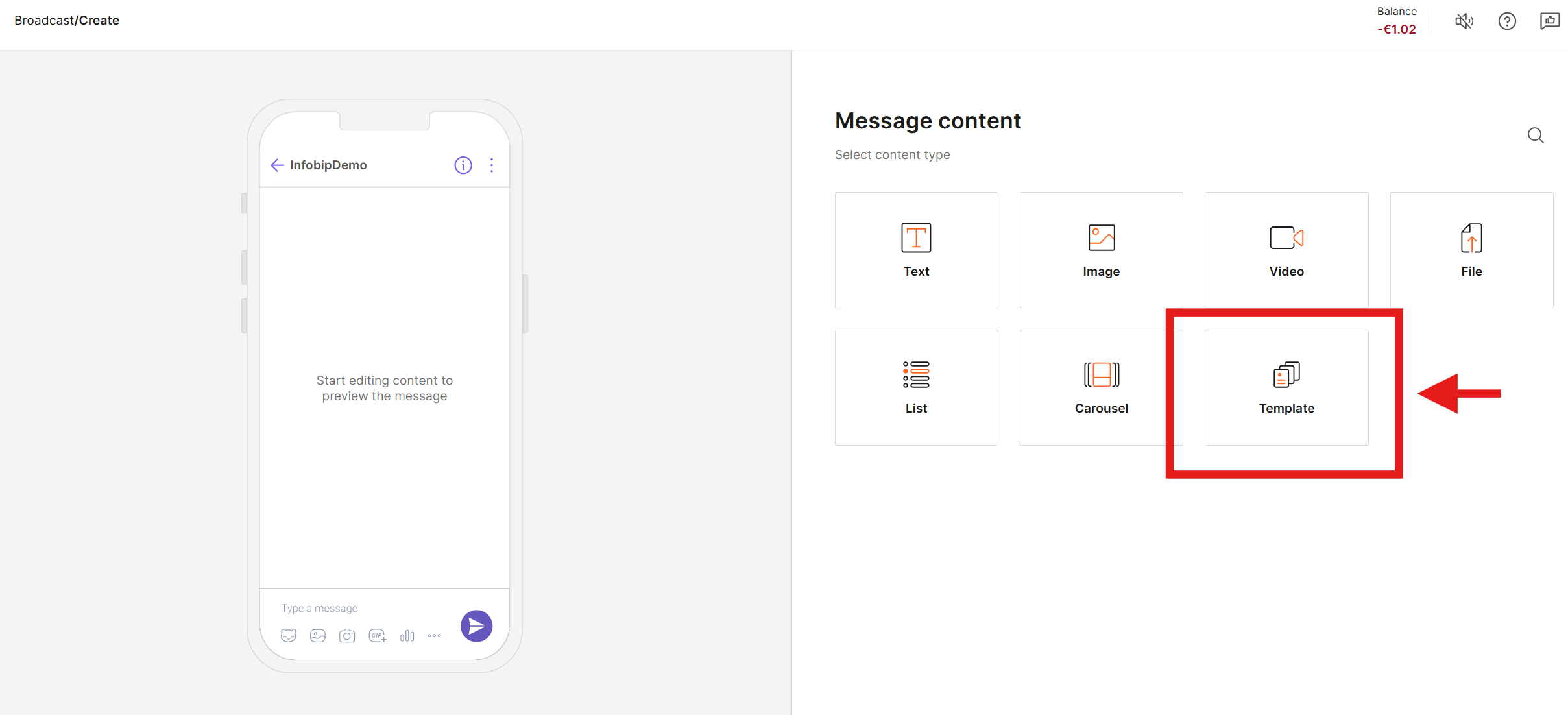
From the Message Content list, select Template.
-
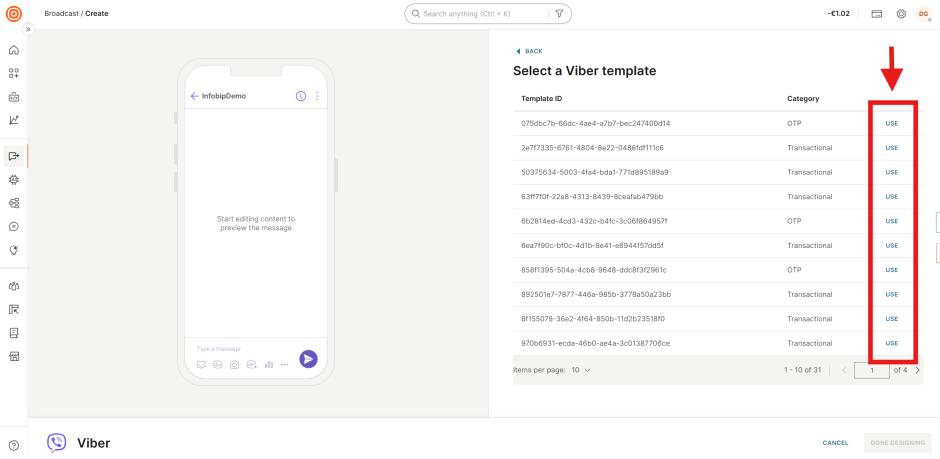
Choose the template you want to use from the list of Approved Templates.
-
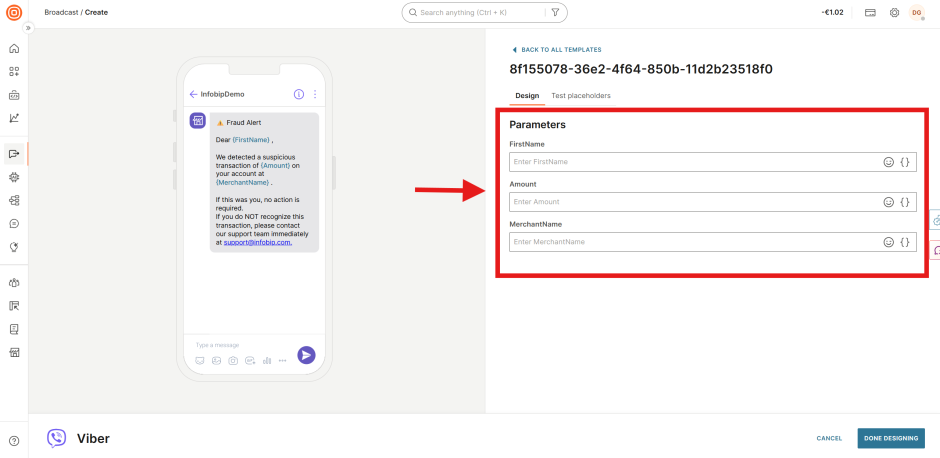
Enter values for the required Parameters. To insert Attributes (from an uploaded Excel file or the Infobip People module), select the curly brace icon in the parameter field.
-
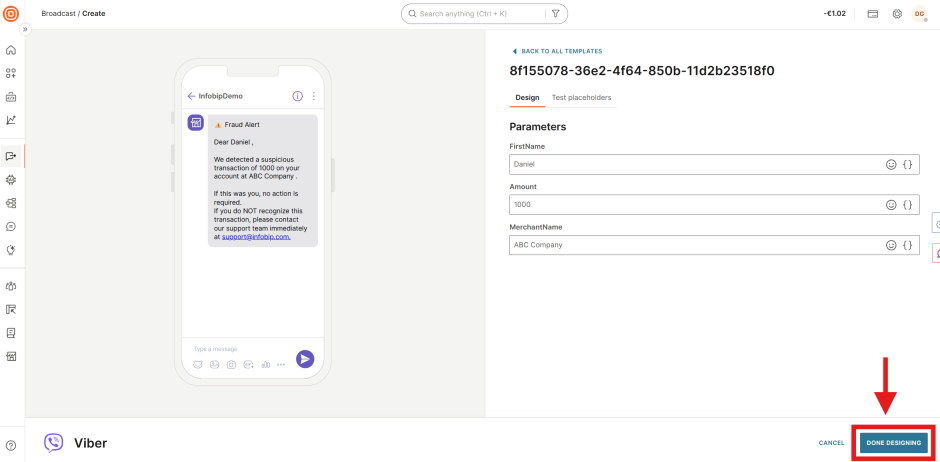
When you are satisfied with the parameter values, select Done Designing.
-
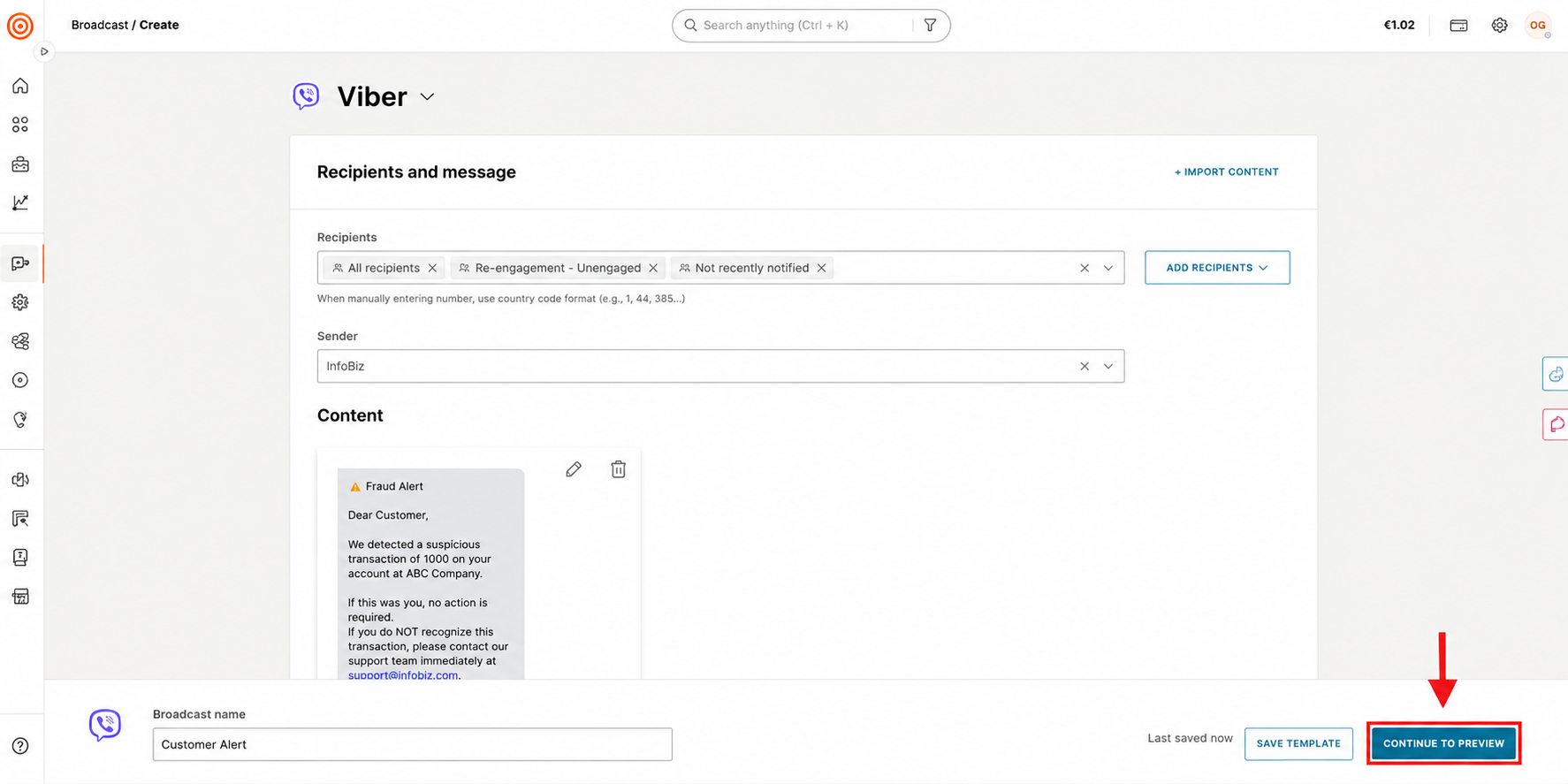
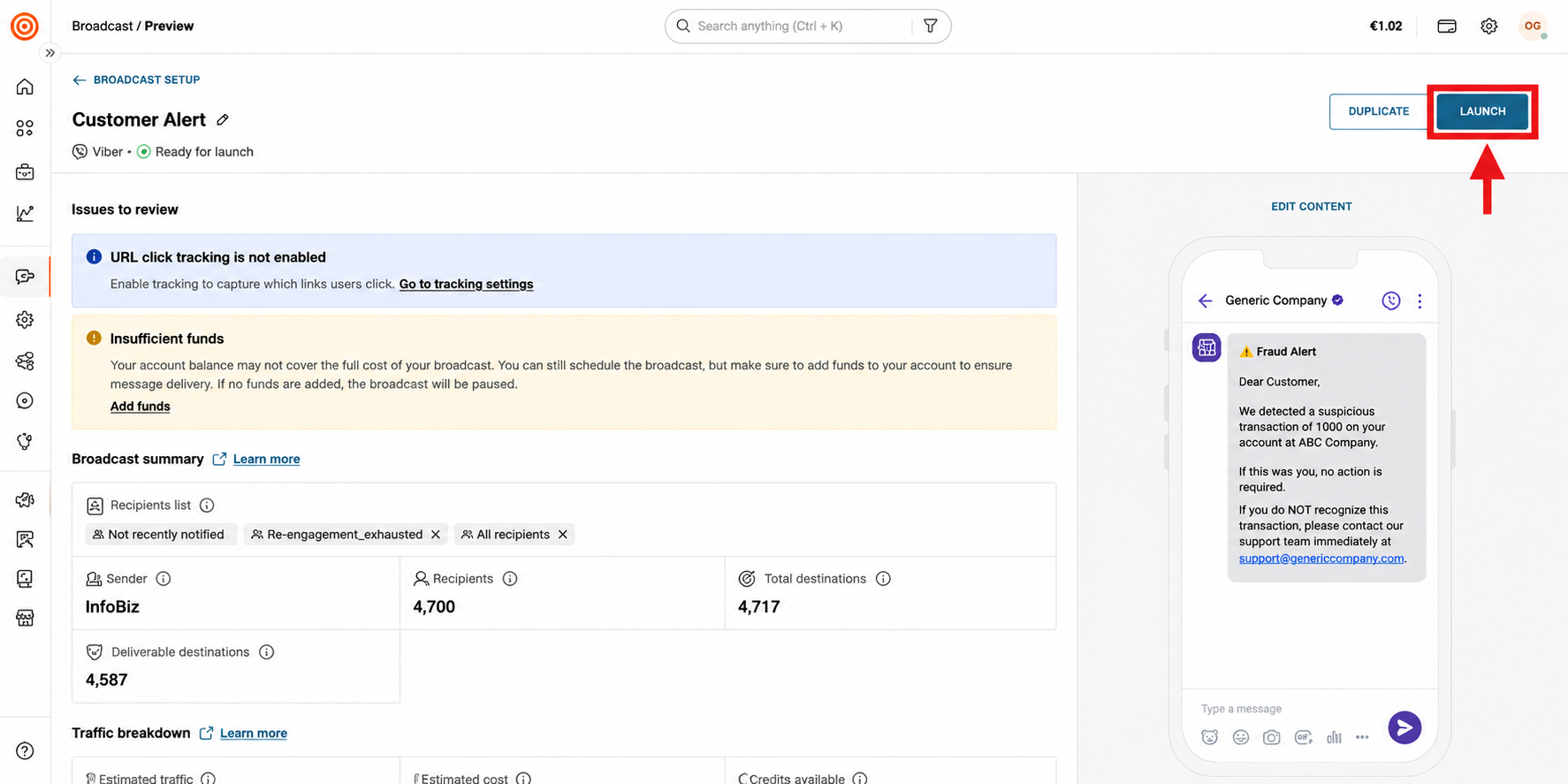
When you are done updating the required settings, select Continue to Preview.
-
Review the broadcast setup, then select Launch.
Delete a template (API only)
Delete a template when it is no longer needed. Template deletion is available only through the API. The web interface does not support template deletion.
To delete a template, send a DELETE request:
Rate limit: 10 requests per minute.
A successful deletion returns 204 No Content with no response body.
Deleted templates cannot be recovered. Use a unique template ID for each new template.
Troubleshooting
The following table describes common errors and how to resolve them. For additional information about Viber message delivery, see Reports and insights.
| Issue | Cause | Resolution |
|---|---|---|
| 401 Unauthorized | Missing or incorrect API key, or the viber-bm:manage scope is not enabled | Verify the API key in the web interface under Developers > API keys. Confirm the viber-bm:manage scope is active with your account manager. |
| 403 Forbidden | Sender is not registered, or the API key does not have permission for that sender | Confirm the sender under Channels and Numbers > Viber for Business > Senders. |
| Template status stays PENDING | Approval is asynchronous and can take up to 24 hours | Poll the GET endpoint at intervals. If the template remains PENDING after 24 hours, contact Infobip Support. |
| Template status is DECLINED | Template text did not meet Viber guidelines. Common causes: the template ends with a placeholder (except {{pin}} in OTP templates), or the content contains promotional material. | Review the compliance guidelines and create a revised template. |
| 400 Bad Request when sending | The templateId does not exist, the template is not APPROVED, or the language value is incorrect | Confirm template status with the GET endpoint before sending. |
| Parameters not resolving in the sent message | Parameter keys in the parameters object do not match the placeholder names | Strip curly braces to form the key: {{firstname}} becomes "firstname", {{orderno}} becomes "orderno". |
| 400 Bad Request on OTP template creation | The {{pin}} parameter is missing from the template body | OTP templates require a parameter named {{pin}}. Add it to the template body and retry. |
| OTP not delivered to recipient | The "pin" key in the parameters object does not match the placeholder name, or the template is not APPROVED | Confirm that the parameters object uses "pin" (without curly braces) as the key. Verify the template status is APPROVED before sending. |
For API authentication details, see API authentication.