Set up a SIP trunk
SIP trunks can be created and managed using the Infobip web interface and API. For background on trunk types, codecs, and billing plans, see What is SIP trunking.
The following diagram shows what source IPs and destination IPs mean for a static SIP trunk:
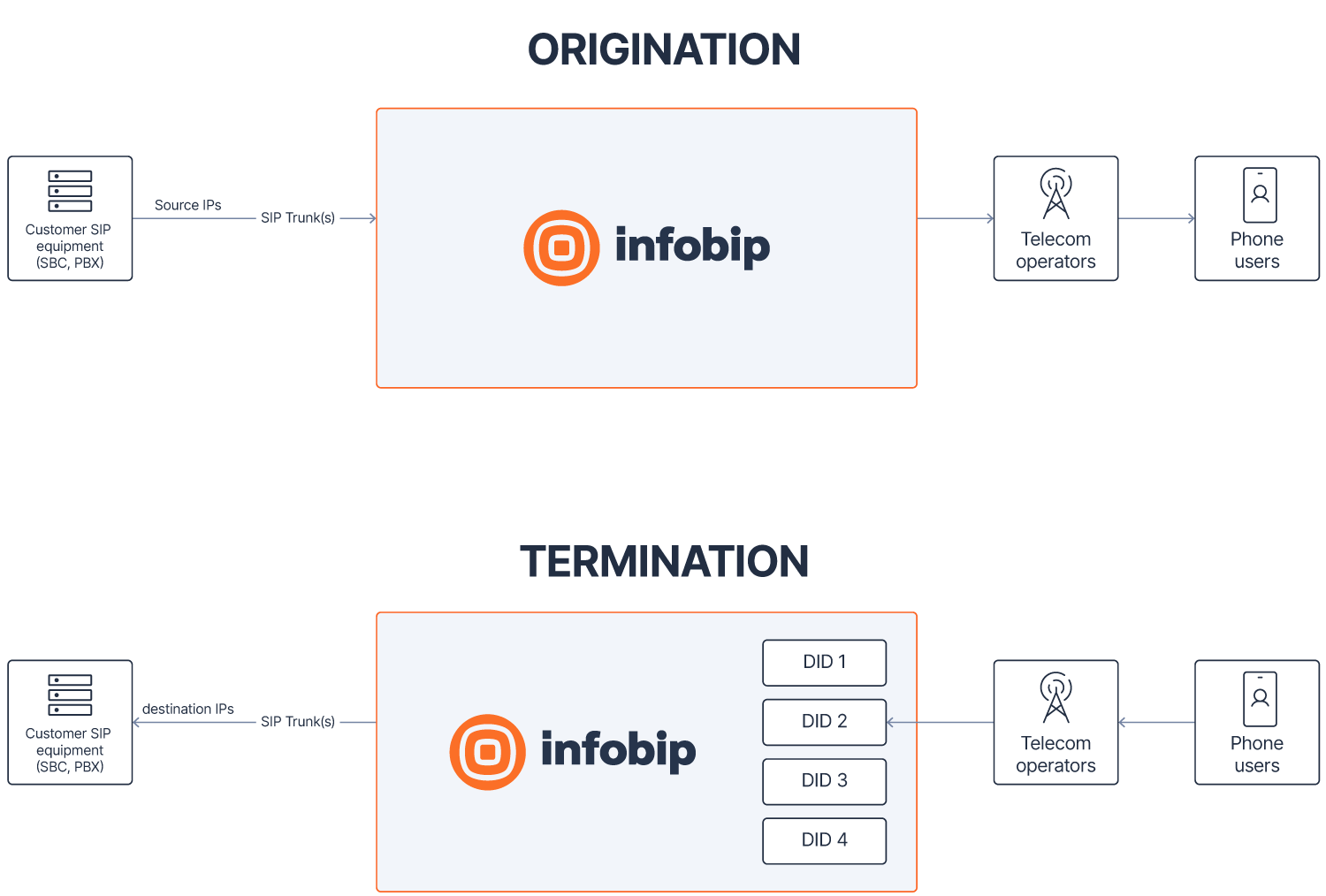
If a static SIP trunk definition does not include at least one source IP, then SIP traffic cannot be sent from your equipment to the Infobip infrastructure. Similarly, if a SIP trunk definition does not include at least one destination IP or FQDN, then incoming voice traffic to the Infobip platform cannot be forwarded over your SIP trunk.
For registered SIP trunks, make sure your Private Branch Exchange (PBX) is compatible with registered trunks.
Before you start
By default, a single Infobip account can have:
- Up to 10 trunks per account.
- Up to 10 trunks per Infobip data center.
- Up to 3 IP addresses per trunk for inbound traffic.
- Up to 3 IP addresses per trunk for outbound traffic.
- SIP trunks in up to 2 different Infobip data centers.
- Up to 1,000 channels per SIP trunk.
For US-based SIP trunks, register service addresses before creating the trunk. See Service address.
Using the Infobip web interface
SIP trunks are managed from the Infobip web interface.
Go to Channels and Numbers > Channels > Voice and WebRTC > SIP Trunking.
If you intend to create a trunk in one of the Infobip USA data centers, or if your Place of Primary Use (PPU) is in the United States, make sure that you have declared a service address first (see Service addresses).
Choose the SIP trunk provider
Select CREATE SIP TRUNK and choose the type of trunk (trunk provider) you want to provision. See Supported SIP trunk types and characteristics for more information.
For SIP trunks other than Infobip (that is, Freshworks, Genesys PureCloud, and so on), see Specific notes for provider trunks.
Choose plan and options
Choose between a Metered or Unlimited channel plan. For more information about these channel plans, see SIP trunk channels and related billing plans.
SIP trunk plans need to be activated on your account. If the plan selection is not available, contact your account manager or Support.
Select the number of required channels.
Main trunk settings
Follow the wizard to complete the SIP trunk details. The fields you need to complete depend on the SIP trunk provider and type (registered, static, authenticated). Select your provider to see the applicable parameters:
Infobip SBC locations
When you create a SIP trunk, Infobip returns the SBC address(es) you need to configure on your environment. The format depends on whether your account already has existing SIP trunks:
- If you had no existing SIP trunks in your account on April 13, 2026 (first trunk ever created): you receive a unique FQDN for each trunk you create, along with a list of IP subnets to safelist on your firewall.
- If you already had one or more SIP trunks in your account on April 13, 2026: you continue to receive static SBC IP addresses, including for trunks you create after this date.
You can check whether you have existing SIP trunks in the SIP trunking section of your Infobip account.
FQDNs are only returned for Static and Registered SIP trunks. All other SIP trunk types return the Infobip SBC IPs.
SBC addresses for accounts with existing SIP trunks [#sbc-addresses-existing-trunks-infobip-sbc-locations]
The following table lists the SBC IP addresses by data center.
| Location name | Geography | Infobip static trunk SBC address | Infobip registered trunk SBC address |
|---|---|---|---|
| FRANKFURT | Frankfurt, Germany | 62.140.31.124 | 62.140.31.213 |
| BOGOTA | Colombia | 81.23.252.124 | 81.23.252.80 |
| NEW_YORK | New York, US | 185.255.9.23 | 185.255.9.216 |
| PORTLAND | Portland, US | 185.255.11.170 | 185.255.11.110 |
| SAO_POLO | São Paulo, Brazil | 81.23.253.104 | 81.23.253.60 |
| SINGAPORE | Singapore | 81.23.254.103 | 81.23.254.222 |
| JOHANNESBURG | Johannesburg, South Africa | 202.22.162.104 | 202.22.162.50 |
| MOSCOW | Moscow, Russia | 202.22.163.127 | 202.22.163.222 |
| ISTANBUL | Istanbul, Turkey | 202.22.169.124 | 202.22.169.222 |
| KUALA_LUMPUR | Kuala Lumpur, Malaysia | 202.22.165.100 | 202.22.165.222 |
SBC addresses for new accounts (FQDN-based) [#sbc-addresses-new-accounts-infobip-sbc-locations]
When you create your first SIP trunk, the system generates a unique FQDN for that trunk. The FQDN follows this format:
For example: a1b2c3d4-e5f6-7890-abcd-ef1234567890.eu.sip.voice.infobip.com
The FQDN is returned at trunk creation and is specific to that trunk. Each trunk gets its own FQDN. This FQDN can be used with both SRV and A record lookups, depending on the capabilities of your equipment:
| DNS lookup type | Behavior |
|---|---|
| SRV | Returns SBC entries for both the primary and secondary data centers (where a region pair exists), with priority and weight values for automatic failover. |
| A record | Returns the IP address of the SBC in the data center selected at trunk creation only. |
A records are only included in FQDNs of authenticated SIP trunks.
Infobip can publish SRV records for trunks created in the following region pairs. The primary SBC is always in the data center you selected at trunk creation. The secondary SBC is in the paired region.
| Primary region | Secondary region |
|---|---|
| FRANKFURT | AMSTERDAM |
| AMSTERDAM | FRANKFURT |
| NEW_YORK | PORTLAND |
| PORTLAND | NEW_YORK |
If the primary DC becomes unreachable, the SRV record allows SRV-capable SIP devices to automatically route traffic to the secondary DC using the priority and weight values configured in the record.
For trunks created in data centers not listed in the region pairs table (standalone data centers), the SRV record points only to the SBC in that single data center (no secondary failover target is available).
The A record for a trunk FQDN resolves only to the Infobip SBC in the data center selected at trunk creation. If you cannot use SRV-based failover on your equipment and rely solely on A records, you can create a separate SIP trunk in a different Infobip data center and manually fail over to it when needed.
In addition, you must safelist the returned IP subnets on your infrastructure to enable traffic from the Infobip SBCs.
IP configuration
This configuration step appears only when configuring an INFOBIP static trunk.
Enter the list of source and destination IP addresses/FQDNs.
For destination IPs, if you do not have multiple redundant network elements, add your static IP address with the default SIP port of 5060. If you enter more than a single IP/FQDN, you can select the routing strategy to be applied:
- Failover: When sending calls to your SIP equipment, destination IPs are selected in the order they are configured. If the first IP is unavailable, the next IP is selected, and so on.
- Round-robin: When sending calls to your SIP equipment, destination IPs are selected in sequential order and distributed evenly. Round-robin is best used with symmetrical trunks (that is, trunks with the same capacity).
For source IPs, specify all the IP addresses from which your equipment sends traffic to the Infobip network. These can be different from the destination IPs.
Review order
Review all settings, then confirm the trunk creation. To change any value, select Back to return to the previous step.
Select Pay now to submit your creation request. A dialog displays the Infobip primary and backup SBC IP addresses (see SIP trunking redundancy). Safelist the Infobip SBC IP addresses on your infrastructure so that traffic can be processed on both sides. For registered trunks, this dialog also includes your username and password.
Record your username and password and store them in a safe place.
After you acknowledge this dialog, the SIP trunks list appears. Monitor the Admin and Action status. See SIP trunk status.
Retrieving your authentication (registered trunks)
For registered trunks, the final dialog during trunk creation displays your username and password. If you lose your credentials or suspect they are compromised, reset them. From your SIP trunk list, select your registered trunk and select the Reset password button. A dialog displays both the username and a new password.
Retrieving your authentication (authenticated trunks)
For authenticated trunks, the final dialog during trunk creation displays:
- Your Infobip trunk FQDN.
- Header value: the value of the X-IB-AccessCode header that the remote platform must include in its SIP INVITE to Infobip.
- Inbound DIGEST username and password: for the remote platform to authenticate to Infobip.
- Outbound DIGEST username and password: for Infobip to authenticate to the remote platform.
If you lose your credentials or suspect they are compromised, reset them. From your SIP trunk list, select your authenticated trunk and select the Reset credentials button. A dialog displays the newly generated credentials.
Using API
For more information about the API methods used for managing locations and SIP trunks, see Calls API platform.
Specific notes for provider trunks
These notes apply only to Freshworks, Genesys PureCloud, Cisco Webex, OpenAI Realtime, and Microsoft Direct Routing provider trunks.
Freshworks trunks [#freshworks-trunks-specific-notes-for-provider-trunks]
Freshworks provider trunks enable you to use Freshworks services (call center Freshcaller) while leveraging Infobip as the underlying voice connectivity provider for both inbound and outbound calls.
Freshcaller uses Twilio as its communication engine. To use Infobip for voice connectivity with Freshcaller, you must:
- Configure a Bring Your Own Carrier (BYOC) connection with Twilio
- Have a properly configured Freshworks account
Follow the official Freshworks documentation for setup instructions.
To set up an Infobip provider trunk for Freshworks, you must provide these two specific parameters:
| Parameter | Description |
|---|---|
| Twilio Account SID | Your Twilio Account SID. |
| Destination Host | Your Twilio SIP domains (FQDN), as received from Freshworks. |
When defining multiple Freshworks trunks in the same Infobip data center, consider the following specific behaviors:
- Channels
- On inbound traffic (origination): The channel count defined per SIP trunk is applied as a channel upper limit on each individual trunk.
- On outbound traffic (termination): The total channel count for all defined Freshworks trunks is applied as an upper group limit across all Freshworks trunks.
- Reports and Logs
- On inbound traffic (origination): Reports and logs show the SIP trunk ID and SIP trunk name used for sending traffic to Freshworks.
- On outbound traffic (termination): Reports and logs show the ID and name of the oldest provisioned Freshworks trunk. This is because traffic from Freshworks does not include a trunk identifier.
Genesys PureCloud trunks [#genesys-purecloud-trunks-specific-notes-for-provider-trunks]
See the Genesys Cloud Provider SIP Trunk Configuration Guide to help you set up a Genesys Cloud trunk and configure it in Genesys Cloud.
You can determine the appropriate region where the SIP trunk needs to be created based on your Genesys PureCloud web interface login URL:
| Genesys PureCloud Login URL | Infobip SIP Web Interface Region name | Infobip SIP API Region name |
|---|---|---|
https://login.mypurecloud.jp | AP Northeast 1 | AP_NORTHEAST_1 |
https://login.apne2.pure.cloud | AP Northeast 2 | AP_NORTHEAST_2 |
https://login.apne3.pure.cloud | AP Northeast 3 | AP_NORTHEAST_3 |
https://login.aps1.pure.cloud | AP South 1 | AP_SOUTH_1 |
https://login.mypurecloud.com.au | AP Southeast 2 | AP_SOUTHEAST_2 |
https://login.cac1.pure.cloud | CA Central 1 | CA_CENTRAL_1 |
https://login.mypurecloud.ie | EU West 1 | EU_WEST_1 |
https://login.euw2.pure.cloud | EU West 2 | EU_WEST_2 |
https://login.mypurecloud.de | EU Central 1 | EU_CENTRAL_1 |
https://login.euc2.pure.cloud | EU Central 2 | EU_CENTRAL_2 |
https://login.mec1.pure.cloud | ME Central 1 | ME_CENTRAL_1 |
https://login.sae1.pure.cloud | SA East 1 | SA_EAST_1 |
https://login.mypurecloud.com | US East 1 | NA_US_EAST_1 |
https://login.use2.us-gov.pure.cloud | US East 2 | NA_US_EAST_2 |
https://login.usw2.pure.cloud | US West 2 | NA_US_WEST_2 |
Cisco Webex trunks [#cisco-webex-trunks-specific-notes-for-provider-trunks]
See the Cisco Webex Provider SIP Trunk Configuration Guide to help you set up a Cisco Webex trunk and perform the Cisco Webex BYOC Enterprise configuration.
Cisco Webex trunks are available in the US only.
OpenAI Realtime SIP trunks
To connect Infobip voice to the OpenAI Realtime API over SIP, provide your OpenAI Project ID.
- Infobip OpenAI Realtime SIP trunks integrate directly with OpenAI. These trunks do not support OpenAI Realtime deployments on Azure.
- You can create OpenAI SIP trunks in any listed Infobip data center. Infobip does not control which OpenAI data center or region will be triggered.
Connect inbound caller to your AI agent
Use Infobip Call Routing to connect inbound callers to your OpenAI Realtime project.
To set this up, follow these steps:
- Create a new route in Call Routing and set your OpenAI trunk as the destination.
- Configure the route based on how users will call your agent:
- PHONE: Ensure you have at least one Infobip DID. For detailed steps, see Call Routing documentation.
- WHATSAPP: Make sure you have at least one WhatsApp sender enabled for WhatsApp Voice. The setup is similar to phone, but inbound configuration is done from the WhatsApp Voice tab of your sender in the Numbers application on the web interface.
- WEBRTC: See the filter-based route execution documentation. In summary:
- Your WebRTC client (using the Infobip WebRTC JS or mobile SDK) must place an applicationCall to
CALL_ROUTING. - Your route in Call Routing must have a filter criteria defined of type
WEBRTC.
- Your WebRTC client (using the Infobip WebRTC JS or mobile SDK) must place an applicationCall to
Enable your AI agent to call recipients
Outbound calls from OpenAI to Infobip over the SIP trunk are not supported directly. To enable your AI agent to call recipients, build a voice application using the Calls API platform.
This application:
- Creates the outbound call to the recipient(s), either as an individual call or bulk calls.
- When the call is answered, connect it to an outbound SIP call to your AI agent by:
- Using the create Dialog method.
- Setting the
childCallRequestto use theSIPendpoint type and referencing the OpenAI trunksipTrunkId.
Microsoft Direct Routing trunks
When you create a Microsoft Direct Routing trunk, Infobip returns two SBC FQDNs (primary and backup) for you to register as your Direct Routing SBC in the Microsoft 365 Admin Center.
Microsoft requires you to verify ownership of these FQDNs before they can be used:
- In the Microsoft 365 Admin Center, start domain verification for each FQDN. Microsoft generates a TXT record value for each one.
- In the Infobip Portal, open the Verification tab for the trunk and add the TXT record value for each FQDN, or add the TXT record value using API.
- Infobip provisions the TXT records in DNS. Complete the verification in the Microsoft 365 Admin Center.
After verification, assign phone numbers of type Direct Routing to your users in the Microsoft 365 Admin Center to enable calling through Infobip.
Microsoft Direct Routing trunks always use TLS/SRTP.
Specific notes for authenticated trunks
These notes apply only to authenticated SIP trunk configurations, which only work based on FQDNs.
ElevenLabs
Main setup
When creating your authenticated SIP trunk, use sip.rtc.elevenlabs.io:5061 as the FQDN value.
On the Infobip platform, once your authenticated SIP trunk is created:
- Go to Channels and Numbers > Channels > Voice and WebRTC > Call Routing.
- Create a new route and add a destination of type SIP Trunk, selecting your newly created authenticated SIP trunk.
- Go to Channels and Numbers > Channels > Voice and WebRTC > Numbers.
- Select your Infobip number.
- Select the Voice tab.
- For the inbound configuration, select Forward to Call Routing and associate the route you created in step 1.
On the ElevenLabs platform:
- Go to https://elevenlabs.io/app/agents.
- Select Phone Numbers under Deploy.
- Select + Import number and select From SIP trunk.
- Give your new phone number a label.
- Enter your phone number in international format (without the leading + sign). This is the same number as your Infobip DID that your users will call.
- On the inbound configuration:
- Media configuration: Allowed
- Remote domains: set your Infobip authenticated SIP trunk FQDN.
- On the outbound configuration:
- Address: set your Infobip FQDN with port 5071 (for example,
<Your_Infobip_FQDN>:5071). - Transport type: TLS
- Media encryption: Allowed
- Add a custom header with the key
X-IB-AccessCodeand the value from your authenticated SIP trunk. - SIP Trunk Username: the inbound username from your Infobip authenticated SIP trunk.
- SIP Trunk Password: the inbound password from your Infobip authenticated SIP trunk.
- Address: set your Infobip FQDN with port 5071 (for example,
- Assign your AI agent.
- Leave branch to default Follow traffic split.
Configuring call handover
Follow these steps to enable your agent to hand over the call to a human agent.
On the ElevenLabs platform:
- Go to https://elevenlabs.io/app/agents.
- Select your agent.
- Select Tools.
- In the system tools list, enable Transfer to number.
- Select the tool settings:
- Select transfer type of SIP REFER.
- Destination type: Phone number.
- Phone number: set the value of the phone number to redirect to.
On the Infobip platform:
- Go to Call Routing.
- Create a new route to handle the transfer/refer requests coming from ElevenLabs:
- Set the route as Transfer Only route.
- Set filter criteria:
- Select the SIP trunk to ElevenLabs.
- Set the to value to the same number you defined in the ElevenLabs platform steps as the transfer destination.
- Leave other inputs in the filter as is.
- Add your destination in the route (PHONE or WebRTC type destination).
Retell AI
Both calls to and from Retell AI are supported.
Main setup
When creating your authenticated SIP trunk, use sip.retellai.com as the FQDN value.
On the Infobip platform, once your authenticated SIP trunk is created:
- Go to Call Routing.
- Create a new route and add a destination of type SIP Trunk, selecting your newly created authenticated SIP trunk.
- Go to the Numbers application.
- Select your Infobip number.
- Select the Voice tab.
- For the inbound configuration, select Forward to Call Routing and associate the route you created in step 1.
On the Retell AI platform:
- Go to https://dashboard.retellai.com/.
- Select Phone number, then add a new phone number and select Connect to your number through SIP trunking.
- Enter your phone number in international format (without the leading + sign) with format set to keep raw input.
- Termination URI: set your Infobip authenticated SIP trunk FQDN.
- SIP trunk User Name: set your inbound DIGEST username, as captured from your authenticated trunk creation on Infobip.
- SIP trunk Password: set your inbound DIGEST password, as captured from your authenticated trunk creation on Infobip.
- Set a nickname.
- Select outbound transport TLS.
- On the next screen, assign your inbound and outbound agents.
For outbound calls from Retell AI, include the custom SIP header X-IB-AccessCode using the value from your authenticated SIP trunk. You can regenerate your trunk credentials from the Infobip web interface if you lose or compromise your original credentials.
Configuring call handover
Follow these steps to enable your agent to hand over the call to a human agent.
On the Retell AI platform:
- Go to https://dashboard.retellai.com/.
- Select your agent.
- Expand the Functions pane.
- Edit the
transfer_callfunction:- Static destination: the phone number to which the call must be transferred.
- Select Cold transfer method.
- Select SIP REFER as the SIP transfer method.
On the Infobip platform:
- Go to Call Routing.
- Create a new route to handle the transfer/refer requests coming from Retell AI:
- Set the route as Transfer Only route.
- Set filter criteria:
- Select the SIP trunk to Retell AI.
- Set the to value to the same number you defined in the Retell AI platform steps as the transfer destination.
- Leave other inputs in the filter as is.
- Add your destination in the route (PHONE or WebRTC type destination).
Vapi
Only calls from Infobip to Vapi are supported. Calls initiated through Vapi are not supported because Vapi does not support configuring custom headers on outbound SIP traffic.
Main setup
When creating your authenticated SIP trunk, use sip.vapi.ai as the FQDN value.
On the Vapi platform:
- Go to https://dashboard.vapi.ai/.
- Select Phone number, then Create phone number and select Free Vapi SIP.
- Define a minimum 8-character alpha identifier (for example,
myvapiuser). - Assign a label.
- Leave everything as is and select Import SIP URI.
- On the next screen, assign your agent for handling inbound calls.
On the Infobip platform:
- Go to Call Routing.
- Create a new route and add a destination of type SIP Trunk, selecting your newly created authenticated SIP trunk.
- In the SIP destination definition, set the username to the alpha identifier you created on the Vapi platform — for example,
myvapiuser.
- Go to the Numbers application.
- Select your Infobip number.
- Select the Voice tab.
- For the inbound configuration, select Forward to Call Routing and associate the route you created in step 1.
Configuring call handover
Follow these steps to enable your agent to hand over the call to a human agent.
Follow the instructions to create a transfer tool on Vapi: https://docs.vapi.ai/call-forwarding.
- The destination type must be phone.
- Enter the phone number in international format (with the leading +) and clear the Enforce E164 format option.
- Assign the transfer tool to your agent.
On the Infobip platform:
- Go to Call Routing.
- Create a new route to handle the transfer/refer requests coming from Vapi:
- Set the route as Transfer Only route.
- Set filter criteria:
- Select the SIP trunk to Vapi.
- Set the to value to the same number you defined in the Vapi platform steps as the transfer destination.
- Leave other inputs in the filter as is.
- Add your destination in the route (PHONE or WebRTC type destination).
Understanding SIP trunk status
A SIP trunk has three independent status classes (Administrative, Registration, and Action) that together describe its lifecycle. Use the following table to interpret each status value reported in the Infobip web interface or returned by the SIP trunking API.
| Status class | Status value | Description | Applies to |
|---|---|---|---|
| Administrative | ENABLED | The SIP trunk is enabled for use by the user. | All trunk types |
| Administrative | DISABLED | The SIP trunk is disabled for use by the user. The system does not process calls sent to this trunk. For registered trunks, setting the administrative status to disabled will force the deregistration of any registered clients. | All trunk types |
| Administrative | SYSTEM_DISABLED | The SIP trunk has been disabled by the system and cannot be re-enabled by the user unless the root cause has been fixed. When the root cause is fixed, the system transitions the trunk back to the disabled state. From that moment, the user can re-enable the trunk as required. | All trunk types |
| Registration | REGISTERED | At least one client is registered on the trunk. | Registered trunks |
| Registration | UNREGISTERED | No client is registered on the trunk. | Registered trunks |
| Action | PENDING | The submitted action (create, edit) has been submitted and its status is pending. No further action can be submitted until this action completes. | All trunk types |
| Action | SUCCESS | The submitted action (create, edit) has been successfully completed or applied. | All trunk types |
| Action | RESET | The submitted action (edit) did not complete and the trunk was restored to its original state. | All trunk types |
| Action | FAILED | The submitted action (edit) did not complete successfully, and the trunk is now in an unusable state. No traffic is permitted on this trunk, and the only available action is to delete the trunk definition. | All trunk types |
Next steps
After you create a SIP trunk, use Call Routing to forward inbound calls received on Infobip numbers to your telephony equipment over the trunk.