Manage journeys
Journeys page
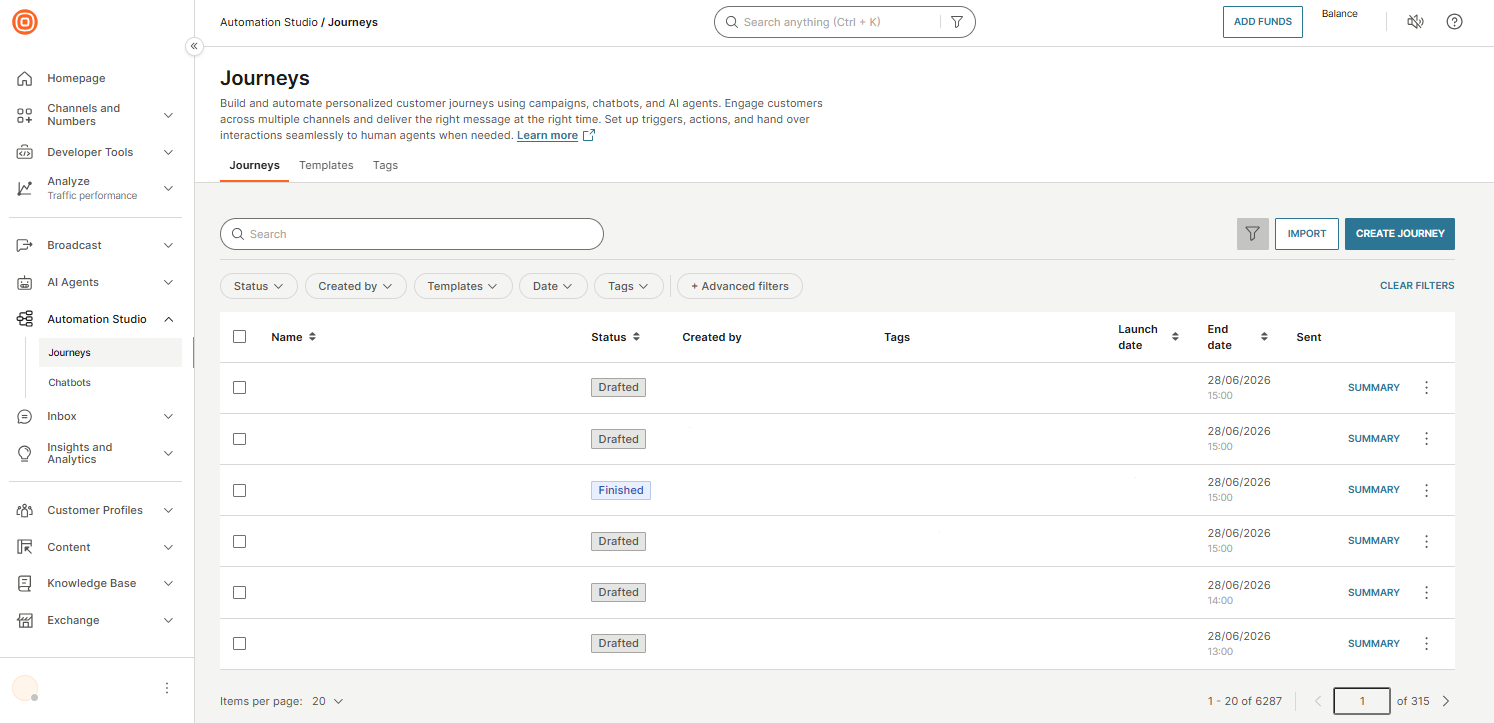
The Journeys page is the central hub for managing all your customer journeys. Access it from Automation Studio > Journeys in the left navigation. All journeys you create are listed on the Journeys tab.
From this page, you can view journey details, search for specific journeys, apply filters, and perform common management actions.
Tabs
The Journeys page is organized into four tabs.
| Tab | Description |
|---|---|
| Journeys | Lists all journeys in your account. |
| Templates | Browse and manage predefined and custom journey templates. |
| Tags | Create and manage tags for organizing journeys. |
Actions
Two buttons appear in the top-right corner of the Journeys tab:
- Import: Import a journey exported from another account or environment.
- Create Journey: Opens the journey editor to build a new journey from scratch.
Journey list
The journey list shows the following columns for each journey.
| Column | Description |
|---|---|
| Name | The journey name. Select it to open the journey in the editor. |
| Status | The current journey status. See Journey status. |
| Created by | The user who created the journey and when. |
| Tags | Any campaign tags applied to the journey. |
| Launch date | The date and time the journey was launched. |
| End date | The date and time the journey is scheduled to end. |
| Sent | The number of messages sent by the journey. |
Each row also has a Summary button and a three-dot menu (⋮) for management actions.
Three-dot menu actions [#three-dot-menu-actions]
The actions available in the three-dot menu depend on the journey status.
| Action | Drafted | Active | Finished | Cancelled |
|---|---|---|---|---|
| Edit | ✓ | |||
| Stop | ✓ | |||
| Duplicate | ✓ | ✓ | ✓ | ✓ |
| Delete | ✓ | |||
| View summary | ✓ | ✓ | ✓ | ✓ |
| Copy to another account | ✓ | ✓ | ✓ | ✓ |
| Export | ✓ | ✓ | ✓ | ✓ |
| Analyze | ||||
| See in Logs | ✓ | ✓ | ✓ | |
| View performance | ✓ | ✓ | ✓ |
Use the checkbox on each row to select multiple journeys for bulk actions.
Pagination
By default, the list shows 20 journeys per page. Use the items-per-page selector to change this. Navigate between pages using the page controls at the bottom right of the table.
View a summary of the journey [#view-journey-summary]
In the Journeys tab, select Summary next to a journey to view details such as audience information, journey settings, and tags.
Search and filter [#search-and-filter]
You can apply filters to find journeys that match specific criteria. Select the Filter icon to display the available filters.
You can use only one filter type at a time — either Basic or Advanced.
Basic filters [#filter-basic]
| Filter | Description |
|---|---|
| Status | Select one or more journey statuses. |
| Created by | Select one or more users who created the journey. |
| Templates | Select a template to find all journeys created from it. |
| Date | For example, the date the journey was modified. |
| Tags | Select one or more tags. |
Advanced filters [#filter-advanced]
Advanced filters allow you to define conditions using operators. In addition to AND and OR, each field supports specific operators.
- To display all journeys not in Drafted status, use Status is not Drafted.
- To select all journeys that started before a specific date, use Started is before <date>.
- To select all journeys that have Tag1 and Tag2, use the AND operator.