User-initiated calling
User-initiated WhatsApp Business Calling enables end users to start a voice call to your business from within the WhatsApp app.
You can enable WhatsApp Business Calling in the Infobip web interface. If you do not see the option to activate WhatsApp voice, the WhatsApp voice routes are not enabled on your account. Contact your account manager or Support.
Availability
User-initiated calling is supported in all countries where WhatsApp Business Messaging is available, except the following:
- Cuba
- Iran
- North Korea
- Syria
- Ukraine regions: Crimea, Donetsk, and Luhansk
Once voice is enabled on your sender, any user in a supported country can initiate a call to your business, regardless of where the sender is based.
How to enable user-initiated calling
To use user-initiated calling, you must first activate WhatsApp voice for your sender in the Infobip web interface.
- In the web interface, open the Numbers app.
- Select your WhatsApp sender number.
- Open the WhatsApp tab.
- Select Activate WhatsApp voice.
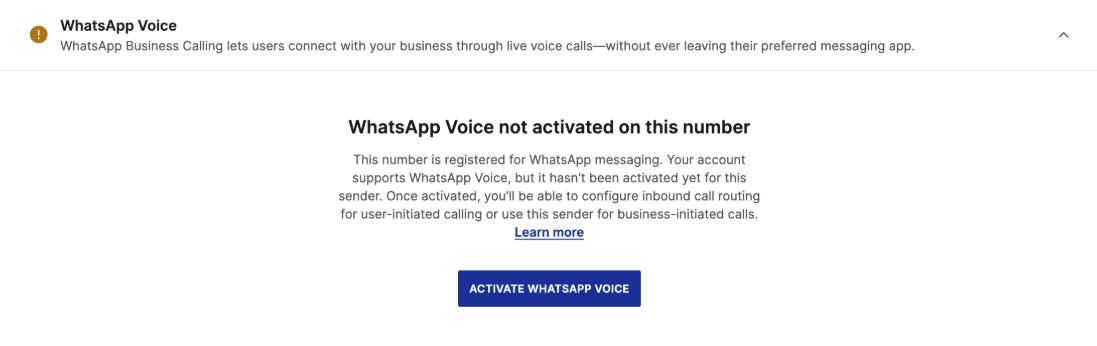
If you do not see the option to activate WhatsApp voice, the WhatsApp voice routes are not enabled on your account. Contact your account manager or Support.
How to initiate a call
You can enable users to call your business in several ways:
- Display a calling icon in the WhatsApp chat interface.
- Send a pre-approved message template that includes a call button.
- Send a free-form interactive message with a call button.
Calling icon in the chat interface [#calling-icon-in-the-chat-interface-how-to-initiate-a-call]
When the calling icon is shown in the WhatsApp chat user interface, any user can initiate a call at any time.
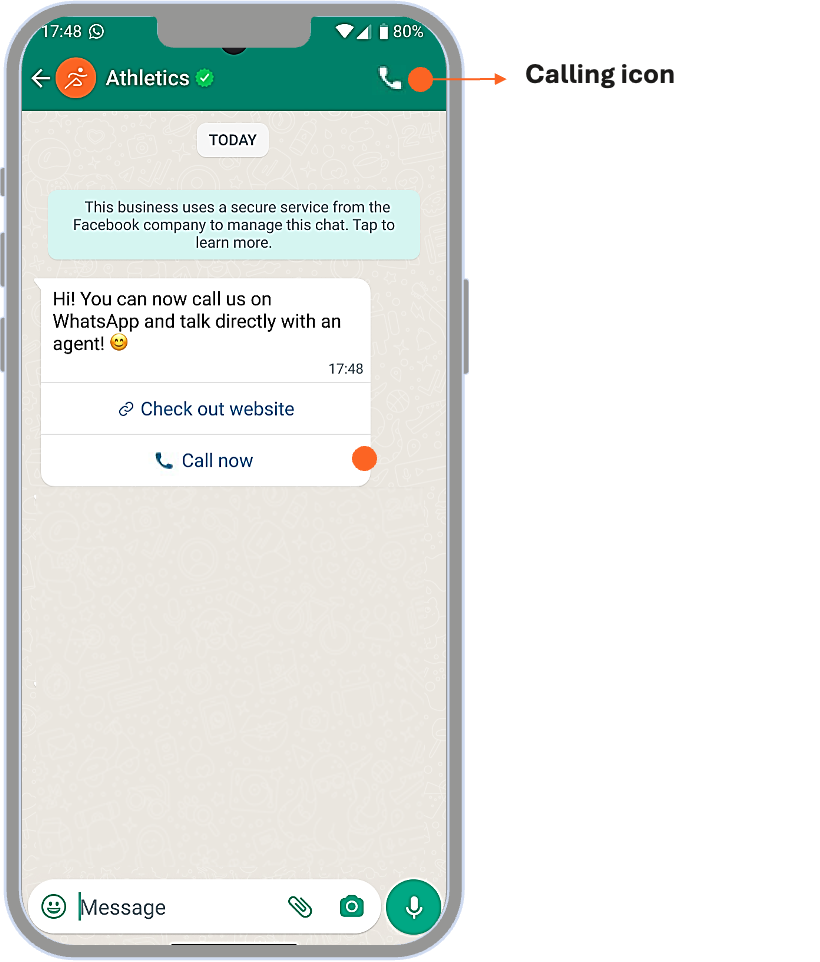
You can control the visibility of this icon through the WhatsApp Manager:
- In the WhatsApp manager, go to Account tools > Phone numbers.
- Enable the Display call buttons toggle.
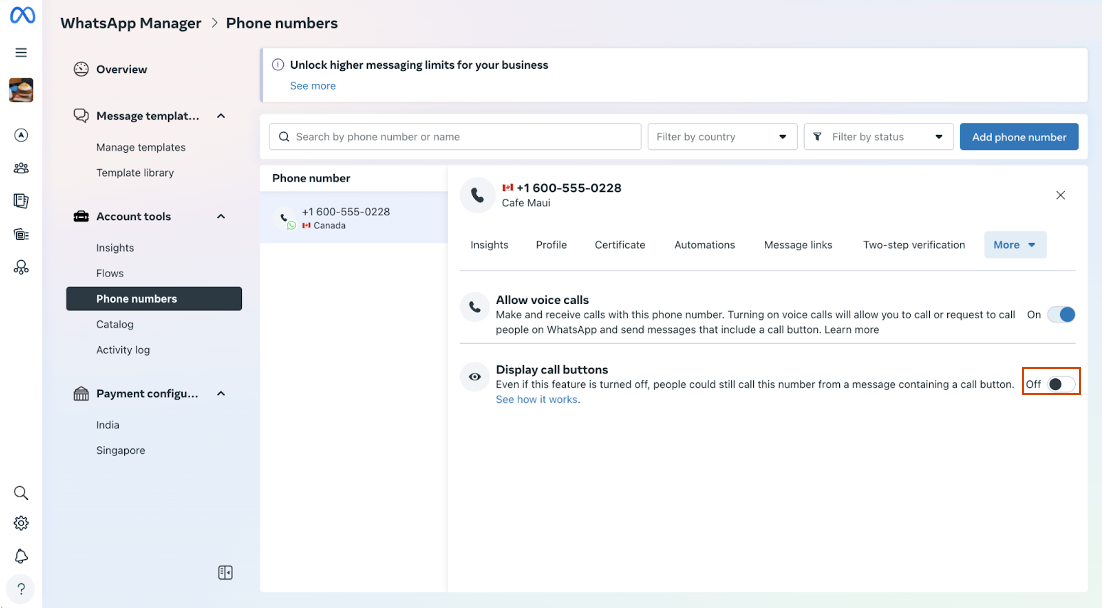
Some businesses may decide to hide the calling icon on the messaging screen and only let their users call them by sending them a free-form interactive message or a template message with a calling button.
Free-form interactive message with a call button [#free-form-interactive-message-with-a-call-button-how-to-initiate-a-call]
Use an interactive message within an active session to let the user call your business.
Message template with a call button [#message-template-with-a-call-button-how-to-initiate-a-call]
Use a pre-approved template to let users call from outside the 24-hour messaging window.
Sending a message template with a call permission request is similar to sending a WhatsApp template message.
See how WhatsApp Business Calling integrates with Conversations, SIP trunks, webRTC, and custom voice applications in supported scenarios.