Voicebots [#voicebots]
EARLY-ACCESS
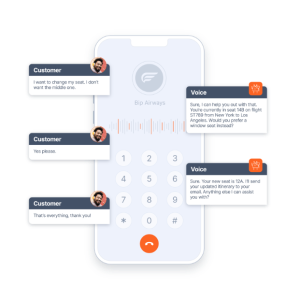
A voicebot is an AI chatbot that uses voice to communicate with end users. A voicebot can recognize the end user's voice input and responds with voice messages.
To contact a voicebot, the end user can call your phone number. The call is connected to your voicebot, which handles the conversation.
Use voicebots for inbound and outbound use cases.
How voicebots work [#how-voicebots-work]
Voicebots use AI technology such as natural language processing, intent recognition, and generative AI.
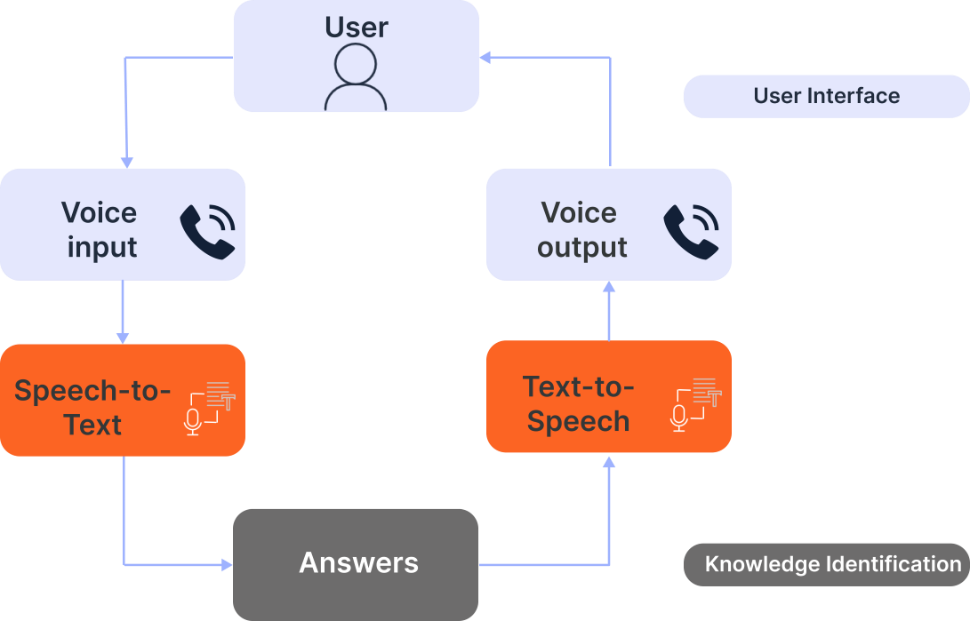
When the end user calls the voicebot, it does the following.
- Converts the voice into text by using speech-to-text service.
- Uses intent recognition to identify the intent of the end user's message.
- Processes the message based on the chatbot flow.
- Converts all responses to the end user into voice messages by using text-to-speech service.
Create a voicebot [#create-voicebot]
When creating a new chatbot, select the Calls channel.
In addition to the fields common to all chatbots, configure the following fields.
- AI language: Choose the chatbot language. You can create different chatbots for different languages.
- Speech-to-text: Choose the language in which the end user can communicate with the voicebot. You can create different voicebots for different languages.
- Text-to-speech: Choose the language in which the voicebot communicates with the end user.
- Voice: You can select different male and female voices. The available voices depend on the language that you select in the Text-to-speech field. Voices that are marked as neural have a more natural, human-like speech.
Continue configuring the chatbot. For more information, refer to the Calls channel documentation.
In addition to testing the chatbot in the simulator, you can also test in on your device.
Calls channel [#calls-channel]
Use the Calls channel when you want to create a voicebot.
In the Calls channel-specific elements, the text content of all Message fields is converted into voice messages.
Audio [#calls-audio]
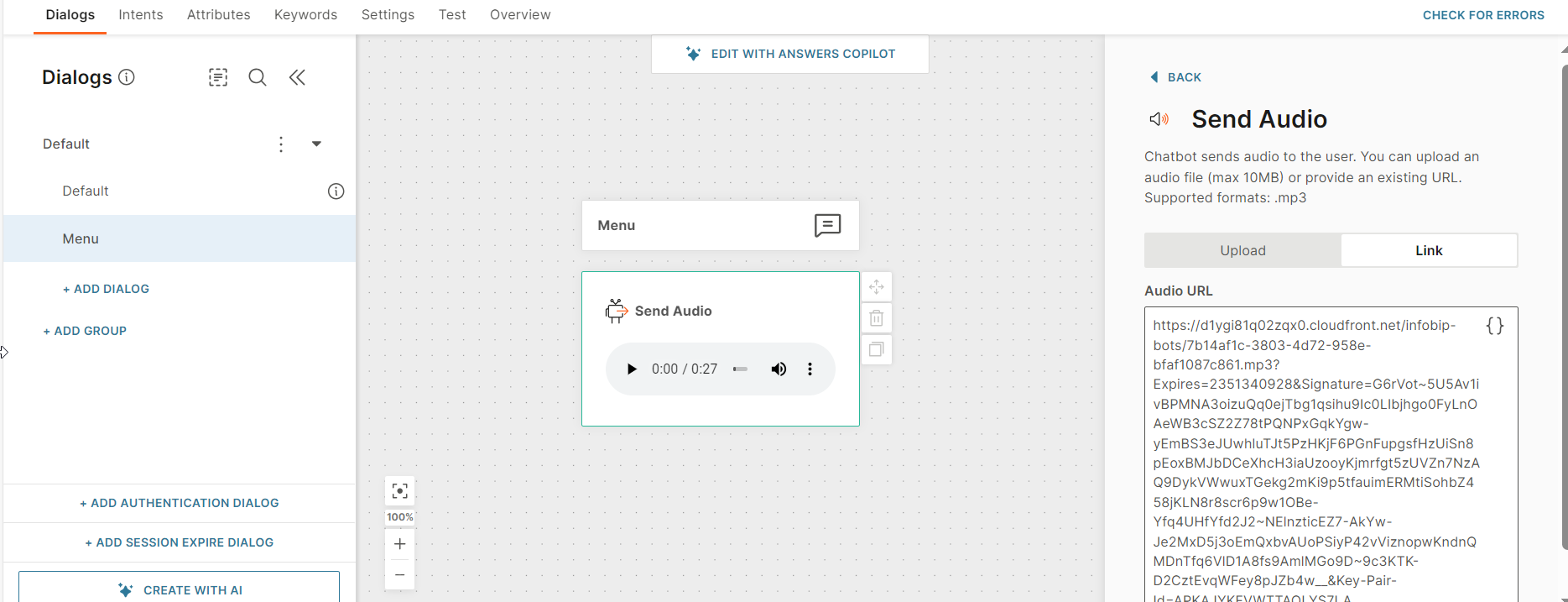
Use the Audio element to send pre-recorded messages as audio files.
To send voice messages, use the Voice element instead.
To add the Audio element to the voicebot, drag this element from Chatbot sends.
Add the audio file in one of the following ways.
- Upload the file.
- Enter the public URL that contains the file. You can include attributes to customize the URL.
The files must follow these specifications.
| Supported file format | .mp3 |
| Maximum file size | 10 MB |
When playing an audio file from a URL, the first playback of the file might have a slight delay. This is because of the time it might take to download the file from Infobip servers. Subsequent playbacks will not have this delay because the file would be cached.
DTMF code [#calls-dtmf-code]
Voicebots use dual tone multi-frequency (DTMF) technology to capture the input from end users' device keypad.
Use the DTMF code element when you want end users to enter an input. You can save this information in an attribute within the element and use it in your voicebot flow. Example: You want the end user to enter their order number.
To add this element to the voicebot, drag this element from Chatbot receives.
Configure the following fields.
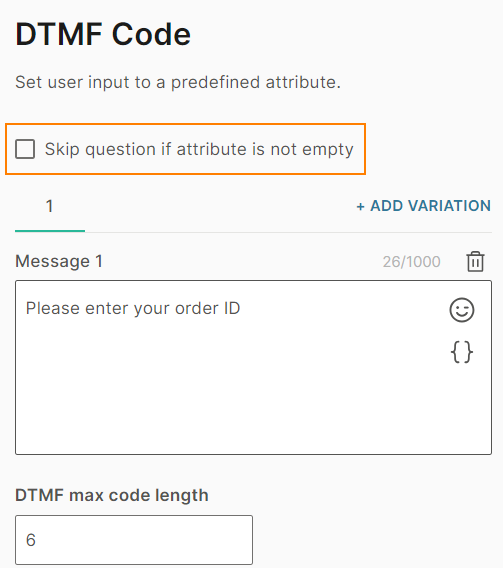
Skip question if attribute is not empty (Optional) [#calls-dtmf-code-skip]
In some cases, the attribute that you select in the DTMF code element might already have a value. Example: Your voicebot already captured this information from a different message.
If you do not want to overwrite the attribute value, select the Skip question if attribute is not empty field. If you select this option, the chatbot sends the message in the Message field only if the attribute is empty.
Message [#calls-dtmf-code-message]
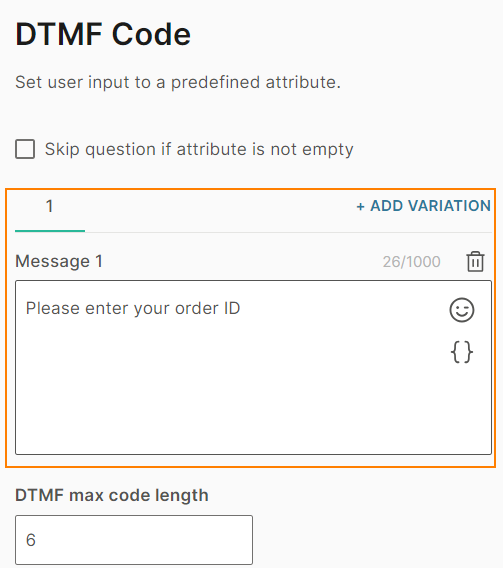
Enter the message that asks the end user for information. Example: Specify the order number.
The message can contain a maximum of 1,000 characters including spaces, special characters, new line, emojis, and attributes.
To add variations of the message, select Add variation. For more information, refer to the How to > Message variation section on this page.
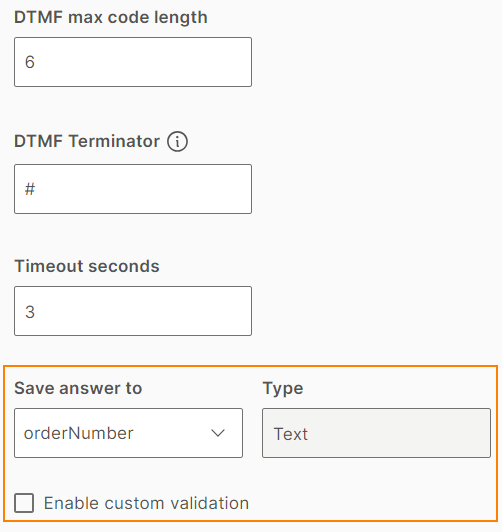
DTMF max code length [#calls-dtmf-code-max-code-length]
The maximum length of the expected input from the end user. Example: If the phone number can be either 7 or 8 digits, specify 8.
The voicebot considers the end user's input to be complete when one of the following happens.
- The number of characters in the input reaches the value specified in the DTMF max code length field.
- The end user enters the DTMF terminator.
- The timeout, specified in the Timeout seconds field, occurs.
DTMF terminator (Optional) [#calls-dtmf-code-dtmf-terminator]
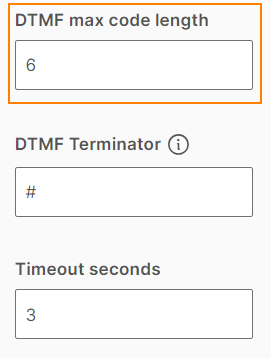
The value that the end user needs to enter to indicate the end of their input. This field is useful if the input that the end user needs to enter does not have a fixed length. Example: The phone number is either 7 digits or 8 digits. If the end user enters a 7-digit phone number and then enters the terminator, the voicebot does not wait for the eighth digit.
Valid values for DTMF terminator are # or *.
The voicebot considers the end user's input to be complete when one of the following happens.
- The number of characters in the input reaches the value specified in the DTMF max code length field.
- The end user enters the DTMF terminator.
- The timeout, specified in the Timeout seconds field, occurs.
Timeout seconds [#calls-dtmf-code-timeout]
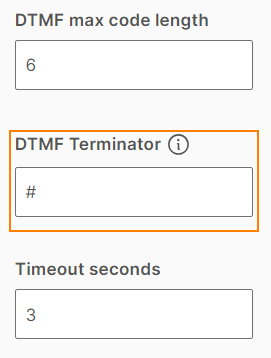
The time that the voicebot waits for the end user to enter each character in the input.
This field is useful if the input that the end user needs to enter does not have a fixed length. Example: The phone number is either 7 digits or 8 digits. If the end user enters a 7-digit phone number and the timeout occurs, the voicebot does not wait for the eighth digit.
The voicebot considers the end user's input to be complete when one of the following happens.
- The number of characters in the input reaches the value specified in the DTMF max code length field.
- The end user enters the DTMF terminator.
- The timeout, specified in the Timeout seconds field, occurs.
Save answer to [#calls-dtmf-code-save-answer]
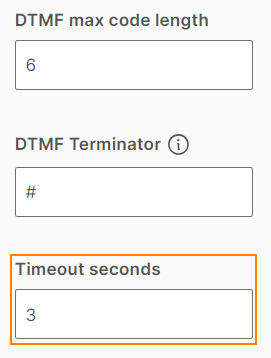
Save the response from the end user in an attribute.
Do one of the following.
- If you have already created the attribute, select the attribute.
- Create a new attribute.
Enable custom validation (Optional) [#calls-dtmf-code-custom-validation]
You can use regular expressions (regex) to check, match, or validate the attribute value. Example: Check if the attribute value contains the phone number in the correct format.
The validation supports Basic regular expressions (BRE) standard.
Select Enable custom validation. In the Validation regex pattern field, enter the regex pattern.
Repeat message (Optional) [#calls-repeat]
If the end user sends an invalid response to your message, you can repeat the message from the Message field.
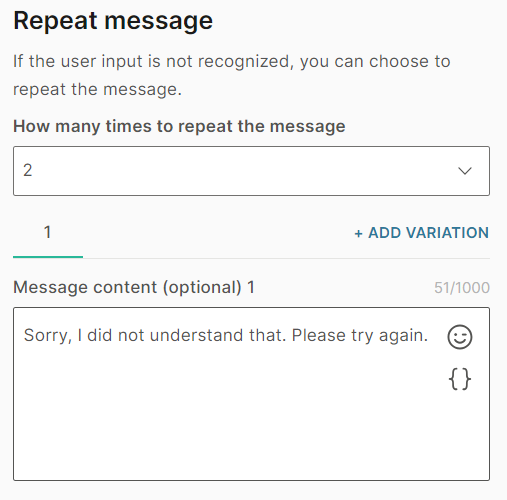
How many times to repeat the message [#calls-dtmf-code-repeat]
Choose the number of times to repeat the message. You can repeat the message a maximum of 3 times. The default value is No repeat.
If the end user does not send the correct response the voicebot repeats the message, the Fallback action is triggered.
Message content (Optional) [#calls-dtmf-code-repeat-message]
Send a message to the end user asking them to resend their response. Example: Sorry, I did not understand that. Please try again.
The message can contain a maximum of 1,000 characters including spaces, special characters, new line, emojis, and attributes.
To add variations of the message, select Add variation. For more information, refer to the How to > Message variation section on this page.
Fallback [#calls-dtmf-code-fallback]
If the end user sends an incorrect response or the message sending fails, Fallback option is triggered.
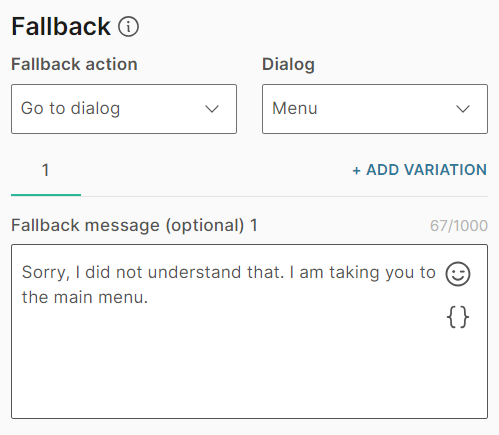
Fallback action [#calls-dtmf-code-fallback-action]
Specify the action that the chatbot needs to take when fallback is triggered. You can do one of the following.
-
Connect to agent: Transfer the call to a human agent when there are situations that the voicebot cannot handle. Example:
- The chatbot is not designed or trained to answer a specific question.
- The chatbot cannot understand the end user's message.
- The end user asks to speak to an agent.
You must have one of the following enabled to use this option.
- Infobip Conversations solution
- Infobip Conversations API solution to integrate with an external contact center solution.
When you redirect to an agent, the agent takes over the chat. Chats cannot be sent back to the voicebot.
-
Go to dialog: Redirect the flow to another dialog within the voicebot. Example: You can go back to the default dialog, the menu dialog, or the closing dialog. In the Dialog field, choose the relevant dialog. Example: Main menu.
Fallback message (Optional) [#calls-dtmf-code-fallback-message]
Send the end user a message when to inform them that there is an issue. Example: Sorry, I did not understand that. I am taking you to the main menu.
The message can contain a maximum of 1,000 characters including spaces, special characters, new line, emojis, and attributes.
To add variations of the message, select Add variation. For more information, refer to the How to > Message variation section on this page.
Hang up [#calls-hang-up]
Use this element to end the voicebot session.
To add this element to the voicebot, drag this element from Chatbot sends. You do not need to configure the element.
Transfer to phone number [#calls-transfer-to-phone]
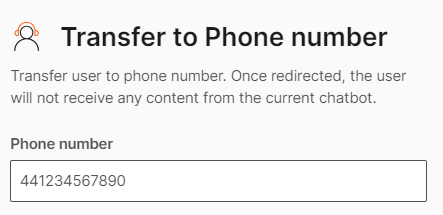
Use this element to transfer the conversation to a phone number. Example: The phone number of your contact center.
When the call is transferred, the voicebot session ends.
To add this element to the voicebot, drag this element from Chatbot actions. Enter the phone number in ISO format. Example: 441234567890.
Voice [#calls-voice]
Send voice messages to end users. In the Message field of the Voice element, create the text message. The voicebot uses text-to-speech functionality to send the text as a voice message to the end user.
The message contain a maximum of 1,000 characters including spaces, special characters, new line, emojis, and attributes.
To add variations of the message, select Add variation. For more information, refer to the How to > Message variation section on this page.
You can update the voice settings in the chatbot settings.
Guidelines and best practices [#calls-guidelines]
Message field in the Voice element [#calls-guidelines-voice-element]
When you compose the text message that needs to be delivered as a voice message, follow these guidelines.
- Avoid using emojis in voice messages. Emojis are also read out when the end user listens to the message. Example: The chatbot reads smiley face.
- To add a pause between two sentences in the voice message, enter the messages on separate lines.
Message field in all elements [#calls-guidelines-all-elements]
If you use placeholders in your messages, the resultant message might exceed the maximum length. So, the message might not be sent.
Make sure that the message does not exceed the length after the placeholder values are filled in.
How to [#calls-how-to]
Add message variation [#calls-how-to-message-variation]
To make the end user's experience varied, you can create variations of the messages in text fields. When the end user reaches these elements in the chatbot flow, the chatbot randomly selects one of these variations to send to the end user.
Select Add variation. You can add a maximum of 5 variations.
Transfer calls to an agent [#calls-how-to-transfer-calls]
Transfer to Infobip Conversations [#calls-how-to-transfer-calls-conversations]
To transfer the call to Infobip Conversations, use one of the following options.
- To agent element.
- In elements that support fallback, use the Connect to agent option.
For more information, refer to the documentation for these elements and to the Integrations documentation.
Transfer to other phone numbers [#calls-how-to-transfer-calls-other-phone]
Use one of the following options.
- To agent element. You need to have Infobip Conversations API solution to integrate with your contact center solution.
- In elements that support fallback, use the Connect to agent option. You need to have Infobip Conversations API solution to integrate with your contact center solution.
- Transfer to phone number element. Use this option to transfer the call to a phone number.
For more information, refer to the documentation for these elements.