Custom themes
Advanced customization will be deprecated. It is available only for the legacy widget design. The redesigned widget does not use custom themes, CSS variables, or custom fonts. To customize the redesigned widget, use Light primary color and Dark primary color in the widget settings and the set_ui_mode command.
Advanced customization gives you full control over the design and behavior of your Live Chat widget on a per-theme basis. Each theme can include the following customization capabilities:
- Styles: Override CSS variables to change colors, dimensions, spacing, and visibility of widget elements. See CSS variables.
- Fonts: Load custom web fonts (Google Fonts, Adobe Fonts, or self-hosted) to match the typography of your brand. See Custom fonts.
You configure each capability inside the theme object in JSON. With advanced customization enabled, the set_theme SDK command changes the widget appearance at runtime.
Enable advanced customization [#enable-advanced-customization]
To enable advanced customization:
- Go to the configuration page of your widget.
- Make sure that Use the new widget design is turned off.
- In the Appearance section, go to Advanced customization and turn on Custom themes.
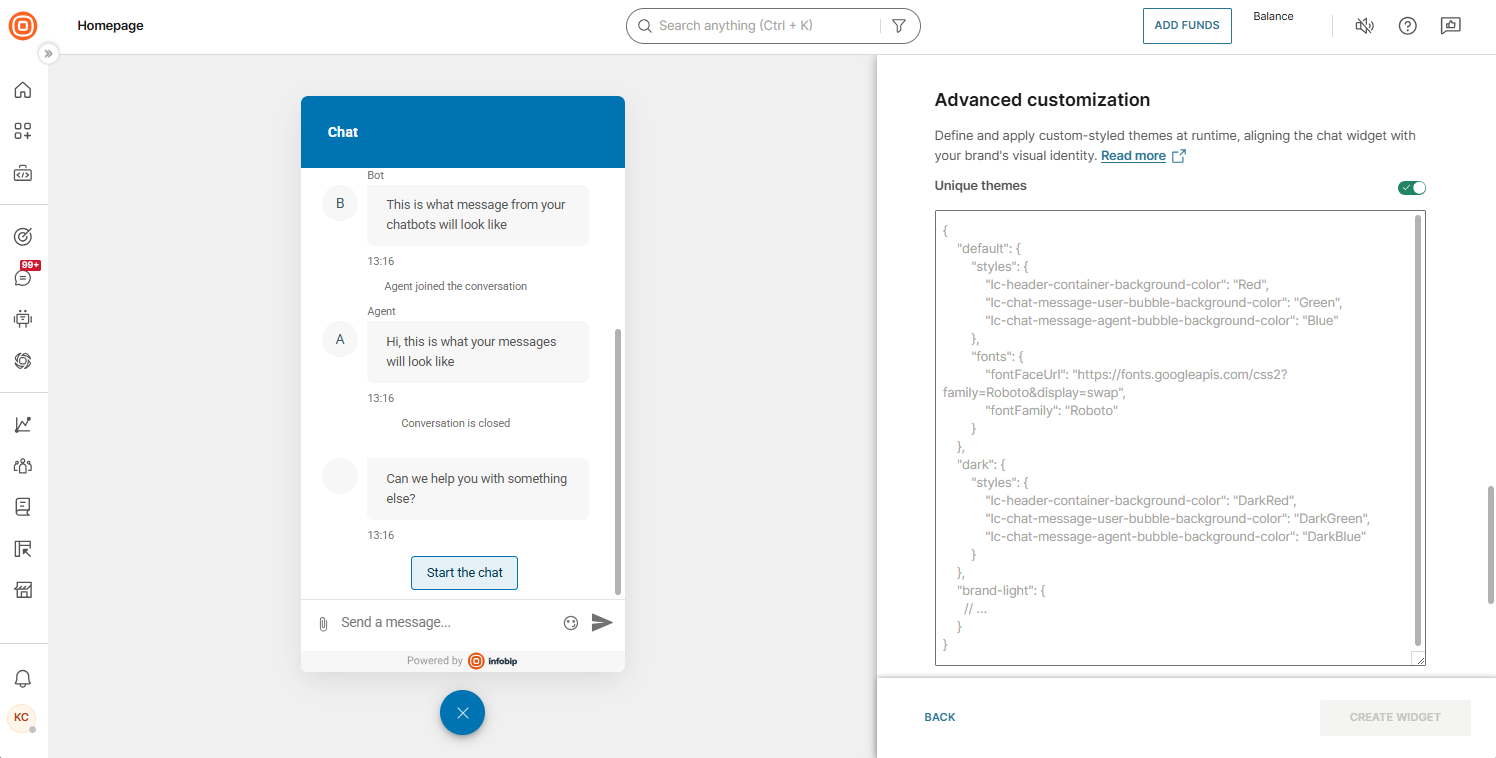
Configuration structure [#configuration-structure]
Define themes in a JSON object with the following structure:
The first-level keys, in this case default and my-theme, are the names of your themes. Use these names as arguments with the set_theme command.
Each theme object can include the following properties:
styles: CSS variable key-value pairs. Specify only the variables that you want to override. For the full list, see CSS variables.fonts: Custom font configuration. If present, bothfontFaceUrlandfontFamilyare required. For details, see Custom fonts.
All properties within a theme are optional. A theme with no fonts object uses Roboto as the built-in default.
You can define any number of themes, but the default theme is always required.
The following example shows a working sample configuration:
Apply a theme [#apply-a-theme]
To apply a specific theme to your Live Chat widget, use the set_theme SDK command. Call the command at either of the following times:
- Before you initialize the widget: The widget renders with the theme already applied.
- After the widget loads: The theme updates immediately.
If an error occurs, the widget keeps the previously set theme or reverts to the default CSS variable values. Errors include an invalid JSON structure or a theme that does not exist.
If you only define the default theme, you do not need to call the set_theme command. Live Chat automatically applies the default theme to a widget with advanced customization.
Customize styles [#customize-styles]
Customize the appearance of your Live Chat widget with a set of supported CSS variables(opens in new tab). Use them to modify elements such as background colors, dimensions, or the visibility of certain features. Add the variables that you want to override to the styles object of a theme.

CSS variables
Look up every CSS variable that you can override in a theme.
Custom fonts
Load a custom web font for each theme.
JavaScript SDK in Live Chat
Switch themes at runtime with the set_theme command.
Appearance
Choose between the redesigned and legacy widget design.
Was this page helpful?