Installation and security
Use the Installation and security section of the Live Chat widget configuration to install the widget and configure security and authentication. The section has the Install Live Chat on your website, Content Security Policy (CSP), and Security settings.
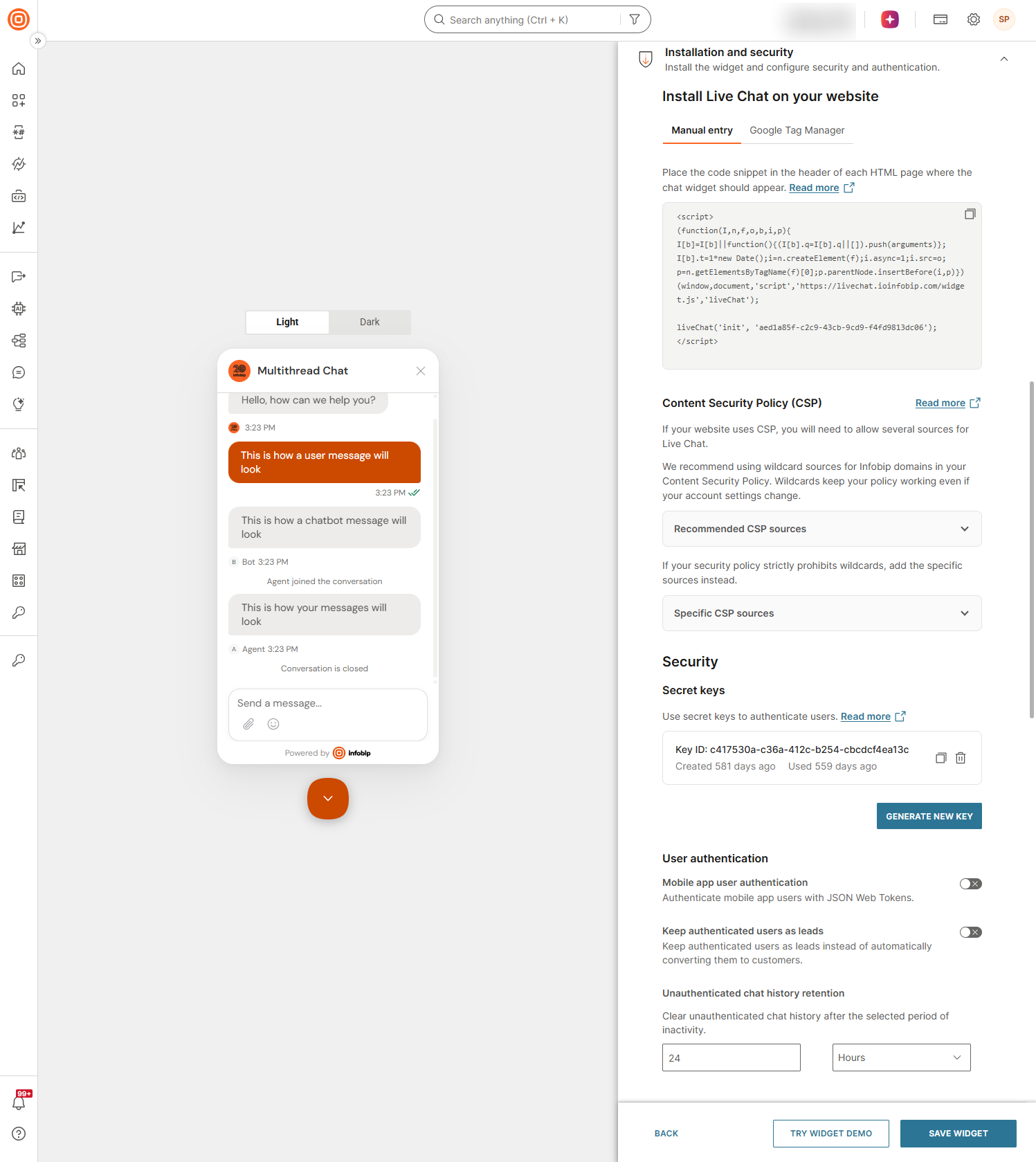
Install Live Chat on your website [#install-the-widget]
Select how to install the widget:
- Manual entry: Copy the code snippet and place it in the header of each HTML page where the widget appears. For all steps, see Install the web widget.
- Google Tag Manager: Load the widget through Google Tag Manager and track widget events in Google Analytics. For details, see Google Tag Manager.
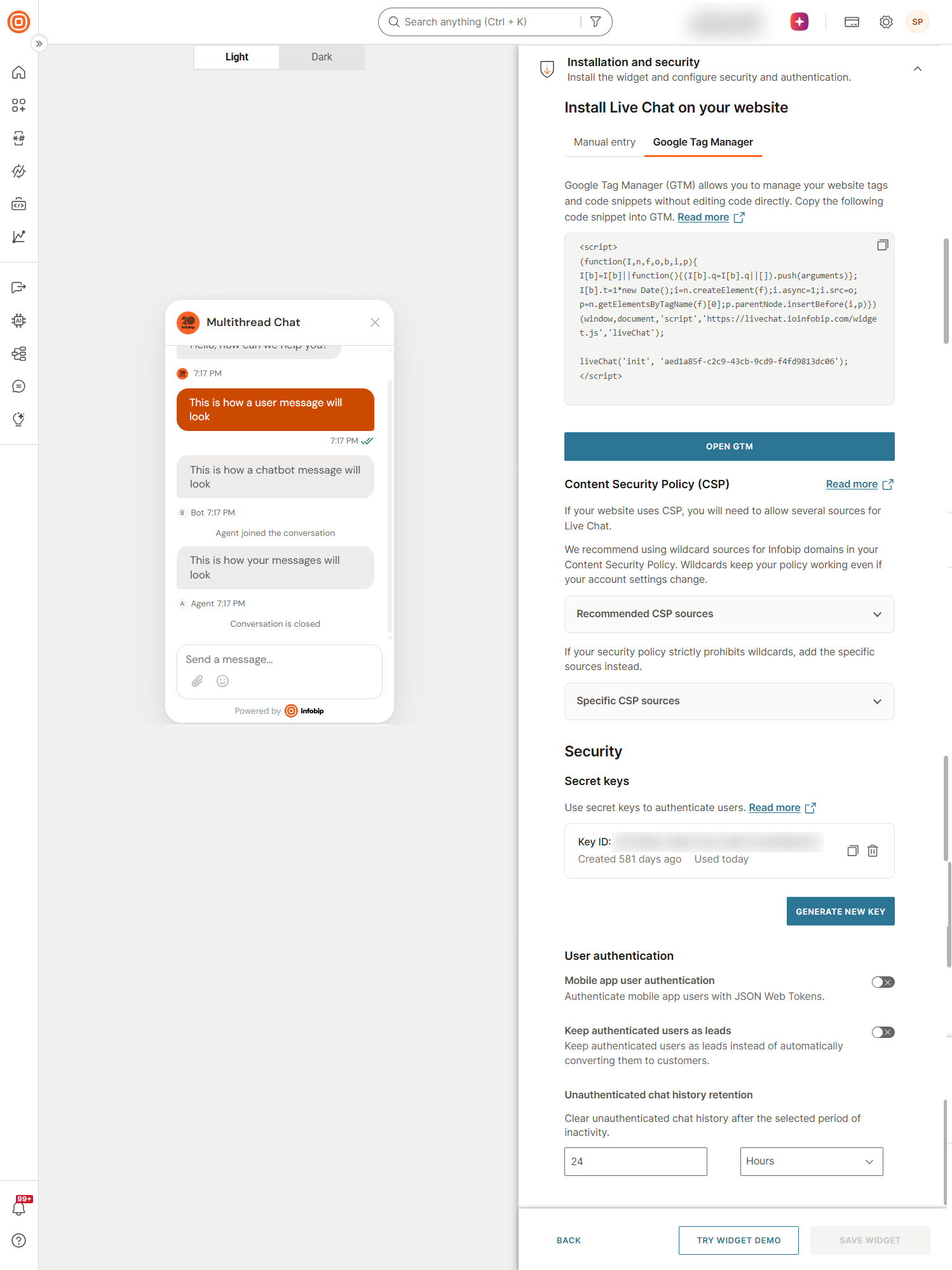
Content Security Policy (CSP) [#content-security-policy]
If your website uses Content Security Policy (CSP), add the sources that Live Chat requires. Expand Recommended CSP sources to see the wildcard sources for Infobip domains. If your security policy does not permit wildcards, expand Specific CSP sources instead. For details, see Content Security Policy (CSP) in Live Chat.
Secret keys [#secret-keys]
In the Security settings, select Generate new key to generate a secret key, and then select Save widget. You can generate keys only for a widget that you created, and the key appears in the list only after you save the widget. The list shows the key ID of each secret key, when it was created, and when it was last used. For all steps, and to rotate a key, see Get the secret key. Use secret keys to authenticate your users. Authenticated users can access their personal chat history, and your agents can verify their identities. Your widget can have as many secret keys as you need. To use a secret key to generate personalization tokens, see Authenticate web users.
For details about authenticated users, see User authentication.
Secret keys are confidential. Share them only with the people responsible for integrating your widget. Never make them publicly accessible. Attackers with access to secret keys can access the history of your users or impersonate your customers.
Mobile app user authentication [#mobile-app-customer-authentication]
In the User authentication settings, turn on Mobile app user authentication to authenticate mobile app users with JSON Web Tokens. This option improves the security of Live Chat in mobile applications. It requires a JSON Web Token (JWT)(opens in new tab) in addition to personalization to authenticate users.
For details, see Authenticate mobile users and the Android(opens in new tab) and iOS(opens in new tab) Live Chat SDK documentation.
Keep authenticated users as leads [#keep-user-as-lead]
Live Chat manages user profiles in Customer Profiles (People). By default, Live Chat creates the following profiles:
- Customer profile: Live Chat creates this profile when a user authenticates for the first time.
- Lead profile: Live Chat creates this profile for unauthenticated users.
If a lead authenticates, the system automatically promotes the lead to an authenticated customer.
Turn on Keep authenticated users as leads to keep authenticated users as leads instead of automatically converting them to customers. The setting prevents Live Chat from automatically creating user profiles and promoting leads to authenticated users. Unless a customer profile already exists, Live Chat always creates a lead profile and uses it for both unauthenticated and authenticated users.
Unauthenticated chat history retention [#unauthenticated-history-retention]
Use Unauthenticated chat history retention to clear the chat history of unauthenticated users after the selected period of inactivity. Enter a number and select the time unit, such as Hours. For example, if the retention period is 24 hours, the system removes the chat history of a user who stays inactive for 24 hours. After that, the user cannot access the history.
Inactivity starts when the user loses connection to the page that contains Live Chat, for example, when the user closes the page. Opening Live Chat with an ongoing conversation resets the inactivity period.
If you turn on Keep authenticated users as leads, authenticated leads keep their chat history indefinitely.
Install the web widget
Add the widget snippet to your website.
Google Tag Manager
Load the widget through Google Tag Manager and track widget events in Google Analytics.
Authenticate web users
Use a secret key to generate personalization tokens.
User types
Learn the difference between leads and authenticated customers.
Was this page helpful?