General settings
The general settings appear at the top of the Live Chat widget configuration, before the Appearance section. Use them to identify the widget, turn it on, and choose how conversations work.
To open the widget configuration, go to Channels and Numbers → Channels → Live Chat and select your widget. To create a widget, see Create a widget.
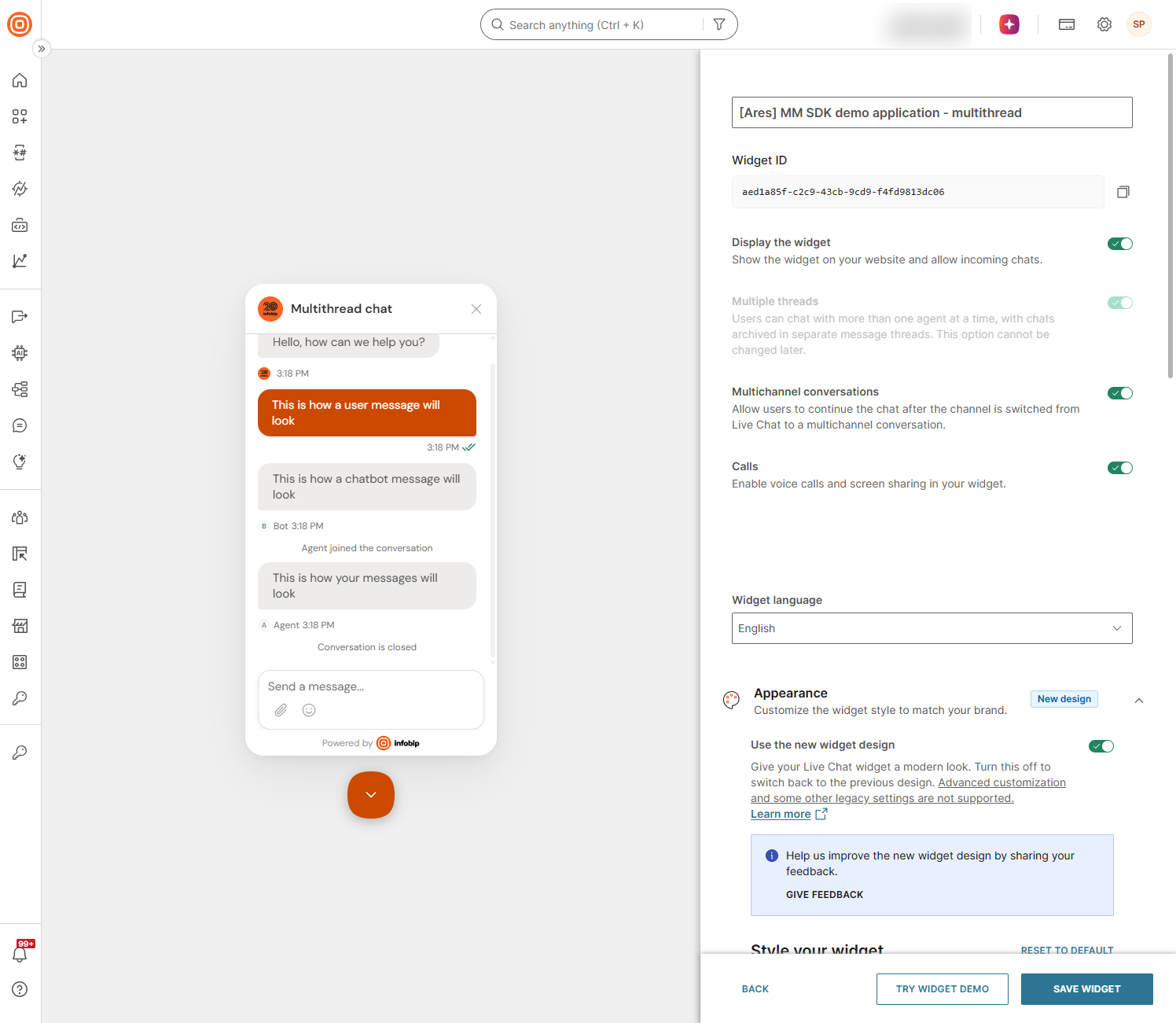
Widget name [#widget-name]
The widget name identifies the widget in routing and in conversations, so agents know where customer messages come from. This field is required.
Widget ID [#widget-id]
The unique ID of the widget configuration. The ID appears after you create the widget. Select the copy icon next to the ID to copy it.
Display the widget [#display-the-widget]
Turn on Display the widget to show the widget on your website and accept incoming chats. The toggle is on by default, and you can change it at any time. For example, to remove the widget from your website, turn off the toggle. The widget then disappears from your website and your mobile app.
Multiple threads [#multiple-threads]
Turn on Multiple threads when you create the widget to let users chat with more than one agent at a time. Live Chat archives each chat in a separate message thread. For details, see Multithreading.
Multichannel conversations [#multichannel-conversations]
Turn on Multichannel conversations to let users continue the chat after the agent switches the channel from Live Chat to a multichannel conversation. For details, see Multichannel conversations.
Calls [#calls]
Turn on Calls to enable voice calls and screen sharing in the mobile in-app chat. This setting requires a provisioned WebRTC channel. For requirements and the agent and customer experience, see Calls and screen sharing.
Widget language [#widget-language]
Select the language of the widget phrases from the Widget language list. To change the language at runtime or translate automatic messages, see Set the widget language.
Widget phrases [#widget-phrases]
The Widget language setting applies to the widget phrases. The following table lists the widget phrases and where they appear:
| Phrase | Where it appears |
|---|---|
Send a message | Widget input field |
{Agent Name} joins the conversation | Automatic event when an agent is assigned to the conversation |
Conversation is closed | Automatic event when a conversation is closed |
Upload failed. Max file size is 10MB. | Validation message in the input field when an attachment exceeds the allowed size |
Create a widget
Create a widget in Channels and Numbers.
Appearance
Select the widget design and set colors, logo, and icon.
Test your widget
Use Try widget demo to check how your widget works.
Was this page helpful?