Multithreading
Live Chat supports multiple chat sessions open at the same time. End users can use multiple chats to resolve different issues.
Live Chat also preserves previous sessions that the same end user started. This gives agents a better overview of the current issues that the end user experiences.
Multithreading is available in the web widget and in the mobile in-app chat. You turn it on once in the widget configuration.
Web widget [#web-widget]
To use multithreading in Live Chat, turn on Multiple threads in the general settings when you create the widget.
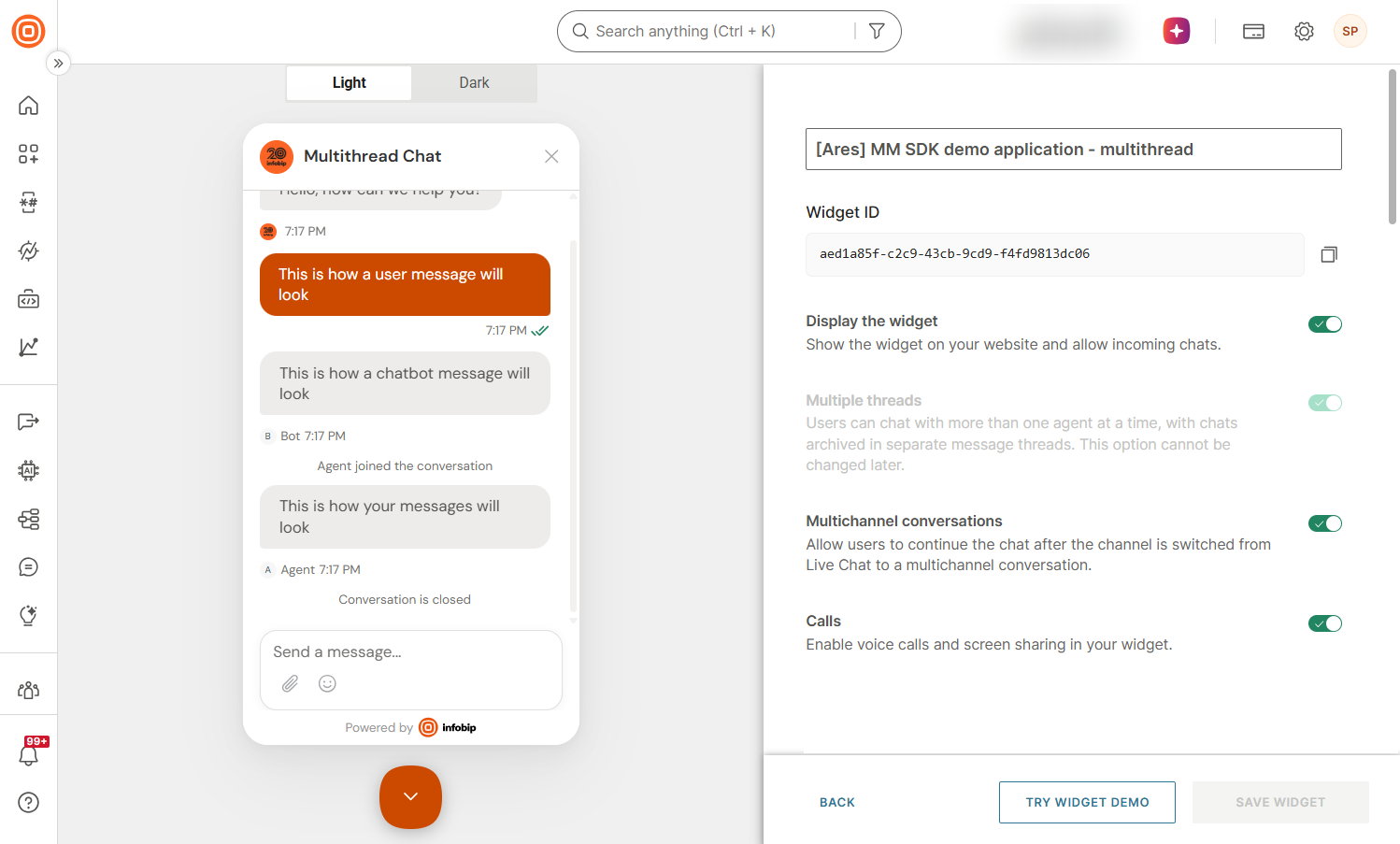
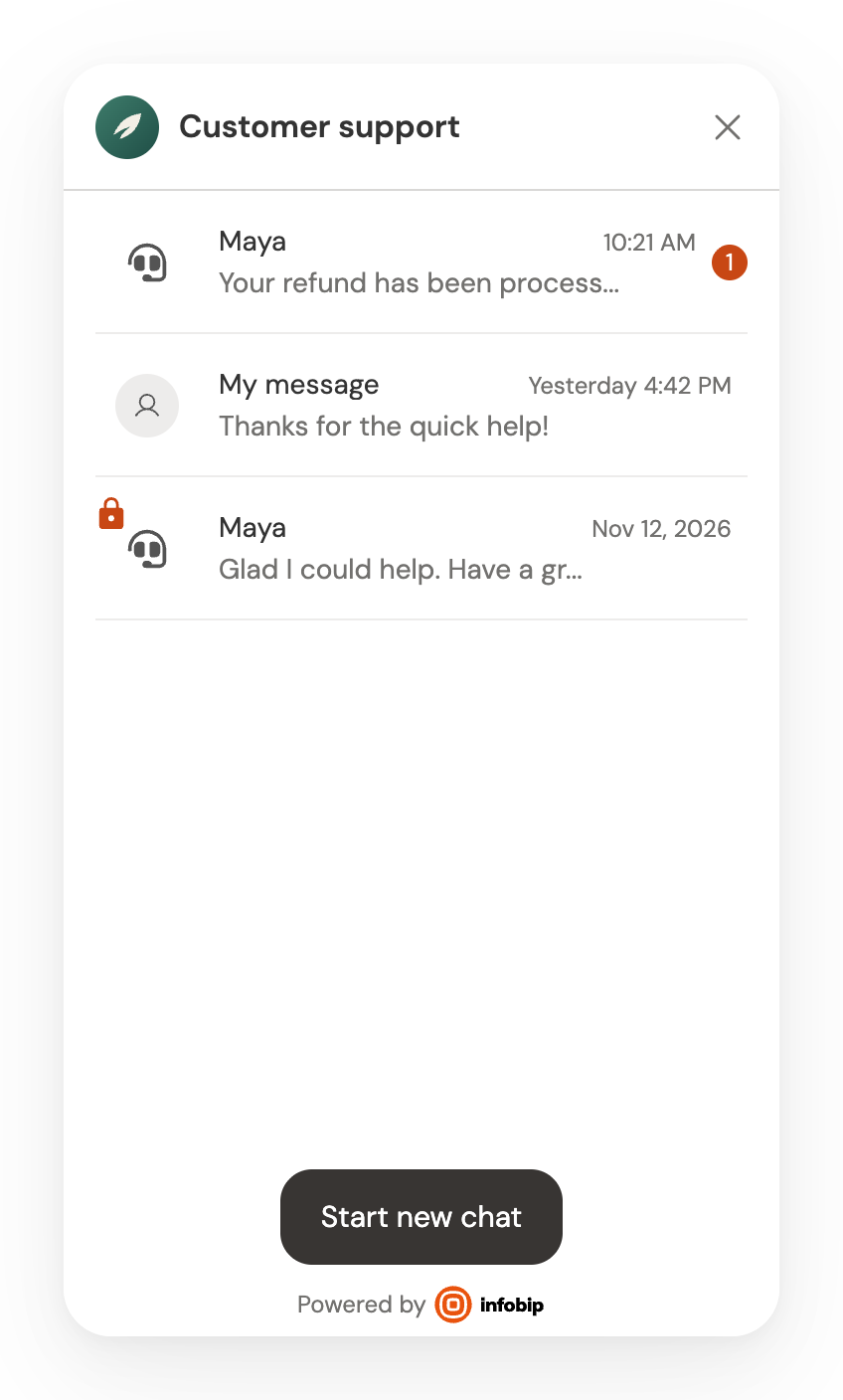
With Multiple threads turned on, the widget shows end users a list of their chats. End users can open a chat from the list or select Start new chat. With Multiple threads turned on, the repetitive message is hidden and turned off.
For the other general widget settings, see General settings.
Multichannel conversations [#multichannel-conversations]
After you turn on Multiple threads, the Multichannel conversations option appears below it. This option lets the end user continue the conversation if the agent changes the channel from Live Chat to a different channel.
Multichannel enabled [#multichannel-enabled]
If you enable multichannel, the end user can continue chatting after any channel switch.
The channel switch icon on the thread card appears only if the last message indicates the channel switch. If the end user or agent continues the chat in Live Chat, the icon disappears.
Multichannel disabled [#multichannel-disabled]
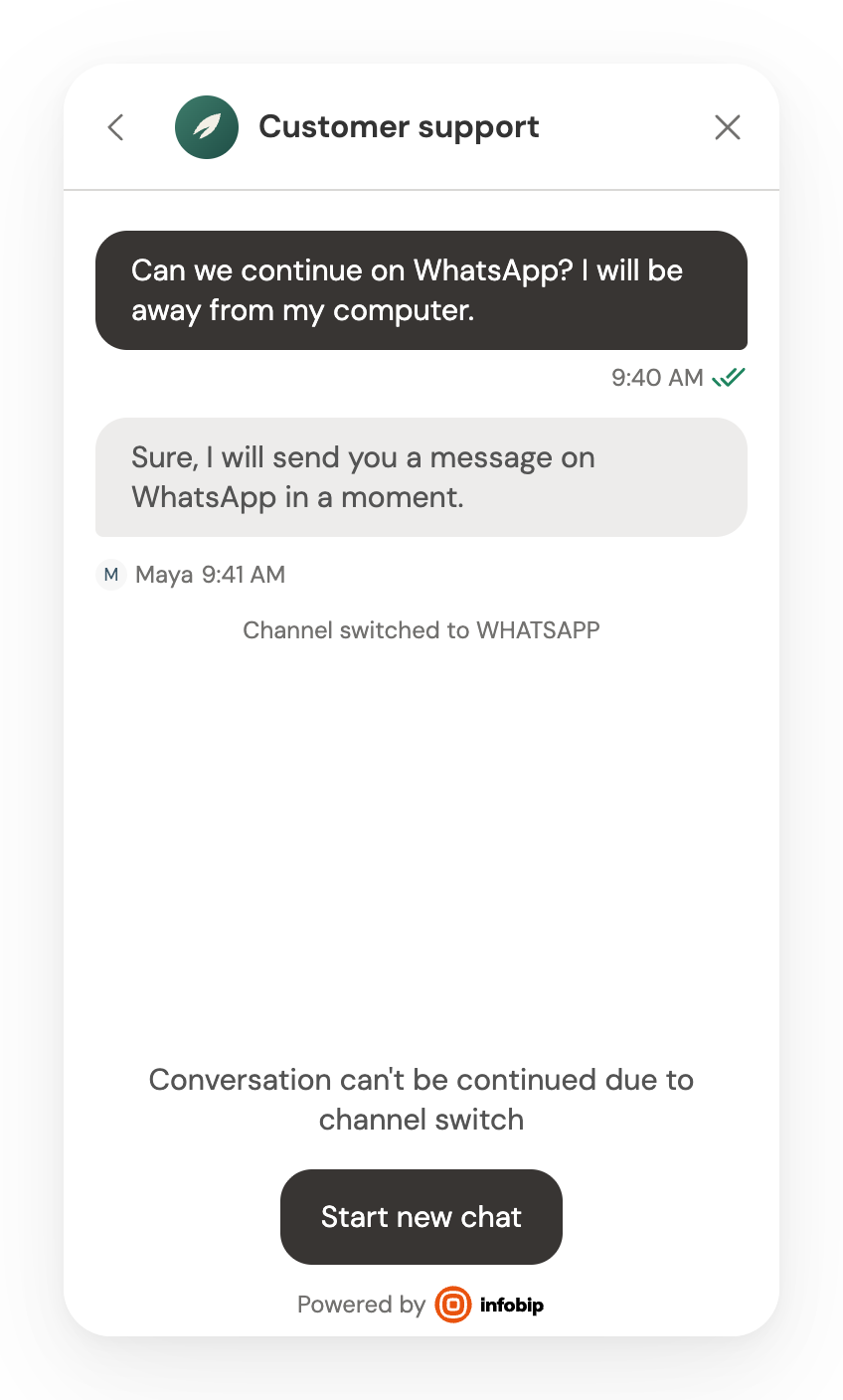
If you disable multichannel and the agent or the end user switches the channel, the thread card reflects this change. The end user sees a switch icon and a lock icon, which indicate that they cannot continue the conversation.
If the end user opens the locked thread, a message informs them that they cannot continue the conversation because of the channel switch.
Mobile in-app chat [#mobile-in-app-chat]
Multithreading is also available in the mobile in-app chat. To use it, turn on Multiple threads when you create the widget, as described in Web widget.
After you turn on multithreading, the mobile chat automatically offers the following:
- A list of all unsolved conversations that the end user opened. The list is empty at first.
- A Start new chat button that starts a thread.
- Navigation to each conversation. To open a chat, the end user taps the conversation thread in the list.

General settings
Review the general widget settings, including multiple threads.
Mobile in-app chat
Install and test the in-app chat in your mobile application.
JavaScript SDK in Live Chat
Send contextual data to the active thread in multithreaded widgets.
Was this page helpful?