Audience and availability
Configure who sees your Live Chat widget, where it appears, and when it is available. To install the widget and manage the security settings for user authentication, see Installation and security.
In the Audience and availability section of the widget configuration, choose where the chat widget is available and who sees it.
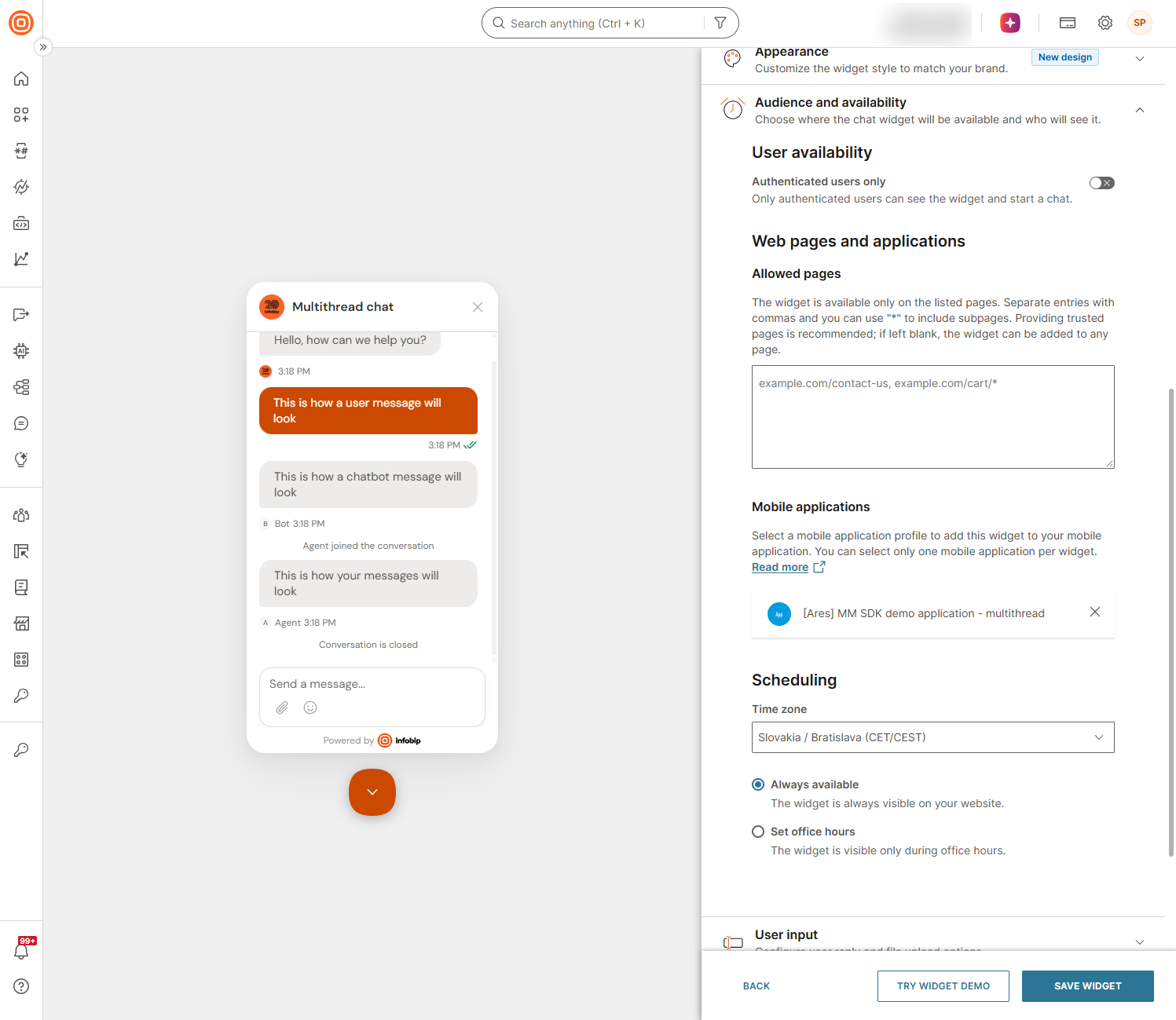
User availability [#widget-visibility]
Use the Authenticated users only toggle to define which users see the widget:
- Turned off: The widget is visible to your website visitors (unauthenticated users) and to users who logged in to your website. For details, see User types.
- Turned on: Only authenticated users can see the widget and start a chat. For details, see User authentication.
Web pages and applications [#web-pages]
Define where the widget is available: on your web pages, in your mobile application, or both. Use Allowed pages for websites and Mobile applications for in-app chat.
Allowed pages [#pages]
Use the Allowed pages field to list the pages where the widget is available. The widget is available only on the listed pages.
Separate entries with commas. To include subpages, use *. For example, example.com/contact-us, example.com/cart/*.
If you leave the field blank, the widget can be added to any page. Allowed pages controls only where the widget appears. It does not protect your widget or your conversations. To protect conversations, use user authentication.
Rules in this field apply only if you add the widget to your website.
Mobile applications [#mobile-applications]
Select the mobile application profile that adds the widget to your mobile application. Each widget supports only one mobile application profile.
To test how the in-app chat works in practice, connect the Demo application mobile profile. For all steps, see Set up mobile in-app chat.
Scheduling [#scheduling]
Select the Time zone of your working hours. Then, select one of the following options:
- Always available: The widget is always visible on your website.
- Set office hours: The widget is visible only during office hours. Use this option if you do not have 24/7 availability. Define the working hours and agent shifts based on your time zone.
Office hours have the following exceptions:
- If an end user has an active conversation when office hours end, the widget stays visible for that end user.
- Office hours do not hide the mobile in-app chat.
User types
Learn the difference between leads and authenticated customers.
Installation and security
Install the widget and configure security and authentication.
Install the web widget
Add the widget snippet to your website.
Was this page helpful?