Authenticate web users
Live Chat authenticates web users with a personalization token. This token is a JSON Web Token (JWT)(opens in new tab) signed with the secret key of your widget. As an integrator, you generate the personalization token and provide it to the Live Chat widget.
If the token is correctly signed, Live Chat fully trusts that its data is correct and that you provided it. Infobip does not take responsibility for incorrect data. For example, incorrect data might let users view the chat history of a different user.
To authenticate web users, complete the following steps:
- Get the secret key of your widget.
- Get the unique identifier of the user.
- Generate the personalization token.
- Submit the token to the widget.
Get the secret key [#get-the-secret-key]
Each Live Chat widget can have one or more secret keys. Use a secret key to sign personalization tokens.
To get a secret key:
- Go to the configuration page of your widget. You can generate keys only after you create the widget.
- Expand the Installation and security section.
- In Security → Secret keys, select Generate new key.
- Select Save widget. The key appears in the list with its key ID only after you save the widget.
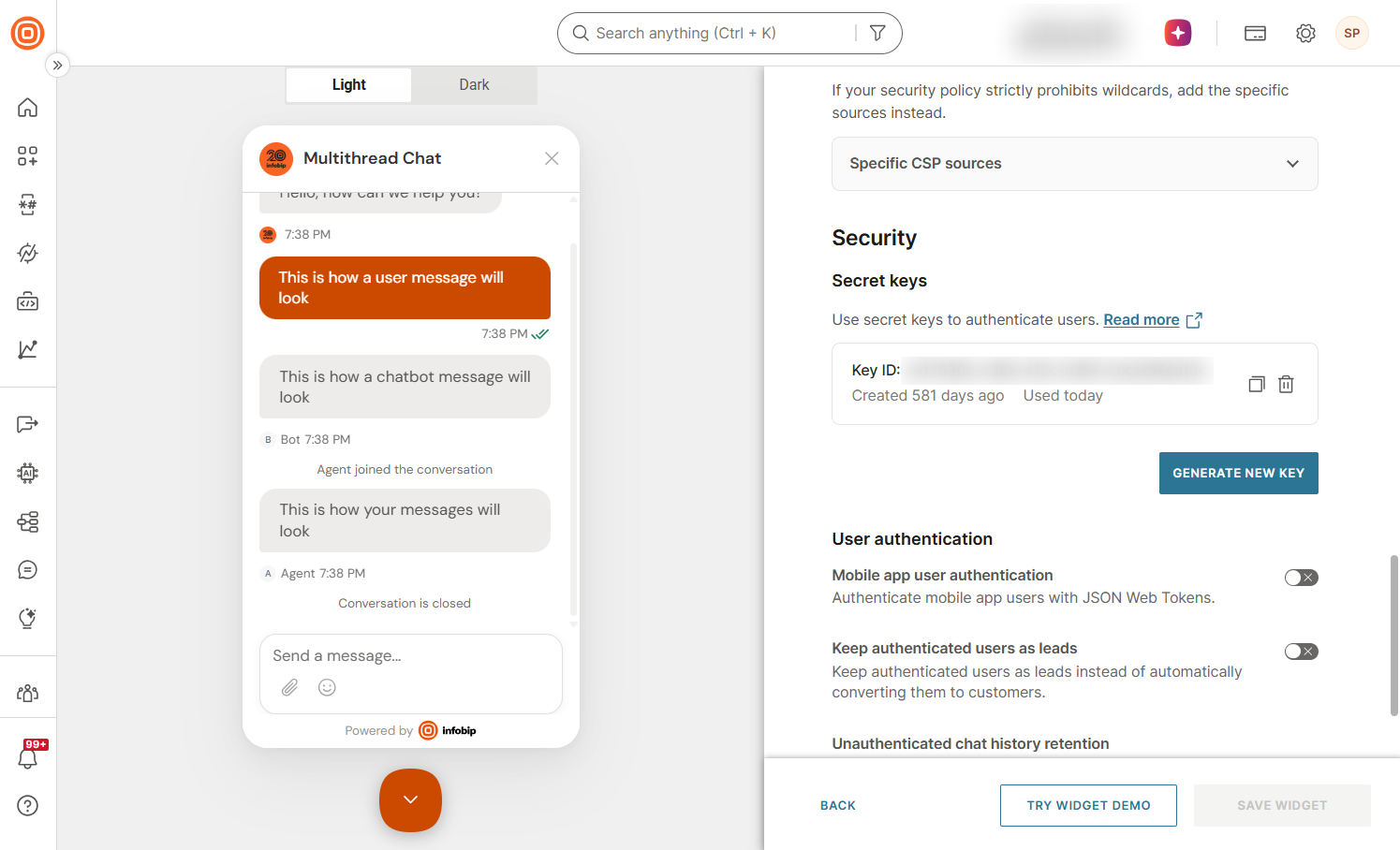
- Select Copy key next to the key. The key is copied in JSON format, with the
idandkeyfields.
A secret key has the following structure:
The structure contains the following fields:
id: The unique identifier for your secret key. The JWT includes this value in itsskifield.key: The secret value encoded in Base64, used to sign the JWT. Treat this key as confidential and handle it with the same care as a password.
To rotate a secret key:
- Generate a new key and save the widget, as described in the previous steps.
- Update your server to sign the tokens with the new key.
- Delete the old key with the delete icon next to it. After you delete the key, tokens signed with it no longer authenticate users.
Get the user identifier [#get-the-user-identifier]
To distinguish each user, supply a unique identifier. Live Chat supports the following types of identifiers:
- Email: The email address of the user.
- MSISDN: The phone number of the user, in MSISDN format.
- External ID: Any string ID from your system that is unique per user.
If the profile of a user contains multiple identifiers, you can use any of them for authentication.
Generate the personalization token [#generate-the-personalization-token]
To generate a personalization token, implement a JWT generator on your server.
Generate and sign the token on your server. Never put the secret key in your website or app code.
If you are not familiar with JSON Web Tokens (JWT), review their structure and creation process before you continue.
The generated token must meet the following requirements:
- Follow the structure defined in JWT payload structure.
- Be signed with the secret key of your widget.
- Stay as the signed JWT string. Do not encode the token again, for example, in Base64.
After you generate and sign the token, supply it to the front end where Live Chat is embedded.
A token authenticates a user only once. Generate a separate token for each authentication attempt. Live Chat maintains the authenticated session until you explicitly de-authenticate the user.
JWT payload structure [#jwt-payload-structure]
The token contains the following header and payload fields:
| Field | Required | Description |
|---|---|---|
alg | Yes | (Header value) Signing algorithm. Supported value: HS256 |
typ | Yes | (Header value) Type of the token. Supported value: JWT. Live Chat does not check this value. |
iat | Yes | Issued at: Unix timestamp(opens in new tab) in seconds when the token is created. |
iss | Yes | Issuer: the ID of your widget. |
jti | Yes | JWT ID: must be unique for each token. Any string, max 50 characters. |
ski | Yes | Secret key ID: the ID (not the value) of the secret key that you use to sign the token. |
stp | Yes | Subject type: type of identifier in sub.Allowed values: • email: standardized email format.• msisdn: phone number in MSISDN format.• externalPersonId: any string user identifier unique to your system, max 100 characters. |
sub | Yes | Subject: value of the unique identifier, matching the type in stp. |
exp | No | Expiration: Unix timestamp(opens in new tab) in seconds when the token expires. If not set, defaults to iat + 15 seconds.Avoid values less than iat + 15 seconds. |
sid | No | Session ID: your unique user session identifier, used for the Invalidate session API. Max 50 characters. Must be unique for each user session in the widget. If another user sends the same sid, authentication fails with error 4013. If the same user sends it again, the session resumes. |
The time values in the token follow these rules:
- Enter
iatandexpin seconds. Live Chat rejects values in milliseconds. expmust not be earlier thaniat.- Live Chat accepts a clock difference of up to 1 second between your server and Live Chat.
- Keep the token lifetime short. A token authenticates a user only once.
Anyone with access to a JWT can read its contents. Do not include confidential information, such as a password, in the token payload.
Token examples [#token-examples]
The following examples show a decoded token and the same token in its encoded form:

Submit the token [#submit-the-token]
After you generate the token, use the Auth command of the Live Chat SDK to submit it to your widget. Submit the signed JWT string as it is.
Authentication is asynchronous. Check the result in the callback of the Auth command. Authentication fails in the following cases, among others:
ALREADY_AUTHENTICATED: A user is already authenticated in the widget. De-authenticate the user first.2008(JWT_ID_ALREADY_USED): The token uses ajtithat was already used for the widget. Generate a new token.4013: Another user already uses the samesidin the widget.
User types
Understand leads, customers, and how to de-authenticate users.
Token generator examples
Copy JWT generator code for Node.js, Java, Kotlin, Swift, and PHP.
JavaScript SDK in Live Chat
Review the Auth command and other SDK commands for the web widget.
Authenticate mobile users
Authenticate in-app chat users with the Mobile SDK.
Was this page helpful?