Get started with Live Chat
Set up your first Live Chat web widget from start to finish. You create a widget, add it to your website, start a test conversation, and reply to it as an agent.
Prerequisites [#prerequisites]
Before you start, make sure you have the following:
- An Infobip account. Log in or create an account.
- The Infobip Inbox (Conversations) solution. Live Chat is an add-on to Inbox (Conversations).
- A role and seat that give you access to Live Chat. For the list of roles, see Before you start.
- Access to the source code of your website.
Create a widget [#create-a-widget]
Create the widget configuration that defines how your widget looks and works:
- Log in to your Infobip account.
- Go to Channels and Numbers → Channels → Live Chat.
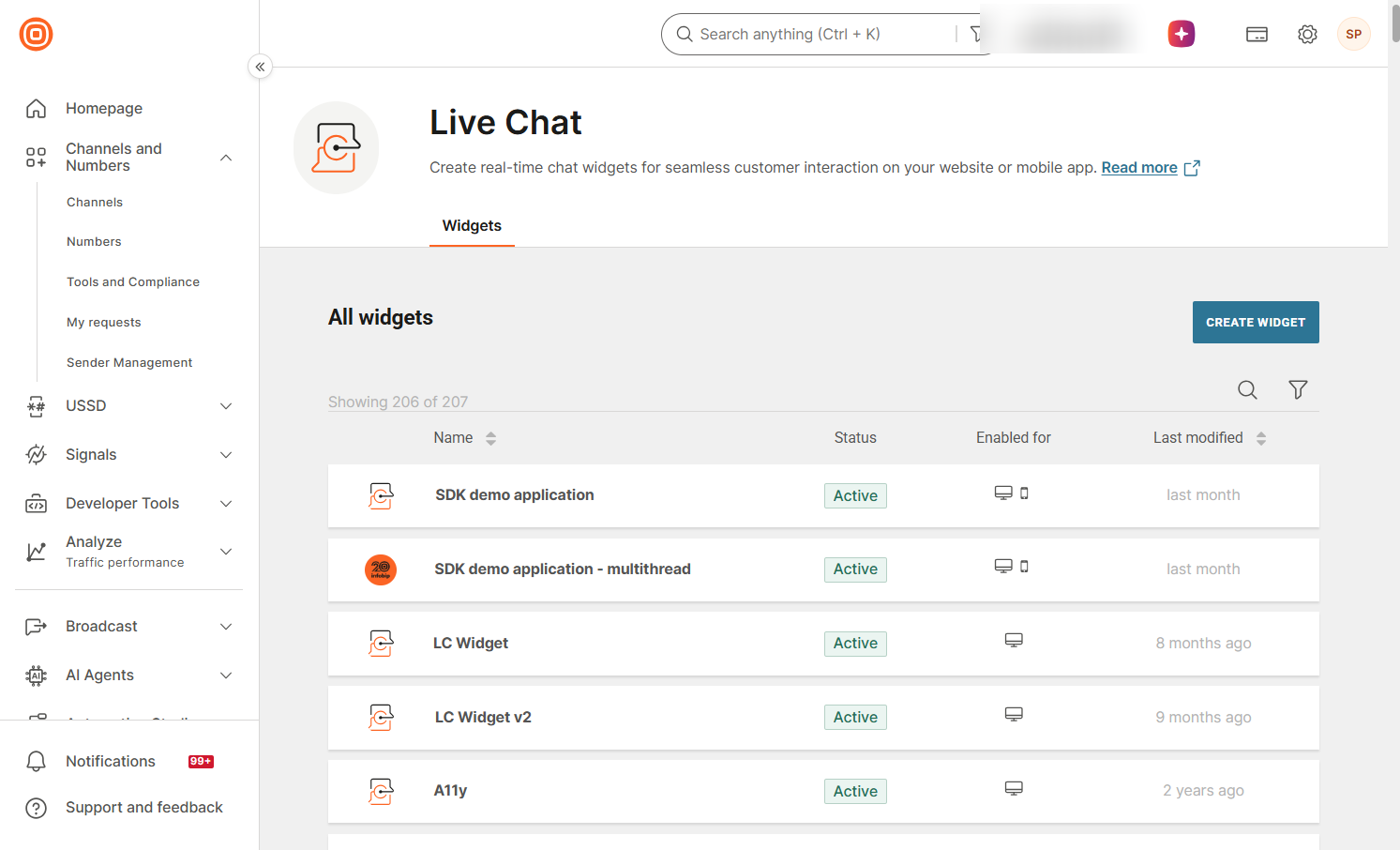
- Select Create widget.
- Enter the widget name in the field at the top of the configuration (Enter a name). This field is required.
- Make sure that Display the widget is turned on. This toggle is on by default.
- Select Create widget.
For all widget settings, see General settings.
Install the widget [#install-the-widget]
Add the widget snippet to your website:
- In the widget configuration, go to Installation and security.
- Copy the snippet code.
- In your website source code, paste the snippet between the
<head>tags of the main HTML frame. - Save and deploy your website application.
For the snippet example and installation options, see Install the web widget.
Test the widget [#test-the-widget]
Start a conversation as a website visitor and reply to it in Inbox (Conversations):
- Go to Channels and Numbers → Channels → Live Chat and select your widget.
- Select Try widget demo. The showcase page opens and emulates your own website.
- In the widget on the showcase page, send your first message.
- Select Test agent experience. The agent panel opens with the conversation that you started.
- Reply to the message from the agent panel.
To test more scenarios, such as authenticated users, see Test your widget.
Expected result [#expected-result]
After you complete the steps, the following is true:
- The widget is visible on your website after you deploy it, if all of the following apply:
- The page is in Allowed pages, or the list is empty.
- It is within the office hours.
- Authenticated users only does not hide the widget from the visitor.
- Live Chat flags website visitors who are not authenticated as leads.
- The agent panel shows the conversation that you started on the showcase page, and you can reply to it as an agent.
Live Chat overview
Learn about customer types, features, and requirements.
Install the web widget
Install the snippet, set the widget language, and test the widget.
General settings
Review all general widget settings.
Was this page helpful?