Test your widget
After you create or modify a widget, check how it works in practice with the Live Chat demo functionality. The showcase page lets you test Live Chat with Inbox (Conversations) and Chatbots (Answers) as if it were your own website.
Open the showcase page [#open-the-showcase-page]
To open the showcase page:
- Go to Channels and Numbers → Channels → Live Chat and select your widget.
- Select Try widget demo at the bottom of the widget configuration.
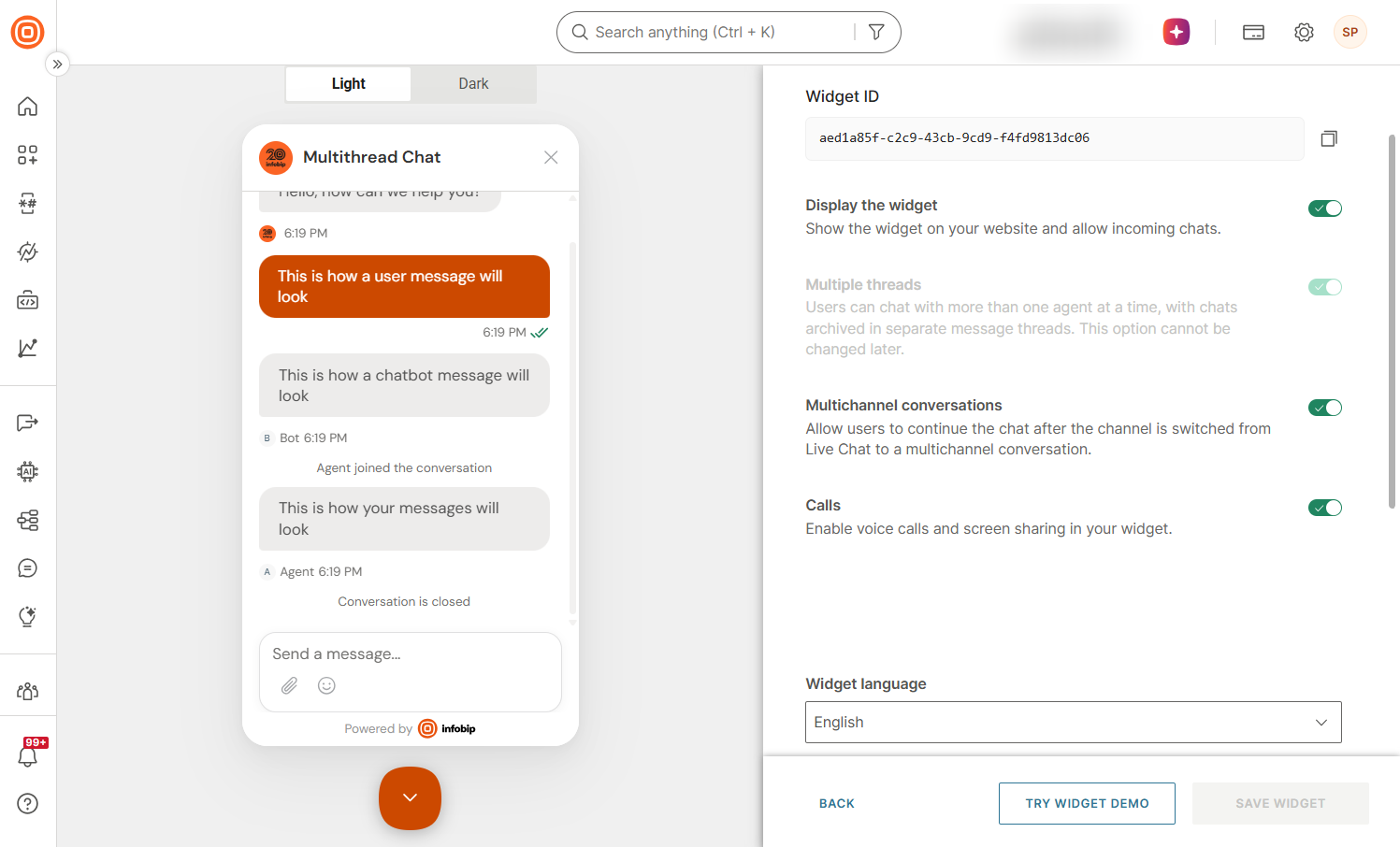
- The showcase page opens with the name of your widget.
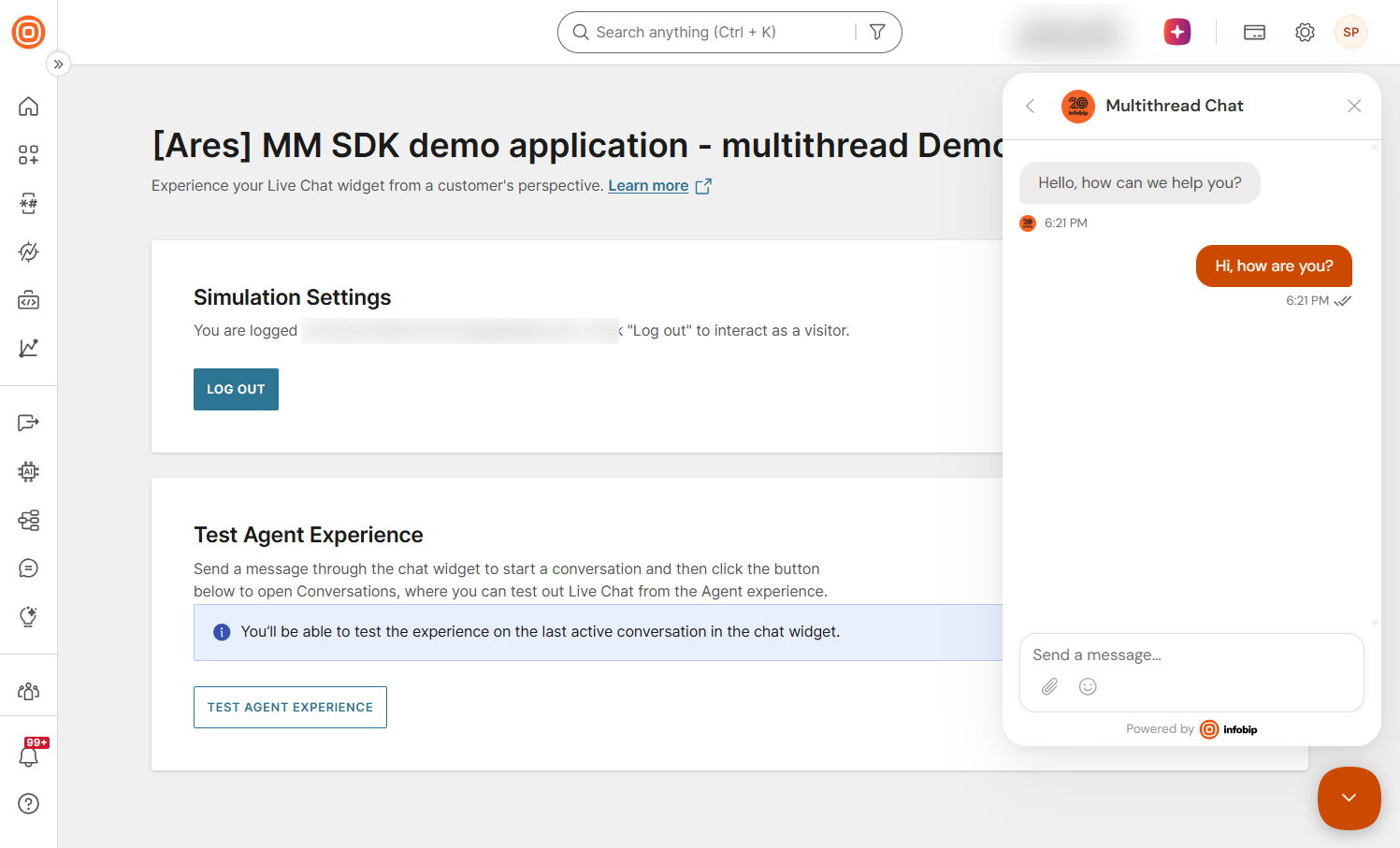
- It shows your widget from the perspective of a customer, together with the Simulation Settings and Test Agent Experience sections. During the demo, verify cases with your leads and authenticated users.
Simulation settings [#simulation-settings]
Use Simulation Settings to switch between a visitor and an authenticated user:
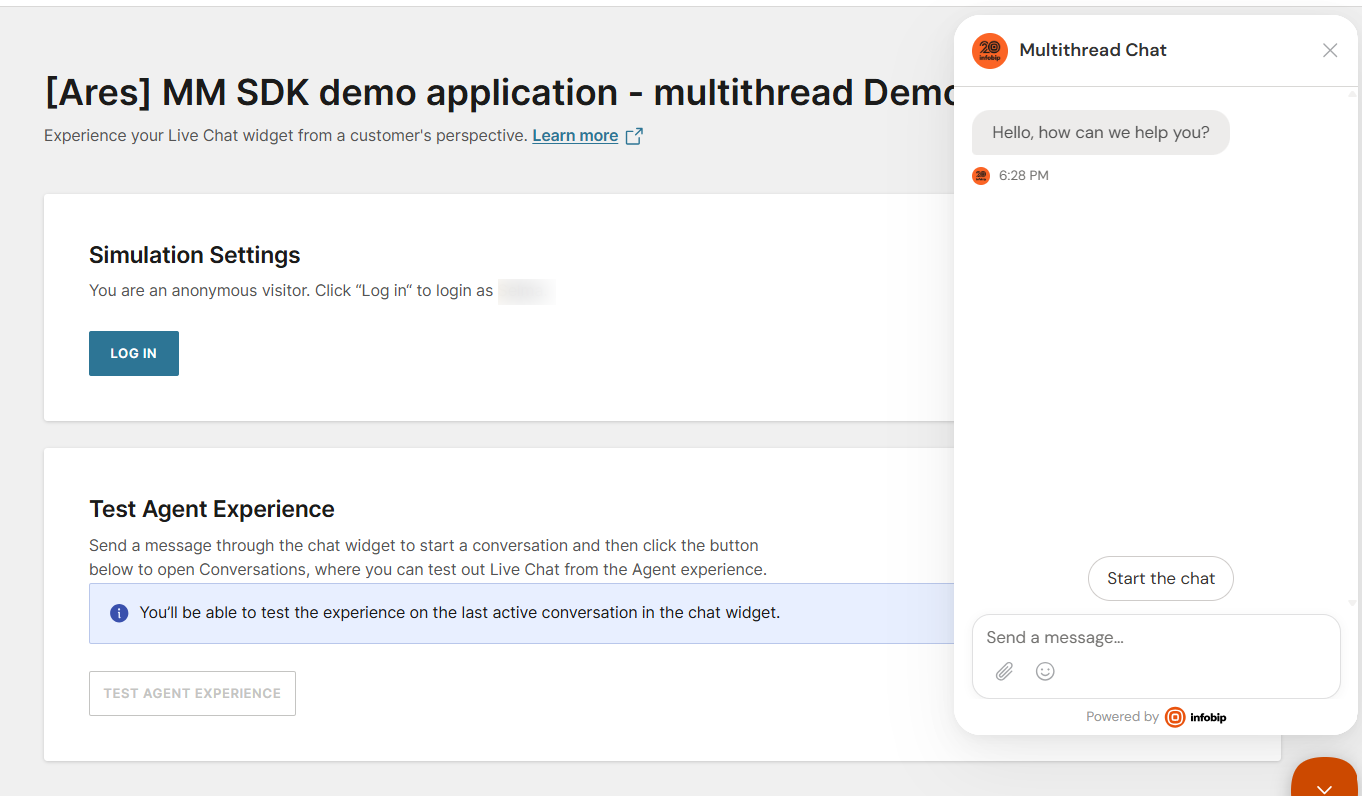
- Visitor: The section shows You are an anonymous visitor. The showcase page simulates a lead who browses your website. To interact as an authenticated user, select Log in.
- Authenticated user: The section shows the name and email address that you use to log in to Infobip. The showcase page uses them for the authenticated user session. To interact as a visitor, select Log out.
To test an authenticated user, generate a secret key for the widget first. Without a secret key, Log in is disabled.
Start a conversation as a visitor [#start-a-conversation-as-a-visitor]
This case emulates an end user who comes to your website and asks a general question. At this point, you do not know their identity, and they are a visitor on your website.
To start a conversation as a visitor:
- In Simulation Settings, select Log out if you are logged in.
- Send your first message from the widget on the showcase page. The Test agent experience button becomes active after you send a message.
- In Test Agent Experience, select Test agent experience. The conversation opens in Inbox (Conversations), where you can test Live Chat from the agent perspective.
Test agent experience opens the last active conversation in the widget.
If you close the conversation from the agent side, send a message from the widget. This message opens a separate conversation, and the Test agent experience button becomes active again.
Upgrade a lead to an authenticated user [#upgrade-a-lead-to-an-authenticated-user]
A common case is when you need a trusted session to verify the end user who asks for support. Users might start a conversation before they log in to your website.
When the end user logs in to your website, the widget shows the previous conversation, and the agent sees the identity of the user. Live Chat preserves the conversation and upgrades it to an authenticated user conversation.
To simulate the upgrade:
- Start a conversation as a visitor.
- In Simulation Settings, select Log in.
Live Chat upgrades the chat session to a chat with an authenticated user. If you had previous conversations as an authenticated user, the widget shows the history before your current conversation messages.
For details about user types, see User types.
Reset the authenticated session [#reset-the-authenticated-session]
When the end user logs out from the website, Live Chat treats them as untrusted and resets the authenticated session to a visitor session.
To simulate an authenticated user who logs out from your website, select Log out in Simulation Settings.
Test the mobile in-app chat [#test-the-mobile-in-app-chat]
The showcase page tests the web widget. To test the in-app chat in your mobile application, see Test the in-app chat.
Install the web widget
Add the widget snippet to your website and set the widget language.
Authenticate web users
Generate and submit a personalization token for logged-in users.
Agent experience in Inbox (Conversations)
Learn what agents see when they reply to Live Chat conversations.
Was this page helpful?