Calls and screen sharing
Instead of sending messages, agents can use calls and screen sharing in Live Chat mobile to resolve complex customer issues. Customers stay in the chat and the application, and they can share their screen to get guidance faster.
With calls and screen sharing, agents can do the following:
- Initiate a call (voice or video) from a Live Chat conversation.
- Share the screen from the user to the agent and from the agent to the user.
Only agents can initiate calls and screen sharing.
Requirements [#requirements]
To use calls in Live Chat mobile, you need the following:
- A WebRTC application of the APP to APP type.
- Live Chat enabled.
- Calls turned on in the Live Chat widget configuration. See Enable calls.
- The Mobile SDK code for calls applied in your application. See the Android(opens in new tab) and iOS(opens in new tab) SDK documentation.
Calls and screen sharing in Live Chat are available only for the Scale and Grow package and for customers with a WebRTC provisioned channel.
Enable calls [#enable-calls]
To enable calls and screen sharing in the mobile in-app chat:
- Go to Channels and Numbers → Channels → Live Chat and select your widget.
- In the general settings at the top of the widget configuration, turn on Calls.
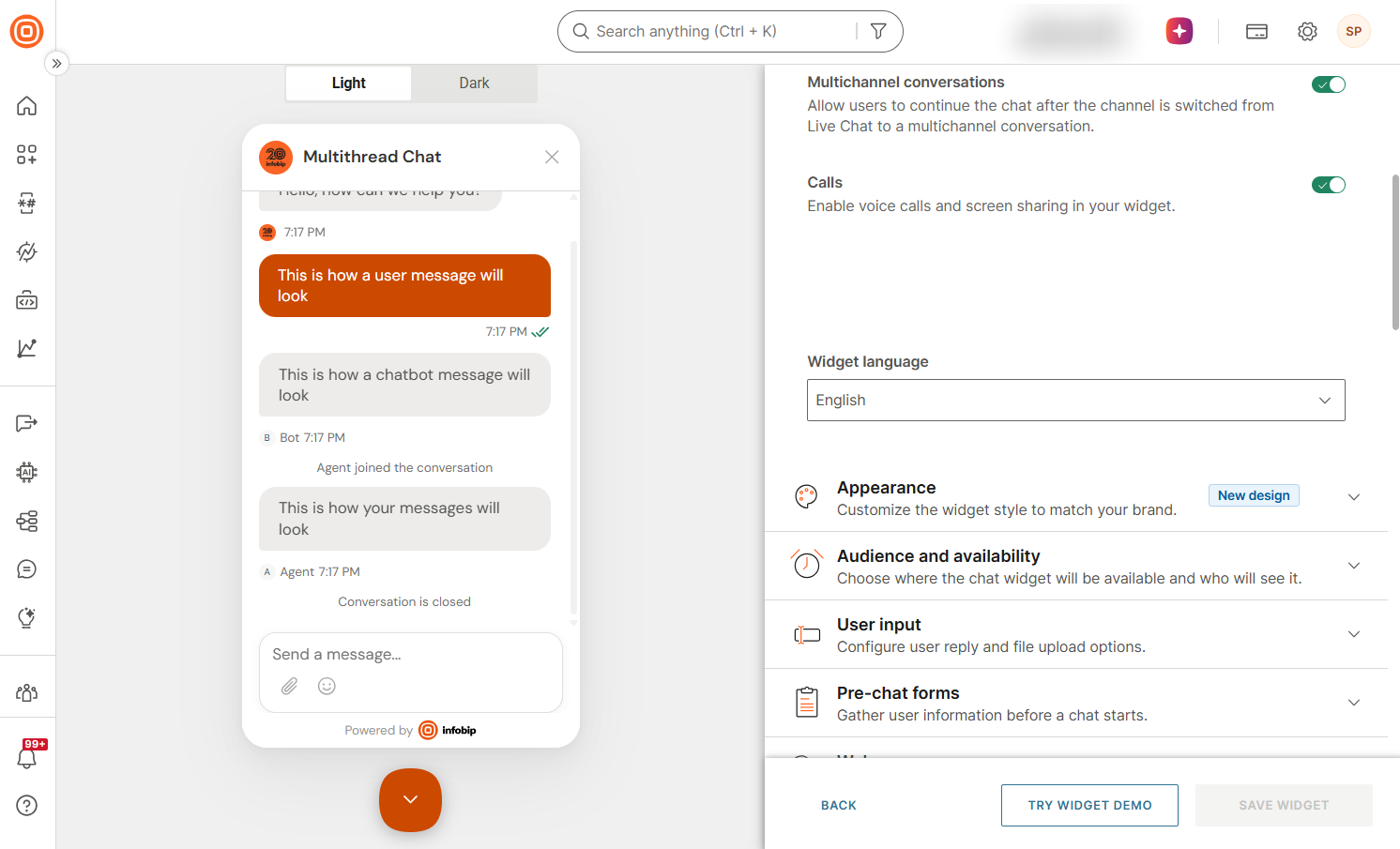
- Select Save widget.
Agents can then start calls from Live Chat conversations. For details, see Agent call experience.
Call recording [#call-recording]
After the call ends, the supervisor can check the linked recording. The recording also appears on the Recordings tab.
Agent call experience [#agent-experience]
Agents start calls from the Live Chat conversation. To start a call or generate a call link:
- In the conversation, select the LiveChat calls icon.
- In the calls modal, select one of the following options:
- Start a call
- Generate call link
When the call starts and the customer answers it, the agent has the following options:
- Minimize/Expand view
- End call
- Mute/Unmute microphone
- Turn camera on/Turn camera off
- Share screen
- Sound on/Sound off
- Switch camera
- Dial pad
To hide the options menu, the agent taps the screen. The agent can also minimize the call modal and share their screen as needed.
Customer call experience [#customer-experience]
When the agent starts the call, a modal appears on the screen of the customer. The customer can decline or answer the call.
After the customer answers the call, the customer has the following options:
- End call
- Mute/Unmute microphone
- Turn camera on/Turn camera off
- Share screen
- Minimize/Expand view
To hide the options menu, the customer taps the screen. The customer can also minimize the call modal and share their screen as needed.
Set up mobile in-app chat
Install Live Chat in your mobile application.
Agent experience in Inbox (Conversations)
See session info, previous conversations, and the typing indicator.
WebRTC
Set up the WebRTC application that calls require.
Was this page helpful?