WhatsApp and SMS Messaging for Adobe Marketo Engage
 WhatsApp
 SMS
SMS
WhatsApp and SMS Messaging for Adobe Marketo Engage enables marketers to send SMS and WhatsApp template messages to Marketo leads directly from Adobe Marketo Smart Campaigns using custom Self-Service Flow Steps (SSFS). This allows teams to deliver personalized mobile messages to leads as part of their existing campaign workflows.
This integration is created and managed by Clevertouch Consulting. To install go to the Clevertouch registration page.
Messaging capabilities
Send from any campaign
Send WhatsApp approved templates and SMS from any Marketo Smart or Batch Campaign.
Personalize at scale
Personalize and enrich messages using Marketo tokens and lead data.
Track delivery and read status
Track delivery and read statuses through delivery reports via Custom Activities for seen and delivered messages.
Automate follow-ups
Automate follow-up campaigns based on message outcomes and engagement data.
Before you get started
You will need the following:
- An Infobip account with visibility of API credentials. The API credentials will need the following scopes:
- For SMS:
sms:manageandsms:message:send
- For WhatsApp:
whatsapp:manageandwhatsapp:message:send
- For both SMS and WhatsApp:
numbers:managescope is required to connect the integration with the Infobip API key
- For SMS:
- Configured SMS and/or WhatsApp senders in your Infobip account.
- Marketo Engage access with visibility of the following:
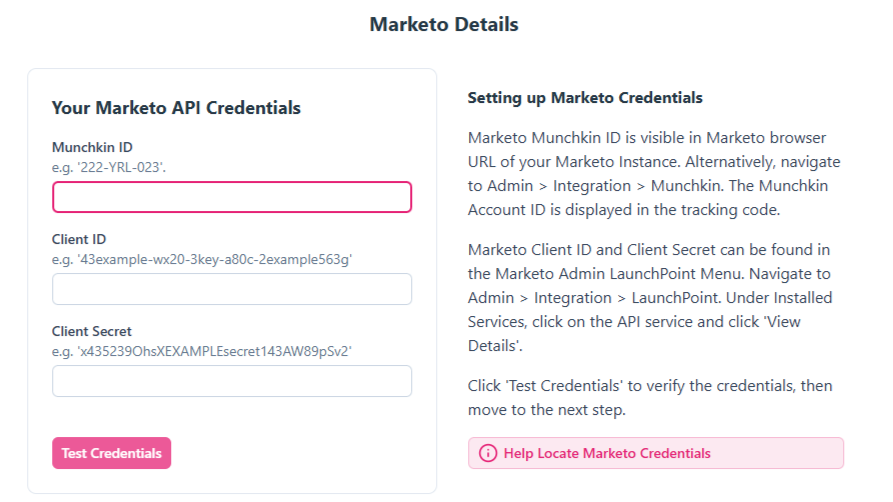
- Your Marketo instance Munchkin ID: This can be found under Admin > My Account in the Support Information section.
- Client ID and Client Secret credentials for a configured API service in your Marketo instance. In Marketo, go to Admin > Integration > LaunchPoint and select View Details on your configured API service.
- If you need to set up a service, follow the Getting Started steps in the Marketo REST API documentation. Set up a dedicated service for this integration.
Optional but recommended:
- A dedicated phone number field in Marketo for mobile numbers.
- A country code field on the Marketo Person object containing the
ISO 3166-1 alpha-2(two-character) code for the person's location. When provided, the service uses this to automatically format local phone numbers into international format at runtime, which is required for WhatsApp delivery.
Registration and installation
To begin setup, go to the Clevertouch registration page and complete the following steps:
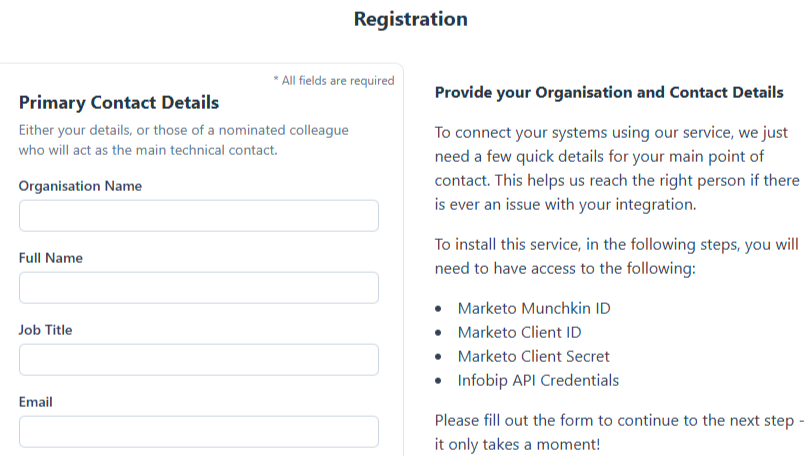
-
Enter your organization and contact details.
-
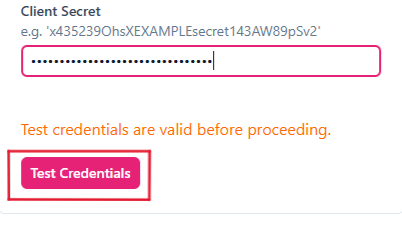
Provide and validate your Marketo API information.
-
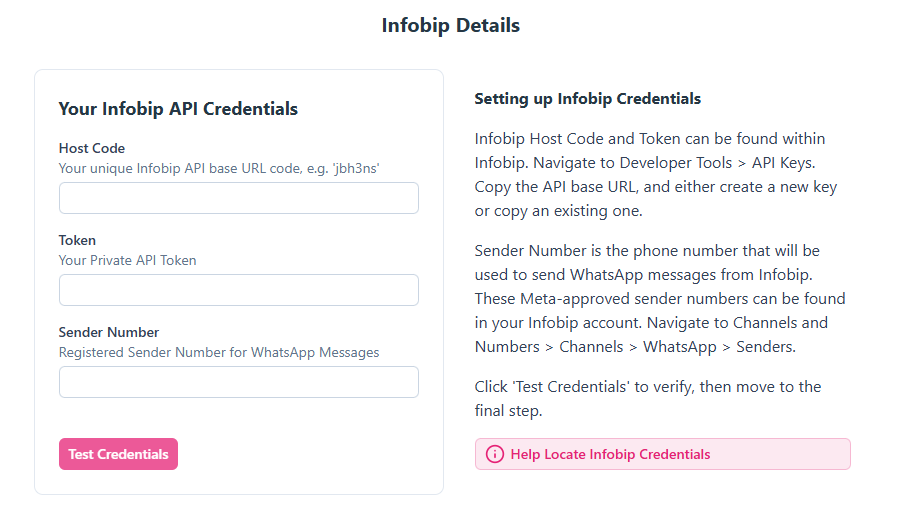
Provide and validate your Infobip API credentials. A registered sender number is required for WhatsApp usage.
-
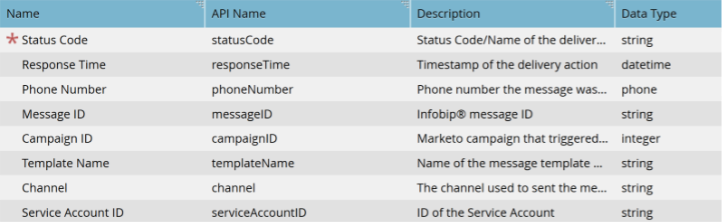
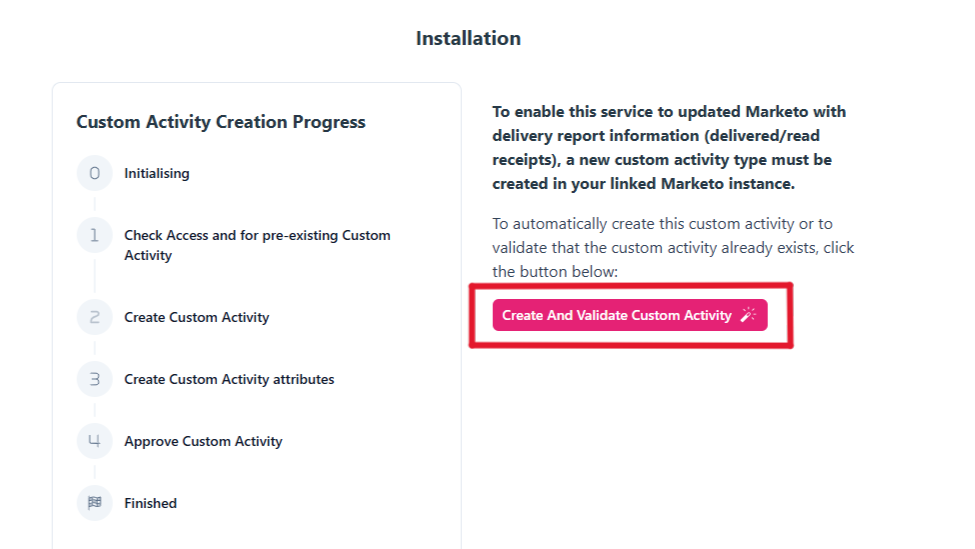
Confirm installation details for Self-Service Flow Steps and the Custom Activity. This step creates the custom activity type for recording delivery reports of sent messages. If the activity type already exists, it validates the configuration. It does not create duplicate custom activity types.
-
Submit your details.
After submitting, you are redirected to a page with the following details:
- A Flow Step install URL.
- An API token for the Flow Step.
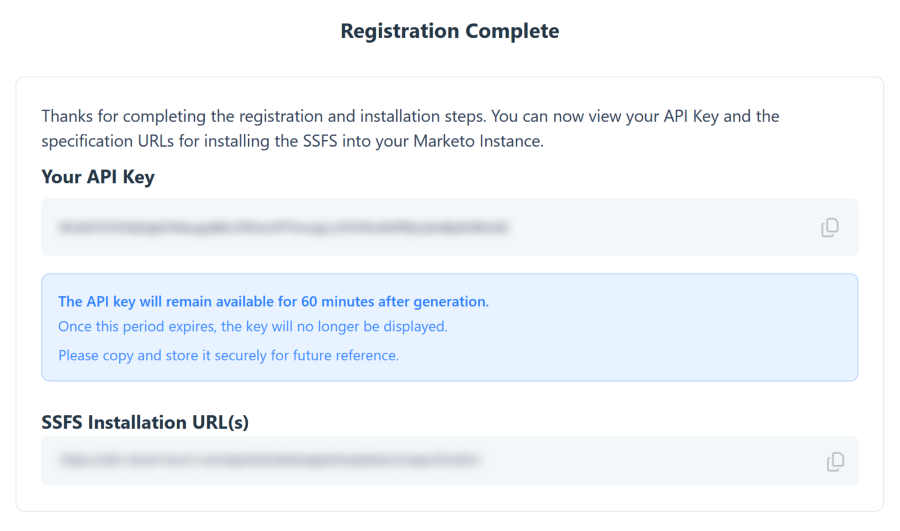
Copy these credentials and store them securely. They are only viewable for a limited time.
Marketo configuration
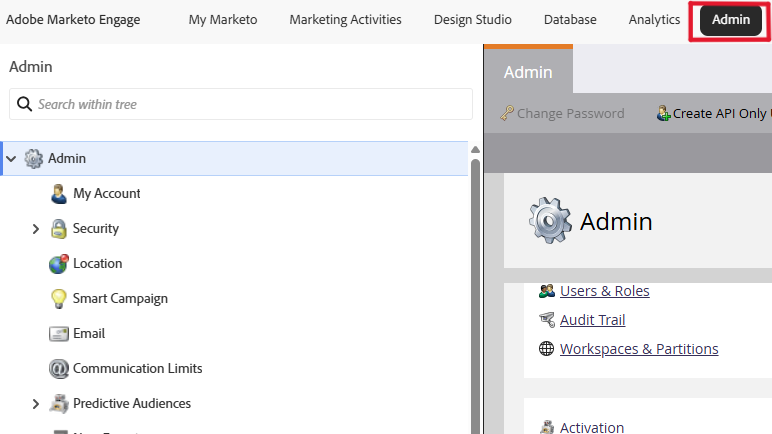
Ensure you are logged into Marketo as an admin user with access to the Admin panel.
Install the Flow Step
-
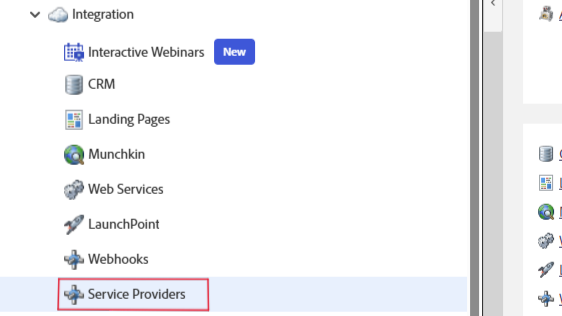
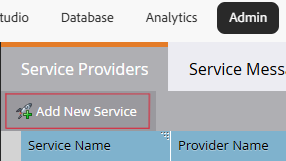
In Marketo, go to Admin > Integration > Service Providers > Add New Service.
-
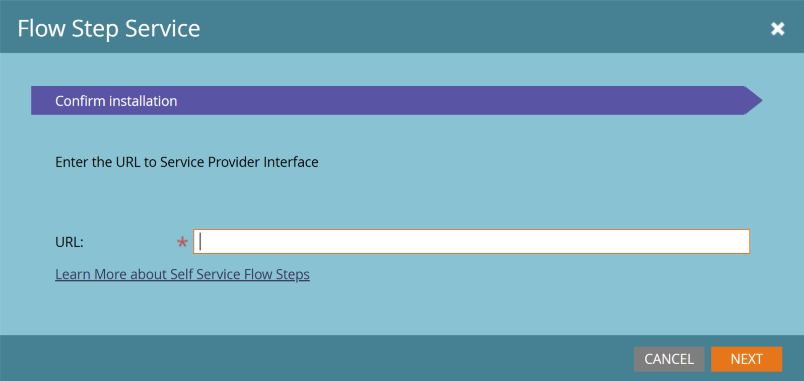
Use the install URL and then the API token obtained from the registration step.
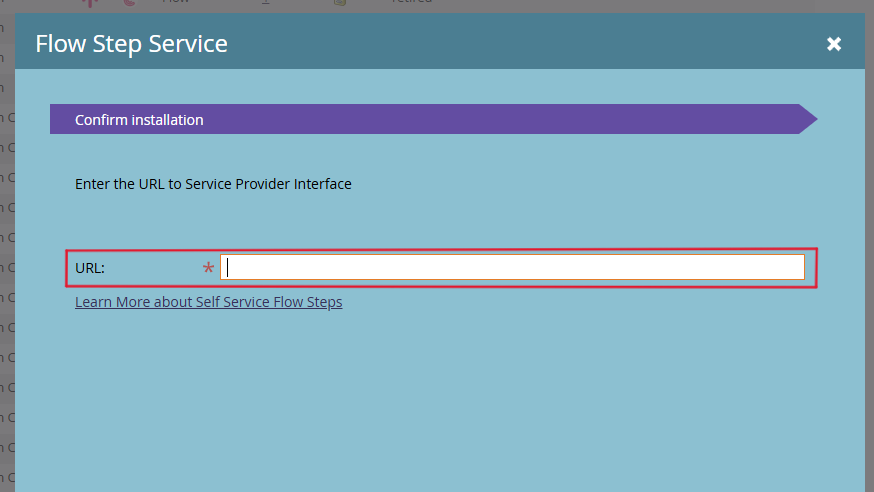
If you have a previous install of this Flow Step, Marketo will ask you to modify the names of parts of the service so they are unique. This includes the Flow Step Display, Activity Type API Name, Trigger Name, and Filter Name.
Map outgoing fields and configuration options
- (Optional) To send WhatsApp messages, all recipient phone numbers must be in a valid international format starting with a country code (for example,
441134960001). This service can automatically convert phone numbers into the correct format at send time if you provide a two-character ISO code for the person's country.
To enable this, map a field containing the relevant ISO codes to thecountry_isofield and make sure it is set to Active.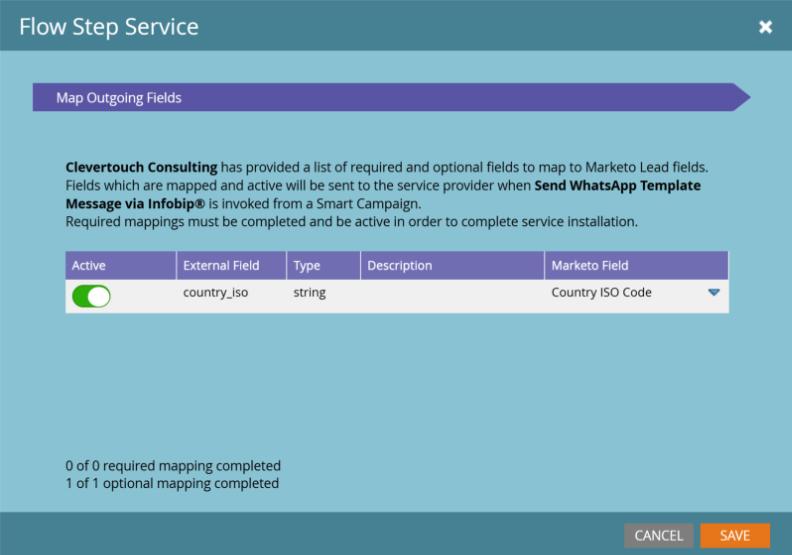
- Review the contextual fields used by the service (Subscription, Program, Program Member, Smart Campaign, and Trigger).
- Select Save.
You can now start using your Flow Step.
How to send a WhatsApp template message
Use the Flow Step in any Smart or Batch Campaign.
-
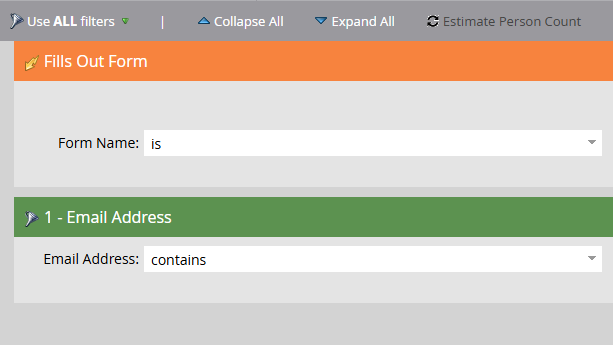
Build your Smart List:
- Add the audience criteria you need.
- For testing, add a filter such as Email Address, to limit results to yourself.
-
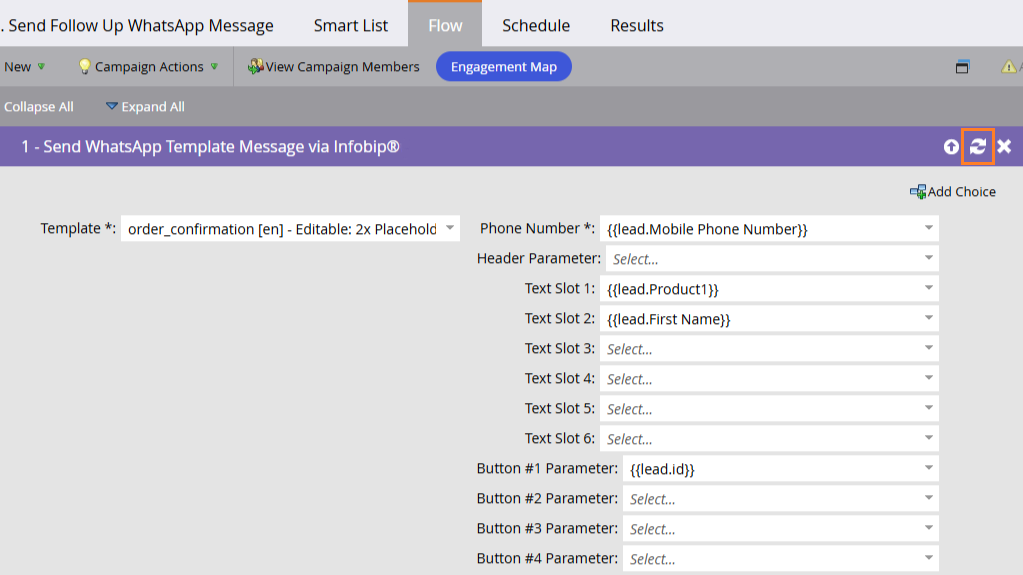
Add the Flow Step:
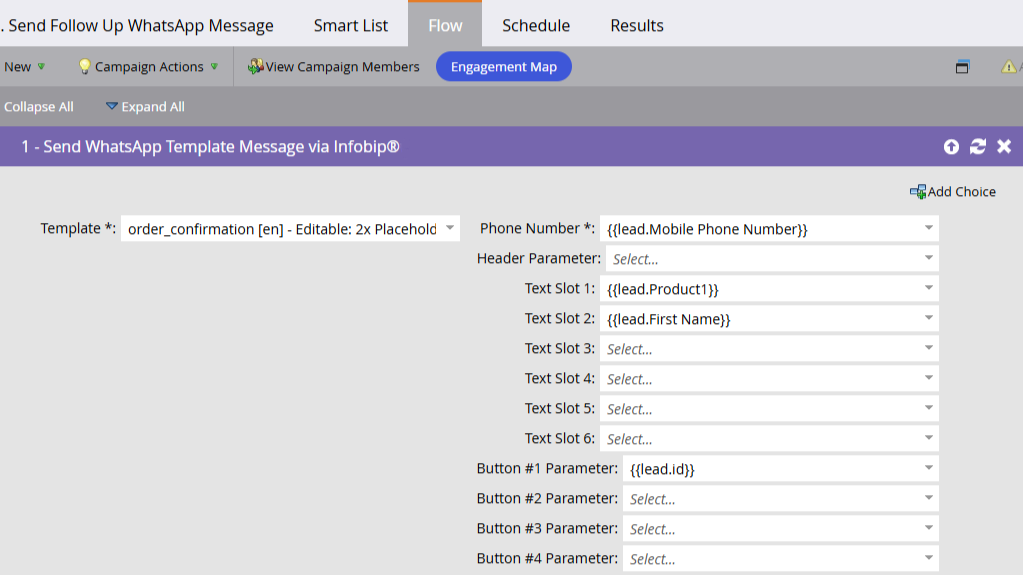
- Choose Send WhatsApp Message from Infobip.
- Select the chosen template from the picklist.
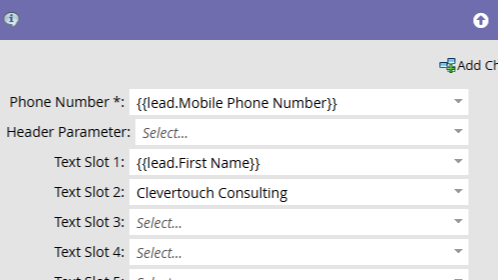
- Select the mobile number field to receive the message, for example, the Marketo token
{{lead.Mobile Phone Number}}. - Map required template placeholders (named in the template name) to Marketo tokens or static text.
NOTEIf numbers are not in international format, ensure the ISO country code field is present on all records.
-
Validate the configuration:
- Confirm all required template fields are filled.
- Review header, body, and button inputs.
NOTETemplate names are displayed in the following format:
whatsapp_template_name [lang] – 2x placeholders, image header, 1x button (button type). Complete all required fields shown in the Flow Step.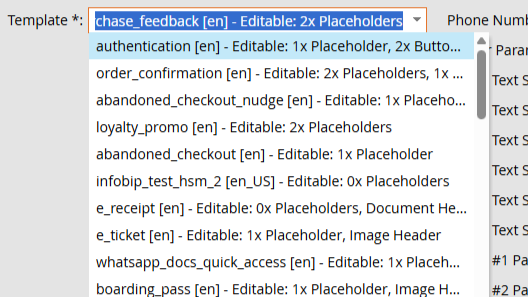
-
Run a test:
- Keep the Smart List limited to your test record.
- Schedule the campaign and run it once.
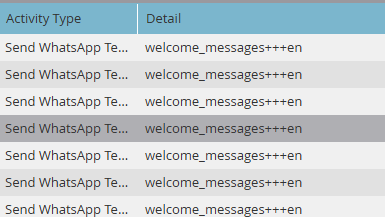
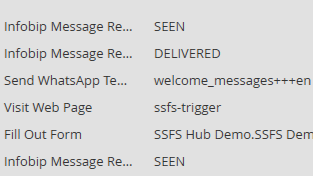
- Check the Results tab and the Custom Activity on your lead.
 NOTE
NOTETriggers can be used in Smart Lists based on Custom Activity changes for message delivery statuses. Seen statuses only trigger for leads with WhatsApp read receipts enabled.
How to send an SMS message
Follow the steps below to create and send an SMS message:
- Build your Smart List.
- Add the Flow Step Send SMS Message from Infobip.
- Enter the message content.
- Use Marketo tokens for personalization, such as first name.
- Select the mobile number field.
- Run a test with a limited Smart List.
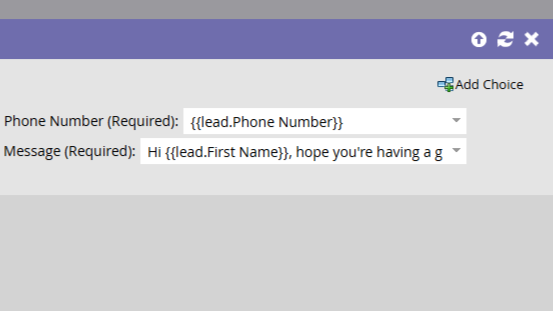
The phone number field can be a token or a fixed value. You can use a fixed number to send an alert to a team phone for every trigger.
Personalization with tokens
Use standard tokens such as {{lead.First Name}} and {{campaign.name}}, or ensure defaults are provided. Use custom tokens for campaign-specific details.
Observability and reporting
Delivery receipts and error metadata are captured through webhooks into the Custom Activity.
- Delivery statuses include: sent, delivered, and seen.
- Errors store a code and message for troubleshooting.
Best practices
Data quality
Store mobile numbers in international format where possible.
Maintain an ISO country code field for local numbers.
Compliance
Send only to contacts who have opted in.
Respect regional messaging rules and quiet hours.
Template management
Keep template names clear. WhatsApp templates must be lowercase and can optionally include underscores.
Spaces and other punctuation are not permitted. Archive unused templates.
Testing
Always test with a small audience first.
Use the Results tab and Custom Activity to confirm outcomes.
Security and access
Restrict access to the Flow Step configuration to admin users.
Do not store sensitive information in campaign descriptions or comments.
WhatsApp template configuration reference
Use this reference to understand how Marketo Self-Service Flow Steps handle WhatsApp template placeholders.
Mandatory fields
Every WhatsApp Flow Step requires the following fields:
| Field | Description |
|---|---|
| Template | Select a WhatsApp template. |
| Phone Number | Token or static value (for example, {{lead.Mobile Phone Number}}) for the recipient's number. |
Understanding the template name
Each template includes an Editable hint that tells you which fields to populate.
Example: welcome_messages [en] – Editable: 2x Placeholders
| Template hint includes | You must fill |
|---|---|
| 1x / 2x / Nx Placeholders | Text Slot 1 through N |
| Image / Video / Document / Location Header | Header Parameter |
| Button (Reply) | Button # Parameter (text) |
| Button (URL) | Button # Parameter (URL parameter only) |
| Button (Code) | Button # Parameter (code value) |
If a field is listed in the template name, it must be filled. No blanks are permitted.
Field requirements
Text slots (placeholders)
- Match the number of placeholders listed in the template name.
- Values cannot be empty.
- Can be static values or Marketo tokens, for example,
{{lead.First Name}}.
Header parameter
Required only when the template name includes a header type.
| Header type | Expected value |
|---|---|
| Image | Image URL |
| Video | Video URL |
| Document | File URL |
| Location | lat,long (for example, 51.503399,-0.119519) |
URLs can be static, tokens, or a mixture of both. The URL must be valid and start with https:// or http://.
The following table lists the supported file types and size limits:
| File type | Supported formats | Maximum size |
|---|---|---|
| Image | JPG, JPEG, PNG | 5 MB |
| Video | MP4, 3GPP | 16 MB |
| Document | 100 MB |
Buttons
Required only when the template name includes button types.
- Reply buttons: Enter a short text value, for example,
YesorBook now. - Code buttons: Enter the code value, for example, a promo code or OTP.
- URL buttons: Enter the value of the editable parameter that will be inserted into the fixed URL defined in the approved template.
Example: If the template defines https://example.com/order/{{1}}, the button parameter should be the order number or tracking number token.
Some WhatsApp templates include buttons that are pre-defined and not editable, such as fixed quick-reply options or static URL buttons approved by Meta. These buttons appear when the message is sent, but because they require no custom input, they do not appear in the Editable list for the template.
In the Marketo Flow Step, you only need to fill in the buttons that require a value, which are shown as Editable in the template name. Any buttons that do not require parameters do not appear in the flow step.
Examples
Template with two placeholders
welcome_messages [en]: Editable: 2x Placeholders
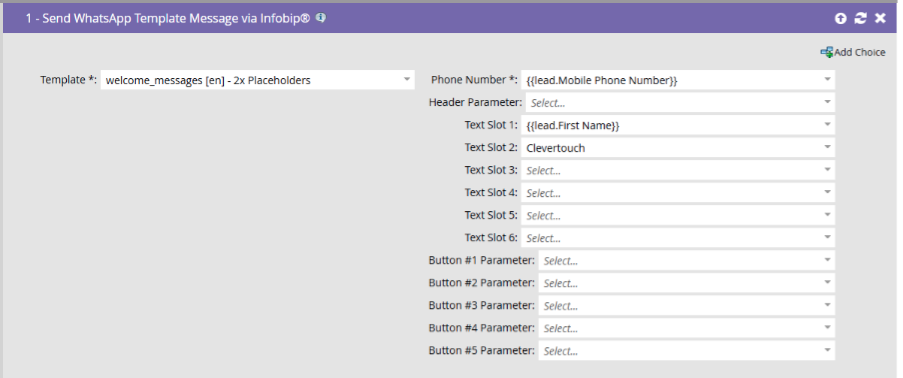
Fields to fill in: Text Slot 1 and Text Slot 2.
Placeholder and URL button
authentication [en]: Editable: 1x Placeholder, 1x Button (URL)
Fields to fill in: Text Slot 1 and Button #1 (URL parameter).
Placeholder and image header
collect_purchase_interest_en [en]: Editable: 1x Placeholder, Image Header
Fields to fill in: Text Slot 1 and Header Parameter (image URL).
Multiple placeholders and reply buttons
registration_success [en]: Editable: 4x Placeholders, Image Header, 3x Buttons (Reply, Reply, Reply)
Fields to fill in: Text Slots 1–4, Header Parameter (image URL), and Buttons #1–3 (reply texts).
Quick rules
- If the template lists it as editable, you must fill it in.
- Editable fields cannot be left blank.
- Tokens and static values both work.
- Ignore fields not required by your chosen template.
- Location header coordinates must be provided in the format:
latitude, longitude.