Customer context
This guide covers how to view and manage customer information, access conversation history, and understand the customer context panel that helps you provide personalized support.
Customer data and context
A conversation is built on a combination of participants (customer and agents) and messages exchanged between participants. A customer participating in a conversation can be known or unknown.
Customer is known if their contact number is connected to the People profile. In case of a known customer, you can see on the right-side panel default customer attributes:
- Customer name - Associated with that destination number/ID in People
- Gender - If associated with person in People
- City - If associated with person in People
- Country - If associated with person in People
More customer details can be found using the View and Edit link in People. You can update customer attributes in People (for example, change name, add destination, add tags, and more).
Link and unlink conversations
Select the Unlink conversation option if a wrong conversation is linked with a specific customer. A vice-versa situation is possible as well.
For example, a conversation is by default linked with an unknown customer by mistake but then you realize that there is an ongoing conversation with a known customer who already exists within People. In that case, you can link the conversation with the existing customer, and customer details will appear.
Learn more about related conversations.
Conversation history
EARLY ACCESSThis feature is released as Early Access. At the moment, it does not include support for displaying conversation history from Facebook Posts, Instagram Posts, and Google Play Reviews channels.
By clicking the Conversation history context card:
- You can preview all open and closed conversations associated with a specific customer without leaving the current page. The card brings together all interactions in chronological order, directly accessible on the My Work page.
- It is a unified view that helps agents comprehend the complete history of the customer's engagement, enabling them to provide more informed and personalized support. The availability of the conversation history depends on the data retention policy.
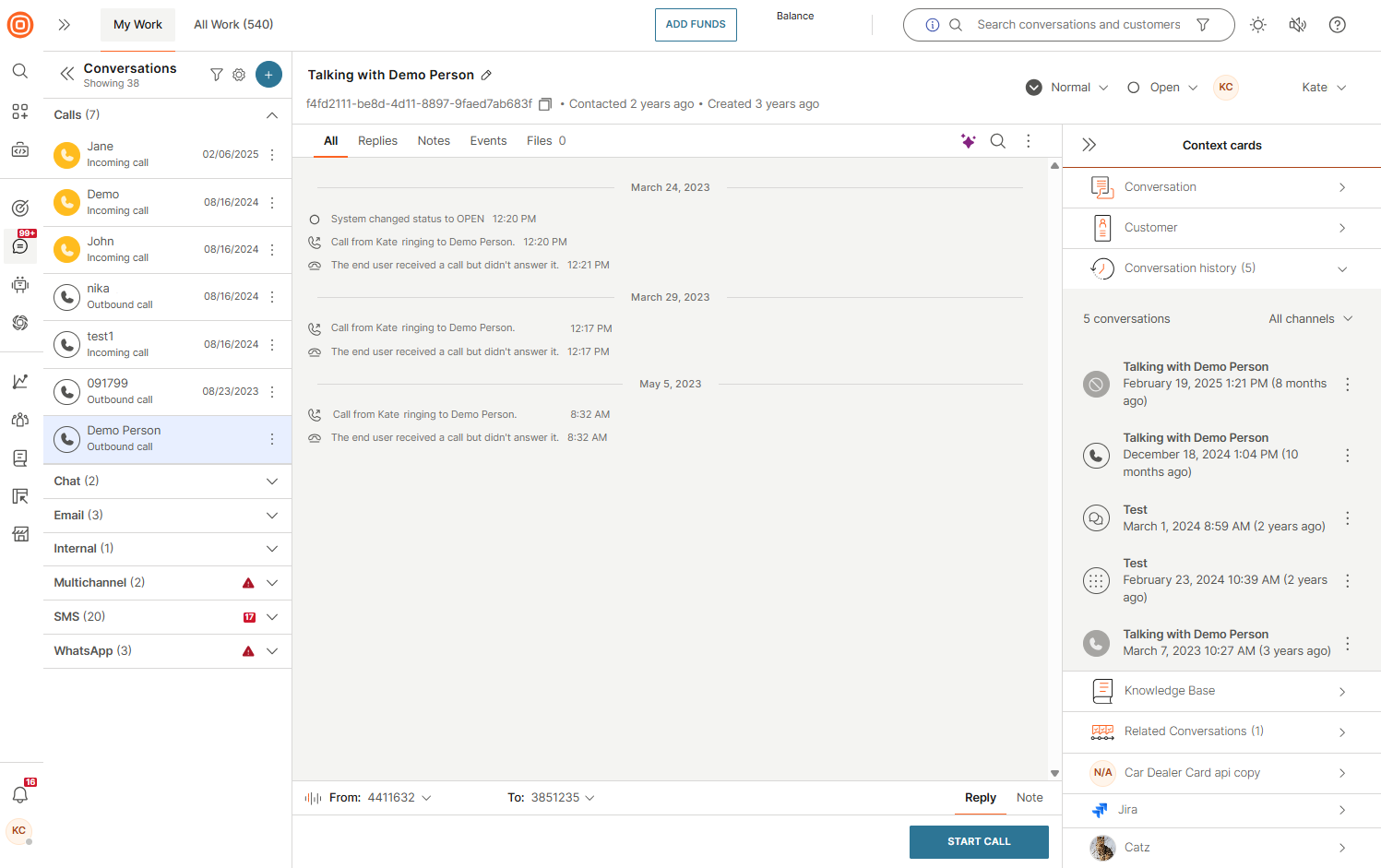
The system respects the agent's accessibility rights for a certain queue, and the information is displayed without the possibility of actively participating in a conversation from the context card. This implies that viewing conversations may be restricted, such as when an agent does not have access to a particular queue, they will only see a subset of conversations from that customer.
If you click the three dots next to a conversation, you will see two options:
- View conversation: Opens the selected conversation so you can review it in detail.
- Merge conversation: Combines selected conversations if needed.
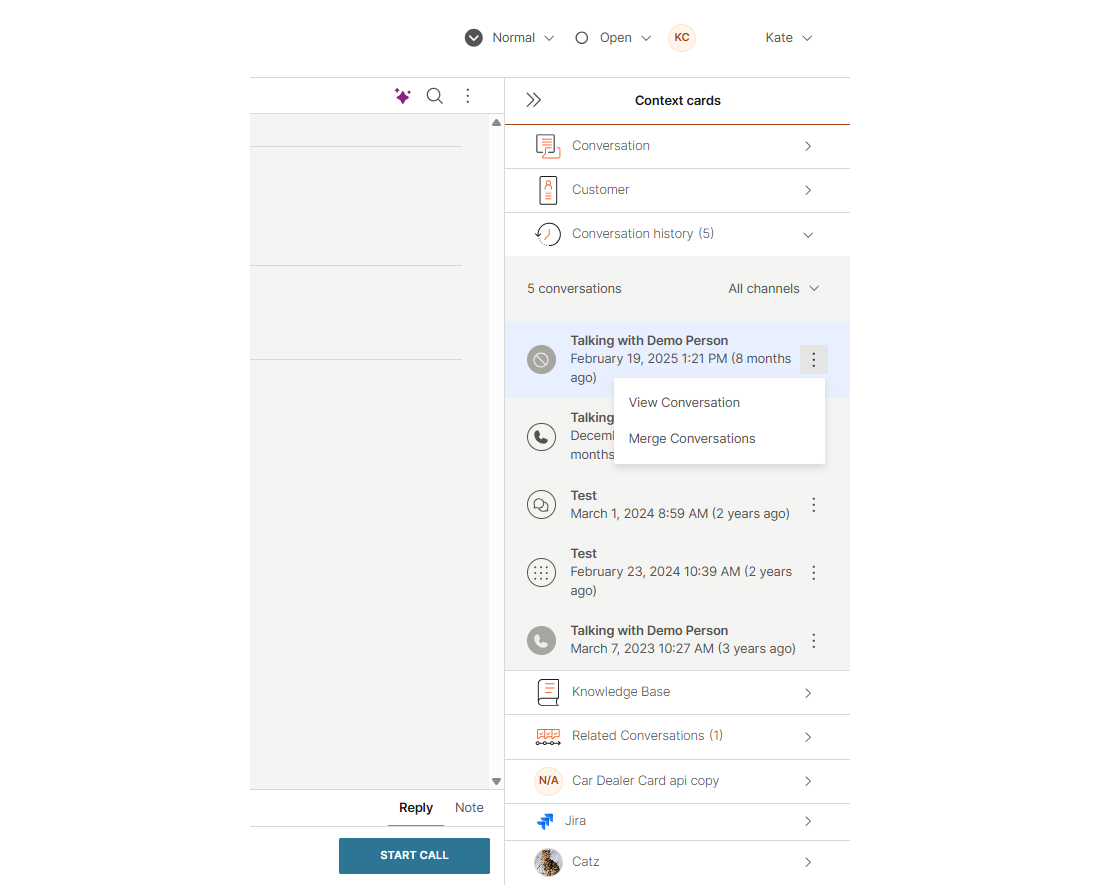
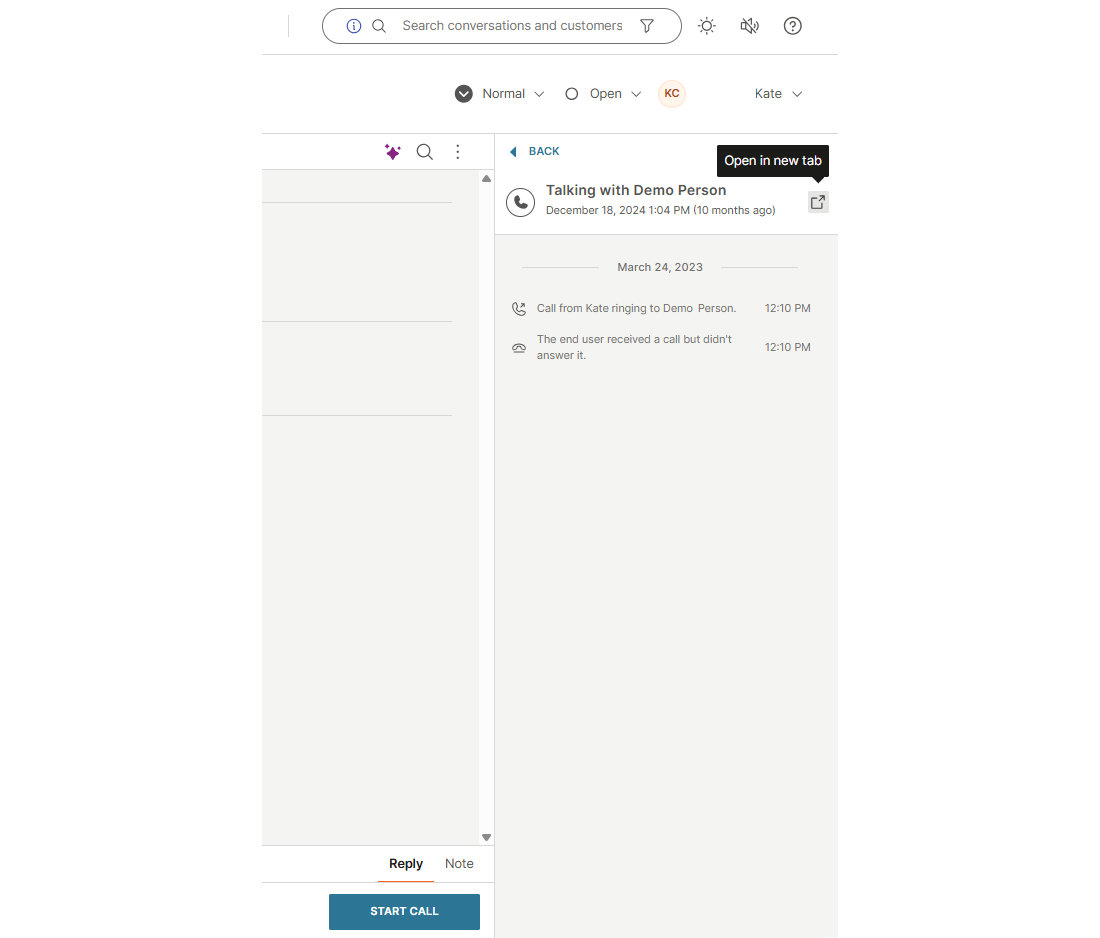
- Selecting View conversation (or clicking the conversation itself) opens the conversation view, where you can see all exchanged messages or call events (depending on the channel) between the agent and the customer, along with internal notes.
- Messaging channels display both messages and notes.
- Call channels display call events (including recordings) and notes.
- You can also choose to open a conversation in a new tab for easier review.
- You can filter conversations by channel to narrow down results. If no conversation history exists, a No conversation history message appears.
People data integration
Digital channels:
The People data in digital channels (WhatsApp, Viber, SMS, MMS, Voice, Video, Live Chat, In-app Messaging, Messenger, Instagram, Telegram, KakaoTalk, LINE, and Apple Business Messages) reflects differently on the topic in All Work and My Work based on the following:
- Conversation is created (and if the customer does not exist in People) - For each digital channel, a different ID (customer number as fetched by the gateway) is used as a default if the first name is not present (Talking with).
- Customer exists in People (and is linked to the conversation) - The topic is presented as Talking with.
- Customer info is updated/linked to a different profile - The display name from People is updated only when the Customer Context Card is expanded (Talking with).
- CDP profile is updated while the conversation is closed - The display name from People is updated only when the Customer Context Card is expanded (Talking with).
The Customer Context Card in My Work is also impacted differently based on the following events:
- Conversation is created (and if the customer does not exist in People) - Customer name (name or ID as fetched by the gateway) is displayed and other selected attributes on the Customer Context Card are displayed with
NULLvalues. - Customer exists in People (and is linked to the conversation) - Customer name and other selected attributes on the Customer Context Card are displayed and updated on expansion.
- Customer info is updated/linked to a different profile - The Customer Context Card expands to unlink or link to a new profile.
- People profile is updated while the conversation is closed - Customer name and other selected attributes on the Customer Context Card are displayed and updated on expansion.