Search and filters
This guide covers how to search for conversations and customers, apply filters, and use advanced search techniques to find the information you need quickly and efficiently.
Search in Conversations
Conversations search is part of the platform-wide Platform search. Use the Search bar at the top of the page to look for a keyword or phrase. The system retrieves results matching:
- Conversation ID
- Customer contact information
- Customer name
- Conversation topic
- Conversation summary
- Message content
- Display name
The search bar is available from every page on the platform, so you can search for conversations without switching to the Conversations app first.
When you select the Search bar, the Recently searched list shows items from your recent searches, including conversations.
You can filter conversations in two ways:
- Filters - Click the filter icon to open a dialog with filtering options.
- Keywords and operators - Type a keyword or phrase directly into the search bar, optionally combined with the advanced search syntax.
Read more about the filtering options below.
Search with keywords, filters, and double quotes [#search-with-keywords-filters-and-double-quotes-search-in-conversations]
You can input the desired phrase or keyword directly into the search field to perform a search, or use the filtering option by clicking the filter icon. If you choose the filtering option, the following options will be available:
- Keyword - allowed keywords are: conversation ID, customer name, contact (number or email), messages or phrases from the conversation summary or topic
- Conversation filters:
- Channels
- Status
- Agent
- Queue
- Tags
- Input form fields value:
- Text or number
- Date
- Boolean
- Sender
- Priority
- Date
You can also perform a search without specifying a search term or keyword. Apply the desired filters:
- If you decide to search for a conversation or customer using text without double quotes, the input text is split into individual words.
- The search will return any conversation or customer that contains at least one of these words in its searchable fields.
- If you enclose your search text in double quotes, the search will not split the text into individual words. Instead, it will look for the exact phrase within the conversation/customers fields.
- Once you select the wanted items, select the Apply filters button.
Advanced search syntax [#advanced-search-syntax-search-in-conversations]
When searching by Conversation topic, Conversation summary, Customer name, or Message content, you can use special operators to refine your search results:
+signifies AND operation (both terms must be present)|signifies OR operation (either term can be present)-negates a single token (excludes the term)" "wraps tokens to search for an exact phrase( )signify precedence for grouping operations
The default operator between search terms is OR, not AND. This is especially important when using the negation operator (-), as it will behave as OR NOT by default. For example, searching for Payment -Invoice will return results that contain "Payment" OR do not contain "Invoice", not results that contain "Payment" AND do not contain "Invoice".
Examples:
Payment + Invoice- Returns only results containing both "Payment" AND "Invoice"Payment | Invoice- Returns results containing either "Payment" OR "Invoice"Payment -Invoice- Returns results containing "Payment" OR results that do not contain "Invoice"(Payment + Invoice) | Refund- Returns results with both "Payment" and "Invoice", or results with "Refund""Payment received"- Returns results with the exact phrase "Payment received"
You cannot use textual operators like AND, OR, or NOT directly in your search. You must use the special syntax symbols (+, |, -) instead.
Search with multiple values [#search-with-multiple-values-search-in-conversations]
If you use multiple auto-completed keywords, the list of values will be combined for the search. However, for unique values (such as text or dates), the most recently entered value will be used.
Multiple values must be separated by a comma without spaces (for example, tags:today,yesterday). If a value contains multiple words, it must be enclosed in quotes when mixed with single-word values (for example, tags:today,"previous year").
The value list shows 10 results at a time. However, there could be more values, particularly for queues, tags, and assignees. These lists are updated dynamically as characters are typed into the input field, filtering and displaying the top 10 matches that match the entered characters.
Search behavior for accounts in other languages [#search-behavior-for-accounts-in-other-languages-search-in-conversations]
When your account is set to a language other than English, keywords are localized (if a translation is available). This allows you to enter keywords in your native language.
If you prefer to use English keywords and values, you can do so by pressing Shift + Space during keywords selection.
A short info message at the bottom indicates this option, except when the interface language is already set to English.
Fuzzy search [#fuzzy-search-search-in-conversations]
Fuzzy search is a search technique that finds matches even when the search term is misspelled or slightly different from the actual data.
It identifies results based on similarity using algorithms. For example, if you search for "aplpe~", a fuzzy search can return results for "apple" by recognizing the typo.
Fuzzy search supports four types of modifications:
- Insertions: Adding extra characters (for example, sic to sick).
- Deletions: Removing characters (for example, black to lack).
- Substitutions: Replacing one character with another (for example, box to fox).
- Transpositions: Swapping two adjacent characters (for example, act to cat).
To perform a fuzzy search:
- Add a tilde (~) to the end of your search term, optionally followed by a fuzziness number. This number represents the maximum allowed changes between the search term and matching results, with a default value of 2.
- If your search term consists of multiple words, place the tilde (~) after the specific word that needs fuzzy matching. For example, searching for
aplpe~ messages for businesswill apply fuzzy search only toaplpe, allowing it to matchapple messages for businesswhile keeping the other words exact.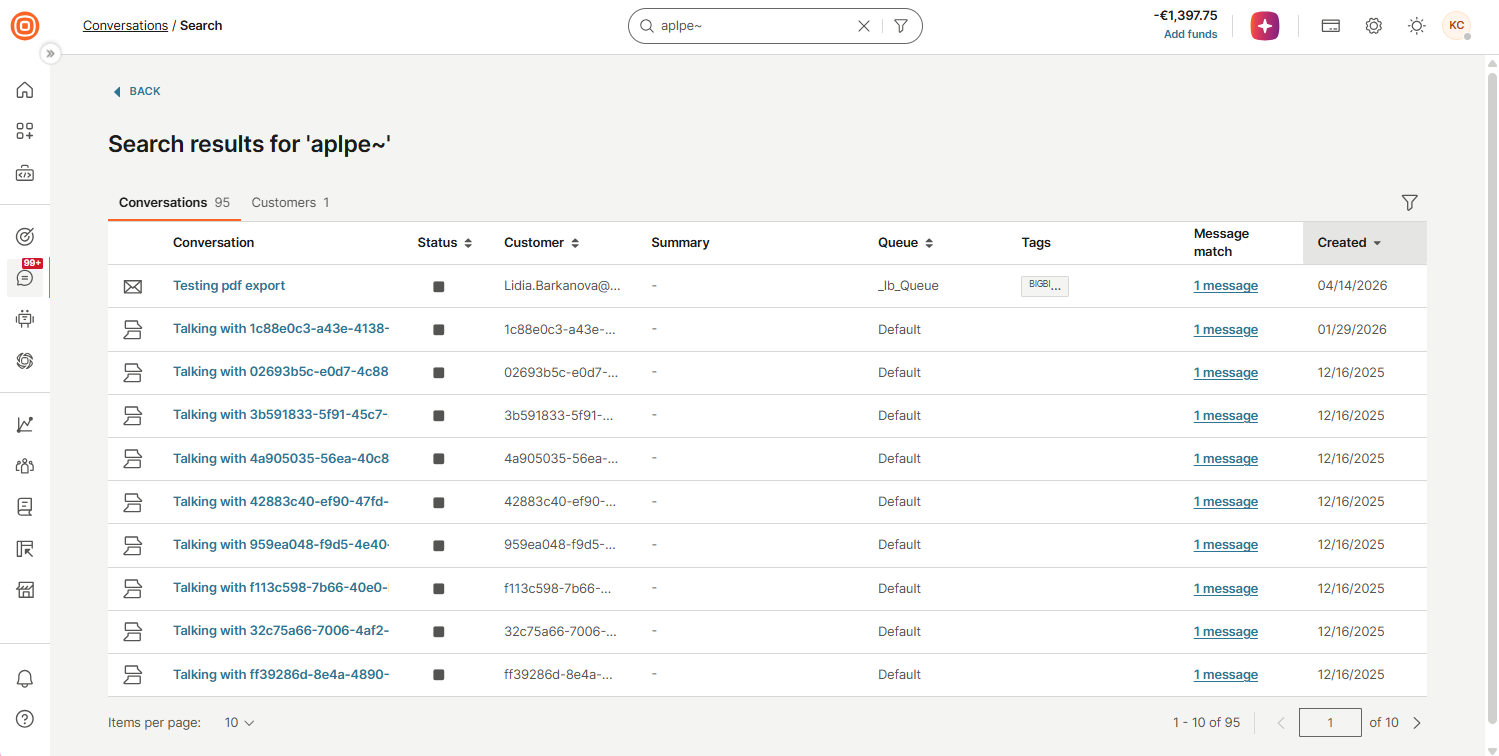
You may experience a slight decrease in performance, as the fuzzy search operates somewhat slower than the regular platform search using keywords and filters.
Search results
As you type, the search overlay shows a live preview of matches grouped by category (for example, All conversations), capped to a few results per category. To see the full results, select Show all next to the Conversations category, or press Ctrl + Enter to view results for all categories.
This opens the full Search results page, where conversation and customer matches are divided into two tabs:
- Conversations
- Customers
Conversations [#conversations-search-results]
The Conversations tab shows a results table containing the following info:
- Conversation
- Status
- Customer name
- Summary
- Queue
- Tags
- Message match
- Created
At any time, you can:
- Remove, add or adjust the filtering options. All matching key findings will be highlighted in yellow.
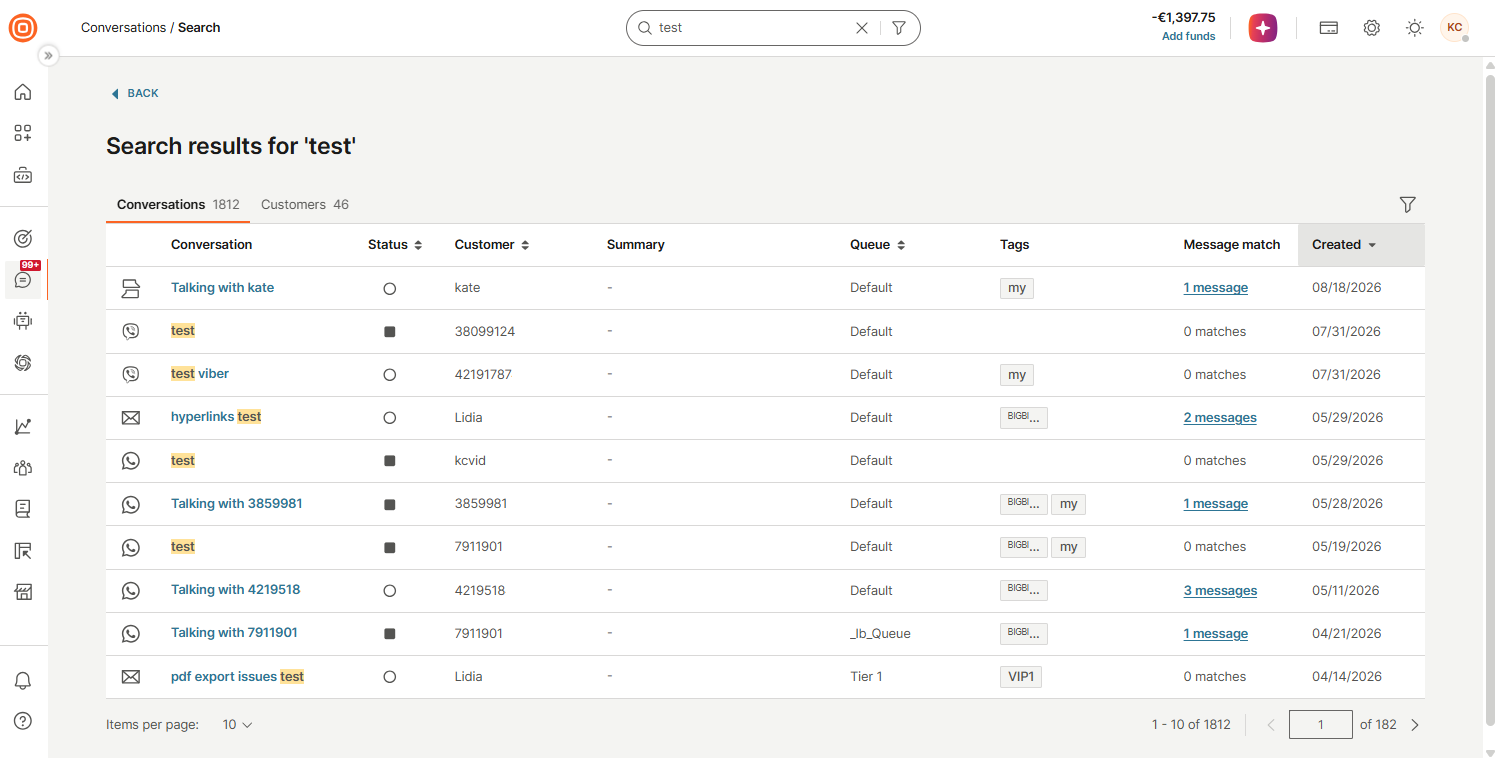
- The search will return only those messages where the message content contains the searched word or phrase.
- Select the messages link (if messages exist) in the Message match column.
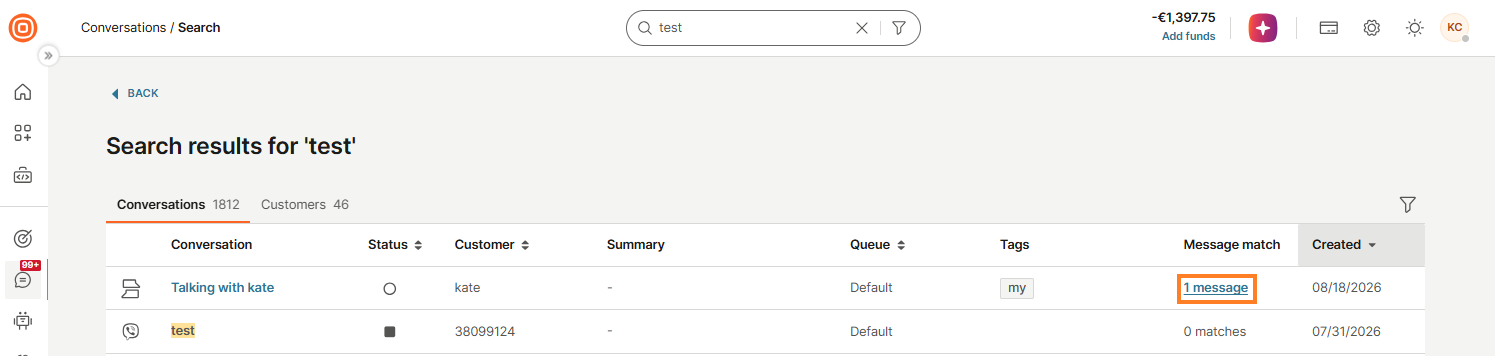
- A pop-up will appear with message matches from the conversation, with options to go directly to that message or to the previous or next conversation containing matching messages.
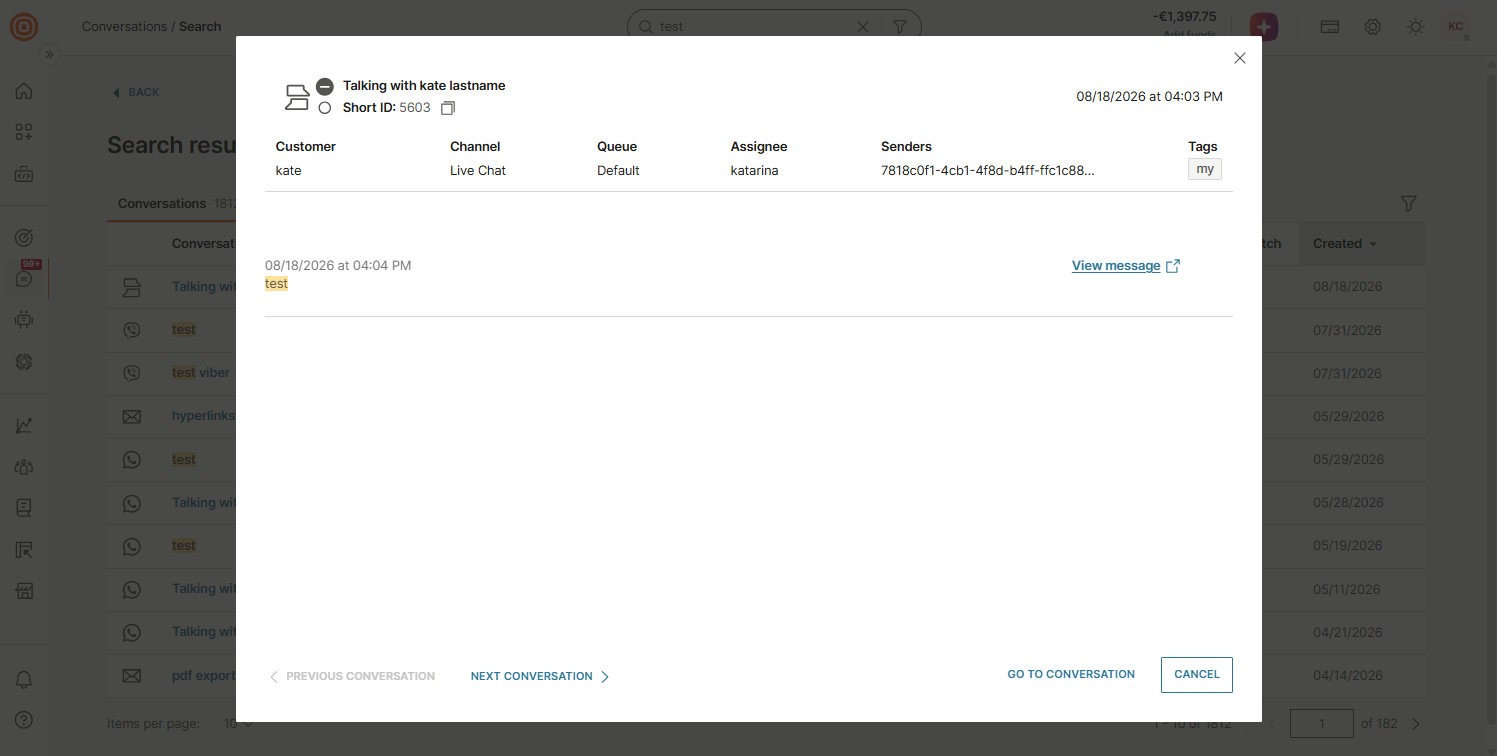
- If you hover over a specific conversation, you can see the following info:
- Conversation name
- Conversation ID
- Date and time
- Summary or Last inbound message (depending on what is available)
- Customer
- Channel
- Queue
- Assignee
- Tags
- Additionally, selecting a specific conversation in the Conversation column will open it directly in My Work, allowing you to view its details.
- You can return to the search results anytime by using your browser's back button.
Customers [#customers-search-results]
The Customers tab displays the following info:
- Customer
- Customer info
- Conversations (with links for active and closed conversations)
- View profile in People
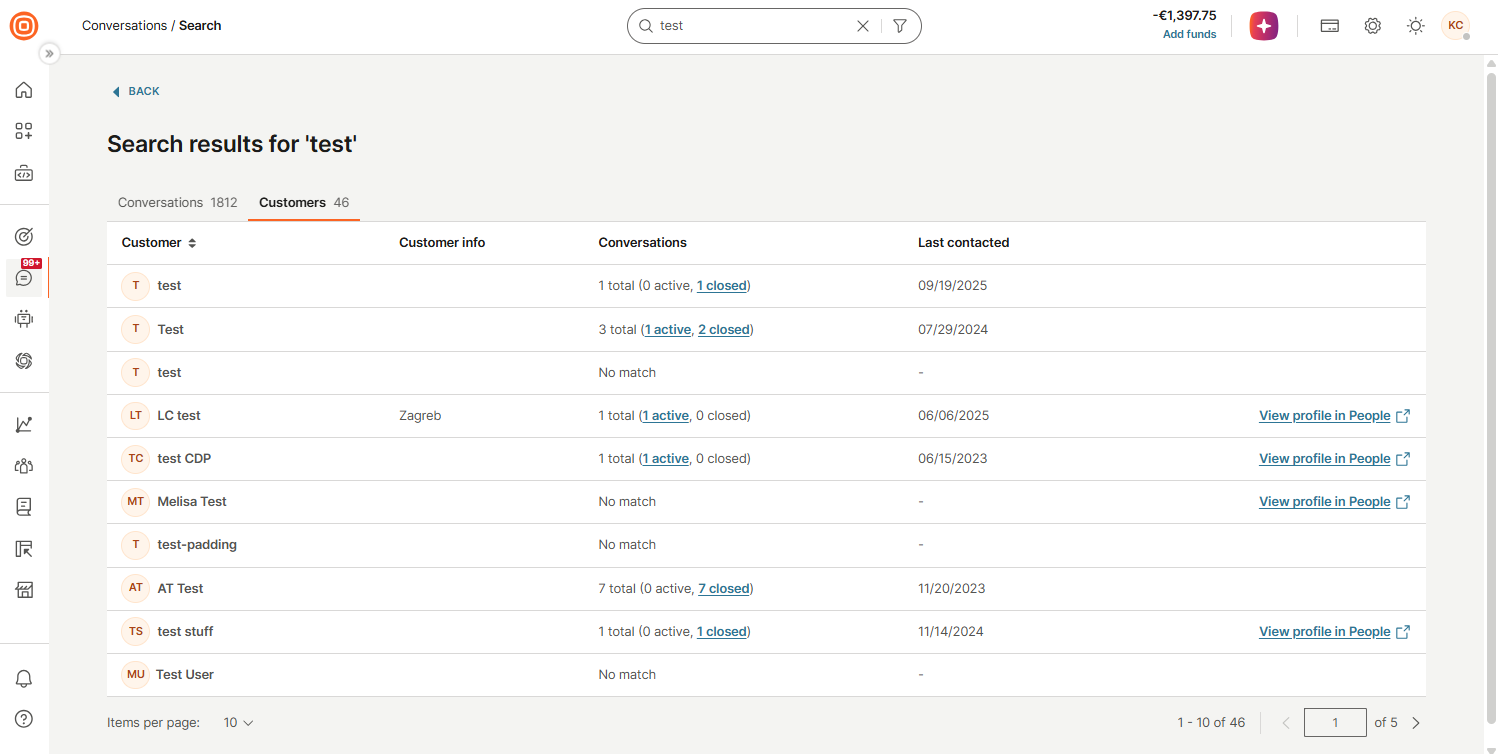
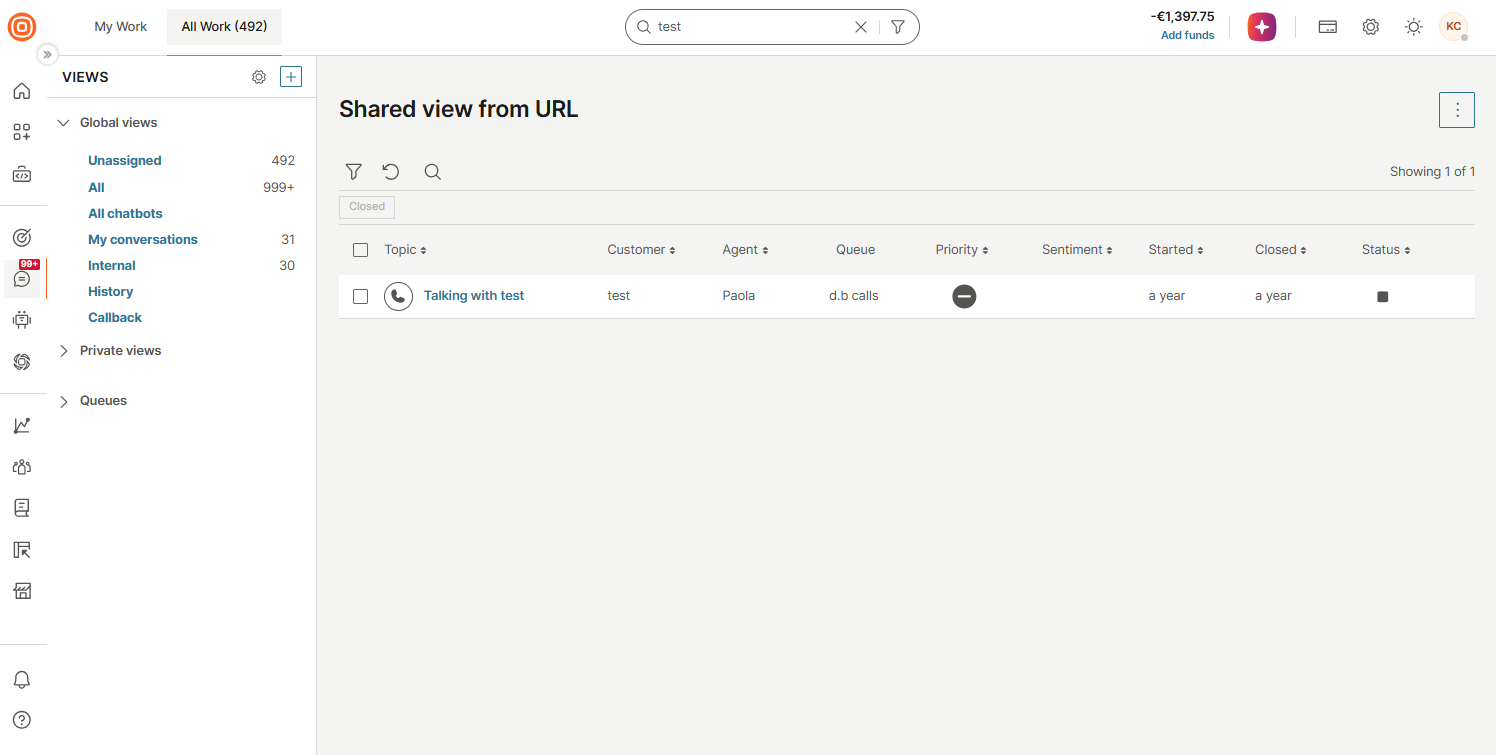
Selecting the link for active or closed conversations (if available) will redirect you to the Shared view from URL page in All Work, where the conversation(s) will be displayed. Select the desired conversation to view its details.
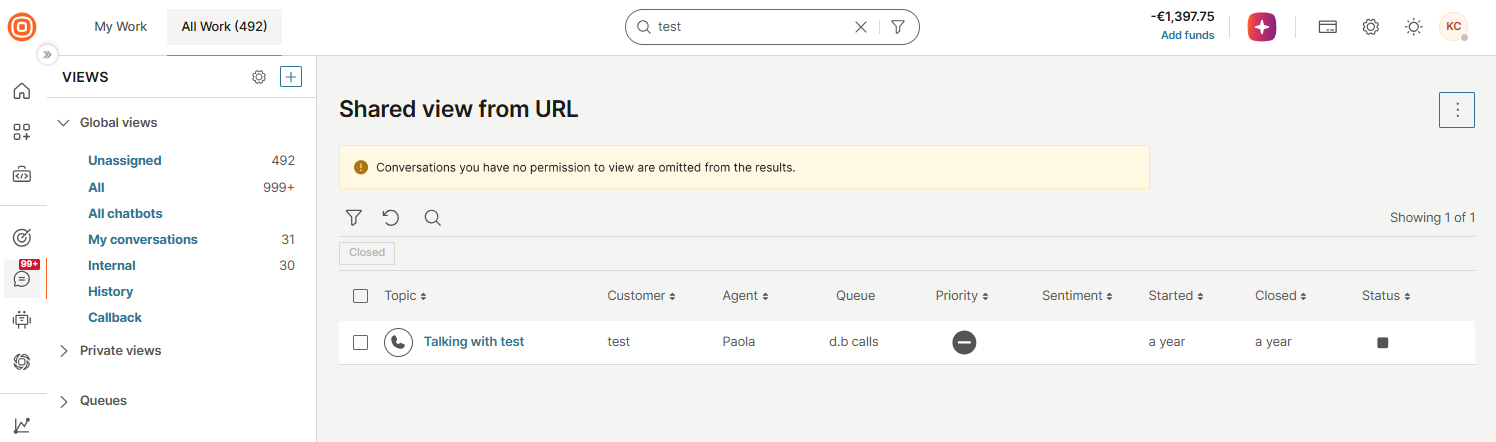
There may be instances where the number of active and closed conversations in Search and All Work do not match. For example, the search results might show a customer with 3 active conversations, while All Work displays fewer due to queue restrictions or similar factors.
To view more details about a specific customer, click on their name, and a side panel with additional information will appear. For additional information, select the View and edit profile in People button to find this customer in People.
Search results sorting [#search-results-sorting-search-results]
If no sorting option is manually selected, the system applies default sorting based on a score. This score determines the similarity between the search text and searchable fields.
When a search is performed without any text and only filters are applied, no score is generated for the results. In such cases, the results are sorted alphabetically by Conversation ID.
For manual sorting, the following options are available:
- By conversation created date (applicable only in the Conversations tab)
- By customer name (applicable in both the Conversations and Customers tabs)
Filtering in All Work
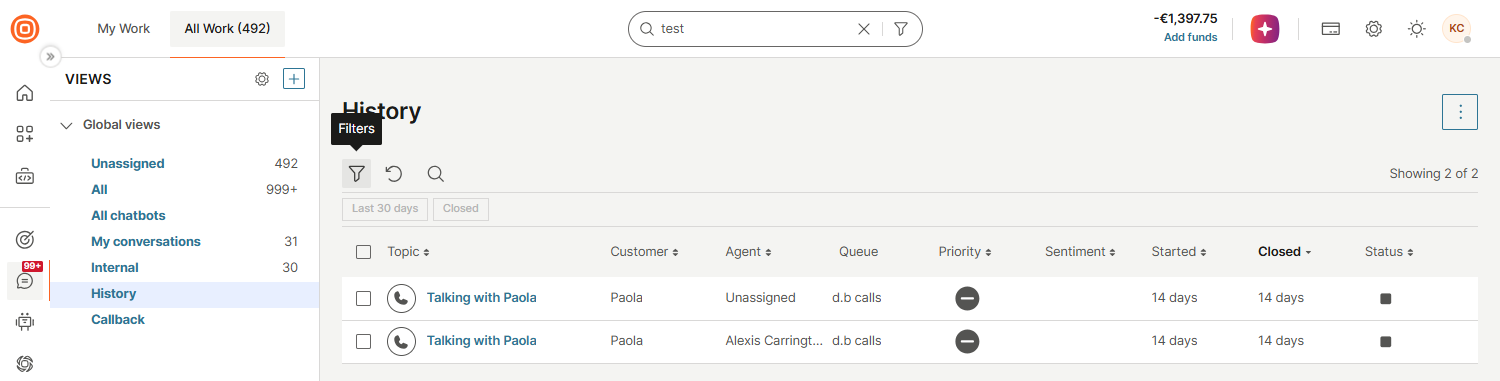
Advanced filtering options are available in All Work under Filters.
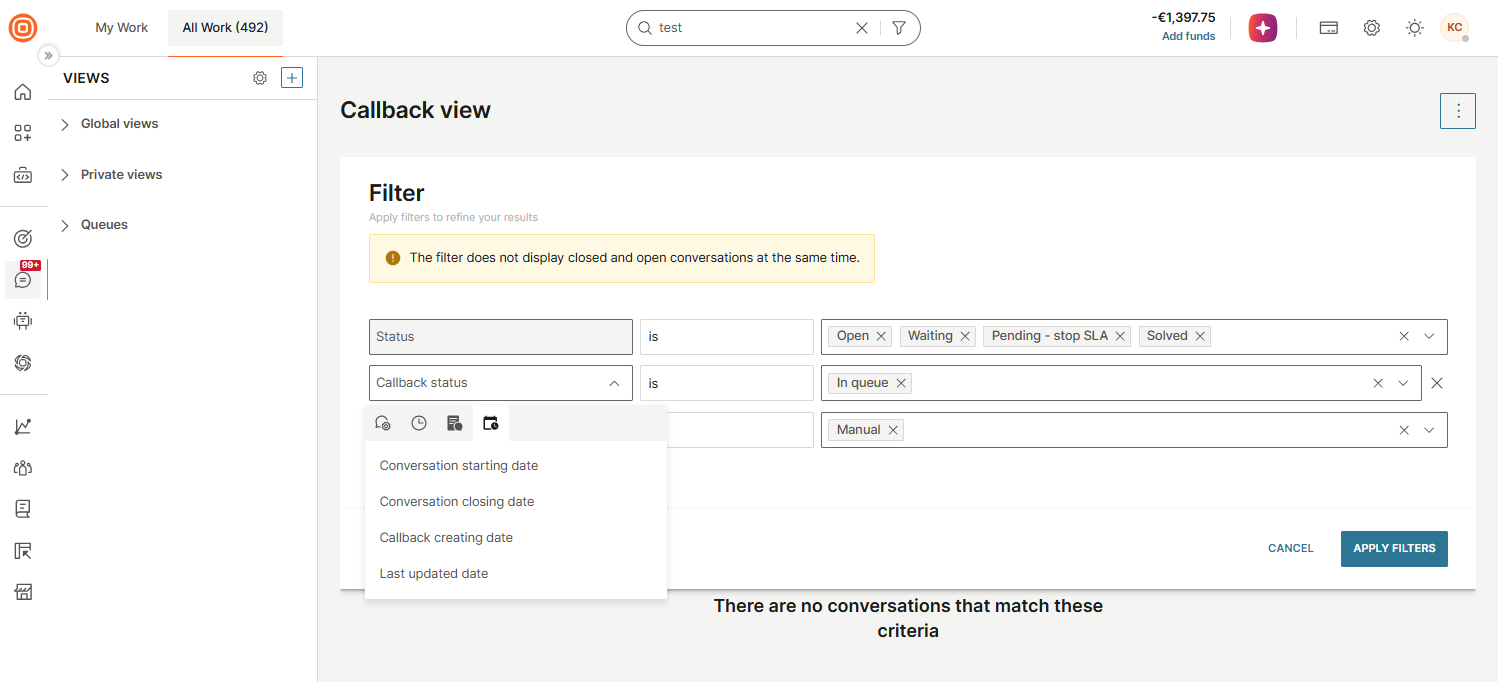
Predefined attributes
- Channel - Type of conversation channel
- Queue - Queue to which the conversation is assigned
- Callback type - Automated/Manual
- Callback status - Active/In queue/No reply/Done
- Callback pending since - Duration for which a callback is awaiting resolution
- Origin - Inbound or outbound conversation
- Priority - Priority of the conversation
- Status - Status of the conversation. You can choose Open, Waiting, or Solved (which can be combined) or Closed (cannot be combined with other statuses)
- Pending agent reply - Duration for which the customer has been waiting for a reply from an agent
- Handling time - Time range from below 5 minutes to more than 5 days
- Agent - Specific agent to whom the conversation is assigned
- Tags - One or many tags assigned to the conversation. When multiple tags are selected, you can choose the operator: ALL (AND between tags) or ANY (OR between tags)
- Sentiment - Sentiment of the conversation: positive, negative, or neutral
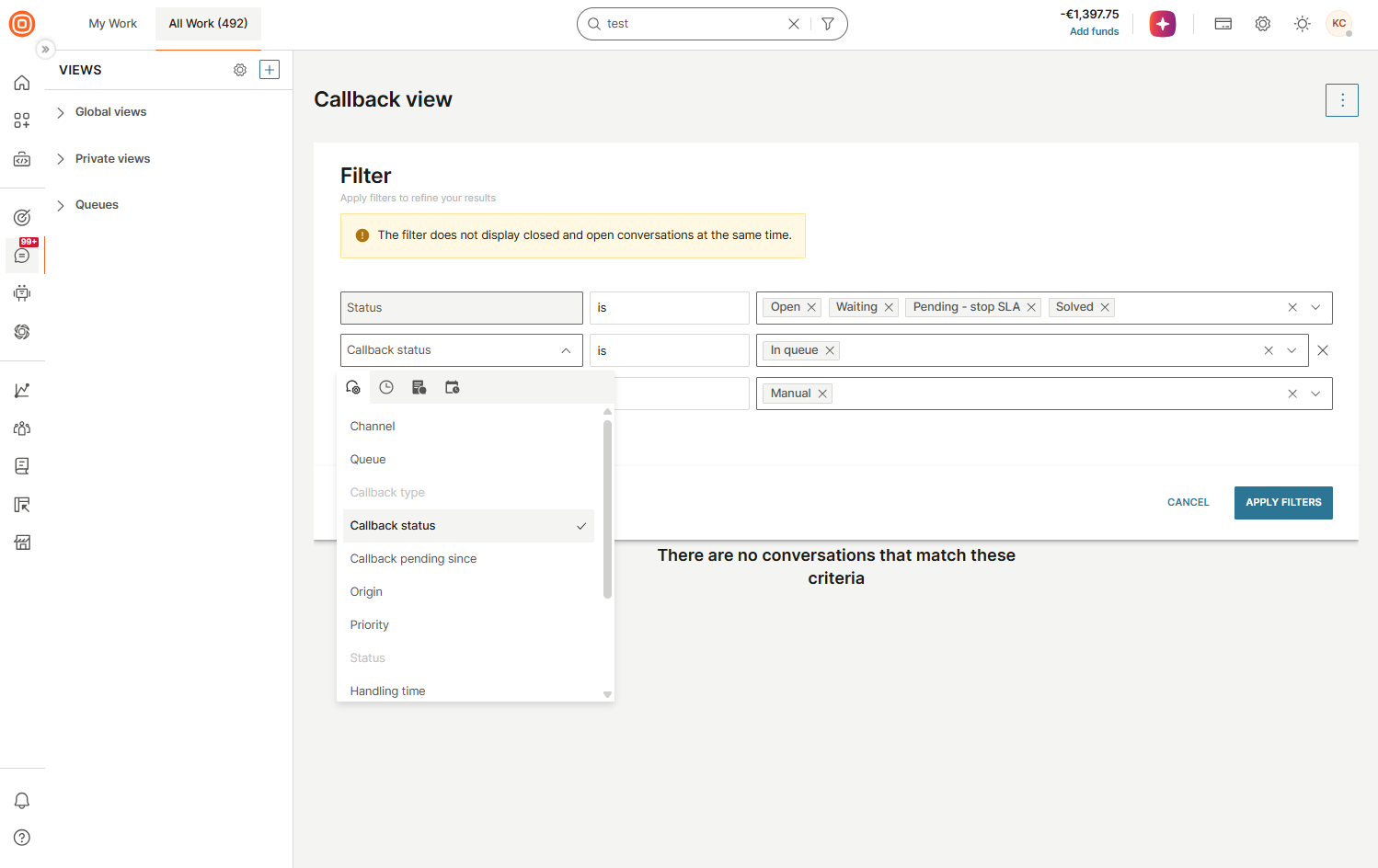
SLA
- Assigned SLA policy - All conversations with an assigned SLA policy
- SLA breached by - Time-based filter showing conversations that have already breached the chosen timeframe
- SLA breaching in - Time-based filter showing conversations close to breaching in the chosen timeframe
- SLA severity - Severity level of the SLA
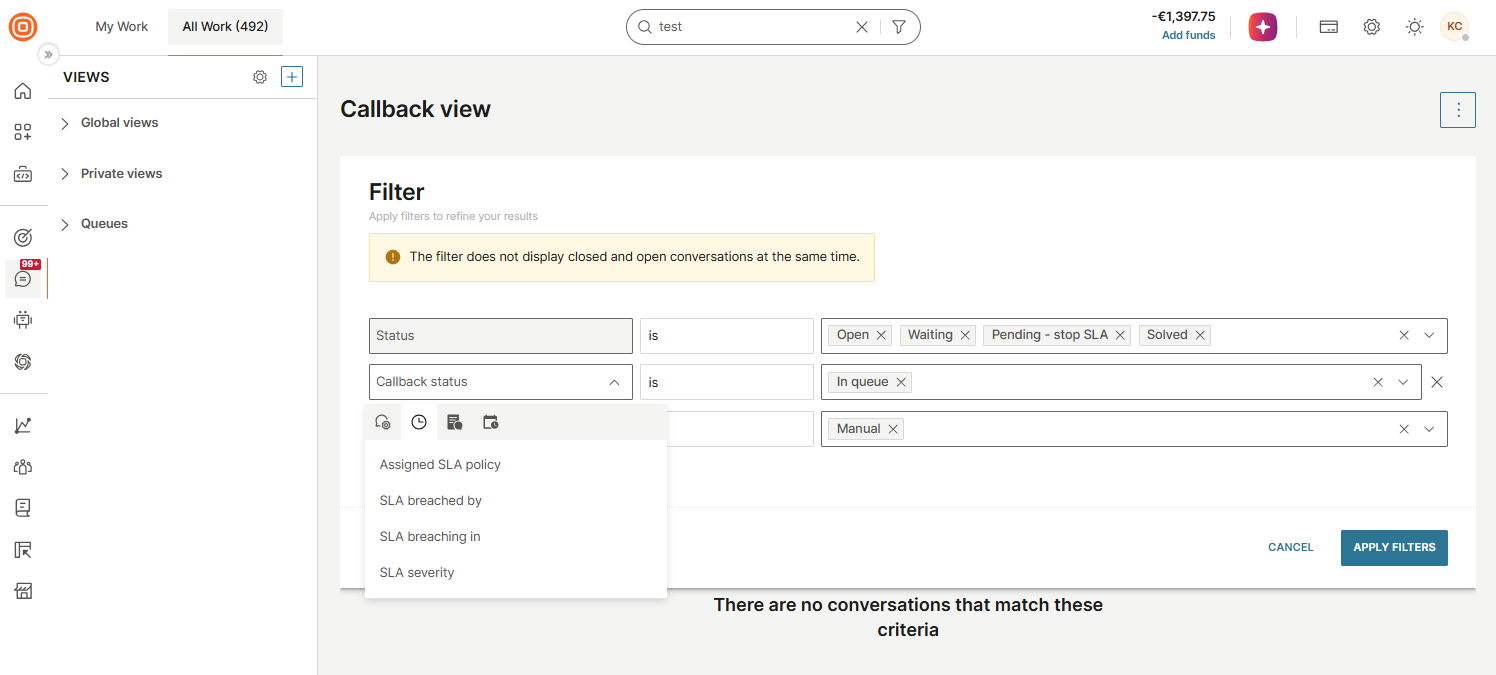
Conversations forms and form fields
- Conversation form - Filters conversations based on the assigned conversation form
- Form field - Filters conversations based on specific form attribute values
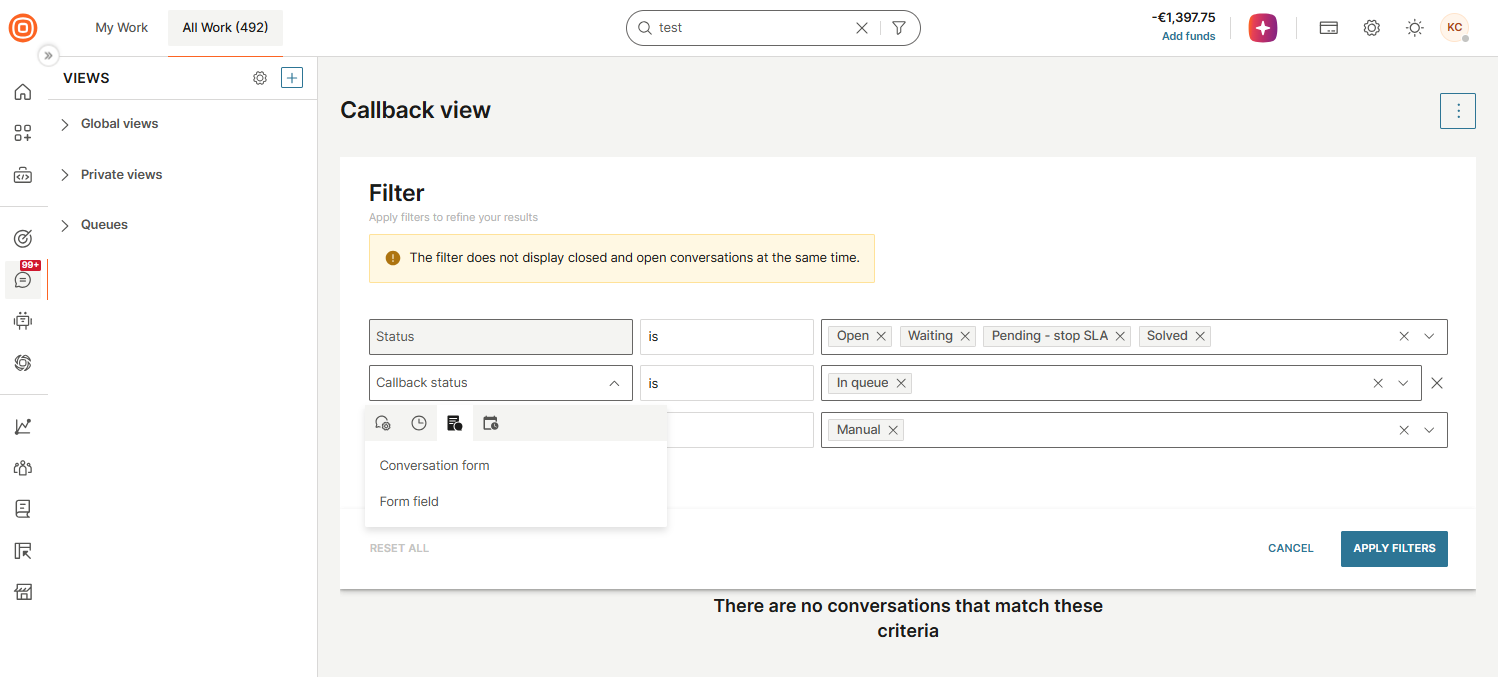
Date
- Conversation starting date - Time range when the conversation was started by an agent or customer
- Conversation closing date - Time range when the conversation was closed
- Callback creating date - Date range when the callback was created (available only in the predefined Callbacks filter)
- Last updated date - Date range when the last conversation update occurred (message from agent, call, or callback)
Closed conversations filtering [#closed-conversations-filtering-filtering-in-all-work]
In All Work, closed and non-closed conversations are placed in separate views. This means these conversations cannot be filtered together.
We recommend entering the conversation start date to get better results when filtering conversations.
When a conversation is closed, it moves to the History view. You can also create exclusive custom views (private and global) for closed conversations only.
Private and global custom views support selection of either closed or non-closed status in the filter. Selecting one automatically disables the other.
Temporary views created from Analytics show a generic warning message that by default only non-closed conversations appear, but the Closed status can be explicitly selected in the filters.
Search messages within conversation
The Search option helps you with a specific segment or a sentence within the conversation. Additionally, the list of potential search results is immediately displayed as you are typing.
To open the conversation you are looking for, hover over the message and click Jump to message.
Search results are not case sensitive.