




How to chat with customers on Apple Messages for Business with examples
Learn how Apple Messages for Business helps brands guide customers from discovery to loyalty with rich, in-thread experiences.

For iOS users, Messages is a daily touchpoint. It is also a business channel that supports rich product previews, native forms, tappable List Pickers, calendar-view time slots, one-tap Apple Pay checkout, Apple Wallet loyalty cards, embedded App Clips, and a clean handover to a live agent when a bot cannot finish the job.
That makes Apple Messages for Business, formerly Apple Business Chat, a strong way to reach iPhone users across the customer journey inside a single thread. Discovery, research, checkout, support, and loyalty can all happen without an app download, a new account, or a switch between screens.
In this post, we walk through high-potential use cases across that journey, from first touchpoint to purchase, service, and the follow-up that turns a one-time buyer into a returning one.
Why should you add Apple Messages for Business to your channel mix?
The channel earns its place because it can lift performance at every stage of the customer journey.
- Higher click-through rates, because a Message Us button can replace a phone number or web form.
- Stronger brand awareness, because customers can browse and compare options in a familiar messaging app.
- Higher conversion, because Apple Pay makes in-chat purchases smoother and simpler.
- Lower support costs, because chatbots can handle routine volume and live agents can focus on complex tickets.
- Better loyalty, because Apple users already know the interface and features are native to their devices.
Apple Messages for Business examples
Here is how Apple Messages for Business can work from first touchpoint to re-engagement, and which features can elevate the entire digital customer journey.
Discovery
Turn a call queue into a chat
A customer calls about an issue, but the wait time to speak with an agent is long. Instead of staying on hold, they hear an option in IVR, the Interactive Voice Response system, to continue the conversation in Messages. They tap it, the automated flow handles the support ticket, and a live agent steps in if the situation needs it.
This is one of the highest-ROI patterns in Apple Messages for Business. It moves high-volume voice interactions to a channel customers are comfortable using, which can improve time to resolution and reduce call center load.
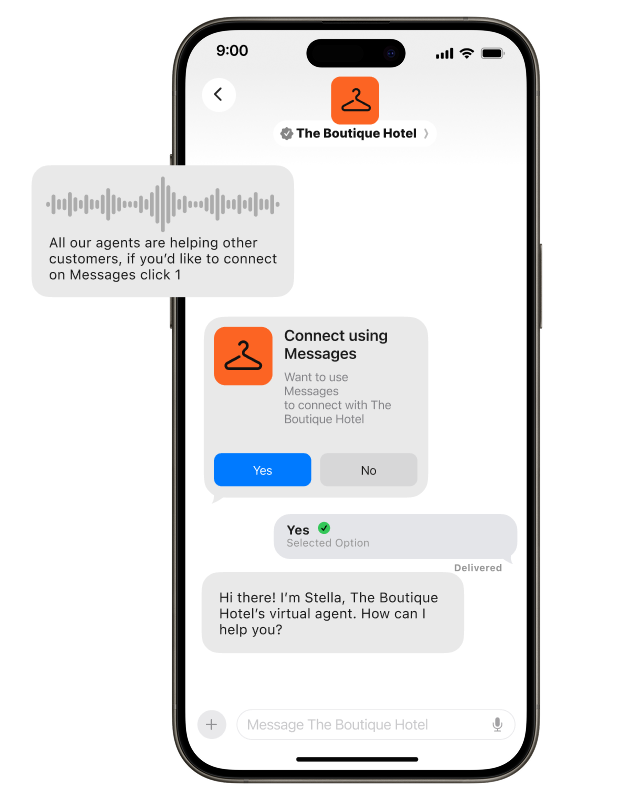
Features used: Invitations, List Picker, Message Form, Quick Reply.
Welcoming customers who opted in on your site
A customer creates an account on your site or reaches checkout, and as part of the sign-up flow they agree to receive a message via Apple Messages for Business. That consent gives you a direct line into the channel from day one of the relationship.
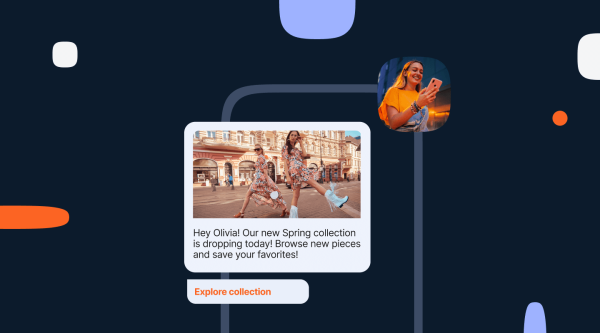
Use it to send a personalized welcome, deliver a loyalty card to Apple Wallet with one tap, or follow up with a relevant offer based on what they browsed. Keep the conversation short and useful, and make the first touch feel like a benefit for them.
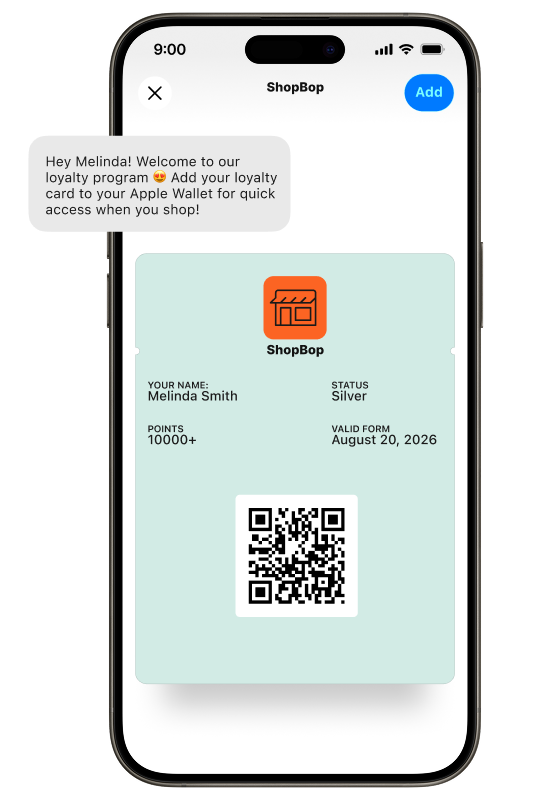
Features used: Invitations, Apple Wallet passes, Rich Links.
Purchase
Assisted shopping
Shopping from home works well when customers know exactly what they want. When they do not, the experience can break down.
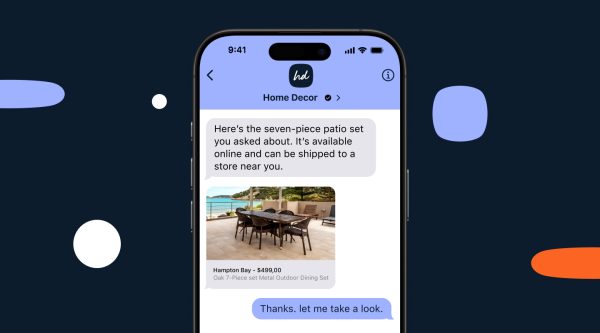
Be present during discovery and use Message Forms to capture preferences such as skin type, room dimensions, use case, or budget. Share List Pickers with relevant products, and deliver 3D or AR product visualizations so customers can see exactly what they are getting before they commit. It is the in-store consultation, in the thread.
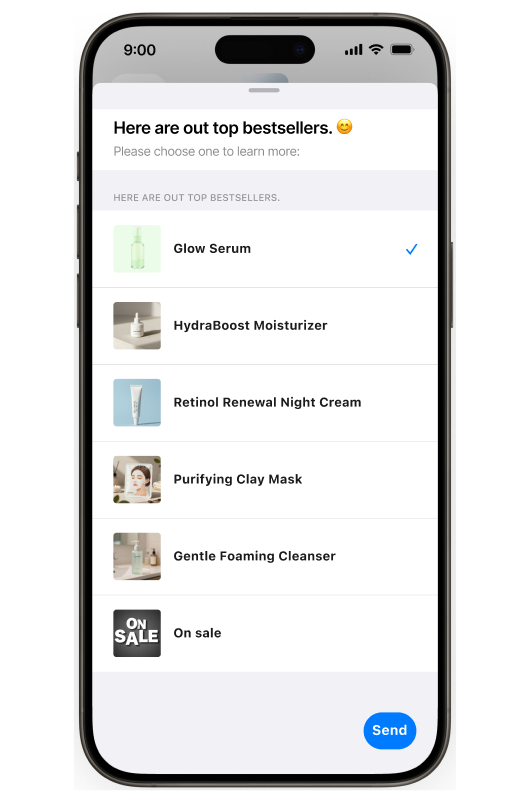
Features used: Message Forms, List Pickers, Apple Pay, 3D Files.
eCommerce product discovery to checkout
A customer is browsing for running shoes. They tap your brand in Safari, start a conversation, and see a List Picker of options based on their size and preferences. They select a model, choose a color from a second List Picker, review the order summary as a Rich Link, and pay with Apple Pay, all without leaving Messages.
The order confirmation arrives in the same thread. Their loyalty card is added to Apple Wallet with one tap. No redirects, no cart abandonment, no app download.
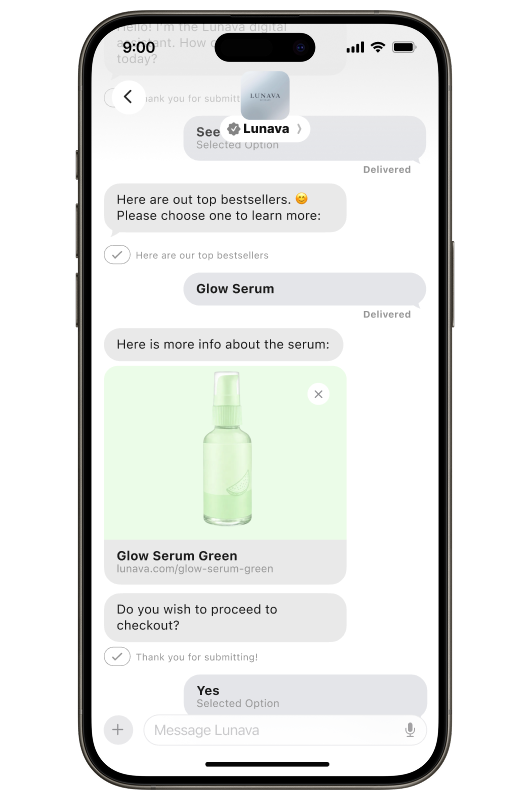
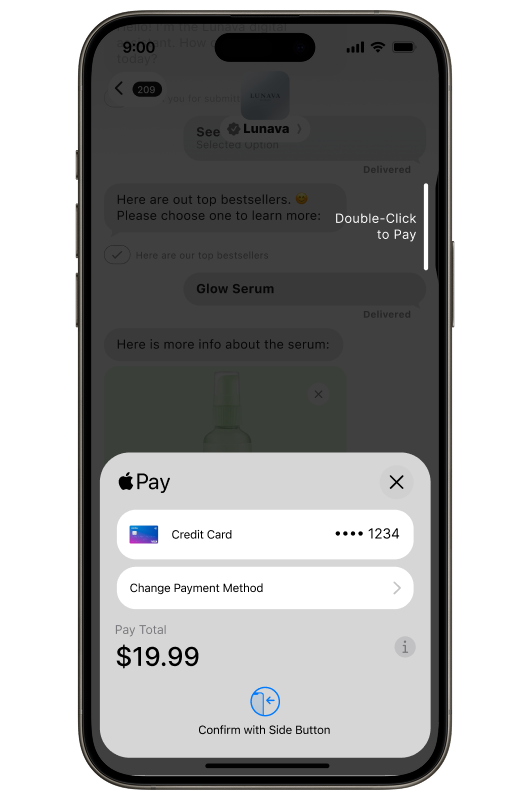
Features used: List Pickers, Rich Links, Apple Pay, Apple Wallet passes.
Booking a trip
Vacation planning takes time, and most of it is spent switching tabs. A customer searching for flights on iPhone can tap into a conversation, pick their destination via List Picker, select travel dates in a Time Picker, and complete the booking through Apple Pay.
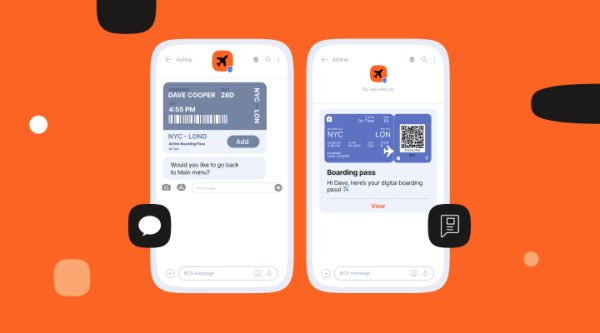
The boarding pass goes directly to Apple Wallet, and if they need to check their gate, ask about baggage, or report a missing bag, they return to the same thread.
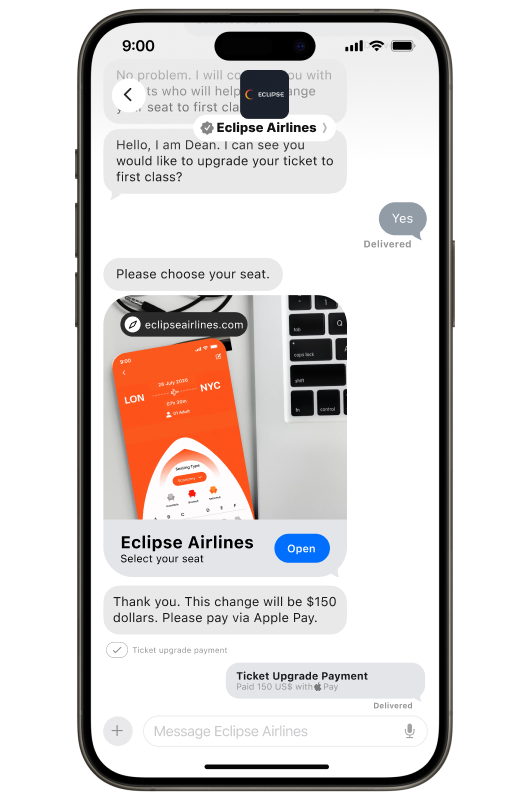
Features used: List Picker, Time Picker, Apple Pay, Apple Wallet passes, iMessage apps.
Credit card or loan applications
Online banking is now the norm. Remove friction by letting customers submit applications through Apple Messages for Business. A Message Form captures the required fields, OAuth authentication verifies identity where needed, supporting documents attach directly, and the customer receives a loan calculation or digital signature request without downloading a PDF. You get structured data. They get a fast, paperless experience.
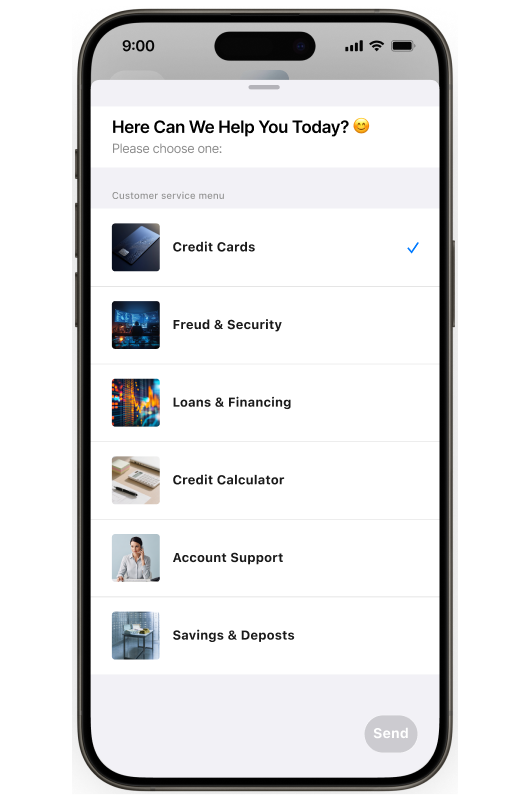
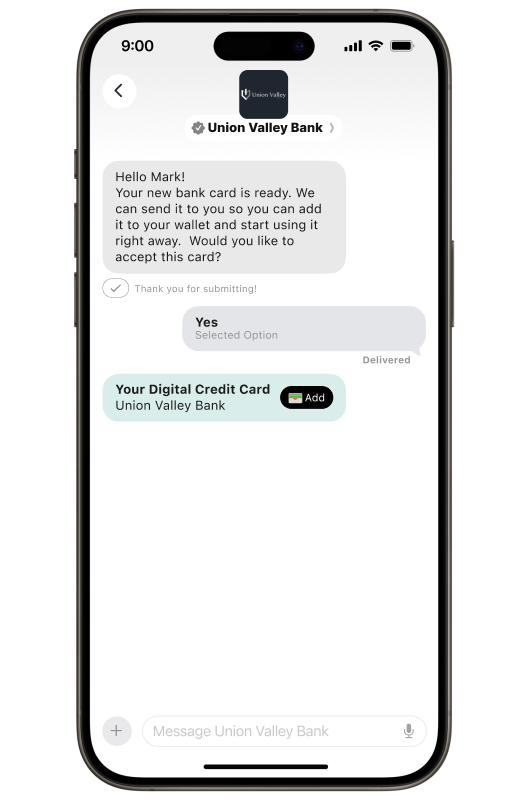
Features used: Message Form, Authentication, Attachments.
Support
Reporting service outages
Nothing is worse than settling in for the evening only to find your WiFi is not working. Calling customer service and waiting on hold makes it worse.
When a customer taps your number on their iPhone, offer messaging as the first option. Once they start the conversation and choose their request type from a List Picker, they provide the details you need through a Message Form, such as account information, router type, and a description of the issue. If the chatbot cannot resolve it, an agent picks up with full context and can call back if needed. The issue gets resolved faster, with no hold time.
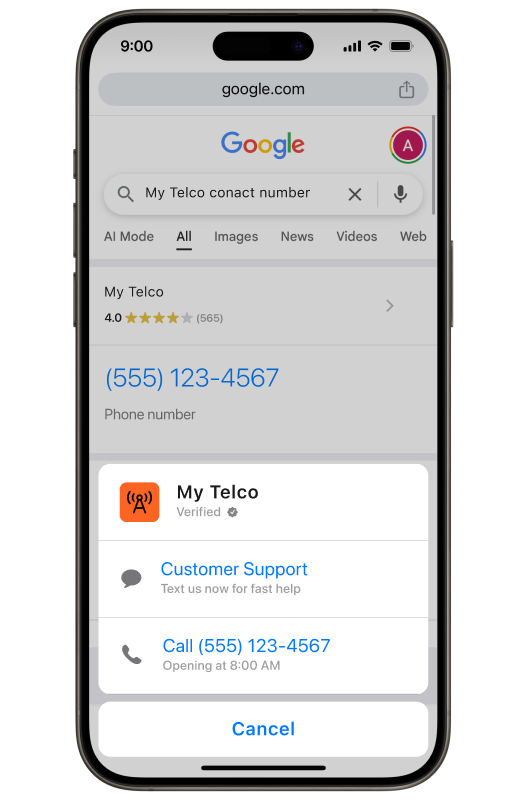
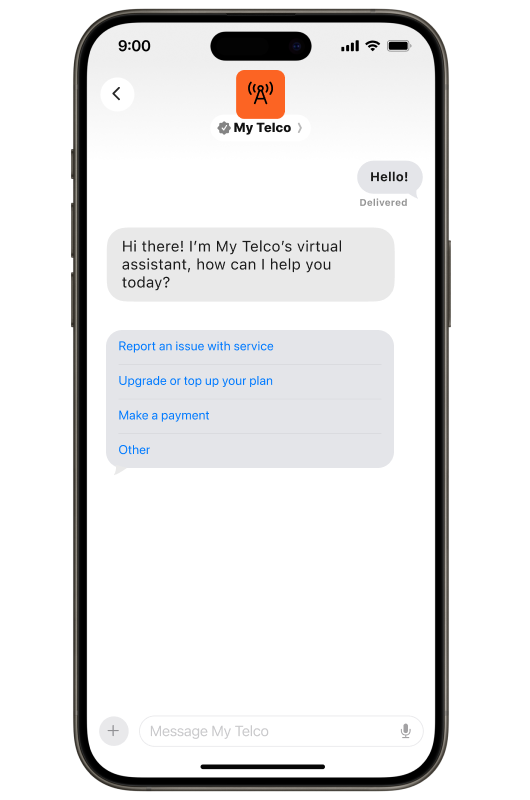
Features used: List Picker, Message Form.
Scheduling appointments
Scheduling an appointment with a bank advisor or a service technician involves too many calls for something this straightforward.
Let customers choose from available slots with a Time Picker, which can show calendar conflicts so they pick what actually works. Push notifications remind them ahead of the appointment. The booking is confirmed in the thread, and location details flow through to Apple Maps for directions. No calls, no callbacks.
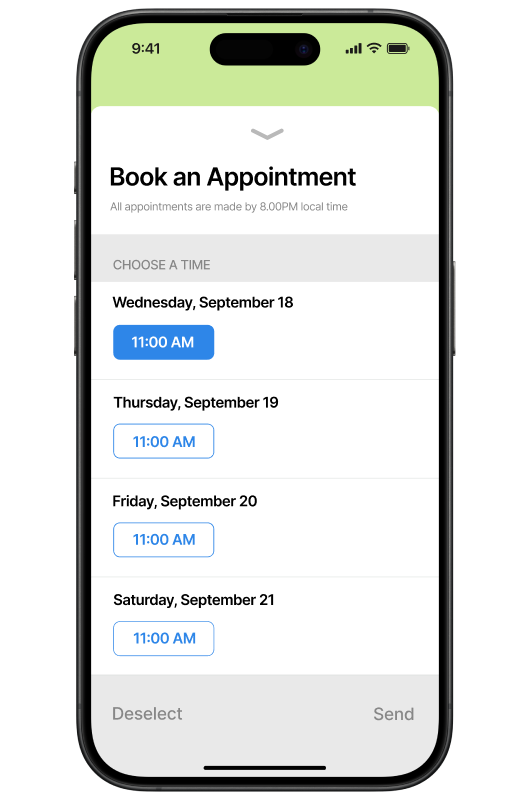
Features used: Time Picker, Apple Maps Link.
Loyalty
Post-purchase follow-up
After a purchase, a booking, or a service visit, a timely follow-up can turn a one-time transaction into an ongoing relationship.
Send an order confirmation with receipt and loyalty points stored in Apple Wallet, a shipping update when the package moves, or a check-in a few days after delivery. A short Message Form inside the thread closes the loop. The customer feels looked after. You get feedback and a reason to continue the conversation.
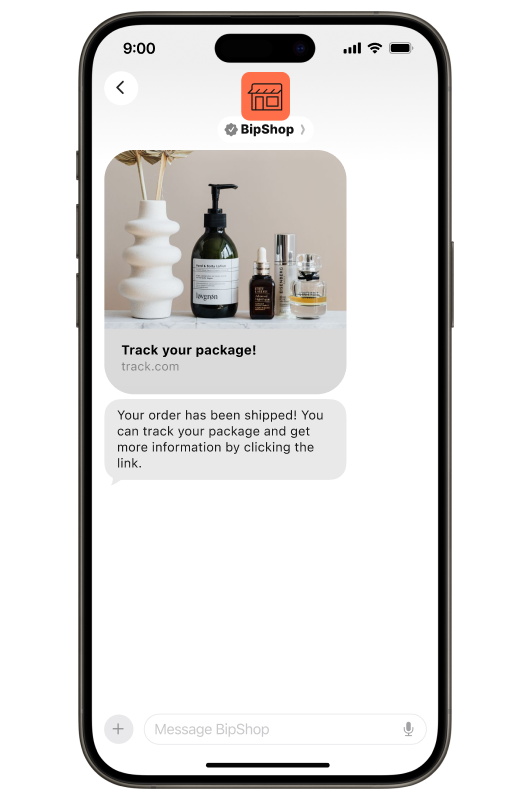
Features used: Invitations, Apple Wallet passes, Message Form.
Running a CSAT survey
Customer feedback is how you improve, but the response rate on email surveys rarely tells you what you need to know. Sending a CSAT survey inside the same conversation that resolved the issue makes it much easier for customers to respond.
A simple message with Quick Reply options does the job. Since all responses are stored in the customer data platform, you can use the insights to shape future interactions and act quickly when someone rates the experience poorly.
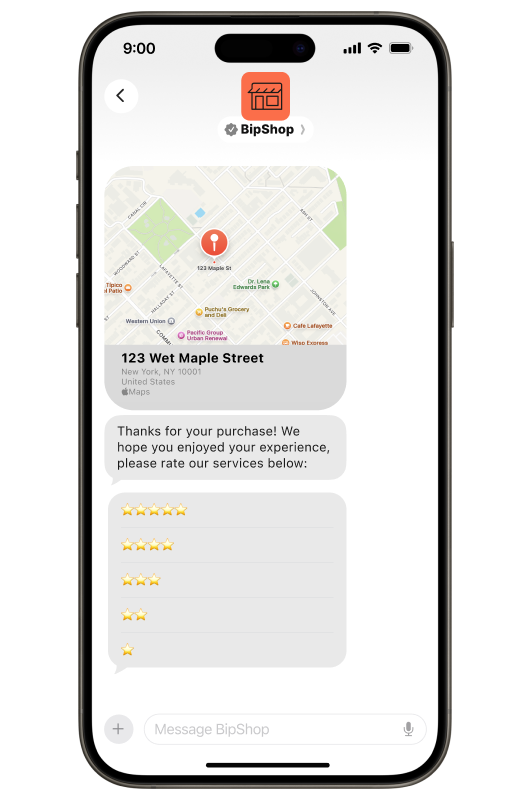
Features used: Quick Reply.
Frequently asked questions
Apple Messages for Business is a channel that lets brands communicate with customers through the native Messages app on iPhone. It supports rich features like Apple Pay, Message Forms, List Pickers, Time Pickers, and Apple Wallet passes in a single conversation thread.
Apple Business Chat was rebranded to Apple Messages for Business in 2020. The functionality carried over, and Apple has continued expanding the feature set since then, including Invitations, which lets approved brands initiate conversations with customers who opt in.
Brands apply directly through Apple’s Business Register. Infobip is an official Apple Messages for Business messaging service provider, so we can guide your brand through approval, integration, chatbot configuration, and live agent setup.
No. Invitations require separate Apple approval and are only available to brands that meet Apple’s criteria. Approved brands can initiate conversations and invite customers to connect through Apple Messages.
Apple Messages for Business across the full customer journey
These use cases show what Apple Messages for Business can do when you use the full feature set. From the first tap that opens a thread through the follow-up that brings a customer back. None of them require the customer to download an app, create a new account, or leave the environment they’re already in.
Apple Messages for Business can help brands achieve higher resolution rates, lower contact center costs, and better customer satisfaction scores. The channel works because it’s already in the pocket of every iOS user, and because Apple has designed it so a brand experience inside Messages feels like the rest of the Messages app, not like a corporate detour. Adding your brand to that environment, with the right automation and a clear path to a live agent when needed, creates experiences that feel less like customer service and more like a conversation.